If you have resources, such as conference rooms, that you want users to be able to book as they invite people to meetings, you can use several possible methods:
- Maintain the resource as an Exchange Server mailbox and ...
- ... use a server-based script or event sink to accept bookings, or
- ... set it up as a resource so that Outlook 2000 and later can book it directly
- ... use a delegate to handle meeting requests automatically or manually, or
- ... allow at least some users to add and edit items in the resource's calendar directly
- Maintain the resource as an Exchange Server public folder holding appointment items
Office 365 and Exchange 2013
Newer versions of Exchange server do a much better job of managing resource and room calendars. Everything you need is built into Exchange; external scripts aren't needed.
Exchange Server includes the following tools:
- Scheduling Assistant - allows you to schedule meetings using a color-coded interface
- Calendar Attendant - helps ensure the reliability of calendar items
- Resource Booking Attendant - automates resource management, such as conference rooms, projectors, and televisions.
The Room Finder displays room and attendee availability and suggests times that work for all attendees.
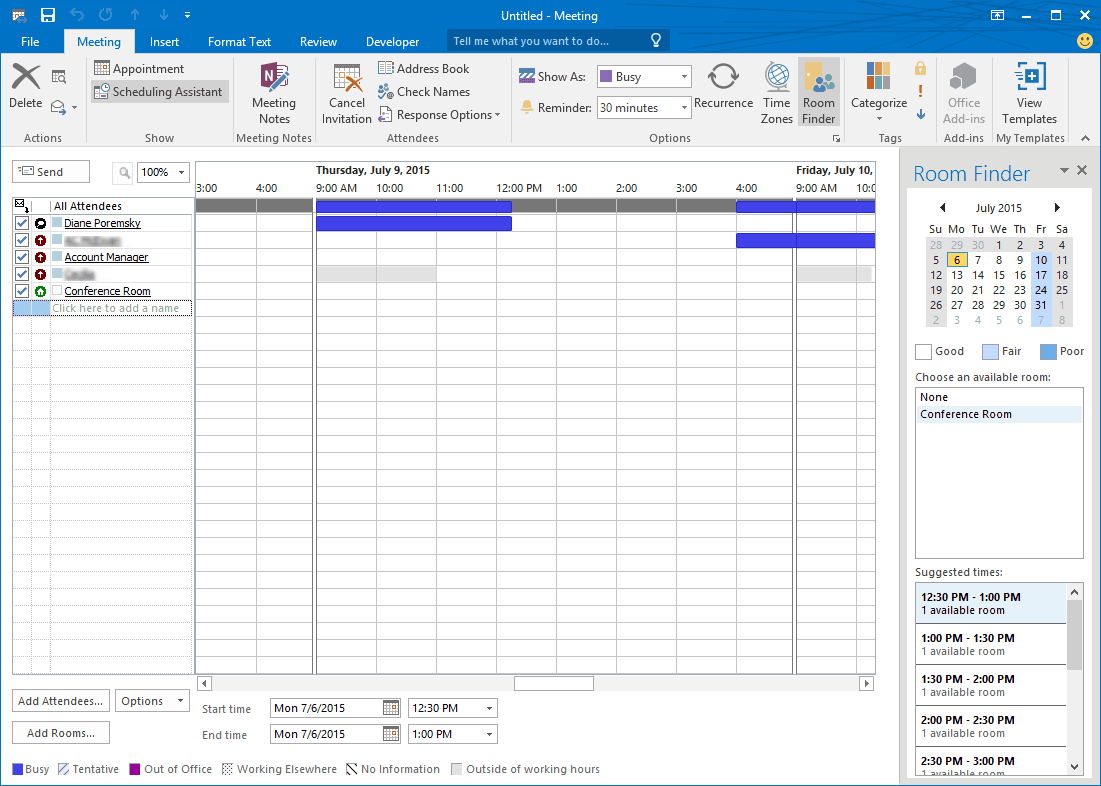
Using Direct Booking is not recommended with Exchange 2010 and up.
Mailbox + script | Direct booking | Mailbox + direct creation | Mailbox + delegate
Public folder (direct creation) | Tools | More Information
Exchange 2007
Exchange 2007 includes a suite of tools which assist you in booking appointments that Microsoft refers to as "Calendar Concierge". They aren't new tools but are more reliable than in previous versions of Exchange. They are:
- Scheduling Assistant - allows you to schedule meetings using a color-coded interface
- Calendar Attendant - helps ensure the reliability of calendar items
- Resource Booking Attendant - automates resource management, such as conference rooms, projectors, and televisions.
One change end-users notice is the Scheduling Assistant replaces AutoPick Next with the Suggested Times pane.
Mailbox + script
For Exchange 2000 and 2003, both free (AutoAccept Sink for Exchange) and commercial (Exchange Resource Manager) event sinks can automatically accept and decline meeting requests for resource mailboxes.
If you are booking the resource with a script, you should not open the Calendar folder directly. Doing so may cause the free/busy information for the folder to become corrupted. See XCLN: Resource Calendars Display Incorrect Free and Busy Times.
Direct booking
Outlook 2000 and later versions allow users to directly book resources without the need for a script or delegate.
To set up a resource calendar folder for direct booking, create an Exchange mailbox for the resource, then use Outlook 2000 or later to log directly into the resource mailbox and set the Resource Scheduling options in Tools | Options | Calendar Options. Create a single item in the calendar to make sure that something shows up in its free/busy time for you to check. Also grant the Author role on the Calendar folder to everyone you want to be able to book the resource. The easiest way to do this is with a distribution list or security group in the Global Address List.
The clients must book all appointments with a specific Outlook technique: On the Attendee Availability tab of a meeting request, click Invite Others to add one or more resources to the Resources box. Make sure you add them as resources. If you add them as required or optional attendees, the resources will not be automatically booked.
TIP: Using your Exchange Server administration tool, set the mailbox to not accept messages from anyone. (A distribution list or security group is good for this.) That way, if users forget and add the resource as a required or optional attendee, the request will bounce back to them from the resource mailbox.
If you choose more than one resource -- such two comparable conference rooms -- you can click AutoPick and have it find the next available time for either resource.
Also see: How to direct book a resource in Outlook
Mailbox + direct creation
Direct creation simply means that you grant certain users Editor access to the resource's Calendar folder. They can then create meetings directly in the resource's Calendar.
If you use the direct creation method, see How do I keep from sending a mail message to someone on the Attendees list for a meeting? for a technique to prevent yourself from getting a meeting request message for meetings you are creating for someone else.
Mailbox + delegate
With Outlook 97 and 98, if you are not using an autoaccept script or event sink and want an Outlook resource to accept meeting requests automatically, the resource must be assigned to a delegate, and that delegate account must be running Outlook and stay logged into the Exchange Server at all times.
Don’t worry; this doesn’t mean that you need a dozen systems running Outlook just to book the dozen conference rooms. A single computer running Outlook all the time, perhaps that of your receptionist, can act as the delegate for several resource accounts.
For best results, on the Attendee Availability tab of a meeting request, click Invite Others to add the resource to the Resources box.
How do you keep unauthorized people from requesting a meeting in the room? In the Microsoft Exchange Administrator program, you can use the Delivery Restrictions tab on the Properties dialog for the conference room’s mailbox to allow only certain people to send messages to the conference room. Anyone else trying to send a meeting request to the conference room will get a non-delivery report with the distinctly unfriendly message, “A restriction in the system prevented delivery of the message.” This method could result in administrative headaches if too many users try to book the room and then call you to find out what that message means.
An interesting alternative is to create two rules on the delegate's Inbox that look for the Meeting Request form -- one rule for requests from valid users that just stops processing subsequent rules and a second rule that sends a reply back to the sender or moves them into another folder. You'll need Outlook 98 to do this, because Outlook 97 doesn't allow you to create a rule for items that use the Meeting Request form.
Public folder (direct creation)
Maintaining a resource in a public folder is a variation on the direct creation theme. Users who want to schedule the resource make appointments directly in the public folder. Use permissions on the folder to restrict who has access to the resource.
The two disadvantages of this method are that the folder resource's availability is not shown in the Meeting Planner, where you see the free/busy times for everyone else, and you cannot invite the folder resource to a meeting. You must book it directly by making an entry in its folder.
Tools
Calendar Browser for Outlook is a solution for booking resources within an organization - from meeting rooms, cars and projector equipment to personnel. Search for free resources, see descriptions and book, all in one tool. Graphical WYSIWYG html editor. Integrated statistics tool. Groupware, for both public folders and mailboxes. Full Unicode Support. Works on all versions of Windows, including Windows 7 and Windows Server 2008 R2. Supports Outlook 2007 and 2010. Compatible with Office 365. | |
Meeting Planner from EmergingSoft is a standalone scheduling application that is designed to simplify and streamline equipment scheduling, equipment requests, work flow and management. Works with Outlook 2000-2007 and Exchange 5.5-2007. | |
MeetingPlanner offers room, equipment, video, catering and other services scheduling in Outlook and the web. Track room use, send work orders, manage meeting types and costs easily with MeetingPlanner reporting services. Supports Outlook 2003-2010. Seamless integration and easy to use. Simplify the most complex recurring and multiple resource meetings. Integrate your HVAC and Lighting for lower energy consumption. Simplify scheduling, reduce costs and improve productivity with MeetingPlanner! | |
PRONESTOR BOOKING is a product suite that is used to control and book resources and services such as conference rooms and catering. All bookings are made directly via Outlook's meeting request and works as a natural extension of the meeting planning in Outlook - easy and simple to use for employees that already uses Outlook. Supports Outlook 2003/2007. | |
Resource Central is a complete meeting booking tool that fully integrated with Outlook©, Exchange and Office 365. Quickly book meeting rooms and extra services like catering, hot disks, AV-equipment, table setup or parking spaces in one system that automatically handles changes. Key personnel can handle all existing reservations and assist by organizing meetings in another calendars. Improve customer service with visitor management including visitor registration, badges and automatic notification when visitors arrive. |
More Information
- Schedule Management Tools -- Utilities to help manage conference rooms and other resources, adding workflow, resource balancing, catering requests, etc.
- Autoaccept a Meeting Request using Rules

Heli Westermark says
Hi Diane,
Our team has until the beginning of this year used a common Outlook calendar (which has an own Microsoft 365 Business Standard license) to book all business meetings. When a team member booked a meeting, he/she sent also an invitation to his/her own Outlook calendar. The common calendar gives the team members a quick and nice overview of what's happening at the company and it makes it easier to plan meetings. We do have a number of conference rooms but we never used Resources for booking but only by looking at the common calendar we have been able to see which room is available. BUT covid-19 has more or less forced us to start changing our behavior and needs! So, today we book more and more Microsoft Teams meetings and these must be booked from the personal Outlook calendars to generate the meeting specific codes and audio numbers. To keep the common calendar up-to-date, an invitation is sent to its email address, too. The problem is, however, that although the auto accept setting is activated, the invitations must be accepted manually of those monitoring the inbox of the email address. This causes a delay depending on how quickly the person accepts the meeting for the common calendar. At the same time we have started using resources for three of our conference rooms since we have installed Crestron console for MS Teams. Thereby we are today booking the Teams meetings from the personal Outlook calendars, sending invitations also to the common calendar and the resource in question.
I have today tested creating rule that runs a script to auto accept the invitations but as I understand it the e-mail account that receives the meeting requests must be set as the default account in a Outlook profile and thereby this would require a separate laptop that runs the account. All the team members are delegates to book meetings in the common calendar but they cannot have that account as default.
So, I am now wondering if we could use a resource as a common calendar instead. Do we get access to it the same way as the common calendar via Outlook app to view all the bookings and book meetings?
Or do you have any other ideas how to take us to the next level without loosing too much of the advantages of a common calendar as described above?
Hope you have time to take a look a this and come with some ideas, advice and comments.
Have a nice day!
With kind regards,
Heli
Shimon Adimor says
Hi Diane,
I hope you have an idea how to resolve my issue.
Exchange 2016 on premise (DAG), OWA and Outlook 2013.
I defined resources (3 conf rooms) in EAC Recipients->Resources following the instructions in the Technet article. When using OWA it is possible to view free/busy time, and you get denied response when there is a conflict.
Many users prefer to use Outlook (2013), but then, the room finder doesn't see any rooms, and in scheduling assistant, they don't see any information about the rooms (free/busy info can't be retrieved - Server location can not be determined). Users can select a room and book it, but won't be getting any denied response if there is a conflict.
I hope you have an idea how to resolve this.
Thanks !
Michael Grumbach says
Hi Diane,
I have experience in VBA for excel and powerpoint.
I'm trying to add a simple bit of code to my outlook 2010.
I can add a button to the tool bar at the top to kick off the macro.
And I can add a the certificate so others in my office can download and use this when its done.
I'm trying to display a form which will hold an image, a dropdown list and a select button.
The image is my office floor plan and the dropdown list is the list of meeting rooms on each floor
when you select the meeting room you want, and click a button to display the selected image, the corresponding image, with a yellow square drawn around the selected meeting room will be displayed. I will have a separate image for each meeting room, so no graphics magic needed.
I was playing around a bit with the "Choose Form" button.
I can select what looks like a blank tab on an existing Appointment Form, add an object for the image and an object for the list box and button.
But I can't preload the list and I'm not sure about the VBA logic to link the button to the list box to select the image.
Not sure where to find some example code to do any of this, or if I'm even able to add this to the form I'm working with.
Any suggestions on where to look for some information to try to figure this out a bit would be much appreciated.
Thanks.
Diane Poremsky says
>I can't preload the list and I'm not sure about the VBA logic to link the button to the list box to select the image.
if you've ever done it in Excel, it works basically the same way in outlook. If the list never changes, you can add the values to the object directly, in the Properties, Value tab in the Value field. The macro at https://www.slipstick.com/developer/code-samples/outlook-vbatext-file-list/ uses a userform and pulls the list from a file, but the same method will also work with objects on a tab. If you are publishing the form and are using values in a file (stored in a shared location), it will be better to use VBScript on the form rather than a macro as the script will follow you to any computer.
on selecting the image, you'll need to use an Item_CustomPropertyChange(ByVal Name) macro with if statements - if the list value is x, then image1 outlook = y, image2 outlook = 0, etc. (I don't know if it might be easier to use map hotspots rather than individual images.)
This sample code is what I'm using for a client - when a checkbox is selected, a text box turns yellow. You code would be a bit longer - not sure if you could match the list index to the image indexes and use variables to reduce the lines of code needed.
Sub Item_CustomPropertyChange(ByVal Name)
Set ColorCheck = Item.GetInspector.ModifiedFormPages("General").Controls("CheckBox1")
Set TextBox1 = Item.GetInspector.ModifiedFormPages("General").Controls("TextBox1")
If ColorCheck = True Then
TextBox1.BackColor = RGB(255, 255, 178)
Item.Save
Else
If TextBox1.BackColor <> RGB(255, 255, 255) Then
TextBox1.BackColor = RGB(255, 255, 255)
Item.Save
End If
End If
End Sub
(I plan to publish an article with the techniques i used in the custom form but haven't had time yet.)
Carmen says
Hi, we have 20 portable computers available to our employees. Is it possible to create an equipment ressource that will be reserved up to 20 times after which it will be refused? Do I need to create 20 ressources?
Thank you for your help!
Diane Poremsky says
the resource "room" doesn't understand capacity so 20 resources, one per computer, would be best. Some of the booking utilities might do a better job within one room, if you prefer using one room.
The advantage of separate resources for each computer is if they are not identical, users could book a specific machine.
Carmen says
Thank you!
skandeeban says
Thank you. I shall try now with this method.
John Guymon says
There is no "Tools" option in Outlook 2010. " then use Outlook 2000 or later to log directly into the resource mailbox and set the Resource Scheduling options in Tools | Options | Calendar Options. "
Diane Poremsky says
In Outlook 2010 and up, many of the commands on Tools were moved to the File tab (including Options) and others are on the various ribbons.
Outlook 2000 won't be able to log into modern Exchange servers and Outlook 2010 may not be able to connect to older Exchange servers.
skandeeban says
I am not sure if I get it right.
My need is, we have a meeting room that is common to all 30 people in our team. I need a way to see meeting room's availability and block the room based on it. If someone tries to overbook it, they should get a declined meeting invite since the room is booked by someone else on the same time.Likewise people should get accepted invite it the meeting room is available.
People use mix of outlook client and web.
Diane Poremsky says
That is how its supposed to work, but the admin can configure the resource room mailbox to allow conflicts. The resource will decline it after you send the invite, so you should check the room finder for suggested times or check the room's free/busy before sending.