• Outlook User
  • New Outlook app
  • Outlook.com
  • Outlook Mac
  • Outlook & iCloud
  • Developer
  • Microsoft 365 Admin
    • Common Problems
    • Microsoft 365
    • Outlook BCM
    • Utilities & Addins

Display (or Hide) Start and End Times

Slipstick Systems

› Outlook › Calendar › Display (or Hide) Start and End Times

Last reviewed on April 5, 2013     13 Comments

This "trick" doesn't work with Outlook 2013. The start times always show in the month view; you'll lose the subject when the calendar width is smaller.

Whether the Start times display in the monthly calendar is wholly dependent on the size of the Calendar section. If the calendar is too narrow, the times are hidden.
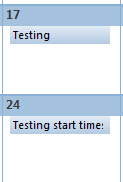
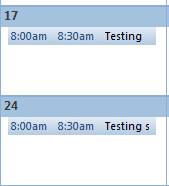
When the calendar is narrow, the times won't show When there is room, the times show.

For End times to display on the calendar, you need to enable Show end times in Other settings. Right click on the calendar grid in the Month view and choose Other Settings from the context menu. When the calendar is wide enough, the end time will display.
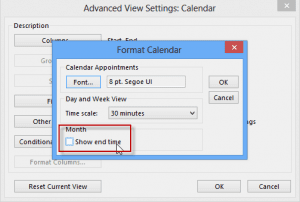
Deselect Show end times in Calendar options

The video below shows this feature in action. When the screen is wide enough, the start and end times display. When the To-do bar (or Taskpad) is visible, the end times are no longer visible. When both the Navigation pane and To-Do Bar is visible, the Start times are hidden.

Video Tutorial

More Information

This applies to the monthly view in all versions of Outlook, except Outlook 2013. In Outlook 2013, start times will always show in the monthly calendar.

Display (or Hide) Start and End Times was last modified: April 5th, 2013 by Diane Poremsky
Post Views: 25

Related Posts:

  • View a Two Week Calendar
  • Appointments That Extend Past Midnight Appear Wrong
  • Outlook Calendar: Frequently Asked Questions
  • Check start and end times of new appointments

About Diane Poremsky

A Microsoft Outlook Most Valuable Professional (MVP) since 1999, Diane is the author of several books, including Outlook 2013 Absolute Beginners Book. She also created video training CDs and online training classes for Microsoft Outlook. You can find her helping people online in Outlook Forums as well as in the Microsoft Answers and TechNet forums.

Comments

  1. Mike Terry says

    October 21, 2016 at 6:31 pm

    In Outlook 2010 when I enter an ALL DAY event, the monthly view shows the start time, which is unnecessary and takes up valuable space. On my old printouts it did not do that. Can you please tell me how can I suppress the times from showing on ALL DAY EVENTS?

    Reply
    • Diane Poremsky says

      October 21, 2016 at 11:26 pm

      Unfortunately you can't change it. The Calendar Printing Assistant utility should print it without the times.

      Reply
  2. Mat says

    November 17, 2015 at 2:48 pm

    Thanks Diane, the video did it for me. "Other settings" - what a way to hide functions...

    Reply
  3. Danielle says

    November 23, 2013 at 5:13 am

    THANK YOU DIANE! It worked. It's exactly what I wanted to see. :-) I was going bananas trying to figure this out. This one little hidden feature, fixed me all up.

    Reply
  4. Danielle says

    November 22, 2013 at 10:17 am

    I am really hoping someone who knows how to help can respond. I cannot get get ANY times to appear when in monthly view. I have these weird BARS across the date block I guess to indicate that something is in that day, but I have to go into DAY or WEEK view to see it. I have been over everything I can possibly find but can't figure out how to have my start times appear without spacing. So, if I have an apt at 11 and another at 2 -- I want it to appear as 11:00 Appt1, and the directly under it, 2:00 Appt2. Nothing is working.

    Reply
    • Diane Poremsky says

      November 22, 2013 at 10:10 pm

      Sounds like you are using low or medium details. Which version of Outlook? See Details view for screenshots of details view. Setting it to high should fix it.

      Reply
  5. Jason says

    October 23, 2013 at 6:18 am

    Hi - I upgraded to Outlook 2013 and it doesn't show my end times in the To-Do bar for my calendar appointments. Outlook 2010 had both start and end times. From what I read on your site, it doesn't appear I will be able to make the end times visible on the To-Do bar? If true, what is MSFT thinking???

    Reply
    • Diane Poremsky says

      October 23, 2013 at 8:59 am

      Nope, even with the new update (that adds the next 7 days appointments), no end times in the to-do bar. I have no idea *if* they were thinking. :)

      Reply
  6. Matt says

    April 5, 2013 at 7:15 am

    The author's solution does not hide "Start" times as the title of her article suggests. The function she decribes only hides end times.

    Reply
    • Diane Poremsky says

      April 5, 2013 at 7:49 am

      Whether start times show depends solely on the width of the screen (and now the version). If there is room for the start times, the start times show... except in Outlook 2013. The start times always show in 2013.

      Show or hide the start time

      Reply
  7. S Junk says

    February 19, 2013 at 8:54 am

    No, does nothing at all.

    Reply
  8. Isobel says

    August 1, 2012 at 11:48 am

    That information isn't even right anyway. I've just gone in and added an extra pane to squash the calendar and oddly (although sadly, not surprisingly), some entries have not got a time any more whilst others have. Which means that you can't see what the appointment is, you can only see a start time - which is worse than useless really.

    Reply
  9. Isobel says

    August 1, 2012 at 11:46 am

    This is typical of not being able to choose what you want! I don't want to see the start and end times, at any time, and whether my screen is full of stuff or quite empty. I just don't want the times on there when I'm in a weekly or monthly view - I know the times things are happening, all I need is a list of what I've got on each day in calendar format, but without start and end times. Why can't we just be able to select this??

    Reply

Leave a Reply Cancel reply

Your email address will not be published. Required fields are marked *

Visit Slipstick Forums.
What's New at Slipstick.com

Latest EMO: Vol. 31 Issue 3

Subscribe to Exchange Messaging Outlook


Support Services

Do you need help setting up Outlook, moving your email to a new computer, migrating or configuring Office 365, or just need some one-on-one assistance?

Our Sponsors

CompanionLink
ReliefJet
  • Popular
  • Latest
  • Week Month All
  • Jetpack plugin with Stats module needs to be enabled.
  • Sync Issues and Errors with Gmail and Yahoo accounts
  • Error Opening iCloud Appointments in Classic Outlook
  • Opt out of Microsoft 365 Companion Apps
  • Mail Templates in Outlook for Windows (and Web)
  • Urban legend: Microsoft Deletes Old Outlook.com Messages
  • Buttons in the New Message Notifications
  • Move Deleted Items to Another Folder Automatically
  • Open Outlook Templates using PowerShell
  • Count and List Folders in Classic Outlook
  • Google Workspace and Outlook with POP Mail
Ajax spinner

Recent Bugs List

Microsoft keeps a running list of issues affecting recently released updates at Fixes or workarounds for recent issues in classic Outlook (Windows).

For new Outlook for Windows: Fixes or workarounds for recent issues in new Outlook for Windows .

Outlook for Mac Recent issues: Fixes or workarounds for recent issues in Outlook for Mac

Outlook.com Recent issues: Fixes or workarounds for recent issues on Outlook.com

Office Update History

Update history for supported Office versions is at Update history for Office

Outlook Suggestions and Feedback

Outlook Feedback covers Outlook as an email client, including Outlook Android, iOS, Mac, and Windows clients, as well as the browser extension (PWA) and Outlook on the web.

Outlook (new) Feedback. Use this for feedback and suggestions for Outlook (new).

Use Outlook.com Feedback for suggestions or feedback about Outlook.com accounts.

Other Microsoft 365 applications and services


New Outlook Articles

Sync Issues and Errors with Gmail and Yahoo accounts

Error Opening iCloud Appointments in Classic Outlook

Opt out of Microsoft 365 Companion Apps

Mail Templates in Outlook for Windows (and Web)

Urban legend: Microsoft Deletes Old Outlook.com Messages

Buttons in the New Message Notifications

Move Deleted Items to Another Folder Automatically

Open Outlook Templates using PowerShell

Count and List Folders in Classic Outlook

Google Workspace and Outlook with POP Mail

Newest Code Samples

Open Outlook Templates using PowerShell

Count and List Folders in Classic Outlook

Insert Word Document into Email using VBA

Warn Before Deleting a Contact

Use PowerShell to Delete Attachments

Remove RE:, FWD:, and Other Prefixes from Subject Line

Change the Mailing Address Using PowerShell

Categorize @Mentioned Messages

Send an Email When You Open Outlook

Delete Old Calendar Events using VBA

Repair PST

Convert an OST to PST

Repair damaged PST file

Repair large PST File

Remove password from PST

Merge Two Data Files

Sync & Share Outlook Data

  • Share Calendar & Contacts
  • Synchronize two computers
  • Sync Calendar and Contacts Using Outlook.com
  • Sync Outlook & Android Devices
  • Sync Google Calendar with Outlook
  • Access Folders in Other Users Mailboxes

Diane Poremsky [Outlook MVP]

Make a donation

Mail Tools

Sending and Retrieval Tools

Mass Mail Tools

Compose Tools

Duplicate Remover Tools

Mail Tools for Outlook

Online Services

Calendar Tools

Schedule Management

Calendar Printing Tools

Calendar Reminder Tools

Calendar Dates & Data

Time and Billing Tools

Meeting Productivity Tools

Duplicate Remover Tools

Productivity

Productivity Tools

Automatic Message Processing Tools

Special Function Automatic Processing Tools

Housekeeping and Message Management

Task Tools

Project and Business Management Tools

Choosing the Folder to Save a Sent Message In

Run Rules on messages after reading

Help & Suggestions

Submit Outlook Feature Requests

Slipstick Support Services

Buy Microsoft 365 Office Software and Services

Visit Slipstick Forums.

What's New at Slipstick.com

Home | Outlook User | Exchange Administrator | Office 365 | Outlook.com | Outlook Developer
Outlook for Mac | Common Problems | Utilities & Addins | Tutorials
Outlook & iCloud Issues | Outlook Apps
EMO Archives | About Slipstick | Slipstick Forums
Submit New or Updated Outlook and Exchange Server Utilities

Send comments using our Feedback page
Copyright © 2026 Slipstick Systems. All rights reserved.
Slipstick Systems is not affiliated with Microsoft Corporation.