This "trick" doesn't work with Outlook 2013. The start times always show in the month view; you'll lose the subject when the calendar width is smaller.
Whether the Start times display in the monthly calendar is wholly dependent on the size of the Calendar section. If the calendar is too narrow, the times are hidden.
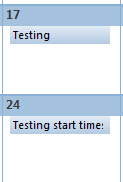
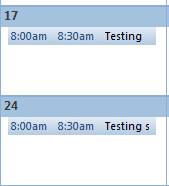
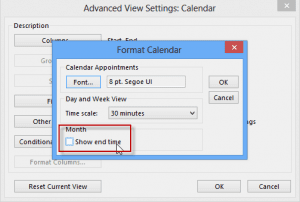
For End times to display on the calendar, you need to enable Show end times in Other settings. Right click on the calendar grid in the Month view and choose Other Settings from the context menu. When the calendar is wide enough, the end time will display.
The video below shows this feature in action. When the screen is wide enough, the start and end times display. When the To-do bar (or Taskpad) is visible, the end times are no longer visible. When both the Navigation pane and To-Do Bar is visible, the Start times are hidden.
Video Tutorial
More Information
This applies to the monthly view in all versions of Outlook, except Outlook 2013. In Outlook 2013, start times will always show in the monthly calendar.

In Outlook 2010 when I enter an ALL DAY event, the monthly view shows the start time, which is unnecessary and takes up valuable space. On my old printouts it did not do that. Can you please tell me how can I suppress the times from showing on ALL DAY EVENTS?
Unfortunately you can't change it. The Calendar Printing Assistant utility should print it without the times.
Thanks Diane, the video did it for me. "Other settings" - what a way to hide functions...
THANK YOU DIANE! It worked. It's exactly what I wanted to see. :-) I was going bananas trying to figure this out. This one little hidden feature, fixed me all up.
I am really hoping someone who knows how to help can respond. I cannot get get ANY times to appear when in monthly view. I have these weird BARS across the date block I guess to indicate that something is in that day, but I have to go into DAY or WEEK view to see it. I have been over everything I can possibly find but can't figure out how to have my start times appear without spacing. So, if I have an apt at 11 and another at 2 -- I want it to appear as 11:00 Appt1, and the directly under it, 2:00 Appt2. Nothing is working.
Sounds like you are using low or medium details. Which version of Outlook? See Details view for screenshots of details view. Setting it to high should fix it.
Hi - I upgraded to Outlook 2013 and it doesn't show my end times in the To-Do bar for my calendar appointments. Outlook 2010 had both start and end times. From what I read on your site, it doesn't appear I will be able to make the end times visible on the To-Do bar? If true, what is MSFT thinking???
Nope, even with the new update (that adds the next 7 days appointments), no end times in the to-do bar. I have no idea *if* they were thinking. :)
The author's solution does not hide "Start" times as the title of her article suggests. The function she decribes only hides end times.
Whether start times show depends solely on the width of the screen (and now the version). If there is room for the start times, the start times show... except in Outlook 2013. The start times always show in 2013.
No, does nothing at all.
That information isn't even right anyway. I've just gone in and added an extra pane to squash the calendar and oddly (although sadly, not surprisingly), some entries have not got a time any more whilst others have. Which means that you can't see what the appointment is, you can only see a start time - which is worse than useless really.