• Outlook User
  • New Outlook app
  • Outlook.com
  • Outlook Mac
  • Outlook & iCloud
  • Developer
  • Microsoft 365 Admin
    • Common Problems
    • Microsoft 365
    • Outlook BCM
    • Utilities & Addins

Tasks: Remove from List or Delete?

Slipstick Systems

› Outlook › Tasks › Tasks: Remove from List or Delete?

Last reviewed on August 6, 2018     10 Comments

A user had question about two options to remove tasks from the To-do List:

What is the difference between "Remove from List" and "Delete" in Outlook's To-Do List? It seems redundant to me.

The source of your confusion is both Delete and Remove from List are available for Tasks on the Home ribbon (but not on the right click menu) and with actual Tasks, they both do the same thing - delete the selected task.
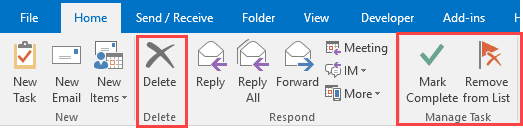
remove from list or delete

They are not redundant with flagged messages on the To-Do List. You'll use Remove from List to remove follow up flags from flagged Outlook items; it's the same as Clear Flag (on the right-click Follow up menu) when you use it on flagged items. If you delete the flagged message from the To-do list, you'll delete the message from your mailbox too.

If you need to keep your task history, mark the task Complete and use a filtered view, such as Active tasks, to hide completed tasks. When you need to view these tasks, switch to either the Completed view or Simple list view.

The user also wanted to know how to view task that were removed from the list:

How can you see tasks you have removed?

When you delete or remove a task from the list, the task is moved to the Deleted Items folder. If you know the task subject or other information, you can search the deleted items folder for it, otherwise turn off the reading pane then sort by the icon column to see all deleted tasks together. You can add additional fields (such as Completed, Flag complete date, Follow up flag, and Modified date fields) to the view then group by these fields (and collapse all groups) to more easily view the deleted items.
customize the view to find deleted tasks

Select Simple list from the Current view selector (expand it to select Completed) or use the View tab, Current view menu.
use simple list to view completed tasks

If you remove a flag from a message using Clear flag or Remove from List, you won't have a record of the item being previously flagged. If you need to keep a history of flagged messages, mark the message flag Complete and use a filtered view in the To-Do List to hide the completed items.

Tasks: Remove from List or Delete? was last modified: August 6th, 2018 by Diane Poremsky
Post Views: 64

Share this:

  • Share on Facebook (Opens in new window) Facebook
  • Share on X (Opens in new window) X
  • Share on Reddit (Opens in new window) Reddit
  • Share on Bluesky (Opens in new window) Bluesky
  • Share on Mastodon (Opens in new window) Mastodon
  • Email a link to a friend (Opens in new window) Email

Related Posts:

  • Filter the To-Do List to Show Only Tasks
  • Change Category when Task is marked Completed
  • How to use Outlook Tasks
  • Calculate Days Overdue and Days to Complete Tasks

About Diane Poremsky

A Microsoft Outlook Most Valuable Professional (MVP) since 1999, Diane is the author of several books, including Outlook 2013 Absolute Beginners Book. She also created video training CDs and online training classes for Microsoft Outlook. You can find her helping people online in Outlook Forums as well as in the Microsoft Answers and TechNet forums.

Comments

  1. bob says

    January 6, 2023 at 11:38 am

    trying to delete old task but get message there are future dates... how do I get rid of the old ones without effecting the future ones

    Reply
  2. OMZ says

    April 21, 2022 at 8:45 am

    Very helpfull !! Thanks

    Reply
  3. Ash says

    August 19, 2021 at 9:23 pm

    I created a task from my account and assigned the task to another person in the office. I don't need the task in my list. If I click 'remove from list' will it only disappear from my account? Or will it disappear from the assigned person's account also?

    Reply
  4. Zyrell says

    May 26, 2021 at 9:33 am

    Can task be deleted after downgrading to previous Office version?

    Reply
    • Diane Poremsky says

      May 26, 2021 at 11:27 am

      Yes, you can. It works the same in all versions.

      Reply
  5. Andy says

    February 19, 2021 at 11:13 am

    Can this be scripted via Exchange Online Powershell?

    Reply
    • Diane Poremsky says

      February 20, 2021 at 12:42 am

      It should be possible but I don't have any samples. I'll take a look at it in the morning.

      Reply
      • Andy says

        February 22, 2021 at 4:56 am

        If you don't mind, that'd be great thank you! :)

  6. Kevin Robertson says

    August 17, 2019 at 10:57 pm

    I'm looking to move an email back to my inbox that was moved into a task and removed from my inbox.

    I want to delete the task, but keep the emails that were moved inside the task.

    Is this possible?

    Thanks,

    Reply
    • Diane Poremsky says

      August 17, 2019 at 11:28 pm

      You *should* be able to drag the messages back into the inbox. Then delete the task...

      If you have a lot to do and want to use a macro, it is possible, but I don't think i have any macros ready to use that do that.

      Reply

Leave a Reply Cancel reply

Your email address will not be published. Required fields are marked *

Visit Slipstick Forums.
What's New at Slipstick.com

Latest EMO: Vol. 31 Issue 10

Subscribe to Exchange Messaging Outlook


Support Services

Do you need help setting up Outlook, moving your email to a new computer, migrating or configuring Office 365, or just need some one-on-one assistance?

Our Sponsors

CompanionLink
ReliefJet
  • Popular
  • Latest
  • Week Month All
  • Deleting Auto-Complete Entries No Longer Works
  • Use Classic Outlook, not New Outlook
  • How to Remove the Primary Account from Outlook
  • How to Hide or Delete Outlook's Default Folders
  • Disable "Always ask before opening" Dialog
  • Removing Suggested Accounts in New Outlook
  • Change Outlook's Programmatic Access Options
  • Reset the New Outlook Profile
  • Adjusting Outlook's Zoom Setting in Email
  • Understanding Outlook's Calendar patchwork colors
  • Deleting Auto-Complete Entries No Longer Works
  • Sync Issues and Errors with Gmail and Yahoo accounts
  • Error Opening iCloud Appointments in Classic Outlook
  • Opt out of Microsoft 365 Companion Apps
  • Mail Templates in Outlook for Windows (and Web)
  • Urban legend: Microsoft Deletes Old Outlook.com Messages
  • Buttons in the New Message Notifications
  • Move Deleted Items to Another Folder Automatically
  • Open Outlook Templates using PowerShell
  • Count and List Folders in Classic Outlook
Ajax spinner

Recent Bugs List

Microsoft keeps a running list of issues affecting recently released updates at Fixes or workarounds for recent issues in classic Outlook (Windows).

For new Outlook for Windows: Fixes or workarounds for recent issues in new Outlook for Windows .

Outlook for Mac Recent issues: Fixes or workarounds for recent issues in Outlook for Mac

Outlook.com Recent issues: Fixes or workarounds for recent issues on Outlook.com

Office Update History

Update history for supported Office versions is at Update history for Office

Outlook Suggestions and Feedback

Outlook Feedback covers Outlook as an email client, including Outlook Android, iOS, Mac, and Windows clients, as well as the browser extension (PWA) and Outlook on the web.

Outlook (new) Feedback. Use this for feedback and suggestions for Outlook (new).

Use Outlook.com Feedback for suggestions or feedback about Outlook.com accounts.

Other Microsoft 365 applications and services


New Outlook Articles

Deleting Auto-Complete Entries No Longer Works

Sync Issues and Errors with Gmail and Yahoo accounts

Error Opening iCloud Appointments in Classic Outlook

Opt out of Microsoft 365 Companion Apps

Mail Templates in Outlook for Windows (and Web)

Urban legend: Microsoft Deletes Old Outlook.com Messages

Buttons in the New Message Notifications

Move Deleted Items to Another Folder Automatically

Open Outlook Templates using PowerShell

Count and List Folders in Classic Outlook

Newest Code Samples

Open Outlook Templates using PowerShell

Count and List Folders in Classic Outlook

Insert Word Document into Email using VBA

Warn Before Deleting a Contact

Use PowerShell to Delete Attachments

Remove RE:, FWD:, and Other Prefixes from Subject Line

Change the Mailing Address Using PowerShell

Categorize @Mentioned Messages

Send an Email When You Open Outlook

Delete Old Calendar Events using VBA

Repair PST

Convert an OST to PST

Repair damaged PST file

Repair large PST File

Remove password from PST

Merge Two Data Files

Sync & Share Outlook Data

  • Share Calendar & Contacts
  • Synchronize two computers
  • Sync Calendar and Contacts Using Outlook.com
  • Sync Outlook & Android Devices
  • Sync Google Calendar with Outlook
  • Access Folders in Other Users Mailboxes

Diane Poremsky [Outlook MVP]

Make a donation

Mail Tools

Sending and Retrieval Tools

Mass Mail Tools

Compose Tools

Duplicate Remover Tools

Mail Tools for Outlook

Online Services

Calendar Tools

Schedule Management

Calendar Printing Tools

Calendar Reminder Tools

Calendar Dates & Data

Time and Billing Tools

Meeting Productivity Tools

Duplicate Remover Tools

Productivity

Productivity Tools

Automatic Message Processing Tools

Special Function Automatic Processing Tools

Housekeeping and Message Management

Task Tools

Project and Business Management Tools

Choosing the Folder to Save a Sent Message In

Run Rules on messages after reading

Help & Suggestions

Submit Outlook Feature Requests

Slipstick Support Services

Buy Microsoft 365 Office Software and Services

Visit Slipstick Forums.

What's New at Slipstick.com

Home | Outlook User | Exchange Administrator | Office 365 | Outlook.com | Outlook Developer
Outlook for Mac | Common Problems | Utilities & Addins | Tutorials
Outlook & iCloud Issues | Outlook Apps
EMO Archives | About Slipstick | Slipstick Forums
Submit New or Updated Outlook and Exchange Server Utilities

Send comments using our Feedback page
Copyright © 2026 Slipstick Systems. All rights reserved.
Slipstick Systems is not affiliated with Microsoft Corporation.

