• Outlook User
  • New Outlook app
  • Outlook.com
  • Outlook Mac
  • Outlook & iCloud
  • Developer
  • Microsoft 365 Admin
    • Common Problems
    • Microsoft 365
    • Outlook BCM
    • Utilities & Addins

How to Print a 15 Minute Calendar

Slipstick Systems

› Outlook › Calendar › How to Print a 15 Minute Calendar

Last reviewed on February 11, 2018     No Comments

Applies to: Outlook 2007, Outlook 2010

We're seeing a lot of questions concerning the apparent inability of Outlook 2007 to print 15 calendars:

"I want to print my calendars out with 15 min increments. Default is 30 min increments. Can someone tell me how to change this. I could do it in outlook 2003, but 2007 is not allowing this."

This is due to a change between older versions and Outlook 2007, caused by the use of a wider rule in Outlook 2007. If all of your appointments are in Outlook you may not appreciate the wider rule; anyone who "pencils in" appointments or adds handwritten notes will appreciate the extra space.

Unfortunately the cost for this extra space comes from the number of hours you can include in a printout at each time interval. If you're used to printing 12 hours at 15 minute intervals, you'll need to reduce the hours printed to no more than 8 1/2 hours. For 10 minute appointments include no more than 5 1/2 hours, 3 1/2 hours for 6 minute spans, and 2 1/2 hours for a 5 minute interval.
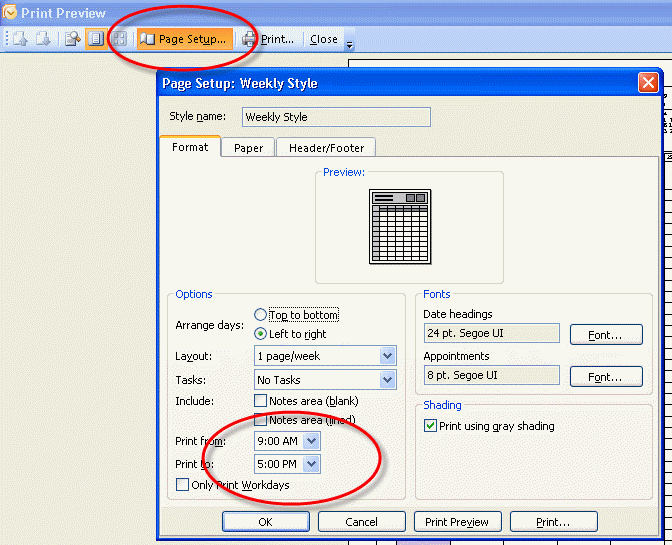
Page Setup dialog

As always, what you see on the screen plays a part in what print options are available. If you need a 15 minute printout, you'll need to set the calendar to 15 min increments (or smaller) before printing. Choose the hours to include in the printed copy in Page Setup before printing.

Appointment ScaleInclude no more than:
15 minutes8 1/2 hours
10 minutes5 1/2 hours
6 minutes3 1/2 hours
5 minutes2 1/2 hours

Note that this is not a completely new behavior - older versions of Outlook also use the number of hours in the printout to determine the time interval used in the print out, however because the time periods are much narrower in older versions, they include more hours. The tools listed below offer additional calendar printing capabilities.

Tools | More Information

Tips:

  • If you need to print a full day you'll need to print twice - one for morning, one for afternoon and set your printer to print 2 pages per sheet to save paper. (Print to PDF then merge and print the PDF's to paper.) You can also use longer paper - 11x14 will include at least 9 AM to 5 PM at 10 minute intervals.
  • Outlook has an option to print on half paper but this option will not help in this situation. Use the printer's option to print 2 pages per sheet.
 

Tools

Calendar Printing Assistant for Outlook

The Calendar Printing Assistant allows you to print and customize your calendar information. It includes many often-requested printing options, including multiple calendars in one view and customizations such as fonts, colors and images. It includes ready to use templates. Additional templates are available from Microsoft: Templates for Calendar Printing Assistant For Outlook 2007 and Outlook 2010 (32-bit).

Messageware OWA Print

Messageware OWA Print provides OWA users the ability to see and print their daily/weekly/monthly calendars and schedules, their delegates' schedules, and their contacts in multiple layouts and styles. OWA Print determines the best layout based on the view chosen for printing, including automatic rotation for portrait and landscape output. With OWA Print, OWA Light users are also able to print emails, appointments, calendars, contacts, and meetings, functionality not otherwise available natively.

My Outlook Calendar

Customizable Word template for generating Outlook weekly and monthly calendars. Print any Outlook calendar that you have access to, including calendars from other users' mailboxes and Public Folders. Add color coding by category or by type of item (one-day event, multiple-day event, etc.) Specify time and date formats and the title for the calendar. Slower than Microsoft's Outlook Calendar Template, but it does much more and follows progress in the status bar. See Using and Editing My Outlook Calendar Template for customization tips. The template needs to be in the template or custom template folder.

Outcal

Enhanced Word template for printing, viewing and web publishing monthly calendars from Outlook data. Based on Microsoft's Outlook Calendar Template. Includes category-based color-coding, better performance.

OUTLOOK CALENDAR PRINT

Printable customized PDF calendar directly from outlook. - Print multiple calendars as overlay or side by side. - Year, Week or Daily view. - Select timeframe and categories to print. - Yearly calendar with company name

PrintableCal

PrintableCal is an add-in for Microsoft Excel and Word that enables the automated creation of printable calendars from a wide variety of sources, including Microsoft Outlook, Exchange, Google Calendar, Yahoo! Calendar, Toodledo, VueMinder, iCalendar (ics) files/URLs, iCloud, and more. PrintableCal provides many calendar templates in a variety of layouts, such as yearly, monthly, weekly, Gantt chart, and agenda. The templates support word-wrap and can dynamically adjust their size based on the number of events.

WinCalendar

Convert Outlook Calendar to native Excel and Word format for custom printing and editing. WinCalendar is an Addin for both Excel and Word that allows you to easily import Outlook data. Supported layouts include: Filterable Table, Monthly Calendar, Weekly Calendar, Schedule, Gantt Chart and Agenda.

Yearly Calendar view for Outlook

VBScript sample for a yearly planner style calendar. It reads your default Outlook calendar and creates a HTML calendar. Displays all your Outlook appointments (longer than 0 minutes) for a number of months (you choose which) on one page. Formats include 1 month per column, 1 month per row, or 7 days. Supports up to 12 months.

More Information

A new weekly print style is available for the Outlook 2007 calendar

How to Print a 15 Minute Calendar was last modified: February 11th, 2018 by Diane Poremsky
Post Views: 4

Related Posts:

  • Calendar Printing Tools
  • Monthly Calendar Printing Bug when Starting the Week on Monday
  • Outlook 2007: Month Calendar Printing Bug
  • Printing a Five Week Calendar

About Diane Poremsky

A Microsoft Outlook Most Valuable Professional (MVP) since 1999, Diane is the author of several books, including Outlook 2013 Absolute Beginners Book. She also created video training CDs and online training classes for Microsoft Outlook. You can find her helping people online in Outlook Forums as well as in the Microsoft Answers and TechNet forums.

Subscribe
Notify of
0 Comments
newest
oldest most voted
Inline Feedbacks
View all comments

Visit Slipstick Forums.
What's New at Slipstick.com

Latest EMO: Vol. 31 Issue 3

Subscribe to Exchange Messaging Outlook


Support Services

Do you need help setting up Outlook, moving your email to a new computer, migrating or configuring Office 365, or just need some one-on-one assistance?

Our Sponsors

CompanionLink
ReliefJet
  • Popular
  • Latest
  • Week Month All
  • Use Classic Outlook, not New Outlook
  • How to Remove the Primary Account from Outlook
  • Reset the New Outlook Profile
  • Disable "Always ask before opening" Dialog
  • This operation has been cancelled due to restrictions
  • How to Hide or Delete Outlook's Default Folders
  • Adjusting Outlook's Zoom Setting in Email
  • Removing Suggested Accounts in New Outlook
  • Mail Templates in Outlook for Windows (and Web)
  • Remove a password from an Outlook *.pst File
  • Error Opening iCloud Appointments in Classic Outlook
  • Opt out of Microsoft 365 Companion Apps
  • Mail Templates in Outlook for Windows (and Web)
  • Urban legend: Microsoft Deletes Old Outlook.com Messages
  • Buttons in the New Message Notifications
  • Move Deleted Items to Another Folder Automatically
  • Open Outlook Templates using PowerShell
  • Count and List Folders in Classic Outlook
  • Google Workspace and Outlook with POP Mail
  • Import EML Files into New Outlook
Ajax spinner

Recent Bugs List

Microsoft keeps a running list of issues affecting recently released updates at Fixes or workarounds for recent issues in classic Outlook (Windows).

For new Outlook for Windows: Fixes or workarounds for recent issues in new Outlook for Windows .

Outlook for Mac Recent issues: Fixes or workarounds for recent issues in Outlook for Mac

Outlook.com Recent issues: Fixes or workarounds for recent issues on Outlook.com

Office Update History

Update history for supported Office versions is at Update history for Office

Outlook Suggestions and Feedback

Outlook Feedback covers Outlook as an email client, including Outlook Android, iOS, Mac, and Windows clients, as well as the browser extension (PWA) and Outlook on the web.

Outlook (new) Feedback. Use this for feedback and suggestions for Outlook (new).

Use Outlook.com Feedback for suggestions or feedback about Outlook.com accounts.

Other Microsoft 365 applications and services


New Outlook Articles

Error Opening iCloud Appointments in Classic Outlook

Opt out of Microsoft 365 Companion Apps

Mail Templates in Outlook for Windows (and Web)

Urban legend: Microsoft Deletes Old Outlook.com Messages

Buttons in the New Message Notifications

Move Deleted Items to Another Folder Automatically

Open Outlook Templates using PowerShell

Count and List Folders in Classic Outlook

Google Workspace and Outlook with POP Mail

Import EML Files into New Outlook

Newest Code Samples

Open Outlook Templates using PowerShell

Count and List Folders in Classic Outlook

Insert Word Document into Email using VBA

Warn Before Deleting a Contact

Use PowerShell to Delete Attachments

Remove RE:, FWD:, and Other Prefixes from Subject Line

Change the Mailing Address Using PowerShell

Categorize @Mentioned Messages

Send an Email When You Open Outlook

Delete Old Calendar Events using VBA

Repair PST

Convert an OST to PST

Repair damaged PST file

Repair large PST File

Remove password from PST

Merge Two Data Files

Sync & Share Outlook Data

  • Share Calendar & Contacts
  • Synchronize two computers
  • Sync Calendar and Contacts Using Outlook.com
  • Sync Outlook & Android Devices
  • Sync Google Calendar with Outlook
  • Access Folders in Other Users Mailboxes

Diane Poremsky [Outlook MVP]

Make a donation

Mail Tools

Sending and Retrieval Tools

Mass Mail Tools

Compose Tools

Duplicate Remover Tools

Mail Tools for Outlook

Online Services

Calendar Tools

Schedule Management

Calendar Printing Tools

Calendar Reminder Tools

Calendar Dates & Data

Time and Billing Tools

Meeting Productivity Tools

Duplicate Remover Tools

Productivity

Productivity Tools

Automatic Message Processing Tools

Special Function Automatic Processing Tools

Housekeeping and Message Management

Task Tools

Project and Business Management Tools

Choosing the Folder to Save a Sent Message In

Run Rules on messages after reading

Help & Suggestions

Submit Outlook Feature Requests

Slipstick Support Services

Buy Microsoft 365 Office Software and Services

Visit Slipstick Forums.

What's New at Slipstick.com

Home | Outlook User | Exchange Administrator | Office 365 | Outlook.com | Outlook Developer
Outlook for Mac | Common Problems | Utilities & Addins | Tutorials
Outlook & iCloud Issues | Outlook Apps
EMO Archives | About Slipstick | Slipstick Forums
Submit New or Updated Outlook and Exchange Server Utilities

Send comments using our Feedback page
Copyright © 2026 Slipstick Systems. All rights reserved.
Slipstick Systems is not affiliated with Microsoft Corporation.

:wpds_smile::wpds_grin::wpds_wink::wpds_mrgreen::wpds_neutral::wpds_twisted::wpds_arrow::wpds_shock::wpds_unamused::wpds_cool::wpds_evil::wpds_oops::wpds_razz::wpds_roll::wpds_cry::wpds_eek::wpds_lol::wpds_mad::wpds_sad::wpds_exclamation::wpds_question::wpds_idea::wpds_hmm::wpds_beg::wpds_whew::wpds_chuckle::wpds_silly::wpds_envy::wpds_shutmouth:
wpDiscuz

Sign up for Exchange Messaging Outlook

Our weekly Outlook & Exchange newsletter (bi-weekly during the summer)


Please note: If you subscribed to Exchange Messaging Outlook before August 2019, please re-subscribe.

Never see this message again.

You are going to send email to

Move Comment




























