A user asked me for a macro to turn off the Out-Of-Office setting when he gets back in the office, although I'm not sure why anyone would want to use a macro for this as Outlook has a feature that lets you schedule Automatic Replies, and it can turn Automatic Replies on and off automatically.
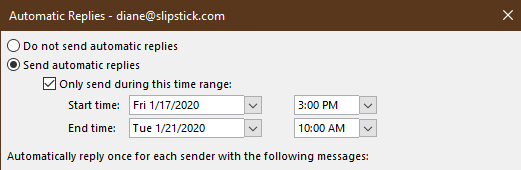
You need to set it up each time (you can't say 'every day from 5 pm until 8 am tomorrow'), but you can schedule it ahead of time. Every morning when you come in, you can turn it off and reset it to come back on after 5 pm.
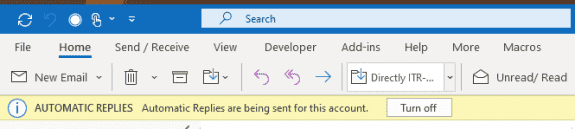
Plus, Outlook is really good about popping up a banner reminding you that Automatic replies are on.
What you really need is a macro to turn automatic replies on and set the times for you.
You can find a lot of older macros on the internet that can turn Out-of-Office off and on but they only work in Outlook 2007 and older as they use CDO. As of Outlook 2010, Outlook does not use CDO.
If you want to use a macro to enable automatic replies in newer versions of Outlook, you need to use Redemption's RDOOutOfOfficeAssistant object to update Automatic Replies using a macro.
A macro makes it a lot easier to set up automatic replies if you have more than one Exchange account and want to set the same out of office message on each account.
Update Automatic Replies
This macro sample asks for the start and end dates and uses a predefined start and end times. (I like to enable automatic replies early, so people who email right before I leave the office know I'm out.) You can enter the date in any valid format, such as "1/17" (Outlook will add the year). The macro will enable and configure automatic replies in all business Exchange accounts in your profile. As written, it skips Outlook.com accounts because they do not support automatic replies to internal addresses.
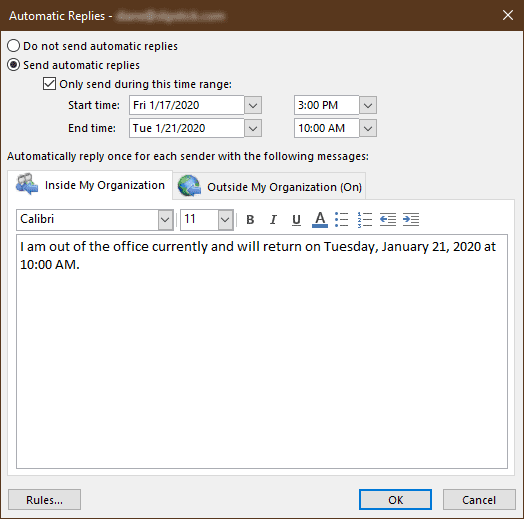
To use this macro, add it to the Quick Access toolbar or ribbon or use a reminder to trigger it. You'll also need to install Redemption Developer version.
Sub setOOF()
Dim sStart As Date
Dim sEnd As Date
Set rdo = CreateObject("Redemption.RDOSession")
Session.Logon
rdo.MAPIOBJECT = Application.Session.MAPIOBJECT
rdo.Credentials.Add "outlook.office365.com", "me@domain.com", "password"
sStart = InputBox("Start date for OOF.", "OOF dates", Date)
sEnd = InputBox("End date for OOF.", "OOF dates", Date + 3)
For Each Store In rdo.Stores
If (Store.StoreKind = skPrimaryExchangeMailbox) Then
Debug.Print Store.Name
' Skip Outlook.com accounts as they don't have internal and external OOF options.
If Store.Name = "me@outlook.com" Then GoTo NextStore
Set OOFAssistant = Store.OutOfOfficeAssistant
OOFAssistant.OutOfOffice = True
OOFAssistant.BeginUpdate
OOFAssistant.StartTime = sStart + #3:00:00 PM#
OOFAssistant.EndTime = sEnd + #10:00:00 AM#
OOFAssistant.State = 2 'rdoOofScheduled
OOFAssistant.ExternalAudience = 2 '2 = All; 1 = Contacts only
OOFAssistant.OutOfOfficeTextInternal = "I am out of the office currently and will return on " & Format(OOFAssistant.EndTime, "dddd, MMMM dd, yyyy at hh:mm AM/PM") & "." & _
""
OOFAssistant.OutOfOfficeTextExternal = "I am out of the office currently and will return on " & Format(OOFAssistant.EndTime, "dddd, MMMM dd, yyyy at hh:mm AM/PM") & "." & _
""
OOFAssistant.EndUpdate
End If
NextStore:
Next
End Sub
To use this macro to enable automatic replies every day before you leave the office, change these lines.
sStart = InputBox("Start date for OOF.", "OOF dates", Date)
sEnd = InputBox("End date for OOF.", "OOF dates", Date + 1)

OOFAssistant.StartTime = sStart + #4:55:00 PM#
OOFAssistant.EndTime = sEnd + #8:45:00 AM#
The table below lists the possible values for two properties, State and ExternalAudience. For a complete explanation of all properties, see RDOOutOfOfficeAssistant object,
| Property | Possible Values |
|---|---|
| State | Enable, disable, or schedule the automatic reply. rdoOofDisabled = 0 rdoOofEnabled = 1 rdoOofScheduled = 2 |
| ExternalAudience | Use rdoOofAudienceAll (value: 2) to send replies to all senders rdoOofAudienceKnown (value: 1) to send only to known senders rdoOofAudienceNone (value: 0) disables external replies. |
Different OOF Weekdays and Weekends
This version of the macro checks the days of the week. If it's a weekday, the out of office is set to end the next morning. If it's Friday, the out of office ends in 3 days.Run it manually each day or use a reminder to trigger it.
Sub setOOFWeekdays()
Dim sStart As Date
Dim sEnd As Date
Set rdo = CreateObject("Redemption.RDOSession")
Session.Logon
rdo.MAPIOBJECT = Application.Session.MAPIOBJECT
rdo.Credentials.Add "outlook.office365.com", "alias@domain.com", "password"
sStart = Date
dayname = WeekdayName(Weekday(sStart))
Select Case dayname
Case Sunday, "Monday", "Tuesday", "Wednesday", "Thursday"
sEnd = Date + 1
Case "Friday"
sEnd = Date + 3
Case "Saturday"
sEnd = Date + 2
End Select
For Each Store In rdo.Stores
If (Store.StoreKind = skPrimaryExchangeMailbox) Then
Debug.Print Store.Name
' Skip Outlook.com accounts as they don't have internal and external OOF options.
If Store.Name = "me@outlook.com" Then GoTo NextStore
Set OOFAssistant = Store.OutOfOfficeAssistant
OOFAssistant.OutOfOffice = True
OOFAssistant.BeginUpdate
OOFAssistant.StartTime = sStart + #4:00:00 PM#
OOFAssistant.EndTime = sEnd + #9:00:00 AM#
OOFAssistant.State = 2 'rdoOofScheduled
OOFAssistant.ExternalAudience = 2 '2 = All; 1 = Contacts only
OOFAssistant.OutOfOfficeTextInternal = "I am out of the office currently and will return on " & Format(OOFAssistant.EndTime, "dddd, MMMM d, yyyy at h:mm AM/PM") & "." & _
""
OOFAssistant.OutOfOfficeTextExternal = "I am out of the office currently and will return on " & Format(OOFAssistant.EndTime, "dddd, MMMM d, yyyy at h:mm AM/PM") & "." & _
""
OOFAssistant.EndUpdate
End If
NextStore:
Next
End Sub
How to use the macros on this page
First: You need to have macro security set to the lowest setting, Enable all macros during testing. The macros will not work with the top two options that disable all macros or unsigned macros. You could choose the option Notification for all macros, then accept it each time you restart Outlook, however, because it's somewhat hard to sneak macros into Outlook (unlike in Word and Excel), allowing all macros is safe, especially during the testing phase. You can sign the macro when it is finished and change the macro security to notify.
To check your macro security in Outlook 2010 and newer, go to File, Options, Trust Center and open Trust Center Settings, and change the Macro Settings.
After you test the macro and see that it works, you can either leave macro security set to low or sign the macro.
Macros that run when Outlook starts or automatically need to be in ThisOutlookSession, all other macros should be put in a module, but most will also work if placed in ThisOutlookSession. (It's generally recommended to keep only the automatic macros in ThisOutlookSession and use modules for all other macros.) The instructions are below.
The macros on this page should be placed in a module.
Open the VBA Editor by pressing Alt+F11 on your keyboard.
To put the code in a module:
- Right click on Project1 and choose Insert > Module
- Copy and paste the macro into the new module.
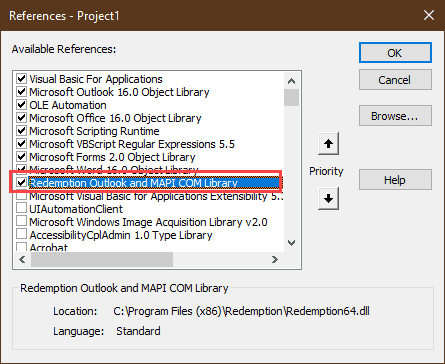
Set a reference to Redemption Object Libraries If you receive a "User-defined type not defined" error, you need to set a reference to another object library.
- Go to Tools, References menu.
- Locate the Redemption object library in the list and add a checkmark to it.

More information as well as screenshots are at How to use the VBA Editor

reyhan says
thank you very much of information
Phil Reinemann says
I think it may be because when I go to that website from the error message, I cannot sign in there. That was the https://outlook.office365.com/EWS/Exchange.asmx" site.
Phil Reinemann says
I modified the upper-most above code so that it's only called when I exit Outlook on Monday and Wednesday after 6:19PM. (I'm out of office Tuesday and Thursday.)
Everything is okay until statement "OOFAssistant.StartTime = sStart + #6:29:00 PM#" is called I get ""EWS is not available: HTTP error 401 from https://outlook.office365.com/EWS/Exchange.asmx".
I am in an Office 365 corporate environment and have no outlook.com email to interfere with the code.
Any ideas? Might it be that FMA has to be accounted for in the code, even though, to have Outlook running MFA has already been completed? (I just opened web-mail and didn't have to do any authentication, but I don't know if that carries through to the setOOF code.
Phil Reinemann says
If you just want to turn on OOF when exiting Outlook, see Diane's macro for that here: Prompt to turn on "Out of Office" replies (slipstick.com)
That's what I needed, nothing as complex as the above.
Thank you once again, Diane.
Phil Reinemann says
Unfortunately, my reference to Diane's article above was for Office below 2010.
You must use the code here for Office/Outlook 2010 and above.
Felipe V says
Redemption, as far as I'm reading, is not part of Outlook & furthermore requires a license. Redemption Developer is for testing uses only, according to their page.
As of 2023, is there any better alternative?
Diane Poremsky says
It only requires a license if you are redistributing it. You don't need a license for personal use. Use the Developer version - you should only see the nag screen once, the first time it is installed.
John says
Hi Diane,
Thanks for sharing this information as this is exactly what I need. However this script will enable automatic replies Every Day at the specified time, including weekends.
Is it possible the script can be modified so that it does the following?
Diane Poremsky says
That can be done with an If statement that checks the date and if Fri, do it for 3 days. I'll try to update it today. .
Diane Poremsky says
I added an updated version that sets the end date based on the day of the week.
John says
Thanks Diane! Much appreciated!
John says
Hi Diane,
Sorry to circle back on this after 4 months as it look me a while to get the macro going in outlook.
I've just recently found out that on Thursdays and Fridays it'd set the end day to Sunday and it'd reflect in the OOO message.
Today(23rd July Friday), I clicked the macro and below is in the OOO message(I've removed the time from the script)
"Hello, I am currently unavailable and will return on Sunday, July 25, 2021."
I am in a different timezone(GMT + 10), so not sure if that's relevant?
As a test, I've tried to increment 3 to 4 for the case "Friday" but it still shows Sunday.
Case "Friday"
    sEnd = Date + 4
Would you be able to help?
Diane Poremsky says
time zone shouldn't matter.
Are you using the macro under "Different OOF Weekdays and Weekends" ?
John says
Hi Diane,
Yes I am using the macro under "Different OOF Weekdays and Weekends". It works fine on Monday, Tuesday, and Wednesdays.
But on Thursdays and Fridays, the end date is set to Sunday for some reason.
I have not tested the macro on Saturday and Sunday yet.
Diane Poremsky says
I'll test it... since its Thursday, I should know soon if I screwed up the code. :)
Diane Poremsky says
Thurs is getting me an end date of Friday - which is correct, per the select case.
It looks like I'm missing the quotes on Sunday - so it will error unless you fix that in your code.
Case Sunday, "Monday", "Tuesday", "Wednesday", "Thursday"
sEnd = Date + 1
Case "Friday"
sEnd = Date + 3
Case "Saturday"
sEnd = Date + 2
End Select
I tested it by changing sStart = Date to sStart = Date + 1 (then 2, 3 and 4)
if you do that, you need to change the select case to use sstart instead of date. And added debug.print so I didn't have to check the oof dialog every time. :)
sStart = Date + 3
dayname = WeekdayName(Weekday(sStart))
Debug.Print dayname
Select Case dayname
Case "Sunday", "Monday", "Tuesday", "Wednesday", "Thursday"
sEnd = sStart + 1
Case "Friday"
sEnd = sStart + 3
Case "Saturday"
sEnd = sStart + 2
End Select
Debug.Print sStart, sEnd
John says
Thanks Diane! Let me test that out this Thurs/Friday
Edit: I added "" for Sunday as I thought that was the problem but it wasn't it. Could be my user error. Thanks for checking.
John says
I've just tested it by replacing the bits above with code from sStart = Date + 3 to the debug.Print sStart,sEnd line.
It sets the start time to Thursday correctly but still shows Sunday in the oof dialog.(See attached)
I don't know how the debug.print works as it didn't show anything when I click the macro in outlook.
Victor Ivanidze says
Have a look at this: https://www.ivasoft.com/scheduledoofflow.shtml
Victor Ivanidze says
There exists a ready to use tool named "ScheduledOOF flow for Office 365"
Erik says
I am several years behind but need a code that will turn on OOF and auto replies every OTHER friday. They've got us on a new rotating schedule and I cannot find any solutions.