A user wanted to always reply to messages sent to one account using another account. He also wanted to remove his address from the recipient list.
While it is much easier just to change the SMTP information on POP and IMAP accounts and use a short SendItem macro, he didn't want to change the account configuration, which he had used for years. One advantage of using this method over changing the SMTP account: he could, if desired, send the message from the old account. He also wanted the macro to work when right-clicking on a message that was not selected.
To meet his demands, I merged my 'do something when you reply macro' and a macro (by Michael Bauer) to remove the recipients.
While you can't change the sending account (using code) when you use the reading pane for replies, I was able to check for the sending account and use the reading pane for messages sent to other account. This also serves as a reminder: if the message pops out, the From address should be changed. If you are replying in the reading pane, the macro did not run.
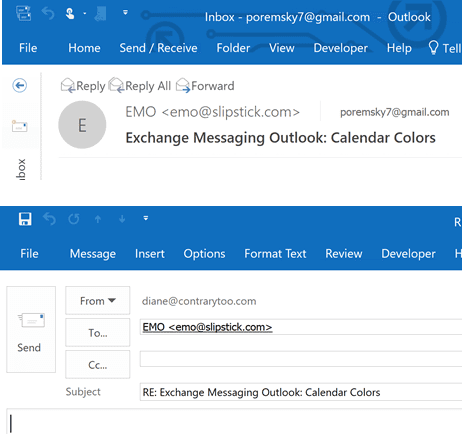
If you assign signatures to accounts, the signature won't be changed or added when you change the account.
If you hit reply, close the message and hit reply, reply all, or forward again, the macro won't run. It's triggered in part by a selection change, and you didn't change the selection.
By adding more If statements, you could change the account only for specific messages.
Option Explicit

Private WithEvents m_Inspectors As Outlook.Inspectors
Private WithEvents m_Inspector As Outlook.Inspector

Dim WithEvents oItem As MailItem
Dim WithEvents oExpl As Explorer
Private bDiscardEvents As Boolean
Dim oResponse As MailItem
Dim NoSendAcct As Variant
Dim SendAcct As Variant


Private Sub Application_Startup()
'MsgBox "Application_Startup running"
Set m_Inspectors = Application.Inspectors
Set oExpl = Application.ActiveExplorer
' use the name that appears in the From list
NoSendAcct = "me@domain.com"
SendAcct = "newacct@domain.com"
End Sub

Private Sub m_Inspectors_NewInspector(ByVal Inspector As Outlook.Inspector)
'MsgBox "m_Inspectors_NewInspector running"
If Inspector.CurrentItem.Class = olMailItem Then
 Set oItem = Inspector.CurrentItem
 Set m_Inspector = Inspector
End If

End Sub


Private Sub m_Inspector_Activate()
'MsgBox "m_Inspector_Activate running"

If TypeName(m_Inspector.CurrentItem) = "MailItem" And _
    m_Inspector.CurrentItem.Subject <> "" Then

Dim oResponse As MailItem
Set oResponse = m_Inspector.CurrentItem

Dim oAccount As Outlook.Account

If oResponse.SendUsingAccount = NoSendAcct Then
On Error Resume Next
For Each oAccount In Application.Session.Accounts
   If oAccount = SendAcct Then
     oResponse.SendUsingAccount = oAccount
   End If
Next

End If

RemoveRecipients oResponse


End If
Set m_Inspector = Nothing
End Sub

Private Sub oExpl_SelectionChange()
   On Error Resume Next
   Set oItem = oExpl.Selection.Item(1)

End Sub

Private Sub oItem_Reply(ByVal Response As Object, Cancel As Boolean)
If oItem.SendUsingAccount <> NoSendAcct Then Exit Sub

   Cancel = True
   bDiscardEvents = True

Set oResponse = oItem.Reply
 afterReply
End Sub

Private Sub oItem_Forward(ByVal Response As Object, Cancel As Boolean)
If oItem.SendUsingAccount <> NoSendAcct Then Exit Sub
   Cancel = True
   bDiscardEvents = True

Set oResponse = oItem.Forward

 afterReply
End Sub

Private Sub oItem_ReplyAll(ByVal Response As Object, Cancel As Boolean)
If oItem.SendUsingAccount <> NoSendAcct Then Exit Sub
   Cancel = True
   bDiscardEvents = True

Set oResponse = oItem.ReplyAll

 afterReply
End Sub

Private Sub afterReply()

Dim oAccount As Outlook.Account

If oResponse.SendUsingAccount = NoSendAcct Then
For Each oAccount In Application.Session.Accounts
   If oAccount = SendAcct Then
     oResponse.SendUsingAccount = oAccount
   End If
Next

End If

RemoveRecipients oResponse

oResponse.Display

 ' do whatever here

End Sub

Private Sub RemoveRecipients(Item As Outlook.MailItem)
' http://www.vboffice.net/en/developers/edit-list-of-recipients-before-sending
  Dim RemoveThis As VBA.Collection
  Dim Recipients As Outlook.Recipients
  Dim R As Outlook.Recipient
  Dim i&, y&
  Set RemoveThis = New VBA.Collection

  ' add addresses here
  RemoveThis.Add "Richard@MWWonDemand.com"
  RemoveThis.Add "richardn@ manualww.com"

  Set Recipients = Item.Recipients
  For i = Recipients.Count To 1 Step -1
    Set R = Recipients.Item(i)

    For y = 1 To RemoveThis.Count
      If LCase$(R.Address) = LCase$(RemoveThis(y)) Then
        Recipients.Remove i
        Exit For
      End If
    Next
  Next
End Sub

Private Sub m_Inspector_Close()
Set oItem = Nothing
 End Sub
Private Sub Application_Quit()
 Set m_Inspector = Nothing
 'Set objInspectors = Nothing
 Set oItem = Nothing
 End Sub
Reply using a shared mailbox or alias
This version of the macro replies or forwards from a another address, such as an alias or shared mailbox.
Option Explicit

Private WithEvents m_Inspectors As Outlook.Inspectors
Private WithEvents m_Inspector As Outlook.Inspector

Dim WithEvents oItem As MailItem
Dim WithEvents oExpl As Explorer
Private bDiscardEvents As Boolean
Dim oResponse As MailItem
Dim SendAcct As Variant

Private Sub Application_Startup()
'MsgBox "Application_Startup running"
Set m_Inspectors = Application.Inspectors
Set oExpl = Application.ActiveExplorer

' use the name that appears in the From list
SendAcct = "bo@domain.com"
End Sub

Private Sub m_Inspectors_NewInspector(ByVal Inspector As Outlook.Inspector)
'MsgBox "m_Inspectors_NewInspector running"
If Inspector.CurrentItem.Class = olMailItem Then
 Set oItem = Inspector.CurrentItem
 Set m_Inspector = Inspector
End If

End Sub

Private Sub m_Inspector_Activate()
'MsgBox "m_Inspector_Activate running"

If TypeName(m_Inspector.CurrentItem) = "MailItem" And _
    m_Inspector.CurrentItem.Subject <> "" Then

Dim oResponse As MailItem
Set oResponse = m_Inspector.CurrentItem

Dim oAccount As Outlook.Account

If oResponse.SendUsingAccount = SendAcct Then
On Error Resume Next
oResponse.SentOnBehalfOfName = "olsales@domain.com"
End If

End If
Set m_Inspector = Nothing
End Sub

Private Sub oExpl_SelectionChange()
   On Error Resume Next
   Set oItem = oExpl.Selection.Item(1)

End Sub

Private Sub oItem_Reply(ByVal Response As Object, Cancel As Boolean)
If oItem.SendUsingAccount <> SendAcct Then Exit Sub

   Cancel = True
   bDiscardEvents = True

Set oResponse = oItem.Reply
afterReply

End Sub

Private Sub oItem_Forward(ByVal Response As Object, Cancel As Boolean)
If oItem.SendUsingAccount <> SendAcct Then Exit Sub
   Cancel = True
   bDiscardEvents = True

Set oResponse = oItem.Forward
afterReply

End Sub

Private Sub oItem_ReplyAll(ByVal Response As Object, Cancel As Boolean)
If oItem.SendUsingAccount <> SendAcct Then Exit Sub
   Cancel = True
   bDiscardEvents = True

Set oResponse = oItem.ReplyAll
afterReply
End Sub


Private Sub afterReply()

Dim oAccount As Outlook.Account

If oResponse.SendUsingAccount = SendAcct Then
    oResponse.SentOnBehalfOfName = "sales@domain.com"
End If

oResponse.Display

End Sub

Private Sub m_Inspector_Close()
Set oItem = Nothing
 End Sub
Private Sub Application_Quit()
 Set m_Inspector = Nothing
 'Set objInspectors = Nothing
 Set oItem = Nothing
 End Sub
How to use the macros on this page
First: You need to have macro security set to the lowest setting, Enable all macros during testing. The macros will not work with the top two options that disable all macros or unsigned macros. You could choose the option Notification for all macros, then accept it each time you restart Outlook, however, because it's somewhat hard to sneak macros into Outlook (unlike in Word and Excel), allowing all macros is safe, especially during the testing phase. You can sign the macro when it is finished and change the macro security to notify.
To check your macro security in Outlook 2010 and newer, go to File, Options, Trust Center and open Trust Center Settings, and change the Macro Settings. In Outlook 2007 and older, look at Tools, Macro Security.
After you test the macro and see that it works, you can either leave macro security set to low or sign the macro.
Macros that run when Outlook starts or automatically need to be in ThisOutlookSession, all other macros should be put in a module, but most will also work if placed in ThisOutlookSession. (It's generally recommended to keep only the automatic macros in ThisOutlookSession and use modules for all other macros.) The instructions are below.
The macros on this page need to go into ThisOutlookSession.
Open the VBA Editor by pressing Alt+F11 on your keyboard.
To put the macro code in ThisOutlookSession:
- Expand Project1 and double click on ThisOutlookSession.
- Copy then paste the macro into ThisOutlookSession. (Click within the code, Select All using Ctrl+A, Ctrl+C to copy, Ctrl+V to paste.)
More information as well as screenshots are at How to use the VBA Editor

Leave a Reply