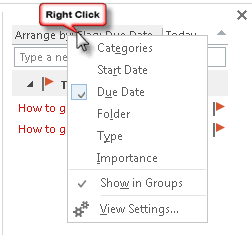
Outlook 2007 and newer show a task list at the bottom of the dates in the Calendar's day or week view as well as the task list in the To-Do Bar. You can change the view by right clicking on Arrange By and choosing a new view.
The task list at the end of the calendar dates lists tasks due or that should be started on that date. This list is limited to By Start Date and By Due Date, with the option of showing completed tasks.
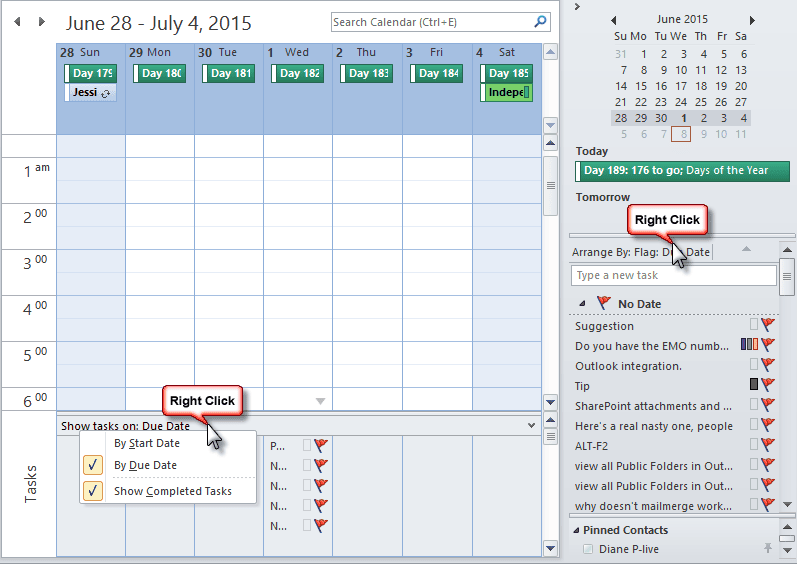
If you want to change the view on the Task list in the To-do bar (or on the Task Peek in Outlook 2013 and 2016), right-click on Arrange By and choose a different arrangement or customize the view completely.
Outlook 2003 (and older)
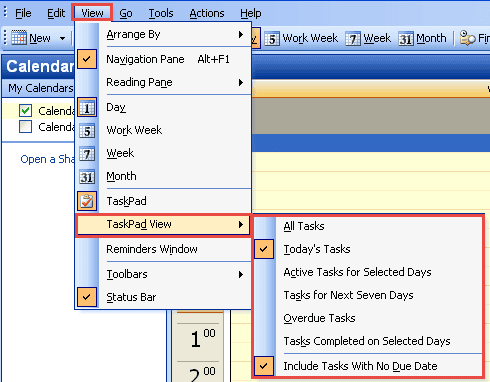
In older versions of Outlook, change the view by choosing View | TaskPad View and picking one of the built-in views:
- All Tasks
- Today's Tasks
- Active Tasks for Selected Days
- Tasks for Next Seven Days
- Overdue Tasks
- Tasks Completed on Selected Days
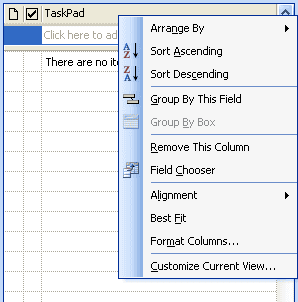
If none of those views meets your needs, right-click on any of the column headings for the TaskPad, then choose Customize Current View . You'll be able to change the sorting, grouping, filter and other settings for the TaskPad.

Leave a Reply