We get questions like this after users upgrade Outlook:
I upgraded Outlook. I heard that the NK2 file is no longer being used and was replaced by Suggested Contacts. My NK2 file was renamed to profile_name.nk2.old. When I start typing names in Outlook, addresses come up so everything appears to be working well, except that I don't see any of my contacts from the NK2 file in the Suggested Contacts folder. Why didn't my contacts from the NK2 file correctly import into Suggested Contacts folder?
Outlook 2010 is working fine, but there is some confusion about the auto-complete list and the Suggested Contacts feature.
Also see Understanding Autocomplete cache (NK2) for file paths and more information, especially if using Outlook 2003 or Outlook 2007.
Autocomplete List | Suggested Contacts | Populate the Auto-complete list | Tools
Autocomplete List
The auto-complete list, aka the NK2 file, was a separate file in Outlook 2003 and Outlook 2007. In Outlook 2010, its a hidden message in the data file. When you upgrade from Outlook 2003/2007 to Outlook 2010, the NK2 is imported into the data store and the NK2 is renamed nk2.old. Addresses are added to the hidden cache file as you send new messages and replies. Because the cache is stored in the data file or mailbox, it moves with you and you'll have the auto-complete list when you open your mailbox on any computer using Outlook 2010.
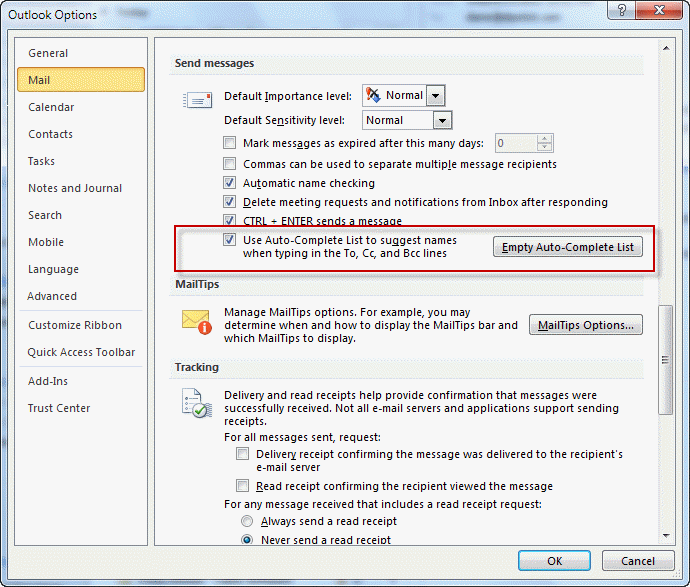
You can clear the auto-complete list by going to File, Options, Mail - the option to use the auto-complete list and the button to empty it are in the Send messages section about halfway down the dialog.
If you prefer using a command line, switch, it's CleanAutoCompleteCache.
To use, close Outlook and in the Start menu, Search field or Run command (Windows key + R to open) type or paste the following line and press Enter to run
Outlook.exe /CleanAutoCompleteCache
Clearing the auto-complete list only removes the addresses you see as you type in the To, CC, or BCC fields. It will not remove contacts stored in your data file in the Suggested Contacts folder (see next section.)
To disable the autocomplete list by editing the registry, you need to set the ShowAutoSug data value to 0. Administrators can disable it for all users using GPO.
HKEY_CURRENT_USER\Software\Microsoft\office\14.0\Outlook\Preferences
DWORD: ShowAutoSug
Value: 0
To disable autocomplete using GPO, use a logon script to set this value:
HKEY_CURRENT_USER\Software\Policies\Microsoft\office\14.0\Outlook\Preferences
DWORD: ShowAutoSug
Value: 0
To use with other versions of Outlook that support auto-complete, change 14 in the path to the correct version number for your version of Outlook.
Suggested Contacts
Suggested contacts is a "one-hit wonder" feature available only in Outlook 2010 that creates contacts for addresses you send mail to when the address is not already in your address books.
With the introduction of the auto-complete list in Outlook 2003, we saw many, many users who used the auto-complete list as their address book. They never saved the addresses to contacts and if the NK2 file became corrupted, they lost the addresses. Suggested Contacts was supposed to be the answer for this problem.
Automatically creating contacts for everyone you reply to tends to result in a contacts folder filled with addresses you'll never need, so Outlook used the Suggested Contacts folder to avoid polluting the Contacts folder.
While it was a much requested featured over the years, Suggested Contacts was not popular and was removed from Outlook 2013.
Suggested Contacts solves both problems easily: by using a separate Contacts folder, the "good contacts" folder is not polluted with useless contacts and you don't need to remember to create contacts or worry about losing the auto-complete list.
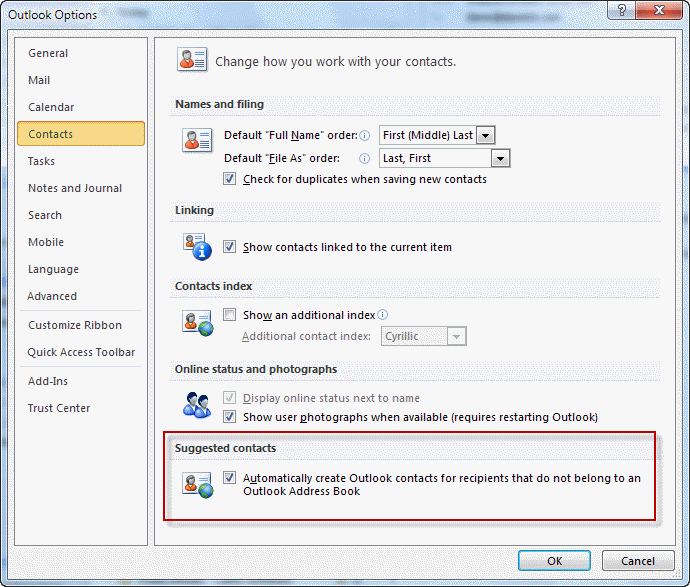
If you prefer not to use Suggested Contacts, you can disable it in File, Options, Contacts. Note that while this will stop Outlook from creating new contacts in the Suggested Contacts folder, it will not delete the contacts currently in the Suggested Contacts folder.
When Suggested Contacts are disabled, the CreateContactsForOneOffs data value is set to 0 in the registry:
HKEY_CURRENT_USER\Software\Microsoft\office\14.0\Outlook\Contact
DWORD: CreateContactsForOneOffs
Value: 0
To disable autocomplete using GPO, use a logon script to set this value:
HKEY_CURRENT_USER\Software\Policies\Microsoft\office\14.0\Outlook\Contact
DWORD: CreateContactsForOneOffs
Value: 0
How to Populate the Auto-complete list
Outlook won't populate the auto-complete cache automatically but it’s a fairly simple task for users.
Open a new message and click the To button, select all of the names in the Suggested Contacts folder and add them to the message. Repeat for your Contacts folder. Close the message without sending.
This method works in all versions of Outlook that use autocomplete.
Note that there is a limit to the number of names you can have on the autocomplete list. In Outlook 2003, it's 1000. In Outlook 2007 and 2010 it's 2000. In all versions, it's an MRU - most recently used - list, so frequently used addresses will always be on the list.
Outlook 2010 doesn't save addresses to the autocomplete list
When Outlook 2010 doesn't save addresses to the autocomplete list, first try clearing the cache file, either with the button in File, Options, Mail or by starting Outlook with the /CleanAutoCompleteCache switch mentioned previously.
In most cases, this will fix the problem. If the problem persists, you'll need to delete or rename the RoamCache folder found at C:\Users\[username]\AppData\Local\Microsoft\Outlook\RoamCache (Windows 7/Vista). In most cases, this brute force method is not needed and simply clearing the cache and letting Outlook rebuild it will work.
Close Outlook. In the Start menu's Search field or in the Address bar of Windows Explorer, type or paste the following command to open Windows Explorer to the Appdata local folder.
%localappdata%\microsoft\outlook\
Delete or rename the RoamCache folder then restart Outlook.
Users with Exchange mailboxes should switch to online mode before deleting the roamcache folder then re-enable cached mode after starting Outlook. This ensures the cache is cleared from the mailbox as well as the local ost. To turn off cached mode and enter online mode, go to File, Account Settings, double click on the Exchange account and clear the Use cached mode checkbox. Click Next and close the dialog then close Outlook. Repeat these steps to re-enable it after deleting the RoamCache folder and restarting Outlook.
Notes
Contacts are not added to the auto-complete list until you send an email - importing the NK2 will not create contacts in Suggested Contacts.
New Contacts should only be created in Suggested Contacts if the address is not in your other Contact folders, but in my experience Outlook sometimes has a problem deciding if a contact exists so you can expect a few duplicates in the Suggested Contacts folder.
Any contacts you need to save can be moved to your Contact folder and you can stop the creation of suggested contacts by changing the setting in File, Options, Contacts.
Auto-Complete Cache Editing Tools
Tools
Open source project to read MS Outlook autocomplete (NK2) files and extract email addresses. Beta version 0.5 | |
Use NK2Edit to edit or delete information stored in the NK2 file or Outlook 2010/2013's Autocomplete Stream, including the display name, the email address, the exchange string, the Drop-Down display name, and the search string. Free for home use; Commercial license available. | |
Use NK2View to view, edit or delete entries in Outlook's .NK2 AutoComplete file. Export the records to text, html, or xml files. Freeware. Version 1.37 |
More Information
Import or copy the Auto-Complete List to another computer
See Understanding Outlook's Autocomplete Cache (*.NK2) for information specific to Outlook 2003 and Outlook 2007's autocomplete cache.
How to import .nk2 files into Outlook 2010 (MSKB)
Autocomplete Stream (MSDN, information for developers)
Nickname cache (MSDN, information for developers)

Gion says
Hello
I have searched for hours for a solution for this. Move or import the "auto complete" to Outlook 2016. I had Outlook 2010(32bit) on my laptop(win 8.1) with a working Autocomplete. Now I have a new PC with Outlook 2016(64bit) on Win 10. Sadly it had no autocomplete. Tried n2kEdit without success.
I used the 32bit file(from github) on the Outlook 2010(32bit) and the 64bit file(from github)for Outlook 2016(64bit)
I followed this, "Copy the AutoComplete list": https://support.office.com/en-us/article/import-or-copy-the-auto-complete-list-to-another-computer-83558574-20dc-4c94-a531-25a42ec8e8f0
Downloaded files for the above procedure here: https://github.com/stephenegriffin/mfcmapi/releases/tag/17.0.17099.01
It worked perfectly and I'm over the moon.
Thanks to the support.office.com website
len raphael says
Is there a tool to edit auto complete for Outlook 2016?
one particular email address keeps getting auto completed with the wrong name but right email address. no contact exists for that but once did.
Have "emptied" auto complete in Options with an Office 365 tech watching. Can't get rid of it.
Didn't think Nirsoft tool works for 2016?
Diane Poremsky says
It does work for 2016. The bigger question is where is the name coming form (assuming the name and address used to be correct) - if it doesn't exist in contacts and you dont reply to messages... or do you mean the name and address are mismatched - like john smith is showing in autocomplete with someone else's address?
OneEyed_ says
Good morning,
Microsoft Outlook allows you to delete single entries only in autocomplete addresses, not in suggested contacts.
However, OWA (Outlook Web Access) will allow you to delete a single entry in autocomplete contacts and in suggested contacts as well.
Pay attention to the fact that you need to wait up to 12 hours in order to see the changes syched from the web interface to Microsoft Outlook.
You can totally disable suggested contacts by editing the register, but if you just want to delete some entries than I really suggest you to try this solution.
This solved the problem in my occasion.
JOhn says
It seems the new autocomplete file only shows 5 contacts at a time even though there are much more users in that list. As you type the names change dynamically moving to uniqueness. I cannot get it to display more that 5 contacts at a time..
Diane Poremsky says
You have the new autocorrect list by the sounds of it - where the name and address are on separate lines. For now at least, you're stuck with it. :(
You can vote for the old format here - https://outlook.uservoice.com/forums/322590-outlook-2016-for-windows/suggestions/20551399-please-revert-or-give-the-option-to-revert-the-c
Richard Naval says
i have windows 10 and 2016 outlook
Diane Poremsky says
The utility from nirsoft will work with 2016 and windows 10.
Richard Naval says
Hello, i am having some difficulty trying to access my autocomplete list to use to do email marketing. i want to be able to copy the email addresses and put them on a list. can you help me?
Diane Poremsky says
if the addresses are not in the contacts, you'll need to use a utility to get the addresses out of the autocomplete list. This is the utility I like: https://www.nirsoft.net/utils/outlook_nk2_edit.html
Steve says
I have a situation where several family members have their email accounts setup up on a single Outlook 2013 program on a family PC.
Some of the family members also have their emails on Outlook 2013 on 'other' PC's also.
When composing an email on their 'other' PC the Auto-Complete will suggest names from everyone's (on the family PC) Auto-Complete list not just their own.
Is there any way to prevent this happening so that each email only gets to access its own Auto-Complete list?
Diane Poremsky says
What type of email accounts are they? (Pop, imap, exchange/outlook.com) The list is stored in the data file, so I can understand some bleed if outlook.com, but not with imap or pop.
Liz says
I'm having trouble to have autocomplete to show my groups. I did new contact groups on my people tab and it doesn't show up. I'm using Outlook 2016 from Office 365 plan my employer provides
Diane Poremsky says
This is a known issue with a recent office build. Microsoft is working on a fix, but no ETA at this time.
Liz says
Thanks for the information. Found out a powershell script could downgrade outlook version to the one that had autocomplete for the groups. So outlook was downgraded to v1708
Chris Bedford says
Re-opening an old discussion that is still relevant...
Not sure I understand the assertion that "Suggested Contacts" has been
dropped because in Outlook 2017 whenever I start typing a name or part
of an email address, a whole bunch of suggested addresses pops up.
The only difference from earlier versions of Outlook is that now I no longer
have any way of working with the complete list of suggested contacts - but
the user has no saved contacts and desperately needs to use the (huge)
list of contacts to create mailing lists.
What I would ideally be able to do is copy or move all those suggested
contacts to Contacts and work from there but nowhere can I see
Suggested Contacts in order to select it and see all the names in one
manageable list. The partial list that pops up when typing in a To: field is
of no use unless I manually use the pop-up method to select every address
individually into one draft email, then somehow save then from there
(probably also one at a time) - a procedure that doesn't strike me as efficient
or likely to be sure to get everything.
Surely there must be a way to gather these addresses? I don't really
understand the part where it was "dropped because there was no demand" -
probably 90% of the users I support use suggested contacts as their only
address book, making migration to new computers or Outlook versions
a pain in the neck. In the current example, whoever upgraded from Office
2010 to 365 managed to import the suggested contacts but not the address
book so the user is going to have to re-compile the mailing lists for a fairly
large church so I'm not looking forward to telling her she has to start over.
Diane Poremsky says
>> whenever I start typing a name or part of an email address, a whole bunch of suggested addresses pops up.
This is the autocomplete list. Suggested Contacts is a contacts folder in the mailbox.
>> the user has no saved contacts and desperately needs to use the (huge) list of contacts to create mailing lists.
Get NK2Edit from nirsoft to export to a CSV then import into Outlook.
Douglas says
MS online help was No-Help trying to resolve the issue above...I've wasted hours of productive work trying to find my "suggested Contacts" so that I can make them into "real contacts"....
Diane Poremsky says
Are you using Outlook 2010? (Or used it with the same mailbox or data file) Suggested Contacts are only in Outlook 2010 but if you are using Exchange or a pst, the Suggested Contacts folder will remain.
The screenshot is folder list (Ctrl+6) in Outlook 2010.
Richard Noël says
Suggested Contacts wasn't removed in Outlook 2013, it was just moved ...
https://support.office.com/en-us/article/Where-is-the-Suggested-Contacts-folder-18349431-107b-454f-9d26-ebe420d3ee76
Diane Poremsky says
The suggested contacts feature was removed from outlook as of 2013, but the suggested contacts folder was left behind in case someone was actually using it. It can be deleted now (couldn't be deleted in 2010). You won't see it on the Contacts navigation pane.
Connie Caywood says
I don't understand any of this. I am on iPad Air2. Will I be able to use this product?
Diane Poremsky says
No. The information on this page is specifically for Outlook for Windows desktop. You'll use the Outlook app (available in the app store) - it gets contacts from both your contacts folder and from people who recently sent you email. It's lightweight mail, calendar, contacts app similar to the native iOS Mail, Calendar, and People apps.
ramy says
i can't find any contact in the auto fill list
what to do
Kaj P Maney says
Thank you!! The How to Populate the Auto-complete list was what I had been searching for for ages. Finally the lists are working.
Shams says
I upgrade MS outlook from 2007 to 2013
and I could import NK2 from the previous version and see nicknames in the new outlook 2013 as you mentioned in the article , and every think is OK.
but the problem is , sometimes the employee writes the first letter in To field and the address appear but sometimes doesn't !!!
He tried to close outlook and run it again , but the problem persist .
I don't know what should I do ..
Diane Poremsky says
I must be losing my mind, I swear I answered this yesterday. :(
It sounds like the autocomplete cache is corrupt. unfortunately, the fix is to clear the cache. You could try clearing it then import the NK2 again.
Jacqulyn Ward says
It's too complicated
Diane Poremsky says
What is too complicated? What are you trying to understand?
Gonlaço says
hello i ve upgraded my computer to office 2103 but contacts were gone, and sugested contacts are missing too, can you help me pls ?
Diane Poremsky says
What type of email account did you have configured before? Did you upgrade the Outlook 2010 installation to 2013 or move to a new computer?
If you upgraded on the same computer, you should be using the old pst (and moved it to the new computer) - Outlook 2013 doesn't use suggested contacts folder but if the pst was used with 2010, the folder remains in the pst.
Beverley says
Hi, a quick question re auto complete. It's a useful function that I've used often. I've just upgraded PC and, although it still offers me the name suggestion in a drop down on the em 'to' field, it won't let me 'select' it, so I end up having to copy it out to get it into the 'to' field. Am I doing anything bonkers......?
Sam says
Diane, How to copy all the email ids from suggested contacts (auto complete) in outlook 2013? Pl help as all the steps you gave above don't seem to work. Tx
Diane Poremsky says
If you have entires in the suggested contacts folder, just Select All (Ctrl+A) then drag from suggested contacts to your Contacts folder, or use the move to folder command and choose the Contacts folder.
Eric says
I have the same question as Sam. There is no "Suggested Contacts" folder in Outlook 2013 (as you state in your article). How can I export the Auto-complete List? Thanks!
Diane Poremsky says
The autocomplete list is not the same as suggested Contacts. If you need to export the autocomplete list, you'll need to use a utility from the list at the bottom of the page. NK2Edit works good for this.
mrvolcano says
Brilliant article. There's much confusion about this feature. Mainly because MS has made such a hash of it. Thanks for debunking in a clear and concise way.
Mark says
Thank you, this article helped my long time issue with not able to get the auto complete work since i updated to office 2010.
Sherry says
Sorry, I meant also to say thank you so much for helping me!
Sherry says
I am using Outlook 2010, Microsoft Exchange Account. I tried clearing the auto-complete cache button but it still forgets the auto complete every time I reboot the computer. I can close Outlook and reopen it without rebooting and auto complete will work. I have a lap top that I take home from work everyday, so it is not feasible to never or rarely reboot.
Diane Poremsky says
Check and make sure there are no updates waiting to install - waiting updates can cause problems. (If you are rebooting daily, there shouldn't be any, but double check.)
It sounds more like something is corrupt and the that is what is causing problems. Try making a new profile.
Sherry says
I believe that i have the same problem that Rick describes above. The name auto complete only works for names I type in that session of Outlook. As soon as I close Outlook and then reopen it has no recall. I have tried clearing the RoamCache as you suggest, but to no avail. Any other ideas? This is driving me crazy!
Diane Poremsky says
What type of email account do you use? did you click the clear auto-complete cache button in File, options? That should clear it from everywhere and reset the file.
Scott says
I'm having this problem too. Tried everything you've suggested, and some things other sites have suggested, and nothing fixes it. My email acct. is NOT an exchange acct.
kevin eaton says
HI Diane, hope you are well. i have an odd issue, i have a client that uses hosted exchange. they have outlook 2013 full fat desktop verison. when i delete an autocomplete entry in the list by using the "x", then restart outlook, it comes back. i have used nk2 edit to view the stream_autocomplete list, and his the offending address is not in it. its pulling it from somewhere else, but i cant find where! its not in any of the suggested or normal contacts lists. they have 6 mailboxes, and they can all see each others everything (they have 6 exchange accounts set up in one profile, i dont use open other users folder, just directly add a new exchange account ).
any ideas??
Diane Poremsky says
The autocomplete list is also stored as a hidden message in the mailbox. Deleting it from the list in Outlook updates the stream which later updates the hidden message. You might need to clear the entire list to make it stick, if the address is not in contacts.
kevin eaton says
hi diane, thanks for that, good info for the future. the problem seemed to sort itself out after a few days...very weird!
Saeed Iqbal says
Appreciated..........
Rick says
Diane, thanks for this excellent information. My Outlook name autocomplete list hasn't worked between sessions of Outlook for a while. Your information on clearing the RoamCache folder (Brute Force method) did the trick as clearing the cache through Outlook wasn't solving the problem. Not a big problem but an annoying one that is now squashed. My thanks to you. :)
David Shaft says
Thank you again Diane.
I guess what I am asking is this is not happening and what do I do to correct this?
The list of things I have done:
Cleared Auto-complete
Cleared suggested contacts
Made sure the "use Auto-complete list" option was checked in the Send messages option
Made sure the "Always use the default account" option was checked in the Send messages option
Made sure the "Automatic name checking" option was checked in the Send messages option
Made sure the "Automatically create outlook contacts" option was checked in the Contacts option
Copied and pasted all contacts to the suggested contacts
Repopulated Auto-complete with method mentioned (copied all contacts to a new email, took offline, Sent, removed from outbox). Is there a way to get the full names to be populated in auto-complete as well as this seems to be the missing link?
Tab out (completely non intuitive!) works after about 5 seconds and then the address only (no the persons name as well) shows up. This would be a real pain if addressing more than two people.
Diane Poremsky says
This is auto-resolve. If its picking up the address only, it's getting it from the suggested contacts folder. This is where outlook automatically creates contacts that don't exist in your "good" contacts folder.
David Shaft says
Very helpful, thank you.
Something I have not been able to ascertain from various discussion groups, and MS useless help, is how to only use my contact list as the auto fill of the address. Am I forced to use the auto-complete or suggested contacts? It seems to me that the hierarchy of auto-complete should be the contact list first and then the helpful generated lists second but this does not seem to be the case.
Outlook does not seem to have a clean link to the contacts list. When I type a name there are no suggestions that come up. If I type a first name, and there are no conflicting other first name in my contact list, then once I put the cursor somewhere else it will eventually populate the email address but no names. gresilelst@balh.com is not very clear as to the person when you have over 1000 contacts to deal with.
I've cleared out suggested contacts and auto fill and have switched them off so that they do not get populated for testing this.
Is there a setting buried in the options that is not correct ?
BTW I've windows 7 and outlook 2010.
Diane Poremsky says
Autocomplete is a list of people you've sent email to previously. If you want to prepopulate the list, open a new message, click To and add everyone to the message then save it and delete it.
Are there contacts for the email addresses that come up with no names? Outlook will use auto-resolution to search the contact folder - but it should return the name or email display name. However, with Outlook 2010, it can pull from the Suggested Contacts folder, which are generally email addresses only.
David Shaft says
Thank you Diane,
Based on your comments it sounds like I have to use both auto complete as well as suggested contacts to get outlook to suggest email address. Is this correct?
I have done the population of the auto complete as recommended by your self and other discussion groups. Still does not bring up an address that does not contain the persons name I am typing. Eg I type Daphine (persons name) but the email starts with sales3@. Nothing will be suggested.
Even when the name is in the email address the resulting selection when picked from the list only shows the address and not the persons name. Eg. this donotreply@wordpress.com instead of this Slipstick Systems
What confuses me about all this is that outlook requires another list(s) other than the contact list before it can execute a look up correctly. Is this the case?
Diane Poremsky says
When you start typing, outlook looks for matches in the first letter of the display name and in the first letter of the email address. To find Dave, i can use either D or Z - typing L won't bring up his contact. for Zack, I need to use Z - his last name beings with B but typing a B won't bring up his entry.

In your example, if Daphne is in autocomplete as Daphne <sales@....> either D or S will find her. If it's in as Lastname, Daphne <sales@...> then typing D won't bring her up in the autocomplete list, you need to use L or S.
If you type sales and it comes up only as <sales@addresses>, then the messages or contact from that address don't include a display name.
Outlook uses two lists for lookups - the autocomplete list, which is a list of the last 1000 people you sent an email to. If the name or address is not in autocomplete, outlook looks in contacts and suggested contacts folders for a match. For example, if you type Daphne and tab out, outlook will go looking for a contact named Daphne.
will says
My problem is that I sometimes get a second entry in the autocomplete list for the same email addresses. The only thing that I can think that causes this is if the name is already in the autocomplete list and when I respond to an email it adds the name/email address again. I have looked several times trying to find any differences between the two entries but they are exactly the same. Is there any way to stop Outlook from "doubling" autocomplete addresses?
Diane Poremsky says
I'm not aware of any way to prevent it - it happens here when the display name is not identical, often because one name is wrapped in '.
Rick says
Thank you so much for this article, the section "How to Populate the Auto-complete list" was exactly what I was looking for.
After I backed up all my email and transferred it to a new PC, it was a pain having to click on the to and then choosing the suggested contacts from the drop down, then find the address(es) I wanted to add Thanks again very much!
Shobhit Chandak says
Thank you so much for your help for the suggestion of putting the contact list into the box and then not sending it... have spent half a day trying to mail people and doing so one by one by typing the mail id... thanks again....
Sade says
Thanks all! I don't know if anyone finally found a solution but this might help some. I found the issue for me was down to the user not having ownership of the suggested Contacts folder. Once I gave
made her owner, she was able to start populating cached addresses again and the autofill now works.
adrian says
Outlook 2010. I cleaned out the suggested contacts and transfered the remaining valids to contacts. so suggested contacts is empty now. BUT when make a new mail or transfer an existing one, the autofill for the address refers to the empty suggested contacts. how can i make it refer to contacts? thanks for helping me out
Diane Poremsky says
I'm not sure I understand as autocomplete doesn't care the contacts are stored - it is a separate list of recently uses addresses.
Bill says
They show up but will not populate. I have renamed the nk2 file to old and with a fresh nk2, started a couple of cached files. They show up fine but will not populate. Strange????
Diane Poremsky says
It sounds like something is corrupt. Unfortunately, if its not working the next step is a new profile.
Bill says
Thanks for quick reply Diana. When I enter a name or letter, suggested names appear. When I pick one, nothing happens. Box disappears and only the letter or part of what I entered remains. The address in the box does not populate the To: box.
Diane Poremsky says
So they show up but the name never fills in when? It sounds like the cache is corrupt. You can reset the cache using File, Options, Mail - it's about 2/3 of the way down.
Bill says
Moved outlook 2003 from XP to Win 8 using easy transfer. all went well. outlook works,
except new email, autocomplete, first letter, box appears with cached list-will not populate address picked. Tried every suggestion found. Have not uninstalled and re-installed.
Diane Poremsky says
Uninstall/Reinstall is unlikely to fix it. A new profile should, but I'm not 100% sure exactly what the problem is, so it might be possible to fix it without such radical steps. If you can explain the problem a little more fully, I'll can offer a better opinion.
George G. says
Good morning Diane,
I hope you don't mind another question about the wonders of Autocomplete. I can't seem to find solid info about an issue I'm having. I know that when a user is deleted from a distribution group (Exchange 2010) that users need to delete the saved autocomplete entry in Outlook (2010). This has been my response to them when they receive NDR's for former employees. However, I can't seem to find anything that explains the behavior when adding new employees to a distribution group. Thinking back, the only issue I'm ever approached with is when a user sends an email to a DG and they get undeliverables for former employees. I don't ever hear of issues where an email is sent to a distribution group saved in someone's autocomplete and new employees not getting said email. Should it work the same way? If a user has a DG saved in autocomplete, and new names have been added to the DG in Exchange, are those new users not getting the email?
Diane Poremsky says
Yes, it should work the very same way, and does for many people.
Fiona says
Thank you. It took me about 30 minutes of searching but how to populate the auto-complete list gave me exactly the information I was looking for.
joomir says
How can i add suggested to my contact in outlook 2013?
Diane Poremsky says
If you want to save contacts for people who aren't in contacts, you need to use an addin. Outlook will save the addresses in the autocomplete list.
Niall Whelan says
Is it possible to turn off the autocomplete for just specific contacts? I have two people with similar names to whom I don't want to accidently send the wrong mail; one's my boss and the other is my report so all sorts of bad things could potentially occur if I mistakenly sent mail intended for one to the other.
Diane Poremsky says
No, you can't turn it off for just some people but you could use a macro to warn you. See https://www.slipstick.com/how-to-outlook/prevent-sending-messages-to-wrong-email-address/
Laura says
You say in your article "Suggested Contacts was removed from Outlook 2013" Is there a 3rd party replacement that could help? I'm trying to get all my names in my address book to work in Auto-complete without having to send an email to each one first. In other words, I want autocomplete to fill in as I type for names I haven't used in the past.
Diane Poremsky says
Suggested names is not the same as autocomplete - it's just a list of people you previous sent messages to that are not already in your contacts. To prepopulate the autocomplete list, add all of your contacts to a new message and save it. Some people said they had to go offline and send the message then delete it from the outbox, in order for the autocomplete list to be persistent.
DarkKnight says
Something happened to my outlook and the Autocomplete option is now seen as disabled, how do I get it back to life?
Diane Poremsky says
Is it disabled in Options or just doesn't seem to work anymore? What version of Outlook do you use? Did you try resetting the autocomplete list?
Gryphon says
Thank you very much for the reply. I tried all three options and I'm still having the same issue. Do you have any other ideas to help fix this? Again thank you very much for your time.
Diane Poremsky says
No, sorry, I don't. Those are the typical fixes. If it works in safe mode, then an addin is causing problems.
Gryphon says
I'm using Outlook 2003.The auto complete was working fine until a few days ago. When I start to type a name such as Da for "Dave" the auto complete will show with options but when i highlight the correct name and e-mail address and hit enter the full e-mail address fails to populate. Da is there and then it drops down a line just as it would when typing in the main body. I have try unchecking and rechecking the show suggestion box. Any idea on what I can do to fix this?
Diane Poremsky says
the autocomplete list may be corrupt. If rebooting doesn't fix it, remove one name from the list - that might be enough that outlook repairs it. Or you can reset the cache, but you'll lose all of the names in the cache, until you send mail to them again.
Neilster says
I don't have any addins.
I kind of figured you were getting near the bottom of the barrel! Maybe at this point I'll try reinstalling and cross my fingers.
Greatly appreciate your kind help and persistence.
Peter Koueik says
I wish it works. I tried it before doing what i suggested. After i did my way i also experienced some problems sending some emails.This was because the addresses appeared in the autocomplete list, but for some you will have to type the entire address and you can not just choose it from the list; for the first time only. I did this for a few emails using the list as a guide. Now everything is working fine. It was as if they appreared there but they were not fully there; strange.
Diane Poremsky says
when you typed the full name, the addresses probably wasn't on the autocomplete list yet, or if they were, they were corrupt.
Neilster says
I did just now...doesn't seem to have changed anything.
Diane Poremsky says
It sounds like you've done all of the troubleshooting steps. I'm out of ideas.
What addins do you have installed?
Neilster says
Yes, I did do the clear autocomplete, both switch and button. The new profile doesn't appear to be making any difference...
Diane Poremsky says
Have you tried repairing the office install?
Peter Koueik says
I populated my autocomplete list by opening a new email --> address book --> choosing all my contacts. Then i pressed send and quickly closed outlook so that my email was stuck in outbox. But before all that i went to options and removed the automatically send when connected option so that when i restart outlook it won’t send the email before i get to delete it. Unfortunately, this is the only way to populate your autocomplete list when using outlook 2010 and being run by exchange; you have to send. So this is how to fool the system. Before i switched to exchange i could populate the list by just adding all the address and then closing the new email window without saving.
Diane Poremsky says
I'd probably disable the network card or unplug the Internet cable before hitting send....
Neilster says
Hello Diane - thanks so much for your prompt response.
I did as you suggested, but there's no stream in the new RoamCache that is created by restarting Outlook (there are a total of 7 files, if that matters). As I noted previously, the autocomplete does work after creating a dummy e-mail, even though there's no stream. That makes me wonder where that information is being stored (and why it doesn't appear to be saved after closing Outlook).
Not quite sure what you mean by making a new profile, but I did upgrade from a previous version of Outlook. I didn't do it myself, so I can't really tell you what old files may or may not have been saved or backed up.
Diane Poremsky says
The autocomplete list is stored as a hidden file in the data file and in the stream. Using the clear autocomplete button in file options clears the hidden file. You used that (or the switch) correct?
New profile: close outlook. Go to control panel, search for mail. Click profiles then add and create a new profile. Add your account. Set the option on the one profile screen to always ask what profile to use. See if the new profile remembers the autocomplete better.
Neilster says
(If I may modify the comment I just left...)
A few things to note: I looked at the contents of the RoamCache folder after cleaning the cache and re-launching Outlook, and there was no Stream_Autocomplete file. I did try using NK2Edit to create a Stream_Autocomplete file and populate it with my contacts. I saved it in the RoamCache folder, but that doesn't seem to make any difference.
Note also that HKEY_CURRENT_USER\Software\Microsoft\Office\14.0\Outlook\Preferences DWORD: ShowAutoSug is enabled (value 1).
Any suggestions would be greatly appreciated!
Diane Poremsky says
Close Outlook. Delete or rename RoamCache and restart Outlook and see if it creates the stream.
Did you make a new profile or make the profile in an older version of Outlook and upgrade?
Neilster says
Hello -
My AutoComplete file is not being saved. As suggested in your previous posts, I open a new email, click the "To" button, select all the names in Contacts, and then close the email without saving it. The AutoComplete works fine after that, until I close Outlook. When I re-open it, it no longer works. I've tried the CleanAutoCompleteCache command, to no avail.
One thing to note: I've looked at the contents of the RoamCache folder, and it doesn't show the Stream_Autocomplete file. Note also that HKEY_CURRENT_USER\Software\Microsoft\Office\14.0\Outlook\Preferences DWORD: ShowAutoSug is enabled (value 1).
Any suggestions would be greatly appreciated!
Bill Scheerer says
When a colleague retired, I removed his first name from the suggested contacts list. The first name referenced a maillist that had his work and personal e-mail addresses. Unfortunately, Outlook 2013 removed the two individual addresses (one - his work address - I subsequently removed from his Contacts file) from the suggested contacts list, and I cannot find a way to put that individual file back onto the list. [I find the feature very useful.]
Can this be done?
Diane Poremsky says
Create a new message and add his address, click Save then delete it.
Peter Koueik says
I am also experiencing the same problem as Sven. I have used you suggested method (Outlook.exe /CleanAutoCompleteCache) before and it worked fine. Now the only difference is that our email is run by exchange; so i will have to agree with Sven on this one.
Can we use a third party to view the autocomplete list and add contacts to it, if we have contacts saved in .CSV or other formats?
Diane Poremsky says
You can use one of the utilities - i think NK2Edit might the best.
Khalid Abdul Haq says
thank you very much , you are the best
The Grill Man says
To add a new contact, I often right-click on their name/email address in the from or to line of an email message and choose "Add to Outlook Contacts" (Outlook 2010). However, they do not show up in my contacts. After much frustration I found that they are going to "Suggested Contacts" which I find odd, because I am making a definite decision to add them to my contacts. Is there a way to get them to go into my Contacts folder instead of Suggested Contacts?
Diane Poremsky says
I'm guessing that they were saved automatically to that folder by the suggested contacts feature of Outlook 2010. When an address is not found in your contacts, outlook creates a contact - when you choose Add to contacts, the contact already exists.
But just to be sure, close outlook, press windows key + R and type
outlook.exe /resetfolders
then click ok. This will reset the default folders.
Oh, and you'll need ot move them - either using the move to folder command or by dragging the contacts to the default contacts folder. And you can disable the suggested contacts feature in File, Options, Contacts.
Jason Heithoff says
This seems to work until you close Outlook. After reopening the autocomplete cache seems to be empty again.
Diane Poremsky says
This is for populating the cache with your contacts? It's iffy in Outlook 2010 and 2013. If its not working, its best to let Outlook build the cache naturally. You only need to type enough of the name or address to be unique and outlook will resolve it.
JR says
Diane,
Maybe this was already discussed, but we have the problem in Outlook 2010 with existing autocomplete addresses being deleted. We aren't touching the suggested contacts folder, but we do occasionally update the Outlook contacts folder through an import from ACT! 2012. Would this wipe out the Outlook autocomplete list or at some of it? If so, how do you recommend updating contacts in the address book without effecting autocomplete? It's a pain to lose the autocompletes for people we routinely email. Thanks
Diane Poremsky says
Importing *shouldn't* affect it, but if it does, there isn't much you can do. Maybe import into a pst in a new profile then open the pst in the 'good' profile and copy the contacts over.
Anita says
Many thanks for your helpful post. It fixed my problem!
Chira says
Is there any way of copying and pasting my suggested contacts list or even printing it off?
Diane Poremsky says
Suggested Contacts or the autocomplete list, which "suggests" contacts as you type in the To field? On Contacts in the Suggested Contacts folder, you can copy and print just as you can regular contacts.
You need to use a utility (from the tools list) if you want to print the autocomplete list.
Stormy says
Do I understand correctly that when using the Scheduling Assistant in the Outlook 2010 Calendar Auto Complete will not work. I have a person that comes up with Auto Complete when I am creating an email to send but not when creating an appointment. Any suggestions or ways to make that work?
Diane Poremsky says
I'm not aware of a way to make it work in the Scheduling assistant. If you enter the names in the To field on the appointment page, autocomplete will work. If needed, you can switch invitees from required to optional from the column on the scheduling assistant tab.
Jennifer says
I have 4 "Suggested Contacts" folders that I cannot get rid of. Regardless of which POP3 account I am using, auto complete always tries to use only one of the "Suggested Contacts" lists and does not use my full "Contacts" list. I would like to type a name and have it found in the default "Contacts" list, not one of the "Suggested Contacts." Can I control this without constantly clicking the "To" button and going through that process?
Diane Poremsky says
In the Address book's tools, options, what are your settings?
Frank says
AutoComplete-THIS WORKED FOR ME - After trying so many different things what I found out unless you send the email the name is not saved. One solution above I tried was I clicked on the TO and selected all contacts and put "test" in subject BUT before that I changed smtpout server to something invalid. This put the one email in the outbox. I then deleted the email after canceling the attempt to send. Closed outlook and reopened. IT SEEMS TO HOLD THE NAMES. Hope this works.
Federico says
Thank you so much!
This worked to me and my organization (we've just started using Google Sync and the autocomplete list was empty at all for all my users).
Baldwin says
Hi Diane / all,
Regarding Auto Complete lists, i have encountered several users having problems with this option. Under Outlook Options>Mail>"Use Auto-Complete List to suggest names when typing....", this option is unchecked and is greyed out.I have followed above steps and it didn't help. We are using Win XP environment, Exhange Server 2010, Outlook 2010. The only solution we have is to recreate the user's XP profile from our server. Currently the user has 2 PCs and both of them have greyed-out Auto-Complete list.
Is there any way to resolve this or avoid it other than refreshing his profile from domain server? Please help.. your advise is greatly appreciated!
Thanks
Diane Poremsky says
Is there a group policy in place? That should be the only reason it is grayed out.
It's in the registry at HKEY_CURRENT_USER\Software\Microsoft\Office\14.0\Outlook\Preferences
DWORD: ShowAutoSug Value 1 = show, 0 = don't show.
if a policy is in place, that DWORD will be under HKEY_CURRENT_USER\Software\Policies\Microsoft\office\14.0\Outlook\Preferences
Peter Glick says
"Try a repair of Outlook - it won't mess up your current profile."
Good idea - tried the repair option within Outlook for the email account, and then scanpst.exe. Still no joy. Would a full removal and reinstall be the next option (hopefully not!)?
Peter
Diane Poremsky says
When repair doesn't work, its rare that a reinstall would. Let me think on it.
Peter Glick says
Great article but I still have the problem with autocomplete not working after exit'ing Outlook 2010 on a Windows 8 laptop - it does not even create the autostream files. If I delete the RoamCache folder, Outlook will re-create the folder but with nothing in it. If I use NK2 to create the files, Outlook never updates them or appears to use them. I've double checked the options in outlook and all looks ok - help!
Diane Poremsky says
Try a repair of Outlook - it won't mess up your current profile.
Steve says
This article helped me resolve a problem for one of our users - somehow her auto complete cache had cleared itself. I wrongly assumed the suggested contacts folder was the new autocomplete list in Outlook 2010, so I wasn't sure why it wasn't working.
Read a few other articles online that just sent me on a wild goose chase. Then after finding this article I applied the new email fix you mentioned and it was fixed in seconds.
Thanks for sharing,
Steve
Fred Berry says
I wish there was a way to control the actions of autocomplete. For instance I send an email to "Al" and it properly inserts the correct email address "Al" which is linked to an email address in the contacts list as "Al". All I need to type to get this address is the letter "A". Then I sent another email to "Tony", listed as "Tony" in Contacts, but linked to an address that starts with "anthony...". The next time I just type "a" autocomplete inserts the address for "Tony", and because I don't touch type I never notice the error and send an email to "Tony" that he should never have received. So now I have to shut off autocomplete to avoid the chance that I will repeat this calamitous mistake. Is there some way to lock the autocomplete list to avoid this?
Diane Poremsky says
AFAIK, you can't set a minimum letters necessary for autocomplete - but you can choose to always type 3 or 4 before picking a match.
Andy says
Hello, I am using the 2010 Outlook and have followed all the above... However my autocomplete list does not stick between sessions either. What else can I do? Would you suggest any changes in register? I'm getting desperate...
Diane Poremsky says
Clearing the list and starting fresh should work. If not, are you using any type of registry cleaner type utility? If so, it could be causing problems. Or... are you using a shortcut that resetd the cache?
Andrew Goto says
Is there a way of saving autocomplete contacts in outlook, before i loose them help please! any easy way please
Diane Poremsky says
There are utilities you can use to export them. If you use Outlook 2010, Suggested contacts should hold a copy of all address not in your address book. See the tools list at https://www.slipstick.com/outlook/email/understanding-outlooks-autocomplete-cache-nk2/#tools
George G. King says
Is there any way you can choose Suggested Contacts and change them into contacts?
Diane Poremsky says
Sure... drag them from the suggested contacts folder to contacts folder. Suggested contacts *are* normal contacts, just in their own folder so not to pollute your regular contacts.
Marmite Sandwich says
Sorry to mention this, but it isn't always sufficient to just create a message with addresses in it and then delete it in order to get the addresses into the autocomplete list.
I am using IMAP and SMTP servers and, after much experimenting, I find that the autocomplete file only updates after you click send and then exit Outlook. It does not update unless you click send.
Therefore, in order to populate the list using Diane's method, it was necessary to change the SMTP server name to an invalid name (so the message would not actually send), and then attempt to send a message to all the contacts which I wanted to be in the autocomplete.
The message gets stuck in the outbox, which you then need to delete before changing the SMTP server back to the correct name to avoid the dummy message being sent. Then quit OL and you will see the autocomplete file update. It does not update without the send.
Diane Poremsky says
The autopopulate feature is broken in Outlook 2010 SP1 and in Outlook 2013. I'd probably forget about messing with it and let autoresolve take over. Type a name and tab out of the field - outlook will find the contact and resolve the address.
Eric Brown says
Hping someone has some insight - tough autocomplete works in mail for Outlook 2010, autocomplet stopped working in calendar when one goes to invite attendees....any thoughts?
steve ballard says
I have to type lots of emails where the domain names and different but the domain name is the same. Like john.doe@xyzCorp.com Can I get my 2007 Outlook to autocomplete the domain name part ?
Diane Poremsky says
if you previously sent email to the address, it should come up when you start typing the address.
If you mean something like autocomplete, where you type ab and outlook enters the rest, no, outlook can't do that for email addresses. There are windows macro utilities that can do that type of thing. I use ActiveWords & shortkeys but there are others that can do a similar things.
Husaam Maudarbocus says
We are doing some re-organisation of our email distribution groups which will involve renaming a fair few of them. We are currently assessing how the auto-complete behaviour in Exchange 2010 will affect users post this change. We can either clear the cache completely (not popular) or modify the entries one by one (even less popular). Any advice how to do this seamlessly for the end user? Many thanks.
Diane Poremsky says
Unfortunately there is no seamless method. I don't know if you could automate one of the Autocomplete editors and remove the email groups from each users cache.
What version of Outlook? If Outlook 2010 (and you didn't disable suggested Contacts), I'd just clear the cache - addresses not in contacts are in suggested contacts and will resolve. Users can repopulate their list if they don't want to wait for outlook to rebuild it.
Andrew says
I have tried all the steps mentioned to force the auto complete to save after closing the session with no luck. i work for a company that syncs google email to outlook and unless I send the email it does not save it passed the session. the problem is across the board on every persons computer/outlook I try it on.
Diane Poremsky says
Are you using the Google app sync tool? What version of Outlook? Another person told me that they had problems saving the autocomplete list with it installed.
Steve V. says
I will tell what I have done to get the GAL into Office 2010 auto-complete list.
1. Have a PC or virtual PC with an OS with Office 2003 or 2007 installed then with a new account start it up and create a new email and select the TO button.
2. Select the top username and then go to the bottom and hold shift and select the last name.
3. Put it in the TO line and select OK.
4. Save the email as a Draft.
5. Close Outlook.
6. Go to C:\Documents and settings\username\Application Data\Microsoft\Outlook (XP)
C:\Users\Username\AppData\Roaming\Microsoft\Outlook (Vista & Windows 7)
7. Make sure that you have view hidden files and folders selected to be able to see the .NK2 file.
8. Copy out the .NK2 file to a location that you have access to.
9. Go to the PC with Outlook 2010 installed and copy the .NK2 file to the following location: C:\Users\username\AppData\Roaming\Microsoft\Outlook
10. Download the following from Microsoft: https://go.microsoft.com/?linkid=9758283
11. Run the download it will merge your Global Address List with all previous auto-complete listings.
Harry Murphy says
Any ideas? When I modify a contact with for example a Business Fax number & save it. When i then go to send an email & check my conatcts list there are now 2 contacts listed for that person. How do I stop it doing this & just keeping it as 1 contact which includes all the updated information?
Thanks in advance
Diane Poremsky says
Fax numbers are valid electronic addresses. If you don't want to see the fax number, preface it with F. Hide Fax Numbers
David C says
Great site, lots of useful info. Been stumped on an issue and looking for a little external feedback. Client has outlook on desktop as well as on citrix. suggest contacts works fine on desktop and semi works on citrix. Certain email addresses (both from their contacts cfolders and from their suggested contacts folder) will not resolve, even after clicking on check names on the outlook ribbon. I can view the contact/suggest contact but can not get it to auto populate the to/cc/bcc fields. Any thoughts or ideas are awesomely welcome an a huge thank you in advance.
Midhun says
Really an use full post helped me and saved my time great post.........
Kylie Maxwell says
I have (for some reason) four suggested contacts folders now and only one contacts folder. I cannot delete the suggested contacts folders, even when I have transferred the contacts to my one contacts folder. Can anybody help?
Diane Poremsky says
Each pst assigned to an account gets its own suggested contacts. You need to do one of two things: deliver everything to one pst or turn off suggested contacts. (Delivering everything to one pst is problematic if you leave mail on the server.) You can hide the suggested contacts folder once it's turned off - see Hide default folders. Or you can move them to their own group and deselect them as address books (right click on the folder, properties, address book tab).
Aaron Garcia says
in outlook 2010 the autocomplete works fine linked to the To box for a meeting appointment, however when switching to the "Scheduling" view the list of all Attendees allows me to add more recipients to the meeting one per line, however the auto complete function does not work on this input... how can it be enabled ?
Diane Poremsky says
No, sorry, it can't be enabled on that page. That control uses the address picker. if you know who you want to invite, do it on the the main page then change them from required to optional on the scheduling page.
Ryan James says
I have a new computer and put a new MS Office 2010 install on it.
I have tried importing all of my mail from one computer to another. Only some of the mail moved. I deleted all of the accounts on the new computer and tried again, but the same results. I followed directions from multiple sites, but nothing worked. I have given up on that.
Now, I have the same old problem with Contacts. All of my contacts are in Suggested Contacts. None of them pop up for autocomplete. I have to go to the TO or CC field each and every time I send a mail. This is time consuming and annoying when it was not always this way. I have multiple accounts in Outlook, but the one above is the primary one for original mail. All the others are generally just a reply to.
I followed all of your instructions, but after closing the mail without sending, nothing moved at all. I have tried the MS Fix-It, but that said it would not fix the problem.
Diane Poremsky says
Rather than importing, copy the pst file from the old computer and set it as the default pst file on the new computer. That will solve some of your profiles, but won't restore the autocomplete list.
To restore the autocomplete list, open a new message, click the To button and add all of your contacts to it. Wait a few minutes and close the message (without sending).
It's also possible that the autocomplete list is corrupt. You need to go to %localappdata%\microsoft\outlook\ and delete or rename the RoamCache folder then restart Outlook.
Eric Lindberg says
Outlook Auto-complete generally works really well and saves time. I've got a couple instances where the wrong individual has been sent messages due to having the same first/last name. Unfortunately, Outlook lists the wrong person as the preferred recipient.
Is there a way to edit the auto-complete list without having to delete the entire list and re-establish the contact names? I'm using Outlook 2007.
ejp says
Please tell me how to import/add an old/good .NK2 file to a new profile in OUTLOOK 2003 (Win7). The old profile was corrupt and has been deleted. I placed the desired file called Outlook.NK2 in the folder with the active .pst file and and it did not work. I renamed the .nk2 to the profile name (a long name with blanks) and that did not work. Of course when the new profile was created, a new Outlook.nk2 was created but contains no entries.
thanks in advance.
Diane Poremsky says
The usual way is to create the new profile and replace the new NK2 with the old. Do you need to get addresses out of it? If so, i recommend using one of the NK2 utilities to export the addresses and import them into your contracts. Then add all of your contacts to a new message and close the message without sending. The address should be on the NK2. Note there is a limit of 1000 addresses on the NK2.
Adam says
Does anyone know how to get existing PDL’s that where in 2003 contacts to auto populate in Office 2010 type ahead cache? I have run into this with a couple users. I found that deleting the PDL and re-creating it works, but there has to be an easier solution for this or is their? We use an exchange server.
Diane Poremsky says
adding them to a new message then closing the message didn't work?
MD says
Genius. Pure Genius. :)
Pascal says
Dear Diane,
I understand from you that I cannot control the way it will display in the recipient's outlook inbox.
But when I receive a message from this John Stephens, I don't know who it is if it only shows info (at) gogo.com . It is a terrible headache for me to quickly identify the sender. Let's imagine ,like inmy company that the different emails from the persons are sales1, sales 2, sales3 (at) gogo.com This is getting terribly annoying, to have to scroll all message down to their signature to identify the sender.
This is a terrible limitation of the software. Can I set up a way to ensure it works (Outlook 2007 or 2010)
Diane Poremsky says
I'm not sure there is a good solution to this on the client side - Outlook only knows what the sender uses for the display name. In the case of the autocomplete list, it picks up the format used on messages you receive and uses that over what may be in the address book. The problem is with how the sender has their mailbox configured. The sender needs to change the display name used by their mail clients so that the actual sender's name is displayed, not the generic mailbox address. This is easy with POP3/IMAP but not possible with Exchange server.
Pascal says
Dear Diane,
your answers are always pro.
I am not fond of auto-complete, as it sometimes loses track of some addresses, with time, and I need to detype it all.
So I would prefer to use the contact book , defined as address book.
My problem is that messages will only show and reach the recipient as : info(at) gogo.com
This is not what I like, coz impersonal and unpolite :
I would like : GOGO COMMUNICATIONS - John STEPHENS (info(at)gogo.com) (like they are set in "Display as" in the Outlook contact book ,
or at least John STEPHENS
How could I ensure one of these 2 results?
Diane Poremsky says
Outlook should use the format in the Address book, if there is not a different version in the autocomplete cache. What the recipient sees totally depends on their email client and configuration, you can't control that. You could turn off th suggested names feature and only use autoresolution (gets the addresses from your contacts).
Stephen says
Terrific. So simple why didn't I think of it! Saved a lot of ear ache given by someone who "didn't want to update to Outlook in the first place" :-)
May_thai says
Dear Diane Poremsk,
Thank you so much for your post in other topic which we can change Autocomplete List Cache Size.
I quote the solution:
"There is a limit of 1000 names on the autocomplete cache in Outlook 2003. In Outlook 2007 and Outlook 2010, the limit was raised to 2000. The limit can be raised in Outlook 2003 or lowered in any version by use of a registry setting. Note: this value will not exist by default and is only needed if you want to change the limit.
Outlook 2003: HKEY_CURRENT_USER\Software\Microsoft\Office\11.0\Outlook\AutoNameCheck
Outlook 2007: HKEY_CURRENT_USER\Software\Microsoft\Office\12.0\Outlook\AutoNameCheck
Outlook 2010: HKEY_CURRENT_USER\Software\Microsoft\Office\14.0\Outlook\AutoNameCheck
DWORD: MaxNicknames
Value: Between 1 and 2000, in decimal"
and it works with more than 1000 entries saved in my outlook now. Before I found this solution, my outlook 2010 size is 1000 by default.
Thank again
Kim says
What is stored in the local profile/Microsoft/Office/Roam Cache/stream_autocomplete.dat file? When we add a recipient to our auto-complete list by composing an email and sending it, we see that a contact is created in suggested contacts. When we empty the auto-complete list through File/Options, the suggested contact is not deleted but the autocomplete.dat file disappears in the local profile.
What is the relationship between the two and where are the suggested contacts saved? How does the auto-complete cache move with you if it is stored on your pc in the local profile?
Diane Poremsky says
The stream is part of the autocomplete cache but the "real cache" is stored in the data file.
Suggested Contacts are stored in the data file too, in their own folder and aren't deleted when you empty the cache. They are "insurance" against losing addresses only stored in the cache (fairly common problem in older versions of Outlook). If outlook determines that a contact does not exist, it creates one in suggested contacts for you. You need to delete suggested contacts yourself - you can select all (ctrl+a) and delete. If there are contacts you want to keep drag them to your Contacts folder.
Nathan says
I followed all your instructions and it all works.
However, i would like to have not only the "suggested contact" on the autocomplete list.
I would like to have also the "contacts" that i emailed in the past that are are in my contact list...
Any way to do that?
Diane Poremsky says
They should all be on the autocomplete list- up to 1000 names anyway. Use the same method to add them - click the To button, select all, add then close the message form.
Note that we are looking into an issue where this method doesn't save the autocomplete list when you close Outlook, only addresses you actually sent to are on the list when you open Outlook. Also note that while the autocomplete list is handy, if you try as much of the name as you remember, outlook will autoresolve it to addresses in your address book.
May_thai says
Is there any one has spent experiences (maximum records in autocomplete) in outlook 2007 and 2010 ? if so please share knowledge whether maximum is 1000 or 2000.
For me, I use outlook 2010, maximum is only 1000 records, I have tried many times for months and could not increase more than 1000.
Thanks for Diane Poremsky's information, may be 2000 records are default in outlook 2010 but it may have problem with my outlook.
Please help me to find solution.
Thank you all in advance
Diane Poremsky says
I'm checking with the product group on this but note that NK2Edit only reads the stream - Outlook 2010 keeps the autocomplete list in the mailbox and the stream is not always an exact copy. Also, the stream is only updated after the message is sent - you can't prepopulate the stream, at least with Exchange accounts.
May_thai says
I use nk2 editor from nirsoft.net, it automatically found stream_autocomplete file and it listed only 1000 entries.
When I sent to a new address (or several addresses) which would be added in auto complete file (extension .DAT) and older address (or several addresses) which has/have not frequently used, was/were deleted.
I use nk2 editor again and found only 1000 records (it keeping maximum 1000 records). I have tried many times and found that it keeping only 1000 entries.
Your kind helps are highly appreciated.
Thank you in advance
May_thai says
Dear valued friends, any one can help me to increase number of records in autocomplete file (.DAT in outlook 2010). Now it is maximum 1.000 entries, if I sent to a new email address, it will delete the old emial address and kiping only 1.000 records. I want 2.000 records because I have lots of email address to be sent.
I try this guide: https://www.nirsoft.net/utils/outlook_nk2_file_size_limit.html but no luck.
Any person can help me. very appreciated
May_Thai
Diane Poremsky says
The limit in Outlook 2010 is 2000 addresses. That key should not be in your registry at all. How do you know that you only have 1000 addresses in your autocomplete list?
Kurosh says
Hi Diane,
Guess I should have looked earlier for this article before posting in: "Moving Outlook to a New Computer"
The MS article you linked above, "The Auto-Complete list doesn’t remember names or e-mail addresses", has two sections in it. The instructions you give above for deleting the RoamCache folder (if necessary) is only for non-Exchange accounts. You may want to note there's a slightly different procedure for Exchange?
Diane Poremsky says
Not a problem. You are just too quick for me - I planned to point you to this page. :) The extra step for exchange isn't always necessary but does help insure it is cleared completely.
Erik Curk says
I can only join all others in THANK YOU for your help!
menefeeINSIGHT says
I have used the "populate auto-complete List" method in outlook 2010 may times 99.99% the time it works perfect. but recently i had one profile that would add names if you sent to the recipient but would not with just a save message. I struggled with it for ever. finally just by chance i tried using the "address book" button instead of the "TO" button. i always though that this was basically the same button. anyway my auto-complete finally added the name. just thought that i would put this out in case anyone else runs in to this issue... still a great article on a life save of a site. Thanks
Diane Poremsky says
Interesting. They should work the same... thanks for sharing, it might help someone else.
Cathy says
Hello Diane,
Your article is excellent, thank you for sharing all the advice.
My situation is a little different in that we want to be able to remove certain addresses from people's cache, but not all addresses. Is there a way to include a text file as an option to the /CleanAutoCompleteCache option, which contains the strings we do want to delete?
I have been working with a tool, but have not been able to get it to work with consistent results, which after reading your article and a few others, I believe it is due to the hidden message in the data file that you mention. The Tool will modify the stream_Autocache*.dat file properly, but as soon as you open Outlook, at least 9 times out of 10, the names get re-populated and I assume that is due to the streaming data file, or hidden file.
If you have any ideas or suggestions to accomplish that, I would love to hear.
Thank you,
Cathy
Diane Poremsky says
No, you can remove some names using the switch. You can delete them as they come up when you are typing. I don't believe a utility exists to edit Outlook 2010's list but its really not necessary if you use suggested contacts - you can easily repopulate the autocomplete cache from the suggested contacts and contacts folders.
Cliff MacBroom says
Having a similar problem with autocomplete and following the steps above. To veryify what I accomplished, i was trying to view the "autocomplete list". Is that possible?
Diane Poremsky says
No, you can't view the autocomplete list within Outlook. You would need to use a 3rd party utility and I don't know of any at this time. The autocomplete list is a combination of the addresses in the Suggested Contacts folder and the contacts in your contacts folder whom you've sent email to, so you should have all the addresses you've sent mail to already in Outlook.
Tourn says
Just a big THANK YOU for this excellent article !!!
Luc
Sven Portz says
Hi Diane,
thanks for the answere, but still does not work: started Outlook with CleanAutoCompleteCache, "filled" the cache as mentioned above (put all contacts to the "TO"-field) - and closed Outlook.
Next time I opened it (now without CleanAutoCompleteCache) no success: no suggested contacts....
In another forum I read from one guy that he had the same problems - just after installing Outlook 2010 SP1 it worked.
Seems to be a common problem with Outlook 2010, especially when runned via Exchange.
Diane Poremsky says
I wouldn't say its common, because it works for most people, but if Outlook doesn't close cleanly, the list may be replaced when Outlook restarts. (Did you also delete the RoamCache folder? That is usually not necessary, but if its corrupt. it can help.)
jermaine says
Open a new message and click the To button, select all of the names in the Suggested Contacts folder and add them to the message. Repeat for your Contacts folder. Close the message without sending.
this works for the session that you are in with Outlook but once you close outlook and re-open it i lose the auto complete. do i have to do this step every time i open outlook.
Diane Poremsky says
When the autocomplete list doesn't 'stick' between sessions, it's corrupt. Did you close outlook and restart it using this switch
Outlook.exe /CleanAutoCompleteCache
press windows key + r to open the run dialog, type or paste that line into the run field and press enter.
Charleen says
Hi Diane, my auto complete list also is not populating, i have deleted and re-named the chache populated the list again and worked but when outlook is closed and re-opened my auto complete list is gone again??
Could you please assist, we don't know what else to do :(
Thanks
Charleen
Cristian says
Diane,
Your tip should be included as part of the original article!
Diane Poremsky says
Yeah, I thought that too when i wrote it but didn't have time to edit the page yet. Thanks for reminding me to do it. :)
Terry says
I lost my auto-complete list in Outlook 2010 when I deleted my Exchange account. We discontinued MS Exchange and are now using POP3 email addresses. (Don't ask why! - Long story) I'm using Outlook 2010 on Windows 7 and I haven't changed computers or upgraded Outlook, I only removed the Exchange email account and set it up as a POP3 email within Outlook 2010. How do I retrieve the list from MS Exchange and import it into the local pst file?
Diane Poremsky says
I'm not sure you can recover it if you kept the same profile and removed the exchange account - the autocomplete list may have been replaced.
how long ago did you remove the account? If you have a system restore point, you can go back to before you removed the account and export the Suggested Contacts, which will have the addresses you sent mail to that are not in your Contacts folder. I would probably leave the exchange account in the profile, add the pop3 and point the account to the pst you created for the pop3 account. Set the POP account and the pop3 data file as default. This may copy the autocomplete list to the pst. Also, copy the suggested contacts folder from the mailbox to the pst before removing the exchange account. This will be your best bet at recovering the autocomplete list, as long as your have a restore point and the exchange ost file.
John says
Thank you so much for your post! I was pulling my hair out trying to resolve this!
Alejandro Rosado says
THANK YOU. You totally saved the day for us.. :)
Darst Arkills says
This is excellent and helpful information. My company mirged with another and thus our domain changed but my addressed remained the same. I exported out my suggested contacts from Oulook 2010 and brought them into my new Exchange account also using Outlook 2010 where I can see a list of 300 contacts but they don't populate into the AutoComplete even though I have checked the box to do so and my autocomplete is rebuilding as I send messages. Is there any way I can populate the suggested contacts into the autocomplete? This was much simpler with the .nk2 file.
Thanks,
Darst
Diane Poremsky says
Sugested contacts won't autopopulate the autocomplete cache but it's fairly simple to do. Open a new message, click the To button, select all names in the suggested contacts folder and add to the message. Repeat for your contacts folder. Close the message without sending.