Following a post-SP1 update, Activities now works. All items, including Journal items, are found.
An Outlook user had this question:
After upgrading to Outlook 2010 the contact activities list shows only e-mail no matter what is selected in the Show: dialog box. This showed all linked activities in 2007. Is there a setting I am missing?
If you are using the same profile and *.pst and didn't import, Activities will only be listed by item. Activities' "All Items" lists all items that were mailed - meeting and task requests listed there are from mail folders (usually the Sent folder), not your Tasks folder and Calendar.
You can use VBA to send a contact's name or email address to the Instant Search field in another folder. See Use Instant search to find messages from a contact for details.
Supported Activities
Of the item types you can Show, only email, contacts, and notes work as expected:
- All items: Shows only e-mailed items, including e-mailed meetings and tasks requests from mail folders (usually in Sent items).
- Contacts: Works as expected (searches Contacts folders)
- Email: Shows email only
- Journal: Does not work.
- Notes: Works as expected (searches Notes folders)
- Upcoming Tasks and Appointments: Does not show tasks and appointments from Tasks or Calendar folders.

According to the product group, they do plan to fix this in a future update.
Activities in other data files
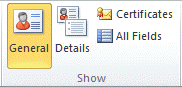
Activities (as limited as they are in Outlook 2010) are only supported in the default data file. Contacts in other data files will not have an Activities button on the toolbar.
Opening Journaled Files
Outlook can create journal entries when you work on files created in the other Office applications. However, unlike previous versions, you can't open the associated document. The journal entry opens when you choose the option to open the associated document.
Adding folders to Activities
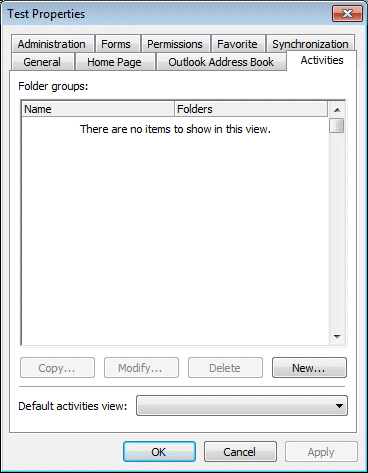
In older versions of Outlook you could right click on any Contacts folder and in the Properties dialog, Activities tab, select additional folders to include in Activities displayed for Contacts in the folder. This feature was removed from Outlook 2010.
People Pane as a replacement
The People Pane offers some of the same features found in Activities - this is the future of "activity" searching. While it doesn't support every Outlook item type, it works well for both contacts and non-contacts alike and is accessible from email or contacts.
One drawback to the People pane is that it seems to stop after maybe 200 messages are found. (I haven't counted the exact number, mostly because only a few people send me that much email.)
Using Advanced Find to replace the Activities tab
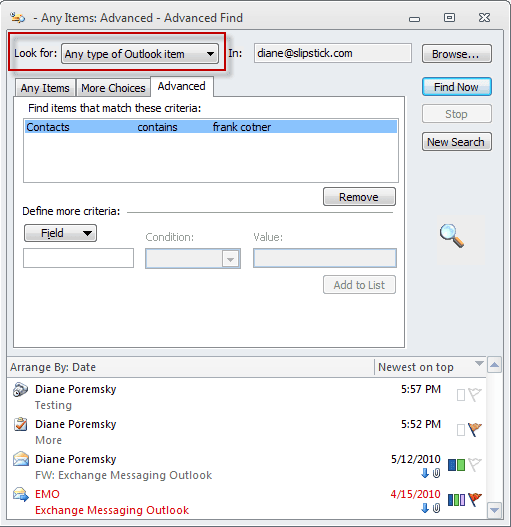
If you need to find all Outlook items that are linked to a contact, using Advanced Find will find everything. You need to select All Outlook Items from the top of the dialog then switch to the Advanced tab. Type Contacts as the Field name and enter the contacts name in the Condition field.
Using the Contacts field in a Group by View
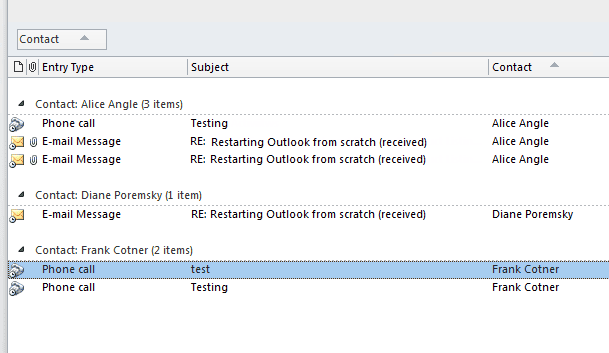
While not as useful as the Activities pane or Advanced Find, if you only need to view items within a single folder, a custom view that groups by the Contact field may be useful.
When in a single line view, right click on the row of field names and choose Field Chooser. Find the "Contact" field and drag it to the row of field names. You can group by this field or sort by it.

Ian says
In this article, you have listed several alternatives to view items related to a contact in a single location (e.g., Group by View).
Would a Search Folder not offer the same functionality, but with the benefit of seeing all related items from more than one folder?
Diane Poremsky says
Yes, it's one option, but you need to create search folders for each sender. (I have a macro that creates a search folder for a sender - it's definitely handy when I'm working on a project.)
Nancy says
The advanced find suggestion isn't working for me in Outlook 2010. .My indexing says all indexing is complete. I've had no trouble with the file. I have two .psts - one is my basic with all contacts in it. The other is newer (year old) and has all email related to a client in it. I have all contacts in the original .pst. I have tried the suggestion above for every imaginable combination but it doesn't work for me. I put in a contact whose email is all in the main/original .pst and if I do all Outlook items I only get contacts linked to her. If I do only messages I get nothing. If I do Advanced Find the regular way by putting her email address into the from field I will get those. But if I use the suggestion above with Contacts Contains HerName I get nothing. This is on Windows 10.
Diane Poremsky says
Did it ever work in windows 10? Search broke with an update recently but was supposed to be fixed earlier this week.
Nancy says
Wow, quite the coincidence cause I've never tried this before. I only added the 2nd .pst a few months ago so I never had a need for this. My problem only started with the 2nd .pst. When I click on activities before with everything in the same/one .pst I got all the emails to and from and cc'd for a contact. Now I can't get any of the emails that are in the 2nd .pst so I tried your tactic but still can't seem to get them. I will I could fill in Advanced Find for 'from' OR''to' but if I do that it interprets it as AND so of course I get no results cause I don't really have any emails for a contact that are both from that person and to that person at the same time. So I guess the coincidence that after 7 years of having this product, I go to use this feature the week it's not working. Is that what's happening? That would be a huge coincidence.
Diane Poremsky says
Well, it hasn't worked in a long time, but yeah, it sounds like you picked the wrong time to start learning how to use the feature. It's also not worth using the people pane as that is deprecated too and will be removed from future versions.
I have some instant search macros that replicate the feature in outlook 2013/2016 that work in 2010 too.
https://www.slipstick.com/developer/instant-search-messages-selected-contact/
Ian says
Was there ever a workaround for the missing Activities tab in the Contacts folder properties dialog box? Did Microsoft ever reinstate this feature?
Diane Poremsky says
No they never added it back. They fixed the actvities search but had no intention of restoring the settings on folder tab.
Therese Cerny says
Hi Diane. I'm using Outlook 2010 and have two accounts, a personal and a shared. For the shared contacts, when I am in my personal profile, the Activities button does not appear. When I am in my owner of the shared acct profile, the Activities button appears. Any idea why this is?
Diane Poremsky says
It's a limitation of shared mailboxes - Instant search doesn't work. When you are in the account as the account owner, it can search the folders for matches, so its enabled.
Microsoft Are Anti Business Morons. Truly the worst counter-intuitive progammers for over 5 years. says
Win 7 and Office 2010 with all updates. Sent items did show in activities and now do not (due to SP2?). Sent items at a glance on contact record are one of the MOST important items in a 'real' sales process. Microsoft is the WORST!!
Diane Poremsky says
lol what a display name.
I'll have to look into the Activities - I didn't think they changed anything, but it wouldn't surprise me if they did.
Kayla says
What the... I used this feature extensively in OL 2003 however have since enraptured on to a real CRM. I simply sold a client on the feature and upgraded them to OL 2010. whatever happened to the golden rule of not modifying presently released practicality. Sure, provide associate choice to flip it on/off however to get rid of it?
Diane Poremsky says
It should work if you have all updates installed, however, it is removed from outlook 2013. It used the old search function and that was replaced by instant search. They were unable to make it work in the activities and the people pane offers similar capability.
Fast Auntie says
It's my theory that nobody at Microsoft uses Outlook at all. I cannot imagine anyone with the power to change it putting up with all its idiocies.
Diane Poremsky says
LOL That's not quite true - they use it, but they definitely do not use it like 'real' people do.
RJ says
I have a plus net account which outlook downloads from, Diane.
Cheers
RJ
Diane Poremsky says
Well, then it's not because it's a hotmail account. I'll see if i can find any thing out.
RJ says
HI. I think I have the problem being described ie I can add a journal entry on the Contact page. But it then does not show up under the activities/journal tab in the Contact page. However I can see it in the Journal folder Timeline and Entry list. I am using Windows 7 32 bit and Outlook 2010 14.0.6123.5001. I am on automatic update and all are successful except for one Power Point. Am I missing something here, please?
Diane Poremsky says
That is the normal behavior with Outlook 2010. I have not yet figured out what triggered Activities to work - whether it is an Outlook update (most likely) or windows. It just started working.
What type of email account do you use? It doesn't appear to work with Hotmail Connector accounts (or a later update broke it again).
Bill says
Forgot to mention, Win7 Ultimate SP1 64 bit, Outlook 2010 32 bit. All programs updated automatically through WinUpdate and just checked updated.
Bill says
Does this mean that Outlook 2010 is now just as functional as 2007 for Activities? I use the activities to show all appointments tied with a contact by listing the contact. In 2007 it is easy to link a contact to the appointment in calendar with the contacts box at the bottom of the appointment. I have 2010 on another machine: 14.0.6129.5000, but I still don't see any way to link a contact to an appointment. Am I missing something?
Diane Poremsky says
It's almost as functional - they removed the ability to add folders to the list that is searched, but that mostly affects users with Exchange mailboxes. The search functions should work just fine.
Steve says
Thanks Diane! ;-) .. had no idea that option existed ..40 updates available.
Steve says
Hi Diane, I'm been suffering in silence on this issue since upgrading in 2010. Can you tell me in kiddie speak how I do an update with the most current fix that hopefully includes the one you and Tom are referring to. Thank You.
Diane Poremsky says
Go to Windows Update and make sure all office updates are installed and check. It's working on 14.0.6123.5001 - it's a new setup and only automatic updates are installed, so its not a hotfix.
Tom Colclasure says
I should have included in the above comment about the journal and tasks that I am using Office 2010 running on Windows 7. I was just so excited to see it working again.
Tom Colclasure says
Hey, I just noticed that my journal and task entries are being displayed and sorted under the Activities tab of a contact. What changed?
Diane Poremsky says
By golly you are right. I wonder which update fixed it....
aaron says
I am unable to use Office 2010 because all of the Appointments I have linked to contacts don't show up on the Activities tab. I continue to use Office 2003 for this reason. If this isn't fixed in Office 2013 I won't buy it. I can't use Office 2003 forever as it won't install on Windows 8. Please Microsoft, FIX THIS, these types of changes can be crippling.
Diane Poremsky says
There is no activities tab in Outlook 2013. Sorry.
what happened when you tried to install Outlook 2003 on windows 8? It should install ok, and should work ok. There are a few annoyances - like mail groups on the task bar with Word, not Outlook, but nothing serious that I am aware of at this time. When Microsoft says it's "not supported" they mean they don't recommend installing it and won't help you if there are bugs. They aren't saying it won't work.
David O'Neill says
@Diane, yes that worked as well, thanks. Both links have security implications - is one preferred?
Diane Poremsky says
The link you posted opens up links, mine allows access to more types of attachments. Yours would be considered more secure since it affects only links, but if you trust yourself not to click on questionable things and keep your AV updated, mine would be just as safe. For exploits like this to work, it requires an action on your part.... and because the attachments are blocked by default, a virus won't spread well using this method.
David O'Neill says
Hi, Diane.
I'm glad to say that there _is_ a way to open a journal entry's associated file. Please see https://support.microsoft.com/kb/2271150
Regards,
David.
Diane Poremsky says
Thanks for sharing.
I wonder if this method would work too: https://www.slipstick.com/problems/embedded-objects-blocked/
Diane Poremsky says
@patrece: An Outlook dev had this to say in response to your question about finding an efficient way to extract mail items:
For received items the address is in SenderEmailAddress, for sent ones she's to look up the recipients collection.
Patrece May says
We are all in agreement, Microsoft clearly has no real concern for their customers. Nothing shocking there. For those Access programmers out there, I did come up with an approach that works for me. I created a unique id for each contact (simple, date and time in the format of YYYYMMDDHHNNSS). When a journal item is created from within the contact inspector, the contact is associated with the journal item's links. So...
In MS Access:
I created an access db that runs vba code on open that links to Outlook and extracts the all the journal items where the CustomerID field of the journal matches the CustomerID of the contact being reported on. These records are loaded into an access table and then I run a report against the freshly extracted journal records.
In MS Outlook:
I created a macro that opens the access db with the /nostartup and /runtime parameters. When the db opens, it runs the extract and generates the report, so from the user's perspective, it just looks like a standard report. I then added a button to the ribbon that executes the macro. It works perfect!
I did all this for my husband (we have our own business and use the journal feature extensively) and he likes it better than the activities screen because it is formatted nicely and can be printed if needed.
The only downside, he likes it so much better than the outlook activities tab that he want me to include all activities on the report (email mainly) so that he can use the report for everything. Now I am struggling with finding a somewhat efficient way to extract the mail items.
If anyone out there is familiar with programming in outlook/access (i only know enough to be dangerous!) and know of a better way to report on the journal items or of a clean way to pull all emails involving a certain email address, please pass it my way! I cannot help but believe that microsoft has some hidden table out there that ties email addresses with the emails they are reference in. That is the only way the activities tab can return results so quickly. If anyone knows how to replicate the activities email display process in vba, please share the secret!!!
Jeff Jackson says
What the... I used this feature extensively in OL 2003 but have since moved on to a real CRM. I just sold a client on the feature and upgraded them to OL 2010. Whatever happened to the golden rule of not modifying currently released functionality. Sure, provide an option to turn it on/off but to remove it?
MS, get your head out of your butt and patch this back into existence please.
DeltaCharlie says
I used the Activities view to track Tasks attached to my Contacts and miss not having it. Anyone know of a workaround?
Diane Poremsky says
I suppose you want GOOD workarounds? Sorry, there aren't any. (Seriously.) You can use Advanced Find or Instant Search and search for the Contacts name. You can use the People Pane to view email associated with the selected contact but it won't find tasks or journal. You can add the Contacts field to the View and Group or sort by it. Actually, adding the Contacts field to the view might actually be the best option. (I'll add the instructions to the web page.)
Mike Scholtens says
Microsoft, you really screwed this up. i have over 2,000 contacts and I used the Activities feasture every single day to follow the evolution of client subject matter discussions and upcoming Tasks and Appointments. You have destroyed my productivity in trsacking my client relationships. Taking such a feature away for "under usage" without providing some alternative to those thousands of people who rely upon the feature is reprehensible.
LadyValory says
@ Lee - look at the properties for your business contact folder it is likely you need to check a box that allows it to be seen when accessing it from the new email to:, cc: and bcc: menus
Lee Hudman says
I have an interesting issue with Outlook 2010. I have a number of contact folders for different types of business contacts. One of my folders has 557 members, and if I go to contacts, the folder says 557 and all of the contacts are there. The folder is also marked to show up as an email address book. BUT, if I write a new email, or forward and email, and I select that folder via to: or cc: or bcc:, there are only 6 records in the file that show up, and three of them are duplicates - but have the contacts name and phone number as the email address. I can't find any hits on the internet as to why this is happening or how to fix it.
Fred says
Class action lawsuit.......I bet that would get it fixed
Diane Poremsky says
I'm sure the EULA covers their butt, otherwise they'd have thousands of class actions against them. :) Part of the problem is that few people use Activities and even fewer use Journal - its actually the major problem. If a larger % of Outlook users actually used the features, they would not be planning on removing them from future versions. Development money goes into the features more people use - email, calendar, tasks, and contacts. (Admins have hated the journal since Outlook 97 introduced it.)
Microsoft has not done a good job communicating their plans for activities and journal with their customers - actually, they haven't said anything. As a result, we have Microsoft Support saying its a bug and making people think/hope its going to be fixed. I have no such hope - I think we have a better chance of seeing improvements to the People Pane, although they haven't made any movement there either. I know that's not what you want to hear, but it's the unfortunate truth...
Fred Polak says
This is crazy! These funtions are why I own this program. How could this have been missed? I suspect it was not a mistake, but rather an intentional move because they realized they could sell more of other programs if they took funtions from Outlook. Why are people not not freaking out? If I had bought fords for years and then I bought a new one and was not told it did not have reverse I would get my money back.
Why do they still have the funtionality to pull all activiees and the specific activities (tasks, journal) in the contact view? I suspect it is so they could say it was all just a big mistake, if enough people freaked out. How do you freak out o a company that does not allow you to talk to them. Where is their phone number? When I sent emails in to Microsoft I recieved ridiculous computer responces that directed my to other sites. I suspect this is just a game.
If enoug people demanded their monney back (from who?) and if the news picked it up, and if it cost them enough money they would fix it. Instead, i suspect, they will dummy it down so they can sell more access or other client tracking program which had sales hurt by these funtions.
Dear god people rise up! Why did they take the funtionality away? Why didn't they tell anyone? Why won't they fix it? i feel like I'm in a herd of cattle who is strong enough to not be slaughtered, but we are too lazy or stupid to do anything about it.
If I'm wrong please show me the way, if I'm right please DO SOMETHING! Mnay of us who really know how to make this program save us time just got screwed. Where is all the information I saved and linked to the contacts? NO ONE CARES!!! WHY IS THE FUNTIONALITY STILL THERE IS THEY INTENDED TO NOT FIX IT? I suspect it is so they could deny it was on purpose and fix it later ....IF WE MAKE SCREWING US PAINFUL!!
Come on people!!!!!!!!!!!!!!!!!!!!!!!!!!!!!!!!!!!!!!!!!!!!!!!!!!!
Diane Poremsky says
It was not a mistake -well, the journal part was not a mistake. I'm not sure about the other broken parts. The linked items are still linked - just not found on the Activities page.
crcoffey says
Likewise, I am disappointed in this loss of functionality. One of the posts above gave a glimmer of hope that MS will address this issue soon. Has there been any change in status?
Diane Poremsky says
There is no change. Unlike you, I've lost all hope that it will be addressed in a manner that will be useful. The journal is depreciated and will eventually be removed from outlook.
Mary says
I relied heavily on sorting messages by date in Activities view of contact information. I’d appreciate this being reactivated in Outlook 2010.
JMerda says
Remember, Outlook prior to 2010, how you could click on activities for any contact and receive a well-ordered list of emails, tasks, appointments, etc for that contact. It made searching for specific contact information easy, it even allowed sorting.
Well, Microsoft in their wisdom, said "Hey, it's a feature that we feel was hardly used so we are gonna just remove it in Outlook 2010."
Sadly, the day came when thousands of Outlook users went to search a particular contact for calendar history info and were unable to. You can assign a calendar item to a client (still) but it's self-defeating as it does NOTHING. It doesn't link to a darn thing and no report will show it, I'm specifically focusing on calendar items.
As far as I know, there is no fix and never was intended to be a fixed according to https://technet.microsoft.com/en-us/library/cc1791...
Due to that wonderful decision which feature I depended on to keep track of client activity, I'm looking into a 3rd party email program with calendar or a contact management program.
The sooner I release myself from Microsoft's clutches the better for me and my clients.
I'm a Microsoft partner who's starting to look at other partners.
Frank de Graaf says
Re: Only mail received items showing in People Pane.
According to the product group, they do plan to fix this in a future update.
Despite the fact that this dismal oversight by MS has been queried since Office 2010 was first released, SP 1 has not fixed this problem. In previous versions the linking was automated. Soon as one linked a procedure to a contact it would show in the contact details. Using add ons such as MS Business Contact Manager and say ExchangeWise are work but may require user intervention by phycically linking the item. Presently I am using Linker for windows which, although it is a manual exercise, it works like a charm by placing the link in the Notes section of the contact, which than places the outlook subject link in the note next to the date/time created with a quick access button. It appears that MS touts the enhancements to its sofware, but does not seem to care too much about the consternation caused to millions of users when certain "functionalities" have been removed or simply do not work. In this case, the very fact the the contact details show tabs for "all items, Activities, Mail (which only shows received and not sent) etc indicates that this should be working. I certainly will be placing these comments on as many forums as I can, so maybe, just maybe MS will rectify this oversight. Of course MS does listen, shown by the incorporation of the "Quick Launch Bar" in Office 2010, which is simply a replacement of the old Toolbar. The "right click" options are also brilliant.