To use categories to create a dynamic distribution list, switch to the By Category view then select the category group you want to send a message to. You can use this method to create meeting requests, appointments, task, or journal items. In Outlook 2007 and 2010 (and above), to create an appointment linked to a contact or group, choose New Meeting Request then cancel the invitation to convert it to an appointment.
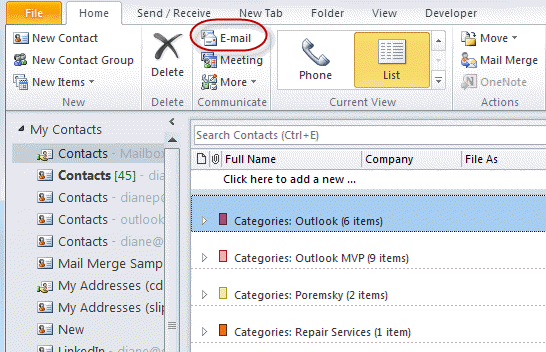
In Outlook 2010 and up, select the category group you want to send to then click the E-mail button in the Communicate section of the Home ribbon. This will open a new email message with the contacts in that category selected.
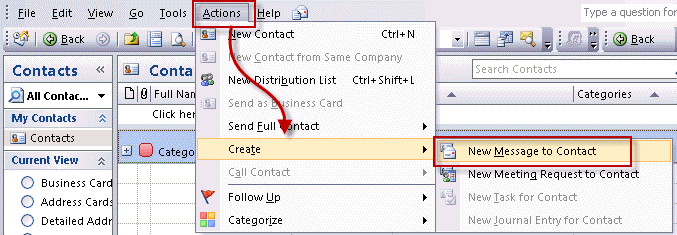
In Outlook 2007, select the category and look on the Actions, Create menu for the New message to command.
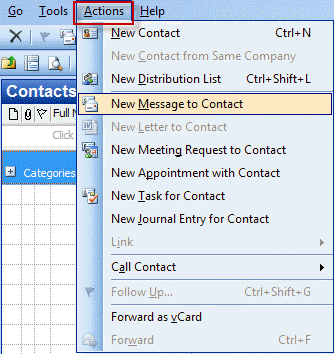
In Outlook 2003 (and older versions), Look on the Actions menu for the New message to... command.
If you select a single contact, New message to is on the right click Context menu (under Create in Outlook 2007 and Outlook 2010).

carmen says
I work for a company that has a client base of 50,000 which we email daily with our instant online specials, and this list is updated at least every month. Outlook can only send 10,000 emails a day which hinders our "while supplies last" sales since we can't communicate it to the whole client base at the same time. How can I create a dynamic distribution list through outlook? I have been searching and no video shows bulk emailing with focus on the daily 10k limit. Please help
Diane Poremsky says
Is this an Exchange server email account? I'm assuming the limit is with your email provider, not Outlook, although Outlook can be slow to send a large number of messages. For lists that size, I recommend bulk mail software, which can better handle the volume. A SMTP service, like SendGrid or Amazon SES would avoid sending limits.
Are the addresses in Outlook's Contacts or the Global Address List? Outlook can't handle large DLs - the GAL can and supports a dynamic list, based on pretty much any property you choose.