You can use Microsoft Word to print labels and envelopes in several different ways, including mail merge. A mail merge using Outlook and Word can handle not just built-in fields, but also custom fields added to Contact items.
See Using Mail Merge in Outlook if you need a video tutorial and Add attachments and set email fields during a mail merge to email if you need to merge to email and include an attachment. Mail merge utilities are at Mass Mail Tools for Outlook. Some of the Other Tools can also do general mail merge chores.
Outlook Mail Merge
You can start the merge from any Outlook contacts folder. The steps are similar in all versions of Outlook, however, the menus are different.
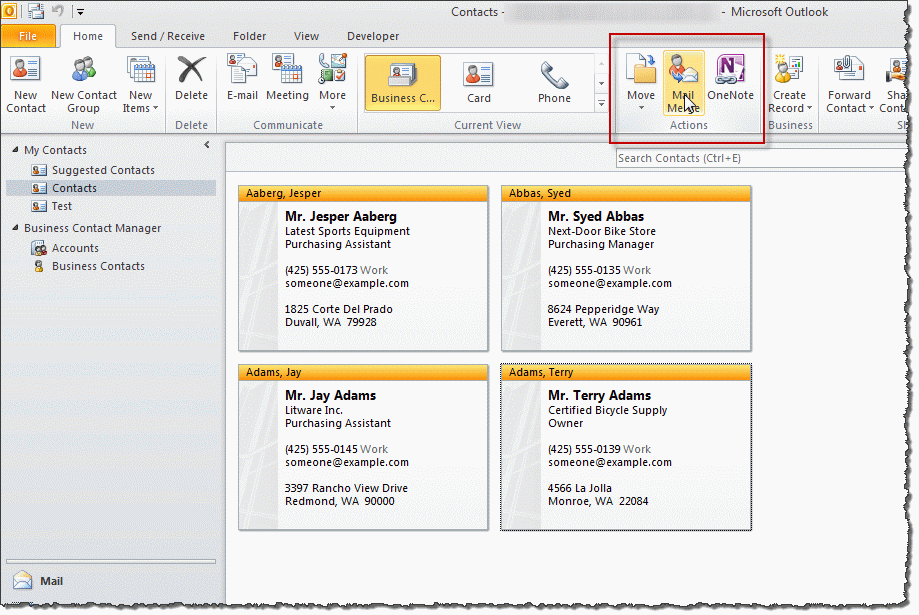
- Select one or more names in the contacts folder.
- Choose Mail Merge from the Actions chunk on the Home ribbon.

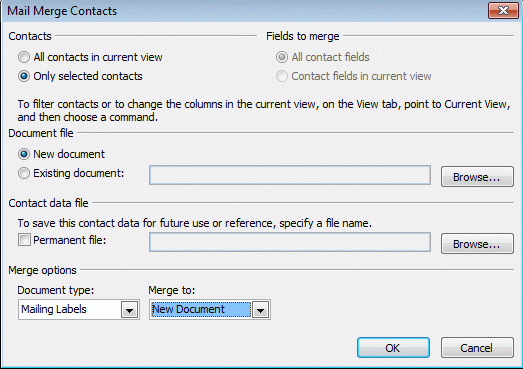
- Make your choices on the Mail Merge Contacts dialog box, then click OK.
- If you are creating labels, click the Setup button to select the label size.
- After Word displays the merge document, add merge fields, other text and formatting as needed. Save the merge document if you think you might use it again.
- Click the Merge button.
Using Outlook 2007 and older
- Select one or more names in the contacts folder.
- Choose Tools | Mail Merge.
- Make your choices on the Mail Merge Contacts dialog box, then click OK.
- After Word displays the merge document, add merge fields, other text and formatting as needed. Save the merge document if you think you might use it again.
- Click the Merge button.
If you want to see custom fields in the Word merge field list, make sure you choose All contact fields under Fields to merge in step 3.
Word Envelopes and Labels
You can use Word's Envelopes and Labels feature to print envelopes.
- Open Word.
- Switch to the Mailings tab.
- Click Envelopes to open the Envelopes and Labels dialog.
- Click the Address book icon. If this is the first time using this feature, select Insert Address to browse the Outlook Address Book for an address. Contacts you’ve previous addressed envelopes for will be listed on the MRU.
- Click Print to print immediately or Add to document if you are writing a letter and want it saved with the document.
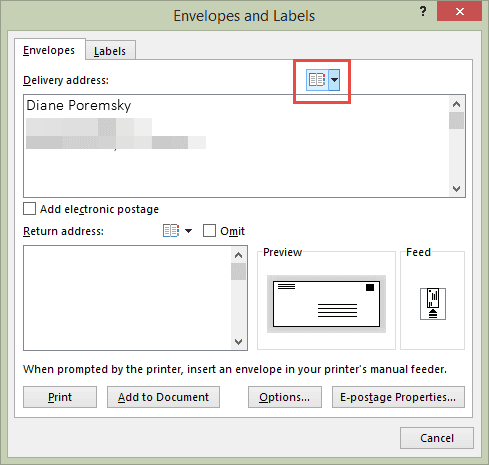
 If this is the first time using this feature, select Insert Address to browse the Outlook Address Book for an address. Contacts you’ve previous addressed envelopes for will be listed on the MRU.
Outlook 2007 and up do not have the New Letter to contact command. You can use a template and macro to replicate the feature.
Word Template (VBA)
Download Helen Feddema's Printing Labels with Outlook Contact Info from Word 97 sample template (code sample #40), which uses VBA code to pull in all the contacts in an Outlook folder called "Labels," putting one address in each cell of a table sized to print on Avery #5160 address labels. Modify to suit your own needs.
Tools
Envelopes for Outlook is an add-in that places a button on each MS Outlook contact toolbar for simple one click envelope printing. Outlook 2003 to Outlook 2016 are supported. POSTNET barcodes and logo printing supported. |

Joy Bellinger says
Can you tell me how i can print out my labels on a label sheet which has been partially used? eg I need to start printing from (say) label 6 and finish at (say) label 16. It is clear in Publisher how you do this but in WORD no one seems to know how to do it!
Diane Poremsky says
I don't know if there is a better way, but when i need to do that, i do it manually - copy then clear the contents of the cells I need to clear and paste it into other cells.
Jeana Walz says
Diane, is there a way to do this using my manager's contacts as a delegate? I'm using MS2010 and it does not appear to give me an option of choosing my manager's contact folder.
Diane Poremsky says
Unfortunately, you can't use the contact folder as an address book. You can copy the contacts to a new contact folder in your mailbox (use a new contacts folder so they don't get mixed in with your own contacts) - or create a List view that has the fields you need, select all, copy and paste into Notepad or Excel and save with the csv extension. This creates a Tab or comma delimited file you can use as the data source. Use the Select Recipients > Use existing list.
Thomas Prusinowski says
I would like to create a sheet of labels with all different addresses but the system will not allow me to save it. How can I do this? Thanks Tom
Diane Poremsky says
How are you creating it? A mail merge is usually the easiest way to create labels.
Bruce Carter says
First line, what is a contacts folder? elaborate. Do you mean the name and address storred in the dta base?
Diane Poremsky says
Are you using Outlook? If so, you need to open the Contacts folder in Outlook. Ctrl+3 will display the Contacts module in the navigation pane.
If you are using a database as the address source in a Word mail merge, you'll use Word's mail merge wizard.