There are two causes for this error: a registry key is wrong or corrupt and needs to be updated or you are using the Windows Store version of Outlook and Office click-to-run was installed over it.
Microsoft updated Office installation to remove the Windows store version of Office, plus that short-lived experiment in OEM software distribution ended several years ago, so at this point, the most common cause is the registry key.
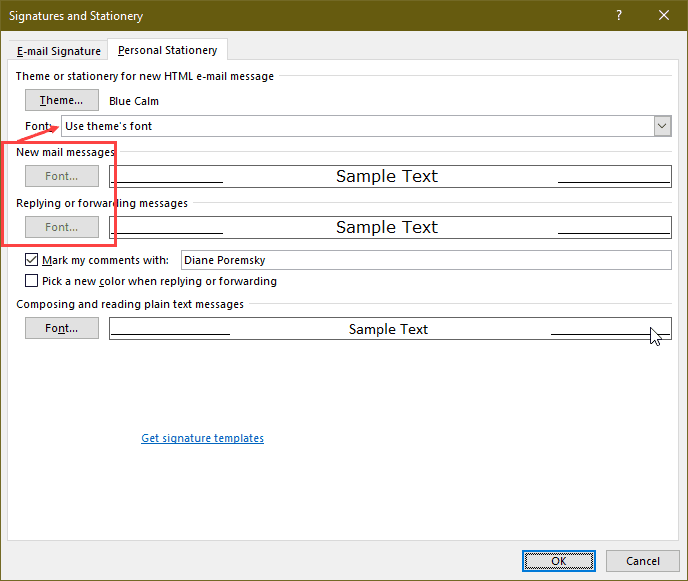
If the signature and Fonts button works in File > Options > Mail but is disabled in the fonts dialog, this is because you are using a theme.
Registry key needs to be updated
This is the original cause of the buttons not working and dates back to 2012.
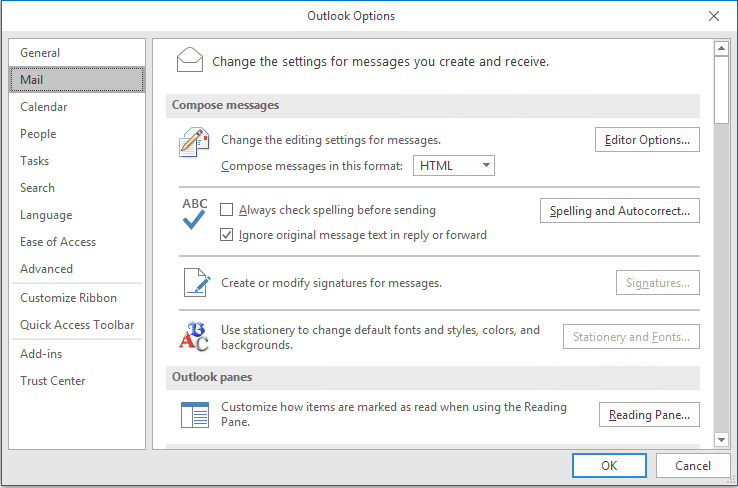
A fairly common problem for 64-bit Windows users is that Outlook's Stationery and Fonts or Signatures buttons won't work.
When the Stationery and Fonts or the Signatures button is grayed out or won't do anything when you click it, you may need to edit the registry.
First, empty your Temporary Internet Files. This may or may not help much, but even if it doesn't do any good, your Internet cache will be clean.
Empty your temp internet files and if it still fails, change both (Default) and LocalServer32 values in each of the following keys to the appropriate path for your installation of Outlook.
HKEY_LOCAL_MACHINE\SOFTWARE\Classes\Wow6432Node\CLSID\{0006F03A-0000-0000-C000-000000000046}\LocalServer32HKEY_LOCAL_MACHINE\SOFTWARE\Classes\CLSID\{0006F03A-0000-0000-C000-000000000046}\LocalServer32
Default installation paths for Office / Outlook are:
Outlook 2016 and newer Subscriptions & Retail Licenses 64-bit:
C:\Program Files\Microsoft Office 16\root\office16\Outlook.exe
Outlook 2016 and newer Subscriptions & Retail Licenses 32-bit:
C:\Program Files (x86)\Microsoft Office 16\root\office16\Outlook.exe
Outlook 2016 ProPlus (volume license) 64-bit:
C:\Program Files\Microsoft Office\Office16\Outlook.exe
Outlook 2016 ProPlus (volume license) 32-bit:
C:\Program Files (x86)\Microsoft Office\Office16\Outlook.exe
Outlook 2013 Subscriptions & Retail Licenses 64-bit:
C:\Program Files\Microsoft Office 15\root\office15\Outlook.exe
Outlook 2013 Subscriptions & Retail Licenses 32-bit:
C:\Program Files (x86)\Microsoft Office 15\root\office15\Outlook.exe
Outlook 2013 ProPlus (volume license) 64-bit:
C:\Program Files\Microsoft Office\Office15\Outlook.exe
Outlook 2013 ProPlus (volume license) 32-bit:
C:\Program Files (x86)\Microsoft Office\Office15\Outlook.exe
Outlook 2010:
C:\Program Files (x86)\Microsoft Office\Office14\Outlook.exe
Don't forget to restart Outlook after editing the registry.
Do it for me
If you are using the default installation location for Office 2010 or Office 2013 ProPlus, you can use the registry file for your version:
Subscriptions & Retail Licenses
Outlook 2016 Outlook 2013
Volume Licensing
Outlook 2016 ProPlus MSI Outlook 2013 ProPlus MSI
Outlook 2010
Outlook 2010
To open the registry editor, press Windows key + R to open the Run command. Type regedit into the Run field and press OK to open the registry editor.
Windows Store version of Outlook is installed
After installing Outlook's January 2018 update, some users are unable to edit signatures.
Microsoft has identified the cause as having both the Windows app store version installed as well as a "normal" version. This would be the case if you have a new computer and Office was preinstalled, then you installed your own copy of Office.
After uninstalling the Windows store app the Signature or Stationery and Fonts button should work.
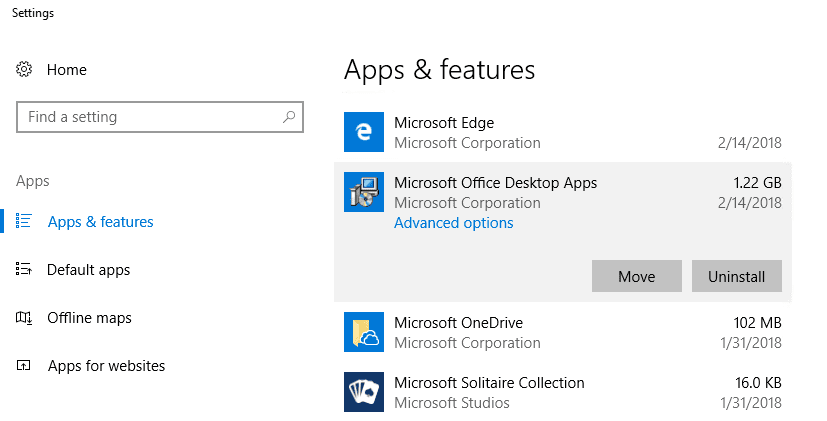
- Open Settings, Find Apps & features.
- Click on the Office Desktop App and select Uninstall

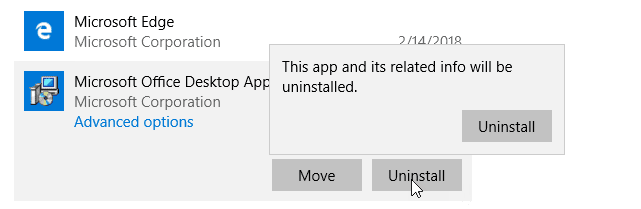
- A second small Uninstall dialog will open, for you to confirm.
If you prefer using PowerShell, follow these steps:
Open PowerShell in run as admin mode then paste:
Get-AppxProvisionedPackage -Online | where-object {$_.packagename –like "*Outlook*"} | Remove-AppxProvisionedPackage -OnlineThen:
Get-AppxPackage "*Outlook*" | Remove-AppxPackage
Close the PowerShell window and open it without using run as admin. Run this command:
Get-AppxPackage "*Outlook*" | Remove-AppxPackage
Signature & Fonts button works, Font options not available
If the Stationery and Fonts button opens the Signatures and Stationery dialog but the Fonts buttons are disabled, do you have a Theme set? When you use a theme, the fonts in the theme are used unless you choose Use my font when replying and forwarding messages in the Font menu.

Raphael says
Hello Diane,
I have been an avid fan of your posts on Outlook VBA. Many thanks.
However, all of a sudden a weird problem when I open any email message in the Outlook 365 32b version. The fonts are very weird.
I was trying to update "Stationary and FOnts". The button is NOT greyed out but does not function. The O365 is uptodate. Running on Win10.
Any suggestions?
Alan Silverstein says
Ms. Poremsky, you're wonderful!! Only this post by you, and the 'do it for me' registry change, worked as advertised!
I have tried making my font change for several days, having had no success until I read this article by you. I have read more than 5 articles about how to do this and had no luck with these other people's recommendations until I read your recommendations. And your 'do it for me' made the fix one of the easiest things I have ever done on a computer.
You are truly an MVP!
IQBAL says
Thanks, by just removing Windows app store version of Office Desktop App, signature and font & stationary buttons start working, for me it was not grey but when you click on them, nothing happened just outlook freezes for few second.
Ndubuisi says
Thanks a lot. The Outlook Signature issue has been resolved after I applied this guideline.
liam says
Will I lose my emails and settings by uninstalling outlook?
Andy says
Thanks so much...so many difficult solutions out there so I never thought, following your instructions, it would be this simp!e. My Outlook 10 is working great again after reinstalling on a new computer.
Vanessa says
The first three steps in article worked for me (uninstalling pre-loaded Microsoft Office Desktop Apps). Thanks, I have been looking for a resolution for months!
sarah Walmsley says
My signatures button disappeared months ago and it is not greyed out in settings. When I click it, Outlook freezes. I have checked and I do not have the Outlook Desktop app installed. Do you have any other suggestions please? I use Windows 10 and have Office 365 Home installed. It's driving me nuts!!
Diane Poremsky says
Which version and build of Outlook are you using? See File, Office Account for the information.
Paul S. says
I only updated the (default) values, but this...was the MONEY!! Thank you, Diane...
Joe says
Thank You, That worked brilliantly. ?
Andrew Burrell says
I deleted the user profile from the PC and logged them in as a "new" user: this resolved the issue for me.
TLDR:
I am getting the issue for one user on a new Windows 10 v1903 PC. Uninstalled pre-installed Office and installed our Office 365. I have done a 'quick repair' and re-install, before finding this article. I log on as another user on the same PC and I don't get the issue. I tried the registry fixes anyway, but to no avail. I also created a new Outlook profile for the problem user, but that did not help either. As a temporary workaround, I copied the signatures from their old PC to the new PC, and they can select them from within the email, but no access to edit them or set the defaults for New/Reply (as per the issue). Fixed as per opening comment.
Sapna kaushal says
Thanku very much...it works
ratheesh says
Thank u so much its working fine after uninstalling a Microsoft desktop app.... Nice
Victor says
100% gratitude! What a simple fix and I didn't even have to get IT involved... Thank you so much!
chirag says
It works for me...
Thksss
Jason says
Thank you so much. Spent months trying to sort this out & typing my signature manually.
Just deleted Microsoft Office Desktop Apps & signature box working fine now.
Jen says
Thank you!! As the second suggestion of uninstalling Microsoft Office Desktop Apps worked beautifully for me!
Emily says
THANK YOU! Worked perfectly on outlook 2007, after uninstalling a trial of 365.
Andy says
Thank you soooooooooooo much. This worked perfectly.
Andy
Washington, PA
ITsds says
I tried eveything, nothing worked. I tried to find the built in apps for Office, but they weren't there so I couldn't remove them.
Did the Powershell commands (the first one errored) and after that it worked! thanks!
Russ Donovan says
What about Outlook 2019?
Diane Poremsky says
2019 is the same as 2016.... as long as you have a new computer with the office preinstalled, it can interfere with click to run versions. Run the powershell commands to make sure all bits are removed.
Vic77 says
THANK YOU for this post. I have been waiting for our company's IT dept to fix this issue for me for MONTHS, along with another email issue I have been having. Finally sick of waiting and decided to google it my self. SO HAPPY I found this post. It worked; even on my Outlook 2007!!
Del says
Thank you, thank you, thank you!!!! I have been googling this error for 3 months, and you are the first person to have a solution!!! It has been SOOOO annoying.
Melanie says
Thank you so much, it worked. You really assisted a BC (before computers) person.
Sead says
Worked just fine.
Gori says
Thanks, first solution for me works : )
Harry says
Worked just fine.
lusitha hashan says
Worked
Thank You
john says
Thanks - worked...
DJDave says
Incredibly helpful. I'll be bookmarking this page in case this error comes up in the future.
howie says
worked like a charm, thank you very much!
Wilderness says
Thanks, it worked perfectly!
Brendy says
Awesome fix by uninstalling the app version, typical microsoft sending you down the regedit route only for this to work...Thanks.
Amhi says
It worked for me
Stan Johnson says
That worked great, and relieved a frustration in having to manually include the disclaimer on every email! Thank you!
rishabh rustagi says
sorry but can you help as it didn't work for me even after following all the above steps.
Now atleast clicking the signature button is not hanging the system. it just clicks and nothing happens.
please help
Diane Poremsky says
Did you reboot the computer? It's usually not necessary, but can help.
Sol says
Hi,
In my case , The computer is new, and running office 2010.
Editing the registry did not help , but removing the Microsoft Office Desktop App helped and now able to edit the signature in Outlook.
Thank you .
Christine Sutton says
Awesome! I had tried many other possible solutions, but this was the fix! I had already uninstalled Office 2007, reinstalled it, changed user accounts, tweaked the registry, and more... nothing worked until I found your article on uninstalling the Office Desktop App. Didn't even have to reboot after that - it was immediately fixed.
Thank you!!
Chris Sutton
Sheila Hoffman says
My comment below hasn't posted yet and I cannot edit it. But Diane, there's no need. I tried doing a second repair and this time it worked. I'm good to go. Don't know what the issue was but I'm thrilled. Feel free to NOT post this or my longer previous post as it's a non-issue. And THANK YOU so much for all you do for the community.
abhi says
Thank you for information worked
Terry says
After uninstalling the app store version of MS office my Outlook 2013 signature and font features now work.
Thank you!
Mandeep Singh says
Very Good article great work done.
Alan H says
Thanks, worked
Pedro Graffigna says
Thanks a LOT, it worked perfectly !!
Peter says
I should add that this was a brand new installation of Windows 10. Since there were no temp files to delete, I skipped that step. Also I am working with Office 2010 Pro.
Thanks again.
Peter says
Thank you!. For me, removing the Microsoft Office Desktop Apps was the fix. I had previously tried making the registry edits without removing MODA, and that did not help.
Alex says
Thank you!!!
Jesus says
Thanks for the help, after uninstalling desktop apps, the signature feature was now working. Thanks for posting this.
John says
Diane should get royalties from Microsoft...thank you again for resolving an Outlook issue of mine!
Alex says
Thank you brother! Only your solution helped me!
Gusto says
Uninstalling Office Desktop App worked for me after struggling
Alberto says
I did not know where to go in windows to uninstall the Office Desktop App. After uninstalling, Signatures worked again.
Thank you!
JOHN says
Pulling my hair out until I ran into this. Thank you sooooooooooooooo much! Fixed it with excellent instruction.
Naveed says
Thank you so much
Tim says
Hey, I was scared to use your first fix of uninstalling the Microsoft Office Desktop Apps but eventually plucked up the courage. But - you know what - it worked a dream. Thanks. Signatures now installed!!
Catherine says
thank you, thank you, thank you. Worked a treat!!!!
Eddie C says
THANK YOU!!! Cured my headache!
Chris says
Regedit didn't work, but uninstalling the Microsoft Office Desktop Apps did!
Diane Poremsky says
Yeah, at this point, checking for the apps and removing them should be step 1.
Steve Beach says
Had this issue today with 2010 on Windows 10. This worked. We are in the process of switching over to 365 (finally).
Prem Kasera says
HI got the same problem in outlook 2013 in win 10 64 bit version
i did reg edit but did not work.
i found the cause why it happened
you need to uninstall office 2016 desktop app if they install on your PC or Laptop
it work for me after uninstall these apps
iJay says
Faced the same situation (The Signature or Stationery and Fonts button doesn't work) after started using the new computer at office. Nothing happened when I pressed the buttons.
They started working immediately after removing Microsoft Office Desktop Apps. Thank you very much for the article.
Annie says
This worked for me! I uninstalled the Microsoft Office Desktop Apps and the signature button was working again in Outlook. I did try the regedit but it didn't have the localserver 32 entry as detailed in the first path but did try the second path to replace the bad values in the local server 32 entry with the installation path.
Thanks
nrpardee says
Diane,
Thanks so much for this site and for this fix.
I had a little trouble applying the registry fix, even though I'm a seasoned techie who's used the registry editor a fair number of times but getting a little rusty.
If might be useful to point to some verbiage that gives a little explanation of how to do this.
The second thing is that my path didn't fit the norm. I was helped by there being one default key that did point to the right path, and copied that rather than using the "normal" value as indicated above. Something like "paste" the value into a command (DOS) box and see if Outlook starts might be a good check that one has the right value.
Just a couple of thoughts, and thanks so much!
Nelson
nrpardee says
This seems to encapsulate the fix process I went through, when starting with a trial Office license, and the registry fix didn't work.
Note: I still think the registry fix suggested in this article (above) is worth trying.
If not, here's the process I would suggest
-Save your data
-Are you able to delete office and all instances on the start menu?
- if yes, and you have also at the same time deleted the profile, I'm not sure I have any suggestions.
A windows repair using the vendors tool, followed by an uninstall of office, then an office
reinstall from the Microsoft download might do it.
- if no, create a new administrative user, and
* use that to uninstall office and delete Start menu entries
* delete that administrative user
* create a new administrative user as a local, not a microsoft user. I recommend a short username,
such as an initial and a last name (but don't re-use either the original or the just created and
deleted username)
* transfer/load any data (my documents, desktop, my pictures/music/videos, downloads (if you want them)
etc. to this new user
* delete the initial user created in the windows reinstall. You should only have one user at this point.
* change the local user to a microsoft user
* download office from Microsoft. Hopefully, this will resolve the problem.
if it doesn't , might try the registry fix at this point. I did apply that fix
and it might have been part of the solution.
Hope this might help.
Michael S. Müller says
Just a note if you can't get this to work. I had the same problem on a new computer with windows 10, and notis (after other talked about it) that all the office programs was dobble in program list. After uninstall there still was a version of them all (outlook, word, excel, powerpoint ect.) and I then removede them one by one (right click and remove) after reboot and new install - this worked :)
Diane Poremsky says
That indicates you had the store apps installed and a "traditional" C2R - new computers are starting to come with that installed. The store app isn't in add/remove programs - you right click on the icon to uninstall.
https://www.slipstick.com/outlook/outlook-store-app/
nrpardee says
That's part of the process I detail, but it doesn't include how one gets office "back". And in my case, uninstall was not available for the existing user. :-)
nrpardee says
I discovered after I wrote the prior comment that I had another problem- two entries on the start menu for each of the office apps, e.g., two of word, excel, etc.
I should mention that this is a new PC, and I've had issues with Office since day one. Office apps would run by clicking on files, but none were in the Start menu, and office would not uninstall from control panel (I don't remember if it was listed there or not). An MS tech "fixed" this by creating a second admin user and uninstalling then reinstalling office. Unfortunately, I then had duplicate entries for the Office apps. I created a third user, did uninstall, deleted profiiles, reinstalled, and seemed to be ok.(although the install hung and had to be restarted). I deleted the tech's admin user.
Then I discovered this problem with signatures, and tried to fix with this registry fix. No go. After that, I discovered that the duplicate apps were back. I deleted Office again, by going through control panel, then individually deleting the set of office apps still on the start menu. I left the profiles in place. I then deleted the original admin user, leaving only the new admin user I created. I reinstalled Office. Now I don't have duplicate apps, and signature works.
I can't be 100% sure, but it seems like I may have resolved my issues. It appears the root of the problem is that 30 day Office free trial getting registered. As a bolster to this theory, Dell has a long and detailed page on getting rid of Office365 trial.
Diane Poremsky says
There could be several issues - one is that dell is shipping the windows store version of office. its not listed in add/remove, you need to right click on each app to uninstall.
Re: Signatures. Learned today this is a bug. Microsoft is still investigating. They think another program is causing issues but haven't tracked it down yet. It does seem to be a dell problem...
nrpardee says
This is not working for me.
Windows 10 x64, Office 365 32 bit .
The installation path is C:\Program Files (x86)\Microsoft Office\root\Office16
Outlook.exe which is different from this example. outlook.exe in that folder starts Outlook.
Registry entries
Computer\HKEY_LOCAL_MACHINE\SOFTWARE\Classes\WOW6432Node\CLSID\{0006F03A-0000-0000-C000-000000000046}\LocalServer32
already had default pointing to the above. I added LocalServer32
Computer\HKEY_LOCAL_MACHINE\SOFTWARE\Classes\CLSID\{0006F03A-0000-0000-C000-000000000046}
was missing the LocalServer32 key, and obviously both the default and LocalServer32 keys, which I added.
I exited and restarted Outlook, but no joy.
Ideas?
And- thanks.
Diane Poremsky says
The January update appears to have caused issues - Microsoft is investigating. Because only a small % of users are affected, they think another program is affecting it but haven't figured out which one yet.
Peter Smee says
Hi Diane, great article and this has fixed computers in the past but I now have a collection of Windows 10 laptops with Office 2016 32 bit installed that are all having the same issue, and the fix above doesn't work changing the path to Office16 of course.
Do you have any new fixes for the new Office and Win 10?
Diane Poremsky says
This is apparently caused by the January update. Microsoft is investigating.
R Veldman says
I loaded Outlook 2007 on Windows10. No active Signature button.
Create a new Restore Point before editing your registry.
I edited the Registry; run regedit
I checked the file path of my outlook.exe, and found it to be:
C:Program Files (x86)Microsoft OfficeOffice12Outlook.exe
This is the "data" I copied and added to the registry.
I had to create a new "key" at this address. I did not have a "LocalServer32" :
HKEY_LOCAL_MACHINESOFTWAREClassesWOW6432NodeCLSID{0006F03A-0000-0000-C000-000000000046}LocalSever32
I added the "Data" to the default "Name":
(Default) REG_SZ C:Program Files (x86)Microsoft OfficeOffice12Outlook.exe
Then I added a new "Name" and "Data"
LocalServer32 REG_SZ C:Program Files (x86)Microsoft OfficeOffice12Outlook.exe
Exit regedit
Closed Outlook. Reopened Outlook.
Stationary, Signature, and Editor buttons work.
(I don't understand it)
Thanks for all the clues.
Wesley Wall says
Good evening
Thank you very much for this post . It worked. I recommend creating a restore point first. I went to the 64bit version HKEY_LOCAL_MACHINESOFTWAREClassesCLSID{0006F03A-0000-0000-C000-000000000046}LocalServer32. There was a default key . I had to create the localserver32 multi-string value key. After reboot it didn't work. Then I went to the 32bit version HKEY_LOCAL_MACHINESOFTWAREClassesWow6432NodeCLSID{0006F03A-0000-0000-C000-000000000046}LocalServer32 and deleted the localserver32 key. I left the default key alone. That did the trick. My Outlook 2016 used the Office 16 folder. Also when I created the new key I copied the path of the default key and pasted it to the new localserver32 multi-string value key instead of typing it out.
Marc says
This worked for me as well. Thank you very much!
Outlook 2016 (Multi-user)
Nigel says
This had me stumped for a few days, would have never thought of removing the 32bit entry, but it worked for me, Office 2016 64Bit, Win 8.1 Pro.
Terence says
awsome it worked
Mike says
Easier way is to open Word 2007 and select "Email" option at the top left. You may have to click the very tiny "down arrow" to see the option. It will open an email box. Select "Signatures" on that email and it should open the box to create a new email. Once done, I opened Outlook 2007 and both Signatures and Stationary and Fonts buttons worked. No messing with the registry. I found this searching on a similar subject so it is not my creation. Hope it works for you.
Diane Poremsky says
It depends on the version of office and the reason it's not opening.
Vicki says
This worked perfectly!! thank you so much
Xavier says
Hi,
I tried your fix. I'm on Windows 64bits and Office 2013 64 bits.
I'm only able to change that key for my version :
HKEY_LOCAL_MACHINE\SOFTWARE\Classes\CLSID\{0006F03A-0000-0000-C000-000000000046}\LocalServer32
I changed both Default and LocalServer32 but the signature button still doesn't work.
Any idea ? i just don't know what to do anymore.
rOBERT says
what is the fix on windows 10
Diane Poremsky says
It should be the same. If you have outlook 2016, change \Office15 to \Office16.
Chan Cabu says
Do you also have paths for Outlook 2016.
Diane Poremsky says
The keys are basically the same - if the version # is included, change to 16, if no version# then its the same key.
Greg Craig says
Worked like a charm in Outlook 2016 as well! Thanks so much!
Tengiz Karapetov says
Thank you very very much!
mg says
Diane, thanks for the script it finally went through but still signature is greyed out can you make other suggestions. thank you in advance. mg
John Werth says
Thank you. This fixed my Outlook 2010 issues with Win 7 64!
FYI It took me a while to figure out your "REGEDIT"-speak. For others like me,
1) Click on Windows circle thing on lower left of screen.
a) In "Search Program and Files" at bottom, type "run",
b) then type "regedit"
You will see a list of 5 folders. The following are two paths you need to drill down by clicking on triangles to find respective folder
HKEY_LOCAL_MACHINE\SOFTWARE\Classes\Wow6432Node\CLSID\{0006F03A-0000-0000-C000-000000000046}\LocalServer32
HKEY_LOCAL_MACHINE\SOFTWARE\Classes\CLSID\{0006F03A-0000-0000-C000-000000000046}\LocalServer32
2) Drill down on first folder
3) I forget which is which, but one will have a "(Default)" and "LocalServer32", one "LocalServer32 only" in the window to the right with "Name", "Type" and "Data" listed above it.
4) Right Click on every one of these
5) Choose Modify
6) Paste "C:\Program Files (x86)\Microsoft Office\Office14\Outlook.exe" in the Value Data field. You will delete whatever is there in that field.
JDub out
Pelle Pels says
Thanks.
I have been searching for a solution for this a long time. I test it on two machines now both having Outlook 2007, one W7-64, and one 8.1-64. Works like a charm.
I didn't empty the cache only added the Wow6432 reg value.
Doug says
Thanks so much for this thread and site. Worked perfectly for me.
Mohamed Sirajudeen says
Excellent Post! saved lot of time.
John Charles says
I am sure you're the person I need to help me with this. I have a different twist on this, perhaps. I am running Windows 8.1 pro, and my IT person installed Office 2010. I then installed Office 365 because I wanted he upgraded Office packages, but I should NOT have installed Outlook 365 because we are running Exchange 2003, and it is not supported. So, I am still using Outlook 2010 and it runs fine....except, I have that signature and font issue where I can't change them. I could not find the keys that you referenced. Any suggestions on where to attack this problem?
Sen Lim says
Works. Thank y ou
Mike B says
Mike B
I have Win7Pro 64bit and Outlook 2007 from Pro install. I cannot get mine to work, are the instructions the same? Can I copy something and make a .reg file?
Diane Poremsky says
The key should be the same - the path to Outlook will change - it should be
C:\Program Files (x86)\Microsoft Office\Office12\Outlook.exe
Jeff H says
So, in the "Do it for me" "Outlook 2013" registry file, there's an error on line 15 of the file. It points to the wrong key. It should have the "LocalServer32" added onto the end.
Diane Poremsky says
Thanks! I've fixed it.
David says
Like James Arthur, I had to add to Wow6432Node the LocalServer32 and then link it to the Outlook executable. I didn't have the HKEY directory for the other item your article suggests needs to change, and I didn't bother to add it (hopefully my computer won't blow up now!). As soon as I made that change, without benefit of restarting the computer, I launched Outlook 2007 and the signature button just worked.
How you were able to pick out these needles in the registry haystack and determine what was necessary to fix them is far, far beyond me, but I will declare that you have got to be some kind of a genius. And it's very nice for the public when a genius lends their thinking and their talent to make others' lives easier. Thank you.
JoeyT says
This has been troubling me for some time and I could not find anything that would work. This worked perfectly thanks!!!!!
andyrblank says
Thank you!
Andrea says
I found root after regedit, but what do I put in what folder? outlook 2013 64
fegoe says
works for me.....great.... 2013 outlook on windows 7 64bit thanks a ton...
Felix says
thanks a lot. you really are an MVP
Karim says
i really wanna kiss you for that assist <3 :)
THANKS LADY <3
The E-Team says
I am on an HP Win 8 machine 64-bit machine. I uninstalled Outlook 2010 and installed a newly purchased MS Office Pro 2013. Outlook would not allow me to create signatures, and none of the Option buttons would work. Pulled my hair out for 5 days until I came upon this post.
THANK YOU!
Here is what worked for me:
The Registry Key locations are correct as she posted originally, but the path was wrong.
The path that worked for me is:
C:\Program Files\Microsoft Office\Office15\Outlook.exe
THANK YOU again!
Diane Poremsky says
This path is for the "MSI" the other path is for click to run subscriptions.
waleed says
thaaaaaanks
Allan C says
This fixed the problem for me. Since I use the 64-bit platform for both Windows and Outlook, I had to eliminate the (x86) from the folder spec. Thanks for this brilliant post!
Jim DeMatt says
This worked, but it was a combination of two issues for me. The user was using a Font in their signature which I found was corrupted. I copied the contents of the Fonts folder of a working system to the system having issues, overwrote all of the existing Fonts, reset the Fonts to their default settings, then rebooted. Prior to opening Outlook, I edited the registry as stated in this article and Voila, fixed :-)
VPA-NI says
Hi I hope you can help me. For the last 8 months I have been using Windows 8.1 with Outlook 2010 which had all it's contacts/emails copied from an old machine running Windows Professional XP - I have just realised that I cannot edit my email signature. Can you give me an 'idiots guide' on what to do please?
Diane Poremsky says
Do you get any error messages? What happens when you try to edit them?
The procedure listed on this page should fix the signature problem too, or you can edit the HTML and text copies using notepad. Go to %appdata%\Microsoft\signatures, find the files that needed edited and open them in notepad.
VPA-NI says
Diane - apologies for not replying sooner but a BIG THANK YOU!! I have been able to dip into the html and edit the content of my signature. Thank you once again.
Mark says
It worked for me! finally. I really appreciate your help!
I have Windows 7 64 bit + Office 2013 Professional Plus installed.
I was not able to find the first key location in your post (the one with Wow6432), but there is one location that is very close instead.
The location is:
HKEY_LOCAL_MACHINE\SOFTWARE\Wow6432Node\Classes\CLSID\{0006F03A-0000-0000-C000-000000000046}\LocalServer32
My value added to both (Default) and LocalServer32 is.
C:\Program Files\Microsoft Office\Office15\Outlook.exe
Note that (Default) is REG_SZ type and LocalServer32 is REG_MULTI_SZ type.
I also changed the second key shown in your post at HKEY_LOCAL_MACHINE\SOFTWARE\Classes\CLSID\{0006F03A-0000-0000-C000-000000000046}\LocalServer32
Finally I am able to edit my signature from my Outlook.
leeski420 says
Thank you so much! The SIMILAR reg key was the problem on my end. Changed that and the other second one and now I am all set! THANKS VERY MUCH!!!!!!!!
Travis says
IT FINALLY WORKED! I tried everything at least twice..including reinstalling. Thank you for sharing your knowledge on this. Hopefully someone can learn from my mistake. First I searched for outlook.exe in the start menu search bar. I then right clicked on outlook.exe in the search results and clicked open file location and copied the address in the address bar. Looked up all reg keys and pasted the location in both the default and localserver32 values....didnt work. I read everybody's comments looking for an answer. Then it dawned on me... I pasted the location of the OUTLOOK.EXE file...I did not include the filename itself in the location so...
C:\Program Files\Microsoft Office\Office15 <<THIS DOES NOT WORK
C:\Program Files\Microsoft Office\Office15\OUTLOOK.EXE <<WORKS!!!
Thanks again!
Amruth says
Thanks, this post have helped me so much... :)
cliff says
Not picking up that specific target in the registry but others with LocalServer32 that are pointing to the correct path. Not sure if I need to add one or not. Windows XP and Office 2007. Any thoughts or automatic fix link like you have for other versions?
Diane Poremsky says
no idea, but try the comments made after yours (by mark) and see if that works for you.
gaweiner says
can the Mr. Fixit thing fix this for me? i am getting a very bad headache
Diane Poremsky says
No, I'm not aware of a Mr Fixit for this. What version of Outlook (which suite) and which version of Windows do you have?
gaweiner says
regedit will not allow me to insert a new key with / in it so entering the path does not work.
this is nuts!
Diane Poremsky says
Are you using a computer at work? If so, a group policy is in force and you'll need to speak to your administrator.
If this is a personal computer, what exactly happens?
Faisal says
Thanks a lot!
Aydin Ucar says
Excellent solution !
just I want to add I used the path C:\Program Files\Microsoft Office\Office15\Outlook.exe ,because my office was under 64bits directory instead of X86.
Vic says
Worked for me on 26 feb 2014, running Win-7 (64-bit) and Outlook 2010 Std. (64-bit).
Thanks!
Gary says
I have Outlook 2007 and discovered I had this same problem. I had initially installed the 2007 Office Suite without Outlook, then added it later on. I wonder if that might have contributed to it.
In any case, I added the LocalServer32 key and then modified the default to specify the path of Outlook (C:Program Files (x86)Microsoft OfficeOffice12Outlook.exe).
FYI, the second key mentioned does NOT exist on my Windows 7 x64 installation --> HKEY_LOCAL_MACHINESOFTWAREClassesCLSID{0006F03A-0000-0000-C000-000000000046}LocalServer32
But all I had to do was the first modification. Thank you!
Fabian Chanton says
Thank you, this worked for me!
André Filipe says
Thanks a lot! It worked for me (had to create the LocalServer32 key and set the path C:\Program Files\Microsoft Office\Office 12\Outlook.exe in the registry) and I am using Office 2007.
john says
Forgot to add my path was
C:\Program Files (x86)\Microsoft Office\Office12\Outlook.exe
with Office 2007 Enterprise
john says
Worked for me with Windows 7 64bit and Office 2007 Enterprise. Thanks so much.
Fran Moreno says
Thanks Diane, I had Outlook 2010 32 bits first, and now I have Outlook 2013 64 bits under Windows 8. It´s possible that there are two keys in my reg for this reason.
Best regards
Diane Poremsky says
I don't *think* it would matter (my 64-bit install has the keys) but you can export each of those keys to a .reg file and if you have a value (right side) named "LocalServer32", delete it. AFAIK, 64bit doesn't use that value, but it also shouldn't affect Outlook, at least AFAIK.
See if that helps - you will probably need to restart Outlook to be sure. If not, you can delete the keys. If something seems goofy, double click on the reg files you exported to restore.
Fran Moreno says
Hello from Spain, and sorry fo my english
In 64 bits version, the path don´t have "_(x86)":
Outlook 2013 ProPlus: C:\Program Files\Microsoft Office\Office15\Outlook.exe
With your help and this change, Office work now.
Thanks.
Fran.
Diane Poremsky says
You only need the one key - the one without WOW in it. Use the path to your outlook, the 64 bit version of Outlook uses the same keys.
I'll upload a reg file for it.
dwhewett says
Thank you so much!
Like a few others, I actually had to create the "LocalServer32" key under:
HKEY_LOCAL_MACHINE\SOFTWARE\Classes\Wow6432Node\CLSID\{0006F03A-0000-0000-C000-000000000046}
I then added the value of C:\Program Files (x86)\Microsoft Office\Office12\Outlook.exe to (default)
I did not have the entry:
HKEY_LOCAL_MACHINE\SOFTWARE\Classes\CLSID\{0006F03A-0000-0000-C000-000000000046}\
at all, and turns out I don't need it either.
My setup is Windows 7 64-bit with Microsoft Office Standard 2007.
Fahad HAshmi says
it's MS Office professional Plus 2013...I rather found outlook.exe under C:\Program Files\Microsoft Office\Office15
Fahad Hashmi says
I could not find "Outlook.exe" under directory C:Program Files (x86)Microsoft OfficeOffice15. is this any problem in installation? any suggestions?
Diane Poremsky says
Which office suite do you have? Home Premium is under program files, microsoft office 15, root, office 15.
Steven says
Thank you, How do you disable that Stationery and Fonts button?
Diane Poremsky says
If you want to disable it so users can't click on it and change their stationery, you need to set a policy reg key. Instructions are at https://www.slipstick.com/how-to-outlook/group-policy-disable-commands/ - i'll have to look up the value for stationery & fonts.
joodeee says
Ok, I just found this after discovering that suddenly I cannot open the signature/font/edit buttons in Outlook 2007, altho I have been doing it up until now. I am not aware of making any changes and I clearly am not very tech savvy so could I get some detailed instructions? I have Win2008, 64bit with Outlook 2007.
Alan says
I am running Outlook 2007 on 64-bit Windows 7. I don't see that key in my registry.
Please help?
Mike in St. Paul says
THANK YOU, THANK YOU, THANK YOU to James and Diane!
Holy god, you have no idea how long I have been searching for a solution to this... I have WindowsXP and Office 2007 and the signatures button has been bunk for a long time. Like James, I didn't have the registry key, but I created it and IT WORKED! (I almost cried when it did, too).
THANK YOU SO MUCH! You both ROCK!
Plamen Kissiov says
For those who registry patch didn't resolve the issue, please check if the
DCOM Server Process Launcher service is started.
Hope this will help.
Diane Poremsky says
Services is on the Administrator Tools menu or press Windows key + R to open the Run command and type (or paste)
services.msc
in the field then press enter. Look to see if DCOM Server Process Launcher is started. If not, right click on it and choose Start.
Gary says
I had this issue on my Win 8 install as well. This fix worked but I had to drop the (x86) from the path. If you do a search on your c: drive for outlook.exe, you can tell for certain which path is needed. The registry keys above have to contain the correct path to your outlook.exe file for it to work.
Günther Weidinger says
Hi Diane,
You saved my day :)), your solution worked immediately!
I worked on this problem for the last 4 weeks - very frustrating ... I had Office 2010 64bit on W7, uninstalled and installed Office 2013 32-bit (went over to Office365), then the error appeared.
Thank you so much!
Günther
James Arthur says
Diane,
The LocalServer32 key was not in the registry. I went ahead and created it and used the C:\Program Files\Microsoft Office\Office12\Outlook.exe path. The signature button is working now!
Thank you!
James
Diane Poremsky says
Cool. Thanks for the update. It may help others with the same problem.
James Arthur says
Hi Diane,
We're having the exact problem, but we are running Outlook 2007 on 32 bit machines (running Windows XP). Can you please point me to the registry keys I need to modify on 32 bit machines to correct this problem?
Thank you,
James
Diane Poremsky says
See if you have this key in your registry -
HKEY_LOCAL_MACHINE\SOFTWARE\Classes\CLSID\{0006F03A-0000-0000-C000-000000000046}\LocalServer32
if so, the path for 2007 would be C:\Program Files (x86)\Microsoft Office\Office12\Outlook.exe
Diane Poremsky says
See if you have this key in your registry -
HKEY_LOCAL_MACHINE\SOFTWARE\Classes\CLSID\{0006F03A-0000-0000-C000-000000000046}\LocalServer32
if so, the path for 2007 would be C:\Program Files\Microsoft Office\Office12\Outlook.exe
Sebastien says
I try this but I am still having the same problem except that i am with a win 7 32 bits. Any difference on the key ?
Diane Poremsky says
You won't have the wow key and this fix is for 64bit Windows, although some people said it worked with the 32bit version. Did you check the keys you have and follow the instructions for them?
Ted Mahoney says
I "upgraded" to 0ffice 2013 on w7 64bit to have my previous stationary overlay the body of the email, my typing goes behind the stationary so noone can read my text and your fix didn't fix it and there are no other solutions. Way to go MS! Another successful upgrade.
Diane Poremsky says
You are using an image in the stationary? It should work if it worked in Outlook 2007 or 2010 but if not, you may need to make sure the image is in the background.
Philip says
more than once :)
thanks anyway.
i will modify the signatures via word.
Greetings
Philip
Philip says
Hi Diane,
i do have the same issue (Win8x64 Office2013x64).
Neither soloution works. I already deletet the temporary internet files and add the registry key.
So you have any other idea?
Greetings
Philip
Diane Poremsky says
No, not at the moment. Sorry. Did you reboot?
Philip says
Hi Diane,
i do have a Windows 8 x64 Installation and i`m using Office 2013 x64.
I have exact the same issues as described but None of your soulutions work.
I already cleaned the Cache and modified the registry, but neither works.
Even the "safe" mode and a different account didn`t work.
Do you have any other soloution or hint for me?
Greetings
Philip
Diane Poremsky says
No, sorry, I don't have any other possible solutions at this time.
Chaisy says
Try: C:\Program Files\Microsoft Office\Office15\Outlook.exe
andy says
hi there, i have tried copying your fix it file to desktop under outlook.reg when i try to execute it says error. some files could not be written. some keys are open by the system or other processes.
when trying to follow the first steps as this has failed i am unsure what i am editing. is it the value : w_1^VX!!!!!!!!!MKKSkOUTLOOKFiles>tW{~$4Q]c@zPX6FxaTO5
that i replace? i have no idea??? please help as i cannot add a signature.
thanks
Diane Poremsky says
yes, replace that value with the path to your outlook.
M. Beausoleil says
Worked for me, as well. Thank you very much!
Geoff Gilmour-Taylor (@gilmourtaylor) says
I've got 64-bit Office 2010 and 64-bit Win7, so I had to use C:Program FilesMicrosoft OfficeOffice14Outlook.exe (without the (x86) part) in the registry, but otherwise this fixed my problem. Thanks!
The WAVE Group says
Edit registry key worked for me, MS Office 2013, Win7 64 bit. Thank you so much!
Lars Jo says
Hello, unfortunately this does not work for my (32bit office 2010) on 64 bit win 7 as operating system. This Problem occured due the latest updates and patches of office 2010 in the past. Now, after reinstalling the whole office, I still have the problem that i cannot change signatures and fonts. Any Tips for me?
Diane Poremsky says
What antivirus /security software do you use? I know Mcafee Host intrusion has been known to block it. See if it works in Safe mode - if some it could be something like that interfering.
K. M. Fritzsche says
Thanks for info above. Q: How do you get to the registry to edit it?
Diane Poremsky says
Press Windows key + R and type regedit into the field then press Enter.