Users who recently upgraded to Outlook 2010 or newer are complaining about a change in behavior introduced in Outlook 2010: When attachments are opened from a message, they are read-only. Users cannot edit the attachment and save the changes in the back to the message, they need to save the attachment to the hard drive and reattach it.
It's especially annoying to people who receive images that need rotated - read-only images can't be rotated.
This "feature" (or design flaw, according to some administrators) was removed because of "reliability issues and data loss problems" with replacing an attachment received from someone with a version that you edited. I suspect most of the data loss came from user error, not Outlook reliability. Many users didn't understand how this feature worked or what happened to attachments when they were opened. While users who knew how this feature worked were able to use it to their advantage, many more people lost data because they didn't understand what happened to the document they "just spent all day editing" after they saved and closed it.
For it to work correctly, you had to work in a specific order and users often did Step 5 before Step 4 and saved the file to the hidden temp folder.
- Open message
- Open attachment
- Edit attachment
- Save and close attachment
- Save and close message
Users familiar with this feature don't want to use Save as, they want it to work like it did before, with the changes to the attachment saving back to the message. This simple feature saves time when working with lots of email attachments and eliminates duplicate copies on the hard drive.
Fortunately, there are solutions to this problem which add just a step or two to the process.
Solution: Edit Message Method
If you put the email message into Edit mode you can edit the attachment and save changes back to the original attachment on the email message. You need to remember to save the attachment when closing AND save changes to the email message as the copy in the securetemp folder will be deleted when you close Outlook.
If you add the Edit Message button to the QAT or Ribbon on a message (NOT the main Outlook window), its very easy to get into Edit mode. To add the command to the QAT (or ribbon):
- Open a message
- Go to File, Options, then choose Quick Access Toolbar
- Select All Commands from the Choose command dropdown
- Click in the list of commands the scroll down to the E's to find the Edit commands. (Can press E on the keyboard to jump down faster.)
- Find Edit Message and double click on it or use the Add button to add it to the QAT.
- Click OK to return to the message.
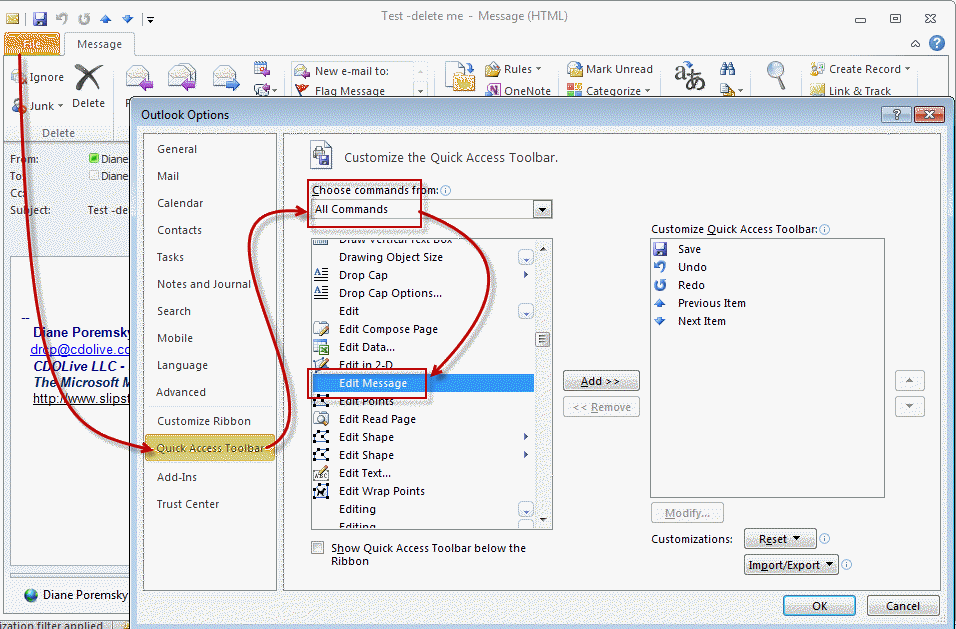
The next time you need to edit an attachment and save the changes back to the message, open the email message, click the Edit Message button then open the attachment.
Remember: you need to save and close the attachment then save and close the email message for the edits to be saved. If you don't want changes saved (such as when rotating images), close without saving.
Solution: Forward, then Edit
If you need to edit the attachment then forward the message, you can hit Forward first, then edit the attachment. The edited copy of the attachment will only be in the Sent Items folder when you use this method, not also on the original message.
Solution: Disable Attachment Preview
Note: This does not work in Outlook 2016.
You can make many attachments readable if you disable Attachment Preview. With this disabled you will lose the ability to view attachments in the Reading pane or open messages - you will need to double click to open them in their application.
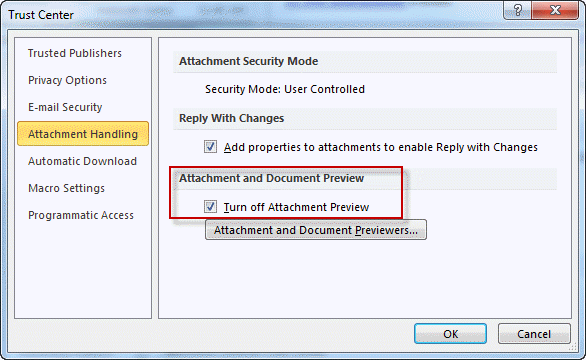
Go to File tab, Options, Trust Center:
- Click the Trust Center Settings button
- Select Attachment Handling
- Add a check to the "Turn off attachment preview" option.
Note: this disables preview for all attachments. If you like the attachment preview feature, use the Edit message method.
Solution: Images viewed with Windows Photo Viewer
A workaround for those using Photo Viewer exists: in Photo viewer, click on File, Properties, General tab then clear the Read only check. Repeat for each image.
[wpvideo Tq90TYlB w=600]

peter says
I'm using exchange 2013 and our users are sending documents (Word) to clients and the clients are complaining that they can't edit the documents. This also happens when sending the documents internally, unless we save the documents first or select edit mode.
We don't want this as a solution, as that would require advising all clients/recipients how to edit the documents we send. Instead I'd like to find a solution to change a setting on the exchange so that recipients, can open an attachment and immediately edit it.
Any ideas how to do this?
Andrew Michell says
I have no problem using the method described where I forward a message with an attached Excel file, then edit the file and close it. The edits are saved in the attached file.
This method also works with an old version of Adobe Acrobat.
However it does not work with Word, nor with the latest version of Adobe reader which I have recently installed. There appears to be some feature of the editing program which enables it..... or not.
Does anyone know how to overcome this?
Abhishek More says
In Outlook, go to the Mail view, open the mail folder containing the email with the specified attachment, and then open the email with double clicking.
6. Now the email opens in Message window. Please click Message > Actions > Edit Message
Diana says
I have made all the changes including the edit option, but when I open the attachment, it automatically sends it to my photo gallery before I can edit it. Is there a way to avoid this happening? I do not want to save everything to my computer.
Carmen says
I'm using Outlook 2016, how come there is no "edit mail" in my selection only "edit group settings" and "edit series"
Diane Poremsky says
You are talking about adding Edit message to the Quick Access Toolbar?
You need to open the message and add it to the QAT used by the open message, not the mail outlook window.
Joe says
I am using Office 2016. Since the Disable attachment preview method does not work for my version, is there anyway to make "edit mail" the default setting
Diane Poremsky says
No there isn't a way to make it default but you can customize the ribbon or quick access toolbar and add the Edit message button to it so its easier to reach.
Meredith says
Go into File - Options -- General -- Start up Options and uncheck: Open e-mail and other uneditable files in reading view
It will open right up without Read Only.
Diane Poremsky says
That doesn't work in Outlook 2016. :( (That is in Word's Options, not Outlook's.)
Ben says
Hi Diane,
I receive an e-mail daily that contains an Excel attachment which I have to open, apply a filter to one column, filter every occurrence of one name, then print it out. Is it possible to automate this process through Outlook similar to this tutorial?
Diane Poremsky says
You need to Save it, then open it, then run an excel macro. You can do this all from Outlook.
This shows how to save and open and attachment: https://www.slipstick.com/outlook/email/save-open-attachment/
then you'll use the Excel object model to control excel from outlook.
although not a good example for your needs, this shows how to use the excel object model
https://www.slipstick.com/developer/vba-copy-outlook-email-excel-workbook/
Record the macro in Excel doing what you need to do then massage it to work in outlook - mostly changing things like activesheet to the excel object (xlWB) so outlook can control it.
Marko says
do you or anybody else, know of a way, how to make or force Outlook to natively open doc or docx files (as if they were mail messages) since after all it uses Microsoft Word as its editor. Because i would LOVE to be able to edit doc or docx natively in outlook without them popping up in a new window in Word. Maybe there is a registry hack somehow, since once again it already uses Word ??
Diane Poremsky says
Sorry, no. While you can read them in the reading pane, you can't edit files within the outlook window - they need to be opened in their own program. Outlook only uses a small stub of word, so you wouldn't have all of the editing features available in full-blown word.
Don says
Here is what you do. If you get an email with an attached word document first his preview then in the preview screen click on open in Excel. The read only thing will disappear and you can save the file in documents.
Alan says
Diane, thank you so much for this post! I was going crazy having to save all Excel attachments to a file location in order to preserve edits I had made.
Mike says
I have Office 2016. Disabling the Attachment Preview does not work. I have disabled it in Outlook and in Word. The attachment still opens in Read Only mode. I am forced to clck Print Layout mode or View > Edit Document, to get our of read only mode.
Julie says
I have the same problem Mike. I've done everything suggested. AND, the edit file under All Commands is not even an option in my most recent update
Diane Poremsky says
Do you have a message open?
María Belderrain says
Hi Diane. In outlook 2013 i don't have the "Edit Message" command to add (and yes, I'm doing it on the open Message). Any other function that works? Did they change the name?
Diane Poremsky says
It's possible they removed it... I will double check. Make sure you look in quick access toolbar, not in the ribbon.... it still there...
Diane Poremsky says
Read mode can be turned off in Word's options.
#comment-206062
Larry LeBlanc says
I used the method, "Disable Attachment Preview" successfully in Outlook 2013, but now that I have Outlook 2016, that method no longer allows me to save attachments to the email
CrazyAwesome says
I wish this would work with PDF.
Here we are using Reader 11 on a locked down network. We have tried edit message and forward, but every time we change the PDF form and hit save, it offers to save to the PC rather than override the attachment. REALLY frustrating.
Any ideas?
Gretchen Dietz says
I just got Microsoft 2013 installed on my computer at work. One of the most annoying things so far is that when I opened an attachment from email, it opens in "read only." Unlike others, I do want to edit and save to my hard drive but I would like it to open in edit view. I save after I make my changes. Using your "edit message" button, it now opens not in read only view but it still doesn't let me edit without going to view, then edit document (this is in Word). Do you know of any way to open it in edit mode as I always could before? I tried unchecking the protected view in the Trust Center but it didn't help. It seems everything that used to be one step is now three. Every new iteration of Microsoft adds more steps to what used to be easy things.
Diane Poremsky says
If you open the message and enable edit message, the attachment should always open as editable. Changes will save back to the copy of the attachment in the message - and you'll need to save and close the message to save the changes. You cannot open the attachment from the reading pane - you need to open the message, go into edit mode then open the attachment from the open message.
Don says
You need to hit the preview button next to the attachment (not the attachment itself) After it opens in preview then hit the open in excel button on the preview screen. The read only will go away and you can save the file in documents. this method works perfect.
Raymond Smith says
I opened a MSProject file, said it was read only, modified it, saved it to 'my documents' under a different name, (hit save several times for fear of loosing the information), closed it and then when I went to open it, it said 'An unexpected problem occurred while opening the file. The file may be damaged. Try using a backup copy'. Is there anything I can do to recover the information? Running Outlook 2010
Diane Poremsky says
As far as I know, there is probably no way to recover or repair it - but that assumes the file is corrupt. It could be locked or still marked as open by the software. I'd try rebooting...
Jayne Godwin says
Thanks. I'll give that a try.
Jayne Godwin says
2010 but Office 2013. I've since found out that there's a conflict between the two and when we upgrade to outlook 2013 it should work ok. Bit of a pain in the meantime!
Diane Poremsky says
Ah, yeah, for best results you need to use the Outlook from the suite. Try this: copy winword.exe to the same folder as Outlook 2010. You can actually just copy and paste outlook.exe (to create "outlook - copy.exe") and rename it to winword.exe. This is enough to trick outlook into thinking word is there and many features that failed before will now work.
Jayne Godwin says
I'm getting exactly the same problem as Scott Rubin above. I've added & clicked on the Edit Message button no prob, I've disabled the preview no prob but when I click Save (not Save As) on the editted Word document, I get the Save As box & & no matter where I save it, the attachment on the email remains the original. When I close the email I don't even get the "Save changes?" box up & it doesn't make any difference if I click on Save on the message before I close it.
Help!! It's so frustrating that something so simple has been made so hard by Microsoft.
Diane Poremsky says
What version of Outlook are you using?
Tim says
Hi Diane. I have used this helpful tip before (my preference is to disable attachment preview, and it has worked fine for years). However, my IT department had to wipe and reimage my laptop last week. I'm trying to reinstate the default behaviour of being able to edit attachments in their message, but even though I've followed your instructions in the Trust Center Settings (i.e. turning off attachment preview option), all attachments still open as read-only. I've tried rebooting my laptop, but it's still not working as it should. Any ideas? Is it possible my company have a setting that over-rides this? (PS we're running Windows 7 and Office 2010).
Any help would be gratefully received.
Thanks, Tim
Diane Poremsky says
Hmmm. I'll test it in Outlook 2010 and see if i can repro.
Rod says
Diane -
Today, You are my HERO. :-)
MSFT has made a mistake in trying to outthink their customers. Keep up the good work, because a lot of us want to turn off more bells & whistles that MSFT believes that we need.
Thank You so much for providing this information about how to make changes to a xls in Outlook.
Rod
Dipanjan says
How it work in 2007
Diane Poremsky says
it should "just work" in Outlook 2007. OPen the message, open the attachment and edit, then save. if you open the attachment with the message in the reading pane then move to another message, the attachment loses the 'link' to the message, but if you open the message first, the link is maintained until the message is closed.
Somyot says
็Hi,All
Thank you very much for suggestion,but I have 1 question ,Can i edit the pdf file and sent?
Diane Poremsky says
You can edit the attachment and save it back to the message or edit the attachment and send it. You'll need to have a program that can edit PDF files though.
Scott Rubin says
I tried both the "edit message" and "disable preview" methods. However, when I use either method, when I try to save the changed attachment, I get a "save as" window which asks me to save the file to a specific location. But the location shown is not the location where the attachment resides. So whatever location I save it to, it doesn't save it in the email. When I reopen the email, it has the original file attached, not the changed one. What can I do?
Diane Poremsky says
what is the attachment type?
Scott Rubin says
pdf
Diane Poremsky says
I'm not able to repro it - editing and saving pdf files works as expected. I'm using Acrobat, if that makes a difference.
Ann K says
Diane, I'm having trouble finding the edit message in outlook after opening the message having a photo that needs to be rotated. Can you provide a screen shot for the newest version? Maybe there is a task bar I haven't found?
Diane Poremsky says
OPen the message, expand Actions.

Kenneth Yuen says
Hi Diana
It works perfectly, thanks so much for your help. That saves me a lot.
Kenneth Yuen says
Reading all messages above, doesn't seem to find out a way to make edit mode for all of my outlook incoming emails, I have to click on the "Edit Message" button on every emails that I want to edit every time. Is there a way to set this as default in Outlook 2010, I have lost almost 80% of works after editing the attachment and find out I forgot to press the button.
Diane Poremsky says
If you turn off reading pane preview for documents, you should have the old behavior back. That is in Trust Center, Attachment Handling.
erik says
i love you. thanks . my boss is happy now
Visti says
Thanks a million! Just what I was looking for! Works perfectly. :-)
Mavv says
No, The steps provided are of no use despite selecting the Edit Messages Command, I am using Outlook 2013
Diane Poremsky says
You aren't doing something correctly then. You need to OPEN the message and open the document after going into Edit mode. It won't work in the reading pane, or when the document you want to edit is displayed in document preview in the message. You need to open the document in the program application to edit it. Click Save and changes save back to the attachment in the message.
John V says
We had the same issue. We solved it by using the proposed Edit Message button after saving the message to C:\temp, via our own written software. (we do a shellexecute of the message, but only after saving it to C:\temp). I guess you can also do this via a macro. Works OK. 1 click solution.
andoryu0126 says
I've followed your perfect instructions and was able to make the changes. Thank you. One problem is, I am trying to save an infopath (.xml) file within the email. Every time I attempt to save the file, it asks me for a location to where to save it, instead of just saving it, like 2003. Hmm, if you have an answer to this, I would appreciate it. I would rather not downgrade my image back to XP/2003 just to do this necessary process.
Diane Poremsky says
I think it's related to TIF folder restrictions for XML files - https://www.slipstick.com/outlook/opening-xml-files-outlook/ - see if changing the SecureTemp folder allows it to work.
Imina says
Thank you! After countless hours of frustration after my upgrade to 2013, your solution works perfectly! I know that this is function not all users want, but it saves me time and effort. I appreciate your step by step directions.
Erik says
I actually prefer it the way they've created it in 2010 & 2013. As a helpdesk person, I can't count the amount of times that people have tried to edit and re-attach, failed at it, then I have to go try to retrieve it, only for their work to be gone. I've told people how to do it, and some people do it properly, other people ignore me and go about their own way and are repeat offenders. I think by forcing people to save it and then re-attach it helps in the long run.
Diane Poremsky says
That is exactly why the behavior changed. Users might hate it, but admins and support staff don't. I find its very easy to open in edit mode when I need to edit. The rest of the time, I'm protected from my own stupidity - and yes, I have had 'oops, did I do that?' moments of my own.
Dave Morell, USN AQ3 1975 says
Thank you! This works great!!
John says
Does not work.
Diane Poremsky says
Are you opening the message first? do you get any error messages when you try?
Allan says
Sorry that is edit my gmail calendar from outlook and from gmail to outlook
Diane Poremsky says
Unfortunately, at this time it is not possible. Sorry. Gmail calendars are read-only in Outlook unless you use a sync utility.
Allan says
how can i change the permission in my calendar so i can edit my calendar in gmail
April says
Thank you!!! This has been driving me crazy!
TheDailyVinyl.com says
Perfect! Thank you!!!
bygeorgecomputing says
Adding the Edit Message button works well. Is there a way to automatically have this button pressed when a message is opened?
Diane Poremsky says
Might be able to use an macro to open and go into edit mode in one step. Or turn off attachment preview - then the attachemt is editable like with older versions.
marie says
Thanks, very helpful :-)
TGammy Sotlis says
Diane,
The problem with your directions, and why so many are having issues with not seeing the "Edit Message" command is because your directions state:
1. Open a Message
They DO NOT say Open a message with an attachment.
You DO NOT see the Edit Message command if you open just any message - it has to be one with an attachment. This simple fix in your directions will alleveiate a LOT of frustration.
Diane Poremsky says
Edit message is available on every message, it doesn't matter if it has an attachment.
John says
"Solution: Disable Attachment Preview" - Thank you!!! Worked for me.
Dave says
Thanks to both Diane and Ed. Recently upgraded to Office Suite 2010. I was struggling trying to edit and save an Excel spreadsheet I sent to myself as an Outlook file attachment. After reading Ed's message I realized that I too was trying to find the "Edit Message" command within Excel rather than from within Outlook, i.e. the Edit Message feature is related to Outlook, not Excel or Word, etc. Now it works like a champ!
Office 2010 user says
Great! I used the "Disable Attachment Preview" and it solved my issue, i need to edit mostly Office documents (word, excel, powerpoint) now i can do that.
Happy with results says
Diane,
Your suggestion worked for me fine. I just got a new computer at work with Win7 and Office 2010 (I had been working in XP and Office 2007). It has been a difficult transition because you think all your customization will be moved from one computer to the other (and in theory it should) but it doesn't. Finding all the stuff I put on my old computer has been frustration because it is all not on the new computer. Finding my way around new software is frustrating because I don't have the time. Having F1 is an answered prayer because if it wasn't for people out there using the software like me and having the same problems as me, I don't what I would do without people like you giving answers to these problems. I did discover early that 2010 was opening attachments as read only. It wasn't until today that I needed to edit the attachment and keep that edit in the email message (not in one of many folders). I followed your steps and it worked great. I found the 'edit message' option that so many others can't find, added it to my QAT and did just what you said. I also knew that you had to save the email message if you want to save the changes...that's always been the case. I could not get the video to work for some reason but that's okay since your steps worked. Thank you, thank you, thank you!
Diane Poremsky says
Yeah, there is something wrong with the videos on Internet Explorer - they work in Firefox so the video is good. I'm not sure if its a security setting or something else.
Glad to have been able to help you!
Anna says
Hello, I have added the edit message icon to the quick access bar and tried to save the changes to an existing excel sheet. I also have disabled attachment preview and and tried to save the changes to an existing excel sheet. I have selected forward and then tried to make and save changes. I continue to get the same message for all - "doc1.xls cannot be saved in the current format. To save changes click ok then save it as the lastest format."
peter says
i got edit into the customize quick launch toolbar ,but when i go to the toolbar from the e.mail i cant see edit there ??? help
Diane Poremsky says
Are you editing the main outlook ribbon or the message form ribbon?
Bernie Anderson says
I was recently "upgraded" to 2010 by my IT department. What a nightmare. Upgrades in version are not always upgrades in functionality. Aside from all my problems with MS Access 2010, Outlook was worse. I frequently have to edit attached files and forward them back to the sender or on to others. Not being able to do so directly anymore was a major time sink. I put in a support ticket with IT and they sent me this link. What a savior!. I followed your instructions, unlike the nay-sayers who didn't, and, while it's not perfect, it works perfectly. Thanks, and kudos.
Jiri Krejci says
Hi Diane, thank you VERY much for this article. I was really unhappy with new Outlook behaviour for several months :-)
Alicia Gill says
I'm so happy that someone finally posted this... we receive quote requests from customers via excel on a daily basis... we use to just edit and save the worksheet within the email and reply to its sender... thus sending the quote back. Once we installed 2010 it became a nightmare because it wanted to actually open excel and save a new copy on your hard drive. UM NO! I'm so glad Microsoft made this change and allows editing within an email again!!!! Thanks!!!!
Ed says
Now I understand. We were thinking you were talking about the QAT in the other program instead of within Outlook. I see it and was able to add it to my QAT. Thank you so much for your help. I guess we were just misunderstanding which program you were in when you performed this process. Thank you again, Ed
Diane Poremsky says
Ah... that makes perfect sense and I suspect you are not alone in your thinking. I planned on redoing the video, but now know what I need to do to reduce confusion. Thanks!
Ed says
I know this was mentioned above, but no one has addressed why the "edit message" command does not appear in the QAT all commands list. I followed your directions and am only able to get this to work if I open email/actions/edit message then go to excel in my case. Is there any other place that this command could be at for either the QAT or Ribbon?
Diane Poremsky says
I'm not sure why Excel is needed, you should see it if you open the message, go to File, Options, Customize Quick Access Toolbar. Select All Commands then scroll down to find the Edit commands. https://www.slipstick.com/wp-content/uploads/2011/08/edit-message-button.png
John says
Extremely helpfu!!!! Thank you! I used the edit button option and it works like a charm.
KagiLeeOra says
Thanks for the solution, just tried it now andit works.
Emm says
You're maazing, thank you so much for this. Settling down to the first day in a new job and you've helped greatly.
Steve says
The Edit Message button is a perfect solution. This has eliminated hours of future frustration.
Ron Tidd says
I have been using Outlook for more than 15 years, I am not a light weight user, and I am not an idiot when it comes to opening suspicious mail. Also, I do not find the "Edit Message" in the list of All Commands.
What I have concluded over the 15 years is that Microsoft repeatedly modifies things to protect the idiots and thereby slow the rest of us down.
Diane Poremsky says
It has much less to do with suspicious mail and viruses and more with misplaced attachments and maintaining message integrity. Too many users either lost attachments they edited or saved them to the message and lost the original version of the attachment.
Did you open the email item and look at it's All Commands? Also, you don't need to do that - Edit message is on the Actions command of an opened message too. The advantage of adding it to the QAT is you can either use a shortcut or save one click.
GoddygirlNZ says
Thank you for this - perfect and just the solution I was looking for :-)
mike says
Thanks for the help -- this is most a most annoying for people with even a fundamental understanding of how to use Outlook --
thanks!
Thomas B. Dodson says
This was a great piece of advice. Does anyone know how to make edit and save the read only documents work in Office 2010 for Mac computers??? I have talked with several Mac devotees and they were stumped.
Thank you,
TD
Adam says
It's very helpful actually, thanks!
Karen Aasen says
HI
My issue has to do with the inability to open attachments in a email and edit them. I understand the procedure. I have Office 2010 and Windows 2007. There is no "EDIT MESSAGE" in the selection of commands. More than one person in this string of emails has mentioned this fact. After a lot of trial and error, I found the right command months ago. However, my computer died and they gave me a new one. I have to redo all the commards I had previously and now I cannot find the command to add to my quick reference tool bar.
Can anyone help?
THANKS
Karen
Diane Poremsky says
Are you in an open a message? For whatever reason, I've noticed a lot of people either open a calendar item or look on the main Outlook window. You need to have a message open.
George Birmingham says
Diane, The problem here is that for most, if not all, non-technical users with an Outlook 2010 equipped PC that is used for reading mail, it is essentially an appliance, a toaster oven to them. Most have no clue of how to perform, or even the inclination to perform, the multiple steps needed to do what you suggest. They want to read mail, and if a picture is upside down, click a button to rotate it to the correct orientation. These are friends sharing pictures that are not usually removed from the e-mail, so they have no interest in saving the changes or going through some complex procedure. If I view that same e-mail in Yahoo!'s browser e-mail function, that's all it takes to render the picture to the correct orientation using that reader. So why does Microsoft insist on making this operation technically complex? And here's the thing - the MAC user can do this easily on their machine. So the next time I'm asked what is a good choice for a system to browse the internet and read e-mail for a non-technically inclined user - my recommendation will be to buy a MAC. If Microsoft insists on being less accommodating about fixing a useability issue, then I'm not willing to promote their products - especially Outlook. And this is a useability issue IMHO...
Diane Poremsky says
The problem isn't Outlook, it's how the sender held the camera (or scanned the image and didn't fix it before sending - BTDT, to an ipad user. I thought 'they can turn the ipad upside down' but they didn't know how to lock the screen orientation. )
There are many reasons why Outlook opens mail and attachments in read-only mode, two main reasons are for security and to maintain integrity of the message and attachment. There are two choices open to you to avoid read-only mode: use Edit message command or disable the attachment preview feature to skip the Edit message command - you still need to open the message and the attachment - note that you only need to do this once per message if you save the changes - the next time you view the message, the picture will be correctly oriented. Or use an add-in that displays thumbnail images. (Other mail clients will display images inline automatically, although they will still be upside down for your friend.)
You need to use the system that best meets *your* needs - if its live mail, t-bird or a Mac, use it without guilt. Outlook is a complicated, business oriented PIM client. It's not for everyone and it's not the best choice for a new computer user who just wants simple email and maybe a calendar. Don't use Outlook because it "came with Office and I paid a lot of money for it" - look at it as you paid for the apps you use (usually word, excel, and power point) and Outlook was a freebie that came with the deal.
George Birmingham says
I'm trying to help a non-technical friend with a new PC and Outlook2010 (which I recommended they buy) to receive e-mails from a friend who uses Apple products (iPhone, iPad) to send pictures. The pictures arrive upside-down. I can right click in the picture and get a tools menu which has the rotate feature - GREYED OUT... I can only ask why a product like this cannot allow the user to rotate the picture for viewing. I understand the arguments about allowing editing and mail modification before forwarding, etc...
But geeze, allow the user to rotate the picture for viewing. If Microsoft is smart enough to write a sophisticated e-mail program, it should be smart enough to allow the user to actually do something useful with it that Microsoft didn't think about.
Diane Poremsky says
You need to open the message and set it to edit mode (if you want to save the rotated photos back to the message) - yesterday's Outlook Tip shows how to do this and includes video tutorials. How to Rotate Photos Attached to an Outlook Email Message and Save the Changes
Leona Flansburg says
This program is difficult for the non technical minded individual. I want to be able to sit down and use the program with out taking lessons in changing the program to make it do something as simple as SAVE a change to an e-mail attachment. I have wasted an hour trying to rotate a picture attachment and save it so I can see it in an upright position, and the stupid thing still don't save. What a huge disappointment this program is and what a waste of my hard earned money..
Diane Poremsky says
You are using Outlook 2010? You need to open the message and go to Actions, Edit message then open the attachment. In all versions: Rotate the image, save changes (the windows photo viewer or picture and fax viewer saves automatically) then you need to save and close the message.
mike w says
Edit Message does not appear as an option.
Diane Poremsky says
Did you open the message and look at the open's message's Customize QAT commands?
Scott says
Hi,
This article was very helpful. Thank you. However, this does not seem to work for .xml files. It did previously in 2003. Any thoughts or suggestions would be appreciated
Diane Poremsky says
Do you get an error message? "Access is denied. Error processing resource." is probably the problem here - Opening XML files in Outlook
That is related to outlook writing files to secure temp, which is a subfolder of Temp Internet files, where security features block opening xml files. you need to move securetemp out of TIF.
Izac Adams says
People need to listen/read your instructions before commenting that it didn't work. This was perfect, and exactly what was needed and after watching the video it was crystal clear.
I feel like so few people give praise and only negative when they can't follow instructions and make it work, that I felt obligated to give thanks for this site.
So, thank you very much for this and I appreciate the walk-through, it was extremely helpful and not something I would have ever thought of on my own. Fixed it for my CEO and a happy CEO makes my life easier!
Debra says
is there a way to apply this feature to ALL messages so you don't have to click "edit message" for every single message?
Diane Poremsky says
If you disable attachment preview, all attachments should be editable as they were in older versions of Outlook. However, it's a trade off over which costs more time - reading attachments in the preview pane or going into edit mode for the attachments that need edited.
Jen says
I tried this and the change I made to the attachment wasn't there once I reopened the email. Maybe I missed a step but I followed everything above. So I'd definitely test before getting any users to do this. I was just testing for myself, but I do think this is dangerous as you lose the original copy sent. For our users anyway I dont think i'd want to let them know
Diane Poremsky says
Short version: open attachment, edit it, save it, save message.
I would not recommend this for anyone except those who need to edit a document and return it - "normal" users don't need it.
Frustrated says
Don't even try to follow the video, if you do you'll see only "edit series" in Outlook, not "edit message."
Diane Poremsky says
Are you in an email or appointment form before you go into the Customize ribbon dialog? You need to open a message to see Edit Message.
You can not add this command to the main Outlook window - you need to add it to an opened message form.
Diane Poremsky says
Edit series sounds like you are in Calendar or an appointment form - the commands in the list vary by the folder type so you''ll need to be in a mail folder (like the Inbox) to find the button.
In Outlook 2010, when you attach a picture there are resize options on the file menu. (It's for attachments only, not embedded images.)
Fred Jacobs says
Thank you for the video tutorial but there is no "edit Message" command under "All commands" only Edit Series. But Edit Series command is grayed out when added to the ribbon. I have Outlook Version 14.0.6023.1000 (32-bit).
This is very frustrating.
Elimination of "Attachment Options" side bar when adding photos was even worse. There are so many terrible changes to all the Office programs, I can not believe any significant/valid user testing was done.
Fred Jacobs says
I found the "Edit Message" command "after opening a message" and following the steps. Thank you. My error for catching that point. But obviously, something is very wrong with how the new "features/improvements" are communicated to buyers. When the same complaint noted in Oct 2010 is still causing problems almost a year later.
.
We describe the Customer Value Corrective Action Chain at my company that goes something like this:
1 Define Customer Problem
2 Collect Data & Process into Information
3 Plan for Customer Satisfaction
4 Action
5 Repeat above until you achieve: Re-occurring Positive Impact on Customer/Permanent Corrective Action
If you don't achieve a successful #5 you've accomplished nothing of value.
My complaint about all of the "Improvements" still stands. Any suggestions on the "attachment options" side bar would be appreciated.
Diane Poremsky says
FWIW, the change in editing attachments was the result of customer complaints - it caused problems for a lot of users and resulted in too many help desk calls. I was in a meeting with Administrators when Microsoft announced this change and the room erupted in cheers. I was the only one who didn't cheer - i asked if there would be a workround but the presenter didn't know.
Outlook 2010 does not have an attachment pane option at all - best you can do is the File, Info option to make smaller or keep original. It's an extra step but CEIP data showed resizing was not a popular feature. Also, if you use Windows Explorer's send to mail recipient command, windows will ofer to resize the image, giving you a choice of sizes.