Now that Microsoft requires oAuth2 support, you need to use Outlook 2016 and newer with current updates installed. You cannot connect to outlook.com and Microsoft 365 business accounts using POP or IMAP in older versions of Outlook. See Outlook.com and Modern Authentication Questions for more information.
Sync calendar and contacts using Outlook.com | Articles on the new Outlook.com.
Note: Exchange ActiveSync was turned off in Feb. 2017 for Outlook desktop clients (phones and tablets can still use ActiveSync). Add the account as Microsoft Exchange or as POP or IMAP.
You will need to use Outlook 2010 and newer with all updates installed to connect using Exchange services. (Outlook 2007 will work with Office 365/Outlook.com accounts for the near future but server response may be poor.)
Exchange services cannot be configured manually; use Auto Account Setup.
If you enabled two-factor authentication on the Outlook.com account, you'll need to generate an app password to use with the account in Outlook. Multifactor support for Outlook.com accounts is expected in Outlook 2019, possibly also in mid-2018 builds of Outlook 2016.
Exchange Account with Outlook.com
To set up an Outlook.com account using Exchange services, use Auto Account Setup. Enter your email address and password and Outlook will find the account information.
Outlook 2013 and up are fully supported in Outlook.com (and Office 365). If you use Outlook 2007 or Outlook 2010, you need to have all updates (as of 2015) installed to connect to Outlook.com using Exchange. (Server response may be poor with Outlook 2007.)
Outlook 2003 users will need to use IMAP or POP3 to connect to the new Outlook.com server, and will lose Calendar and Contact sync. If you need calendar and contact sync, use the Windows 10 Mail client or take a look at eM client.
Outlook Connector
The Outlook Connector is no longer supported.
You'll need to add the Outlook.com account to your profile using Auto Account Setup so it is set up as a Microsoft Exchange account.
Outlook 2013/2016 EAS
Exchange ActiveSync is no longer supported for the desktop client.
EAS is discontinued for Outlook desktop and all users will need to use Microsoft Exchange services. Exchange gives a much better experience (for example, multiple contact folders and contact groups, as well as Drafts folder syncs).
EAS will continue to work on smartphones; however many smartphones now use EWS (Exchange web services) to access email.
Outlook.com IMAP Configuration
Outlook 2003 users will need to use IMAP with the new server. (Or upgrade to an newer version of Outlook.)
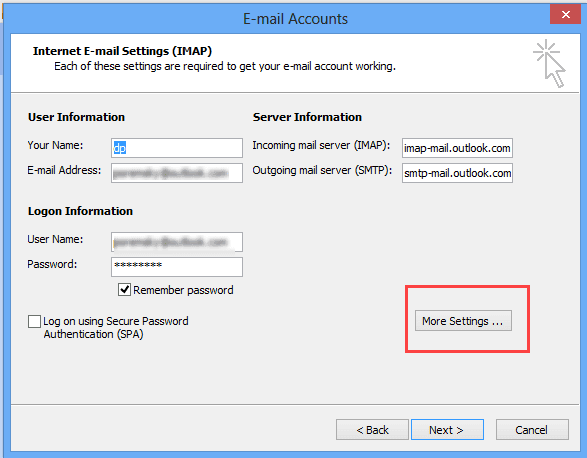
To set up an Outlook.com IMAP account in Outlook, you'll need to use the manual setup option. Server settings are below; don't forget to set the Outgoing Server tab (in More Settings) to authenticate with the mail server.
Incoming IMAP Server: imap-mail.outlook.com
Outgoing SMTP Server: smtp-mail.outlook.com
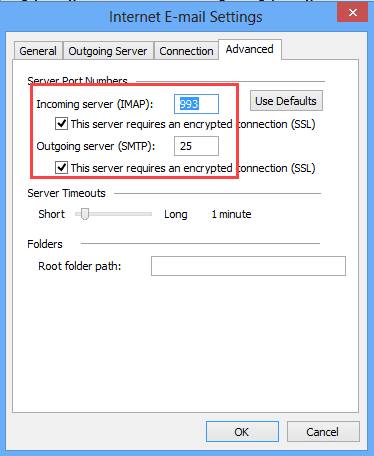
Click More Settings button, then Advanced tab. Select SSL as the encryption type for the incoming server. The port should change to 993 automatically. Change the SMTP encryption to SSL and the port number to 587. Outlook 2003 users will use Port 25 and SSL for Outgoing mail port.
Use POP3 and SMTP
POP3 is disabled by default on Outlook.com accounts moved to the new server. You'll need to log into Outlook.com to enable POP3. Once enabled, you can choose whether to allow apps and devices delete mail from the server.
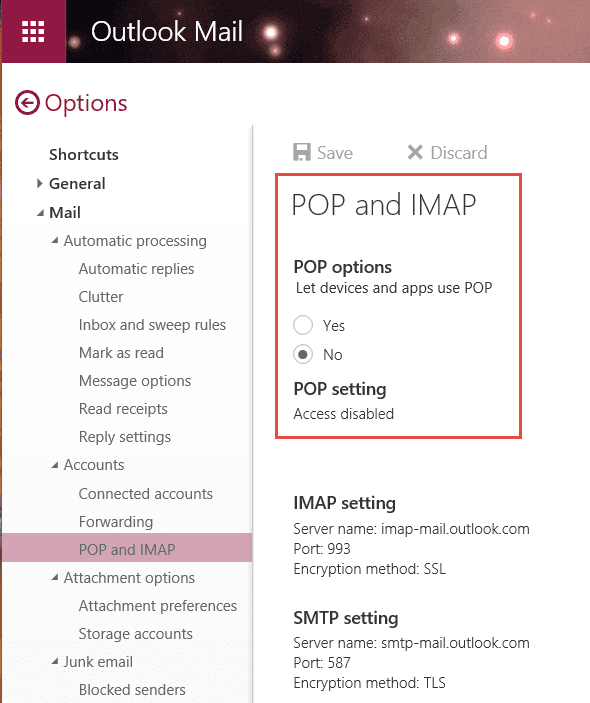
To use POP3/SMTP with your Outlook.com account, you'll use these settings:
Incoming server name: pop-mail.outlook.com
Outgoing server: smtp-mail.outlook.com
While setting up the account, click on the More Settings button and on Outgoing Mail Servers tab, select the My server requires authentication box. Choose Use same settings as my incoming server.
Click the Advanced tab, and under Server Port Numbers, enter the following information:
For Incoming mail (POP3), use Port 995.
For Outgoing mail (SMTP), use Port 587 (port 25 if using Outlook 2003).
Under both Outgoing mail (SMTP) and Incoming mail (POP3), select the ‘requires secure connection (SSL)’ check box. In Outlook 2007 and up, choose Auto; use SSL and port 25 for Outlook 2003.
Under Delivery, select the Leave a copy of messages on server check box if you want to see your messages when you use Hotmail in a web browser, your mobile phone, or other e-mail programs.
Adjust your settings in the account options online (under Accounts, POP and IMAP), and either let Outlook.com move the mail to special POP folder when Outlook tries to delete it from the server or let Outlook (and other clients) delete the messages.
More Information
Setting up an Outlook.com IMAP account
Mail Tools - Retrieval

C.J. says
Diane,
For a variety of reasons I wanted to start fresh with Outlook 2010. However, it was installed as part of Office 2010 Home and Business. So I found and used the Microsoft Fix-It tool to remove *all* Office products from my computer.
Once that was done, I rebooted, then reinstalled Office 2010. Then I carefully updated Outlook 2010 to SP2 and applied all updates I could find.
When I then tried to add my exchange-migrated Hotmail.com accounts, it would not work. When trying the autodiscover process I was told to install the Outlook Connector (!). When I tried to manually configure, I needed the exchange address - and none of the references/suggestions I could find on the Internet would work. Except ... this one:
https://oit.colorado.edu/tutorial/office-365-outlook-windows-manual-exchange-configuration
Once I followed these instructions, I was subsequently able to use autodiscover. I eventually created a new profile which I used to connect all my hotmail accounts. I then deleted the original profile.
At the moment it appears to be working correctly. I have not (yet) encountered any of the problems that plagued me from the original install. But I feel better that any and all old versions of Office/Outlook were purged from my system. Of course, this does not explain why autodiscover would not work after the clean install. Had I had more time, resources, and patience I would have run additional tests, each time eliminating one of the steps or settings in the Colorado instructions in order to find the single or smallest subset which made Office work. But I did not.
I hope this helps others. Maybe someone else can narrow down what it is exactly that causes the failure.
Diane Poremsky says
>> When trying the autodiscover process I was told to install the Outlook Connector (!).
Since you had all updates installed, it was probably using the original autodiscover settings.
Carlos says
Guys, you were the only ones with the right info to fix this! Much better than MS robots :) They key to connect Outlook 2003 to Outlook client is to authorize POP in Outlook live. That's all. Congrats.
C.J. says
I'm stumped and dejected. Final (?) question -
What if I set up my hotmail files in Outlook 2010 as IMAP in a .pst?
What would be kept on the server?
What would I see and what would I not see from the Outlook app on my phone/tablet?
Thanks,
-cj
Diane Poremsky says
>> What if I set up my hotmail files in Outlook 2010 as IMAP in a .pst?
What would be kept on the server?
This would only sync email, not calendar and contacts. It's certainly an option, if you only need mail.
C.J. says
Some more input.
Autodiscover does not seem to work because when I try, I am told to download and install the Outlook Connector. (I have installed SP2 and see no other pending updates for Office 2010).
IF I try to manually connect and then select Exchange Server, I am asked for the server name for the account. I have tried outlook.office65.com, but when I do the process 'hangs' for a what seems to be 3-4 minutes. I'm then told that the action cannot be completed. The connection to Microsoft Exchange is unavailable. Outlook must be online or connected to complete this action (I did this from the Mail(32) app in control panel.
Sooo... I launch Outlook 2010 and open Account Settings, add account, manual, MS Exchange and click Next. I get this error message: A new MS Exchange account cannot be manually configured while Outlook is running (!). Use the Mail app in Control Panel (Catch-22!)
Diane Poremsky says
>> Autodiscover does not seem to work because when I try, I am told to download and install the Outlook Connector.
Definitely don't install the connector.
>> IF I try to manually connect and then select Exchange Server, I am asked for the server name for the account. I have tried outlook.office65.com, but when I do the process 'hangs' for a what seems to be 3-4 minutes. I'm then told that the action cannot be completed.
This used to work... :( I discovered it no longer worked today. Autoaccount setup is the only way to set up the account now.
(I'll clear your other comments and wait for the solution that finally worked for you... commenting on this one because it may help others. )
Ian says
I am sorry for asking, but perhaps you could be of assistance?
I cannot get Outlook 2003 to connect to Outlook.com through IMAP. I have followed all of the instructions to no avail.
Any assistance would be appreciated. I am thoroughly disappointed that my attempts to connect are not working.
Diane Poremsky says
Use imap-mail.outlook.com as the incoming server name, use ssl (that will change the port #). for outgoing, use smtp-mail.outlook.com and ssl, but keep it on port 25. Outgoing server tab needs 'the same as incoming' setting checked.
Ian says
I am afraid that it still does not work for me. It yields an error message stating that the server does not support SSL, or Outlook 2003 itself crashes (as per information in the Event Log).
Additionally, I apologize for asking the same question twice—I had just posted another question about this problem before reading that you had replied. I was not sure that the message I wrote yesterday had ever been submitted.
If I may ask, does everything with Outlook 2003 work on your end? I hope that the issue is isolated to myself, as I would hate for the client not to work with Outlook.com.
Do you have other suggestions?
Diane Poremsky says
Yes, it does work here. Are you using imap-mail.outlook.com and smtp-mail.outlook.com as the server names?
Ian says
Yes, I am. The ports and encryption settings are set up as per your previous post.
This is the error message that I receive: Sending reported error (0x800CCC7D) : 'Your outgoing (SMTP) server does not support SSL-secured connections. If SSL-secured connections have worked in the past, contact your server administrator or Internet service provider (ISP).'
A cursory Internet search suggests that other users have had the same issue recently. I should note that the issue is not with my connection.
I really do appreciate your help and I am open to any suggestions that you might have.
Diane Poremsky says
Using Outlook 2003 with office 365 has been problematic, that's for sure. Office 365 (which includes Outlook.com) uses TLS or StartTLS for authentication of the outgoing server. Outlook 2003 only supports SSL so they enabled ssl - first using the 'normal' secure ports of 465 and 587, then switching to 25 to make it easier for users. It does work here, using the server names i posted (and have in the screenshot) - i removed the account and added it back, just to verify it could be added.
The only other option, besides upgrading to a supported version, is to use a different client. I recommend eM Client as a good replacement for Outlook for mail, calendar, and contacts from outlook.com.
Lisa says
thank you so much for posting this information. looks like this is working for me :-)
Terence Smyth says
Hi Diane,
I have a somewhat related question. I have Outlook 2016 (PC) set up with an Office 365 for Business Exchange file (.ost file) and have two Gmail accounts linked to the same .ost file. This works fine.
But can I set up an Outlook.com email account in the same way (i.e., link it to the existing .ost file and have all my contacts, calendar items, etc. in the one .ost file).
Because Outlook.com is now also an Exchange service that uses .ost files, I am concerned that this may create a conflict.
Terry
Diane Poremsky says
how is the outlook.com account set up? If it is it set up as pop3, it won't be a problem - that is download only. if you need outlook.com's calendar and contacts, you need to set it up as exchange and it will have its own data file.
Suman Ghosh says
Hi Diane,
Thanks for the clarity. However can you please help me. Last week I bought office 365 personal subscription for 1 year. I have Outlook.com address when I am going to create a new outlook.com account it automatically creates exchange auto sync server (eas.outlook.com) and I got an email for reconnecting my account. there is no error mesage.though. Is there any way to igonore eas.outlook.com address and replace it with actual server address.
Diane Poremsky says
EAS is not longer supported in Outlook desktop. Autodiscover should use the correct server (Microsoft Exchange) - you might have to delete autodiscover files from your computer but first try choosing manual set up then enter the outlook.com address in the Office 365 email account field.
Autodiscover files are at %localappdata%\microsoft\outlook - delete all and try again.
Jargo says
Hi Diane, i have been searching for a solution for weeks.. but i can't get my hotmail account added to outlook 2016. I actually gave up and use windows 10 mail app, but i have my other mail address in Outlook still...
When i use auto config it completes succesfully but no account is added to outlook.
When i use manual it resorts to EAS i quess and i get an email in my inbox that i need to switch over to the new 365 auto-setup. That ofcourse doesn't work.
IMAP won't work...
POP3 possibly, but as i also read my mail mobile i don't want to use that option..
I added an alias outlook.com for the hotmail.com.
Changed my PW to be 8 characters instead of 7.
etc etc.
Any ideas what goes wrong here?
I haven't got a clue anymore...
Thx!!
Jargo
Diane Poremsky says
>> MAP won't work...
>> POP3 possibly, but as i also read my mail mobile i don't want to use that option..
what happens when you try using imap? You need to use manual setup... pop3 won't work unless you enable pop support in outlook.com options- pop is turned off by default.
>> When i use manual it resorts to EAS
Are you choosing activeSync account type or office 365? Put the hotmail address in the office 365 field.
>> I added an alias outlook.com for the hotmail.com.
definitely shouldn't be necessary for hotmail domain, but i have heard some of the country specific addresses (hotmail.de) require an alias now.
Are you doing it from the outlook interface or control panel, mail? Definitely try it from Mail applet.
Did it set up ok in windows mail, as an exchange/outlook.com account?
Oh, and are you using a subscription or retail copy of office?
Jargo says
Hi thank you very much for helping out!
I actually have these two options:
1. Outlook.com or Exchange Activesync Compatible Service
2. POP or IMAP
Choosing 1 and entering the info it asks my email address, password and a servername.
I use eas.outlook.com. Then it does add an entry in outlook.
But the only mail i then get is the request to reconnect outlook 2016 with outlook.com so that i can again start receving emails.
But ofcourse the auto-config, doesn't do anything...
Choosing 2. I enter the IMAP details (imap-mail.outlook.com, 993 TLS, smtp-mail.outlook.com 587 TLS) etc.
Takes ages for Outlook to get through the check. It hangs for a minute first. Then tries to sent a testmail.
Eventually it won't succeed (550.5.7.4. Requested Action Aborted; user not authenticated)
This both happens with POP and IMAP.
I added the Hotmail account in the standard Windows 10 mail app from the Microsoft store in two seconds....
I really don't understand why Outlook application has such a problem with this...
Diane Poremsky says
1. ActiveSync won't work. ActiveSync was turned off in Feb 2017. You need to use Exchange. If you have an option for manual setup of office 365, choose it and enter the Hotmail.com address.
2. IMAP should work, pop3 needs enabled in options. (Double check outlook.com options - make sure imap wasn't turned off.) Did you enable 2 factor authentication? If so, you need an app password.
>> I added the Hotmail account in the standard Windows 10 mail app from the Microsoft store in two seconds....
it uses Exchange Web Services - this protocol replaces ActiveSync in lightweight clients.
Jargo says
Thanks Diane! I got the IMAP working in Outlook, that's fine for me. I accidently choose TLS instead of SSL :-S
Jargo says
Sorry have to add: POP3 does work! IMAP doesn't.
Dori Schmetterling says
[Part 2 - was forced to split even though post length was within permitted limit.]
Why does Windows 10 Mail give the right sender's address but Outlook 2016 not?
Suggestions very welcome as I prefer to use Outlook instead of the primitive Windows 10 Mail.
Thanks
Dori Schmetterling
Notes:
1. Am using Windows 10 Mail in the meantime -- usually no problem with sender's address.
2. In my online interface at top left I see "Outlook Email" and not "Outlook Mail" as both you above and the MS Support page shows.
3. My Outlook 2016 is also connected to a different Office 365 work account with a completely different email address. No problems there.
4. Curiosity: when Outlook.com was migrated both Windows 10 Mail on my PC and the mail client on my iPad hiccupped but after a few hours reconnected automatically. Only Outlook 2010 was buggered.
Diane Poremsky says
They are working on the outlook problems - no ETA yet (they are still working out bugs). Outlook.com aliases will be listed in the from dropdown in outlook 2016 but not 3rd party addresses or connected accounts.
On #2, are you in the UK? The mail/email difference is based on your location.
On #4, they use ActiveSync to connect while 2010 used the outlook connector which is not supported with Exchange. There was no way to get around removing the account and adding it back.
Modern clients check autodiscover frequently and picked up the server change from it. Also, Microsoft enabled activesync on the new servers for Outlook 2013/2016 (it was never an option for the desktop clients on the business side of Office 365) to make the migration easier for users before turning it off in Feb.
Dori Schmetterling says
Dear Diane, I hope you can help with question of recipients seeing "outlook_randomalphanumericstring@outlook.com" instead of my custom email address as my sender's address in desktop Outlook.
No such problem when sending from my online Outlook.com account. Nor do I have this problem when sending from Windows 10 Mobile phone or from iPad Air iOS 10.3 tablet.
Windows 10 / Outlook 2016 / Outlook.com
Everything was fine before the Outlook.com server migration. Was using Outlook 2010. After migration -- about Oct 2016 in my region, the UK -- I even lost the connection altogether. I reconnected using Outlook 2016, but still cannot get my custom email address to show, even if I use the drop-down menu in Outlook and set the correct one. My custom address is marked as the primary alias in my online Outlook.com account.
Now I tried deleting the mail account and then setting up again, first automatically and using my custom address - failed.
Then the manual method with my custom address; failed with server "smtp-mail.outlook.com".
Tried to log onto the Exchange ActiveSync mail server (EAS) which, of course, has gone.
Thirdly I tried automatic, using my Outlook.com underlying address. Connected but resulted in same sender address, even though I changed the From address in Outlook 2016 to my custom address using the drop-down menu. As before, so am back at Square 1.
The account still calls itself "outlook_randomstring..."
The MS Support page describes the problem but basically suggests reconnecting, though it also says to make underlying outlook.com email address (johndoe@outlook.com) my primary alias. Reluctant to do that because a message comes up that it will affect all devices (which are working fine).
[Part two follows]
Diane Poremsky says
I call it "outlook_ugly@" - this is a non-routable address assigned to "ESID" accounts (pronounced 'easy id') when you add a 3rd party email address as a Microsoft Account. The only way to avoid it is to add an outlook alias and set it as primary - you can set the account up in outlook as an exchange account if you use the outlook alias (someone told me they used the outlook_ugly@ to set up their account but i have not tried it yet.) When you do this Outlook may refresh the account name to show the new alias name (usually takes a few days) but to change the data file name, you need to remove the account and add it back.
>> The MS Support page describes the problem but basically suggests reconnecting, though it also says to make underlying outlook.com email address (johndoe@outlook.com) my primary alias. Reluctant to do that because a message comes up that it will affect all devices (which are working fine).
This is the solution. As long as you don't remove the address from the account, nothing should change on the devices as you can log in using any address on the account.
If you do remove the address, the sign-in address will change on the devices, but you won't have to redo anything but the address you sign in with.
I made the change over the winter, removing my slipstick address as a Microsoft Account after adding an outlook.com alias to it. I was hesitant because it's my windows 10 login on 3 computers and it use the Microsoft to log into several Microsoft sites...so i made the change on husbands account first. :) He only used it to log into windows. Everything went smoothly, so i bit the bullet. I had zero problems - just needed to use the new outlook.com address to log in.
Chinenye says
Hi Diane,
You have saved me once before with this post and once again, I need to setup my email accounts on a new system : Office 2013 on Windows 8.1. I have one Hotmail account which has not worked with a painstaking replication of all the steps you set out above. Strange because it worked once before. The error on POP3 is [Log onto incoming mail server (POP3): Your server does not support the connection encryption type you have specified. Try changing the encryption method. Contact your mail server administrator or Internet service provider (ISP) for additional assistance.] and [Send test e-mail message: Your e-mail server rejected your login. Verify your user name and password for this account in Account Settings.]
Of the 3 Exchange accounts, only one has worked after I deleted the profile and set it up all over again. Very frustrating. The other accounts do not go beyond a recurring demand for password.
Grateful for your help.
Diane Poremsky says
Did you enable two factor authentication on the other two accounts? If so, you need to use the app password.
What encryption and port # did you try to use on pop 3? (you need to use SSL for incoming - it will set the correct port of 995 and use TLS/587 for SMTP)
Norman Snell says
Diane - my Outlook account opened up this a.m. with anew look that was without all my Folders. Also the format was tally change. I've tried everything I know but to no avail. To add insult t injury the Options won't even work nor any other button. I'm on a Mac for your info. Any suggestions.
Diane Poremsky says
Which version of Outlook are you using on your mac? Is/was the account set up as exchange or imap?
Alan says
Thank you for the wonderful instructions Diane. I was set up with IMAP on Outlook 2007 and it was horribly slow and always hanging up. So following your instructions I set it up for POP3 and it is very quick.
The problem I am encountering is that it does not sync with Outlook.com Junk mail, so I have to go online regularly to check because Outlook.com has a huge number of legit emails going to the junk email.
So my question is if you know of a way to have Outlook 2007 sync to the Outlook.com Junk folder?
Diane Poremsky says
>> IMAP on Outlook 2007 and it was horribly slow
Try using imap.outlook.xom or outlook.office365.com as the imap server name. Use 993/SSL for the port settings.
George C says
Hi Diane,
I cannot find any clear information on how to get my contact groups created on an outlook.com account to reflect and synchronise in my Outlook 2016 win 10 desktop application? Can you help?
Diane Poremsky says
If the account is added to outlook desktop version Outlook 2013/2016 or Outlook 2010 or 2007 with all updates installed (2007 will work only until October 2017) using autoaccount setup as a Microsoft Exchange account, everything should sync to outlook. You don't need to do anything special - if the groups exist in outlook on the web and the account is set up as Exchange, everything syncs.
John V says
Now that live.com is named outlook.com it's pretty hard to google problems connecting O365 Outlook to Outlook.com!!!
Since this new connectivity came out there's been a problem with the junk mail folder. Literally every time I drag an email from junk mail to the inbox, Outlook pops it back into the junk mail folder a moment or 2 later.
Diane Poremsky says
does it happen if you move it to a different folder? Do you have any rules that could be moving it?
(The advantage of outloo.com on office 365 is that, for the most part, all support will apply to both outlook.com and office 365 business accounts.)
Bill says
Diane,
I have a Hotmail account which worked great in Outlook 2016. Since the migration it does not work as an Exchange ActiveSync account - after remove it and add it as an Exchange ActiveSync account I only see one message in the inbox - the "Reconnect Outlook 2016/2013 to Outlook.com to resume email access" message. This message asks me to delete and add the account again. Microsoft support told me this is a known issue they cannot resolve ....
After adding the Hotmail account in Outlook 2016 using IMAP reading and writing emails works OK but the calendar doesn't.
Is there a way to add the Hotmail account calendar in Outlook 2016?
Thanks
Diane Poremsky says
You definitely can't use EAS - it was disabled in Feb. You need to use auto account setup to add the account as exchange. if auto account setup is going to EAS, click manual and choose Office 365 then type in your outlook.com address.
You could also remove the autodiscover files at %localappdata%microsoftoutlook - this will force outlook to create new ones.
Bill says
Thanks Diane,
Auto account setup was going to EAS.
The issue turned out to be the Windows Security login.
I have configured my Windows 10 with a local account. After providing Outlook 2016 with my hotmail email and password during setup it asked me to login again with my hotmail email and password at OS level after pressing the next button to complete the installation process. Turned out that when I ignore this login request the auto account setup goes to EAS. When I logged in it went to Microsoft Exchange. It now requires the Windows Security login to download emails every time I open Outlook 2016.
Why is that? I guess Outlook 2016 works without Windows Security login on Windows 7.
Diane Poremsky says
>>> it asked me to login again with my hotmail email and password at OS level after pressing the next button to complete the installation process.
Are you sure it was at the OS level?
You will get the network password dialog if you haven't logged into the account before or didn't choose the option to save your password.
Kiff says
Thank you!
Solved here what couldn't solve or find on
https://support.office.com/en-us/article/Add-your-Outlook-com-account-in-Outlook-for-Windows-642c1902-bdd9-4dc3-abe7-76d60b148b23?ui=en-US&rs=en-US&ad=US
Bob Wunderle says
My Outlook.com account is set up in MS Outlook 2010. When people try to reply to my emails with the reply button, the emails always bounce because the repy button send them to the microsoft exchange address that shows up in outlook, not my actual outlook.com email address. Have tried to fix this in account setup, but nothing works. Any suggestions?
Diane Poremsky says
I'm assuming you have all updates installed and removed the account then added it back?
I know some people are having problems with Outlook using the x500 exchange address but we don't have a solution (and it appears its just a small % of users).
Jim says
I am using Outlook 2013 and have the same problem. I have tried deleting and re-adding the account multiple times, but same result. I can add it as POP, but then I lose the integration with contacts/calendar, etc..
Diane Poremsky says
Is the x500 address used on outgoing mail? Did you set a display name for your account?
(This is the x500+/o=ExchangeLabs/ou=Exchange Administrative Group (FYDIBOHF23SPDLT)/cn=Recipients/cn=af1a0d6dcdde4bbf94fcf79f001d5c2a-alias)
Ramsharan Kumar says
In order to configure Exchange Active Sync on mobile, Server (eas.outlook.com auto changed from m.hotmail.com) configured correctly and even incoming mail comes in Inbox but outgoing mail stuck in outbox.
Please me out.
Diane Poremsky says
Are you using iphone, android or windows phone? You should just need to enter your email address and password.
Lev says
i have a Oulook 2016 and from this day (10.2.2017) i cant connect to eas.outlook.com, don't know why :(
Diane Poremsky says
they are disabling EAS - you need to remove the account and use autoaccount setup to add it back.
https://www.slipstick.com/outlook/outlookcom/outlook-comswitch-account-microsoft-exchange/
Muhammad Hegab says
Thanks Diane.
I have two email accounts hosted by Windows Live Custom Domain, (two different domains, both registered at GoDaddy). Both email accounts were already upgraded to use Microsoft Exchange, and I can see that when I access them via the Web interface.
However, to set them in Outlook 2016, the auto-discovery doesn't work, and I have to set them up manually. The address I'm using is EAS.outlook.com, which configures the accounts as Exchange ActiveSync.
Is there a server address that can be used to set the account on Outlook as Exchange Online, or otherwise a fix for the Auto Discovery thing?
I'm a ware of the new premium service, but was hoping if I can keep this old free one to work.
Thanks
Mo
Diane Poremsky says
Do you have an autodiscover record set up at godaddy? in the DNS settings, add autodiscover and have it point to autodiscover.outlook.com
You can no longer use EAS account types - you need to use autoaccount setup - using the Manual option and choosing Office 365 account type should work too. Enter your outlook.com address in the email field.
Herman says
Hi, very helpful. But I still have a question. I'm using the same address for imap and outlook, so I had to create an alias. When adding the outlook.com address, do I use the Original or the alias. using the latter will result in a strange reply email adress when inviting outhers in a meeting.
Also, like one of your followers I have the issue that contacts are syncing very good, but calendar entries only partly.
Diane Poremsky says
You need to use the alias to sign in - you should set the alias as the default in the account settings (at https://account.microsoft.com/ - your info link) and set it as the default address in outlook.com options.
Carlo says
hello Diane,
I was using my own email (not outlook.com) as a connected account in Outlook.com and used to be able to download emails, reply, or create new emails using my own email address. I could also do this with Outlook 2016 connected to Outlook.com via EAS and I could sync contacts and calendar entries too. Now the only way I can get it to work is by using an outlook.com alias for this particular email address, something which I don't want.
Any news on when this will be addressed or has Microsoft decided to remove this ability permanently?
Diane Poremsky says
They are working on a solution - no idea when it will come about or what the solution will be.
Benson says
I have the same problem.
Jim says
Diane,
I think I have the same issue. I had been using Gmail account for all my e-mail and Outlook.com for my Calendar, Contacts and Tasks.
I was able to synch my desktop Outlook 2013 Calendar, Contacts and Tasks with my Microsoft account prior to the server conversion, as well as after the conversion. I could send meeting invites to my wife who uses Outlook 2010.
On 1/27 I was no longer able to send meeting requests to my wife. The invites would sit in my Outlook.com Outbox. The last meeting request she received from me was on 1/22/17.
I happen to notice an unread e-mail message in my Outlook.com Inbox dated 1/23/17. This was unusually since I don’t use e-mail with the Microsoft account.
It was from Outlook Team informing me I needed to finalize my upgrade to the “new” Outlook.com. It said I have not yet reconnected my account, and as a result, my Outlook.com emails are no longer syncing to my desktop version of Outlook. This is why my Outlook 2013 stopped communicating.
I tried following their instructions, but have not been able to get it working.
Based on your response to Carlo, it sounds like what I use to do will no longer work. Is this the case?
What is an Outlook.com alias and how does one go about setting one up?
Diane Poremsky says
Sorry I missed this earlier. Correct, the EAS account you used previous is no longer supported. You need to use autoaccount setup and add the account as Exchange. If you use a non-outlook.com address, you need to create an alias to use with it.
https://www.slipstick.com/outlook/outlookcom/outlook-comswitch-account-microsoft-exchange/
Andrew says
Thank you for this post. It was very helpful and my email now works again. When I had the Outlook Connector working, it used to synchronise the Calendar and contacts. Is this service no longer available? I was presuming that I would have to set it up with exchange, but I cannot see how to do this? Any assistance ypou are able to provide will be very much appreciated. Best regards, Andrew
Diane Poremsky says
With the move to the new server, the outlook connector no longer works (it used DeltaSync to sync, not Exchange). If you use outlook 2007 or newer, install all office updates then Add the account using auto account setup - enter you email address and click Next then the password when the network password dialog comes up. This will set it up as exchange and will sync calendar & contacts too.
If you use outlook 2003, you are limited to pop3 or imap, which are email-only. I recommend upgrading to a newer version or using eM client instead.
Donna says
I am trying to set up outlook 2010 to handle my new outlook.com account and am running into errors. I have followed the steps outlined above but when I go to restart outlook I'm being asked to verify the @outlook.com address password. This box continues to pop up and will not allow me to sign in. Any assistance would be appreciated!
Diane Poremsky says
Was the account added as an Exchange account? Did you enabled two-factor authentication on the outlook.com account? If so you need to use the app password.
Phil Nickerson says
I might add Diane that I sent a an email from a gmail account to my regular address and I sent that from gmail on the website. I picked it up in Outlook 2013 no problem. That makes me think they are in sync or am I in error?
Diane Poremsky says
They are likely in sync - the presense of a 'this computer only' folder won't affect the ability to sync the inbox.
Phil Nickerson says
Hi Diane,
I've removed several email addresses and then set them back up automatically with no problem. The "Draft (this computer only) disappeared from each of those addresses.
But trying to set up my gmail or Yahoo account wouldn't work automatically. I removed each of them but had to set them up manually again. I don't have the "Draft (this computer only) but do have "Sync Issues (this computer only) in both of the latter addresses. Is that normal and if not, how do I fix those?
Diane Poremsky says
Was the account added as imap or pop3? The 'this computer only' folders are used with imap accounts if the folder is not supported on the imap server.
The sync folder has sync errors and is never synced to the server - it's always this computer only. you'll only have something in it if there is a problem syncing messages. The error messages will tell you which folder didn't sync and/or the message subject.
Ricardo says
Hello Diane, thanks for your elaborate and very useful explanation! There are only few of those online. Is there perhaps also a way to get Outlook.com fully functioning on macOS Sierra's mail, contact, calendar, reminder and notes apps?
I mean, after Outlook.com's recent changes I got the combo working myself, but every once in a while there are some frustrating hiccups with it. Are those going to be solved or is Microsoft (still) not going to fully support Outlook.com connected with macOS's own apps? I know it's not a frequent combination, but I've seen the request for interoperability more often online.
Thanks in advance for your reply!
P.S. I'm not 100% sure yet what causes these hiccups, but at least some of it seems to originate from Outlook.com's own servers (in other words: most probable causes on client-side have already been eliminated).
Diane Poremsky says
if the apps support EWS (Exchange Web Services), they will would with the exchange/outlook.com accounts. (I haven't updated to Sierra yet to test the default apps.)
Amanda says
Hi there Miss Diane!
My name is Amanda and I use my hotmail account for my main email account. If I check it on my laptop I'm using Windows 7 (yes I know it's old but I am a broke single mom on a TIGHT budget). I tried recovering my deleted emails from the deleted folder and they all showed up after I pressed recover. Now once I pressed RESTORE selected emails, a pop up said they would be returned to the original folders. Now they're gone. I cannot find them anywhere for the life of me. Can you please help as I feel they are floating around in cyberspace somewhere lol. Please email me with help if you can! Thank you and God bless!
Diane Poremsky says
Can you find them if you use instant search? They should be returned to the folder they were deleted from but you may need to refresh the folder or restart outlook. (Windows 7 shouldn't affect it.)
greg jm says
Diane....this is the most thorough explanation of this I can find but I am having a problem that is just blowing my mind. My email would connect through outlook just fine until yesterday and I just cannot get my one email address to connect to exchange. I added a different outlook mail account into my outlook client and it worked fine, says it was connected etc. o matter what I do or find online I cannot get my main live (outlook).com address to load and connect.
What can I do, this is my business account and nothing I do works.... Thanks, greg
Diane Poremsky says
sorry I am way behind in answering... i'm assuming this problem was due to an issue with the service and it starting working a few days later?
Juan Gonzalez says
I had my hotmail.com account sync with outlook 2016 and suddenly it stop working on the 18/11/16 I have tried to configure it again in many ways and it just doesn’t work.
I created a new profile many times an configured it:
Using Auto Account Setup
Using Manual Setup and typing m.hotmail.com as server but it doesn’t work.
I have disabled the two-factor authentication, but didn’t work either.
Diane Poremsky says
Sorry I missed this earlier... there was a problem with the server around 11/16 and that is likely the cause. I'm assuming it is working ok now?
Nina says
Hi Diane,
I'm working with Outlook 2007 (Windows 8.1) and since the server migration I'm not able to connect to my Outlook.com-account (I tried both - connector and automatical exchange setting.) My primary goal ist to sync my calender because it is used with different people. I get the feeling that Outlook 2007 doesn't support Exchange?
Diane Poremsky says
The connector WILL NOT work after the account is migrated. You need to install all Office 2007 updates in order to connect to the new Outlook.com.
Pavel says
Thank you very much for info on this site :) I solved problem with sync outlook 2003 and outlook.com thanks this info
Lance says
Hi Diane! My Office Outlook 2003 desktop software stopped working with the web-mail servers on 9/29/16. When I read new email on the web now, the path is https://bay179.mail.live.com/?fid=flinbox ... Is that a path for the old or new servers? Like many of your commenters, when I uninstalled Connector, my desktop Outlook would not open. My WIN - XP is SP3. When I tried removing all mail profiles & accounts on my PC then adding a new one as a IMAP, my Outlook-2003 software just freezes. is there a way to reconfigure my desktop software to re-communicate with the Outlook.com servers to process mail faster again ... through the Outlook - 2003 software? Thanks.
Diane Poremsky says
That is the old server. Outlook.live.com/owa is the new server.
Did you remove the connector account before uninstalling the connector? Not doing so will cause problems. Reinstalling should fix that.
Pop and imap should work, but outlook 2003 doesn't support TLS so you need to use ssl. You need to use the correct ports too 993 for imap and 465 for SMTP.
squam says
Having an issue with Outlook 2013 after my outlook.com account was "migrated." I've set my outlook.com e-mail up with an alternate "send-from" account (@gmail.com), which has worked flawlessly for years. Post migration, that function doesn't work for e-mails composed on Outlook 2013 (win7 PC, fully up to date connected to my outlook.com email, contacts and calendar). After conversion, I re-added my outlook.com account to outlook 2013, and the automatic process added it as an MS Exchange account. Previously the account had been set up as EAS. The new Exchange functionality is working great -- particularly for contacts as I like to keep multiple folders and use distribution lists. However, the "send-from" functionality doesn't work for emails composed in outlook 2013. It DOES work for emails composed on outlook.com, and for my I-devices that connect to the same outlook.com account. Any suggestions? I'm considering upgrading to office 365/outlook 2016 if that would help?
Diane Poremsky says
send from is supported on outlook on the web and outlook.com aliases are supported in outlook 2016. you can type the address in the from field and send on behalf of.
Niki says
Hello and thanks for your Support Diane. I'm very sad I couldn't say that one of the Solutions below helped me. I'm using an Outlook 2010 Plus on an win 7 32Bit OS. All updates are installed. Outlook Connector (Hotmail) is already deinstalled. I couldn't create an account on my outlook local installed Outlook automatically. The assisstant search for my account, find them ONLY IF I INSTALL hotmail Connector. Without them isn't possible for ma outlook to proceed forward. I have to install Hotmail connector and I do. Then again automatically search for account informations and voila, it's successful (the created account isn't now an exchange but a MAPI over Connector). After the Start from Outlook this brings only problems like "transmission prooblem" and a synchronisation protocoll with messages like "couldn't synchronisate folder"... over and out, the Outlook didn't do anything more. Diana I hope you would and could help me. Thank you in advance for! :-) BB Niki
Diane Poremsky says
Was your account moved to the new server? if the connector works, it was not.
If the account was moved, give it 24-48 hours for all of the DNS records to update then try again.
Niki says
Hey, you answer like thunder. Thank you! My account was moved longer ago (I think between 1-2 Months) but I hadn't time for work on that till now. The connector works (the Outlook can't find the Server automatically if don't installd and ask for install) till I open Outlook and want to beginn to synch. Then comes the message I described above. I see on the left-top by the online outlook-site "outlook-mail", I think realy m account is longer moved. Thank's a lot again :-).
Diane Poremsky says
if after logging into outlook.com the url is outlook.live.com and it says "Outlook Mail" then its definitely on the new server. The Outlook connector will not work (sync) - you'll need to remove the account and add it back using auto account setup.
If you get an error when you use auto account setup - 'the connection is unavailable. outlook needs connected to the internet to complete this action' and see smtp=you@domain.com in the check name dialog, then you do not have the necessary updates installed to connect to Office 365 Exchange Online. 14.0.7173.5000 is the newest Outlook 2010 but anything above 14.0.6129.5000 should work.
Niki says
Hello and thank you again Diane. Is defintively on the new Server. I delete the whole Profile (not one account under a Profile) and I uninstall the connector. Then I try to create a new Profile, choose the auomatically configuration and type my account Information and Outlook try to connect the Server. Then comes a popup window with a message equal to " without connector not possible, download?" If I click of Abort the Outlook try to connect to the Server without encryption but that work also not. My version of Outlook is 14.0.7172.5000, that should do or not?
Diane Poremsky says
that version of outlook should do it. has it been longer than 48 hours? it can take some time for dns to update.
squam says
I use an outlook.com account and outlook 2013 (win 7, PC). I have set my outlook.com account to send from an alternate address so the email goes out from outlook, but appears to be sent from my gmail account. For several years that "send from" functionality has worked flawlessly for emails sent from outlook 2013 and a number of other i-devices similarly configured to access my outlook.com account. My outlook.com account was just "migrated" as they call it, and Microsoft advised me to set up a new account on outlook 2013. the new one uses an exchange connection, vs. the EAS connection for the old one. Now the "send from" function doesn't work. emails sent from outlook 2013 appear to the recipient as sent directly from my outlook.com address instead of the gmail.com address which is what I want. I spent an hour getting bounced around various Microsoft service teams today and no resolution. They did tell me that the migration will take 24-48 hours for full functionality, but it's been a couple days. I'm considering upgrading to office 365, but only if this will work. thoughts?
Diane Poremsky says
Outlook 2016 will handle it better - aliases will be listed in the From selector. It works better if you add the account as a connected connect tho - otherwise, it wqill be sent 'from me@outlook.com on behalf of mee@gmail'.
John Lambert says
Hello Diane and thank you for your time in responding to our questions. I have Office 2016 pro plus (HUP) 32bit. Recently opened an EAS account and connecting to EAS.outlook.com with name@outlook.com. I find that reguardles of what EAS server I select I cannot send email from Outlook 2016 using my Outlook address or any other it gets stuck in outbox. Receiving email is fine and I can send from WEB site fine. Wind up sending from IMAP account with another provider fine also. OS is 64 bit Win 10 aneversary plus updates. Might you know what I am missing? Should I delete and reset up Outlook as IMAP as I use iCloud for calendar and contacts?
Diane Poremsky says
if you aren't using the calendar and contacts, then yes, imap might be better but if you have Outlook 2016, you should be using auto account setup to add it as exchange, not ActiveSync.
John Kenney says
Hi Diane,
I have Office 365, so all my Office programs are up-to-date. I have a fairly new outlook.com account (1 month), and it is on the 365 server. But when I add the account to the Outlook client on my desktop, it shows as an EAS account. I have tried removing and re-adding, but that doesn't work. I have also tried adding it manually as an Office 365 account, but no connection was made.
The reason I want the Exchange connection is that I was having sync issues, where my folders in Outlook.com and Outlook desktop were showing different content; as well as the issue with EAS that BCC's don't show in sent items.
Thanks for any help!
Diane Poremsky says
Sorry I'm just catching up on the comments. Did you get this resolved? You definitely should have it in as Exchange if it's a new account - and auto account setup should add it as exchange. You can't add it manually with server names because with mapi over https, everyone has a unique https url for the server name.
Pierre de Grenoble says
Hello Diane, many thanks for this clear and efficient presentation of connectivity scope for Outlook desktop versions to Outlook.com service.
I am currently using IMAP/SMTP for my Outlook account and the only thing I was actually missing was the Drafts forder sync. As my account has been currently to the new flavor of Outlook Mail, I would like to give it a try. But I do not want to sync my Contacts nor my Calendar for the time now as I am not ready to share anything on my laptops with my W10 Mobile. As far as I understand, if I connect my Microsoft account with auto-config, I will get a new OST file with empty system folders ready to sync. I should be able to select sync only for mail while keeping separate data for Contacts and Calendar for Outlook account on each device. Right?
Before posting I carefully read this from you: http://www.slipstick.com/outlook/olc-hotmail/sync-calendar-contacts-using-outlook-com/
Thanks in advance for your inputs.
Diane Poremsky says
if you add the accounts to outlook using auto account setup, it will add them as exchange and you will sync calendar and contacts that are on the server down to outlook (so the mobile and desktops have the same calendar & contacts). If you have multiple accounts, each will have their own calendar and contacts.
If you only want email in outlook for now, keep the imap account. You can't keep calendar and contacts from syncing. If you want to try it, you can leave the imap accounts in your profile and add them again using autoaccount setup. Try them side by side and decide which you like best then remove the other account.
Pierre de Grenoble says
Thank you, Diane. I will do this way having two accounts simultaneously active in order to choose which one best suits my needs: the one IMAP currently active then adding a new one in Exchange flavor with auto-configuration.
Using Outlook 2016 I expect that auto-configuration will create an single OST file which will be actually be named after the related email address: .OST and il will be created in the folder registered in ForcePSTPath registry value.
I will then be able to rename this OST file using the Send/Receive Groups dialog.
Diane Poremsky says
Outlook (any version) will create an ost file for Exchange and a separate file for the IMAP account (also an ost in 2016). I would add the exchange account first - if you add IMAP first, it will have calendar and contact folders that will not sync to anything.
Use forceostpsth for exchange and forcepstpath for other account types (including imap). you'll need to set these keys before you add the accounts to outlook.
You can rename accounts using a macro or script, if need be, including Exchange account.
Dori Schmetterling says
Hi Diane, your article explains my problem that occurred around noon today (6 Oct 16) here in London. Sudden and unexpected failure to sync my Outlook.com account with my Outlook 2010 client in my Windows 10 v1511, i.e. pre Anniversary Update) computer.
After some hiccups and sync failures my Windows 10 Mail client (which I had also hooked up to Outlook.com) seemed to resume working, as did my Windows 10 Mobile phone.
I started following your instructions to 're'connect Outlook 2010 (by creating a new account) but it is asking for a Microsoft Exchange server name, and I do not know what to add.
On a whim I tried "autodiscover.outlook.com" but that did not work.
I have not yet removed the Hotmail Connector.
I have a custom domain with address (from a separate provider) and use that as a log-in for my MS account.
To set up Outlook.com mail I had to create an Outlook.com address, of course, but I don't use it.
FWIW I had Windows Live Mail hooked up as well, and it was working ok (other than sometimes not showing the From name in the Inbox). It was still on a Deltasync connection. That failed today as well, unsurprisingly.
Any suggestions gratefully received
Diane Poremsky says
sorry I missed this earlier. You need to use auto account setup - manual account setup won't work with the new server. You also need Office 2010 updates installed so outlook is above 14.0.6129.5000.
chris says
Hi Diane, WIN 10, Outlook 2016
I recently updated my outlook 2016 to include my outlook.com email account for managing contacts and calendar items wirelessly.
I have a personal email account ie john@co.com
I created my outlook.com account using the same email address as the logon, john@co.com.
I set my primary email account that is hosted through my isp john@co.com. It is set up as POP but I think it should be an imap.co.com and smtp.co.com server
I then added the outlook.com john@co.com as an exchange account in the summer time and everything was perfect.
I used MY ISP for email and exchange outlook.com for calendar and contacts.
After the win10 upgrade, the account was removed. Im not sure if it accidentally got removed or the WIN10 upgrade removed it.
Anyway, i have added the exchange account back to outlook2016 but the calendar items and the contacts do not sync over, however the email of that account does.
The PST file for my default john@co.com through my isp is 3gb and I am wondering if I should dellete all email accounts and start over? Adding my isp email then the exchange email.
Any other suggestions?
much apprecaited
Diane Poremsky says
Sorry I missed this earlier. Did the calendar start syncing? It's not unusual for it to take 24 - 48 hours for all of the DNS records to update.
Is the outlook.com account added to outlook as Active Sync (EAs) or Exchange?
The pst size is not a problem and you don't need to remove all of the accounts and start over.
Adam jones says
Hello, excellent article ... in outlook 2010, I can automatically add my outlook.com account then the program asks me to restart outlook. When I do, I constantly get a Windows username & password prompt. I'm entering the correct password and clicking save my credentials but nothing works. Any advice? Thanks in advance !
Diane Poremsky says
Do you have all updates installed? This was a problem a while back, but it was fixed, but i forget exactly when.
or does the username use microsoftaccopunt\email@address format?
Oh, and go into Control panel, find Mail and look at the account settings - is the address formatted as smtp=email@address
Jon says
I am having this same problem. Outlook 2010. My outlook.com was just migrated. So I go to add the new account with auto setup, which successfully completes. I then restart outlook and am prompted for login credentials -- I enter the credentials and nothing happens -- just continues to prompt. This is maddening. Has anyone figured out how to solve this?
Diane Poremsky says
Did this ever straighten itself out?
Dia says
Thank you for this information.
I started having trouble yesterday, and so I went to website for my *.msn email account (hotmail.com). I didn't change any settings.
My Exchange for my *.msn email account says it's working in Outlook 2016 on my Win 8.1 machine. The inbox is working fine. But the sent mail is screwy!
First, Much of my recent sent mail is no longer in Outlook, even though it was there yesterday.
Also: And one email that I sent to my sister today (and ton the Web Outlook website it says I sent it only to her): in my Desktop Outlook 2016 that I sent it to a group of people who happen to be in a hangout group with me!
I did not connect any accounts to my *.msn email account.
Also, my laptop (with win 7 version of Outlook) can't cope with this email account at all, anymore. Starting yesterday.
What chaos. Any help would be much appreciated. :)
Diane Poremsky says
Was your account migrated to the new servers recently? Is it set up in Outlook as Exchange ActiveSync (EAS) or Microsoft Exchange or IMAP?
James says
Hi Diane
I'm currently using Outlook.com with a custom domain (set up using the Live admin service before they discontinued it), and have been using it in Outlook 2016 via EAS for a while. I discovered the other day that the account had been migrated to the Exchange back end so I tried removing the account and adding it back in again as an Exchange account. This failed and I eventually realised that this was because I didn't have an autodiscover CNAME record set up on my domain. I did this and pointed it to outlook.com and was able to set up the account as an Exchange account in Outlook successfully. However, I now get an SSL certificate error when I first open Outlook to the effect that my autodiscover record (for my custom domain) doesn't match the name on the certificate (i.e. outlook.com). Fair enough, and I can click Yes to proceed and it all works, but is there a way to avoid this do you know? Or should I stop being cheap and migrate this account to Office 365!
Thanks in advance for any help or advice you can give.
Diane Poremsky says
There are some advantages in migrating to office 365 hosting, especially if you have more than one mailbox in the domain. The disadvantage is the cost - cheapest plan is $4/mo per mailbox. It includes 50 GB mailbox (the migrated outlook.com mailboxes are currently 50 GB but this might drop back to 5 GB in the future).
For the mismatch, try this - Browse to this registry key (create the keys of they don't exist)
HKEY_CURRENT_USER\Software\Microsoft\Office\16.0\Outlook\AutoDiscover\RedirectServers
Add a new String Value.
Type the name of the HTTPS server that AutoDiscover can connect without warning, and then press ENTER. To allow a connection to autodiscover.outlook.com, you'd type outlook.com as the String name. The Data column should remain empty for the string values that you create.
James says
Hi Diane
Thank you so much for getting back to me.
I've tried adding the registry entry but it doesn't seem to have any effect. I'm still getting the certificate error saying "autodiscover.jamesthegadgetman.co.uk" doesn't match the name on the certificate (outlook.com). I've added strings for outlook.com, autodiscover.outlook.com and even, in desperation, jamesthegadgetman.co.uk, but I'm still getting the error. Is there anything else in DNS that I need to do? Or anywhere else?
Diane Poremsky says
I don't know if you could change the hosts file at https://www.slipstick.com/outlook/security-warnings-in-outlook/ to work with the autodiscover file - you can't change your servers.
I'm not sure why you are getting the error - I'm not getting it with my custom domains. Is autodiscover CNAME pointing to autodiscover.outlook.com in dns? This is how it looks in GoDaddy
https://screencast.com/t/U2hcoj66vbvS
James says
Hi Diane
Thank you! I've checked the autodiscover record and, sure enough, it was only pointing to outlook.com. I've changed it to point to autodiscover.outlook.com and restarted Outlook 2016 and, rather marvellously, it works! Really appreciate your time and effort.
Astrud says
Diane and James - I am trying to set this exact same thing up - I have my own domain email as my primary email in outlook.com. I've setup the CNAME and added the registry entry and outlook finds the account but upon attempting to open outlook I get an error "The name cannot be matched with a name in the address list." and outlook won't open. What have I missed? I'm pretty desperate to get this working as my business depends on this email account.
Diane Poremsky says
Sorry i missed this. is it still not working?
Degause says
Outlook 2016 does not show any of my sub-folders from my Outlook 2007. I have no idea how to find all my missing folders and the mail in each of those folders. Outlook 2007 is a mapi account and Outlook 2016 is Exchange. Can you please help me find all my mail? I installed Windows 10 to my computer directly off the web.
Diane Poremsky says
Were the folders in the mailbox or in a pst file? Do you see them if you log into outlook.com?
Degause says
I see the sub-folders in Outlook 2007 but not in Outlook 2016. I do see the folders in the Mail app. How do I get them to show up in Outlook 2016? I don't understand the bit about "folders in the mailbox or in a pst file". Sorry.
Diane Poremsky says
So you see them in Outlook 2007 and in the mail app but not in 2016... look in Outlook 2016's File, Account Settings - what type of account is listed to the right of the email address for this account?
Degause says
I have 3 accounts in Outlook 2016. They are ****@hotmail.com, ****@gmail.com and a ****@cox.net. The Hotmail.com account has Exchange ActiveSync and the other two are POP accounts.
Diane Poremsky says
If the account was moved to the new server (url after logging in is Outlook.live.com), remove the account from outlook and add it back using auto account setup - this will add it as an Exchange account.
Richard says
[Edited version of previous comment] I just tried re-adding my Hotmail account, but the auto-configure process fails. I am running Outlook 2016 (32bit on Win10 64bit) and my Hotmail.com account was running fine, except for a few minor folder-sync issues. I recently got the email from Microsoft suggesting that I delete and re-add my outlook.com account from Outlook 2016 (desktop) to solve any sync problems. I did this for my outlook.com account and it all worked fine. Now I am trying the identical process for my Hotmail.com account and the "Searching for ****@hotmail.com settings" process fails. i.e. it can't find server. I don't want to use POP3, are the manual Exchange server settings available somewhere? My Hotmail account has already been migrated. (I tried manual setup using "eas.outlook.com" as the server name, but it couldn't find the server!) Many thanks.
Diane Poremsky says
Because office 365/new outlook.com uses a unique URL to connect, there is no way to manually create the account. You need to use auto discover but it can take 24- 48 hours for DNS to update.
eas.outlook.com should have worked for an ActiveSync account type, although it's not recommended because eas has some limitations.
Degause says
Exchange ActiveSync. I apologize, I thought I responded to your question a week or two ago or longer. Looking forward to resolving this issue....Thank You
Diane Poremsky says
You did... i'm just way behind in answering - too many comments and a lot of projects to do this week. :)
Degause says
Diane, I have always seen my sub-folders whether in a browser or in Outlook. This is the first time I can not find the sub-folders. They still show up in Outlook 2007 that I use with my Windows 10. I go to Outlook 2016 and open it and all that shows is individuals emails and no sub-folders.
Tony says
Ditto, great article.
You posted "Outlook 2010 will always use the default address - outlook 2016 will let you choose aliases." webmail sends as my default non outlook.com address ok. But outlook 2010 sends as randomname@outlook.com, can this be changed? Why wont it work like webmail?
In any case with all the stuffing around I cant login to webmail now, getting "X-Auth-Error: ADDriverStoreAccessNonLocalException" no mater which pc, or alias i use :(
Many thanks in anticipation for you thoughts!!!
Diane Poremsky says
Outlook didn't support using aliases until a recent update (April or May 2016). Because of the age of Outlook 2010, it's unlikely to be back-ported into it. It *might* make it into Outlook 2013 in the coming months.
Outlook 2010 should use the account set as the default for sending in outlook.com options.
Stephanie C says
A month or more I created email accounts for my 5 year old boy girl twins. My intent was to create accounts for them so I can send things to them. Letters, pictures etc and they could have the digital "reference" god forbid our personal belongings were lost.
With that said I wrote down the email addresses and passwords and never had a chance to log into them since the beginning. When I go and log in it does not like the email adddress I enter nor the password. I have tried password reset but the automated system doesn't like what I enter in regards to the details to provide me a new temp password. I have tried to see if maybe the accounts do not exist but when I go to create them, they say an account exist with this email name.
I honestly cannot remember if I sent them some keepsake pictures or not and if i would have deleted them from my account knowing they were in theirs(most likely not but small possibility) so that is why I was trying not to start over.
Any other suggestions before starting over and creating new ones again?
Thanks so much for your help.
Diane Poremsky says
I'd start with searching my sent items and see if i sent something... if not, and the password recovery information doesn't match what you would have used, it would appear you didn't write the correct address down and will need to create new ones.
Did you set up a cell phone or secondary address to use for recovery? That is the easiest way to insure you can recover the account.
DLROK says
Hello, I'm new to my work's outlook and I am having trouble getting it work on my android s7 phone. Guys at work do not know, they know iphones. I'm using android because I am deaf -there's much to use for deaf people in android. My work email is private has an .org at the end. help me? thank you
Diane Poremsky says
Are you getting any error messages? See https://www.slipstick.com/outlook/sync-outlook/syncing-outlook-with-an-android-smartphone/ for the steps. if the account was moved to the new server, use eas.outlook.com as the server name.
Martin says
Hi Dianne. Thanks for the fantastic service.
Recently I migrated back to Windows from the Mac platform. One of the first things was to install Office 2016 Pro (HUP through work).
I have an outlook.com email account. I have Office on a laptop and on a PC. Both run Windows 10.
Today, I turned on my PC, opened Outlook. It presented a message saying that it couldn't find an OST file related to the Outlook.com account. And it promptly deleted it.
I created a new account using my outlook.com email address and password. It set it up.
However, it's not a MS Exchange account. For whatever reason it set it up as an Exchange Activesync (EAS) account. Which means while my calendar is showing in Outlook it's missing the categories, sync'ed Notes, Tasks and Todo lists.
I've deleted it and reinstated it but with the same result (what did Einstein reputedly say about insanity and expecting a different result???) a few times now. I've rebooted the computer to apply some updates. I don't know if they were responsible for this.
When I log into Outlook it says "Outlook Mail" in the top left corner.
Hopefully you can help me resolve this.
Thanks
Martin
Diane Poremsky says
Do you have any idea when it was migrated? it's possible that autodiscover is still 'seeing' it on the old server and set it up as autodiscover.
Are all updates installed for your version of office? (It shouldn't matter with outlook 2016 though.)
Martin says
No, I don't know. In fact, the outlook account is new. I set it up after I bought the new PC and laptop 3 weeks ago. The laptop has worked fine, no problems. Only this darned PC.
Anyway, last night I deleted Office completely and used the removal tool which you download to completely remove all traces of Office. I checked the registry to ensure that no profiles were left (there was no trace of Office or Outlook in the registry).
I downloaded and reinstalled Office 2016 Pro Plus (HUP). It seems to be working OK, now.
Diane Poremsky says
thanks for the update.
Iris says
I have sync my phone now failing to delete photos on outlook
Diane Poremsky says
Are they photo attachments in email? Do you know if you are on the new server or the old server?
Keith Snell says
Diane,
First of all, thank you for the excellent information. This is the BEST summary of setting up outlook with an outlook.com account that I have seen anywhere.
I am having the same issue as Max Stewart details below. When I set up an exchange account using Office 365, the account name defaults to the "gobbledegook" :-) or hexadecimal name assigned by the server. The problem is that the "from" address is automatically populated with this name, which is not what I want. I've tried changing the primary alias in my outlook.com account, but it was a bit buggy (i.e. didn't show my most recent selections) and after I toggled my primary alias back and forth a couple of times during troubleshooting, it locked me out of making any more changes. (That lockout can be frustrating to anyone trying to troubleshoot an account. It would be nice if Microsoft were to take a look at a different security implementation instead of implementing this "lockout.")
I am able to set up the account perfectly using activesync (although I would prefer to use exchange for the additional functionality). I was also able to set up the account perfectly as an exchange account in Office 2007. The bug seems to be in the "auto discovery" implemented in Outlook 365 and Outlook 2016. Until this bug can be worked out, Microsoft should consider allowing a manual setup for the exchange account (and not forcing the use of the auto setup).
I'm not convinced that I will be able to resolve this issue, and it is frustrating to have to wait another week (forced lockout) to be able to change my primary alias and troubleshoot the setup again.
Thank you again for the awesome summary on how to set up an outlook.com account using the different versions of Outlook.
Keith
Diane Poremsky says
Yeah, the lockout is annoying - i ran it into that when i was testing how to get rid of the ugly alias after an account was moved last spring. This worked for me - https://www.outlook-tips.net/outlookcom/add-alias-outlook-com-account/ - the second step is important so you can use it to log in.
Max Stewart says
And in my 12.26 previous post, outlook_@outlook.com should read outlook_ followed by 16 hex digits @outlook.com (the posting mechanism edited it!)
Diane Poremsky says
I started calling it outlook_crap@ :) (outlook_ is an invalid alias, so missing text is assumed.)
Max Stewart says
My outlook.com account has been migrated to Outlook Mail.
I have removed and re-added this account to Outlook 2010.
The Exchange account display name in the Outlook navigation pane was the usual gobbledegook and I changed it using MFCMAPI to be something sensible.
So far OK.
If I send mail direct from the Outlook Mail browser client, the sender name is received as whatever I select in the ‘From’ drop-down or is the default (my outlook.com username or an alias) I select in Options/ Accounts/Connected Accounts/From address.
However, when I send an email from the account via Outlook, it arrives with a sender ID of the form outlook_@outlook.com. This sender ID is set in Outlook during autodiscovery as the account Username. MFCMAPI says it is the ServerShortname.
How can I make Outlook use my Outlook Mail username to send mail?
Diane Poremsky says
is the outlook.com account a 3rd party email address? If so, you'll need to add an outlook.com alias and set it as default.
https://www.outlook-tips.net/outlookcom/add-alias-outlook-com-account/
Outlook 2010 will always use the default address - outlook 2016 will let you choose aliases. (Not sure if this will be coming to 2013. )
James M says
Hi Diane,
I'm using Outlook 2007 on Windows 10 and I want to add an outlook.com address exclusively for the use of its calendar (I share it with colleagues each logging in under the same address).
Outlook 2007 is not letting me add the outlook.com address as an Exchange account (it times out and says cannot connect to the exchange server) and if I add it as an IMAP account it won't load the calendar, only emails. It appears that Outlook Connector has now been disabled.
Can you help??
Many thanks,
James.
Diane Poremsky says
Do you have all updates installed? Outlook 2007 (and 2010) need to be fairly recent with updates in order to connect to Outlook.com as Exchange.
Robin Rodgers says
Hello Diane,
I am trying to setup my outlook2016 desktop application with my live.com email account. I want to receive all my emails from both inbox and all subfodlers directly in my outlook, but I also want the full history of my inbox and all subfolders. The latter seems impossible. I have tried adding my account via quick setup and via ->manually -> Exchange ActiveSync
Both of them let me receive new emails, but don't download the full history of my subfolders. What is the correct setup to achieve full subfolder functionality in Outlook 2016 desktop app like on http://www.hotmail.com?
Thanks in advance Diane!
Br,
Robin
Diane Poremsky says
ActiveSync should definitely download all folders. Has your account moved to the new server yet ?If so, you should use autoaccount setup and let Outlook set it up as an Exchange account. Everything will sync better.
Gordon Boot says
Hi, I have set up 5 accounts on Outlook 2007 2 each connecting to the BTInternet, GMail and Outlook servers all using POP which work fine, but the 6th to the Outlook server which used to work now fails to connect via POP. This account works fine with IMAP. Now IMAP creates a stand alone inbox but all other incoming email goes to the Outlook 2007 native inbox which is how we are used to working. Are you able to explain why one Outlook account works and the other repeatedly fails using POP?
Diane Poremsky says
Did you enable pop3 on the outlook.com account? it's turned off by default on the new server and you need to go into options at outlook.com and enabled it.
Bob says
Hi
I'm trying to connect my old hotmail, now (old) outlook.com to a separate (new) outlook email account so I can see both accounts in the one place with no success. it doesn't seem to matter what combination of imap/pop3/smtp settings I use, I get the error message ' we are unable to reach our email provider. please try again later or check server settings......
Have you any hints, tips or advice please, it's beginning to drive me nuts now!
Diane Poremsky says
You might need to forward to the new account... but will check. if the accounts were moved to the new server, you need to enable pop3 support in options.
Bob says
I was hoping to avoid just forwarding if I could. PP3 is enabled but still wasn't working via that route either
Diane Poremsky says
Yeah, forwarding is not without it's problems, like a lot of the mail gets flagged as spam... but it should work, unless Microsoft blocked mail from that domain.
Matt says
Hi Diane,
My Hotmail.com address was migrated to the new Outlook server recently. I followed the Automatic Account Setup in Outlook 2010 (to add it as a new Exchange account) and everything appeared to be working correctly. However, I have one annoying problem which is that when I "Reply All", my own address is included in the "To" line of my reply. This didn't happen before, when I was using the Outlook Connector.
All the solutions to this I have found online suggest that it's because Outlook 2010 doesn't recognise the address as mine. I can't see a way to convince it otherwise. I've tried removing the account and re-adding it, to no avail.
Can you suggest anything I could try?
Many thanks!
Diane Poremsky says
was it sent to your default outlook.com address or an alias? If its your default outlook.com address, it shouldn't use the address in the reply.
Matt says
It was sent to my default Outlook.com address, not to an alias. I read your article about this issue https://www.slipstick.com/problems/reply-to-all-includes-my-address/ but I couldn't see how I could check / change any of the settings for an Outlook.com address.
Diane Poremsky says
You can't change any of the settings, only the default email address in Outlook.com's options (log in using a browser)
Joel H says
Hi Diane,
I have a similar problem, in that I've set up my outlook.com account as an Exchange (not EAS) account in Outlook 2016, using it as a repository for only my contacts and calendars so I can keep them in sync across all my devices.I do not use it to cache any email, I have set up IMAP accounts for that. I've set up one of my IMAP accounts as the default mail account, and set the Outlook.com Exchange account as the default data file. I also have a .pst account that I only use for archiving messages to keep them locally.
(FWIW, as you havealready noted the Outlook.com EAS connector was having problems with syncing changes made to contacts across all devices but the change to a full Exchange account seems to have solved that.)
When I compose a new message, it uses the "Reply to" address of the email account currently in focus (I've turned off the "Always Send from default account" option). BUT, when I reply to an email, it defaults the "Reply to" address as the Outlook.com Exchange account, not the address of the account being replied from. I have to manually select the correct account before I send the message.
If I change the default Data file from the Exchange account to a .pst account (I can't choose an .ost account), then the expected "reply from" behavior returns. As soon as I switch back to the Exchange account as the default data file, the problem returns.
This appears to be a bug in Outlook, as described in this thread from the Microsoft community forums:
It appears that at this time there is no solution from MSFT, but I was wondering if you were also aware of this issue and possibly had any workarounds?
Thanks!
Diane Poremsky says
And the messages are stored in the imap data files? It definitely shouldn't use the exchange / outlook.com address on replies if you aren't in the exchange account. I'll see if i can repro with imap (works as expected with pop3 accounts in the profile.)
Vincent says
Hi Diane,
I've just started using outlook 2016 on a new desktop that never had office installed on. I have configured outlook to get my mail which is a Hotmail email.
I can send and received but only in my inbox. all my folders are not syncing at all and remain empty.
is your above settings will fix my problem ?
Thanks for your help
Diane Poremsky says
Definitely try removing and adding the account back to outlook. if the Hotmail account is on the new server outlook will set it up as an exchange account.
emma says
continuation fro my previous message to you..................
Diane: this is the message that I received:
That password is incorrect. Be sure you're using the password for your Microsoft account.
I have a PC and my android is goind through the same problem with hotmail..
Diane Poremsky says
Did you enable two-factor authentication for the account? if so, you need to use the app password instead.
emma says
Hi Diane: I have hotmail, 1-2 days ago, hotmail is not recognizing my password, i have created 4-5 new passwords and still does not recognized any of them. I am about to die if I am no longer able to see my important emails. Please help.
Diane Poremsky says
Does it work if you log into outlook.com?
Mpume says
Hi Diane
I used the settings above to set up my outlook account, it gives me a box that wants another password. or tells me the server failed. how can I solve this?
thanks
Diane Poremsky says
Are you using multifactor authentication? if so you need to use the app password instead.
Vivian says
Hi Diane. I still use Outlook 2003 to access my Outlook.com email account. A couple of weeks ago i suddenly started getting error messages saying that I could no longer receive emails via POP3. There had been no advance warning email of any changes from Outlook so I started scouring the web for solutions or, at least, people with the same problem. I tried different POP3 settings but all to no avail. However, by chance, i happened on this page and fortunately saw the para on POP3 connectivity - which explains where to find the setting that enables you to access POP3 again. Once the setting was changed, everything returned to normal! If only Outlook.com had told me about this unexpected change, it would have saved me the best part of 8 hours! Vivian
Florival says
Hi Diane. I have setup a new Outlook.com account on the new server and then added a "connected" Gmail account, and set this account as the default "from" address, and this is working as expected when using the Oulook.com browser interface to send emails.
Then I setup the Outlook.com account in Otlook 2016 as an Exchange account, and here the problems start: it "works", but when I send emails, the "from" address that the recipient sees is my native Outlook.com address, instead of seeing my gmail address that I have setup as the default on the Outlook.com preferences.
Changing the "from" address in Outlook 2016 before sending the message is not a real solution, because the recipient sees the "on behalf" thing.
This is a different behaviour from what happens with Outlook.com accounts on the old server: with these accounts, when we send a message from Outlook 2016, the message is actually sent using the "from" address that we set as default in Outlook.com preferences.
Do you know if there is a solution for this problem?
Thank you for your help, and best regards, Florival
Diane Poremsky says
I'll check on it, but i believe at this time the only solution is to add the account to outlook and send it directly thru the gmail server.
Donna says
Hi Diannne. One week ago my hotmail email moved across to outlook. The whole appearance is different. I use an iPad only and log in via the Internet. I don't like the fact that the next email automatically opens after deleting the previous one. Is there a way to configure the appearance to look more like hotmail, say without preview pane. Thank you for your help. Donna
Diane Poremsky says
Open options in outlook.com (gear icon on right) and go to layout > Reading pane. You can turn the reading pane off and change what happens when you delete an item.
Tony Wilson says
Hi Diane. My Outlook.com changed to the '365' appearance last evening. I can no longer send or receive emails. Sent emails go immediately to the Drafts folder. In checking my email accounts the password was missing. I have entered that many times, saved, only to go back when emails cannot still be sent to find my password field is blank? Please help as I am at a loss. I have entered an old Gmail address as I can access this one. Regards, Tony
Diane Poremsky says
It's possible it's related to some issues Microsoft had with DNS - it affected Microsoft Accounts and the sites users need them to log into. The problem should be resolved by now though - as far as I know, it was fixed earlier today.
Do you use an Outlook.com address? I've had a similar experience with a new account I created to record a tutorial to update my syncing calendar and contacts page. I created it using an address from a 3rd party and it's been really funky - I've had to go to outlook.com and verify the account before any mail would send, including from the outlook.com alias I created for the account.
Hem says
My subfolders are not synhing with any method mentioned above
Diane Poremsky says
What version of Outlook are you using and what type of account is configured in Outlook?
Melinda B says
If you enabled two-factor authentication on the Outlook.com account, you’ll need to generate an app password to use with the account in Outlook.
Hi Diane, how do I do this for my mac outlook 2011? By the way, Your website is SO HELPFUL!
Diane Poremsky says
It works the same way in all clients (microsoft or others) and any email service that uses two factor (outlook.com/office 365, gmail.com etc). Create the app password at the website then use the app password in the password field instead of your normal password.
Ali H says
How can you tell if the account have been moved to office 365?
I have a Hotmail and a msn account. My Hotmail works fine from both outlook 2010 on my laptop and my Samsung phone. but my Msn account only works on my phone. I set it up on outlook 2010 on my laptop as Imap. I can download messages but I have to refresh every time I send or delete any messages. it doesn't update by itself.
my imap settings are the same as on this page.
Diane Poremsky says
Log into the account in a browser. right above the inbox is a banner that will either say Outlook.com or Outlook Mail (preview). Outlook.com = old server, outlook mail (preview) = new server.

This is the old server:
Robert C says
Followed instructions to the letter, but failed to send or receive. Will keep trying.
Diane Poremsky says
Any send and receive error messages?
Paul Steel says
I cannot get POP3 access on my outlook main email name, but can on the alias.? SMTP works fine.? The Outlook connector will create an account, but it appears to be IMAP and not POP which I would prefer.?
Diane Poremsky says
The connector account isn't imap, but works in a similar way, with a separate data file. If you add the account as pop3 an d send a message, which address is the From address? It should use the one that is set as default for sending in your account online.
Sherrie Farris says
Diane,
I have done everything you listed above for my email configuration in trying to merge my yahoo account to my outlook. Nothing is getting past this error message 530.5.7.1 EXCEPT...(wait for it....) I NOW, have a new box appearing telling me to verify my email. However, that being said, I still get an error message that tells me that I need authentication from the server. It's a personal lap top and I'm about ready to drop kick this through a window. Need guidance, please.
Thanks,
Sherrie Farris
Diane Poremsky says
Are you using two factor authentication? You need to use an app password in outlook if you do.
Su Myat Nandar says
I have already tried this way and new account can be added although I did not receive any emails or could not send any email and the account is blank, there is nothing to show.
Diane Poremsky says
What version of Outlook do you use?
liora says
Hi,
I install outlook connector on outlook 2007 sp3 win 7 64 bit
I have default exchang mail account.
When I sent a mail through the hotmail account (I can choose from which account to send)
the mail I send stuck on the outbox folder of the exchange account but still sent OK,
It start to happen after we upgrade to exchange 2013
On 2003 it was OK.
Is any one saw it?
Diane Poremsky says
I'm not familiar with that problem. Sorry.
Marcel says
Dear Diane,
your reply has been very helpful.
Thanks a lot for that! :-)
Marcel
Marcel says
Hi Diane,
I just setup my Outlook.com account to allow POP3 downloading via Desktop Windows Outlook.
Before I just forwarded the outlook.com emails to my Gmail.
What happened is that Desktop Outlook attempts to download thousands of old emails which I already have on my computer so I do not want that.
I was looking for an option in the outlook.com settings allowing me to choose a date from when messages in outlook.com are downloaded to desktop outlook via POP3 but did not find any such option.
Could you please help?
Thanks,
Marcel
Diane Poremsky says
Neither outlook nor outlook.com has such an option. You can do one of two things: create a rule to delete mail received before a specific date (and disable the option in outlook to delete mail from the server!) or move the mail to another folder in outlook.com - POP3 only downloads the inbox. you can select everything in the outlook.com inbox then use the Move to command in the menu bar to move them to an archive folder.
john smith says
once I've configured Outlook, upon opening it for the first time, should it say 'loading profile' for over half an hour?
Diane Poremsky says
it can take a while if there are a lot of accounts or a lot of messages, but "a while" is usually measured in minutes - like 5 minutes, maybe 10. It felt like a half hour... I would close Outlook and reopen and see if it loads faster. If not, I'd make a new profile.
Tom Howley says
Hi Diane, I'm having the same problem since last week I guess.
When I create the account in outlook using the Connector, it gives an error ""The set of folders cannot be opened. The file C:\Users.........ost is not an Outlook data file (.ost)."
It is also puzzling that the .ost file created from xxx-yyy@hotmail.com has the '@' replaced by '_', ie xxx-yyy_hotmail.ost.
Hoping you can help, Tom
Tom Howley says
I'm using Outlook 2010.
Diane Poremsky says
They started doing the alias_outlook.com.ost format with new accounts some ago, but if your profile had the account setup and was using the @, it should keep using that format.
Log into the account online - are there any login messages? If not remove the account from outlook and add it back using the manual method - click the button to create the account manually then choose Other and the Outlook Connector.
Tom Howley says
Yes, I removed the outlook.com account from outlook 2010 and re-added it. Still the same problem. I also tried uninstalling and reinstalling the Connector and still the same problem. I also ran a repair of Microsoft Office and that didn't help. Could you suggest anything else. Tom
Diane Poremsky says
Have you tried a new profile?
Tom Howley says
Yes, I created a new profile and it couldnt open the outlook.com account as it couldnt recognise the ost file saying C:\Users.........ost is not an Outlook data file (.ost)/
Thanks Tom
Tom Howley says
I'm using Windows XP.
James Khan says
Hi, Could you help please? Microsoft are unwilling unless I pay them a hefty fee.
I have a number of hotmail accounts and a week ago I started having problems syncing. I decided to started all over again by deleting the accounts from outlook 2007, uninstalling outlook connector, deleting the profile using Mail, creating a new profile, & re-installing the latest copy of Connector.
But now if I create the accounts in outlook using the Connector, it gives an error ""The set of folders cannot be opened. The file C:\Users.........ost is not an Outlook data file (.ost)."
It is also puzzling that the .ost file created from xxx-yyy@hotmail.com has the '@' replaced by '_', ie xxx-yyy_hotmail.ost
Having looked at the previous .ost files, the '@' has not been replaced by the '_'
I can create the accounts via manual configuration and IMAP, and can even access / receive / send emails ... but outlook is then very, very slow. Also the manual IMAP config settings create a .pst and not .ost file
Diane Poremsky says
When did the problems begin? The patch Tuesday updates might have triggered the problems. I'll see if i can repro it.
does it work better in Safe mode?
Vishwa Mohan says
Hi, I use outlook 2013. it was working fine on my laptop and cellphone. due to some issues i had to recover my laptop to factory setting. i re installed the outlook on my laptop and by mistake created wrong profile which got set as default profile.
I am trying to create a new profile with all the correct setting, on IMAP setup. it is getting connected but SMPT is an error 550.
it is still working good on my cell but some how i cannot configure on laptop. i matched all the setting from my cellphone.
I cannot delete the current profile on laptop ans cannot create new one... i am not sure how to correct this issue.. please help.
Diane Poremsky says
Is there a description of the error - like relaying denied or whatever? What port are you using? The wrong port & not authenticating (on the Outgoing server tab in More Settings) are a frequent cause of SMTP errors.
Denise Healy says
I am unable to set up a second account in outlook despite following all instructions I get the message this C:\Users -------\AppData\local\Microsoft\outlook\sahmri\ my name--- is not an outlook file(.ost)
The other message I get is that out look is not on line
Diane Poremsky says
This often means the profile is corrupt. Do you get the same error if you create a new profile?
Tracey says
I have set up a "Group" in Outlook.com for my daughter's soccer team. Several families (contacts) have more than one email address but the emails are only sending to one email address. Is there a way to enable multiple email addresses for all contacts in the group? Also, I am not able to access the group from my Iphone.
Diane Poremsky says
AFAIK, you'd need to create multiple contacts for people with multiple addresses if you want to send to all of their addresses when you send email to a group.
Groups are categories in outlook and on devices, so if you can sort by category, you can use the group. I'll have to steal my iPad away from hubby and see if you can filter on categories.
Graeme says
I am using outlook.com and my client is Windows Live Mail (WLM). My ISP has confirmed that my settings are correct. I want to delete each email from outlook.com after I have downloaded them to WLM. This works most of the time. Occasionally an email does not get deleted from outlook.com so it gets resent to WLM next time WLM retrieves emails from outlook.com hence giving me duplicate emails on WLM. It is random as to which emails do not delete. I have instances where I have triplicate emails on WLM. Please help!!!
Graeme says
I should add, I have set-up WLM as POP3.
Diane Poremsky says
I'm not aware of anyway to fix that - it obviously shouldn't behave that way and when it does, it usually means there was a problem with the server or internet and the cli8ent couldn't tell the server to delete the items.
Jacques Stambouli says
Hi
I upgraded recently to a new computer and at the same time from Office 2007 to office 2013. I have multiple email accounts, work, gmail etc one of which is an @outlook.com email address. In the previous version of outlook i was able to flag emails and use the reminder option to remind me to come back to them. I was also able to move emails from another mailbox into my outlook.com email. In this new version i am unable to do either. When I try to move an email it says "Cannot move the items. The folders you are trying to change do not support this operation. Sorry, Exchange activesync doesn't support what you're trying to do."
I have noticed that in the new version of outlook my email account is set up as an "Exchange activeSync" account whereas in my previous version it was set up as a MAPI account. I think this might be the issue but i have been unable to set it up as a MAPI account in outlook 2013.
I have been able to set it up as an IMAP account and now can move emails into it but still no reminders.
Any help would be much much appreciated!!
Thanks
Jacques
Diane Poremsky says
Eas accounts don't support moving mail into them and they don't support flags with reminders. Imap accounts are as bad (or worse) - and don't support reminders either.
In outlook 2007, you used the outlook connector which used a different protocol to sync. unfortunately, the connector doesn't work in outlook 2013.
Bindi says
Hi. Can you help me please. I've downloaded outlook connector to my outlook 2007 account and am copying my outlook emails to my hotmail account via outlook.
My outlook account is going to be shut down soon. Will the emails I've copied across still be accessible via hotmail?
Sorry if that's a daft question. Thanks in advance for the help.
Diane Poremsky says
IT's not daft, but I'm not totally sure what outlook account is going to be shut down. As long as its not the Hotmail account, it will be fine. Any mail uploaded to Hotmail will be available at outlook.com or via IMAP or POP3 in any email client. Log into Outlook.com and see if the messages counts match up - they should since you are using the connector - before you remove the account from outlook.
Lauren (@LauLedu) says
I've downloaded the outlook connector to my outlook 2003 and successfully moved all my appointments over to the new calendar. Is there a way to set that new calendar as default? I only want to work with one calendar. The way it is setup now, I can't get any reminders because it isn't in "the calendar or tasks folder". I use imap for my email, if that matters.
I used google calendar sync until I couldn't last month, this is helpful for syncing as long as I remember to put my tasks on the right calendar on my phone. I'm lost without my reminders though! (I'm still running 2003 because I'm waiting for work to slow down before I migrate to a new machine.)
Diane Poremsky says
In Outlook 2003, you'll need to set the Outlook.com account as your default email account. Once you migrate to Outlook 2010 or 2013, you'll be able to set any email account as default and the outlook.com data file as the default data file.
cynthiauu says
hello, I cannot send email from my hotmail account at outlook 2003, I did everything you said,I add my hotmail by imap, and incoming server (IMAP) 993, outgoing is 587 or 25, both has to be checked off with SSL, but it doesn't work! please help!
Diane Poremsky says
Do you get any error messages? 587 is the correct port # to use, with ssl. Are you authenticating with the outgoing server? (I just tested it here - test machine is outlook 2003/windows xp).
Brian Shroyer says
I set up Outlook.com in my outlook program for my desktop. Is there a way to stop the outlook.com account from receiving emails? I only wanted to be able to have calendar events sync with my cell phone. If i keep getting emails in my ISP account and Outlook.com account i will have a lot of duplicates to delete.
thanks
Diane Poremsky says
You can't configure Outlook.com to only sync calendar and contacts - if there is mail in the inobx, outlook will download it. You'll need to stop having mail forwarded to the outlook.com account or disconnect the account from outlook.com.
Jerry says
Hi Diane,
Have you ever figured out how I can sync the job titles? I still can't.
Thank you,
Jerry
Jerry says
Thank you... I appreciate all your help. Please take care of your family. I hope everything will be ok.
Jerry says
When in the all fields list yes... but if I enter a contact on my phone with a job title it will not sync to my contacts via the outlook connector on my desktop. The same if I go to new contact, enter the details it will not sync to the phone the job titles. The job titles sync if entered in the phone or Surface without a problem. It's just the desktop both ways. Maybe because I have XP and Office 2007.
Diane Poremsky says
I don't think XP is a factor - I thought maybe the field names were not synced. So its basically they are showing on the contact in outlook but aren't actually syncing up? I still think its something with the field names, but won't have time to investigate it for a few days, I'll be out of town for a family emergency.
Jerry Fallon says
Hi Diane,
When I followed your instructions, opened a current contact and manually entered a job title it synced to the phone. However, when I entered a brand new contact from start the the way you would normally do so the job title does not sync. Same thing if I enter a contact from the phone. I can't seem to set the system for this field to sync. It is my main reason for not buying a Windows phone.
I appreciate all your time and effort.
Thank you,
Jerry
Diane Poremsky says
The job title (when entered in the job title field on the contact) is added to the correct field in the all fields list?
Jerry says
Hi Diane...for the life of me I can not figure this out.
Jerry says
Ok...how do I do that? Also, I finally got through to someone at Microsoft. Since my company still uses XP and my Office version is 2003 they want $95.00 to fix the issue. I think what I am going to do is just continue using the Blackberry Link for syncing and manually keep my Outlook.com account up to date. By not fixing this issue just means I will not leave BB for a Windows or an Android Phone. I explained to them I purchased a Surface and added the connector based on their recommended way to sync. I thought for this reason alone they would have helped me. Disappointed...
Diane Poremsky says
Open a contact. Click All fields then Select From all Contact fields. Browse the list - are the values in one of the other fields?
It'll look a bit different in 2003, but there is an All fields button or page tab there somewhere. The list of fields will look very similar to this screenshot.

Jerry Fallon says
Hi Diane,
I entered a dummy contact on my Surface and it synced fine to my BB Z10. All fields were complete. However, I just got to my office and on my desktop using the outlook connector the job title did not sync. Everything else did. The issue is clearly with the connector. I can not seem to find a solution.
Thank you,
JF
Diane Poremsky says
Ah, for some reason, I missed the 'connector' in your earlier message. I know some of the fields are mapped wrong / weird - check the all fields page and see if it's under a different field.
Jerry says
Hi Diane,
So if I understand you correctly the Windows Phone will sync the job title? My Z10 syncs everything but job titles. So I am looking at options/phones for my next step. I still find it hard to believe there is no solution for this problem.
Thank you,
JF
Diane Poremsky says
My phone syncs the title. Does BB have a title field in contacts? If so, I'd expect it to sync since its a field supported in Active Sync.
kgr says
I have 2 accounts set up in outlook 2013: 1) pop email account and 2) Exchange account for calendar and contacts (server is ....m.hotmail.com). My deleted contacts and calendar entries are not in my deleted folder and the undo command is not available for the ost file. Is that because I am using a verizon email address and don't have a corporate or edu exchange account? With this setup, is there any way I can undo or recover accidentally deleted items? Thanks.
Diane Poremsky says
It is because of the EAS account - at this time, deleted items aren't saved. AFAIK, there is no tricks you can use to undo - i know they are working on it though.
Jerry says
Thank you for the reply...so same issue with Android? I was thinking of ditching the Z10 for an Android phone but hope to avoid the same issue. I think a Windows Phone is the only solution.
Thank you again for all your support!
Diane Poremsky says
Windows phone has the title. On android it looks to be an app issue. I have the titles with one app but not another. I don't have my outlook.com account set up on my ipad, so i can't see how it works there. (Yes, I have one of everything except the current BB - and thats only because my Storm was in sad shape and I needed to replace it before the new models came out. It was a year before I stopped saying "but my old BB could do it" to just about everything the windows phone couldn't do. :))
Jerry Fallon says
Hi Diane...I am using the Outlook Connector and for the most part no issues. However I just noticed no Job Titles are syncing to my Blackberry Z10. Is that a Blackberry issue?
Thank you,
JF
Diane Poremsky says
I don't have a blackberry to verify, but yes, BB probably gets the blame, or more accurately, the BB people app - that's how it is on my Android.
David Ledbetter says
Hello Diane, I recently discovered IMAP for Outlook 2007 and installed it. I now have THREE (IMAP, POP, and MAPI) accounts in Account Settings. Do I need them all?
I read that I need to keep MAPI for the address book.
Also, all my current inbox messages ended up going to the Junk Mail folder. I'll just move them, i guess.
The POP account has no data file associated with it, correct?
Finally, I have two identical inboxes. The IMAP inbox tool a LONG TIME but finally showed up in the MAPI account.
You are wonderful for helping people the way you do. Thank you!
David L:edbetter
Diane Poremsky says
This is to an outlook.com account? The outlook connector syncs calendar and contacts from outlook.com to outlook. if you don't need to keep them in sync, you can copy them to a pst file for 'offline' use and remove the mapi (outlook connector) account. You will need the pst file with the imap account - imap is email only and outlook needs a place to store calendar and contacts.
I'm not sure why the messages are going to the junk mail folder - its not unusual, but i haven't investigated it. Check your junk mail settings - try the low setting or turn it off.
Rick P. says
Diane:
Success!! It took several hours and parts of 2 days when I was logged into Outlook, but your suggestion about just letting it download worked. Previously, I had been closing down Outlook after just a few minutes when nothing appeared to be transferring over, especially when, if I clicked on the "Server Status" window in the bottom-right corner of Outlook, the Mail status message always showed "Connecting..." but never appeared to be making any progress.
It was, just, as you've mentioned, very slow progress if you have alot of messages, which is something not mentioned in any of the Microsoft tech support messages I've read on this issue.
Thanks for the tip!
Rick P.
Diane Poremsky says
Thanks for the update, hopefully it will help others who are concerned that it's not working right. :)
Rick P. says
Diane:
Yes, the mail is in my inbox, along with the other folders I've created in either Outlook or Outlook.com. However, the most recent email is never later than 7/2/2013. And, it doesn't matter if I run the connector using a machine running Windows 7 or a difference machine running Windows 8.1.
But, your comment about having a lot of mail got me thinking. I do have a couple of thousand messages overall.
The message count for 7/2/2013 is 200 messages exactly. So. maybe there's a "maximum number of messages" set up within the Connector at 200?
Also, sorry about the double posting of my original message.
Rick P
Rick says
Diane:
I've been partially successful in using your instructions for using the Outlook Connector with Outlook 2003 on my Win8 machine. By partially successful, I mean that, no matter what PC I install Outlook Connector on, I only end up with emails up to 7/2/2013. All of my Outlook.com folders are successfully duplicated: but the end result is that, for me, time has stopped on July 2, 2013 (I think that's when Hotmail was terminated, and before migrating to Outlook.com, I was using a Hotmail account).
Thanks,
Rick P.
Diane Poremsky says
The mail is in your mailbox if you log in to outlook.com? There are issues where Outlook Connector doesn't download all mail immediately, especially if you have a lot, but it eventually will download it.
John says
Finding Outlook.com a nightmare. Tried to sync with desktop Office 2010 and it created multiple calendars which I can't delete. I've deleted the desktop account but the newly created calendars are in outlook.com with no way of deleting. Any suggestions would be much appreciated
poremsky says
They should delete from outlook.com. I have the steps here:
http://www.outlook-tips.net/outlookcom/remove-holiday-birthday-calendar/
Rick says
Diane:
I've been unable to resolve this problem using Outlook Connector with Oultook 2003 and my Outlook.com account for months now:
1. I can successfully download and install the 32-bit Outlook Connector executable on my Win8 machine.
2. I successfully add my Outlook.com account info in the Outlook Connector tab.
3. Close and reopen Outlook.
4. Information and the folders I've created in Outlook.com appear in Outlook 2003, BUT, and this is what I can't resolve:
No emails in my Outlook.com Inbox later than Jul 2, 2013 appear in the Outlook 2003 Inbox, nor do any emails I send from Outlook.com to myself appear in the Outlook 2003 Inbox as received.
Finally: If I click on the "Server Status" box at the bottom right of Outlook 2003, the status is always "Mail: Connecting", even though at the very bottom of Outlook, my status is "Online"
Any thoughts?
Thanks,
Rick P.
Dheeraj says
Thank you very much.... :) :) :)
Bob Broder says
Hi Diane, I followed your instructions for setting up Hotmail account in Outlook 2013 manually. It works until I close and reopen Outlook at which time Outlook simply freezes and I have to end process. Any help would be appreciated.
Josh says
Any progress on this?
Diane Poremsky says
No, so far I have not repro'd it. I'll try again and if i repro it, I'll let Microsoft know.
JOsh says
Were you able to replicate this?
Jb says
Great resource Diane! I was having problems using hotmail and exchange in outlook 2013. I couldn't move emails back and forth between accounts. I recently changed hotmail to an imap account and can move emails. However, my windows phone and ipad won't sync with the hotmail inbox, sent, deleted. Etc. if I delete something in outlook, it won't delete from my phone. Sent folder in outlook doesn't sync with hotmail, only local.
Do I need to set my ipad and phone up as imap too? Anything else I can do to have everything sync in the cloud, and not just my desktop.
Diane Poremsky says
Yeah, i read comments backwards. :) IMAP in outlook shouldn't affect iphone sync. As soon as my test machine finishes installing updates, I'll check it out.
Jerry Sykes says
Hi Diane, thank you for the quick response. After some searching on youtube, I found the problem was with Google not Outlook. Apparently you have to enable IMAP in your Google settings to allow Outlook to communicate with the Google email server. After I did that, Outlook set up finished without a hitch. It's good to know if I have other issues with Outlook, there's a professional standing by to help. Thank you again.
Diane Poremsky says
Thanks for the update and reminder. Yeah, Gmail won't work in an email client if its not enabled for the account - this applies to pop3 and imap. It's easy to forget that its not enabled by default when you've used it forever. :)
Jerry Sykes says
I have never used Outlook before, now I have to learn to use 2010. I can't even configure the damn thing. I have an .edu account which is somehow connected to Office 365, but Outlook says it can't find the server. Same problem with the gmail server. It asks me to configure manually, I don't know what to put for POP, IMAP, STMP, etc. Why do I need to reference a third party email account to use Outlook? Really frustrated!
Diane Poremsky says
If auto account setup can't find gmail addresses, it sounds like there is a firewall blocking it. Do you know what firewall you are using on the computer? Check the settings and verify that outlook.exe is allowed through the firewall.
Syd Thompson says
I had made the change to "leave on server." I am not sure of the action you recommend from your comment "Gear icon, More Mail setting, POP and deleting downloaded messages." Thanks.
Diane Poremsky says
In outlook.com, you need to make sure that it is honoring the Outlook settings. It should be correct for you since it was moving them to the POP3 folder, but you should double check.
Syd Thompson says
I have seen my outlook emails suddenly migrate to my pop folder and those emails are not accessible on my mobile phone
Diane Poremsky says
That would happen if you are using POP3 to check the Outlook.com mailbox. Try changing the setting in Outlook.com to honor your client setting (which should be to leave on server). Gear icon, More Mail settings, POP and deleting downloaded messages. Or you can use Outlook Connector (Outlook 2010/07/03) or Outlook 2013 to sync the Outlook.com mailbox with Outlook.
Fran says
this is super helpful!!! thank you very much for the information!
RMD says
Just a point for any frustrated people out there. If two-factor authentication is turned on for the outlook.com/hotmail account, an app password will need to be generated to use in MS Outlook 20XX since it doesn't prompt for the verification code. Took far too long for me to realize this.
Diane Poremsky says
Correct. I wrote about that not too long ago but it sounds like i did not update this page.
Corrine Hardie says
Hi there, I have set up an outlook.com email account on outlook 2013 as an EAS account. Contacts sync'd fine with outlook.com and mobile device, but the calendar that was set up in Outlook 2013 is not showing up on outlook.com or the mobile device. The calendar entries were copied from another calendar, and pasted into the new calendar associated with the outlook.com email account. The contacts were done the same way. Any suggestions as to why the calendar would not be updating online?
Diane Poremsky says
Why? I have no idea. :) It's a fairly common problem though. I had the same problem and fixed it by adding a category to the events after I added them to the Outlook.com calendar. (Use list view - i added the Modified field to the view and selected the new appointments and assigned a category to all at one time.)
Vivid Kothari says
Hey! I really-really appreciate your this post. It gives some solid information that I have been looking for. However, I am still having this unusual problem.
When I have set up a new email account using outlook connector, it says "The set of folders can not be opened. The file C:\users\..... is not an outlook data file."
Please help. I have tried a lot of things but not reaching anywhere near the solution. I don't know where I am going wrong.
Diane Poremsky says
Close Outlook. Go to Control panel, search for Mail. Open the profile - select Email accounts and remove the outlook.com account then Add it again. Does it work now?
Andre says
Thank you so much for the manual, the first option worked like a charm! Can't believe that it is so hard to configure a hotmail address, sigh
Sirush says
The problem is now solved. Tried to put the "Type of the encrypted connection" on TLS and it work.
Thank you
Sirush says
Hello,
I set up the Outlook.com on MS Outlook (2007) according to your instructions. Incoming is ok, but outgoing does not operate, I cannot send mails from MS Outlook. It gives an error 550 5.7.3. Please advise what to do? I use it in Armenia.
Thank you
Diane Poremsky says
Does the text say your aren't authenticated? Are you using the Outlook Connector or POP3/SMTP? If SMTP, you need to use port 587 and ‘requires secure connection (SSL)’ check box. You also need to set the authentication on the outgoing server tab - Tools, Account Settings, double click on the account then more Settings. Check the outgoing server and advanced tabs.
Butch says
I keep getting this message: Send test e-mail message: Your server does not support the connection encryption type you have specified. Try changing the encryption method. Contact your mail server administrator or Internet service provider (ISP) for additional assistance.
Diane Poremsky says
Did you check the box to use SPA? (don't)
In More Settings, Advanced tab, what SSL setting did you choose?
Rob Crichlow says
I am growing to really appreciate your posts and now need your help. Is there a way to connect two Outlook.com accounts to Outlook 2013, only syncing contacts on one of the accounts? My wife and I share a common contact list, but different email, tasks, and calendars.
I have tried using Soocial.com to sync our contacts, but the Live API is not being supported that they use.
Our Windows phones allow the control of what get's synced (Email, Calendar, and Contacts), but I cannot find the same ability in Outlook 2013.
Diane Poremsky says
Unfortunately, in Outlook its all or nothing.
I don't know if anything at sharing calendar and contacts would work for you.
Kelly Gooch says
Being unable to use and manage contact groups makes Outlook in Office 2013 unusable for my wife.
Diane Poremsky says
You can use Categories as dynamic groups in outlook but the groups won't sync up to outlook.com. They should work fine as long as you don't edit the contacts online. If you edit online, the contacts in Outlook will lose the categories.
Page Temple says
Hi Diane,
I have set up Outlook.com on MS Outlook (2007) according to your instructions and receiving emails just fine.
Sending is another issue. They won't "go"...
Any advice?
Diane Poremsky says
Any send and receive error messages?
Costantine says
Hi Diane. I recently migrated to office 2013 and have a nightmare trying to configure outlook.com to my outlook. Keep getting error message saying password and email not working. Any advice before i revert back to outlook 2007?
Diane Poremsky says
Did you enable two factor authentication? If so, you need to use the app password, not your real password.
Jeff says
I still can't see my hotmail folders in outlook 2007.
Diane Poremsky says
You are using the Outlook Hotmail Connector? That should sync everything to a new data file - if you have a pst file in your profile, you'll have two data files after adding the hotmail account.
rich levinson says
I'm using Outlook 2007 and (apparently) Outlook Connector. When I delete messages in Outlook, they remain in the Hotmail Server -- and vice versa. I'm OK with that, but I think that arangement is affecting something else -- in Outlook, the messages I have deleted, all the way back to the previous week, reappear each day. Sometimes the 3 - 4 copies of the same message are in the inbox. Any thoughts on what the settings in Hotmail and/or Outlook should be to stop this?
Debra says
All of my server info is correct, and have tried every which way. could this be a comcast issue? Still getting error msg. "Cannot log onto server."
Debbie
Diane Poremsky says
Well, it could be... did you try Safe mode? If it works in Safe mode then it's something in Outlook.
To open Outlook in Safe mode: Close Outlook then hold Ctrl as you click on the Outlook icon. You'll get a message asking if you want to start in Safe mode. Click Ok.
Debra says
Tried repair and got msg: Cannot log onto server
Debra says
Still getting error: Log onto incoming mail server pop3 failed. I have been working on this for 3 days and can't get Outlook to work. I can't even find an answer online, so many people are having this problem.
Diane Poremsky says
Do you have an error code? Go to Tools, Account Settings, Email accounts and select the problematic account then click the Repair button.
Rob says
I just tried the settings suggested and they wouldn't work.I had to select encryption type TLS instead of SSL before it would work. I don't understand why?
Diane Poremsky says
I don't know why - it's possible they are updating the servers to TLS.
Sandra E. *erez says
Gracias, han sido de mucha ayuda. Siempre me salia error con outlook y lo configure correctamente gracias a ustedes con esta informacion tan valiosa y tantas otras que hay aqui.
Richard C says
Thanks for this. I've been trying to figure out how to integrate Outlook.com with my Outlook 2007 client so that when I am home I can receive mail from all of my email accounts in the OL 2007 Inbox. I was unable to find the server names until I saw your tip. But to further clarify, do I have to install Connector for this to work?
Diane Poremsky says
No, you don't need the connector if you are using pop3.