In Outlook 2013 and 2016, use the Sharing invitation to share calendar folders. Right click on the folder you want to share and choose Share > Share [folder name] to open the sharing invitation. Select the addresses from the Global Address List (GAL) and select the desired permissions. You can also share from Outlook on the web. When you use this method, permissions are set, but you can change the permissions as needed in folder permissions. Recipients will receive a sharing link that adds the calendar to their profile.
It's easy to share the default folders in your Microsoft Exchange mailbox: just give your co-worker permission to the folder. They can view the contents using the File, Open, Other users folder command. Sharing subfolders requires a bit more effort as the subfolders are not accessible from the Open Other Users Folder dialog.
Administrators can use the tools listed below to change the permissions on many mailboxes or folders at once.
For more information about Exchange server permissions, see Managing Exchange Server Permissions
In order to share Outlook subfolders with another user, you need to give them the desired permission (at least Reviewer) to the folder and at least Folder visible permission to every folder above the shared subfolder.
Right click on the shared folder and choose Properties. Go to the permission tab and assign permission to the person you want to share with.
Every folder in the path above this folder needs to have at least Folder visible permission, up through the top level, where Outlook Today is.
Sharing the folder
Before a person can view one of your folders, they need permission. If they are a Delegate to your mailbox (Tools, Options, Delegates) they may have permission to some or all of your mailbox folders. If so, the delegate just needs to open your mailbox as a secondary mailbox in their profile.
- Right click on the folder you wish to share.
- Choose Properties, select the Permissions tab.

- If Default has Reviewer permission you won't need to add individual names to the list unless they need more permissions than the Default account has.
- Click Add and select the names you want to share with from the Global Address List.
- Give them at least Reviewer permission so they have Folder visible permission.
- Click OK to close the dialog.
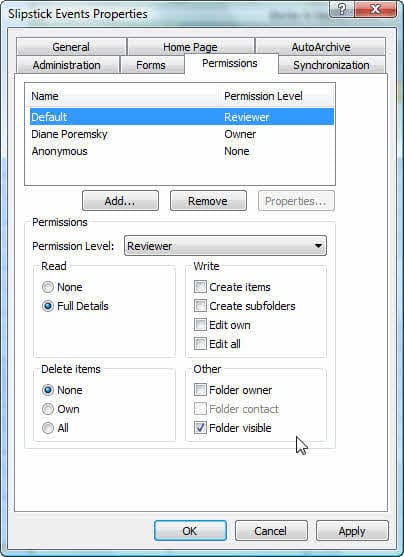
Repeat for each folder you wish to share.
If the person already has delegate access you won't need to do anything more. If they do not have any access to your mailbox, you need to give them Folder visible permission to the mailbox.
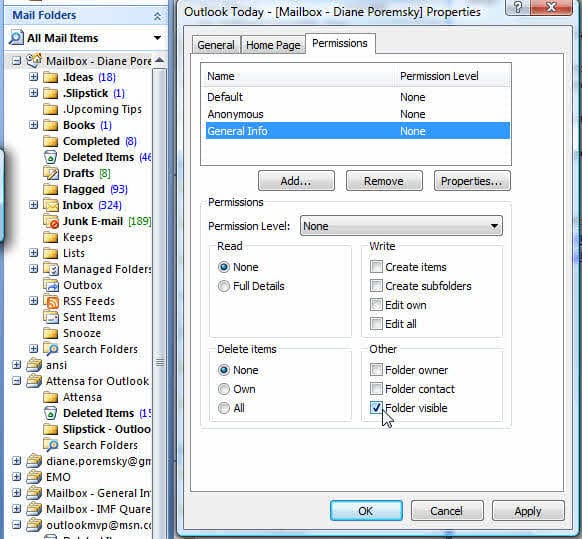
- Right click on the mailbox root. This is the folder you click on to display Outlook Today.
- The Default account typically has no permission to the entire mailbox. You can either give the Default account Folder visible permission or click Add and select your co-worker's name from the GAL.
- Check the Folder visible box only. The permission level remains set to None.
- Click Ok to exit the dialog.
Opening the shared folder
Once the folder permissions are set, the person who the folders are shared with needs to add the mailbox to their profile, as a secondary mailbox.
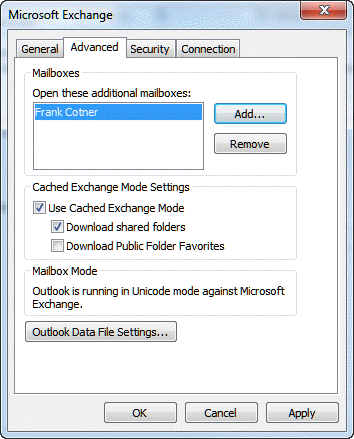
- Go to Tools, Account Settings. (File, Account Settings in Outlook 2010 or 2013.)
- Select your Exchange account and click Change (or double click)
- Click More Settings
- On the Advanced Tab, click Add
- Type all or part of the name of the mailbox that was shared with you. Select the correct name if presented with a list of names.
- Click Ok and work your way out of the dialogs and return to Outlook.
The mailbox you added is now in your folder list and the calendars you have permission to view will be listed in the Calendar pane. Any other folders that this user was given permissions to access will be visible in the folder list or appropriate modules.
View Shared Mailboxes in Outlook Mac
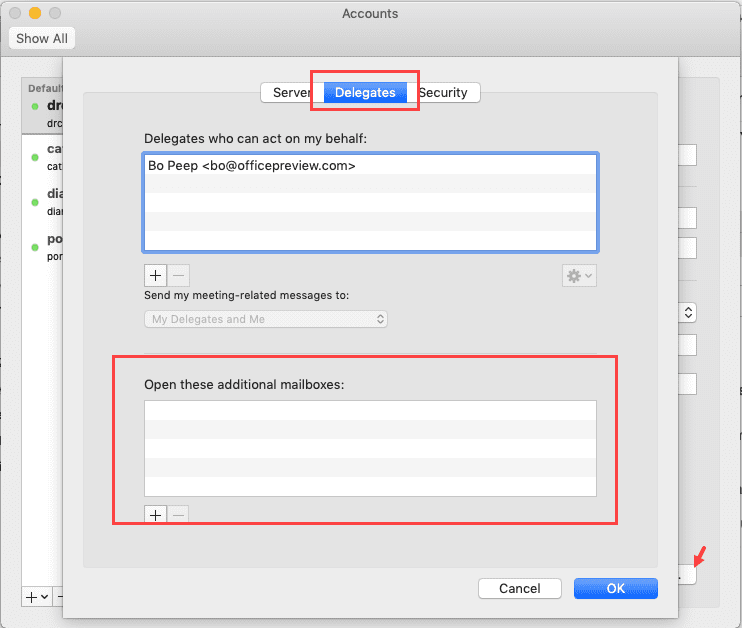
If the user has full access rights, go to Tools, Accounts and Add the account as another email account. Enter the email address of the shared mailbox. On the authentication screen, choose Sign in with another account and enter your credentials. Complete the Add account wizard.

For users with delegated permissions, open it from Tools, Accounts > Advanced > Delegates. Add the mailbox under Open these additional mailboxes
Video Tutorial: Configure Permissions to Share Subfolders
The first part of the video shows how to set the permissions on the mailbox in Outlook 2010. The method is the same in all versions, however, the Account Settings dialog is on the Tools menu in Outlook 2007 and older and the account dialogs vary.
A video tutorial recorded in Outlook 2007 on Windows XP is here: Share Exchange Mailbox subfolders in Outlook 2007
The View in Outlook
This screenshot is from the folder above the shared subfolder. It has Folder Visible
permission. This is what the folder owner sees >
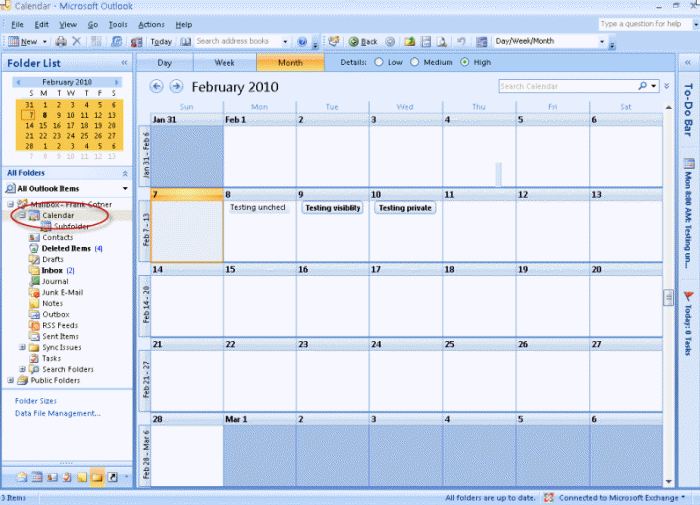
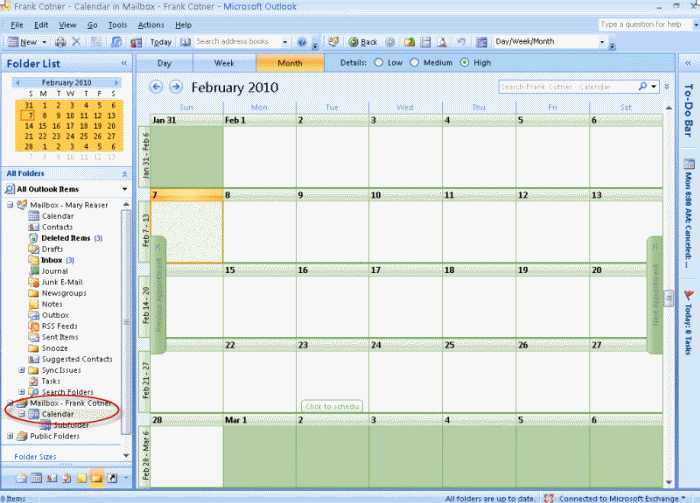
With folder visible permission, the user can see the folders in the folder path but they cannot see the contents of the folders.
This is what the person with Folder Visible permission sees when they open the shared folder to their profile. As you can see, they can see the folder but not the folder contents. >
Tools
Symprex Folder Permissions Manager allows administrators to centrally manage all permissions on mailbox folders and public folders on Exchange 5.5, 2000 and 2003. Folder permissions can be listed and changed manually, or using templates with permissions settings created using the built-in wizard. Permissions can be applied to any number of mailboxes and folders at the click of a button. |
More Information
Access Folders in Other Users Mailboxes
If a person has delegate rights they can see all folders shared via the Deletes tab (Tools, Options menu) and they will not be listed on the Permissions tab of the folder properties.

Bob from Accounting says
I shared my Contacts and Calendar with a user. At the root mailbox, I gave that user "Folder Visible". The user added my mailbox to theirs. In the Folder List view they can see all of my contacts. When they click on my calendar, they cannot see the contents and instead "Cannot display the folder" message. They are able to view the contents of sub calendars. If they change the navigation pane to Calendar view, they can see the contents of my calendar. How do I fix the issue to allow the user to be able to see my calendar when using the navigation pane's Folder List view?
Joe Cooper says
We're facing issues where the categories reset on the calendar every time Outlook is closed and reopened again. Are there any workarounds to this?
Diane Poremsky says
The categories are being deleted from the event or is just the color disappearing? If the color disappears, are you using a share mailbox calendar?
Siva Priya Chandran says
We are a team of three people sharing inbox however when one of them moved the folders others cannot see it, any suggestions.
Christine says
How can a 2018 Outlook 365 inbox owner share all inbox sub-folders after full access has been delegated to an assistant? Looking for specific instructions on how to do this on a Mac.
Diane Poremsky says
Tools menu, Accounts > Advanced > Delegates. Add the mailbox under Open these additional mailboxes
Or, provided the user has full access permissions, Tools menu, Accounts. Add an additional Exchange account. In the E-mail address field, enter the email address of the shared mailbox. Under Authentication, enter your credentials.
Clayton C Smith says
Is it possible to change permissions of a user programmatically with VBA? I can share a calendar but I have to change permissions manually.
Diane Poremsky says
As far as I know, not using VBA. Powershell should be able to do it, but that's not all that much faster than doing it manually.
Kimberly says
I've added my manager's shared folder per the instructions above, but when I click on his name to try to open his inbox, I'm getting the message "Cannot display the folder. Microsoft Outlook cannot access the specified folder location. Network problems are preventing connection to Microsoft Exchange.
". How do I correct this? I can see his folder through the webmail of Outlook 365, but not through the application on my laptop. Thanks for any suggestions!
Diane Poremsky says
do you have folder visible permission set on the root folder (where outlook today is) on his mailbox?
Lauren says
This was SO HELPFUL :) Thank you, I'd been going mad trying to sort out folder access.
jide says
What tool can I use to grant access to a folder and ALL of it's sub-folder at the same time. I'm working with a folder that has over 300 sub-folders, going to each folder is not realistic.
Diane Poremsky says
Do you know the version of Exchange you're using? You'll need to be mailbox owner to make any changes... there are apps for older versions of exchange and you can use vba (with redemption)
Diogo says
I'm having an issue with outlook.
I'm sharing 4 folders with 3 people. But! one of them sees all the folders, the others can only see one of them (the same folder)
Any help is appreciated.
Rachel Ovalle says
Hi Diane, I have the same question as Ashley Jensen below. I also have been granted full delegate access to my manager but I can only see his inbox, none of his sub-folders are visible. I can actually see one folder, but I cannot see anything inside it. But he has more than one subfolder and I cannot see any of the others. Can you either post an answer on this forum, or email me personally.
Thanks in advance!
Ashley Jensen says
Hi Diane! I have been granted full delegate access to my supervisor, however, I am only able to view her inbox. I cannot see any of her other folders, nor the sub-folders she has created that she would also like for me to access. We have tried everything in your tutorial above. Any suggestions for what we may be missing? Please shoot me an email if you have time, thank you!!
DavidO says
Lots of good information here. I am retiring and want my successors to be able to grab client specific sub folders in my mailbox. Our large corporation uses Enterprise Vault so I'm trying to get an answer to allowing others to copy the sub folder to their e-mail account and also allowing them to unvault. So far crickets...
I realize this is a little obscure so thanks for any help you can give.
Nima Ashrafi says
thank you so much for the quick reply! I like your last idea a lot.. If I go with the distribution group + shared mailbox, I would essentially do the following:
- Create a new calendar in my own mailbox.
- Have IT create a distribution group.
- Share the calendar with everyone in that group.. giving them owner permissions.
However, what happens if I were to leave the company and my account in exchange/active directory gets removed? Will the calendar remain?
Thanks!
Nima Ashrafi says
I actually am not sure how to even share the new calendar with a distribution group..? How would new members adopt the same permissions without me changing anything on my end?
Thank you for all the help!
Nima Ashrafi says
Hi Diane! Thank you for the great post.. However, I have not yet had any luck finding the solution to my problem anywhere. I am hoping you might be able to help me (i am desperate lol).
I work at a large company and I am trying to create an "ideas" calendar for everyone in my department to view/edit/share.
I originally wanted to create the calendar in an existing shared mailbox.. but found that everyone needs to get access to the mailbox to be able to view the calendar. To get access to mailboxes here, we need to place orders online and the IT folks will get the request approved and will grant access.
So instead, I wanted to just create a calendar in my own mailbox, and share that with the people in my department (giving them owner permissions). This worked great until I tried to see what would happen if I left the company and my account in active directory was deleted. I found that no one else is able to share the calendar.. even if they have owner permissions. That means that if I leave the company, no one will be able to share the calendar with new people.. is there a way to fix this?
Thank you so much in advance.. please feel free to email me if that is easier.
Nima Ashrafi says
Oh and I am using Outlook 2010
Diane Poremsky says
There are several ways to create a shared calendar and it sounds like you are aware of all - the best might be a public folder, if your company has public folders. IT would (probably) need to create it and set you as owner but you could add members and make other people owners. A shared mailbox would also work - and IT could give you owner permissions on it so you could manage it. If you use SharePoint, a SharePoint calendar or a SharePoint site for your department would work well too - or, if you were lucky enough to be on Office365, the new Groups feature would be perfect for your department.
IT could create a dynamic distribution group where people are added or removed automatically if they match a condition (like the Department) - they could give the group permission to a public folder calendar or shared mailbox and new people in your department would be added automatically.
DanC says
This is great info, thank you! It works as expected with the default Exchange account within a profile. However, if you have an Outlook profile with multiple Exchange accounts, it appears that you can only access folders shared with the default exchange account. Does anyone have experience with this? Is there any way to leverage a non-default Exchange account's folder sharing privileges, without putting it in a separate profile or changing it to be the profile's default account?
Diane Poremsky says
Which version of Outlook? I haven't had problems with opening folders shared with my other exchange accounts, but they are on different servers.
çitil says
Hi Diane. First, thanks for sharing this information :)
we use exchange server 2010 and outlook 2013.
I am sharing my some folders and also my inbox with my friend giving these permissions.
But when he adds my inbox to his account he gets error.
the error is this: Cannot display the folder. Microsoft Outlook cannot access the specified folder location. The operation failed. An object cannot be found
Where are we making a mistake? Is there sth to do in the server also..
james says
Hi, Is there a way of resetting subfolders permissions back to default, anonymous? If there is there a way of doing this to all subfolders? Thanks in advance.
Diane Poremsky says
You can do it one folder at a time, the administrator can do all folders. To quickly block a person from all folders, you can remove Folder Visible from the root folder of the mailbox, but there is no quick way to give someone permission, except by making them a delegate.
The default permission level for Anonymous and Default are None - so you could remove Folder Visible permissions for both on the mailbox root. This would block anyone from opening the mailbox in their profile and seeing non-default folders. To block access to default folders (inbox, calendar, contacts, tasks) which can be opened using File, Open, Other User's Folder, you need to change the permissions on those folders.
Rachel Cahill says
Good morning, I am using Office 2013 and I want to block a specific person from viewing my calendar (not just the events just even when I am busy/not busy) is this possible?
Diane Poremsky says
Assuming you are using Exchange server, right click on your calendar folder in Outlook and choose Properties. On the Permissions tab, select the person from the Global Address List and set their permissions to None.
The Two Minute Tour says
I just signed up with Office365. I have shared folders in the above manner, but the person I'm trying to share with can't see any of it. Shared Calendars, Shared Contacts, Shared Notes, Shared Tasks.
All I want to do is to have a folder in each of those categories and once posted, he will see the same info.
Diane Poremsky says
He needs to open your mailbox as a secondary mailbox in his profile to see folders that are not the default Outlook folders. If you share your default folders (Calendar, Contacts, Notes etc), he can open them using File, Open, Other user's folders.
Elizabeth says
I have shared certain sub-folders with 2 of my assistants to help manage my email flow. This has worked very successfully for the past 3 years. However, recently I asked one of them why specific emails had not been handled, and they informed me that they could not see them when viewing the folder from their computer. I looked at their screen and sure enough the emails (3 out of about 150) do not appear in their view of my subfolder but the other 147 do. Why can I see them, 1 assistant can see them, but the other who needs to see them is unable? A better question, how do I resolve it?
Diane Poremsky says
Do the missing mails show up if the person selects the folder and clicks the Update folder button?
Is the person caching shared folders? Not caching the folder should fix it, but you can try clearing offline items and letting outlook resync. On that person's computer, right click on the shared folder and choose Properties then click the Clear offline items button.
Marty says
A colleague has created a secondary calendar and given me reviewer permissions (in Outlook 2003). If I add her account to my Outlook 2010, I can only see her default calendar. Then she gave me permission on her inbox and the secondary calendar appeared! She took away my permission to view herinbox and the secondary calendar stayed. Perfect, except we need to do this with many other people. In order to describe the steps, I deleted her account from mine, re-added it, and I can't see the secondary calendar anymore. Any idea why it's doing this?
Diane Poremsky says
Secondary calendars are hard to share because, as you've discovered, they are not as simple to share as the default calendar. you need view folder permissions on all parent folders in the path above it. The secondary calendar was cached in your mailbox when you removed permission. It can take a bit for the permissions to propagate. There is a utility that can mass-assign permissions (PFPublicfolder or the newer version, depending on your version of Exchange), but users will need to open the mailbox in their profile themselves.
Jorie G. says
This was most helpful! I've been looking for an answer to this for the past half hour - I would have never figured out how to do that on my own. Thank you!
Vince says
I have a folder with at least 20 sub-folders and each of those has sub-folders too. As far as I can see for each and every user that I want to share those folders with I have to grant permission to every sub-folder. Is there no switch that can be set withing a folder hierarchy to allow access to all sub-folders? Otherwise this is going to be a very tedious exercise with high maintenance as every time I create a new sub-folder I will have to remember to grant shared access to it.
Diane Poremsky says
The administrator can give permissions using a tool on the server side, but the only option for users is to assign permissions to the folders. Permissions are inherited on new folders but not propagated to existing folders.
William Talcott says
Diane, Thank you for this tutorial. It will be quite helpful.
Mary says
Yes. I am an owner on all folders.
Diane Poremsky says
Try removing your ost file and letting outlook recreate it. If they are subfolder, clearing the offline files from the parent folder should work too.
Bruce martin says
TYVM for this tidbit, it solved the same problem I was having this year :-)
Mary says
I am a delegate with the administrator and I have all file permissions granted to me. It was working properly. I could move emails out of his inbox into folders I created and he could see them and access them on his outlook exchange. He recently decided to rearrange the order of the files. Now I can only see some of the files. One set I can see the subfolders and others I can not. More than half of the files are missing from my outlook, however if you check the sharing permissions it states I have full access to it, but it is just not showing up on my outlook. This files are very important for the work I do and I need to be able to see them and use them. How can we fix this problem?
Diane Poremsky says
Do you have at least view permission on every folder in the path. eg, to see a subfolder under the inbox you need view permission on the inbox.
Marshy says
I want open a mailbox of a person that has left on my mailbox and i want to be able to view all the folders without having to grant access to each subfolder is there a easier way to do this. I have access to the mailbox of the person who has left but i want to be able to view that mailbox in my outlook. We have an exchange server and we use 2007
Diane Poremsky says
If you use Outloko 2010 or 2013 you have two options: reset the password on the former employees account and open it in your profile as a second email account. you should also be able to open it as a secondary email account (More Settings, Advacned, Add account) - but you may not see all folders due to permissions.
Laura says
Diane, I have a user who is a delegate and shares email and calendar with her administrator. She (delegate) is using Office 365 Outlook 2010 on a windows machine and her boss is using a mac and other ios devices running ical and office 2011. When she or other admins try to search his email or add meetings to his calendar their Oulook crashes and sometimes their machine. This was happening before the migration to O365. Any suggestions we rebuilt profiles and do not know where else to turn. Thank you!
Diane Poremsky says
What are you using for antivirus? I'll look into it.