An Outlook user asks:
Without starting Outlook, I moved the IMAP pst from C to D. I hoped Outlook would ask me where the file is. However it creates a new one in the same location. How do I make Outlook use the new location?
That method is used to move *.pst files used by POP3 accounts, it won't work with the IMAP protocol (and is no longer recommended for moving PST files; you should move the PST then point the profile to the new location before opening Outlook.)
While I don't recommend moving the IMAP data files unless your drive space is tight, you can change the default location for IMAP data files. Note: because IMAP syncs with the server, everything in Outlook IMAP account is also on the server so the IMAP data files do not need to be backed up, with one exception: if you have "'(this computer only folders)'", you risk losing calendar and contacts in those folders.
You cannot reuse an IMAP data file with a different profile.
Use ForcePSTPath registry value to relocate Outlook IMAP .ost or .pst data files, not the ForceOSTPath key.
I recommend using ForcePSTPath with Outlook 2010 and up, not the steps to move the IMAP data file found here. Note: IMAP *.ost files honor the ForcePSTPath key, not ForceOSTPath even though the data file extension is *.ost.
Symbolic Links
and Junction Points can be used.Outlook 2007 and up use the ForcePSTPath registry key to change the default data file path from C:\Users\username\AppData\Local\Microsoft\Outlook. This change will not move existing pst files in your profile. If you create new accounts in your profile (or create a new profile), .pst or IMAP .ost files will be placed in the path entered in the registry.
This key works for for POP3, IMAP, and SharePoint data files but does not affect Microsoft Exchange (including Outlook.com) .ost files; Microsoft Exchange data files can be relocated using the ForceOSTPath key.
Using ForcePSTPath | Reusing an IMAP data file | Move the PST
Using the ForcePSTPath regedit
Use the ForcePSTPath regedit to change the default *.pst path and in Outlook 2013 and newer, the IMAP *.ost path.
The ForcePSTPath key will recreate the pst files used by IMAP accounts in Outlook 2010 and up but not in earlier versions. If you use Outlook 2007, you'll need to move the pst file and repoint the profile to it, following the steps below.
Note: This does not change the path for existing accounts. It works only for accounts created after the key is set. Remember to create the folder you want to store the IMAP pst files in before you set the key.
In Start menu, Run (Windows key + R) or the Start menu or Task bar Search field type regedit and click OK.
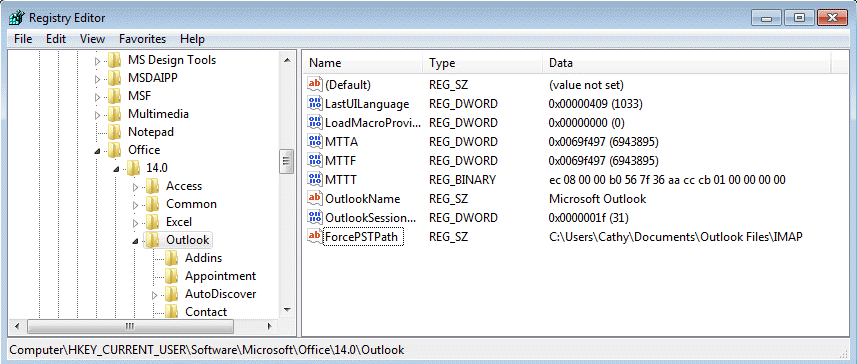
Browse to the following subkey in the registry.
In Outlook 2016 go to
HKEY_CURRENT_USER\Software\Microsoft\Office\16.0\Outlook
In Outlook 2013, the path is
HKEY_CURRENT_USER\Software\Microsoft\Office\15.0\Outlook
In Outlook 2010 go to
HKEY_CURRENT_USER\Software\Microsoft\Office\14.0\Outlook
In Outlook 2007 (POP3, Sharepoint, and default pst files only):
HKEY_CURRENT_USER\Software\Microsoft\Office\12.0\Outlook
Right click on the key and choose New then click String Value.
String Value: ForcePSTPath with your desired data path as the value data
Click OK and edit the registry editor. If Outlook is open, close it then restart. Newly created data files will default to the location. Existing data files would need to be moved.
Do It For Me
If you don't want to edit the registry directly, you can use one of these text files - you need to edit the path before changing the file extension to reg and double clicking on it to run it.
Be sure the path exists before adding the key to the registry. If it does not exist, Outlook will drop back to the default Microsoft\Outlook location under the user account (and in Outlook 2010 and up, to My Documents\Outlook files for POP3 and additional pst files.)
Remember to use double \\ between folder names in the path in the reg file. (Use single slashes if you edit the registry directly.)
Windows Registry Editor Version 5.00
[HKEY_CURRENT_USER\Software\Microsoft\Office\14.0\Outlook]
"ForcePSTPath"="C:\\folder\\folder\\folder\\folder\\folder"
Outlook 2016 Outlook 2013 Outlook 2010 Outlook 2007
Remember: you need to edit the path name, the save it using the .reg extension (or change the extension to reg after saving). Then you need to double click on the reg file to update the registry!
Reusing an IMAP data file
We receive a lot of questions from people who want to reuse the IMAP data file, either on a new computer or with a new profile. Sorry, this is not possible currently. Only the profile that created the IMAP data file can use it.
Using it in a new profile would not make the process faster as Outlook would re-sync every thing in the data file.
Note: If you download full messages, you can open and view the contents of the Outlook 2010 and older IMAP *.pst file in another Outlook profile. While this may suffice as a backup of the mailbox or an archive, if you need to clean out the IMAP account, we recommend moving messages to a local pst file to insure the full message bodies are downloaded. Outlook 2013/2016's IMAP *.ost file can't be reused (and will be automatically deleted when you delete the account from a profile).
Steps to Move the PST
Note that this method works to move and reuse an IMAP data file in older versions of Outlook but is not recommended with Outlook 2010 and newer. With Outlook 2013 and newer, set the ForcePSTPath registry key then remove and re-add the account to Outlook.
First, close Outlook then make sure Outlook is not listed in Task Manager, Processes tab a few minutes after you close it.
- Open the profile (Control panel, search for Mail) and click on Data files.
- Select the IMAP acct and click Open Folder to open the folder containing the PST.
- Move the PST to the desired location. Do not rename the file Outlook creates a new file in the default location if you try to rename it - you can only move it.
- Switch to the Data Files window and double click on the account's data file.
- Now you'll get the 'can't find' error and can tell outlook where to find it.
- Close the dialogs and you are ready to restart outlook.
Video Tutorial: Move IMAP *.pst
[wpvideo lyDgkTId w=575]
More Information
If the above methods don't work and you are serious about moving the pst, you can use symbolic links or junction points. See Symbolic Links (MSDN), Junction Points (MSDN), and How to Move Shell Folders (and contents) for more information.
See To move a Personal Folders .pst file for instructions for moving POP3 pst files.






























Thanks, that seemed to work fine for my account, but I've also got some shared accounts in my Outlook which it didn't seem to copy over, unfortiunately so would have been the ideal solution otherwise.
What type of account are they? The ForceOSTPath key only works for new accounts. If they accounts are in outlook, junction points / symbolic link work for existing data files (but will move all of the files and folders in the %localappdata%\microsoft\Outlook path unless you do it for individual files.)
Hi Diane - they're shared accounts, like sales@company or info@company. Can they be moved along with my work account?
Yes. It's unusually easier to use the junction point and move the folder if there is more than one account. Or set the key for FORCEPSTPATH and remove and rea-add the account.
2 no. Identical Exchange Accounts with one having a '(2) 'next to it. Hi Diane, I'm sorry; as shown below, I should have added a bit more to my last question. If I look in Outlook on File > Account Settings > Account Settings and click on the 'Data Files' tab, I then highlight my Exchange Account. If I click on 'Open File Location,' I notice I have 2 identical Exchange accounts, whereas before, I only had one. The one being used by my email account has (2) written at the end of the email address, whereas the other one is just my email address. I have noticed an anomaly, though. When I click on Send / Receive in Outlook 2019, I notice that all my POP3 accounts correctly synchronise with sending and receiving, and they all have ticks beside them. Then, the IMAP account shows it is sending properly with a tick beside it. I then have another line that is ticked with the others that say, 'Synchronising subscribed folders for Andy,' which is my IMAP account. However, I cannot see my Exchange Account anywhere within this window. Should I direct my email account to the original Data File… Read more »
>>
I have noticed an anomaly, though. When I click on Send / Receive in Outlook 2019, I notice that all my POP3 accounts correctly synchronise with sending and receiving, and they all have ticks beside them. Then, the IMAP account shows it is sending properly with a tick beside it. I then have another line that is ticked with the others that say, 'Synchronising subscribed folders for Andy,' which is my IMAP account. However, I cannot see my Exchange Account anywhere within this window.
>>
Exchange accounts sync as the mail hits the server. It does not use Send/Receive.
>>
Should I direct my email account to the original Data File without the (2) next to it?
>>
You can only direct mail to pst files if you use a POP account.
Do you have 2 data files with the same name in your profile - one pst and one ost?
Hi Diane, Heathside boy here.
I am still trying to move my IMAP account files from my C drive to the D drive by following your instructions. However, I noticed your caveat saying, ‘This does not change the path for existing accounts. It works only for accounts created after setting the key.’
I already have an existing IMAP account for my C drive, which shows up in Outlook 2019. Should I delete the IMAP account first, then change the key in the registry and then re-add the existing IMAP account back into Outlook 2019? Thank you.
HB
Yes, remove the account from Outlook and add it back. If you have “(This computer only)" folders with calendar, contacts, or tasks in them, yopu need to export those folders before removing the account or you will lose the contents of the folders.
I'm not sure what you mean by "(this computer only)" folders with calendar, contacts or tasks in them. I have several computers with different versions of Outlook, and they all have calendar, contacts and tasks in them. Eventually, I plan to move all the mail in all of my computers from the C drive to the D drive.
Do I need to move the calendar, contacts, and tasks to the same place as the mail on the D drive? How do I actually move them, as I have never done it before?
Just to confirm, I do not need to delete the IMAP account on Outlook.com (the web-based version), do I? Just the IMAP account on Outlook 2016, 2019 and 2021 for Windows on all my computers, respectively?
Changing the subject slightly, I want to do the same for my Exchange account. Do you have a link to how I do this, too? Thank you.
HB
If an IMAP account's data file is set as default, it will have folders for calendar & contact labeled "(this computer only)". If a pst or Microsoft exchange account is the default data file, then there is no problem - they are less likely to be deleted accidently.
>>
Just to confirm, I do not need to delete the IMAP account on Outlook.com (the web-based version), do I? Just the IMAP account on Outlook 2016, 2019 and 2021 for Windows on all my computers, respectively?
>>
No, you don't need to remove it from outlook.com (assuming it is added as a connected account) - remove the account from the desktop Outlook after setting the key.
Use the forceostpath to move exchange accounts
https://www.slipstick.com/exchange/moving-outlook-ost-file/
Thank you, Diane, that is a little clearer to me now. My default account is my Exchange Account, not an IMAP account. If this is the case, I do not need to worry about moving any calendar, contacts or tasks, do I?
If you are using Exchange, everything is synced to the server. You can move the data file to a new drive, especially if the C drive is too small - and can just remove the exchange account and add it back after you set the key.
sir
how to move the imap defalt store location to new locatiopn
If the account is in outlook already, symbolic links or junction points would be the easiest way to move it.
You can try the methods in this article to move it - the pdf method near the end should work.
https://www.slipstick.com/exchange/moving-outlook-ost-file/
Am I the only one for whom this didn't work!
Could it be because I'm on Windows 7?!!!
It works on 7 too. You need to set the key them add the account to outlook - it won't work on accounts already in outlook.
Amazing solution. I was breaking my head to fix it for 3 hours, with all the tricks on the web, this one is miracle. At peace :)
Dear Ms. Diane, You have written: "You cannot reuse an IMAP data file with a different profile." I am going to move on my Outlook's data to a new computer, including Business Contact Manager's data. The problem that I see is linking of items seen in history of BCM's clients (e-mail's titles) with messages stored in PST files. When the link works properly, after double click on the item, a window of Outlook's message is opening (then I see original message incl. attachments, so I can forward it, reply etc). In case when the link is broken I see a different window, that consists only a plain text copy of the original message, without possibility to forward it or reply). What should I do to avoid this undesired result? How does BCM identify a particular message stored in a PST file? By its name? Or by a folder's name which is displayed in Outlook? Earlier I have moved on all my old Office 2007 incl. BCM and SQL server, settings and data files to a new computer copying also an Outlook's profile from a registry, but result was disappointing. Outlook itself worked almost perfectly - all IMAP PST files were… Read more »
First IMAP data files (and cached Exchange data files) are a little different than POP PST files. They are linked to the account/profile that created the data file. PST files can be used in any profile, with any account. >> How does BCM identify a particular message stored in a PST file? By its name? Or by a folder's name which is displayed in Outlook? It uses the EntryID and may use the pst path (many things do) and a user account/hardware id for the computer. The entryID should not change if you move the BCM database and the pst - it will change if you import/export, so always open the pst in the new profile. >> But there was impossible to enter into 'signatures' and 'stationary and fonts' settings (these buttons were dead). Best guess: it wasn't the registry or moving the profile, but the new computer had the windows store version preinstalled. https://www.slipstick.com/problems/the-stationery-and-font-button-doesnt-work/ >>> And the worst thing was that a history button in BCM, in client's history, was also dead - there was not possible to see items in history. This may be due to a new security setting. There is a reg key to fix it.… Read more »
Thank you very much for your immediate reply. So... but it is possible, under some circumstances, reuse IMAP PST files to a new installation, expecting that messages will be reachable from client's history in BCM. So I am going to repeat my the first try moving my current Outlook's profile from the old computer, then installing Office on a new one, but this time I will follow your suggestions to remove problems mentioned before. And to be sure that EntryID of PST files will be preserved, I will reconstruct the same folder's path where they are stored using junction points (there is a different user folder name on a new computer, that's why).
Diane - what a GREAT website! You wrote above " ... reuse the IMAP data file, either on a new computer or with a new profile [?] Sorry, this is not possible currently. Only the profile that created the IMAP data file can use it." Questions: 1) My PC dual-boots Win 7 Pro 64-bit and Win 10 Pro 64-bit. I have Office 365 Home on the Win 7 side and will also put it on the Win 10 side.. (Its Outlook is currently version 16 - no year is given.) I suppose your info means that the two Outlooks cannot point to the same .ost file - correct? 2) Can the two Outlooks point to the same .pst file? 3) From your numerous articles, I am now confused whether an IMAP email account MUST generate an .ost file. Can it be set to create and use only a .pst file? This will be helpful if your answers to Qs 1 and 2 are No and Yes. 4) O365's Outlook really doesn't permit an initial setup without a forced Wizard that demands an initial email account. I want to make that my old [MyName]@verizon.net, which I have used as POP3 for… Read more »
1. Correct, they cannot share the ost.
2. Yes, pst files can be shared as long as they are in a location accessible ot each partition.
3. Imap can only use an ost file in outlook 2013 and up. Previously it has an pst extension, but it was still only synced with the account that created the pst.
4. If you don't want an email account, you can create a no mail profile then add an account later... but you can also add the account as imap and add the pst to the profile. (I would open the pst using file, open & export, open outlook data file rather than import it. )
5. Yes, its the same dialog as in control panel, mail.