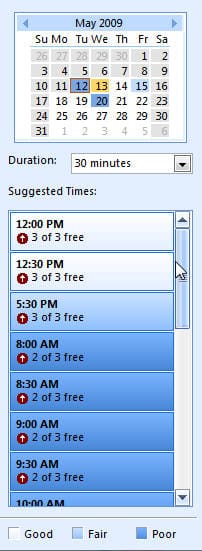
 Microsoft Outlook uses Free/Busy data so colleagues can see when you are available for appointments. However, when there are several attendees, it can be hard to schedule the meeting around everyone's free time and to make it easier to find the free periods, Outlook, when used against Exchange 2003 and older, have "AutoPick". This feature finds the next available free period for the attendees. Outlook 2007 when used against Exchange 2007 improves AutoPick with the Suggest Times pane. The Suggested Times pane, shown at the right, lists the upcoming times attendees are available so you can review availability over from several dates at once, not just one at a time. clicking one of the time "buttons" brings that period into focus in the Scheduling Assistant.
Not everyone likes Suggested Times and would like to get AutoPick back in Outlook 2007. This is not possible, although there are two places where AutoPick still exists: on Plan a Meeting (Actions menu) and Accepted meeting requests (when you are an attendee).
While I find Suggested Times makes it easier to find the best time for meetings, it is a little "busy" and confusing at first.
Autopick Next
How it works: Add attendees to the meeting request and review their Free/Busy data on the Scheduling tab. Click the Autopick Next button to move forward to the next suitable time period.
Suggested Times
How it works: After adding the attendees to the meeting request, Outlook reads the attendees free/busy and populates Suggested times with the best times available on the selected date, listing the time and number of attendees who are available in that time period, sorted by the time periods with the most attendees available.
The suggested times are supplied by the Availability service in Exchange 2007, so you'll only see it if you connect to Exchange 2007 (or higher). If you use Exchange 2003 or earlier, the old "AutoPick Next" feature still works. Fortunately, Outlook is smart enough to know which feature your version of Exchange supports and displays it to users.
The scheduling assistant grid displays the selected date, showing everyone's availability. Click on any time under Suggested times and the picker moves, just like it does with Autopick.
 If the selected date isn't going to work, pick another date in the thumbnail calendar. It's color coded to make it easier - white means best availability, darkest blue means there are few periods where all attendees are available. When you select a date in the thumbnail calendar the suggested times for that date fill the Suggested times pane and the scheduling grid jumps to that date, displaying the attendees free/busy. Just like Autopick.

Steve says
Hi,
There is also an alternative open-source AutoPick slot selector that also considers slots where people are tentatively available. Please find it here: https://medium.com/@steve.depeijper/the-alternative-autopick-free-slot-finder-for-outlook-calendar-3a348ca3d051
Coco says
I am assisting users in setting up recurring meetings in outlook 2010, Was wondering if there was a way to have to have auto pick or suggested times to only check times on a specific date, like every Monday for example?
Diane Poremsky says
I'm not in my office to test and verify it would work, but setting only the days to be working days might work... (Options, Calendar... working days)
Cabot Scott says
Is there a way to require 'Suggested Times' to not suggest times outside of working hours for all the invitees---using Outlook 2013, the Suggested Times always suggests time that lie outside the working hours set by invitees in other time zones (i.e. an 8:30am EST meeting is 5:30am PST and outside of the settings for invitees from California)---the grid shows the 5:30am time period in gray but the Suggest times still recommends an 8:30am EST meeting with "no conflicts".
Diane Poremsky says
No, it only works within your own time zone. Sorry.
IndefiniteBen says
Is there a way to do this in the same time zone? I'm in the same timezone as other attendees (all on the same AAD server) but it keeps suggesting times outside of the working times of colleagues.
Diane Poremsky says
Do you all work the same schedule? it should use your working times.
HamsterFangs says
This is a bit of a feature gap. Outlook knows when all our users are not at work - it displays the shaded areas - but still auto-picks :(
Diane Poremsky says
Are you all in the same time zone? Which autopick option do you use?
Jannice says
Is there a way to configure the room finder so that it will enforce a 30 minute buffer between meetings? For example, let's say Room A has a meeting from 9:00 am to 10:00 am. If I want to reserve Room A from 10:00 am to 11:00 am, the Room Finder should tell me there is a conflict (too close to another meeting), or should not show the 10-11 time slot at all. The next available time slot should be 10:30 am to 11:30 am. Is this possible?
Diane Poremsky says
it's not currently possible, but it is a great idea.
Scott Welker says
Ugh! "Suggestions are not provided for meetings with a duration of less than 30 minutes."
I am sure there is some good reason for this limitation but it renders me unable to use Outlook to grab a quick-15 minute touch-base with a VERY busy manager.
These products (Outlook, Word, Visio, etc.) get less useful with each new version. Auto pick was seamless and intuitive. Suggested times (hidden in the 'Room Finder') just doesn't seem useful. ...tools should help us get work done and not tie us up in fruitless searches for what should be seamless features. Thumbs down :(
Diane Poremsky says
You'll need to use the scheduling assistant - 75% view should show at least a couple of days - and check his free busy with yours.
Bob Moore says
I'm new to Outlook, running version 2013 with Office 365 Exchange. Is there a way to see or report on "Suggested Times" across multiple days? For Example: I need to send an external party a list of dates and times our team is availabe and I'd rather "run a report" to get the results for the coming weeks instead of manually looking at the calendar days for availability and then typing them into the body of an email. In Lotus Notes I could put in a date range and get a listing of everyones availability across those days. Thanks, Bob
Diane Poremsky says
That would be free/busy - there isn't a built in way to create a report. For short periods, you could do a screenshot of the scheduling assistant. The method at https://www.slipstick.com/outlook/combine-outlook-calendars-print-one/ could be used too. Once you get the calendar created, you can right click on it, choose Share > By email and include only availability. I'll take a look at tweaking it to generate an email with free periods.
Bob Moore says
Thanks for those ideas. I ended up going with the group calendar direction located here: https://office.microsoft.com/en-us/outlook-help/see-a-group-of-calendars-at-a-glance-HA103465584.aspx. I then selected the Work Week and Overlay view for everyone and it's exactly what I need. I can send a screenshot out for each week and recipients will easily see our available time slots.
Diane Poremsky says
That works too. :)
Jared says
Diane (and everyone) -- Has any of you found an add-on to Outlook 2010 (version 14.) that exports the entries in the Suggested Times list? I constantly need to send folks outside my company the list of available times for 2 or 3 or 10 of us, and I'd prefer not to manually retype (because you can't mark and copy) the list from the Suggested Times pane to email. -- Jared
Diane Poremsky says
You can send an ics with the just the free/busy information, although doing it for 10 will be a pita... right click on the calendar and choose Share > by Email. If you have a webdav server, you can publish a calendar to a public location then send a link to the calendar.
I have a macro that copies all appointments within a specific time period from all selected calendars to a new calendar for printing. It could easily be tweaked to copy just the free/busy and the calendar owner, then send it.
Omer says
I have a concern, I am working in the middle east and over here Sunday is a working day. The problem is that Outlook refuses to give me suggested times for non-working days, even though in options, i have identified Sunday as a working day for me.
What to do to so that OUTlook gives me suggestions for Sunday as well.
Diane Poremsky says
Where/what time zone is the exchange server? What version of Outlook? I'll try to repro.
In autopick options, what is your setting for what to include in the choices? If the invitees are in another TZ and don't have Sunday enabled as a working day, you might not see Sunday with some of the options.
Nicole says
Auto pick is still better...but thank you for the information...I was clueless...
Sue says
The problems I have with suggested time & schedul view are:
1. Most important for me; although my organization makes everyone set their normal working hour in their calendar, and I can see these in the schedule view, the suggested times take no account of this. As we use Online meetings, and I seldom have a meeting with colleagues in a single time zone, the time selected as “optimum” is usually when at least one of my team is fast asleep! I find this remarkably unhelpful.
2. Related to 1; Outlook sorts uggestions in order of availability, and not in chronological order, which personally I’d find easier; the choice would be nice!
3. If you try to slide the meeting across the schedule, it is very hard to maintain the duration – it keeps resizing the meeting to 30 minutes, even if you started with something else (usually an hour in my case).
Jonathan says
I fully second thaat, especially the first comment! Why the hell does Outlook not respect the "outside of working hours" period??? That does not make sense and is extremely cumbersome when scheduling meetings across the globe!
Nap says
i think the suggested times is better, if you have only 1 person with conflict, you talk with him, and try to get a solution, before with autopick i think i don`t have that information
Lynn says
I can't find the suggested times pane when I'm changing a pre-existing meeting. Is there an option to show it?
Diane Poremsky says
Check on the Options chunk - with Busy, Recurrence, Time Zones - it should be under Time Zones button.
Walter says
Thanks Diane, that did it, but with a twist. She was publishing 12 months but it wasn't until after it was reset to 0 then back to 12 the data published correctly.
Walter says
I have an issue I hope you will help me with. I have Outlook 2010 running on Win7 and my customer's free/busy data only populates appointments through 3/31/13 when she is listed as an attendee. From April 1st on the free/busy data for her is a continuous, gray striped bar. For all other attendees the free/busy data populates normally.
On the other hand, when she creates an appointment her free/busy data populates accurately along with everyone else.
Among other things, I ran Outlook.exe /cleanfreebusy without success. After replacing her Outlook profile the situation improved marginally. Now her free/busy data populates accurately through the end of April, but unfortunately from May 1st forward its grayed out.
On my request, last night Workstation Support pushed Win7 to Cathy’s PC. It didn’t help.
Diane Poremsky says
How much free busy is she publishing? Default is 2 months- this month and next month.
mARSHA jOHNSON says
Bring back Autopick - it was a great feature!
Mary says
Autopick next was the best thing since sliced bread, and now an "upgrade" has taken it away. Brillilant, Microsoft!
Nickie says
How can I turn off the Suggested Times feature? It slows down the system when I have many meeting attendees.
Diane Poremsky says
Click the Room Finder button in the ribbon - that should toggle it off and leave it off until you enable it again. You may need to toggle it off and close the form (not Send it) to make it stick.
Jen says
So grateful for this article, it finally explained WHY I can't use AutoPick anymore, which was driving me crazy, and gave me a workaround to boot. Thanks!!
Linda says
No auto pick! Ridiculous! They call that an upgrade? suggested times doesn't even come close. Sorry its a "nay" for me.
Norm says
Another stupid Microsoft UI "upgrade"
Diane Poremsky says
That's one way to put it. :) I don't care for it or the new group calendars.