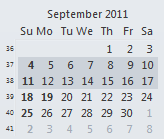
You can select 2 or 3 weeks in the navigation calendars and view those weeks in a monthly-style grid.
This trick works on all versions of Outlook.
To change the number of weeks in the calendar view:- Start with any Day/Week/Month view

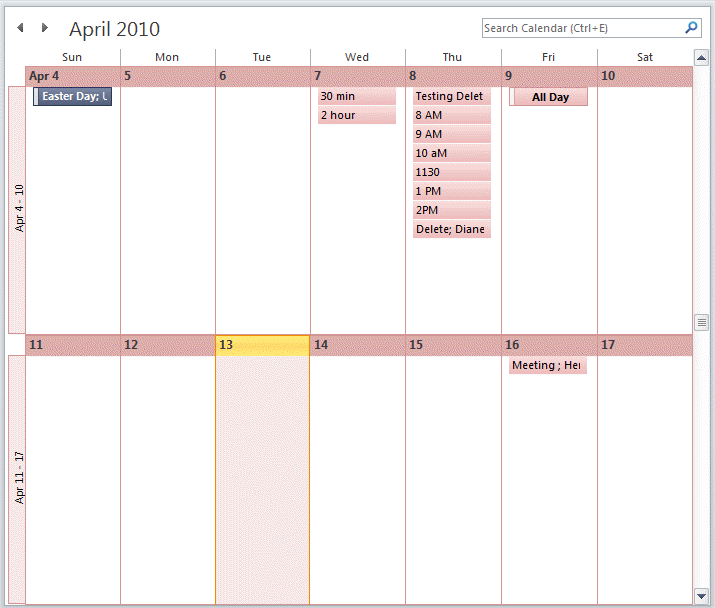
- Drag the mouse over the dates in the navigation calendar to select up to 6 full weeks.
The display will change to the monthly grid format with large cells. The size of the cells are dependent on the size of your Outlook window and your screen resolution, along with the number of weeks selected.
The only downfall to this method is that the selection is not saved. The view reverts to 30 day view when you change folders.
Video Tutorial
Created using Outlook 365

Bet Nel says
Office 2016, this technique to show only 2 or 3 weeks quit working in Sept 2022. The resulting window is to a day.
Diane Poremsky says
Select Sunday (or whatever is the first day of your week) and drag to select full weeks.
It's still working here in Outlook 365 - which is just a newer version of Outlook 2016.
I'll make a new video using a newer version of Outlook.
Bet Nel says
Maybe it is a hardware issue then. I have tried all of the suggestions & the weeks do not highlight - just a single day. Checked mouse settings but all looks as it should.
Diane Poremsky says
How are selecting the days? It's working here to drag down the first day in the week - but if I select the first day in the week, hold shift and select the last day a future week (between 2 and 6 weeks), I get 14 days in day view.
Gloria says
I selected 4 weeks but nothing happened. is there another step after selecting them. I have a huge screen and still can't see all my appointments because there are too many weeks displayed. This should be an easy fix.
Diane Poremsky says
You just need to select the dates in the calendar on the left - it should pop into a 2 or 3 week view.
Kevin W says
Was selection of weeks in the To-Do Bar removed from Outlook along the way? It doesn't seem to work in 2016.
Diane Poremsky says
yeah, that little feature was in the old to-do -2010 and older. They changed the to-do bar calendar control in 2013.
Sarah says
This was the perfect tip! Thank you!
Larry says
I gave up on internal solutions and wrote a script for Autohotkey (AHK) I've set it to run with F3, but AHK has a myriad of ways to trigger it.
Caveats: (A few changes to the script can compensate for most of these)
1. It shows the CURRENT date in week 1, followed by two (or your choice) weeks. Doing the same for a date other than the current one is not trivial.
2. It assumes you have the Date Navigator shown in the To-Do bar on the right. Unfortunately, Msft uses redundant ribbon commands for "Normal" mode for the Navigator, so there is no simple way to be sure it's active.
3. It sends commands to a maximized calendar window of a specific screen size. If your screen isn't set to 1280x800, use AHK's Window Spy to set the coordinates (noted in the comments).
5. It has only been tested with Outlook 2010, Windows 7 Pro 32 bit, AHK v1.1.23.01.
F3::; Show a 3-week calendar in Outlook. ©2016 dp.swstuf@9ox.net
IfWinActive, Calendar -
{
WinGet, mnmx, MinMax, Calendar -
WinMaximize, Calendar -
; Calculate what week of the month it is currently.
wk := Floor((A_DD+6-A_WDay)/7)+1
; Note that if the month starts on Sunday, Outlook shows the last week of the previous month as the first week in the Date Navigator.
if (mod(A_DD-1,7)-A_WDay+1=0)
wk := wk+1 ; the first week in the navigator is the last week of the previous month.
; dwn is the number of "cursor down" keystrokes needed to shift a three-week selection in the Date Navigator to the current week.
if (wk<4)
dwn := 2
else
dwn := wk+1
if (wk=1)
dwn := 0
CoordMode, Mouse, Client
; Select Today from the ribbon (does not always change the Navigator).
send !hod
sleep 200
; View the next 7 days, using the ribbon (changes the Navigator).
send !hx
sleep 200
; Click at the start of week 1 in the Navigator, and drag down to week (three).
; Use AutoHotkey's Window Spy to find the drag area.
; In the mouseclickdrag command below,
; replace 1120, 200 with the location you determine from Window Spy for the first week
; and replace 1120, 230 with the location for the third (or your choice of last) week.
mouseclickdrag, left, 1120, 200, 1120, 230
; Send cursor Down commands to shift the (three)-week drag window down to the current week.
If (dwn > 0)
Send ^{Down %dwn%}
If (mnmx=0)
WinRestore, Calendar -
}
return
Larry says
The "read more" link is broken...
Diane Poremsky says
What browser do you use? Do you have javascript disabled?
It's working here in chrome, Firefox, and Edge (tested in the private browser option of each). (Line wrap in the comment box is broken in Chrome and FF. Ugh.)
Larry says
FF 55.0.3 and IE 11.0.44. NoScript, AdBlock+, Ghostery and HTTPS Everywhere disabled in FF, not present in IE. "Read more" turns cursor into hand as though it's a URL, but does nothing when clicked.
Diane Poremsky says
Comments are loaded using json. I wasn't able to repro problems disabling noscript and refreshing the page so i don't know what is going on for you. It should work in IE with the default security settings.
dLW213@msn.com says
Hi, I'm new to windows 10 and feel like I keep hitting brick walls. I am trying to get more events to appear on a monthly calendar. I read your instructions about clicking and dragging, but nothing happens. I'm also used to using a mouse and am now using a pad which I find very difficult. Can you help? donna
Diane Poremsky says
Which version of Outlook do you use? (This works with outlook desktop software, not the windows 10 calendar app)
Jon says
Thanks for the tip. I have started running outlook twice, one for emails and one for the calendar - this way the view doesn't reset as I switch between outlooks to see emails and calendar entries.
bretabennett says
Ditto: Thank you very much... really useful...
Peter says
Hi Diane,
thank you for all the information! Having an overview over 2 or 3 weeks is paramount to me. So I kept on searching to to this or smth similar via VBA and I stumbled upon this:
https://msdn.microsoft.com/en-us/library/office/ff867853(v=office.15).aspx
The article includes a VBA macro to create a sub "CreateTwoWeekView()".
I think this would do it - but I'm incapable of getting it working in the VBA editor. Just don't know where to put it! (ThisOutlookSession under your guide https://www.slipstick.com/developer/how-to-use-outlooks-vba-editor/ isn't working)
Thank you so much!
Peter
Diane Poremsky says
Dang. I had high hopes it was a 2 week month format, but its 2 weeks in day/week format. :(
Screenshot: https://screencast.com/t/lc4PFrgOh
It's not a bad view, just not the same as two weeks in a month. You can get close with Alt+0, no macro required (that is 10 days, not 14, the other numbers do the same.)
It should work in ThisOutlookSession, but right click on Project1 and choose Insert Module and put it into the module. Is macro security turned off? Do you get any error messages?
AzDayton says
While trying this, I found that line:
Dim objFolder as FOLDER
needed to be changed to:
Dim objFolder as Outlook.Folder
else it would crash on the "Set objView" line.
This may not be true for everyone, but it was true in my case, so I thought I'd mention it.
Still haven't found a way to show a real "Two Week" view though. By "real" I mean week one on one row, and week two on a second row, which is, I believe, what you're looking for as well. I'm not sure there IS a solution, but if I find one, I'll be sure and tell the world! :-)
Diane Poremsky says
At this time (and probably never), there is not a way to create a persistent 2 week view. Sorry. :(
gorsetr15 says
Hi Diane -
I have a staff person who wants to see her calendar in the work-week view (5-days) incorporated into a monthly view. Any chance on that? I was able to shift click for up to 14 days which gives her almost 15, but I cannot go any further.
Will this option be available in Outlook 2013?
Thank you.
Peggy DaValt
Diane Poremsky says
No, its not an option in Outlook 2013. Sorry.
Brad G says
How is it possible that Microsoft hasn't addressed making this vital feature persistent??!? Users have been asking for this for years, yet Microsoft apparently isn't concerned with what would make their customers happy or more productive. The sad thing is, it would probably be ten lines of code that some junior programmer could borrow from another module in three minutes.
Diane Poremsky says
From what I understand, they looked at it but it was too complicated. :(
Naomi says
I did this in 2010 as well as displaying a rolling 6 day view and it was persistent. Don't know why they decided to drop that functionality for 2016.
Diane Poremsky says
There is a next 7 day view button, and a you can use alt+ numbers to show from 1 to 10 days, in day view. These are both persistent views and available in Outlook 2016.
tim says
very good tip but MS should include a fix for this. i plan multiple events at a time and need to see 3-4 weeks at a glance or i cant schedule the events efficiently. otherwise its back to a pen and paper diary.
Allan Rocha, MVP says
Thank you very much... really useful...
courtney brouwer says
Did this functionality disappear entirely in Outlook 2013?
Diane Poremsky says
The 2 week method still works in Outlook 2013.
Mark says
Am I missing something? I can't get this to work on outlook 2010.
Diane Poremsky says
The two week method of dragging over weeks in the little navigation calendars works in 2010. What happens when you try?
Jon says
Diane, I seem to remember reading somewhere that MS was looking into including a customizable (2 week or 3 week) view within an upcoming release of Outlook. With Office 2013 on the way, I am hoping the time is now. Have you heard any official word on that?
Diane Poremsky says
It's not in Outlook 2013. They looked at ways to do it, but there really wasn't a way to make it work. Sorry.
Periwan Sandell says
Does anyone know how to print 2 workweeks on one A4 side?
Diane Poremsky says
Use 2up on your printer's Properties or try some of the Paper options in Outlook's Page Setup settings -there is a A4 Half.
Al Streit says
Good to know but useless if you use dated tasks.
Diane Poremsky says
I'm not sure what you mean? If you want the taskpad at the bottom of the screen, you are limited to day or week views, not monthly.
Towanna says
Any way to print a two week view?
Diane Poremsky says
You can print 2 weeks if you use the week view but you can't print the 2 week view described on this page.
Joe T says
This is exactly what I was trying to do, but, as you stated, it doesn't stick.
There has got to be a way to save this setting, maybe in the registry?
Diane Poremsky says
Unfortunately, no, there is no way to make it stick. I'm not even sure that VBA could make it a one-click view.
JMoore says
How about a VBA script or macro that selects a date range from the Navigator? Although it wouldn't be persistent, a single-click macro would be easy to use.
Diane Poremsky says
I'll double check, but to the best of my knowledge, that is not possible.
I'm not sure if Windows macro or hotkey programs would be able to do it.
jray says
Any way to get this view in a one week window? I find the weekly view does not allow me to view all appointments during the week, as only part of the day is visible at any one time (without minimizing the ribbons and other less desirable options.)