If you accidentally delete a search folder, the folder is gone and cannot be "undeleted". You'll need to recreate the search folder.
- Scroll down to the end of the folder list to the "Search Folders" folder.
- Click on Search Folders
- Choose New Search folder from the menu

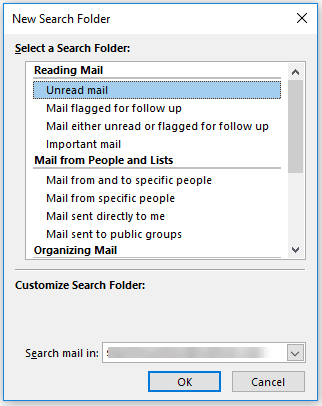
- Select the type of Search folder from the predefined list.
- Click OK to go back to Outlook.

To add it back to your Favorite Folder list, drag it up to the Favorites list or right click and choose Add to Favorites.
More Information
Choose Create custom search folder from the end of the list to create a folder using your own criteria.

spoko says
This is a ridiculously bad "tutorial." It doesn't tell you how to do what the headline promises, at all. All this tells you to do is recreate the search folder from scratch, which any moron could figure out. What is needed is a way to restore deleted search folders without having to recreate them. If you don't know how to do that, you shouldn't mislead people into reading your garbage alternative.
Diane Poremsky says
Unfortunately when a search folder is deleted, its gone for good. You need to recreate it. The reason for this article is because people where emailing me asking how to recover the folder - it made sense to use the same subject in my article.
Marc-Etienne Tremblay says
Hello,
we have a problem with seach folder.
The user do not not view the search folder at all on 2 mailbox in total control mode.
The button to recreate the folder is grey and unavailaible.
Anybody have view this before ?
thank you
Diane Poremsky says
This is in Exchange? Are you using cached mode or online?
Hithere says
This is no way does what you're leading people to in the title.
This is not restoring anything, but creating a new search folder for unread items.
Diane Poremsky says
When a search folder is deleted, there is nothing to undelete or recover, you need to recreate it. The reason for the title is because that is what people search for when they've deleted a search folder and want it back.
Lokesh says
very useful