Customizable toolbars and menus were introduced in Outlook 98. (Toolbars and menus are treated as essentially the same thing.) Outlook adds-in written with C++ also can add items to the toolbar.
The toolbars remained virtually unchanged until Outlook 2007 introduced a hybrid ribbon interface, with standard toolbars in the main Outlook window and ribbons on the individual Outlook items (except for Notes). The toolbars can be customized in the same manner as previous versions: right-click in the toolbar area and choose Customize. The ribbon is not customizable, however a "Quick Access Toolbar" is customizable.
Outlook 2007 | Outlook 98 and Later Versions
Outlook 2000 and 2002 Hyperlink and Macro Buttons
Tools | Other Methods | More Information
Outlook 2010, 2013, 2016
Outlook 2010 is the first version that completely eliminated the standard toolbars. Office 2010 adds the ability to easily customize the ribbon (along with the quick access toolbar) and export it as a backup or to share with others. The method is similar to the method used with Outlook 2007.
You cannot create hyperlinked buttons to launch forms or other applications from the ribbon or QAT. You can use a script to launch files or applications and assign the macro to a button. See Create Toolbar Buttons to Open Templates and Files for the necessary VBA and instructions.
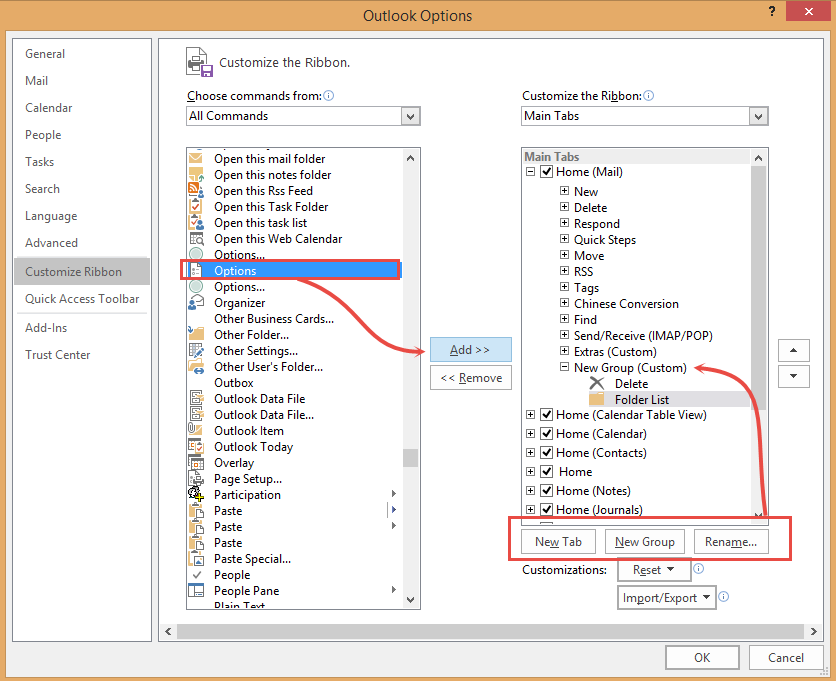
Use the following steps to customize the ribbon or QAT in Outlook 2010, Outlook 2013, or Outlook 2016:
- Click File, then Options
- Select either Customize ribbon or Quick Access Toolbar

- If you are adding a command to the ribbon, you'll need to add a new group to an existing tab or a new tab and a new group using the New Group and New Tab buttons.
- Find the command on the left and click Add to add it to the new group.
- Click Rename if you want to change the name or change the icon.
Outlook 2007
The Outlook 2007 ribbon is not easily customized. You need to create a new custom ribbon using XML to add buttons to the ribbon, however, you can add buttons to the Quick Access Toolbar (QAT) in the top left. You can assign macros to the QAT but cannot launch forms or other applications from a QAT button. You are limited to the button icons provided by Outlook (unless you create a custom ribbon).
The standard toolbar in the main Outlook window is customizable. If you want to create buttons linked to files, see Create Toolbar Buttons to Open Templates and Files.
Office 2007's ribbon interface doesn't allow you to create custom toolbars as older versions of Office did, however, you can use the Quick Access Toolbar (QAT) to bring your most used commands within easy reach.
The QAT is the row of buttons across the top of open Outlook items (messages, appointments, calendar, tasks, journal).
To add commands to the QAT, click the down arrow to the right of the bar and select More Commands from the menu. Select the commands you wish to add (or remove) and close the dialog when finished.

You can use Alt+n shortcuts with the commands on the QAT.

[wpvideo radksbga w=600]
Other Methods
You can add a link to a particular form to the Microsoft Office toolbar using this command for the shortcut:
where <path> is the path to Outlook.exe on your machine and IPM.MyForm is the name of a form you have created and published to Personal Folders.
If you want to add a menu command to a particular type of item, this can be done by creating a custom form action. See Creating a "New Fax to Contact" Action for an example.
More Information
- To launch a custom form

Simon Beacham says
Hi Diane
I used this web page to add a tab for forms in Outlook - https://www.acumenitsupport.com/blog/outlook/outlook-form-macro/
I followed the steps as listed
I copy the code:
Sub MakeItem()
Set newItem = Application.CreateItemFromTemplate(“c:pathtemplate.oft”)
newItem.Display
Set newItem = Nothing
End Sub
Then change the pathname location to:
Sub MakeItem()
Set newItem = Application.CreateItemFromTemplate(“c:\Users\simon.beacham\AppData\Roaming\Microsoft\Templates\*.oft”)
newItem.Display
Set newItem = Nothing
End Sub
And immediately get a message:
Compile error:
Expected: list separator or)
I then save the code as directed and find that on the ribbon I now have my tab set up and the Macro listed, but it does not do anything.
Don't know if it it is my version of outlook ?( outlook 365) or whether there is something wrong in the steps, but this was the only link I could find to do this and am not experienced in VB.
Any help would be appreciated.
Diane Poremsky says
It's not the outlook version, the mecro works in it as long as you have macro security set correctly.
That macro came from this article: https://www.slipstick.com/outlook/hyperlink-templates/
This needs to be the full template -
c:\Users\simon.beacham\AppData\Roaming\Microsoft\Templates\mytemplate.oft
Simon Beacham says
Hi am having trouble with this I think i have got something wrong:
Sub MakeItem()
Set newItem = Application.CreateItemFromTemplate(“C:\Users\simon.beacham\Documents\Templates\Questionnaire.oft”)
newItem.Display
Set newItem = Nothing
End Sub
Diane Poremsky says
As long as that is the path to your template, it should work. What exactly happens when you use it?
Patrick says
Hi Diane, How does one get their toolbar ribbon to appear under their reading pane? Also, how do you undo it? Thanks!
Diane Poremsky says
If you mean the people pane that shows recent mail from that sender, the people pane is gone - it no longer works and will be removed from an upcoming build.
JosephK says
Hi Diane, can I use a Quick Access Toolbar in the online version of Outlook?
Joe
Diane Poremsky says
No, sorry, you cannot.
Ferd says
We're constantly moving from docked to undocked mode with our Surfaces, using OL2016. Outlook keeps toggling to Touch Mode all by itself. We want it to stay in Mouse Mode, period, regardless of whether we're docked or not. Office support is clueless about how to permanently disable this "feature." Do you have any idea? At the least is there a VBA method that could fire on opening the application and puts Outlook in Mouse Mode?
Diane Poremsky says
I don't think VBA will be much help... i will look in group policy .
In looking at command controls, you can disable it - but i don't know if it will lock it in to the last used state or just prevent users from toggling between the two.
id is: 25419
If you aren;t disabling other commands, this key will disable the button - if you are, you need to change the TCID#. (let me know if it prevents the switch to touch mode )
[HKEY_CURRENT_USER\Software\Policies\Microsoft\office\16.0\outlook\disabledcmdbaritemslist]
"TCID1"="25419"
Panda says
Thank you, this article helped me!
Greetings from Poland
Diane Poremsky says
In an open message, they are on the overflow - if they are available in the main QAT, its under a different name. (arrow keys on the keyboard will move previous and next item)
DeeBeeCoop says
Hello Diane! I have been going crazy trying to find a way to put NEXT ITEM AND PREV ITEM buttons on my QAT, but so far NOTHING has worked! :(
Can you please tell me how did you get those button on your QAT? I badly need them for i always am traversing thru my various my inboxes, marking messages read/unread, deleting, moving, categorizing - and doing it ALL with the mouse!! i dnt like to use the KB at all when doing this.
And so, please be so kind as to let me know! I am using MSO 2016 on a touch-enabled ThinkPad, but i keep touch mode off usually since i dock the machine to an array of displays!
Please let me know if u have questions!
best,
DeeBeeCoop
Diane Poremsky says
Touch mode sucks, it is not lefty-friendly. Hmmm... but it has a Previous and Next button... but those buttons are not available in mouse mode. I guess they figure if you are reading in reading pane, then it's just as easy to select the next item as it is to hit a button for next item... but in touch mode, it makes sense to have the options on the bar, so you can hit it with your thumb.
Satish kumar says
Hi Friends, how to add "Previous Item and "Next Item" in outlook Quick Access Ribbon Bar
DeeBeeCoop says
Did you find out? I've asked Dinae.. lets see what she says! badly want these buttons!
Diane Poremsky says
Open a message, expand the QAT - then add checks to the Previous Item and Next Item.
I don't think there are Previous/Next buttons for mail in the main outlook window, but the arrow keys on the keyboard will move up and down.
Abdur Rahman says
Thank for the article. How can I copy one of icon in the Add-Ins tab to the Home Ribbon?
Diane Poremsky says
If the addin adds it to the Add-ins tab, it's not in the ribbon customizer. Sorry. I'm not aware of anyway to move it.
Jeff Lentz says
In Outlook 2013, the ribbon tabs are view sensitive, for example the Folder tab has different content in it if I'm looking at my Calendar than it does if I'm looking at my Mail. All the content shows up in the tab Customization, but no way to determine what appears where.
Some top level menus don't show up, depending on what view you're looking at. There is one Home menu for Calendar and another Home menu for Mail. I've created my own toolbars, but don't have any way to access the context sensitivity, so my toolbar optimized for Mail view is useless when I switch to Calendar view.
Is there any way to set what show up in which view?
Diane Poremsky says
You can't add new tab for specific folders but you can customize the Home tabs for each type.
You can add everything to one ribbon - if the command is not used for the folder type, it will be disabled. It does create a cluttered ribbon though. Alternately, you can create custom tabs... but you'll end up with a lot of tabs. :(
Bill says
In Outlook 2010 when I attempt to customize a ribbon all of the options are blank or greyed out. Is there an administrator setting I need to change that will give me access to change the ribbons?
Diane Poremsky says
All options are disabled or just some? If the command isn't valid for whatever you're doing, it will be disabled (grayed).
Cheryll says
After an upgrade from W7 to W10, I find that the QAT has no options to add or customize, everything is gray. When I go to file/options//QAT (or Customize Ribbon), the panes are empty, there is nothing in the Choose commands from pull down list.
Excel and Word are working correctly.
Is this a common problem with Windows 10?
ABOVE WAS QUERY IN SEPTEMBER 2015 - THIS IS A PROBLEM I HAVE DISCOVERED AS WELL AND GOING TO 'FILE' 'OPTIONS' ETC. DOES NOT ALLOW ME TO ADD OR DELETE AS EVERYTHING IS GRAY ALSO. ANY ADVICE??
Diane Poremsky says
I don't think it's common - there are some issues that are more common after upgrading.
It sounds like it's in a deactivated state, which is odd since word works. I'd start with a repair in control panel, programs and features.
Robbin says
In the customize QAT section, modify is grayed out and unavailable. It's odd. On the left side of the screen where all commands are shown, the icons are there. When I add it to the QAT, the icon appears. When I click ok, the command appears as a circle on the QAT in Outlook. When I return to customize the QAT, the icon still appears in the all commands section, but it has changed to a circle in the QAT section. It is the same with all 4 different icons I associates with commands, all chosen from the icon list.
Robbin says
Thank you for your great articles! They have been a real help. I am using Outlook 2013. I created a new tab in the ribbon, gave it an icon, and gave the commands under it icons. On the ribbon it looks great. When I add those same commands to the quick access toolbar, there are only green circles for icons! Four green circles in a row isn't much help. The icons are visible in the dialog box to customize the quick access toolbar, they just aren't on the toolbar itself. Can you help?
Diane Poremsky says
if you click modify and choose another icon, does it show?
john schindler says
Before I could round up my install DVD to try the repair, it healed itself. Maybe it was something I did and then un-did, unknowingly.
john schindleer says
No, there is a window much like the one at the top of this article except there is nothing to select and move onto the QAT. Reset does nothing.
Diane Poremsky says
Definitely try repairing the install.
john schindler says
After an upgrade from W7 to W10, I find that the QAT has no options to add or customize, everything is gray. When I go to file/options//QAT (or Customize Ribbon), the panes are empty, there is nothing in the Choose commands from pull down list.
Excel and Word are working correctly.
Is this a common problem with Windows 10?
Diane Poremsky says
this is the first report I've seen... my guess is the permissions on the customui file is goofy. Go into File, Options, Quick Access toolbar - can you edit or reset it there?
Anne Ritchie says
I am having the same problem, but I did not "upgrade" to Windows 10. I've been running Windows 7 for years on this computer along with Office 2010. The other day I updated some software and was not paying attention and it installed the yahoo search engine in all three of my browsers plus some crapware. I tried to do a system restore, but that failed, so I ran malwarebytes and removed the offending software. I rebooted and the problem with Outlook persists. I can get to File|Options|QAT./Customize Ribbon, but the window is empty; I have customized the ribbon and neither the main ribbon features nor my customizations are there. The add-ons that I use still show up in the add-on management window, but their buttons are gone. I looked for a file called customui, but nothing turns up. Clearly something is wrong. If I have to reinstall Office, that's not the end of the world, but I'd like to fix this if I can. Thank you.
Jon says
Wow, Diane, your work on this website is amazing. Question... Outlook 2010, Windows 7. I have a few custom buttons in my main ribbon that run macros. They work great most of the time. Once in a while, though, clicking on them does nothing (no errors, etc.). Closing and restarting Outlook solves it every time. When the buttons don't work, the VBA editor also won't open (until restarting Outlook).
I'm curious if you've heard of this???
Diane Poremsky says
It sounds like you have some corruption - I'd definitely copy the macros to a text file or export them and also export the ribbon customizations. If it starts to act up more often, delete the vb project file and recreate it.
Phil Reinemann says
Another possibility is that with Win 7 (pro here) "important" windows - those you must respond to before the main/another window can continue often appear under other windows, or in our case under the desktop/kiosk which is on top of the basic Windows desktop.
To find those you can use Alt+Tab then hover over each window in the list to find the hidden popped-up window waiting for the response.
WindowsKey+Tab gives a different display of the windows too.
Erica says
Above you say "Programmers can add icons and commands if they create ribbons." Do you have any more information about how to change the images to something other than what Office provides in the Rename menu when adding commands to a custom ribbon?
Diane Poremsky says
You need to do it programmatically, using ribbon.xml. I keep meaning to write it up (and provide ready to edit files) but until i do there are instructions at msdn - https://msdn.microsoft.com/en-us/library/aa942955.aspx and https://msdn.microsoft.com/en-us/library/bb386089.aspx
alan says
I have recently had MS office 2010 put on my pc , this also affects ms outlook.
On previous revisions of OFFICE & OUTLOOK I had a very useful icon on the top tool bar which enabled me to highlight text then change it from lowere cas e to UPPER CASE and vice versa but more importantly to ToGgLe TExt . Where is the function in office 2010 and outlook ? how do I add the icon to the toolbar ? Thanks
Diane Poremsky says
That is the Change Text Case command. It's under all Commands in the Customize Ribbon or Quick Access Toolbar options dialog in word. In Outlook, it's called Change Case - you need to open a new message to access it - it's not available in reading pane reply.
Wayne says
Hi Diane, in Office 2010 Excel, is there a way of dragging the menu/toolbar [say cell borders] off the ribbon to have it sit in the spreadsheet for easy access [like used to be the case pre 2007?
Diane Poremsky says
A few commands can be detached and float (or dock in a pane) but most cannot. Specifically on cell borders, the little floating toolbar that comes up on a right click has the borders command.
Susan says
How do I add folders to my tool bar so that when I am in an email I just click on the folder and the email will go into that folder
Diane Poremsky says
You can use the Move to folder button, with the 10 most recently used folders on the list, but you cant add specific folders to the QAT or ribbon. if you want buttons for specific folders you'd need to make a macro for each folder or if you have Outlook 2010 or 2013, use the Quick Steps buttons to move messages.
Renee says
I'd like to be able to view the calendar when composing a message in Outlook - can I get it to show in the blank space available on the Message tab?
Diane Poremsky says
unfortunately, there isn't a way built into Outlook that will do this and i'm not aware of any addins that can do it.
laura says
I am using outlook 2007 - I need to edit my "forms" how do i do this?
Diane Poremsky says
In Outlook 2007 you need to enable the Developer ribbon for Outlook items (mail, calendar, contact forms, etc) from the Office Icon, Editor options dialog.
Dina says
how do I expand my ribbon od 2007 outlook. it just has the headings: file/edit/view.. I want it to show what's it in using icons.
Diane Poremsky says
This is in open messages, appointments, tasks, etc? Double click on one of the heading names or right click and choose Minimie Ribbon. The main Outlook window has the old fashioned toolbar - if you only see the Standard toolbar, right click on it and select Standard and maybe Advanced.
Jean-Olivier says
Hi Diane,
Thank you for your great job and help about Outlook.
Is there a way to built a button with a list in which each item launches a specific macro?
Same as "New Items" button or "Rules" button?
(small) Button (dropdown list)
My Item 1 => macro 1
My Item 2 => macro 2
My Item 3 => macro 3
Thank you very much for your help.
Jean-Olivier
Diane Poremsky says
Outlook doesn't support customized flyouts using the simple customization features in Customize Ribbon. You'd need to write an addin to do it.
Sundar Singh says
Hi
I want to minimize the "Send Mail" ribbon in compose mode which is just below standard ribbon.
It eats up space on my 14" Laptop screen. Can I minimize it for time being?
It has that To,CC, Subject section which I may want to hide for slightly long mails which most of the time include screenshots.
Regards
Sundar Singh
Diane Poremsky says
No, sorry, that can't be reduced or minimized.
Neil says
That's solved it! I've even managed to move it into the position it was previously. Many thanks.
Neil
Neil says
Hi! I'm using Oulook 2007 mainly for my emails. I've pressed something and the ribbon (I hope that's the right term!) showing 'New reply delete etc' has diappeared from the top. It was just under the line 'File, edit, view, go etc.' How do I get it back? Thanks. Neil.
Diane Poremsky says
This is in the main Outlook window that still uses the toolbars? Go to View > Toolbar. I think its the Standard toolbar - is it selected? You can try setting the toolsbars via the customize command on the same menu.
Ivan says
Appreciate if you can let me know is it possible to customize or change the icon image on QAT with Outlook2007. I have to add 12 icons on QAT to trigger different marco. It is good if I can customize my own icon image as the current avaiable icon image cannot fit the meaning of the marco action.
Diane Poremsky says
You are limited to the images in Modify (assuming Outlook 2007's has a Modify button, I don't have 2007 handy to check). This is probably the most annoying thing about customizing the ribbon in 2007/2010/2013 - a normal users can't paste icons like they could in older versions. Programmers can add icons and commands if they create ribbons.
Cenk Tarhan says
Then i presume there iş No way of running a macro with a keyboard shortcut in outlook 2013. Yes?
Diane Poremsky says
No, you can use shortcuts, but you can't assign the shortcut. If you add it to the QAT, you can use the QAT shortcuts of Alt+[position] - hit Alt to see the shortcuts. Ribbons works the same way, with custom tabs buttons using Y? as the shortcut key. On one of my custom ribbons, a shortcut is alt+Y1YK, a macro button I added to Home tab is Alt+HY7.
phxphun says
Is there any way to modify the Alt key combinations Outlook assigns to commands I've added to the QAT?
Diane Poremsky says
No, those are assigned automatically and are based on the order they appear. The most you can do is change the order of the icons. (File, Open, Quick Access Toolbar - move the commands up or down.)
cengolo says
Although i add the macro as a button to a group in the ribbon and put the amperasand before the accelerator charachter, i see the name of the button with th ampersan (like e&nglish) and shortcut keys does not work. any ideas?
Diane Poremsky says
Shortcut keys don't work with the ribbon, only on the toolbar in older versions of Outlook.
Carl says
It is really the header below the inbox that was affected. I was able to fix that, but each message shows a few lines and I would prefer that each message only occupy one line. Not sure how to do that.
Diane Poremsky says
That is probably the compact view or the 3 line preview for unread messages. If you adjust the width of the reading pane or put it on the bottom, you'll get a single line view. The 3 line preview can be turned off and the point at which compact view kicks in can be changed in Customize views, Other settings. Right click on the row of fields name (on Arrange by) and choose custom > Other settings.
Carl says
I have Outlook 2007. Somehow the ribbon below the changed so that it only displays a few icons and then size and all the other information such as sent date, sender, etc has disappeared. I have spent quite a few hours trying to find the fix and done a number of resets on menus, but not solved the problem. Any help would be appreciated.
Diane Poremsky says
I'm not sure exactly what you are talking about - the ribbon on an open message or the message list.
Message list: Reset the view. Right click on Arrange By and choose Custom... from the list. Then Reset.
Open message: Do you see the tab names? Double click on them or right click and choose Minimize Ribbon to toggle it off and on.
David says
Is there a way to change a ribbon item's icon to something not included in the standard set provided in outlook 2010?
Diane Poremsky says
Yes, but it requires programming your own ribbon, so for most people the real answer is No. It wouldn't be so bad if they included more or better icons... and Outlook 2010 has even uglier icons.
Nick says
I'm using Outlook 2010 on WIndows 7. When in the VB editor I customise the Debug toolbar but all changes have disappeared when I next open Outlook. Don't have this problem in Access, Word or Excel. Any idea what Im doing wrong please?
Diane Poremsky says
Is Outlook closing cleanly? Open task manager and look on the Processes tab - is Outlook.exe running after you closed it? When changes don't stick, I usually make the change then immediately close and reopen Outlook - I don't have to worry about a crash wiping out the changes.
dporemsky says
Ah. Now I see. They have been control over the chunks they created - they control button size, which buttons collapse first and all aspects of the toolbar layout. When you add the buttons to new bar, you can't control it. Sorry.
Apple says
Outlook 2010, running on Windows 7
Diane Poremsky says
I'm still not seeing Outlook handle the commands differently. The sort order is based on the order they are added. Can you post a screenshot somewhere so i can see what you're seeing.
Apple says
I try to customise the ribbon, by adding a new group. I selected a number of commands to put into the new group. However, the comands are displayed top-down, then left-right. How do i change the sequence to display left-right, then top down? The default groups all display the left-right, then top down.
For example, if i addded commands A,B,C,D,E,F,G,H. The commands would display
A, D, G
B, E, H
C, F
How do i get outlook to display the commands
A, B, C
D, E, F
G, H
Diane Poremsky says
Which version of Outlook? I'm not seeing this in Outlook 2013 here. Mine are going down then right. The only goofy one is quick steps - it goes across then down.
J L Merrill says
I have been unable to find a way to disable the pesky, annoying, and for me, unnecessary floating toolbar that appears in the body of a message in Outlook 2007. It prevents me from manipulating the text body the way I want to, because it just pops up when I try to set the cursor where I want it. If I want to make text bold, change font color, use underline or italics, I prefer to do it myself. The "floater" just gets in my way, and I would like to get rid of it. How?
Diane Poremsky says
Try office icon, Editor options, Popular page: deselect show mini toolbar. The little paste and smart tags buttons are enabled/disabled at the bottom of the Advanced page. You'll still get the toolbar on a right click, above the context menu.
dgreco99 says
xxxxxxxxxxxxxxxxxxxxxxxxxxxxxxxxxxxxxxxxxxxxxxxxxxxxxxxxxxxxxxxxxxxxxx You covered the Ribbon Bar in the post above, but how about the customized Quick Acces Toolbar? Is there a way to increase the size of the tiny icons in the Quick Access Toolbar (other then making system wide changes such as changing the screen resolution, which I do not want to do). Thanks in advance of any assistance you can offer.
Diane Poremsky says
Sorry, the QAT only supports one icon size with one exception - if you use Outlook 2013 and enable Touch mode, they are a little roomier. Otherwise your choices are limited to placing it above or below the ribbon.
John says
How do you increase the size of the icons on the ribbon bar
Diane Poremsky says
You can't, well, except by changing your screen resolution. You should have two sizes - small, which is used for compact chunks, and large when the screen is wide enough to display the full sizes.
narendra says
I wanna remove the buttons of macros from tool bar...how am I suppose to do that?
Diane Poremsky says
Since you mention toolbar, I'll assume it's a toolbar and not the ribbon. In that case, right click in a blank area around the toolbar and choose Customize. With the dialog open, drag the buttons off.
If it's the ribbon in Outlook 2007 and up, you need to go to File, Options to edit the ribbon or QAT.
Robert Wiegan says
How do I restore my ribbon on Outlook 2010?
Diane Poremsky says
You just have the row of tabs with the File tab in orange? You can double click on any tab to open the ribbon or use the little arrow icon on the right.
gary says
gamartin@express-news.net
When we get on are email OutLook 2010 and set up are toolbar, then at the end of the day we log off,. the next day we log back on are setting on toolbar are gone? So each day we have to reset the toolbar??
Thanks for any info.
Gary
alan stickel says
When viewing an email the only tabs I see below the Quick menu are Message and Developer. How do I get the damn program to display the "Format" tab when I am viewing an email message?
I need this because some email messages from DROIDs or other smartphones are displayed with yellow text which is very hard if not impossible to read. I need to reformat the text of these emails to a black color, but I have no format tabs showing.
Diane Poremsky says
You need to enter Edit mode. In Outlook 2007/2010, look for Actions, Edit Message command - it's on the home ribbon of an open message.
You can drag a copy of the message to the junk folder and read it as plain text only.