• Outlook User
  • New Outlook app
  • Outlook.com
  • Outlook Mac
  • Outlook & iCloud
  • Developer
  • Microsoft 365 Admin
    • Common Problems
    • Microsoft 365
    • Outlook BCM
    • Utilities & Addins

How to Stop Accidentally Closing Outlook

Slipstick Systems

› Problems › How to Stop Accidentally Closing Outlook

Last reviewed on December 1, 2017     28 Comments

Applies to: Outlook 2007, Outlook 2010

Note that this method does not work with Microsoft Outlook 2010 pre-SP1. See the Outlook 2010 section below for one solution when using Outlook 2010 SP1 (v 14.0.6023.1000 or higher).

It's very easy to accidentally close Outlook by clicking on the X in the upper right-hand corner, instead of the minimum button. There are several ways you can prevent this.

Note: If you have Outlook 2003 or above, its possible to set it to minimize to the tray (notification area). Many users don't realize they enabled this option and think Outlook closed when they minimized it. Look for the Outlook icon in the notification area to verify Outlook is not running minimized.

Unsent method

  1. Open a new message - enter "Keep Outlook Open" as the subject. Don't enter an address in the To field!
  2. Save the message to Drafts.
  3. Drag it from Drafts to the Outbox.
  4. When you exit Outlook, you'll have the chance to cancel closing Outlook.

In Outlook 2000 Corp, you'll need a POP3 account in the profile for this method to work. (It can use fake server names.)

Outlook 2010

The "Unsent Method" mentioned above does not work in Outlook 2010. In fact, in Outlook 2010 RTM (the released version), there is no unsent message warning, even for "real" messages in the Outbox. SP1 restores the warning but it only works if messages are send-able, meaning the Unsent Method above is still useless.

However, you can set Outlook to delay delivery of a message to force the warning and prevent accidental closing. Choose a date in the future in the "Do not deliver before" date field.

Please note, this only works in cached mode. Delayed messages are stored on Exchange server in classic online mode.

To use this method:

  1. Open a new message
  2. Enter your own address in the To field
  3. Enter "Keep Outlook Open" as the subject
  4. Switch to the Options tab
  5. Click the Delay Delivery button and enter a future date (a year or so should be fine.)
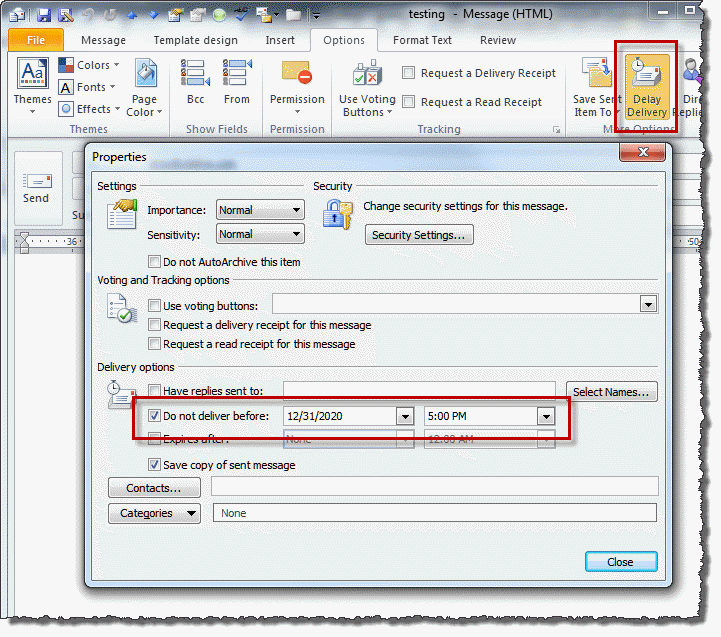
Delay sending messages


Tools

OLKeeper

OLKeeper reliably prevents users from closing their Outlook and thus possibly missing reminders or e-mails. When you click the X button to close Outlook, OLKeeper asks you what to do: minimize, close or cancel. You will never again miss an important appointment or e-mail just because Outlook was accidentally closed or waste your time with unnecessary, long waits during Outlook restarts. Supports Outlook 2016, 2013, 2010, 2007 (32bit, 64bit)

How to Stop Accidentally Closing Outlook was last modified: December 1st, 2017 by Diane Poremsky
Post Views: 29

Related Posts:

  • To delay sending a message in Outlook
  • Stop accidentally sending messages in Outlook
  • Eight Cool Outlook Features
  • How to View Internet Headers

About Diane Poremsky

A Microsoft Outlook Most Valuable Professional (MVP) since 1999, Diane is the author of several books, including Outlook 2013 Absolute Beginners Book. She also created video training CDs and online training classes for Microsoft Outlook. You can find her helping people online in Outlook Forums as well as in the Microsoft Answers and TechNet forums.

Comments

  1. Therese Jones says

    January 7, 2020 at 10:10 am

    Hi Diane I accidently request closing of my outlook account. how can I undo this?

    Reply
  2. Mike says

    September 20, 2016 at 5:15 pm

    Hi Diane,
    This doesn't seem to be working for me. Running Outlook 2013 on Win7.
    I created the subject line only email, then dragged (had to right click drag it) it to outbox where it currently sits. When I hit the x, she closes on me w/ no delay.
    Can you help?

    Reply
    • Diane Poremsky says

      September 20, 2016 at 5:23 pm

      you need to create a message and set a deferred delivery date well into the future - the old drafts method won't work with the newer versions of Outlook.

      Reply
  3. Administrador Gral says

    October 13, 2015 at 10:50 am

    Sending an email with a delayed sending date worked for me. Thanks.

    Reply
  4. the Q says

    October 8, 2014 at 3:38 pm

    have you considered this option??
    https://keepoutlook.sourceforge.net/

    Reply
  5. Will says

    February 13, 2014 at 11:11 am

    Hi Diane, I normally keep a lot of emails minimized while Outlook 2010 is openned, to review those emails later. By accident, I closed the Outlook, so all the minimized message were closed too... when I reopen Outlook, how can I get the minimized message back? is there a way to reopen those minimized message? By the way, they were not draft, just regular mode view emails... Thank you and God Bless you!

    Reply
    • Diane Poremsky says

      February 13, 2014 at 11:44 am

      Outlook doesn't remember the open messages - you'd need to use a macro to remember the open list. It would be fairly complicated/busy because it would have to constantly update. Better would be to use one of the methods to stop you from accidentally closing Outlook.

      Reply
  6. Jim says

    August 29, 2013 at 7:44 am

    Bless you Diane. The "Hide when minimized" was the issue that was frustrating me. When I unchecked it, I found I had 8 instances of Outlook running, because I would launch it, thinking I was restoring.

    Reply
  7. Lalitha says

    August 13, 2013 at 4:16 am

    Thanks for the post.... really helpful...

    Reply
  8. John Livingston says

    July 11, 2013 at 10:11 am

    I have a simpler answer: Don't run Outlook 2007 in full screen mode. Drag the right side of the Outlook window until the Close box goes off the screen. If I can't see it, I can't click it.

    Reply
    • Diane Poremsky says

      July 12, 2013 at 4:21 am

      "If I can't see it, I can't click it."
      Good point. :)

      Reply
  9. Ken says

    June 5, 2013 at 8:56 am

    At least once a week I will unintentionally close Outlook, usually after checking calendar, sometimes wrong "X" when closing a message.
    The "delayed send" option didn't seem to work, but minimizing an unsent "Do you really want to close Outlook?" message to self allows me to cancel.

    Reply
    • Diane Poremsky says

      June 5, 2013 at 11:07 am

      What version of Outlook do you use?

      Reply
  10. Sunil Joshi says

    March 20, 2013 at 10:58 pm

    Thanks Diane, it is working

    Reply
  11. Aydin says

    February 18, 2013 at 9:56 am

    I don't want to seem like a thread hijacker but since it's related, I'd like to ask if anyone knows of a way to exit Outlook (2010) so that any open email/message windows are restored when you start Outlook.

    I'm asking as I usually have 2-3 dozen emails open (work in progress) and it's a real pain to flag each one to followup before exiting, and then opening each one on start.

    Reply
    • Diane Poremsky says

      February 18, 2013 at 9:25 pm

      Outlook doesn't support it. You'd need to use a script to write all the message id's to a file on close then use a second script to read all the message ids on startup. I don't have any code samples that do this unfortunately.

      Reply
  12. chris says

    January 9, 2013 at 11:17 am

    Why is there no real option to cancel? This drives me crazy.

    Reply
    • Diane Poremsky says

      January 9, 2013 at 2:08 pm

      Only Microsoft knows and they aren't saying...

      Reply
  13. Jeff says

    December 17, 2012 at 10:55 am

    2010 has a task bar, and right clicking has different menu, "Hide when minimized" not there.
    When i minimize, outlook closes, it is not hidden. Also within the task bar, you can roll your mouse over an icon for a "preview" again with the outlook icon nothing. Any suggestions?

    Reply
    • Diane Poremsky says

      December 18, 2012 at 9:10 pm

      What version of Windows do you use? Do other applications preview when you roll the mouse over them?

      Reply
  14. Anoop says

    September 29, 2012 at 9:50 pm

    Hi. you can do it easily in Outook 2007 by selecting the "Hide when minimised" option in the system tray Outlook icon

    Reply
  15. Alan says

    August 31, 2012 at 7:29 am

    GENUIS....Thanks....I'm always closing outlook and getting into trouble at work.

    Reply
  16. Amanda says

    July 27, 2012 at 1:27 pm

    When I try minimize the Outlook window, outlook closes and I have to re-open. If I 'x' out to cloise it closes.

    Any suggestions?
    -Annoyed

    Reply
    • Diane Poremsky says

      July 27, 2012 at 2:16 pm

      Is it closing or minimizing to the tray? Right click on the Outlook icon in the tray and see if Hide when minimized is selected.

      Reply
  17. winston says

    July 16, 2012 at 11:21 pm

    that"s great!!!!!!!!!!
    but us older folk are still trying to puzzle out how to open it.

    Reply
    • Diane Poremsky says

      July 17, 2012 at 8:36 am

      What happens when you try to open it? I know of two issues - a corrupt navigation pane and compatibility mode.

      Reply
  18. Nate says

    June 28, 2012 at 2:56 pm

    This method does not work in version 14.0.6112.5000 (32-bit)
    Account is connected via Exchange Server.

    Reply
    • Diane Poremsky says

      June 28, 2012 at 3:12 pm

      It only works in cached mode - if you use classic online, Exchange hold s the message until its delivery date.

      Reply

Leave a Reply Cancel reply

Your email address will not be published. Required fields are marked *

Visit Slipstick Forums.
What's New at Slipstick.com

Latest EMO: Vol. 31 Issue 3

Subscribe to Exchange Messaging Outlook


Support Services

Do you need help setting up Outlook, moving your email to a new computer, migrating or configuring Office 365, or just need some one-on-one assistance?

Our Sponsors

CompanionLink
ReliefJet
  • Popular
  • Latest
  • Week Month All
  • Jetpack plugin with Stats module needs to be enabled.
  • Error Opening iCloud Appointments in Classic Outlook
  • Opt out of Microsoft 365 Companion Apps
  • Mail Templates in Outlook for Windows (and Web)
  • Urban legend: Microsoft Deletes Old Outlook.com Messages
  • Buttons in the New Message Notifications
  • Move Deleted Items to Another Folder Automatically
  • Open Outlook Templates using PowerShell
  • Count and List Folders in Classic Outlook
  • Google Workspace and Outlook with POP Mail
  • Import EML Files into New Outlook
Ajax spinner

Recent Bugs List

Microsoft keeps a running list of issues affecting recently released updates at Fixes or workarounds for recent issues in classic Outlook (Windows).

For new Outlook for Windows: Fixes or workarounds for recent issues in new Outlook for Windows .

Outlook for Mac Recent issues: Fixes or workarounds for recent issues in Outlook for Mac

Outlook.com Recent issues: Fixes or workarounds for recent issues on Outlook.com

Office Update History

Update history for supported Office versions is at Update history for Office

Outlook Suggestions and Feedback

Outlook Feedback covers Outlook as an email client, including Outlook Android, iOS, Mac, and Windows clients, as well as the browser extension (PWA) and Outlook on the web.

Outlook (new) Feedback. Use this for feedback and suggestions for Outlook (new).

Use Outlook.com Feedback for suggestions or feedback about Outlook.com accounts.

Other Microsoft 365 applications and services


New Outlook Articles

Error Opening iCloud Appointments in Classic Outlook

Opt out of Microsoft 365 Companion Apps

Mail Templates in Outlook for Windows (and Web)

Urban legend: Microsoft Deletes Old Outlook.com Messages

Buttons in the New Message Notifications

Move Deleted Items to Another Folder Automatically

Open Outlook Templates using PowerShell

Count and List Folders in Classic Outlook

Google Workspace and Outlook with POP Mail

Import EML Files into New Outlook

Newest Code Samples

Open Outlook Templates using PowerShell

Count and List Folders in Classic Outlook

Insert Word Document into Email using VBA

Warn Before Deleting a Contact

Use PowerShell to Delete Attachments

Remove RE:, FWD:, and Other Prefixes from Subject Line

Change the Mailing Address Using PowerShell

Categorize @Mentioned Messages

Send an Email When You Open Outlook

Delete Old Calendar Events using VBA

Repair PST

Convert an OST to PST

Repair damaged PST file

Repair large PST File

Remove password from PST

Merge Two Data Files

Sync & Share Outlook Data

  • Share Calendar & Contacts
  • Synchronize two computers
  • Sync Calendar and Contacts Using Outlook.com
  • Sync Outlook & Android Devices
  • Sync Google Calendar with Outlook
  • Access Folders in Other Users Mailboxes

Diane Poremsky [Outlook MVP]

Make a donation

Mail Tools

Sending and Retrieval Tools

Mass Mail Tools

Compose Tools

Duplicate Remover Tools

Mail Tools for Outlook

Online Services

Calendar Tools

Schedule Management

Calendar Printing Tools

Calendar Reminder Tools

Calendar Dates & Data

Time and Billing Tools

Meeting Productivity Tools

Duplicate Remover Tools

Productivity

Productivity Tools

Automatic Message Processing Tools

Special Function Automatic Processing Tools

Housekeeping and Message Management

Task Tools

Project and Business Management Tools

Choosing the Folder to Save a Sent Message In

Run Rules on messages after reading

Help & Suggestions

Submit Outlook Feature Requests

Slipstick Support Services

Buy Microsoft 365 Office Software and Services

Visit Slipstick Forums.

What's New at Slipstick.com

Home | Outlook User | Exchange Administrator | Office 365 | Outlook.com | Outlook Developer
Outlook for Mac | Common Problems | Utilities & Addins | Tutorials
Outlook & iCloud Issues | Outlook Apps
EMO Archives | About Slipstick | Slipstick Forums
Submit New or Updated Outlook and Exchange Server Utilities

Send comments using our Feedback page
Copyright © 2026 Slipstick Systems. All rights reserved.
Slipstick Systems is not affiliated with Microsoft Corporation.