We get a lot of questions (and complaints) about Tasks and I'm going to try and answer the most common ones.
Is there an easy way to move a task to a new due date?
Sure. If you use a Group by Due date view, you can easily drag a task to a new date. Or, you could use a view that shows all task due 'on or before' today (or tomorrow, 3 days, etc) and hide the completed tasks. And don't forget, when you use the task pad view on the calendar, overdue tasks will be on "today" so you don't have to move them.
How can I edit a task assigned to someone else?
You can't edit assigned tasks because once you assign it to someone, you no longer own the task. If you need a copy of the task for your records, you can copy and paste the task. (Ctrl+C,V) This makes an unassigned copy but keeps the original intact. If you go to the Details page and Create an Unassigned Copy to edit, you won't get updates for the assigned copy.
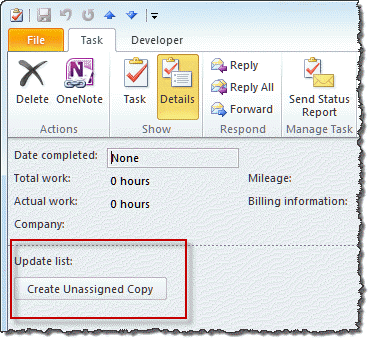
Tip: If you need to assign the task to multiple people and want updates from all, create copies of the task and assign each copy to a different person. If you use Create Unassigned copy, you can assign the copy to someone.
When a user marks an assigned task as complete, there is no opportunity for them to comment in the update that is sent.
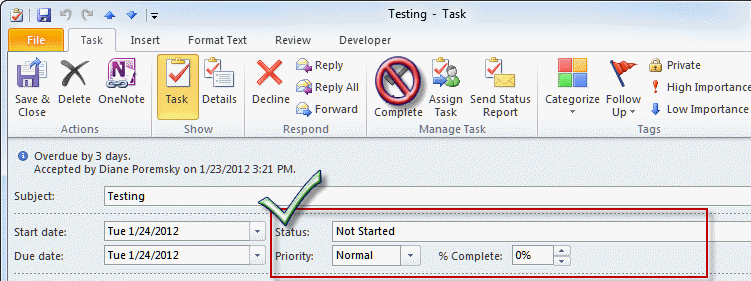
Users have two options: they can click the Send Status Report button and add notes to the status report or open the task and mark it completed using the Status field or % Completed fields in the task header, not by clicking the Complete command in the toolbar or ribbon. They'll be able to enter notes in the notes field before saving the update. Keep in mind that the users need to choose Completed (or use 100%) on the task form. If they use the Completed button in the ribbon, the update is sent immediately.
I create a lot of tasks by dragging emails to the tasks folder. When I drag an email that has an attachment, I need to open the email to access the attachment. Is there an easy to insert the attachment?
When you create a task and the message is embedded in the task, any attachments remain embedded in the message. If you want the attachment easily accessible, after attaching the email, drag the attachment to the task body, from either the reading pane or open message. I'm lazy and don't need to preserve the message formatting, so I drag the message to tasks, inserting the message body as the task body then I drag any attachments to the task body, right from the reading pane. You can also select a block of text in the message body and drag it to the tasks folder to create a task with the selected text as the task body. If you aren't sure how to do this, we have tutorial at How to Drag Messages to Tasks
In the same line of thought, it's not easy to add new mail to the original task. Is there a better method than pasting the message envelope into the task?
Unfortunately, there is no easily solution for that – either drag the message to the open task or continue to use copy and paste.
Why do recurring tasks seem to get lost so easily?
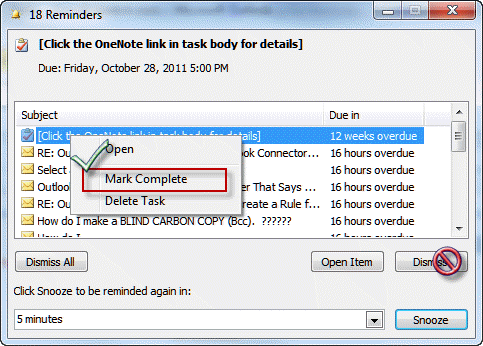
Recurring tasks are a problem for many people. They are not like recurring appointments that fill the dates; they are single items that generate the next task when the first one is marked complete. If you don't mark a task occurrence complete or skip it, it won't generate the next date's task. If you dismiss task reminders, the reminders are removed from the task but the next task isn't generated. You need to get into the habit of right clicking on Tasks in the reminders window and choosing Mark Complete.
It would be nice if we could group tasks into related task groups.
Like oh, subtasks? A lot of users want to create subtasks – there really isn't a good solution for this, other than using categories or use the same subject prefix for all tasks that need to be grouped.
It would also be nice to have the date inserted at the beginning of new notes.
While not automatic, Outlook 2010 has an insert date command or you can use the macro at How to Insert the Date and Time into an Outlook Item. The demo uses contacts but you can use it in any Outlook form.
I have tasks in several folders. How can I view them on the To-Do bar?
Your tasks and flagged messages will be on the To-Do if they are in a data file email is delivered to. Otherwise, you need to right click on the top level folder, choose Properties then enable tasks and reminders. Tasks in the iCloud data file will not be on the To-Do list.
Tasks on Blackberry or iPad are not very good and I can't create tasks from email on the devices.
This isn't Outlook's fault. You'll need to use flag for follow up with the email then create tasks from the flagged messages when you are back in Outlook.
More Information
While I can't help with task tools for other devices, there are a number of utilities that are designed to improve the task function or increase your general productivity in Outlook. We have a list at Outlook Task Tools

Toni L Bell says
I'm using the outlook tasks and have for years. I need to have my task list upated with my employees information and changes. But I don't want to get an email every time. I also don't want them to get emails every time I update or add a comment. They can simply look when they need it or I can send a task update. Is there a way to get your tasks to update without all the emails?
clyde says
Hi, I have a question,
I'm using Outlook 2007 and created a task with my own fields, which I assigned to someone else to fill. However when they accept the task, they don't have the options to populate the fields I added. Only the completion and comment field.
How can I fix that, so they see what I see?
Diane Poremsky says
You need to either publish it in the org forms library (if both are using Exchange server) or send the form definition with the form (and hope their antivirus doesn't remove it). Send form definition is an option on the properties tab when designing the form.
Jim says
Hi!
Question on changing the text in the body of a reoccurring task and having it reflect on all subsequent tasks. Is that possible?
i.e. I have a reoccurring task to send a client info monthly, in the body of the task I want to indicate the date I sent it (i.e. “2/15/17 – Sent Judy January 2017 Statement”) so that I have a running log in the task itself. I also keep the clients email in the task but if an email changes I need to edit it and have it appear correctly in all subsequent tasks. This has not been working so far, any edits apply only to the specific (i.e. current) task but not the reoccurring tasks that come up in the future.
Is that possible?
Thanks!
Jim
Diane Poremsky says
It should work (it works here). Try hitting the Save button (or Ctrl+S) before you mark it complete and see if that changes things. (Adding the note then clicking Mark complete works here.) If all else fails, you could go into Recurrences and click the button to Remove recurrences then set them again.
sohi moha says
`when I make a change to a task and increase the% , no where the update can be seen.
Nabila says
Hi. How do I add a name to "Requested by" when creating tasks?
Candace says
I would like to organize my tasks by status by making a rule. How would I do that? for example all my tasks that are 90% complete I would like to automatically go to a designated folder.
Thanks,
Diane Poremsky says
You can use rules with tasks. You would need to use VBA to check and move them... if you don't need to move them to a new folder you could use a custom view to show or hide tasks based on % complete or other fields.
Kevin says
Hi Diane,
Lately I am experiencing a problem with tasks. I create a task and assign it to my assistant. Whenever she updates the task from her side I get a message in my inbox but when I try to open it I get the following error message "Sorry we are having trouble opening this item. This could be temporary but if you see it again you might want to restart outlook. Outlook cannot perform this action on this type of attachment" and the task does not update on my side. Whats causing this problem?
Diane Poremsky says
What version of Outlook? It might be related to this issue: https://www.slipstick.com/outlook/tasks/task-request-status-update-address-missing/
Paco says
I quite dont understand why my Outlook 2016 Tasks dont show in my Office 365 calendar, while outlook 2016 calendar and contacts sync without problems.
My Office 365 is a Personal Edition (not Professional nor Enterprise)
Diane Poremsky says
If you are talking about an Outlook.com email account, and they are in the outlook.com mailbox's task folder they will be on the new server at https://outlook.live.com/owa/?path=/tasks, not within the calendar. They didn't sync to the old server if using outlook 2007 or 2010.
If it's a business accout they should sync back to the server too. They won't show in the Calendar, they'll be in Tasks. The path there is https://outlook.office365.com/owa/?path=/tasks
Windhoek says
Hi, I use both Office 365 business account (my own domain) mail and standard free Outlook.com mail account. On my machine there is Office 2016 (Windows 10 64 bit). When I send Task request from Office 365 mail account to free Outlook mail, after acceptance I can track updates of the task and be notified as it finishes. I would like to get the same in reverse i.e. to send task request from free outlook.com mail account and be notified as user of Office 365 account makes a progress completing tasks. However it does not occur. Task is not beind updated :-(. Please could You help me. I do not know why, but my task on outlook.com account is not being updated (not tracked). What should I do?
Diane Poremsky says
Sounds like the TNEF data is being lost, probably because outlook.com is not allowing use of RTF format to the internet or because your Office 365 contact is not set to always use RTF. I know the old Outlook.com server doesn't use RTF - I haven't tested this scenario with the new Outlook.com server.
Dinesh says
We have a shared mailbox in Outlook 2010 that we use to share/coordinate tasks on our team. Users create the task in the task folder of the shared mailbox and assign it to themselves and select the "Keep an updated copy of this task on my task list" checkbox. This provides each user with a list of the tasks they need to complete as well as provides an overall task list that the manager can use (via the task list in the shared mailbox).
When a user updates a task in their own mailbox, a task update email is sent to the shared mailbox that contains this update. The problem we are running into is that the shared mailbox task list only updates when the task update email is opened in the shared mailbox. Ideally we would like the task list in the shared mailbox to just auto-update (or auto accept/process the task updates as soon as they are received). Is there a way to tell the shared mailbox to automatically process all incoming task updates? (without having to go and open each task update email). Any solution would be welcomed (writing a rule/macro or outlook add-in or whatever)
Diane Poremsky says
See if this works: Open the shared box in a profile as an account (where it is the only account) and set the Tracking options to auto process responses. Once it's set, they should be processed on the server.
Ambrosia says
Is there any way to duplicate a task in outlook 2010? I have the same monthly tasks to complete for different clients...is it possible to duplicate a tasks so that I then can just change the name of the client (when I get a new one) on the subject line? Instead of have to re-create the whole task again?
Diane Poremsky says
Ctrl+C, V should do it... if it's something you do often and the tasks are always the same, you could use a macro.
The macro at https://www.slipstick.com/outlook/tasks/create-series-tasks/ works off a base task to create follow up tasks but it could easily be changed to create one or more tasks based on anything.
Dorette Horn says
Outlook 2013 Task Request - want to add a column in the layout (view) that represent the original sender of the task request. The project is using Outlook task to manage request for information (RFI) between different stakeholders. A project external mail address was created for this purpose. All request for information is processed via this emails task request. But we need a column to indicate who the initial requestor of the information is.
Diane Poremsky says
Once a task is accepted, the original owner is replaced by the person who accepted it. I'll see if we can pull the creator name out of the mapi properties.
brad says
hi, we are on 365 and when you are assigned a task by someone and complete it we get a message
"we need to know who to send this to. Make sure you enter at least one name"
yet the persons name is not on the task or available for editing.
likewise no response is received as email when complete although the send has them in their sent mail?
older versions we never had any issues like this.
tks
Diane Poremsky says
This is a bug. MS is aware of it. You'll need to type the address in yourself until it's fixed.
Stephen Long says
I'd like to know where to type the name? Theres no field to do so.
https://take.ms/BFkQp
Diane Poremsky says
This bug was fixed in current versions. (The Send Status Report button brings up a form with the address field - https://www.slipstick.com/outlook/tasks/task-request-status-update-address-missing/)
Jerome Frederick says
Good Afternoon,
In my workplace we are always assigning tasks through emails that contain attachments. But i noticed even when making a quick step you are unable to assign a task from an email that will contain both the body text of the email along with the attachment. What I am wondering is there any possible way for me to click on the email with the attachment and have both the attachment and the text body appear all on one task. I know i can copy the attachment over but it is time consuming and we are looking for a faster way to get this done.
Thank you
Diane Poremsky says
You can't use a quick step but if you are allowed to run a macro, you can do it using a macro.
See the last macro at https://www.slipstick.com/outlook/rules/create-task-email-rule/
JoeB says
Nice article. We use Office 365 with Exchange 365. I'd like to use a group calendar for tracking planned maintenance with recurring tasks. When I drag a task into the group calendar the task becomes an appointment and loses it's task attributes, primarily the ability to check the task complete. Is there a way to do this in outlook 365 or is there a 3rd party software that'll accomplish this?
Diane Poremsky says
Yeah, Tasks can't live on the calendar - you would need to copy the task to the appointment as an attachment - then you could mark it complete. Or you could use a category to mark it complete - when the appointment/task is complete, mark it wit the category.
I'm not aware of any software for outlook or office 365 that would change the behavior.
Christina says
Is there a way to show on the Outlook Calendar all the due dates from my Tasks?
Diane Poremsky says
Which version of Outlook? You can show the Daily Task List at the bottom of the calendar or pin the tasks on the right in the To-do Pane. This gives you more options for views.
The Daily Task List has limited options- show by due date or start date, hide completed. You'll only see the task name - it can't be changed.
David hood says
We have an assistant that is assigning tasks to someone regularly. The assigned person will accept the task and when he marks the item complete, it sends the person who set up the task an update as marked as complete, but on the assigned person's computer there is a popup message stating "Outlook needs to know who to send this to. Please select at least one recipient". What on earth could make this happen? I have tested this on my computer as well. Windows 7 and Windows 10 with Outlook 2013 and all on premise Exchange accounts.
Diane Poremsky says
It's happening on on all computers? It definitely shouldn't. I'll look into it.
Becky says
I have this same exact issue. Did you find a solution?
Geoff says
Hi Diane. I use Tasks [Outlook 2007] to manage all my work. I can't see any way to quick search by Contacts. "Contacts" doesn't appear in the Criteria options and if I type any variations of Contacts:="xxx" in the Search box, I just get no results.
Diane Poremsky says
I'm not aware of a way to search it - some fields can be searched (in a general search) if visible on-screen, but that isn't working either.
Timothy Korson says
I add new task frequently, by using the new tasks line at the top of the task list. The problem is that I frequently accidentally click a header and that ends up sorting my task list - something I do not want!
Deleting the sort order is a pain. Is there a way to disable the sort when clicking the column header - or at least an easy way to un-sort my tasks (I prefer NO sort order so that I can re-prioritize easily and drag tasks into the order of the day)
Diane Poremsky says
No, unfortunately you can't lock the headers. Just clicking again to re-sort should fix it in most views. You could try making a copy of the view to use when you mess the view up. It might not save a lot of time unless your view is really complicated (you'll need to copy the copy, otherwise you risk messing it up).
Timothy Korson says
"Just clicking again to re-sort should fix it " - unfortunately not, as what I want is NO sort order. I'm still looking for an easy way to remove all sort orders so that I can drop nd drag my preferred order.
Diane Poremsky says
Oh. The only way to remove the sort order is thru the View Settings button.
John C says
I live and die by my outlook tasks, and it's a primary way I stay organized for work. I just bought a new PC with windows 10, and also purchased MS Office professional. Upon setting up my outlook, I'm now noticing that I lost a piece of functionality with tasks, and I'm curious if anyone's found a solution. Basically, I always like to do "in-cell editing" of my tasks in the right pane, and previously all I had to do was click on the column and edit it. Now it's forcing me to actually open up the tasks window to make even simply changes like editing the due date or marking the task complete. I went into the settings, and sure enough, "in-cell editing" is selected but it still does not allow me to do it. Any idea? Maybe just a bug that will be patched in the future?
fubert says
i have another interesting phenomena, although this might be a quick one:
you create a task (outlook 2013) and insert an image into the body so you can directly view it, not as an attachment. you save the task and open it again. the image is compressed, meaning it's blurred / less sharp than before. you edit something in the task item (i.e. adding text), save it, open it again. the image is even more compressed. you can play along until the image is completely useless. this was observed by a user lately and i believe there's no way to stop outlook from compressing images, right? at least i didn't find any settings related to image resolution. i have also read about this issue somewhere in a thread from 2009 related to outlook 2003, so this is possible no news to you. i have also tested this with images of different resolutions and DPI values, one with 96 nd one with 300. it doesn't seem to change anything.
Diane Poremsky says
I'm aware of a similar issue with email - it's related to having word as the editor. I'll repro and report it to the product team.
fubert says
Hi Diane, did you already get the chance to reproduce the issue and get word out to the product team? Thanks a lot.
Diane Poremsky says
I haven't heard back yet. They tend to be slow around the holidays as everyone takes vacation.
fubert says
i have an office 365 user with outlook 2013, who regularly works with tasks in outlook. lately, he claims that attachments (message items) in some tasks, when opening them, turn out to be totally different mssage items. also attached excel files instead open message items when being clicked on. the files that are actually being opened are attachments of the same task. it's like a game of memory, where you turn over file A but get file C. turn over file B you get file A, and so on, i hope you know what i mean. it doesn't happen to every attachment, but just enough to be confused and annoyed.
i think it may be important to say that those tasks usually have up to 50-60 attachments with a total of about 20-40MB in size.
is this a known issue to you? i'm really out of ideas as to why outlook is mixing up those files. any help ppreciated.
Diane Poremsky says
I believe the problem is due to the number of attachments - when you select or open the task, outlook saves the attachments to the secure temp folder and it's getting confused, plus there is also a bug. I'll look into it though.
fubert says
thanks diane, that number of attachments really seems unusual and hard to handle. looking forward to what you find out.
fubert says
Hi Diane, we now have another customer with the exact same problem. Did you get the chance to take a closer look at this issue? Much appreciated.
Diane Poremsky says
An update came out in December - did that help any?
fubert says
Hi, i'll have yet to find out. Although we had a call with MS on that case 2 weeks before Christmas and they basically told me that it's due to the number of attachments, because i tested it with only a few attachments and that worked perfectly fine - obviously. But we didn't get any best practices or official limits.
Diane Poremsky says
I don't think there are any official limits - but a lot of things have limits based on multiples of 128 - but it's hard to say if the problem is the number of attachments or the length of the attachment names.
Mark says
Hi Diane,
Apologies for reviving an old thread, but this is the only place i've been able to find any reference of anyone experiencing the same issue as one of our users. They're on Outlook 2013 and the .MSG attachments they have been copying into their Tasks have suddenly started opening up as the wrong emails. As with the person above, they display the correct subject on the thumbnail, then open up to be a different email (one from another place within the task.)
This user has around 20 .MSG attachments in each task. I tried putting her into Cached exchange mode, which didn't help, but when taking her out and back onto Exchange mode it fixed all of the links to point at the correct emails. A few days later it all messed up again so the problem wasn't resolved just a temporary fix.
Were you able to discover anything further regarding this bug other than what is stated above?
Thanks,
Mark
Diane Poremsky says
I believe there a kb article referencing this issue. I'll see if i can find it.... but have you confirmed the SecureTemp folder is not "full"? If there are a lot of items in the folder, outlook has been known to open the wrong attachment.
Tom says
I am a heavy task user. I often insert Outlook items and files into Tasks and have been doing so for years with no problems. I have recently updated to a new computer and reinstalled Outlook. Now I am constantly getting an error message that states the "The property does not exist. The field you want to modify is not valid for this type of item". I first thought that I was inserting too much data even though I have never gotten this error message before. My first attempt to correct the error was to delete the inserted items to decrease the size of the Task. That seemed to work at first, but I am still getting the error from time to time even though the Task size is very small less then a Mb. I have searched the net and have not found a fix. There seems to be others that get this error message, but it is for Calendars. Can you give me some ideas how to fix this. I am lost without my Tasks!
Diane Poremsky says
What type of email account do you have configured? What version of Outlook?
Patrik says
I'm exactly with same problem that TOM, I'm using Outlook 2013 in the office 365 account (exchange activesync)
I've tried to reset the user account in outlook but it did not work!
Can you help me with this problem ?
Diane Poremsky says
I believe it's related to hidden attachments on the task item. Open the task and look on the file, save attachments menu - are there attachments listed?
https://www.slipstick.com/outlook/olc-hotmail/attachments-hidden-outlookcom-tasks-contacts-appointments/
Patrik says
Thanks for helping ! So, sometimes yes, there are attachments listed ! sometimes no, there aren't ! in fact, it mixes everything when I click to open an e-mail that is attached to the task, after showing the error, it opens another e-mail which is also there, but not the right.
Sherry Johnstone says
New computer installed. Old computer had assigned tasks in Outlook. Imported Outlook back into new computer and now when tasks completed.. will not send task completed report to originator of assignment of task
Diane Poremsky says
What version of Outlook did you use o the old computer? Unless it's really old, set that pst as the default on the new computer or Move, not copy or import, the tasks and appointments from the old pst to the new pst.
Cassie says
I can't accept or decline a task that is assigned to me. How can I fix this?
Diane Poremsky says
Any error message? What happens when you try? What type of email account do you use? If POP3 or the tasks are in a pst, try using scanpst on the data file.
Michael Wade says
In tasks can you make a name clickable and link to the persons outlook contact card or open a new email To: that person?
Diane Poremsky says
You can show the contact linking field - I'll see if i can do some code that will add a link to a contact to the task body.
See https://www.slipstick.com/outlook/2013/show-contact-linking-fields-in-outlook-2013/ for instructions to show the contact field.
elias tauscher says
"Diane Poremsky says
July 20, 2015 at 11:08 pm
What version of Outlook? If you changed the due date field on the main task page, it should have created an exception due on the new data and set the next occurrence to the next month - so instead of having one due on July 25 that recurred, you'd have one due on July 25 + the recurrence due on Aug 16. If you change it in recurrences dialog, then it changes the future ones."
Elias says
I am using Outlook 2010 and Outlook2013. In both it behaves in the same way. Changing the due date instead of creating one exception, it changes the rule. Instead of the one that says "on the x day of every x month" it uses the one that says "x months after completion".
Please, let me know if you have followed my steps and you received a different result from mine, because I believe this is a bug in the product. Thanks,
Diane Poremsky says
I'll see if i can repro and pass it along to microsoft.
Ashley Mike Cunningham says
I have 4 work email addresses. 2 of them I can right click -> follow up -> select date, and it sorts accordingly. It turns into a regular task.
The other 2 I right click -> follow-up -> Flag msg is the only option. It then sorts at the top of the page, no date selection, and I can never "complete it", just delete.
What's the deal? These 2 emails are killing my OCD here!
Diane Poremsky says
The other two are IMAP accounts - they only have the basic flag options.
https://www.slipstick.com/outlook/outlook-categories-flags-and-imap-accounts/
elias tauscher says
I have a problem with the setup of recurring tasks.
This is a real example :
I setup a task with date July 16th as start date and the same date, July 16th. as due date.
I setup the recurrence as monthly with recurrence on the 16 day of every 1 month.
If I am not wrong, once I mark this task as complete, it will recur to August 16th.
After some days, as the task has not been completed in time, I change the due date to July 25th.
I check the recurrence setup and it remains unchanged as I indicated before.
On July 25th. the task is completed and I expect it to recur to August 16th. but it recurs to August 25th. !!!
It is recurring as if I had chosen one of the other recurrence options which is "recur to 1 month after the task is completed" and not with the recurrence rule I chose.
I have not been able to find what maybe causing this. Help is greatly appreciated. Thx.
Diane Poremsky says
What version of Outlook? If you changed the due date field on the main task page, it should have created an exception due on the new data and set the next occurrence to the next month - so instead of having one due on July 25 that recurred, you'd have one due on July 25 + the recurrence due on Aug 16. If you change it in recurrences dialog, then it changes the future ones.
Asad Raza says
We don't have any exchange server. we send a task to users email address. But this issue is out of my mind because in a same network the task update is absolutely working fine without any complaint. But only few clients face this issue (the outlook setting is identically same, we use the gmail services for imap and smtp.
Diane Poremsky says
Something is removing the TNEF data - it might be their antivirus or settings within Outlook to always use HTML, either on the contact in your outlook or your contact in their outlook.
oops, wrong link. See https://www.slipstick.com/problems/outlook-is-sending-winmail-dat-attachments/ - you want to send winmail.dat though, not prevent them.
Asad Raza says
I reinstall windows + all software including office 2010. But the issue is same. i tried to send a task from 3/4 sender, the recipient receive it and edit the task but and send, recipients receive this task as a mail and not update the task list
Diane Poremsky says
This means the TNEF data is getting lost - the TNEF data is what makes the task a task. Are you sending it to Internet addresses or coworkers on the same Exchange server? Messages sent to the internet typically have the TNEF data removed.
Asad Raza says
Thanks for a quick response... Yes some of them using google apps account and some of using imap. none of them having a issue with winmail.dat.
I configure one account using an imap services to one google apps user but sill the same issue. (task status is not updated)
Diane Poremsky says
Something is definitely removing or not sending the winmail.dat file - but I don't know what. It could be a virus scanner since it doesn't look like it's the apps utility. Is it only happens with tasks from certain senders or to certain recipients or is it random? If it's always the same person (either sender or recipient) then its on their computer (either antivirus scanner or a setting), if it's random, then its something else.
Asad Raza says
We are using MS Outlook 2010, My manager assigning a task to some colleagues, when the colleagues update or change the status of the task then manager receive update as a task from some colleagues and receive as a mail from some other colleagues. We are not using any exchange server, for email we all are using gmail imap/smtp services.
Diane Poremsky says
This means the email version is losing the TNEF data that makes it work as a Task update. Are you using Google Apps or just have the accounts set up as IMAP? Did some of the users have a problem with winmail.dat files and set a registry value to force Outlook to never use RTF?
Jens Peter Sørensen says
When I create a task to one of my colleagues he gets a notification mail in his Outlook inbox, but this email notification does not syncronise into his mail client on a smartphone.
Are there a way to make this happen????
The best
Jens Peter
Diane Poremsky says
No, I'm not aware of a way to force it to sync.
froi says
I'm using Exchange 2013 and Outlook 2013 and I have access to a SHARED TASK where I have PUBLISHING EDITOR permissions. I can create tasks on the SHARED TASK and my question is... Can I assigned the task I created on the SHARED TASK to other users in my organization? I tried doing it but I get this error message:
message did not reach some or all of the intended recipients.
Subject: Task Request: test
Sent: 4/30/2015 4:30 PM
The following recipient(s) cannot be reached:
(Recipient Name) on 4/30/2015 4:30 PM
This message could not be sent. Try sending the message again later, or contact your network administrator. Error is [0x80070005-00000000-00000000].
Diane Poremsky says
you would need send as or send on behalf of permission on the mailbox, possibly owner permission (its been awhile since I've had to do that). To test your permissions, start a new message and type or select the shared mailbox in the From field then send. If it sends, you have either send as or send on behalf of permission.
rose says
Can you assign a task without needing a response or can you choose to accept or decline a task without sending a response to the assigner?
Diane Poremsky says
No, Task Requests don't have those options.
Frank Jensen says
Is there a way to disable/turn off the automatic update, when someone updates an assigned task from a shared task folder?
Diane Poremsky says
Try changing the autoprocess options in file, options, mail - near the bottom. This needs to be set on the shared mailbox's options to have any effect.
Diane Poremsky says
Is this an Exchange mailbox?
David says
I have a question. My colleague and I are sharing an email address (in case this matters) and our office has just began to assign us work via Tasks in Outlook 2010. We notice that with some Tasks, we have the ability to change the % done to 25%, 50% etc. but with other tasks, this functionality is missing and we don't know how to add it. Any idea why? Thanks.
David comments says
Rob says
Hello, Thanks for the great article. I have scaned through this but cannot see anyone already asking my question...
Is there a macro to forward my task details to a specific email address? This is much like the 'Send Status Report' function, but I would like to send it to a specific address, and also insert a single line of text in the mail I send.
The details of the task need to be in the body of the message, (not as an attachment) with an additional line of text from me. Every day I send the same status report, to the same team, with the same one-line statement, and I thought there must be a faster way of doing this!
Any assistance is much appreciated
Diane Poremsky says
you can certainly do it with a macro. You can either use the status report function or create the fields in the message body individually. I'll a the macro to this page in a bit (as soon as i finish it. :))
Diane Poremsky says
Actually, I decided to give the macros there own page: https://www.slipstick.com/outlook/send-a-task-status-report/
john elms says
if i delete email from I phone 6 it deletes from my computer.how can i delete from phone & keep on computer
Diane Poremsky says
you have the account set up as imap and changes sync back to the server and down to outlook. you could switch to pop3, but imap is really better when you use multiple computers or device because changes sync.
Sameer says
Conditional formatting worked. Any word to account Weekends for "Days Due In" and "Days Overdue" calculation? It's fine if this feature not available. But don't want to miss on it if it's available somewhere in the options or formula. Thanks,
Diane Poremsky says
Excel has a function that skips weekends but it's not available in Outlook, unfortunately - not in the custom fields, not in VBA.
muffitt says
why does a recurring task created within onenote using the outlook link, loose the link after the 1st one in the series is marked complete. tasks create the next one in the series but then when yu click on the onenote link it doesnt have the task in onenote to link to
Diane Poremsky says
I wasn't aware it was doing that. I'll look into it.
Brenden says
simillarly to this (i think(... why do recurred tasks, lose an active hyperlink that i've included in the notes section?? Seems like it converts the hyperlink to a text only format - which is then not clickable.
All i want is a workable hyperlink in my recurred tasks, so if anyone can help. i'd appreciate it.
Thanks
Diane Poremsky says
the task is converted to plain text which removes the hyperlink. if you type a space at the end of the url, it should be clickable. oh and make sure you use the actual url, not a pretty hyperlink, otherwise you will lose the url.
Sameer says
Hi there, can anyone help with this feature? I need to add a column that says task is "Due in". This column should automatically change everyday as we get closer to "Due Date" set for the task. Something of this sort to capture and sort tasks by "Days Due In". Is this possible?
Diane Poremsky says
Would the method on this page work? https://www.slipstick.com/outlook/tasks/calculate-days-overdue-days-complete-tasks/ - you'd want the days to complete column.
Sameer says
Hi Diane, thank you very much, This method really helps. Have already done it as a new column and works great. However, just going little further, is it possible for the system to count only weekdays? So Days Overdue and Days Due in should not consider Saturdays+Sundays. I think, this is like asking for too much, but just inquiring if this has been developed as well. If not, no problem, at least I have got the basic one. Let me know, and thanks again for your help.
Diane Poremsky says
I'll check. These use formulas, so it depends if weekdays is available in the formulas. It could be possible to use VBA and write the value to a custom field, but you would need to run it daily to update the values.
Diane Poremsky says
It looks like we can do it using a really complicated formula in the field - get the day of the week it's due, get # of weeks, get day completed day then figure out how to add them. :)
Weekday([Due Date],2) returns 1 for Monday
DateDiff("w",[Due Date],[Date Completed],2,0) returns number of full weeks (7 days) then times 5 to get days. That is the easy part. Now you need to get the partial weeks then do the math - full weeks*5 + days in partial weeks.
Sameer says
Diane, am also facing another problem now. I have customized the font settings for Rows and Row Headings. The tasks, that are overdue, are going back to their original font size (looks like 8 or 10), but I have customized the Rows font to be 12. This Automatic font change is happening only for overdue Tasks. Do you know a way that can avoid this and retain original customized font when it gets overdue? Thank you,
Diane Poremsky says
Go to View Settings, Conditional Formatting and change the settings for the overdue condition.
john elms says
can i make a task like a follow up? so i have name & phone #
Diane Poremsky says
With the contact's information in it? you can drag a contact to the task folder to create a task for the contact. You can also flag contacts for follow up.
g says
Great article. Question; Outlook 2010, Calendar, View Week, click to add Task bottom of any day prior to current, Start & End Date prior to current, Mark Complete, Save & Close; In the Calendar, View Week; Why does the task move from the date you entered (created it on) to the current? Is there a way to make it stay on the previous date? Thank-you!
Diane Poremsky says
the task pad at the bottom of the calendar shows tasks to work on "today" - overdue tasks will move to today on screen.
john elms says
Your comment is awaiting moderation. what does this mean???
Diane Poremsky says
It means it's hanging in the background, waiting for me to approve it. This keeps spam out of the forum and makes it easier for me to see which comments need answers, although sometimes it causes a very long delay in getting that answer. (I have 60 comments waiting for answers, several have been waiting a week or more. :( )
john elms says
when i go to a contact i need to make a task for this contact to remind to call or do some thing with then
i could do this with the older outlook
Diane Poremsky says
Did you flag for follow up or create a task? What type of email account do you use? (IMAP and EAS have limited support for flags and categories.)
If you are missing the Contacts line at the bottom, see https://www.slipstick.com/outlook/2013/show-contact-linking-fields-in-outlook-2013/
Jenny Brady says
How do I get the Due Date in a Task to maintain the original date I set? It keeps changing when I change the start date.
Diane Poremsky says
I'm not aware of any way to avoid that problem, sorry.
Therese Cerny says
Outlook 2010
Diane Poremsky says
Journaling only works for the mailbox owner.
Therese Cerny says
Hi Diane. I need your help again. I am the owner of a generic Outlook account for a small team here at work. When I am logged in as the owner, the automatic journaling of task requests/responses works. When I am logged in as a user (author), it doesn't work. The Journal options are set correctly. I'm not sure what else to check. Please advise...
Diane Poremsky says
As far as I know, you need to be the owner for that to work. What version of Outlook are you using?
Christine says
Trying to figure out how to enter data into the Notes column while entering a Task....Please help....
Diane Poremsky says
Enable in cell editing in View Settings, Other Settings. It's on the View tab or right click on the row of field names and choose View Settings (it's called Customize in Outlook 2007 and older).
Dave Woods says
I would LOVE to be able to assign a task to a team member, and receive a notification back to me when the task goes overdue. Is this possible? THANKS!
muffitt says
when I receive an email which is a reply to my email, how do i quickly know or see if I had flagged my email as follow up and/or a task was linked to it, so i can quickly mark the task as complete for example.
Diane Poremsky says
If you use the Conversation group or view, previous messages will be grouped with it. If you use Outlook 2010 or 2013, the sent items will be displayed in the conversation too. In any version, right click on the message in the message list and use Find Related > All messages in conversation. This command is also in the ribbon of an open message.
Ben Melton says
I assigned a recurring task to an employee, due every Monday. When he completes it, I get the email saying so, and the date regenerates on his list. Problem is: the task still shows past due when I view the tasks assigned to all my employees. Any help here? My IT department is baffled.
Dean says
Hello,
I'm using outlook 2010 what I want to do is add (tasks or appointments) to my calendar, some will be a day long some will be weeks long, their will be several tasks going at the same time, no work on the weekends daily hours 7:30 to 3:30 it will look like a MS Project schedule except I'll be able to see it on my iphone in real time, and share it with other managers. I finished a really nice one but the tasks were over lapping and you could not see them all in calendar view.
Diane Poremsky says
I'm not sure you'll be able to do that without overlapping, especially the ones that are weeks long - maybe if you create a bunch of 1 day recurring events. They should all display in a day view but only on a month view if the cells are big enough.
Colleen Mullin says
I assign many tasks to staff and the majority of them are recurring tasks. When an instance of the task is completed I receive notification and a new task is created on the recipient's list but the task is not updated on my own list. Despite the recurring nature of these tasks, I still need to know that they have been completed and would like it if they were updated on my own list (I believe several editions of Outlook ago this was the case?). Is there any way I can work around this aspect of the program? what would happen if, when I received the completion notice, I marked the task complete on my list? would it regenerate and new one that again I could mark complete? It seems a bit more work than wished for but I need to track these recurring tasks. Thanks in advance for any help you can provide. Colleen M.
Colleen Mullin says
I still need help with this aspect of Outlook 2010. The 'task complete' messages I receive from the task owner come as emails instead of task updates... is there a way to work around this? An earlier message mentioned the TNEF data settings impacting the format of an outgoing task, could this be the problem that I am experiencing? Please help.
Diane Poremsky says
It could be TNEF or something else. Are both accounts on the same exchange server? When you both use the same Exchange, TNEF shouldn't be a problem.
Typically, you will get an email - at least I do - along with the task update (which has the assigned task icon on it), but when its a problem with TNEF, you'll only get a badly formatted email with an attachment.
Francis says
Hi Diane,
(in Outlook 2010) I want to add a Contacts column so I can remember who the task concerns, and possibly send emails (without assigning tasks to anyone - just for my own organization). I added the Contacts column, it has what looks like an editable field but I can't enter anything, whatever I type on the keyboard. Possibly a bug? I found a checkbox in File > Options > Contacts > Show Contacts linked to current item, but that did not solve the problem.
Francis
Diane Poremsky says
I'll check and see if that field is available for use in other folders, but generally speaking, for something like this you need to create a custom field and type the name into it.
Sue Daniels says
Diane, I need more help with this. Is there a setting I need to change on his Outlook so that my boss won't get updates every time I edit a task on my computer? What would that setting be, and where would I find it?
Diane Poremsky says
Check the delegate settings on both your account and his. Does it happen if you start Outlook in Safe mode?
muffitt says
how do I change the owner of the task. eg. in the accounts department, statements due reminders have been set up and the owner is account but I want the director to own the task and assign it to the accounts so that the director can keep track of all statements
Diane Poremsky says
You'd need to log into the owner's mailbox to create it.
muffitt says
Hello Diane,
I would like help to share a notebook I've created which is Company Policies, with employees but for them to read only. I've set up a small network of 5 pc's.
But struggling, as the password protection within the section of onenote 2010 is to prevent access not to read only.
so I'm using windows 8 64 bit. I've gone into the folder and right click for properties, where there is a General Read-only and a security tab for permissions but have been struggling to understand it.
Would you know about this please?
Diane Poremsky says
This is the properties dialog in Windows explorer? Read-only sets a file as read only, it can't be edited by anyone as long as that is ticked. The Permissions tab is used to set access permissions. You can assign a user or group read only permission. I'm not sure if it will work with Onenote files, but its worth a try.
Sue Daniels says
Thanks for your response. I am not sure what you mean by "having his mailbox open in my profile." I don't have access to his email, if that's what you mean, but I do have access to his Task List and Calendar.
Diane Poremsky says
That should be enough information to try and repro it. Thanks.
Sue Daniels says
I drag emails from my boss into my Task List. I just noticed that every time I edit my task for my own reference, it is sent as an email (task update) to my boss. How can I make it stop doing this? Thanks!
Diane Poremsky says
That should never happen, obviously. Do you have his mailbox open in your profile?
Sue Daniels says
I am still having this same difficulty, and I don't see it addressed in the responses I have been getting. Once a task is assigned to me, I think I should be able to make notes in it without those changes being sent to my boss. I don't have access to his email inbox on my computer. Is there a setting somewhere that should be changed? Thanks!
Diane Poremsky says
The task updates are not linked to the mailbox permissions. That should be controlled by the send update feature. If you don't send updates, he shouldn't get a copy of the notes. However, he will get it when it's marked complete.
Stephen Trounson says
I too have exactly the same problem.
I do frequent saves when editing task notes, to prevent the loss of work since the last save, as can happen frequently on our business network where the file servers are 100's of km's away from my desk, and data comm's quality is not 100% good or reliable.
I have unchecked the box in
File > Options > Tasks > Send status report when I complete an assigned task
but it makes no difference - every time I save my changes an update is sent to the task issuer (my Manager).
Any ideas ?
Thanks,
Stephen.
Diane Poremsky says
I'll test this an see if it's a bug. But each save is an update and if the original owner asked for updates, you might not be able to disable them. If you leave the task open it should save drafts (if you have drafts set to autosave) and the drafts shouldn't generate updates.
Johan Degraeve says
Hi,
Iwant to print out the tasklist with the detail note below each row as I see it on the screen. How can I do that.
I have now groups of tasks, the start and due date, a small description, and in the notes we type down the follow-up. On the screen the notes appear below each task. I seem not to be able to have this result on a print preview or printed list.
Diane Poremsky says
The 3 line preview? It used to print in 9older versions but i see it doesn't with outlook 2013. You can add the notes field ot the view - it's not quite the same, but will get you a little bit of the notes.
Alexis M. La Salle says
I am part of an office team and we have several incoming email accounts and they all go into outlook programs on 4 different computers to that all email can be checked through outlook on several different machines. Sometimes when we task each other, the tasks seems to get corrupted and can not be opened or deleted and the only thing I can do is drag them to the "Junk" folder and they are starting to accumulate. When I try to delete them, I get an error message that says "Array index out of bounds." Is there a setting that needs to be changed in order for this to work? Any help you can offer will be greatly appreciated.
Diane Poremsky says
Not sure if this will help with tasks but it does fix it for some things that result in this error
Windows key + R to open run command, type or paste
outlook /cleanprofile
press Enter. This cleans erroneous information from the profile and is safe to use.
If it doesn't work, try a new profile.
Ed Erris says
In the "arrange by" column on the right side of my tasks window all of my tasks are listed twice. Do I have a setting error? How can I change this?
Diane Poremsky says
What is your arrangement? Use Ctrl+6 to switch to the folder list. Are the task folder duplicated?
Chris Mc says
When assigning a task there is no accept/decline button - it just goes as an email. Can you please advise how to fix this
Diane Poremsky says
When Task requests are sent as email, it means the TNEF data (similar to winmail.dat) was removed from the task or corrupted. Usual cause is antivirus scanner. It can also happen if you have the contact set to use plain text or have outlook set to convert rtf to HTML for internet addresses. If you use Exchange server and send it to an internet address, the server could be converting the message to HTML.
John Elms says
add a contact to a task
Diane Poremsky says
To add the contact name to the Contact field in a task, you need to add to the links collection (I have a code sample here somewhere, I'll have to find it). If using Outlook 2013, you need to set a registry key to show the contact field. https://www.slipstick.com/outlook/2013/show-contact-linking-fields-in-outlook-2013/ - in outlook 2010, you can set it to show from the File, Options, Contacts page.
Thomas Stevenson says
In 2003 & 2007 completed tasks were lined out but not removed until the next day. Can this be done in 2010?
Diane Poremsky says
This is on the Outlook today screen? It should work the same way in outlook 2010.
Julia says
Trying to find out if it's possible to create a macro or button that simultaneously copies and then marks the copied task as complete
Diane Poremsky says
Yes. The macro at Copy meeting details to an Outlook appointment should get you pointed in the right direction, just change item types to tasks.