I highly recommend assigning a signature to all accounts in your Outlook profile. This will allow the signatures to change when you change the account.
If the account doesn't need a signature, assign a blank signature to it. To do so, create a blank signature that contains 2 dashes and a space ( -- ) to use when you don't want to use a signature. When no signature is assigned to an account the signature feature is completely removed from the message and changing accounts will not update the signature.
Outlook 2010, Outlook 2013, Outlook 2016
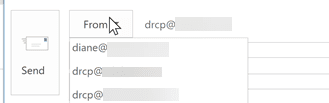
Provided you have assigned a signature to the currently selected account, Outlook will change the signature when you select a different account from the Account dropdown
To set the signatures for each account, go to File, Options, Mail, Signatures and create your signatures then assign one to each account in your profile.
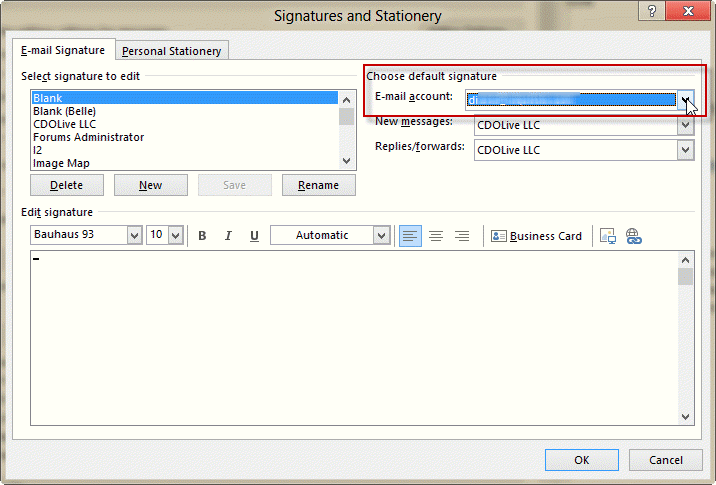
Always assign a signature to accounts, using the blank signature on accounts that don't need a signature. When you use an account that has no signature assigned ("<none>") signatures won't be used when you change accounts and you can't right click add a signature to the message.
Outlook 2007
Provided you have assigned a signature to the currently selected account, Outlook 2007 will change the signature when you select a different account from the Account dropdown
Go to Tools, Options, Mail format, Signatures to create new signatures and assign them to each account in your profile.

Brendan says
OMG this was driving me nuts, and that's all it was - one account was added by icloud without a signature, and it stopped auto-switching them. One thing I can add - you have to close and restart outlook after making sure every email has an assigned signature for the changes to take effect.
Now if Microsoft could get off their lazy asses and fix this bug...
THANK YOU!
Bruce Bergen says
Just signed up for your newsletter. I use Outlook 2010, and have a number of email signatures. Outlook lets me continue to add, but it will only paste some, but not the rest. I have found hints online to delete temporary files, etc, but nothing has worked. Is there a maximum number of useable signatures? If so, is there a way to increase that number?
Diane Poremsky says
As far as I know, there is no limit to the number of sigs you can create - the signature picker may have a limit to the number of signatures it will display - most menus have a limit. I've never tested the limits of the signature picker, so i can't say what it is.
Are you using the signatures as signatures or to insert boilerplate text?
Jon says
Hi - just found this post - really useful, thanks!
I have 2 email addresses in Outlook 2010, but both on the same account (aliases). When I send an email I select the 'from' address. Is there a way to automate the signature based on the from address, when both are on the same account?
Thank you!
Diane Poremsky says
Not as a native feature. A macro should work - but you'd need to run the macro to start the new message and it wouldn't work for replies.
CCarriere says
I am using outlook 2013 I have 2 email addresses on my profile. I set up a signature different signature for each of them. I then assigned the appreciate signature to each none and saved them. When I email the second signature defaults back to the signature I created for the 1st email address. Please help.
Diane Poremsky says
If you create a new message and change the account, the signature doesn't change?
John says
Your article provided the solution for my Outlook 2007 signature problem.
I couldn't figure out why Outlook 2007 kept applying the same signature to all my e-mail accounts and not just to the e-mail account I wanted to apply it to. Then I read your article and learned that I must have SOME signature - even if it's just a double dash - assigned to the other e-mail accounts in order to Outlook to apply the the intended signature to my e-mail account of choice. Not intuitive.
Greatly appreciated, thank-you.
Michael says
Outlook will wipe out a second signature within an e-mail. My work around is to use the auto correct text (Tools, Options, Spelling and AutoCorrection...., AutoCorrect Options) Then set up code to use and it will autocorrect the code to the script. But there is a limit to the number of characters that can be used. But it is quick once you get used to the codes you are using for the text you want to insert.
Hank Moore says
Hi Diane,
In Outlook 2010 I'm using several different signatures for one account. My default signature has a vcard attached. When I go to switch signatures, my vcard remains even though I didn't assign it to that particular signature. Why doesn't the vcard drop out when the signature is changed?
Thx,
Hank
Sherri says
I am using Outlook 2007 and have two email accounts within that program. I have set up two different signatures (one for each account) and have double and triple checked that they are correct. Outlook is still using only the one signature when I create a new email (I am on the Inbox of the account I am trying to send from) and it is using the Outbox of the same account (not the one I am trying to send from. How can I correct this so that I can have the correct signature automatically in my new email? Thanks for hour time!
Diane Poremsky says
If you select the other account from the Account dropdown, does the signature change? Outlook 2007 doesn't pick the account automatically based on the folder you are viewing, that was added in 2010.
Sherri says
Ahhh - that makes sense. Thanks! I appreciate the response!
Tom says
Hi
Is it possible to ADD a signature rather than just replace one every time. I would like to have my default signature and then choose to add different things beneath it (it won't work to have a different full signature every time because there are too many variations). There doesn't appear to be an option to have two signatures on one email without one being replaced, and I can't find discussions about it on-line either. Perhaps I'm the only one who cares!
Thank you.
Diane Poremsky says
No, you can't in current versions (2003 with Word editor, 2007 and up). Quick Parts and autocomplete (for short text blocks) can be used to insert boilerplate text.
Bruce says
Hi
i dont know if my question will make sense but i will try to break it down as possible as i can.on my replies and forward signature,i want my signature text to remain black in color and ( the replying text that il be typing should be in another color). im failling to have it like that, when im changing my reply and forwards color it changes the siganature(that i want it remain black)to the same color as the text il be typing in my replies or forwarding emails
Diane Poremsky says
How are you changing the text color? If you use the automatic color change feature in Stationery and Fonts, only your new text will change color.
Krish says
Hi Diane,
I have user, who is having two mailboxes imported in his outlook(he didn't created separate profile.). Now he wants to create automatic signature for two individual accounts. So that he no need to select signature always when sending a mail.
Is there any way in outlook 2003 to accomplish this task?
Thanks!
Krish.
Diane Poremsky says
What type of email account does he use? If he is using Word as the editor and the accounts are listed in Tools, Accounts, View or change accounts he will be able to assign signatures to each account. If they are not listed as separate accounts, he would need to use VBA to set the signature.
Julie Edison says
Is there a way to assign a signature to specific contacts? More precisely, there is no need to even have a signature on my internal emails, is there a way to have it automatically omitted from those one's only?
Diane Poremsky says
No, you can't assign signatures to domains or contacts - you can create a blank signature (i like to use two dashes as my blank sig, per the RFCs) and right click on your signature to swap them (Outlook 2003 with Word editor and all newer versions).
Bill says
Hi Diane, I don't know if my comment posted so am reposting.
Am using Outlook 2010 in IMO mode with multiple email accounts attached to one datafile.
Can I establish an email alias created on my server as a default email account for sending emails in Outlook? If so, how?
Sorry if redundant.
thanks for your help
Bill
Diane Poremsky says
Assuming I am understanding correctly - yes, you can. If you want to always reply from one address you have two options: a macro or edit the account settings so the From address is the account you want to always send from.
Choose the account to reply from