A user wanted to know how to sort email messages by domain. Although you can filter by domain simply by typing the domain name in the address field, you can't sort as easily.
You can create a custom Formula field using this formula: right([SearchFromEmail],len([SearchFromEmail])-InStr(1,[SearchFromEmail],"@"))
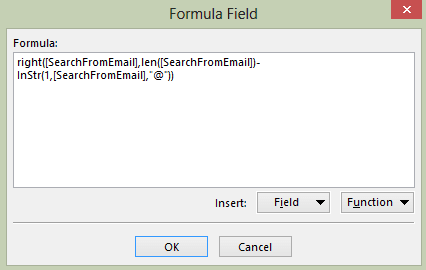
Unfortunately, you can't sort by formula fields. However, custom Text fields are sortable and you can use a macro to add the domain to the custom field.
To use the first macro, select the messages then run the macro. To add the domain field to messages as they arrive, you'll need to use the run a script rule below.
Macro for selected messages
Public Sub SetDomain()
    ' From http://slipstick.me/1
    Dim currentExplorer As Explorer
    Dim Selection As Selection
    Dim obj As Object
    Dim objProp As Outlook.UserProperty
    Dim strDomain


    Set currentExplorer = Application.ActiveExplorer
    Set Selection = currentExplorer.Selection

    On Error Resume Next

    For Each obj In Selection
         Set objMail = obj

           strDomain = Right(objMail.SenderEmailAddress, Len(objMail.SenderEmailAddress) - InStr(objMail.SenderEmailAddress, "@"))
         Set objProp = objMail.UserProperties.Add("Domain", olText, True)
         objProp.Value = strDomain
        objMail.Save

        Err.Clear
    Next

    Set currentExplorer = Nothing
    Set obj = Nothing
    Set Selection = Nothing
End Sub
If you use Exchange server, the field will contain the Exchange x.500 address for mail from Internal senders. The easiest fix is to use an if statement to look for an @ sign. No @ sign means it's internal email. You can then enter your domain for these senders or use their alias.
For Each obj In Selection
         Set objMail = obj

  Set objProp = objMail.UserProperties.Add("Domain", olText, True)
    If InStr(1, objMail.SenderEmailAddress, "@") > 0 Then
         strDomain = Right(objMail.SenderEmailAddress, Len(objMail.SenderEmailAddress) - InStr(objMail.SenderEmailAddress, "@"))
     Else
        ' strDomain = "yourdomain.com"
        ' use this for the alias - you may need to use /cn in on-prem
         strDomain = Right(objMail.SenderEmailAddress, Len(objMail.SenderEmailAddress) - InStrRev(objMail.SenderEmailAddress, "-"))
    End If

  objProp.Value = strDomain
Create the custom field and add it to your view
To add the custom field to the view follow these steps:
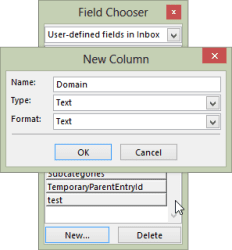
- Close or reduce the size of the reading pane so the From, Subject, Received date and other fields are on one line
- Right click on the row of field names and then choose Field Chooser from the menu
- Click New and type Domain in the Name field
- If User-defined field in [folder] is not visible, select it, then drag the newly created Domain field to the row of field names
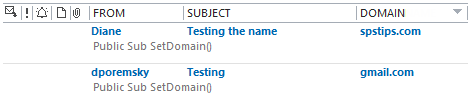
Click on the Domain name to sort..
Run a script rule
Use the following macro in a run a script rule. If you need instructions, see Outlook's Rules and Alerts: Run a Script.
Public Sub SetDomainScript(Item As Outlook.MailItem)
    ' Fromhttp://slipstick.me/1
    Dim objProp As Outlook.UserProperty
    Dim strDomain
       strDomain = Right(objMail.SenderEmailAddress, Len(objMail.SenderEmailAddress) - InStr(1, objMail.SenderEmailAddress, "@"))
         Set objProp = Item.UserProperties.Add("Domain", olText, True)
         objProp.Value = strDomain
        Item.Save

 End Sub
Add the Sent To domain
This macro gets the first email address a message is sent to and adds it to the Domain field. You could loop through the entire recipient list and get all addresses or domains, but the list is a simple text list and sorts by the first domain, making it less useful.
This macro works on both incoming messages and messages in your sent folder.
Public Sub SetToDomain()
    ' Fromhttp://slipstick.me/1
    Dim currentExplorer As Explorer
    Dim Selection As Selection
    Dim obj As Object
    Dim objProp As Outlook.UserProperty
    Dim strDomain

 Dim recips As Outlook.Recipients
 Dim recip As Outlook.Recipient
 Dim pa As Outlook.propertyAccessor
 Dim Address As String
 Dim lLen

 Const PR_SMTP_ADDRESS As String = "http://schemas.microsoft.com/mapi/proptag/0x39FE001E"

    Set currentExplorer = Application.ActiveExplorer
    Set Selection = currentExplorer.Selection

    On Error Resume Next

    For Each obj In Selection
         Set objMail = obj

' This gets the first recipient's address
 Set recips = objMail.Recipients
 Set recip = recips.Item(1)
 Set pa = recip.propertyAccessor

 Address = LCase(pa.GetProperty(PR_SMTP_ADDRESS))
 lLen = Len(Address) - InStrRev(Address, "@")

         strDomain = Right(Address, lLen)
         Set objProp = objMail.UserProperties.Add("Domain", olText, True)
         objProp.Value = strDomain
        objMail.Save

        Err.Clear
    Next

    Set currentExplorer = Nothing
    Set obj = Nothing
    Set Selection = Nothing
End Sub
Create other fields
You can customize the macro to work with other fields. In this example, I'm adding a text field containing the received date formatted in Month day format. Don't forget to use a unique name for the field!
Tip: if you want to sort by a date field, use "yyyy mm dd" for the date format, use olDateTime instead of oltext.
strDomain = Format(objMail.ReceivedTime, "mm/dd/yyyy")
Set objProp = objMail.UserProperties.Add("MyDate", olDateTime, True)
Public Sub SetDate()
    ' Fromhttp://slipstick.me/1
    Dim currentExplorer As Explorer
    Dim Selection As Selection
    Dim obj As Object
    Dim objProp As Outlook.UserProperty
    Dim strDomain
    Dim objMail As MailItem

    Set currentExplorer = Application.ActiveExplorer
    Set Selection = currentExplorer.Selection

    On Error Resume Next

    For Each obj In Selection
         Set objMail = obj

   ' make changes here
      strDomain = Format(objMail.ReceivedTime, "MMM dd")
         Set objProp = objMail.UserProperties.Add("MyDate", olText, True)
         objProp.value = strDomain
        objMail.Save

        Err.Clear
    Next

    Set currentExplorer = Nothing
    Set obj = Nothing
    Set Selection = Nothing
End Sub
To use the macros with other Outlook item types, you only need to change the item type in the Dim statements:
Dim objMail As TaskItem
And the field:
strDomain = Format(objMail.CreationTime, "MMM dd yyyy")
And, of course, you might want to change the field name and type:
Set objProp = objMail.UserProperties.Add("ThisField", olDateTime, True)
Yes, it would be less confusing to use a generic object name, like objItem, but as long as the field is supported by the declared object, it will work.
How to use macros
First: You will need macro security set to low during testing.
To check your macro security in Outlook 2010 or 2013, go to File, Options, Trust Center and open Trust Center Settings, and change the Macro Settings. In Outlook 2007 and older, it’s at Tools, Macro Security.
After you test the macro and see that it works, you can either leave macro security set to low or sign the macro.
Open the VBA Editor by pressing Alt+F11 on your keyboard.
To put the code in a module:
- Right click on Project1 and choose Insert > Module
- Copy and paste the macro into the new module.
More information as well as screenshots are at How to use the VBA Editor

erkan says
is there any way to make this macro stay there forever and set a shortcut or button?
So if i click that buttom, it should sort according to domain?
Rajiv says
Dear Diane, I added a New Column, named DOMAIN, selected all the messages in my Inbox, around 10000, and ran the macro. First it took ages to populate the Domain field values. Second upon clicking Sort, it simply was not doing it, descending or ascending. Then I noticed, it does some sort of sorting, but could understand it is an extremely slow process. The same process I tried in another mail folder, with 250 messsages, and I was able to sort and group by Domain values. Kindly help me implement the same process for my Inbox, as I really want to clear all the Junk/Useless mails, which are from around 3000 senders, but if I can group them by Domain, it would be a few hundred.
Sorting the messages according to the number of messages based on Domain values, instead of alphabetic sequence, would be the next step, but this can be a secondary goal. Thanks for your kind help.
Diane Poremsky says
Yeah, its definitely a slow macro - it needs to touch every message. I don't believe t can be speeded up. Sorry. (Sorry I missed this earlier).
Enrique Nicolas says
Hey, i share the method to folder sent.
For Each aObj In Application.ActiveExplorer.Selection
Set oMail = aObj
' This gets the first recipient's address
Set recips = oMail.Recipients
sTmp = recips.Item(1).Address
If InStr(1, sTmp, "@") > 0 Then
sDomain = Right(sTmp, Len(sTmp) - InStr(sTmp, "@"))
Else
If InStr(1, sTmp, "/o=") > 0 Then
sDomain = "att.com"
' use this for the alias - you may need to use /cn in on-prem
nPos = InStr(1, sTmp, "=")
nNext = InStr(nPos + 1, sTmp, "/")
nLen = nNext - nPos
sDomain = Mid(sTmp, nPos + 1, nLen - 1)
Else
sDomain = Right(sTmp, Len(sTmp) - InStrRev(sTmp, "-"))
End If
End If
' sDomain = Right(oMail.SenderEmailAddress, Len(oMail.SenderEmailAddress) - InStr(1, oMail.SenderEmailAddress, "@"))
Set oProp = oMail.UserProperties.Add("NewDomain", olText, True)
oProp.Value = sDomain
oMail.Save
Err.Clear
Next
Steve says
Great tips.
Also see my column formula:
IIf(InStr([SearchFromEmail], "@") = 0, "", Mid([SearchFromEmail], InStr([SearchFromEmail], "@") + 1))
And info here
http://stackoverflow.com/questions/43849213/can-i-add-a-custom-email-domain-column-in-outlook/43889643#43889643
Tony says
How to remove the field andits contents if the Macro did not work correctly? I run the AddDomain Macro and it worked on the emails coming from outside my company but for the emails that come from inside my company the field added something like this: "/o=company/ou=exchange admin...". I will like to undo what I did until I figure out how to adjust the script. Any ideas?
Diane Poremsky says
That is normal. On other pages i have examples using left/right functions that get just the alias from the exchange x500 address or you can use an if statement something like
Set objProp = objMail.UserProperties.Add("Domain", olText, True)
If InStr(1, objMail.SenderEmailAddress, "@") > 0 Then
strDomain = Right(objMail.SenderEmailAddress, Len(objMail.SenderEmailAddress) - InStr(objMail.SenderEmailAddress, "@"))
Else
strDomain = "yourdomain.com"
' to get the exchange alias in office 365 exchange online
' strDomain = Right(objMail.SenderEmailAddress, Len(objMail.SenderEmailAddress) - InStrRev(objMail.SenderEmailAddress, "-"))
' or in on-prem
' strDomain = Right(objMail.SenderEmailAddress, Len(objMail.SenderEmailAddress) - InStrRev(objMail.SenderEmailAddress, "/cn"))
End If
objProp.Value = strDomain
Diane Poremsky says
BTW, just changing this line should erase the value from the field -
objProp.Value = "" (it might only work if you do it immediately and won't work if you use the formula method to set the field - you'll need to change the formula or delete the field)
Liora says
Hello,
I have to use the above script on inbox , and use the proprties:
PropTag=PidTagSenderSmtpAddress_W
NmidInteger=0x5D01
In the script there is an object relaited recipient, I need to relait to sender
Thank
Badan says
Thanks, Diane, this is very useful. However, for some reason when I run the script rule this line is not able to extract the domain name:
strDomain = Right(objMail.SenderEmailAddress, Len(objMail.SenderEmailAddress) - InStr(1, objMail.SenderEmailAddress, "@"))
It gives nothing. I added on Error resume next and changed objMail with Item but still this line is not working. What could be the issue?
jeanphi says
I am again.
Here's the code.
I'm in my .txt file the number of items per sender.
But not write in column D (created previously)
What is the solution?
PS I am not a developer, I try to learn.
-----------
ub CombienMailsDate()
Dim objOutlook As Object, objnSpace As Object, objFolder As MAPIFolder
Dim Sender As Outlook.AddressEntry
Dim mail As String
Dim myItems As Outlook.Items
Dim dict As Object
Dim msg As String
Dim aObj As Object
Dim oProp As Outlook.UserProperty
Set objOutlook = CreateObject("Outlook.Application")
Set objnSpace = objOutlook.GetNamespace("MAPI")
On Error Resume Next
Set objFolder = ActiveExplorer.CurrentFolder
If Err.Number 0 Then
Err.Clear
MsgBox "No such folder."
Exit Sub
End If
Set dict = CreateObject("Scripting.Dictionary")
Set myItems = objFolder.Items
myItems.SetColumns ("SenderEmailAddress")
For Each myItem In myItems
mail = myItem.SenderEmailAddress
If Not dict.Exists(mail) Then
End If
dict(mail) = CLng(dict(mail)) + 1
Next myItem
On Error Resume Next
' Output counts per sender:
msg = ""
For Each o In dict.Keys
msg = msg & o & ": " & dict(o) & " items" & vbCrLf
On Error Resume Next
For Each aObj In Application.ActiveExplorer.Selection
Set oMail = aObj
If o = myItem.SenderEmailAddress Then
Set oMail = aObj
Set oProp = oMail.UserProperties.Add("D", olNumber, True)
oProp.Value = dict(o)
oMail.Save
Else: MsgBox "non"
End If
Next
Next
'-----------
Dim fso As Object
Dim fo As Object
Set fso = CreateObject("Scripting.FileSystemObject")
Set fo = fso.CreateTextFile("C:\tmp\outlook_log.txt")
fo.Write msg
fo.Close
Set fo = Nothing
Set fso = Nothing
Set objFolder = Nothing
Set objnSpace = Nothing
Set objOutlook = Nothing
End Sub
jeanphi says
Thank you.
I thought of another solution.
1-Create collone "Number_element"
2-Via a macro, browse the folder to add the item number by sender.
3-Finally, group by "Number_element '
What do you think?
I block in the code to go and count the number of element Sender
jeanphi says
Thank you for ariticle good!
I am looking for a solution to sort the mails ascending number of elements (after group by) I group by sender. But then it is automatically sorted alphabetically I want the number element Ideas? I tried to see modify XML but I can not thank you a lot
Diane Poremsky says
Elements as in number of messages from the sender? I'm not aware of any way to do that - you'd need to count the messages then sort by that value. You could use a macro to update a field and then sort by that field, but you'd need to run the macro often to keep the values updated. It would be a slow process.
Rajiv says
Hello Diane, please provide the macro to count the number of messages by domain values, and to be able to sort the group of domains by the number of messages, instead of albhabetic sequence. Even adding a custom field for number of messages by domain values, sorting and grouping by this field would help. Thanks for your kind help!
Diane Poremsky says
So you want to count the @ of times a domain is used and add a field with that value? It's going to be really slow. you'll need to go through the list once to count then a second time to add the value. Unfortunately, I don't have a code sample. Sorry.
Abhishek says
Hi,
i am looking for custom development . Would you be interested ?we have sufficient budget to get this project done ! My gtalk is:patankarabhishek@gmail.com (if interested ping me)
Diane Poremsky says
I only have time for simple macro projects, sorry. (And I'm booked until well into September.)
Nobody S Here says
I'm guessing that something is missing in your Macro Script. I'm getting errors on:
strDomain = Right(objMail.SenderEmailAddress, Len(objMail.SenderEmailAddress) - InStr(1, objMail.SenderEmailAddress, "@"))
Diane Poremsky says
What type of email account? That error could occur for internal exchange since there is not @ in the address. An on error resume next should skip to the next.
Tom W says
Hello Diane,
Thank you for the code above; it works great for received emails.
I'd like to do exactly this except reverse it to display the domain for the email Recipient (I would use this in my Sent Items folder).
I tried changing all instances of "SenderEmailAddress" to "RecipientEmailAdress" and a few other variations with no success.
Could you help me please?
Best regards,
==Tom==
Diane Poremsky says
You need to get the recipient collection and parse the names/addresses. I think i have a code sample here somewhere, I'll see if i can find it.
Tom W says
That would be great, Diane - thank you for your response.
Diane Poremsky says
I added a macro that will get the domain of the first address on sent items to the end of the article.
Akmal says
Hi Diane, I have a mailbox that receives emails from 90 different domains. I am trying to find a script that can help me forward emails based on the sender domain (different email addresses). i will need to forward the email to one of the 3 recipients depending on which domain i received the email from. Any ideas how i can do this?
Diane Poremsky says
I'd use this s the base: https://www.slipstick.com/outlook/rules/run-script-rule-change-subject-message/ and a select case statement to select the correct recipient.
Sub ForwardMsg(Item As Outlook.MailItem)
Select Case instr(LCase(Item.SenderEmailAddress))
Case "domain.com", "domain2.com", "domain3.com"
strRecip = "address@yourotherdomain.com"
Case "domain10.com"
strRecip = "someone@mydomain.com"
End Select
Set myForward = Item.Forward
myForward.Recipients.Add strRecip
myForward.Send
End Sub
drsmn says
Hi. I implemented this and works very well! Thanks for this. Can you perhaps assist me in furthering this solution to sort by the number of items in each group (grouped by Domain)? I have looked online but none of the solutions offered seems to work.
Outlook already calculates the item count when the items are grouped and displays that next to the field grouped by, in this case Domain. It provides the number of items in brackets.
What I basically want to do is look for the domain groups with the most items in, and identify them as spam. So the group count will be one of the fields.
Perhaps assign another user defined property (lets call it ItemCount) to all items. This ItemCount will have the value for the item's domain group by clause, so all items from domain x will have the same value for ItemCount.
Something like this, in very general SQL terms:
For each email item:
Select
Domain
Count(Number of emails) as ItemCount
From…
Group by Domain
Diane Poremsky says
I'm not sure how you would - it would be complicated because you'd have to add the value to each message, but the value changes with each new message and you'd need to update each item, each time. A formula won't work, you can't sort on it.