Some Outlook users had a problem sending large attachments:
When I attach several image files to an email in Outlook I get message "The file you're attaching is bigger than the server allows. Try putting the file in a shared location and sending a link instead."

Users with older versions of Outlook may receive this message instead:
"The attachment size exceeds the allowable limit".
In order to reduce NDRs and failed sends, Outlook checks the message size before sending and alerts the user that the message is larger than the mail server allows. Because Outlook can't query a SMTP for the maximum attachment size, it uses a default attachment limit of 20 MB (20480kb), which is about right for most ISPs.
This limit eliminates the problem with stuck messages: If you try to send a message using SMTP, you get an NDR back into your Inbox telling you the message is too large. Outlook wastes a lot of time uploading the huge file that will never send and this prevents the sending of any other mail.
Exchange server accounts should use the message size set for the user account. Exchange 2010 users will see a mailtip above the To field instead of the warning dialog.

If the MaximumAttachmentSize is set higher on the client than the Exchange account is allowed to send, the message will not send. The Send and Receive Progress Dialog will show this error:
Task 'alias@domain.com - Sending' reported error (0x80040610) : 'The message being sent exceeds the message size established for this user.'
If you can send larger attachments you can edit the registry to allow larger limits. While you can set it to 0 for unlimited message size, its better to set the limit to the size your ISP allows.
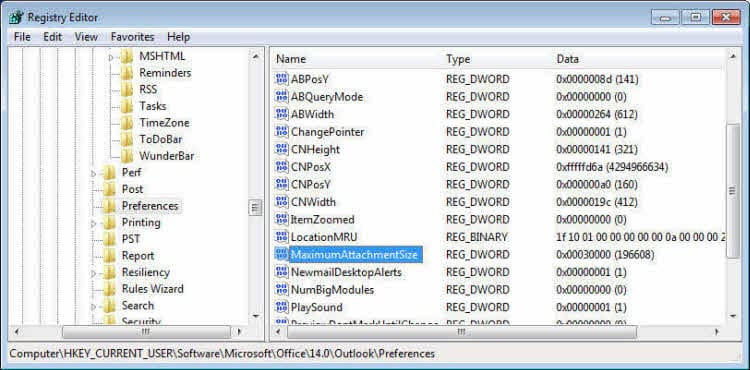
Open the registry editor and browse to:
Outlook 2016:
HKEY_CURRENT_USER\Software\Microsoft\Office\16.0\Outlook\Preferences
Outlook 2013:
HKEY_CURRENT_USER\Software\Microsoft\Office\15.0\Outlook\Preferences
Outlook 2010:
HKEY_CURRENT_USER\Software\Microsoft\Office\14.0\Outlook\Preferences
Then add a new DWORD value: MaximumAttachmentSize
Unlimited message size uses a value of 0. For a specific message size (recommended) enter the decimal value in Kb. You may want to round the value down to allow for overhead, so 50MB = 50000.
Error messages may include the following message:
This error can occur if you attempt to send a Word document as an e-mail attachment in Word and the MAPI session was closed and Word is no longer able to connect to that MAPI session. It can also occur if there is a problem with the fax configuration.
To correct a MAPI related error: restart the MAPI e-mail program (for example, Outlook) or save and close the document, and then restart Word after restarting your MAPI e-mail application. Word will establish a new MAPI session, allowing the document to be sent."
If your mail server limits you to smaller attachment sizes, you can set the key to prevent an NDR when you attempt to send messages that are too large.
Instant Fix
You can can change the dword value in code below if needed (its set for 30 MB) then copy and paste into notepad and save as "MaximumAttachmentSize.reg". You'll double click on the saved file to install it in your registry.
Windows Registry Editor Version 5.00
[HKEY_CURRENT_USER\Software\Microsoft\Office\14.0\Outlook\Preferences]
"MaximumAttachmentSize"=dword:00007530
Download a ready-to-run registry file to set the maximum attachment size to 30 or 50 MB:
Outlook 2016 50MBOutlook 2013 50MB
Outlook 2010 50MB Outlook 2007 50MB
Outlook 2016 30MBOutlook 2013 30MB
Outlook 2010 30MB Outlook 2007 30MB
Email Compression Tools
If you use tools such as WinZip's Companion which compress large attachments automatically after you add them to the email message, you'll want to set the maximum allowed size at least twice as large as allowed by your email service, or set it to 0 to disable completely. Outlook checks the attachment size as soon as you add the attachments, not before you send the message.
More Information
Compression Tools for Exchange server
Compression Tools (for Outlook)
Outlook 2010 and Large Messages (Outlook Tips)
Outlook 2010 attachment size limit (Technet forums)

Patrice says
The problem of this solution is many mail servers in the world are not allowing attachments of this size ! And the mail could never reach the recipient.
Another option is to use a third party product like Attach2Cloud, this product allows uploading to OneDrive, SharePoint or Teams the attachments directly from inside Outlook in a few seconds through a very easy-to-use control center.
The limit of the attachment size is then the limit of the size of the cloud service (which is huge and could be 250GB for OneDrive by example! )
This product can be easily installed and tested, through the fully functional evaluation available on its Attach2Cloud website.
And it integrate the Z-OptimiZr/ZipMail optimization engine that drastically reduce the size of XML and pictures files by optimizing them without loosing quality.
Patrice says
The problem of this solution is many mail server in the world are not allowing attachments of this size !
Another option is to use a third party product like Attach2Cloud, this product allows to upload to OneDrive, SharePoint or Teams the attachments directly from inside Outlook in few seconds through a very easy to use control center.
The limit of the attachment size is then the limit of the size on the cloud service (which is huge ! )
This product can be easily installed and tested, through the fully functional evaluation available on it’s Attach2Cloud website.
https://www.attach2cloud.com/download/
And the mail that goes through the servers is only few kb only as the attachments are links to the cloud service.
Yet Another Victim of Microsoft Deproductivity says
Different question, if someone doesn't mind - can you see the properties of attachments, beyond the filename and idiotic "size in KB" ? Can I see the _exact_ file date (no doubt the Microsoft rocket scientists are too inept to grasp more precision than "2 years ago"), and the EXACT filesize? As it stands, I might just waste a week writing it myself in VBA, but first I thought I'd see if that can be avoided. It is often highly valuable, tremendously time-saving; I'm hoping that it's there, but hidden, even though it violates Microsoft's commitment to destroying productivity.
(Then, by NOT writing it on my own, I can also avoid the joy of Microsoft cancelling VBA -- which would produce a zombie apocalypse. They have no clue how much of the world operates from VBA; but watch, they just might anyway.)
Mike says
Any word on if click-to-run versions of Outlook support this as my registry paths differ greatly. Also, is this something that only occurs on POP/IMAP accounts? I have a client that has on-prem Exchange and is running into this.
Diane Poremsky says
Those keys works in both click 2 run and the volume license MSI - if the keys doesn't exist, create them. The keysa are for all account types - so this will work with on-prem. The server settings will need to be updated as well - https://www.slipstick.com/exchange/cmdlets/changing-the-message-size-in-exchange-server/ -
Ian says
Firstly, please excuse my ignorance of certain technical aspects of using a computer. I am using a Mac and experienced the exact problem as described above.....email won't send as attachment is too large. Great...I understand that....but how do I stop the email from trying to send still? It has been going for 2 days now and I cannot find out how to stop it. I do not have a visible Outbox to go into and delete the email from. Any ideas anyone?
Diane Poremsky says
See https://www.slipstick.com/outlook/mac/delete-messages-stuck-outlook-2011-outbox/ - it should be more or less the same for outlook 2016 on mac -
Leon says
Long time since this post was made, but shouldn't the file size be set in decimal, not hex? You've set a 30000 hex limit in the example, which is 196608 kb
Diane Poremsky says
Oops, yes, you are correct. I don't know how that got past me. It's fixed now. Thanks.
Greg says
The link works a treat. Thank you
Kindu says
I have difficulties in sending big file greater than 8MB while using outlook .what will,be the solution ?
Jeremy Patston says
Yes, problem is there's no Compatibility tab on right click Properties - General, Security, Details and Digital Signatures is all. Is there an option to switch Compatibility off if I run through the Troubleshoot Compatibility process?
Diane Poremsky says
No, AFAIK, there is no option to disable it. What type of Windows user account are you using? Maybe it's missing on some account types.
Jeremy Patston says
In C:\Program Files\Microsoft Office 15\root\office15\ there's only an Application file called "Outlook" with the new blue and white Outlook icon (aw, pretty...). It doesn't say .exe in the filename or anywhere else. When I left click on it and go into Properties, there's only 4 tabs: General, Security, Details and Digital Signatures, no Compatibility. "Troubleshoot Compatibility" is in the left click menu, but I can't get through to anything that looks like it is going to allow me to deselect compatibility there...
Diane Poremsky says
Are you showing the file extensions? Look on the View tab of Windows Explorer and click in the File Name Extensions box to show them.
Jeremy Patston says
Hi - struggling to find outlook.exe in Windows 8. Have been through your blog here: https://www.outlook-tips.net/tips/tip-723-compatibility-mode/ but only outlook file I can get to is outlook.exe.bak and outlook.exe.manifest... Neither has a Compatibilty tab under Properties. Have Googled "compatibility mode outlook Windows 8" but hasn't helped much....
Diane Poremsky says
You definitely want outlook.exe. You most likely have C2R, so the files are under C:\Program Files\Microsoft Office 15\root\office15\ (or in Program files (x86) if using 32bit Office on 64bit windows.)
Jeremy Patston says
Outlook 2013....
Diane Poremsky says
Do you have outlook.exe set to run in compatibility mode? This is one symptom.
https://www.slipstick.com/problems/say-no-to-compatibility-mode/
Jeremy Patston says
Hi Diane, I'm using Windows 8 - when I left click a file and select the "Send to mail recipient", I get the little box that asks you to select the file size, but when I do that, I don't get an Outlook mail with the attachment appearing at all (or anything else visible). I've checked the registry folder "Preferences" as per your commentary and I don't have a "MaximumAttachmentSize" dword file either. Will your fix with the dword registry file work, or is mine a different issue?! Thanks, Jeremy
Diane Poremsky says
No, i don't think this is your problem. What version of Outlook are you using?
Heather says
Outlook 2013 and IMAP email (hosted by godaddy)
Thanks!
Diane Poremsky says
Glad I didn't bet - all of the complaints I'm seeing about it not working are for imap. I'm not sure if all are GoDaddy accounts but at least some were. I'll look into it.
Heather says
Our tech support tried this and we are still getting the message. Any idea as to why?
Diane Poremsky says
What version of Outlook and what type of email account?
Mat says
We are using Exchange 2010 SP2
Diane Poremsky says
Is the file size warning coming from the exchange server? It will check file sizes too. Or are you trying to be warned when the file is too large for the server settings?
Mat says
We have Outlook 2007 SP3 here. As mentioned above, the registry setting does not work for SP3. So what is the workaround then? Thanks
Diane Poremsky says
Are you using POP3/IMAP or Exchange server?
At this time, there is no work around that I'm aware of but I'm looking into it.
jjadit says
It did not work on Office 2007 SP2 as said in
https://answers.microsoft.com/en-us/office/forum/office_2007-outlook/outlook-2007-attachment-size-limitation/64c95467-db2c-4388-aa59-7496e62bb6dc?msgId=0c553366-6a10-4abb-abff-c47dbba454ad
Does it realy work on Office 2007?
Diane Poremsky says
It's supposed to. It looks like an update broke it.
Sharon says
I can no longer send more than 5 attachments. How can I fix this? Thanks so much
Diane Poremsky says
What type of email account? What happens when you try?
Pat Kaley says
I have a client who sends wma files of recorded meeting minutes. My Outlook will not receive files over 14 MB - however, my home computer will receive the same files with no problem. What's going on?
Diane Poremsky says
Do you have the same account set up on both? Usually the problem is that the email account has a maximize message size set, but depending on your config, a firewall or security software could block large files too.
gary says
that's what I set it to when 0 didn't work. and yes that works.
gary says
when I set the value to 0 for outlook 2013,right clicking a file and selecting send to mail recipient does not work. the compose window does not open.
Diane Poremsky says
Does it work with 50000 ? (50 MB)
Keith says
I'm also trying to figure out if that is a solution as well. I'm on Exchange 2003 and Outlook 2003.
Les says
Even though we have a 100mb limit set on our exchange box, I'd like to give the users a pop up warning when they attach 60mb file with a warning like you're in danger of exceeding the maximum file size limit. Please consider splitting your attachments among a few emails rather than just one.Can this be done? We are using exchange 2003 and outlook 2010.Thanks
Diane Poremsky says
You can do that with VBA. See Check message size before sending
John Welch says
This is sad. Back when we all used unix there was a "Split" command that would break up a file into small chunks and the email on the other end would re-assemble. We are slipping backwards it seems.
Diane Poremsky says
Outlook no longer includes the ability to split files (since Outlook 2002) because, as mailbox and allowed attachment sizes grew, very few people used it and too many people had no idea how to put the attachment pieces together, generating a lot of help desk calls. Zipping files to reduce size is often better, or use an online file storage system and send a link... or split them outside of Outlook- I think winzip can still split files.
If you receive a split file, Outlook should be able to put it together.
gayle bondy says
Am 70 years old, so don't expect you are talking to a peer. For the first time in many years, on Outlook 2010 only, my attached PDF files are shrunk. When I click to open, it looks like the doc is about 70% of normal. When I print, it is still about 70% of normal. It says in the tag that the size was reduced for email, but my son guarantees that has nothing to do with printing a form and seeing teensy print and white space for the first 25% of the paper (top). I can't find any "help" for this! Answer if possible pretty please!
Diane Poremsky says
Outlook didn't do it. :)
What PDF application do you use? I'l see what i can find out - i'd never heard of pdf's getting shrunk for email.