Update for Outlook 2007: The Office 2007 SP2 update adds page range selection to the printer dialog.
A common complaint is the inability to control which pages are printed. This is because Outlook's printing options are severely lacking. While its bad in all areas of Outlook, many users notice it when attempting to print email messages.
In Outlook 2007 pre-SP2 and older, Outlook's native printing engine does not support selecting which pages to print or limiting the printout to the first page. Outlook 2007 SP2 and up include print range options.
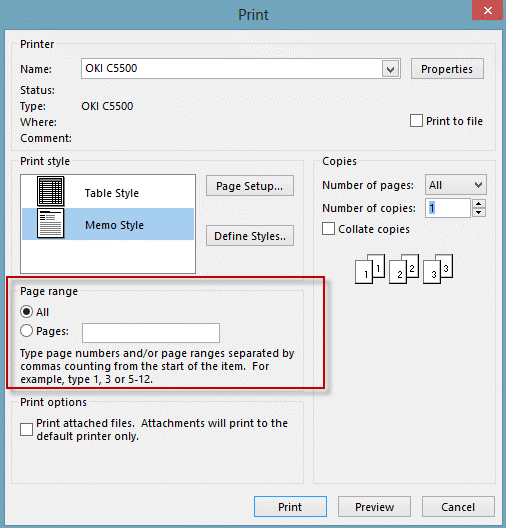
To select a print range, click the Print button in Outlook 2007. In Outlook 2010 and newer, click Printer Options
Some users are reporting a script error (res://ieframe.dll/preview.js) printing email from Outlook 2003 after installing Internet Explorer 9.For more information and solutions, see Print Errors in Outlook 2003 with IE9 Installed
In Outlook 2003 and older versions HTML formatted messages use Internet Explorer's printing engine, which offers more printing options. Outlook 2007 supports View in Browser, but it does not include the email header information. In either case, you have all the print capabilities available for web pages, including the printing of specific pages or the selected text.
The print order in Outlook may seem goofy, with some things printing in order, others out of order. This is due to the way Outlook handles HTML formatted messages and attachments. It renders the HTML in memory, which includes fetching content from the Internet. While the rendering process is working in memory, waiting on external content to download, Outlook moves on to the next item which may print before the HTML message or attachment. Many of the tools below can be used to control the print order.
Workarounds | Tools | More Information
Workarounds
If the following workarounds don't meet your needs, try one of the Tools listed below.
- Outlook 2003 and earlier: convert the message to HTML if it's Rich Text or Plain Text. Do this using Edit, Edit Message, then Format, HTML. Print using the normal methods.
- Outlook 2007: open the message in its own window, then click Other Actions, Edit Message, then on the Options tab, change to HTML. Go back to the Message tab, choose Other Actions, View in Browser then print from the browser.
Outlook 2003 and older, with Word as the email editor: Click Forward then print the message. Close the message after printing. View in Browser is also supported in the older versions, if you prefer to use it.
All versions: print to an electronic format, such as PDF, then print the PDF.
Tools in the Spotlight
Sperry Software's Auto Print Pro for Outlook add-in is similar to their Auto Print tool, except that instead of being forced to print to a single printer, this add-in will allow you to set up a number of different "rules" so that emails from this person go to this printer, emails from that person go to that printer, etc. And just like the original add-in, this one will allow you to print just the emails, just the attachments, or both... with an unlimited set of rules. | |
Print Tools for Outlook will help you automatically print incoming and outgoing messages with attachments (as well as messages and attachments separately). The plug-in automatically unpacks and prints packed .ZIP and .RAR attachments, and supports manual and automatic modes. Used with Microsoft Outlook rules, the Print Tools plug-in allows you to create a system that will automatically print messages and/or attached files. You can specify (or forbid) which file types will be printed or print an attachment separately from its message. |


Tools
Sperry Software's Auto Print Add-In for Outlook has support for Outlook 2010, both 32-bit and 64-bit. In addition, it now has the ability to print emails and/or attachments to any printer, not just the default printer. Margins, number of copies, print first page only - many new options are also now available, and Sperry Software now has fully functional 14-day trial versions on its entire product line. | |
Print your Outlook Emails the way you want. Outlook Printer allows you to customize the printing of your Outlook mails with an easy to use interface. Prints incoming e-mails automatically. | |
Print Agent for Exchange - a solution for Microsoft Exchange Server 2013, 2010, 2007, 2003, which allows to automatically print out the necessary emails and attachments. The product consists of three components - a management console, transport agents, installed on the Exchange server, and one or more services that are directly processed printing. A practical system of rules, including conditions, actions and exceptions, allows to define criteria for printing of really necessary messages and attachments. Print Agent for Exchange can print both email messages and attached files (images, html, PDF, txt). | |
Sperry Software's Print On Demand add-in for Outlook is being released for Outlook 2010. The add-in places convenient print buttons on the Outlook toolbar so that you can simply select the emails and/or attachments you want to print then click the Print Email, Print Attachments, or Print Both buttons. This new version now works with Outlook 2010, both 32-bit and 64-bit. | |
Use PrintPage1 to print any email without all the previous exchanges of messages or disclaimers. It discards any messages that are appended at the bottom of the current message and that begin with From:. That means that even if the new message extends to two pages you get it all. |
More Information
The following pages address other Outlook printing issues:

Mona Lott says
The inability to control which pages are printed, is one of the most important issues the users face. Thanks for sharing the wonderful content. Your Guideline will definitely help me.
Luc says
I've created a macro to print the selection. It's a bit dirty (involves creating a new word document using copy/paste), but it works like a charm. I'm not an expert on the object model of Outlook or Word, so if anyone can improve the internal workings of the script, please do so. I guess you could also add a default print all action in case no specific selection is made, but this script serves my need. I've created buttons for this macro on the ribbons. You can use it from the outlook explorer and from within an open e-mail item.
Public Sub PrintSelection()
Dim mbr As VbMsgBoxResult
Dim objItem As Object
Dim objInsp As Outlook.Inspector
' Add reference to Word library
' in VBA Editor, Tools, References
Dim objWord As Word.Application
Dim objDoc As Word.Document
Dim objSel As Word.Selection
On Error Resume Next
Dim objWord2 As Word.Application
Dim doc2 As Word.Document
'Reference the current Outlook item
Set objItem = Application.ActiveInspector.CurrentItem
If objItem Is Nothing Then
If Not Application.ActiveWindow Is Nothing Then
If Application.ActiveWindow.Selection.Count = 1 Then Set objItem = Application.ActiveWindow.Selection(0)
End If
End If
If Not objItem Is Nothing Then
If objItem.Class = olMail Then
Set objInsp = objItem.GetInspector
If objInsp.EditorType = olEditorWord Then
Set objDoc = objInsp.WordEditor
Set objWord = objDoc.Application
Set objSel = objWord.Selection
If Trim(Replace(Replace(objSel.Text, vbCr, ""), vbLf, "")) = "" Then
MsgBox "No Selection", vbOKOnly + vbCritical, "Print Selection"
Else
Set objWord2 = New Word.Application
Set doc2 = objWord2.Documents.Add(, , , True)
doc2.Activate
mbr = MsgBox("Clear Clipboard?" & vbCrLf & vbCrLf & "With 'No', the selection will be printed free from formatting and images.", vbYesNoCancel, "Print Selection")
Select Case mbr
Case vbYes
objSel.Copy
objWord2.Selection.Paste
Case vbNo
doc2.Content.Text = objSel.Text
Case vbCancel
GoTo CleanUp
End Select
objWord2.PrintOut False
Set doc2 = Nothing
objWord2.Quit False
End If
End If
End If
End If
CleanUp:
Set objItem = Nothing
Set objWord = Nothing
Set objSel = Nothing
Set objInsp = Nothing
End Sub
Jeremy Woodcock says
On my outlook email page the word 'actions' has disappeared so I cannot print how do I make the 'Action' word and drop down list return?
Diane Poremsky says
This is with Outlook.com in a web browser? Click the 3 dots to the right of Move to to expand the menu and print.