The Rules Wizard for Microsoft Outlook automatically processes both incoming and outgoing messages. You set conditions similar to those used for Microsoft Outlook filters, then indicate what action(s) you want to be performed on messages that meet those conditions.
Rules in the Rules Wizard apply to only to mail at the time its downloaded. They can be applied to mail after its downloaded using the Run Rules Now command.
For Microsoft Exchange Server users, Rules Wizard automatically converts rules created with the Inbox Assistant feature (which Rules Wizard replaces). Exchange Server users also have an Out of Office Assistant for handling such things as vacation notices and Folder Assistant rules that run on public folders. See Server-based vs. client-based rules.
Filters are used with Search folders, Custom Views, and Advanced Find. Filters are used with Outlook items in the data file and show or hide but do not move items. You can apply filters to any Outlook item type, not just email. Filters can show, hide, or highlight items in different colors based on a variety of conditions and criteria.
Although Outlook does not support locking views against changes, you can lock view in Outlook 2010 using VBA. See How to prevent changes to Outlook views for a code sample.
Create rules to sort messages by email account
Microsoft Outlook contains a rule condition you can use to sort mail received from multiple email accounts. Use the condition "through specified account", select the account and complete the rule.
Use a rule to filter all messages from a mailing list
In most cases, the distinguishing feature of a mailing list is the To address. Therefore, that's what you should use to create the rule. The important thing to remember is that you want to use the underlying e-mail address, not the display name, which can vary depending on how different people send to the list.
Block common email aliases
While on a business trip I received a frantic call from my daughter because Norton Antivirus kept popping up. She received an email from the postmaster at her college telling her that her email account was used to send spam and instructing her to run the attachment included with the message. The conversation began like
My Pet Peeve: Using Rules to Fight Spam
Color me clueless, but I just can not understand why people are so fixated on using rules to delete spam. It's time consuming to keep the rules updated because spammers keep changing their addresses (often using fake addresses from legitimate domains) and use creative spelling for their products. You just can't win at this game
Apply Conditional Formatting to Internal Email
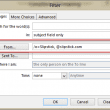
An Outlook user posed this question: I'm trying to change the color of all of the messages which is coming from the local machine but no luck. Its working fine for other domains but not for the local domain. The conditional formatting rule did not work because mail sent from Exchange mailboxes does not use
Hide messages received more than an hour ago?
I'd like all items that have been received more than an hour ago (or another period of time) to be marked. Is this possible to do with Automatic formatting?
Filter messages forwarded from another user's mailbox
If you connect to Microsoft Exchange Server and are receiving mail sent to more than one address (for example, both to your own mailbox and to a staff member that you're covering for while she's on maternity leave), you will probably want to set up a rule to route the other person's mail into a
How Exchange Assistant Rules Work
This technical discussion first appeared on the msexchange discussion list on September 6, 1996. Thanks to Scott Briggs of Microsoft to allowing his explanation to be republished here. Technically, rules are not profile-specific. The Exchange Server itself has no knowledge of profiles in the client sense. The profile-specific nature of rules is merely the way