This code sample uses a default Outlook folder:
Sub Whatever()
  Dim Ns As Outlook.NameSpace

  Set Ns = Application.GetNamespace("MAPI")

'use the default folder
Set Items = Ns.GetDefaultFolder(olFolderCalendar).Items

'do whatever

End Sub
To use a folder at the same level as the Default folders (such as Calendar, Inbox etc), use this in place of Set Items = Ns.GetDefaultFolder(olFolderCalendar).Items, where SharedCal is the folder name:
Set Items = Session.GetDefaultFolder(olFolderCalendar).Parent._
     Folders("SharedCal").Items
When the folder is a subfolder under the default Calendar folder, use this instead:
Set Items = Session.GetDefaultFolder(olFolderCalendar)._
  Folders("SharedCal").Items
To use the currently selected folder, you'll need to use:
Set Items = Application.ActiveExplorer.CurrentFolder.Items
Use a folder in another pst or mailbox
To use a specific folder in another data file in the profile, you need to use a function. Call the function in your macro in this manner, where GetFolderPath is the function name:
Set Items = GetFolderPath("New PST\Test Cal").Items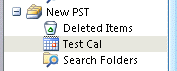
After adding the function to ThisOutlookSession:
Function GetFolderPath(ByVal FolderPath As String) As Outlook.Folder
    Dim oFolder As Outlook.Folder
    Dim FoldersArray As Variant
    Dim i As Integer

    On Error GoTo GetFolderPath_Error
    If Left(FolderPath, 2) = "\\" Then
        FolderPath = Right(FolderPath, Len(FolderPath) - 2)
    End If
    'Convert folderpath to array
    FoldersArray = Split(FolderPath, "\")
    Set oFolder = Application.Session.Folders.item(FoldersArray(0))
    If Not oFolder Is Nothing Then
        For i = 1 To UBound(FoldersArray, 1)
            Dim SubFolders As Outlook.Folders
            Set SubFolders = oFolder.Folders
            Set oFolder = SubFolders.item(FoldersArray(i))
            If oFolder Is Nothing Then
                Set GetFolderPath = Nothing
            End If
        Next
    End If
    'Return the oFolder
    Set GetFolderPath = oFolder
    Exit Function

GetFolderPath_Error:
    Set GetFolderPath = Nothing
    Exit Function
End Function
Use a shared folder (Exchange mailbox)
To access a shared folder in another user's Exchange server mailbox, you need to use GetSharedDefaultFolder to reference the mailbox, after resolving the address to the folder. If the shared folder was opened from a sharing invitation (or Open Other User's folder command), you may need to use the method in the next section.
You can use the mailbox owner's display name, alias, or email address when resolving the recipient.
  Dim NS As Outlook.NameSpace
  Dim objOwner As Outlook.Recipient

  Set NS = Application.GetNamespace("MAPI")
  Set objOwner = NS.CreateRecipient("maryc")
    objOwner.Resolve

 If objOwner.Resolved Then
   'MsgBox objOwner.Name
 Set newCalFolder = NS.GetSharedDefaultFolder(objOwner, olFolderCalendar)
 End If
To add an item to a folder in a shared mailbox, use Items.add:
Set objAppt = newCalFolder.Items.Add(olAppointmentItem)
Default Folder Names
The following are the default folder names to use when referencing Outlook's default folders.
| Name | Value | Description |
|---|---|---|
| olFolderCalendar | 9 | Calendar folder. |
| olFolderContacts | 10 | Contacts folder. |
| olFolderDeletedItems | 3 | Deleted Items folder. |
| olFolderDrafts | 16 | Drafts folder. |
| olFolderInbox | 6 | Inbox folder. |
| olFolderJournal | 11 | Journal folder. |
| olFolderJunk | 23 | Junk E-Mail folder. |
| olFolderNotes | 12 | Notes folder. |
| olFolderOutbox | 4 | Outbox folder. |
| olFolderSentMail | 5 | Sent Mail folder. |
| olFolderTasks | 13 | Tasks folder. |
| olFolderToDo | 28 | To Do folder. |
| olFolderRssFeeds | 25 | RSS Feeds folder. |
| olFolderSuggestedContacts | 30 | Suggested Contacts folder. |
| olPublicFoldersAllPublicFolders | 18 | All Public Folders folder in Exchange Public Folders store. |
| olFolderSyncIssues | 20 | Sync Issues folder. |
| olFolderServerFailures | 22 | Server Failures folder (subfolder of Sync Issues folder). |
| olFolderConflicts | 19 | Conflicts folder (subfolder of Sync Issues folder). |
| olFolderLocalFailures | 21 | Local Failures folder (subfolder ofSync Issues folder). |
| olFolderManagedEmail | 29 | Top-level folder in Managed Folders group. |
Access a Folder Opened from a Sharing Invitation
In order to access a folder received from a folder Invitation (or using Open Other User's folder command), you need find the folder on the navigation pane. This will work with default folders opened using Open Other User's Folder command or any folder shared from a sharing invitation.
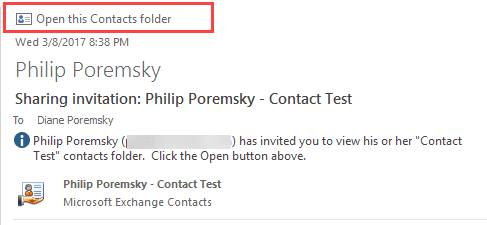
    Dim objPane As Outlook.NavigationPane
    Dim objModule As Outlook.CalendarModule

    Set objPane = Application.ActiveExplorer.NavigationPane
    Set objModule = objPane.Modules.GetNavigationModule(olModuleCalendar)

    With objModule.NavigationGroups

        For g = 1 To .Count
        Set objGroup = .Item(g)

            For i = 1 To objGroup.NavigationFolders.Count
            Set objNavFolder = objGroup.NavigationFolders.Item(i)

' need to use the calendar name as displayed in calendar list
            If objNavFolder = "Philip Poremsky - Test" Then
             Set CalFolder = objNavFolder.Folder
            End If
            Next
        Next
    End With

BobH says
As you had stated, GetFolderPath() won't work on a shared mailbox. I tried your suggestion to use the following code:
Dim NS As NameSpace
Dim Owner As recipient
Set NS = GetNamespace("MAPI")
Set Owner = NS.CreateRecipient("<display name of shared mailbox>")
Set temp = NS.GetSharedDefaultFolder(Owner, olFolderInbox).Parent.folders("CURRENT PROJECTS SAMPLE FOLDER")
Set Source = temp.folders("Master SAMPLE to copy 2023")
1) The 'Set temp...' statement evaluated OK and returned an object, the 'Set Source...' statement got a run time error '...object not found'. 2) Tried to only copy the 'Master SAMPLE...' folder to my primary mailbox, then use Set Source = NS.GetSharedDefaultFolder(Owner, olFolderInbox).Parent.folders("Master Sample...") and that failed with the same '...Object not found' error (also failed if copied to a PST file). It appears that this folder structure can NEVER be used, even if copied out of the shared mailbox to either a PST or a 'real' exchange mailbox.
Any solution to this issue?
The objective of my script is to copy this folder structure (a folder template that contains 1 top-level folder that would be renamed to the actual project name and several subfolders. This folder structure would end up getting copied to a chosen folder in the shared mailbox (utilizing .PickFolder). It depends on being able to use GetFolderPath() to create the new folder structure.
The remainder of the code that accomplishes this is:
Set Target = Application.Session.PickFolder
If Target Is Nothing Then Exit Sub
ProjectName = MsgBox("Enter Project Name", vbOKCancel + vbDefaultButton2, "Project Name")
If ProjectName = vbCancel Then Exit Sub
TargetPath = Target.FolderPath
Set Source = GetFolderPath(TargetPath + "\" + ProjectName)
LoopFolders Source.folders, Target.folders, True
End Sub
Sub LoopFolders(SourceFolders As folders, TargetFolders As folders, ByVal Recursive As Boolean)
Dim Source As Folder, Target As Folder
For Each Source In SourceFolders
Set Target = TargetFolders.Add(Source.Name)
If Recursive Then LoopFolders Source.folders, Target.folders, Recursive
Next
End Sub
Stratis says
i have a VBA in Excell that updates various calendars all of them in same level as inbox,
in cell A i have the name of the calendar . However only the default calendar is updated
For example i have Calendar, Birthdays, HolidaysinGreece, DCalendar, E Calendar
Any ideas what needs to be corrected?
If xRg.Cells(i, 1) = "Birthdays" Then
Set objCalendar = objNameSpace.GetDefaultFolder(olFolderCalendar).Folders("Birthdays")
ElseIf xRg.Cells(i, 1) = "DCalendar" Then
Set objCalendar = objNameSpace.GetDefaultFolder(olFolderCalendar).Folders("Birthdays").Folders("DCalendar")
ElseIf xRg.Cells(i, 1) = "ECalendar" Then
Set objCalendar = objNameSpace.GetDefaultFolder(olFolderCalendar).Folders("Birthdays").Folders("DCalendar").Folders("ECalendar")
ElseIf xRg.Cells(i, 1) = "holidaysinGreece" Then
Set objCalendar = objNameSpace.GetDefaultFolder(olFolderCalendar).Folders("Birthdays").Folders("DCalendar").Folders("ECalendar").Folders("holidaysinGreece")
Else
Set objCalendar = objNameSpace.GetDefaultFolder(olFolderCalendar)
End If
Set objApptItems = objCalendar.items
Set objHoliday = objApptItems.Add
Diane Poremsky says
First off, I would use the method in this article - https://www.slipstick.com/developer/create-appointments-spreadsheet-data/ - with the full folder name in the column instead of if's - change
Set subFolder = CalFolder.Folders(arrCal)
to
Set subFolder = CalFolder.Parentl.Folders(arrCal)
This identifies birthdays as a subfolder, not at the same level as the calendar/inbox etc.
Set objCalendar = objNameSpace.GetDefaultFolder(olFolderCalendar).Folders("Birthdays")
When the folder isn't found, it uses the Else statment.
Stratis says
Thank you Diane,
i tried to use your method mentioned instead, Yes it works fine in the subfolders, so started customising my file but not in the main calendar, Any ideas ?
Stratis says
Hi, Dianne
I have in Excell in Column A different calendars
as well as shared ones, Each row is a task
I have created a VBA that automatically created
Automatically i am trying to update the calendars i note in Column N (Column 14) , However only the default calendar is updated....
Now sure what i am doing wrong
In the code attached i am trying to update 2 test calendars Dcalendar and E Calendar that are on the same level with my calendar
but instead the default calendar is only updated,
Sub AddAppointments()
Dim objNameSpace As Namespace
Dim objCalendar As Folder
Dim objHoliday As AppointmentItem
Set objNameSpace = GetNamespace("MAPI")
....
If xRg.Cells(i, 14) = "Birthdays" Then
Set objCalendar = objNameSpace.GetDefaultFolder(olFolderCalendar).Folders("Birthdays")
ElseIf xRg.Cells(i, 14) = "DCalendar" Then
Set objCalendar = objNameSpace.GetDefaultFolder(olFolderCalendar).Folders("Birthdays").Folders("DCalendar")
ElseIf xRg.Cells(i, 14) = "ECalendar" Then
Set objCalendar = objNameSpace.GetDefaultFolder(olFolderCalendar).Folders("Birthdays").Folders("DCalendar").Folders("ECalendar")
ElseIf xRg.Cells(i, 14) = "holidaysinGreece" Then
Set objCalendar = objNameSpace.GetDefaultFolder(olFolderCalendar).Folders("Birthdays").Folders("DCalendar").Folders("ECalendar").Folders("holidaysinGreece")
Else
Set objCalendar = objNameSpace.GetDefaultFolder(olFolderCalendar)
End If
.....
Set objApptItems = objCalendar.items
Todd Palermo says
Hi Diane,
Thank you for your article. I am having some trouble with Shared Contacts. The goal is to copy all contacts from a Shared Contact folder to one of my own folders. The Shared Folder is a folder under the default folder from Example_Name@email.com. We are using Exchange. The Destination_Folder is a folder under my default folder. Are you able to tell what I am missing?
Sub CopyContacts() Dim ol_ContactItem As Outlook.ContactItem Dim ol_Name As Outlook.Namespace Dim ol_Folder As Outlook.Folder Dim ol_SharedFolder As Outlook.Folder Dim ol_Item As Object Dim ol_Recipient As Outlook.Recipient Set ol_Name = Outlook.GetNamespace("MAPI") Set ol_Recipient = ol_Name.CreateRecipient("Example_Name@email.com") ol_Recipient.Resolve Set ol_Folder = ol_Name.GetDefaultFolder(olFolderContacts) Set ol_SharedFolder = ol_Name.GetSharedDefaultFolder(ol_Recipient, olFolderContacts).Folders("Source_Folder") If ol_Recipient.Resolved Then For Each ol_Item In ol_SharedFolder.Items If ol_Item.Class = olContact Then Set ol_ContactItem = ol_Item.Copy ol_ContactItem.Move ol_Folder.Folders("Destination_Folder") End If Next End If End SubIan says
Can I use this to open a shared folder in a new window?
John Jakay says
how do I access a shared mailbox folder that is at same level as inbox?
Diane Poremsky says
use .parent -
Set newCalFolder = NS.GetSharedDefaultFolder(objOwner, olFolderCalendar)
Set myfolder = newCalFolder.parent.folders("My Folder")
Fry says
Thank you so much for this!
I'm trying to have the script read emails in shared Sent Items folders, but I'm getting the following at the Set objFolder = NS.GetSharedDefaultFolder(objOwner, olFolderSentMail) command:
"Run-time error '-2147024809 (80070057)':
Sorry, something went wrong. You may want to try again."
Could this be a permissions issue or am I syntaxing something wrong maybe?
Here's the code:
Public NS As NameSpace, objSelection As Outlook.Selection, objFolder As Folder

Sub SentByCG()

Set NS = Application.GetNamespace("MAPI")
Set objOwner = NS.CreateRecipient("Team Email")
objOwner.Resolve
If objOwner.Resolved Then Set objFolder = NS.GetSharedDefaultFolder(objOwner, olFolderSentMail)
Call ReadEm

End Sub
I tried using your UDF too but it isn't returning anything for "Items".
This is an important project so all help is greatly appreciated. Thank you!
Diane Poremsky says
I thought it was a permissions issue, but I'm getting it on mailboxes with the correct permissions. I don't know what the cause is (am looking into it - suspect its related to the default Exchange feature that saves sent items in the senders mailbox, not the shared mailbox) but getting the inbox or any other default folder then setting the sent items folder works -
Set olInbox = objNS.GetSharedDefaultFolder(objOwner, olFolderInbox)
Set olSentFolder = olInbox.Parent.Folders("Sent Items")
EagleDTW says
Hi Diane,
Found your code most helpful and implemented a method to mark read only most recent emails within a top level folder (and not a default folder name), hope this helps someone in the future as well:
Sub Sent_Email()
Dim Ns As Outlook.NameSpace
Dim i As Integer
Set Ns = Application.GetNamespace("MAPI")
'use the default folder
Set objInbox = Ns.GetDefaultFolder(olFolderInbox).Parent.Folders("Sent Email").Items
objInbox.Sort "[ReceivedTime]", True
i = 3
'do whatever
For Each objMessage In objInbox
If objMessage.Unread = True Then
objMessage.Unread = False
i = 3
ElseIf i = 0 Then GoTo LastLine
Else
i = i - 1
End If
Next
LastLine:
Set objInbox = Nothing
Set Ns = Nothing
End Sub
Thank you,
Daniel
rex says
hi all,
any idea if there is a script to read emails automatically and update the calendar. for example a staff wants a day off, and request leave from xx/xx/xx date to xx/xx/xx. can VBA be used to read this data and update the calendar automatically.
Diane Poremsky says
Yes, as long as it knows what to look for. I have two examples in this article -
Create Appointment From Email Automatically (slipstick.com)
Csaba Kato says
Hi! Im having problems with NDR messages, especially moving them with macros to a specific folder in a mailbox. This folder is not in the inbox, its at the same level as the inbox. Can you help me edit this macro to move the NDRs to this folder?
Private WithEvents Items As Outlook.Items
Private Sub Application_Startup()
Set Items = Session.GetDefaultFolder(olFolderInbox).Items
End Sub
Private Sub Items_ItemAdd(ByVal Item As Object)
On Error Resume Next
If UCase(Item.MessageClass) = "REPORT.IPM.NOTE.NDR" Then
Set Folders = Session.GetDefaultFolder(olFolderInbox).Folders
Set Folder = Folders.Item("nem_kezbesitheto")
If Folder Is Nothing Then
Folder = Folders.Add("nem_kezbesitheto")
End If
Item.Move Folder
End If
End Sub
Diane Poremsky says
If at the same level as the inbox, use
Set Folders = Session.GetDefaultFolder(olFolderInbox).parent.Folders
Raj says
Thank you very much @5
BIren says
Hi there,
How I will get favorite Item
Diane Poremsky says
Entries on Favorites are not accessible, AFAIK.
Abid Hafeez says
I have ran a script to hide folders in outlook 365 and have acidently hidden my inbox. This had been replicated through to OWA and am unable to see my inbox folder in both the outlook app and OWA but in OWA I cam able to view the emails from the inbox but not to actual inbox folder.
Could you please advise how I can get back the inbox folder in my outlook app so it will be replicated on the server and show in my OWA.
I hope to hear form you soon
Diane Poremsky says
You can either use a macro to unhide it or mfcmapi
https://www.slipstick.com/outlook/delete-outlooks-default-folders/#hide
use Set oFolder = Session.GetDefaultFolder(olFolderInbox) for the folder, in place of the current folder line, and change the value from True to False then run it.
SUHEL Humayun says
Hi Diana
Kindly help me out.
While I paste data from excel to outlook. It is giving me a error 91 every time. Ones I press debug and press f8 then it give me a result.
So how I can fix it.
Diane Poremsky says
Does it say object variable not set? What is the code you are using?
Felix says
Hi Diane,
What i'm trying to achieve is to check one mailbox for pdf attachments (did it this way:
Sub MoveDocFilesToCRiess(Item As Outlook.MailItem)
Dim olkAtt As Outlook.Attachment
'Check each attachment
For Each olkAtt In Item.Attachments
'If the attachment's file name ends with .pdf
If Right(LCase(olkAtt.FileName), 4) = ".pdf" Then
'Move the message to Test
Item.Move Session.GetDefaultFolder(6).Parent.Folders("test")
'No need to check any of this message's remaining attachments
Exit For
End If
Next
Set olkAtt = Nothing
End Sub)
and if found forward that mail to a different email address and if no pdf attachments found move it to another mailbox folder that's opened in the same session
Diane Poremsky says
Do you have a rule set to move? The code looks good, so it should be the one moving it.
Stella says
Hi Diane,
You helped me write my VBA code for pulling out specific fields beautifully and I am successfully pulling in everything I want from my shared mailbox inbox. I am trying to connect to a specific folder called "TestRNCJ", and nothing has worked for me. If I try changing the "olFolderInbox" to any other function, I get an error, let alone trying to connect a specific folder to my code. Please let me know if you have any idea what's going on and thanks in advance, Diane!
Stella
Diane Poremsky says
You need to set the parent folder - then work your way down to the subfolder.
Set newInboxFolder = NS.GetSharedDefaultFolder(objOwner, olFolderInbox)
Set newInboxFolder = newInboxFolder.folders("subfoldername")
Anthony Jones says
Hi, I have been using the Function GetFolderPath for sometime now and it worked well - until I updated to Excel for Office 365 (32 bit).
Now the code has returns an error 438 at this line:
Set oFolder = Application.Session.Folders.item(FoldersArray(0))
I am wondering if this has to do with my references library? I have attached a snapshot of my references
Thanks for any pointers
Diane Poremsky says
You have the correct version Excel 16. (Office 2016, 2019, 365 are all v. 16.0)
Kim Murdock says
Thank you, Diane, for the above code. I've been programming in vba for a long time and really appreciate your generosity. However, I'm afraid I may be missing something here.
Your example is intended to share contacts, yes? But all the objects in your code are Calendar objects. Can I simply replace "Calendar" where it exists with "Contacts"?
Diane Poremsky says
Yes, you can swap the names out -
Damian Gonzales says
Hello Diane,
I am new to scripting & VBA and so far I have perused the innerweb's and have come across your website. Great article and resources. This is greatly appreciated by us noobs!
No to the nitty-gritty. I am looking for a basic VBA for Outlook that will allow me to view the current sent received items of selected folders in Outlook & export to excel.
Currently I have a script that will give me a total count on selected folder, but I have to run it one folder at a time and with a screen pop that tells me the count. However, I would like to Run the VBA script that will allow users to select a folder or set of folders with possible date and time selections to get the count of sent a received emails to export to Excel.
Is this possible and would you be willing to lend a helping hand and modify my existing code?
Thank you,
DoM
Diane Poremsky says
It is possible. Do you want them to select random folders or a parent and it's subfolders? Parent/subs is easy - getting a list of random folders is more difficult.
Sending to excel (or a text file) is fairly easy - this is one example of how to find the next empty row in Excel. (You'll want to remove the block that writes the emails to Excel.)
Damian Gonzales says
Hello Diane,
I would like for them to select parent/subs. If I shared the code I currently run in Outlook, could you help modify to work with parent/subs and export to csv or excel?
Thank you,
DoM
Diane Poremsky says
You need to use the GetFolder function to walk the subfolders. Yes, if you share the code i can edit it to work with the function.
Damian Gonzales says
Diane,
Thank for your willingness to assist me with this. I have attached the code that I currently have running as a Macro in outlook.
Modify accordingly.
Thank you,
DoM
Diane Poremsky says
This writes just the count to a text file.
Sub CountItems()Dim objMainFolder As Outlook.folder
Dim lItemsCount As Long
Dim fso As Object
Dim strURL, objFile, sFilePath As String
'Select a folder
Set objMainFolder = Outlook.Application.Session.PickFolder
If objMainFolder Is Nothing Then
MsgBox "You should select a valid folder!", vbExclamation + vbOKOnly, "Warning for Pick Folder"
Else
'Initialize the total count
lItemsCount = 0
Call LoopFolders(objMainFolder, lItemsCount)
End If
Set fso = CreateObject("Scripting.FileSystemObject")
sFilePath = "D:\Documents"
trURL = sFilePath & "\Folder-count.txt"
' Set objFile = fso.CreateTextFile(strURL, True)
Set objFile = fso.CreateTextFile(strURL)
objFile.WriteLine lItemsCount
objFile.Close
'Display a message for the total count
' MsgBox "There are " & lItemsCount & " items in the " & objMainFolder.Name & " folder Including its subfolders.", vbInformation, "Count Items"
Set fso = Nothing
Set objFile = Nothing
End Sub
I have a similar macro at - https://www.slipstick.com/developer/print-list-of-outlook-folders/ - it splits the counts by folder.
Damian Gonzales says
Diane,
That worked as well as the referenced macro. Which line should I change to save to TXT, instead of opening Outlook, kind of like the fixed macro you provided me.
Thank you for your assistance you are making me look like such a hero! I am happy I came across your site!!!
Diane Poremsky says
That macro should save as a text file as written.
Sophia says
Hi Diane. Thank you for this helpful introduction to Microsoft Outlook VBA. I am currently trying to figure out a way to have an Outlook meeting 'close' after getting the meeting accepted by required roles. The meeting invite is sent out to the whole department and can only occur once the necessary people are able to attend. Would you happen to have something like this already written or have an idea of how to execute this? Thanks.
Diane Poremsky says
You'd need to check the acceptances and see if all accepted - its certainly doable using VBA.
I have a sample that closes a room when the room is full - that can be the basis for your macro or you can watch for declines.
https://www.slipstick.com/developer/code-samples/close-meeting-room-full/
Gary says
Sharing this code as it took me ages to work out how to create a meeting request from a shared calendar
Sub SendEmailFromSharedMailbox()
Dim olApp As Outlook.Application
Set olApp = Outlook.Application
Dim olNS As Outlook.Namespace
Dim objOwner As Outlook.Recipient
Set olNS = olApp.GetNamespace("MAPI")
Set objOwner = olNS.CreateRecipient("Shared Mailbox Name")
objOwner.Resolve
If objOwner.Resolved Then
MsgBox objOwner.Name
Set newCalFolder = olNS.GetSharedDefaultFolder(objOwner, olFolderCalendar)
'Now create the email
Set olAppt = newCalFolder.Items.Add(olAppointmentItem)
With olAppt
'Define calendar item properties
.Start = "19/9/2019 2:00 PM"
.End = "19/9/2019 2:30 PM"
.Subject = "Appointment Item Here"
.Recipients.Add ("someone@email.com")
.Display
End With
End If
End Sub
Tom Pedersen says
My office uses OUTLOOK Office 365.I have my personal account and secondary shared account "DSC Ethernet Design" that I want to write a VBA macro that runs a rule on the shared account's inbox to move to another folder and forward the email to another email address.
I have no idea what I'm doing, or how to do it, but there has to be a simpler way to automate it instead of click, forward, move manually.
Al Grant says
Hi,
I am trying to use your code as it is relevant to what I want to do with outlook. Would you mind taking a look at my stackoverflow question which references your code : https://stackoverflow.com/questions/55526145/excel-vba-create-meeting-in-non-default-calendar
Diane Poremsky says
Is the account an exchange account? Use the shared mailbox sample - and after setting the accounts, you set the sub folder:
Set newCalFolder = NS.GetSharedDefaultFolder(objOwner, olFolderCalendar).Folders("calendar name")
It's actually recommended to use fewer dots, so this is better:
Set CalFolder = NS.GetSharedDefaultFolder(objOwner, olFolderCalendar)
set newCal = calfolder.Folders("calendar name")
using a folder at the same level as the calendar using parent.folders("calendar name")
You can also use the GetFolderPath macro (for exchange accounts, or pst) and would put the calendar path when you call it.
Joshua D Lutzow says
Hi Diana,
I am trying to move items from my default sent folder to my default inbox and mark them as unread (without getting the stupid notification for emails that I sent)
I tried to use this with no luck. I am very new to VBA but i know how to pull information from the web i need together to make things happen the way i want it to. That isn't the case today :
Private WithEvents Items As Outlook.Items
Private Sub Application_Startup()
Set Items = Session.GetDefaultFolder(olFolderSentMail).Items
End Sub
Private Sub Items_ItemAdd(ByVal Item As Object)
Set MovePst = GetFolderPath(olFolderInbox)
Item.UnRead = False
Item.Move MovePst
End Sub
I am getting the error "compile error: sub or function not defined" at the 6th line at "GetFolderPath" which VBA highlights.
Could you help me out with this?
Diane Poremsky says
You need the GetFolderPath function in the Use a folder in another pst or mailbox section above.
Kevin says
Hi Diane, thank you for putting all these materials together! I'm quite new to this, and am trying to combine the "Send Meeting Requests" code with the "Use a shared folder (Exchange mailbox)" code. Everything works great when using my default email, but I'm having difficulties with the shared folder code.
Below is the combination of the two. It's resulting in a compile error: Variable not defined from "newCalFolder" listed in the "shared folder" code set. Am I missing something?
Option Explicit
Public Sub CreateOutlookAppointments()
Sheets("Sheet1").Select
On Error GoTo Err_Execute
Dim olApp As Outlook.Application
Dim olAppt As Outlook.AppointmentItem
Dim blnCreated As Boolean
Dim olNs As Outlook.Namespace
Dim CalFolder As Outlook.MAPIFolder
Dim i As Long
On Error Resume Next
Set olApp = Outlook.Application
If olApp Is Nothing Then
Set olApp = Outlook.Application
blnCreated = True
Err.Clear
Else
blnCreated = False
End If
On Error GoTo 0
'Beginning of "Use a shared folder (Exchange mailbox)" code
Dim NS As Outlook.Namespace
Dim objOwner As Outlook.Recipient
Set NS = Application.GetNamespace("MAPI")
Set objOwner = NS.CreateRecipient("maryc") 'Is "maryc" the Shared folder name?
objOwner.Resolve
If objOwner.Resolved Then
'MsgBox objOwner.Name
Set newCalFolder = NS.GetSharedDefaultFolder(objOwner, olFolderCalendar)
End If
'End of "Use a shared folder (Exchange mailbox)" code
i = 2
Do Until Trim(Cells(i, 1).Value) = ""
Set olAppt = CalFolder.Items.Add(olAppointmentItem)
With olAppt
.MeetingStatus = olMeeting
'Define calendar item properties
.Subject = Cells(i, 1)
Diane Poremsky says
This is the mailbox name or alias -
Set objOwner = NS.CreateRecipient("maryc") 'Is "maryc" the Shared folder name?
The problem is here -
Set olAppt = CalFolder.Items.Add(olAppointmentItem)
it should be newCalFolder, not calfolder.
Rohan says
I want to apply this to a subfolder that is on the exchange, how do I get the name of this folder to put into the line " Set Items = NS.GetSharedDefaultFolder(objOwner, olFolder4. SiSTER Emails - Sent).Items" in this case the folder name is "4.SiSTER Emails - Sent" but this doesn't work. Can somebody please help me get the right folder name?
Kauê Vaz says
Hello,
I have a big problem
In the company where I work, we use Outlook 2010.
Problem description:
We use a generic email box "Plataforma.Comercial@domínio.com.br", this email is used by approximately 20 people.
Every day we receive about 200 e-mails in this e-mail.
I created a rule for when a new email arrives to be verified, where:
The email address of the email must contain "@ domínio.com.br" or "@ domínio2.com.br", and in the sequence it categorizes the email as "Consultant Diamond".
However, the rule only runs "on this computer" and does not run in the shared email box.
I thought about creating a macro to run whenever a new email enters the generic box, calling the "Plataforma_Comercial" rule and executing it only on new (unread) emails.
Is there a way to do this?
Reuben Dayal says
Hi Diane,
Thank you for this tutorial.
Is it possible to use a PickFolder dialog box with a non default folder?
I have two exchange accounts at work and incidentally the account I use more often is a one that my team member I use (just the two of us). And I am trying to use the PickFolder function to open a clients folder which is a subfolder under our team email's inbox. But as the PickFolder must normally look like NameSpace.PickFolder statement, the mailbox selected is always my main official email box and not our team's mail box. Can you suggest an alternate to make the PickFolder open a non default folder when it starts?
Thank you.
Reuben
Dilip Sharma says
Hi Diane,
I have a query that im using office multiple mailbox in outlook... One is my personal and rest is Business shared mailbox which is added with option Add Account in Settings then Data Files. Im able to extract mailbox details of my default account which is personal but not able to reach if im using shareddefaultfolder and them name of mailbox "BCs@abc.com". Please help me to get Bcs shared mailbox inbox item in excel.
Ryan says
Diane, i am trying to extract attachments within attachments and automatically save them to a folder on my hard drive. The example would be if someone forwarded me a bunch of emails with .pdf attachments within a single email so that all of the original emails show as attachments within the actual sent email. I am having an extremely hard time figuring this out. Can you help?
Mayank says
Hey Diane. I am facing a major issue with my outlook 2013. I have 3-4 shared mailbox calendars. I have also added a SharePoint 2013 calendar using "Connect to Outlook" functionality. However, I have noticed that whenever I try and create any event in the shared mailbox calendars, the SharePoint calendar automatically disappears. This happens when I double click on any date of the shared mailbox calendars or if I select a date and click on "New Appointment/Meeting" in shared mailbox calendars. Also, I have to close my Outlook and have to perform "Connect to outlook" each time from the SharePoint site whenever this happens. Do you have any solution to this? I have been stuck with this issue since last month with no possible solution. Thanks for your help.
PS: This is happening only when we try and create events in shared mailbox calendar. Tried the same for multiple users and all are facing the same issue i.e the SharePoint calendar suddenly disappears.
Diane Poremsky says
That is a new issue to me - sounds like an update added a bug. I'll see if i can repro it.
Mayank says
Thank you for reverting Diane. Please let me know if you happen to find a solution for this issue.
Mayank says
Hey Diane. Did you get a chance to look into this issue? Thanks for your help.
Diane Poremsky says
No, not yet. Will try to take a look at it tomorrow.
EnriqueSalas says
Hi Diane,
My actual macro is "Only move sent mail from one account + GetFolderPath function" and it just does not do anything, i used O2016 (imap uses a .ost) and i only want change the default sent folder by other in the same level for one acount.
I only change the real mail by myacount@mydomain.es.
Thanks!
Private WithEvents Items As Outlook.Items
Private Sub Application_Startup()
Set Items = Session.GetDefaultFolder(olFolderSentMail).Items
End Sub
Private Sub Items_ItemAdd(ByVal Item As Object)
If Item.SendUsingAccount = "myacount@mydomain.es" Then
' Get the GetFolderPath function from http://slipstick.me/getfolderpath
Set MovePst = GetFolderPath("myacount@mydomain.es\inbox\enviado")
Item.Move MovePst
End If
End Sub
Function GetFolderPath(ByVal FolderPath As String) As Outlook.Folder
Dim oFolder As Outlook.Folder
Dim FoldersArray As Variant
Dim i As Integer
On Error GoTo GetFolderPath_Error
If Left(FolderPath, 2) = "\\" Then
FolderPath = Right(FolderPath, Len(FolderPath) - 2)
End If
'Convert folderpath to array
FoldersArray = Split(FolderPath, "\")
Set oFolder = Application.Session.Folders.Item(FoldersArray(0))
If Not oFolder Is Nothing Then
For i = 1 To UBound(FoldersArray, 1)
Dim SubFolders As Outlook.Folders
Set SubFolders = oFolder.Folders
Set oFolder = SubFolders.Item(FoldersArray(i))
If oFolder Is Nothing Then
Set GetFolderPath = Nothing
End If
Next
End If
'Return the oFolder
Set GetFolderPath = oFolder
Exit Function
GetFolderPath_Error:
Set GetFolderPath = Nothing
Exit Function
End Function
Enrique says
Hi Diane,
Thanks for this work but I can not make it work, Sorry but i have no experience with macros and I do not know what to put in Sub
I try for example:
Sub Application_ItemSend()
But always receibe a error from the Sub line
I use O2016
With this macro i want to move the sent folder from "bandeja de enviados" to "Sent" because my imap server don't suport XLIST
Thanks!
Diane Poremsky says
what is the full macro you are trying to use? Which line errors?
Enrique says
Hi Again,
I have 2 acounts and i want that default sent for one of them change to "sent" folder instead "documentos enviados"
If a put: Session.GetDefaultFolder(olFolderSentMail).Parent._Folders("Sent").Items
I have an compilation error: Character unknow.
Whitout "_" is ok, but when execute i have another error: 424
an object is required
I think that is for de "If" that i add but without lines "if.." and "End If" continue without work with error: -2147221233 (8004010f):
an object was not found
All is not KO, i'm a disaster :/
My current full code that i'm triying:
Private Sub Application_Startup()
If Item.SendUsingAccount = "acount@domain.com" Then
Dim Ns As Outlook.NameSpace
Set Ns = Application.GetNamespace("MAPI")
'use the default folder
Set Items = Session.GetDefaultFolder(olFolderSentMail).Parent.Folders("Sent").Items
'do whatever
End If
End Sub
Thansk a lot
Diane Poremsky says
>> Session.GetDefaultFolder(olFolderSentMail).Parent._Folders("Sent").Items
The _ does not belong... is there a folder named Sent at the same level as the Sent Items folder? Try using Session.GetDefaultFolder(olFolderSentMail).Items - that tells outlook to look at the default sent folder.
If that fails use olFolderInbox instead of olFolderSentMail - Session.GetDefaultFolder(olFolderInbox).Parent.Folders("Sent").Items
Enrique says
One more thing:
I started doing a rule like this:
https://www.slipstick.com/outlook/email/choosing-the-folder-to-save-a-sent-message-in/
It worked, but the mail copied is not the same that the original, i think that it have a flag that say that is a copy and this mail is not sincronice, all the folder is synchronized, all mails in this folder are synchronized less the mail copied whit this rule.
when I realized I could not believe it, and i can't change it, I have tried everything that has occurred and nothing, the copie not sincronice.
Diane Poremsky says
Are you using an IMAP account? I've seen this behavior with some imap accounts.
Enrique says
hello,
Today i do two replys to Diane but i can see them now,
I don`t understand ¿they are eliminated by moderator?, ¿why?
Diane Poremsky says
They are here - messages are kept in moderation until i have time to answer them (it makes it easier to find the messages) and I'm a few days behind in answering messages here. :(
Nikitha says
Hey Diane. Is there a way to copy all the existing events from one calendar to another?
Diane Poremsky says
Using VBA or just manually? Yes to both.
If you are doing it manually, use a list view. https://www.slipstick.com/tutorial/merging-two-calendar-folders/
I have a macro here - https://www.slipstick.com/developer/copy-new-appointments-to-another-calendar-using-vba/ that could easily be changed to copy all events.
Clayton C Smith says
How would I use VBA to give specific permission to those the calendar is share with?
Diane Poremsky says
you'll need to use Redemption to set it using VBA. http://www.dimastr.com/redemption/RDOACL.htm
Mayank says
Hi Diana. Can you please assist me in copying events from a calendar other than the default calendar? Currently, I have the code working for copying events from my default calendar. Thanks for all your help
Diane Poremsky says
Where is the folder? If its a subfolder of the default, use
Session.GetDefaultFolder(olFolderCalendar).Folders("SharedCal")
If its at the same level as the default folder, use
Session.GetDefaultFolder(olFolderCalendar).parent.Folders("SharedCal")
Mayank says
The folder that I want to copy the items from is a calendar that has been shared by a user. How do I modify my code so that I can copy events from this calendar? Also, will the delete functionality work if I use this calendar instead of my default calendar. Thank you for helping me out
Diane Poremsky says
You'll need to use the code to resolve the user. Depending on permissions, the deleted event might be in your calendar or the calendar owner's folder. If its in the owner's folder, you can watch that folder provided it was shared with you and is open in your profile.
https://www.slipstick.com/developer/working-vba-nondefault-outlook-folders/#shared
Set newCalFolder = NS.GetSharedDefaultFolder(objOwner, olFolderCalendar)
Set deletedFolder = NS.GetSharedDefaultFolder(objOwner, olFolderDeletedItems)
Mayank says
Also, I tried using another calendar to copy from instead of my default outlook calendar. I was able to copy the new appointments/edit appointments but when I deleted the items from the calendar from which I copied these items, the copied events in the new calendar were not getting deleted. I checked my deleted items folder and found that only the deleted items from my default outlook calendar were appearing there and the deleted items from any other calendar are not appearing in that folder. Is there a way I can make the delete functionality work?
Diane Poremsky says
Where is the calendar - in a shared mailbox, or a different mailbox? You'd have to watch the correct deleted items folder.
Mayank says
Thank you so much Diane. It worked when I passed the calendar name to Set newCalFolder = NS.GetSharedDefaultFolder(objOwner, olFolderCalendar). Also, is it possible to move the deleted events from a SharePoint calendar to the Deleted Items folder?
Diane Poremsky says
don't the SharePoint events go into your own deleted items folder? if you mean, you need to watch to folders, you can - you need to add a new folder to watch and duplicate the code that deletes.
Richard says
Hi Diana
I'm working on a script to automatically create calendar appointments based on the subject line in an email which I have working great for my default calendar. The subject line format is as follows:
"new appointment, appointment subject, location, start date & time 1/1/2016 4 PM, duration in minutes"
I have multiple different calendars and one of the strings in the subject line will determine which calendar the appointment will be saved to.
The calendar name will be in "apptArray(2)"
For example, one of the calendars is called "Conf 1" so my email subject line would be:
"new appointment, Richard, Conf 1, 30/04/18 12:30 p, 60"
How would I modify this code below to choose which calendar I want the appointment to be created in? I would really appreciate your assistance?
----------------------------------------------------------------------------------
Dim WithEvents olInbox As ItemsPrivate Sub Application_Startup()
Dim ns As Outlook.NameSpace
Set ns = Application.GetNamespace("MAPI")
Set olInbox = ns.GetDefaultFolder(olFolderInbox).Items
Set ns = Nothing
End Sub
Private Sub olInbox_ItemAdd(ByVal Item As Object)
' subject is arranged like this:
' new appointment, appointment subject, location, start date & time 1/1/2016 4 PM, duration in minutes
' do not use commas except as separators
If InStr(1, LCase(Item.Subject), "new appointment") Then
Dim objAppt As Outlook.AppointmentItem
Dim apptArray() As String
'split the subject at the comma
apptArray() = Split(Item.Subject, ",")
Set objAppt = Application.CreateItem(olAppointmentItem)
With objAppt
' .MeetingStatus = olMeeting
' .RequiredAttendees = Item.SenderEmailAddress
.Subject = apptArray(1)
.Location = apptArray(2)
.Start = apptArray(3)
.Duration = apptArray(4)
.Body = Item.Body
.Save
' .Send
End With
Set objAppt = Nothing
End If
End Sub
Diane Poremsky says
>> Set objAppt = Application.CreateItem(olAppointmentItem)
uses the default folder.
You need to set the folder - which will easiest if the folders are all within the same mailbox at the same level (or all are the Calendar in shared mailboxes). For example, all are subfolders of the default calendar.
Set CalFolder = olNs.GetDefaultFolder(olFolderCalendar)
arrCal = apptArray(2)
Set subFolder = CalFolder.Folders(arrCal)
Set objAppt = subFolder.Items.Add(olAppointmentItem)
Richard says
Thanks for your help! I'm a rookie at this so I'm struggling a bit with the syntax
Set CalFolder = olNs.GetDefaultFolder(olFolderCalendar)
I keep getting the same error on the above line:
Run-Time Error '424': Object Required
Also, all my calendars are on the same level as my default calendar, they are all under the root directory, how would that change the syntax of the code you recommended?
Diane Poremsky says
This would get a folder at the same level as the default calendar"
olNs.GetDefaultFolder(olFolderCalendar).Parent.Folders("Conf1")
I'll need to see the full code to know why the error - best guess in the namespace object, olns, isn't set.
Amy says
Hi Diana,
Thanks for the tutorial.
I am working on a utility where in I need to access a shared calendar of other person and update its appointments. The person has shared the calendar with me with "Owner" access right and also I can see the calendar under my "Shared Calendars". However, when I access or display the calendar I get an error- "Cannot display the folder. Microsoft Outlook cannot access the specified folder location."
Below is my code. Appreciate any help!!
Set Application = GetObject(, "Outlook.Application")
If Application Is Nothing Then Set olApp = CreateObject("Outlook.Application")
Set myNamespace = Application.GetNamespace("MAPI")
Set myRecipient = myNamespace.CreateRecipient("xyz")
myRecipient.Resolve
If myRecipient.Resolved Then
Set CalendarFolder = myNamespace.GetSharedDefaultFolder(myRecipient, olFolderCalendar)
CalendarFolder.Display
Diane Poremsky says
do you get that message all the time when you try viewing it or only when you use the macro? It's a weird error for the situation - it typically means something is wrong with the ost. Renaming the ost should fix the error.
guest says
Hi , thanks for tutorial.
can you share how to include all folders inside a default mailbox. I have folders inside inbox and subfolders inside folders.
Does the below code include all items under sharedmailbox folder inbox
Session.GetsharedFolder(olinbox)._Folders("folder1").folders("folder2").folders("folder_under_folder2")
Diane Poremsky says
that would only work on the folder named "folder_under_folder2". If you need to work with each subfolder, you need to "walk" the folders, using code like this: http://www.vboffice.net/en/developers/looping-recursively-through-folders-and-subfolders
Gimmy says
How to create in the Inbox a new folder with a subfolder? And how to check if the folder or the subfolder or both already exist?
Diane Poremsky says
I have sample code that creates folders from a list in Excel at https://www.slipstick.com/developer/code-samples/create-outlook-folders-list-folder-names/ - the part that creates the folder is below. As written, it creates the subfolder under the selected folder.
Dim objParentFolder As Outlook.Folder
Dim objNewFolder As Outlook.Folder
Set objParentFolder = Application.ActiveExplorer.CurrentFolder
Set objNewFolder = objParentFolder.Folders(newFolderName)
If objNewFolder Is Nothing Then
Set objNewFolder = objParentFolder.Folders.Add(newFolderName)
End If
Chen says
Dear Diane,
Thank you very much for this useful post and the entire website.
I'm successfully using VBA to create and delete appointments as needed, yet I'm unable to do so for a shared sub-folder calendar of another Exchange user although that user configured me also as the Owner of that sub-folder.
How is that possible? Would appreciate a tip on how to overcome this.
All the best,
Chen
Chen says
Did some further reading of your various posts here. I must admit, it is thanks to you that I was able to elevate my Excel skills of formulas towards VBA. These scripts/macros were always something I avoided from getting into. Not anymore, again - thank you!
I'm writing in response to my own question for the benefit of others who may have bumped into this challenge like I did. So from your posts I learned that I need to ensure the parent folder and also root folder (AKA Outlook Today) has at least the 'Folder Visible' permission. Then, I added the accounts of the other users to the 'open these additional mailboxes' under my own Exchange account. It works!!
Now my next challenge is to have a distribution list which is being permitted as Editor of the sub-folder (and visible up to the root) instead of having my own Exchange account specified. Hope this is supported.
Thank you!!
John says
Could you share your code to do this?
Diane Poremsky says
If its in as an account, use the GetFolderPath function then call it
Set newCalFolder = GetFolderPath("alias@domain.com\Calendar").
If it's opened as a shared folder, you need to use the shared code on this page to resolve the owner then get the calendar, like this:
Set newCalFolder = NS.GetSharedDefaultFolder(objOwner, olFolderCalendar)
one way to get subfolders of the calendar is
set newCalFolder = newCalFolder.folders("foldername")
Johann Barth says
I have permission for a calendar subfolder, but not the folder. Is there a way to reference the subfolder?
Diane Poremsky says
You would use the .folders method. You will need to have view folder permission on the parent folders - but if you can open the subcalendar in your profile, you have the correct permissions.
Set newCalFolder = NS.GetSharedDefaultFolder(objOwner, olFolderCalendar)
Set SubCalendar = newCalFolder.folders("sub cal name")
Johann Barth says
I had exactly that code; it worked for a while, then suddenly didn't. I thought maybe my calendar permissions had changed, but from what I can tell, theyhadn't.So now I'm really stuck. One would think that if you can view it you can reference it, but I guess not. Let me know if you have any further advice.
Diane Poremsky says
Do you get any error messages? Were any updates installed right before it stopped working? Was macro security changed without you knowing?
Johann Barth says
I found a way!! Modified from my code, so untested:
Dim MyOlapp As Outlook.Application
Dim objExpCal As Outlook.Explorer
Dim objNavMod As Outlook.CalendarModule
Dim objNavGroup As Outlook.NavigationGroup
Dim MyFolder as Outlook.folder
Set MyOlapp = CreateObject("Outlook.Application")
Set objExpCal = Session.GetDefaultFolder(olFolderCalendar).GetExplorer
Set objNavMod = objExpCal.NavigationPane.Modules.GetNavigationModule(olModuleCalendar)
Set objNavGroup = objNavMod.NavigationGroups.GetDefaultNavigationGroup(olPeopleFoldersGroup)
FolderName = "SWF>VVS Shuttles"
set MyFolder = objNavGroup.NavigationFolders(FolderName)
krish says
Hi Diane. I have pasted an outlook mail in a windows explorer folder. How to check if the mails exists in the folder. Can you help me out in the code to retrieve it? Thanks in advance.
Diane Poremsky says
You'll need to use filesystem object to check File Explorer. This is one example of using fso to save messages in the file system - https://www.slipstick.com/developer/code-samples/save-messages-and-attachments-in-a-new-folder/
You'd need to use an if statement to see if the file existed, and change the name if it does.
strFile = objAttachments.Item(i).FileName
If Dir(strFile) <> "" Then
' the file exists
Else
' file does not exist
End If
Gosia says
Hi Diane, I am quiet new in VBA and I would really appreciate if you could help me. I need to add new meetings to few shared calendars. I have all the delegate accesses needed. Your code “Use a shared folder” is working perfectly when I launch it in Outlook. However, what I need is to open it in Excel (all the meetings datas are listed in my excel worksheet and I just need to use them directly in the macro). I’ve already tried to use your macro from “Create Appointments Using Spreadsheet Data” but it uses subfolders instead of shared folders. I've tried to convert this Outlook macro by myself but I get error message in the line “objOwner.Resolve”. Error: Object variable or With block variable not set. Please see the code below. Is there something that I should add or modify?
Sub CreateAppointmentSharedCalendar()
Dim objOutlook As Outlook.Application
Dim objAppt As AppointmentItem
Dim objNamespace As Outlook.Namespace
Dim newCalFolder As Outlook.Folder
Dim objOwner As Outlook.Recipient
Set objOutlook = Outlook.Application
Set objOutlook = CreateObject("Outlook.Application")
Set objNamespace = objOutlook.GetNamespace("MAPI")
Set NS = objNamespace.CreateRecipient("Shared calendar name")
objOwner.Resolve
If objOwner.Resolved Then
Set newCalFolder = NS.GetSharedDefaultFolder(objOwner, olFolderCalendar)
End If
Set objAppt = newCalFolder.Items.Add(olAppointmentItem)
With objAppt
.MeetingStatus = olMeeting
.Start = #12/10/2017 1:30:00 PM#
.Duration = Range("B2")
.Subject = Range("A1")
.Body = "Test"
.Location = Range("A2")
.RequiredAttendees = "john.doe@gmail.com"
.ForceUpdateToAllAttendees = True
.Save
End With
Set objAppt = Nothing
Set newCalFolder = Nothing
Set objNamespace = Nothing
Set objOutlook = Nothing
End Sub
Is there something that I should add or modify?
Diane Poremsky says
Sorry I missed this earlier. Assuming the calendar owner's alias (maryc, dianep etc) is in the spreadsheet, you'd use something like this in the Create Appointments Using Spreadsheet Data macro: (I did not test it, so there might be minor errors)
Set CalFolder = olNs.GetDefaultFolder(olFolderCalendar)
i = 2
Do Until Trim(Cells(i, 1).Value) = ""
' calendar owner alias
arrCal = Cells(i, 1).Value
Set objOwner = olNs.CreateRecipient(arrCal)
objOwner.Resolve
If objOwner.Resolved Then
Set newCalFolder = NS.GetSharedDefaultFolder(objOwner, olFolderCalendar)
End If
Set olAppt = subFolder.Items.Add(olAppointmentItem)
jithesh says
iam working with a shared mail box , i have written VBA code to get the details of the mail movement from one folder to other , and iam getting the details when other peoples do the same way except the user name who has moved , Can you please help me to get that details
Diane Poremsky says
You need the 'changed by' field, but i'm not sure that is exposed to vba or in an extended mapi property (I'm on vacation and can't test macros on my laptop to see if i can get that field.)
Steve Delia says
Thank you for all of this Diane - it has been greatly helpful!
I had been successfully using your "GetFolderPath" with the following code:
Sub openMailFolder(ByVal strDisplayName As String)Dim objOlApp As Outlook.Application
Dim objFolder As Outlook.folder
Set objOlApp = CreateObject("Outlook.Application")
Set objFolder = GetFolderPath(strDisplayName)
'ugly error from next line
Set objOlApp.ActiveExplorer.CurrentFolder = objFolder
Set objFolder = Nothing
Set objOlApp = Nothing
End Sub
But unexpectedly ( I believe after our company exchange was upgraded to Exchange Online),
the openMailFolder would throw an ugly error on the line marked above.
Error : "Run-time error '-2147221233 (8004010f)' : The attempted operation failed. An object could not be found.
Here's what weird - note the 2nd Dim statement and that the ".folder" is all lowercase.
That is being resolved that way.
I type "Dim objFolder as Outlook.", then press "F".
"Folder" shows in the drop down, but when I press enter, "Outlook.Folder" gets changed to "Outlook.folder".
I think I have the right libraries referenced.
For sure, I have "Microsoft Outlook 16.0 Object Library".
I am running Outlook 2016, connected to Exchange Online/O365.
I greatly appreciate any help you can provide.
Diane Poremsky says
>> Here's what weird - note the 2nd Dim statement and that the ".folder" is all lowercase.
I don't know why it does it, but it happens here too. Still works.
I'm guessing it is not resolving strDisplayName - otherwise it should work with the online exchange (I use it and the macros work for me.)
What is the value of strDisplayName ? is it a shared mailbox?
Rafi Schwartz says
I have code to search outlook folders for a particular folder however I am on an exchange and need to limit the search to my local PST and was wondering if you have any code that would allow me to limit search to only folders under the Inbox in my local PST.
Thanks
Diane Poremsky says
you'll need to check for message store
Dim oStore As Outlook.Store
Dim oStores As Outlook.Stores
Set oStores = Application.Session.Stores
Set oStores = Application.Session.Stores
For Each oStore In oStores
if oStore = "pst name" then
...
Jeferson Pardo says
In addition to the previous thread I've trying to write a code to set several appointments to outlook shared calendar from excel
Diane Poremsky says
This shows how to import from excel to a calendar - https://www.slipstick.com/developer/create-appointments-spreadsheet-data/ - depending on how the calendar is opened in outlook, you'll probably need to use the shared mathod on this page.
Jeferson Pardo says
Hi Diane:
I'm using an outlook shared calendar. The idea would be to import from excel to another users outlook shared calendar.
I am using the GerSharedDefault folder method but always shows an automatation error. Iused your code to import from excel to outlook and it works great in my default calendar but I cannot use it in a shared calendar.
Thanks,
Diane Poremsky says
What is the full code you are using? (pasting it in notepad and uploading that generally works better for code - wordpress won't change it)
Jeferson Pardo says
Diane:
I just uploaded the code as you recommended.
Diane Poremsky says
What value is in column 1?
This code looks for a subfolder name in column 1:
arrCal = Cells(i, 1).Value
MsgBox arrCal
Set subFolder = newCalFolder.Items.Add("arrCal") ' revisar acceso pues no hay subfolders
if the subfolder does not exist, youll get an automaton error.
Jeferson says
the arrCal value is the name of the calendar in the owners default shared folder. It is not in a subfolder but how can I look for the arrCal value in the owners default shared folder?
I tried `set subFolder=newCalFolder but it does not take into account the arrCal value.
Diane Poremsky says
What is the name that you have in column 1? Normally, if you are using the person's default calendar, you'd use newCalendar folder - but to avoid editng the code, you can assign it to subfolder variable.
Oh, i see another mistake- subfolder is a variable representing a folder, not an item... this is wrong:
Set subFolder = newCalFolder.Items.Add("arrCal")
this is correct:
Set olAppt = newCalFolder.Items.Add(olAppointmentItem)
Jeferson says
The name I have in column1 is, for instance, 'Test1' and 'Test2'Calendar. How can I assign it to a subfolder variable??.
Diane Poremsky says
do you have calendar's under the main calendar called Test1 and Test2?
>> How can I assign it to a subfolder variable??.
Not totally sure what you mean, but trhis would be the values in arrCal:
arrCal = Cells(i, 1).Value
Set subFolder = CalFolder.Folders(arrCal)
(From https://www.slipstick.com/developer/create-appointments-spreadsheet-data/ )
Jeferson Pardo says
Yes, I have 2 calendars under those names and inside default shared calendar folder. What i meant was that I just want to access to the main shared calendar folder, not the subfolder because it does not exist.
Can't understand where is the problem and why still have 'automation error'
Diane Poremsky says
Sorry I didn't answer this earlier - i planned on testing some code but haven't had time to do it yet.
So you are trying to access 'user name - calendar' ? I think you'll need to use the original method you tried, but with the correct display name. (But I haven't tested it - so i could be wrong.)
If objNavFolder = "Display Name - Calendar" Then
Jeferson Pardo says
Hi, Diane:
I've trying to write a code to set several appointments to outlook from excel. I'm amateur in this area I hope you can help me:
This is what I've managed to code:
Set NS = olApp.GetNamespace("MAPI")
Set objOwner = NS.CreateRecipient("gparra")
objOwner.Resolve
If objOwner.Resolved Then
MsgBox objOwner.Name
Set newCalFolder = NS.GetSharedDefaultFolder(objOwner, olFolderCalendar)
End If
Set objPane = Application.ActiveExplorer.NavigationPane
Set objModule = objPane.Modules.GetNavigationModule(olModuleCalendar)
With objModule.NavigationGroups
For g = 1 To .Count
Set objGroup = .Item(g) ' in this point I got error 424
For i = 4 To objGroup.NavigationFolders.Count
Do Until Trim(Cells(i, 1).Value) = ""
arrCal = cell(i, 1).Value
Set objNavFolder = objGroup.NavigationFolders.Item(i)
'name of calendar as it shows
If objNavFolder = "Gabriel Parra Mesa - Test1" Then
Set CalFolder = objNavFolder.Folder
End If
Next
Next
End With
If Trim(Cells(i, 11).Value) = "" Then
Set olAppt = subFolder.Items.Add(olAppointmentItem)
Diane Poremsky says
You'll put it together with the code at https://www.slipstick.com/developer/create-appointments-spreadsheet-data/ - that is an excel macro but could be converted to Outlook.
Jim G says
I'm pretty good with Access VBA, but I can get lost in the forest with Outlook. What I want to do is to set up a contacts distribution list and share it with other people (via a Sharing Invitation), and give one of them rights to make changes to the list. But I want to set a script that changes the name of the List whenever a change is made, such that the name contains the date of the most recent update. E.g. "List_6_1_2017". I want that to trigger for the "invitee" with Editor permission. I know that you can set a dist list to fire a script on "write" in the "ThisOutlookSession" class module, but for the life of me I could not figure out how to find the Shared Contacts folder and then the distribution list in the Application_Startup sub. I tried GetSharedDefaultFolder, no go. I tried GetFolderFromID, but that only works after you have started up and you open the Shared Contacts folder; the ID # isn't recognized on start up. After 4 days I FINALLY came across your method using the Navigation Pane and Navigation Module, using olModuleContacts instead. It worked! I now get the Application_Startup sub to find the folder and the list, and can thus trigger scripts on events to that distribution list (Write, in my case). Again, my thanks!!! Jim G
Mark Antallan says
Hi Diane,
Hope you still read this tread.
I try using the "GetFolderPath" function into the template you shared on this tread "Macro to Export Outlook Fields to Excel":
from:
Set objFolder = objOL.ActiveExplorer.CurrentFolder
Set objItems = objFolder.Items
to:
Set objItems = GetFolderPath("Group_mailbox_nameInbox").Items
however, it does not go trough this code in the function and go right tru the error code:
Set oFolder = Application.Session.Folders.Item(FoldersArray(0))
Please advise if do i need to do something else for this to work.
im using outlook2016 by the way.
really appreciate your reply.
regards,
Mark
Diane Poremsky says
you should do it like this - one for the folder, then the folder items.
Set objFolder = GetFolderPath("Group_mailbox_name\Inbox")
Set objItems = objFolder.Items
You may need to use the code to open a shared folder instead of getfolder path as shared mailboxes don't have their own data file.
https://www.slipstick.com/developer/working-vba-nondefault-outlook-folders/#shared
Mike says
So I've been trying and trying to access a calendar that I have access to via a sharing invitation.....but I'm trying to access it in Excel, and not Outlook.
In Outlook the code for accessing a calendar from a sharing invitation works great. No such lock for me trying to make it work in Excel.
Any help available on making the code in Excel for accessing a calendar from a sharing invitation?
Diane Poremsky says
Do you get any error messages? (Remove or comment out error handling so you can see where it stops). It should work, provided you properly reference the outlook objects.
Carlton says
I am trying to write a macro that will generate a meeting request from a shared calendar. I get the following warning message when I try to send the meeting request:
"This meeting is not in the Calendar folder for this account. Responses to this meeting will not be tallied. Do you want to send anyway?"
When I do send, the meeting does not show up in the organizer's calendar. I suspect I need to somehow select the folder for the shared calendar, but I am at a loss.
For a clear example, let's say I have the following 3 individuals:
"SharedCalendar@mycompany.com" : the account with the shared calendar
"JohnDoe@mycompany.com": the account of a person to invite to the meeting
"Me@mycompany.com": My computer account.
I have "share" access to "SharedCalendar@mycompany.com" and would like to generate a meeting request with "SharedCalendar" (as the organizer) and "JohnDoe" (required attendee). I do not want to be a part of the meeting.
Below is the code I am using:
Sub NewMeeting()
Dim NS As Outlook.NameSpace
Dim objOwner As Outlook.Recipient
Dim oAccount As Outlook.Account
Dim oMeeting As Outlook.AppointmentItem
Set NS = Application.GetNamespace("MAPI")
Set objOwner = NS.CreateRecipient("SharedCalendar")
objOwner.Resolve
If objOwner.Resolved Then
MsgBox objOwner.Name + " is resolved"
Set newCalFolder = NS.GetSharedDefaultFolder(objOwner, olFolderCalendar)
Else
MsgBox "unresolved"
End If
For Each oAccount In Application.Session.Accounts
If oAccount = "SharedCalendar@mycompany.com" Then
Set oMeeting = Application.CreateItem(olAppointmentItem)
oMeeting.MeetingStatus = Outlook.OlMeetingStatus.olMeeting
oMeeting.SendUsingAccount = oAccount
oMeeting.Recipients.Add ("JohnDoe@mycompany.com")
oMeeting.Display
End If
Next
End Sub
Diane Poremsky says
>> "This meeting is not in the Calendar folder for this account. Responses to this meeting will not be tallied. Do you want to send anyway?"
That means you are creating the meeting in a non-default calendar and its being sent from you, not from the calendar owner.
Do you have sendas or sendonbehalf of permission on the shared calendar?
>>If oAccount = "SharedCalendar@mycompany.com" Then
is the shared account added to your profile as an account? It would be listed in file, account settings if it is. If its added as a shared account- where the entire mailbox is visible but its not listed in accounts, then you need to use Set oMeeting = newCalFolder.Items.Add(olAppointmentItem)
Carlton says
I do have the shared account added to my profile. I am in Outlook 2016 and I can see it under File>Account Settings>Account Settings.
I can display the calendar for "SharedCalendar@mycompany.com" next to my calendar "Me@mycompany.com".
When I run my macro, I notice even thought it has "SharedCalendar@mycompany.com" as the organizer, there is nothing listed in the "From" field, just above the "To:" line in Appointment view. When sending the meeting request I get the "This meeting is not in the Calendar folder..." message and the meeting does not appear in the organizers calendar.
When I create the same meeting request manually from the "SharedCalendar@mycompany.com" calendar, I DO get "SharedCalendar@mycompany.com" in the "From" field. When I send the request, it DOES show up in both calendars.
Diane Poremsky says
>> File>Account Settings>Account Settings.
So its added as a separate account in the account list? if so, you need to use GetFolderPath function.
Diane Poremsky says
This code is working here (after I added send as permissions for the shared calendar)
Sub NewMeeting()
Dim NS As Outlook.NameSpace
Dim objOwner As Outlook.Recipient
Dim oAccount As Outlook.Account
Dim oMeeting As Outlook.AppointmentItem
Set NS = Application.GetNamespace("MAPI")
Set objOwner = NS.CreateRecipient("Outlook Sales")
objOwner.Resolve
If objOwner.Resolved Then
MsgBox objOwner.Name + " is resolved"
Set newCalFolder = NS.GetSharedDefaultFolder(objOwner, olFolderCalendar)
Else
MsgBox "unresolved"
End If
Set oMeeting = newCalFolder.Items.Add(olAppointmentItem)
oMeeting.MeetingStatus = Outlook.OlMeetingStatus.olMeeting
oMeeting.Recipients.Add ("me@domain.com")
oMeeting.Start = Date + 1
oMeeting.Display
End Sub
Mark says
Hi I've used this code, GetFolderPath, and it has been a life saver - thanks Diane.
However, I'd really like to get it to work as VBScript but am having trouble as I'm not so good at VBScripting... I did see a version on another page on Outlookcode.com but can't seem to get that to work
Diane Poremsky says
Do you need it to work in a custom form or as a vbs file?
Astrid says
I use some code to get contact information in a Word file. Outlook version is 2016 with 2 SMTP accounts (one set as default) and 2 Outlook.com accounts.
Previously I used this line to get the default contact folder:
oOlApp.GetNamespace("MAPI").GetDefaultFolder(olFolderContacts)
oOlApp is the variable that contains Outlook.
This was working fine within Office 2010. I migrated to Office 2016 and now the result of this line code seems to be the contact folder in one of the Outlook.com accounts.
Could you please help me to change the code to get the contacts from the correct (set as default) SMTP account?
Diane Poremsky says
that is still getting the default contacts, but it happens to be that outlook.com is set as default. You need to use the function and path to the folder - https://www.slipstick.com/developer/working-vba-nondefault-outlook-folders/#GetFolderPath
Belarminio says
Hello I'm really new to vba I don't understand the code very well. ones something is working I can more or less understand the steps. I got this code from this website and it work well but only for my private calendars can someone modify it to work with share calendars.
Thanks very much in advance
Option Explicit
Public Sub CreateOutlookApptz()
Sheets("Archive").Select
On Error GoTo Err_Execute
Dim olApp As Outlook.Application
Dim olAppt As Outlook.AppointmentItem
Dim blnCreated As Boolean
Dim olNs As Outlook.Namespace
Dim CalFolder As Outlook.MAPIFolder
Dim subFolder As Outlook.MAPIFolder
Dim arrCal As String
On Error Resume Next
Set olApp = Outlook.Application
If olApp Is Nothing Then
Set olApp = Outlook.Application
blnCreated = True
Err.Clear
Else
blnCreated = False
End If
On Error GoTo 0
Set olNs = olApp.GetNamespace("MAPI")
Set CalFolder = olNs.GetDefaultFolder(olFolderCalendar)
arrCal = Range("A2").Value
Set subFolder = CalFolder.Folders(arrCal)
Set olAppt = subFolder.Items.Add(olAppointmentItem)
'MsgBox subFolder, vbOKCancel, "Folder Name"
With olAppt
'Define calendar item properties
.Start = Range("F2") + Range("G2") '+ TimeValue("9:00:00")
.End = Range("F2") + Range("H2") '+TimeValue("10:00:00")
.Subject = Range("B2")
.Location = Range("C2")
.Body = Range("D2")
.BusyStatus = olBusy
' .ReminderMinutesBeforeStart = Cells(i, 10)
' .ReminderSet = True
.Categories = Range("E2")
.Save
End With
Set olAppt = Nothing
Set olApp = Nothing
Exit Sub
Err_Execute:
MsgBox "An error occurred - Exporting items to Calendar."
End Sub
Diane Poremsky says
This is what tells it what calendar to work on:
Set olNs = olApp.GetNamespace("MAPI")
Set CalFolder = olNs.GetDefaultFolder(olFolderCalendar)
You can change it to use other calendars.
If the calendar is in a pst or another account in the profile, replace those lines with Set CalFolder = GetFolderPath("displayname-in-folderlist\Calendar"). You'll need the function at https://www.slipstick.com/developer/working-vba-nondefault-outlook-folders/#GetFolderPath.
If it is a shared calendar, you'll use the shared code at https://www.slipstick.com/developer/working-vba-nondefault-outlook-folders/#shared - this line in the shared code Set newCalFolder = NS.GetSharedDefaultFolder(objOwner, olFolderCalendar) sets the folder. You'll need to change newCalFolder to CalFolder.
Rafi Schwartz says
Hi Diane,
How do I cycle through folders inside my InBox in the local PST file. I am on an exchange server but would like to limit the search to the local PST.
Thanks
Diane Poremsky says
You'll use this (change the object name as needed).
Set Items = GetFolderPath("name-of-pst\Inbox").Items
(and use the GetFolderPath function.)
Alberto says
Great post Diane and thanks for sharing your knowledge.
I managed to check for new and update calendar appointments in my default calendar and generate email notifications.
I have troubles looking into a shared calendar that is listed in 'my calendars'. It's location is in shared folders. I am on Outlook 2016 and using kerio connector.
Thanks
Diane Poremsky says
You need to use the shared code - enter the calendar owner's alias, full name, or smtp email address as the recipient:
Set objOwner = NS.CreateRecipient("maryc")
Christine says
Hi Diane
I'm generating my email out of Excel. I have added the function but get a Compile Error.
I have added tried to open the Outlook obj model in the function:
Dim objOL as Outlook.Application
Set objOL = New Outlook.Application
Can I this from Excel? Is this connected to the compile error?
Thanks, Christine
Diane Poremsky says
You can use it from excel but you need to reference the Outlook object model in the VBA Editor's Tools, References dialog.
Is it erroring on the Set line? Try this instead and see if it works -
On Error Resume Next
olApp = Outlook.Application
If olApp Is Nothing Then
Set olApp = Outlook.Application
Else
End If
Jake says
Hello,
I have used the GetFolderPath function up above in a project at work lately. My code sorts through a specific folder, creates a reply to every email within, strips out the default signature, and replies with a template message. It has been working fine on two of the machines in my office however the third is giving me issues.
Whenever I get to the final iteration of the If loop in GetFolderPath, the call to the function returns NULL. I get an error saying: Object variable or With block variable not set.
The code is identical aside from me having tried late binding of the variables on the machine which is giving me trouble. The workstation in question is running a newer version of Outlook. It has 2016 as opposed to 2013 which is where this code runs smoothly.
Looking through a debug, I see that SubFolders.Item(FoldersArray(i)) is different between the two workstations in the same iteration of the loop. On mine, it has the name of the folder which I am searching for. On the machine which spits out the error, the value is ''
This has been bugging me for a few weeks and I feel stumped. Can anyone point out the reason for the error here?
Thank you.
Diane Poremsky says
Are the profiles set up identically? you only need getfolderpath if the folders are in a non-default data file, either an ost or pst. if its a shared mailbox, you need to use the code for a shared mailbox as it does not use it's own data file.
Todd says
Thanks for this very interesting article. The VBA with shared folder is working well.
I use it to add appointment from an excel file to my outlook calendar.
One question: how can I add these appointments to 2 outlook shared calendar instead of only 1?
Many thanks
Diane Poremsky says
You need to duplicate the code to identify the second calendar and assign it to a new variable. Then you'll either duplicate the code to create the event or use a loop, first time through it creates the event on one then repeats it to add it to the second.
John says
Thanks for the article Diane. One quick question: I am trying to link a shared public folder to an Access DB with VBA. Is this possible?
Diane Poremsky says
I have not tried it, but as long as its in the profile it should work.
Clay says
Hi Diane, Your code has been very helpful. I am struggling to access a specific shared calendar. A Co-worker shared a calendar called Test with me with Editor permissions. I want to be able to add an appointment to it with VBA. I get a run-time error where I bolded -2147221233 (8004010f) The attempted operation failed. An object could not be found.
Any help would be appreciated. I am fairly new to this and have made it work on non shared calendars.
Diane Poremsky says
it may be resolving to a smtp address (in the autocomplete cache), not the address in the GAL. Try using the alias (johndoe) instead of the full address - this should force it to check the gal.
Clay says
I have replaced the full email with the Alias (The part of the email before the @) and it no longer resolves. Any others thoughts?
Diane Poremsky says
based on your later question, did you get this soLved?
Clay says
I have not solved this yet. :( Really struggling. I have the calendar shared with me with Editor Permissions. It shows up under Other Calendars on my Outlook 2013. The sub calendar is called "Test" and I cannot access it. I can access the shared default calendar of the user but not the subcalendars. The Default calendar is shared and the subcalendars are shared.
Diane Poremsky says
if you can access the shared calendar, then the alias is working - it's the subfodler code that is not.
is the test calendar in your profile?
Dave says
I have the same problem. I'm pretty sure it doesn't work is because my coworkers shared calendar is not in my outlook folders (pst).
It works very well with a shared calendar I created (because it's in my profile).
This is very confusing because at one time, a coworkers shared calendar with me that did attach to my profile. I'm not sure what we did differently but I can't repeat it.
Diane Poremsky says
The calendar needs to be open in your profile in order to access the calendar items using a macro.
you need to open the shared calendar using File, Open, Other users folder.
Marcus says
I have exact the same Problem. I can't get Access to the Sub calenders of the shared calenders
Did you solve it Clay?
Diane Poremsky says
Was the subcalendar shared with you and visible in your Outlook?
Clay says
Any thoughts on this? I can access the directory of the user's personal calendar but I can't seem to get to the subcalendars they shared with me. The exchange server is version 15.
Diane Poremsky says
How was it shared with you - is the mailbox open in your profile or did you add it to your profile using a sharing invitation? I'll try to repro it using the same method.
Clay says
It was added using a sharing invitation. Is there a different way to share?
Diane Poremsky says
There are several ways to do it - the end result *should* be the same using any method, but i will check.
Clay says
Any other thoughts on this? I noticed when exporting a calendar that the shared calendars were not listed in the tree of calendars available. The shared calendars were in the other calendars section of the office 365 calendar.
Diane Poremsky says
Sorry, I was out of town in early Nov then took a week off for the US Thanksgiving holiday. :( You can't export shared calendars - that's why they are listed in the calendar selector.
The macro code to work with shared calendars should work if the calendar is open in your profile - which it would be if under the Other Calendar group.
Clay says
Have you found any solution?
Diane Poremsky says
No, sorry, it's working here. I don't know why it's not working for you.
Clay says
So I can access the user's primary shared calendar. But I cannot get to any of the subfolders in the shared calendar which are the calendars shared. It won't change the director with .Folders any suggestions?
Diane Poremsky says
Set olSubCal = olSubCalA.Folders(Calendar).folders("subfolder") should work... but you need to have permission to view it and it needs to be in your profile.
Curtis says
Hi Diane.
Great article, and most helpful. Thanks for posting!
Similar question to Fabio's below in that, I have multiple email accounts in Outlook. I need to access the Tasks folder for one of these email accounts other than my primary email account. Assuming the Tasks folder I want to access resides in the email account named "myemail2@something.com", what is the syntax to set the tskFolder variable to point to the myemail2@something.com" Tasks folder instead?
Diane Poremsky says
As long as it is in your profile as an account and not as a shared mailbox, you would use the GetFolderPath function and
Set Items = GetFolderPath("myemail2@something.com\Tasks").Items
Fabio Bastos says
Good afternoon Diane,
I am not able to set the folder you created in the "tasks" of Outlook.
I was reading normally, when it was set to the default folder, however when I needed to read the tasks of another task folder was unable to set the variable "taskFolder (Outlook.MAPIFolder)":
Dim olnameSpace As Outlook.NameSpaceDim taskFolder As Outlook.MAPIFolder
Dim tasks As Outlook.Items
Set myNamespace = Application.GetNamespace("MAPI")
Set tasks = myNamespace.GetDefaultFolder(olFolderTasks).Folders("MyPersonalTasks").Items '<= here the error occurs (Object not found)
Thanks for sharing your knowledge
Diane Poremsky says
Where is the tasks folder?
This:
Set tasks = myNamespace.GetDefaultFolder(olFolderTasks).Folders("MyPersonalTasks").Items
is looking for a subfolder of your default tasks:
Tasks\MyPersonalTasks
Fábio Bastos says
For some reason, when I imported the folder from an external source, it was not in the default path that normally would be ("Tasks \ MyPersonalTasks"). I solved the problem by recreating the folder and moving the jobs go. Then the functions I was using work as expected. Thank you for your attention.
Jason says
Having problem disabling a rule name using a non-default store ... (eg. another email) in outlook using vba.. All the examples im finding only relate to default store. I tried passing index (1) example, but could use some help.
Diane Poremsky says
I haven't tried doing that with rules, but you'll need something like
Set oStores = Application.Session.Stores
For Each oStore In oStores
if oStore.DisplayName = "storename" then
....
See Get the Categories from All Mailboxes in Profile (it's near the end of that article) for a code sample that works with stores.
Leonardo says
my email is exchange
Diane Poremsky says
The macro or the manual methods work with any account type but if your corp doesn't allow you to run macros, the manual method will work.
Leonardo says
Good afternoon
Thanks for sharing your knowledge, I wonder if you can export a particular email subject received for a particular cell in Excel, I could help build this code in VBA?
Sorry my English I am using the translator, I am from São Paulo
Diane Poremsky says
i have this macro which exports fields in one or more selected messages. https://www.slipstick.com/developer/code-samples/macro-export-outlook-fields-excel/
But if you don't need automation, you can just copy and paste from the message list.
https://www.slipstick.com/tutorial/no-export-way-to-use-outlook-data/
Leonardo Jardim says
There is the possibility to run automatically as soon as the email arrives?
Diane Poremsky says
Sure. you'd use an itemadd macro to watch the folder or a run a script rule to trigger it using a rule. it needs just a couple of tweaks. basics for an itemadd are here - https://www.slipstick.com/developer/itemadd-macro/
Leonardo says
Hello, you could help me put together this script? I have trouble ...
we could talk via email?
Diane Poremsky says
Sorry, I don't do email assistance - only public posts where others can learn from the discussion.
I added an itemadd macro to https://www.slipstick.com/developer/code-samples/macro-export-outlook-fields-excel/ that should do what you need.
I took the first two scripts on this page - https://www.slipstick.com/developer/itemadd-macro/ - to convert it to watch a folder. The first set of macros sets the folder to watch when outlook first runs, the second one is the macro that does something when a new message arrives in the folder.
Ken C says
Hi Diane. if you're still reading comments ... do you know how to access the "groups" folder that is now present in Office 365? I can reference an item in the group if I already have it selected, but even using "parent", I haven't figured out yet how to open the containing folder. Any advice would be appreciated.
many thanks, and thanks for the original article as well.
Diane Poremsky says
I tried a few months ago and couldn't get it to work - macros run find if the folder is selected tho. I'll try again (maybe Dmitry added it to Redemption...).
Alexis Boateng says
Hi Diane,
Thank you for the article. I am trying to create my first outlook macro and it is very challenging since it is on a shared mailbox. I need to create a rule that moves new email from the inbox of the shared folder to sub folders under inbox based on the sender. I will appreciate your insight on my code below. (I got it from msdn.microsoft.com and tried to customize it with some input from your article.)
Public Sub CreateINTPRule()
Dim colRules As Outlook.Rules
Dim oRule As Outlook.Rule
Dim colRuleActions As Outlook.RuleActions
Dim oMoveRuleAction As Outlook.MoveOrCopyRuleAction
Dim oFromCondition As Outlook.ToOrFromRuleCondition
Dim oExceptSubject As Outlook.TextRuleCondition
Dim Ns As Outlook.NameSpace
Dim oInbox As Outlook.Folder
Dim oMoveTarget As Outlook.Folder
Dim olShareName As Outlook.Recipient
Dim objDestFolder As Outlook.MAPIFolder
'Specify target folder for rule move action
Set Ns = Application.GetNamespace("MAPI")
Set olShareName = Ns.CreateRecipient("sharedmailboxaddress.com")
Set olInboxItems = GetFolderPath("sharedmailboxaddress.com\Inbox").Items '// Inbox
'Assume that target folder already exists
' Set objDestFolder = Ns.GetDefaultFolder(olFolderInbox).Folders("INTP")
Set oMoveTarget = Ns.GetSharedDefaultFolder(olShareName, olFolderInbox).Folders("INTP")
'Get Rules from Session.DefaultStore object
Set colRules = Application.Session.DefaultStore.GetRules()
'Create the rule by adding a Receive Rule to Rules collection
Set oRule = colRules.Create("INTP Rule", olRuleReceive)
'Specify the condition in a ToOrFromRuleCondition object
'Condition is if the message is from "senders address"
Set oFromCondition = oRule.Conditions.From
With oFromCondition
.Enabled = True
.Recipients.Add ("senders address")
.Recipients.ResolveAll
End With
'Specify the action in a MoveOrCopyRuleAction object
'Action is to move the message to the target folder
Set oMoveRuleAction = oRule.Actions.MoveToFolder
With oMoveRuleAction
.Enabled = True
.Folder = oMoveTarget
End With
'Update the server and display progress dialog
colRules.Save
End Sub
Diane Poremsky says
if the mailbox is not in your profile as an account, you need to resolve the mailbox name, using the code sample at #shared
dim olinboxitems as outlook.items
Set Ns = Application.GetNamespace("MAPI")
Set olShareName= Ns.CreateRecipient("sharedalias")
olShareName.Resolve
Set olInbox = NS.GetSharedDefaultFolder(olShareName, olFolderInbox)
Set olInboxItems = olInbox.items
' subfolder of the inbox, which we set earlier
Set oMoveTarget = olInbox.Folders("INTP")
Alex Witte says
Hi Diane,
Great article. Quick question- I receive continuous bouncebacks when using Move method to move a template email to a shared inbox. It moves fine but cannot resolve the recipient (external) for some reason when I try to send from Outlook. If I delete the To: field and rewrite the EXACT same email in, it sends fine. Or if I send directly from the script without moving it sends fine. Any thoughts?
Diane Poremsky says
Are you manually sending the messages or using code? Is the To address bad or the From address? If you move a message outlook may try to reply from the original sender.
Alex Witte says
Hi Diane thanks for the response! So the problem is when I am manually sending; when I send through code (ignoring Move) it works fine. The issue I believe is with the To: address because when I erase it and rewrite it manually in Outlook it goes through. What I'm "suspecting" is that the CreateItemFromTemplate method creates the email in the drafts directory on the exchange server and the Move method Then the Move function moves the mailitem elsewhere. Something with the recipient addresses is lost in that move.
Ideally I would like to just create this email in the shared folder and ignore the Move function and I have tried this with 2 ways:
-using the InFolder parameter of GetSharedDefaultFolder (cannot get that to work. it is just ignored)
-using the GetSharedDefaultFolder(recipient,6).Items.Add (this creates nothing in the shared folder)
Here is my relevant code excerpt (using win32com module for python):
mail = ol.CreateItemFromTemplate(mydirectory,outlookfolder)mail.To = address
mail.SentOnBehalfofName = myrecipient
mail.cc = myrecipient
mail.Subject = "My Subject"
mail.Attachments.Add(pdf)
#mail.display(True)
mail.Move(outlookfolder)
Diane Poremsky says
ok... i still think it's related to permissions. You moved it, the original mailbox is still the sender. Try adding the address after it's moved.
set newMail = mail.Move(outlookfolder)
newMail.To = address
newMail.SentOnBehalfofName = myrecipient
newMail.cc = myrecipient
Alex Witte says
Hi Diane, thanks for the suggestion. I had tried moving the email to the folder, then adding the To: CC: etc after and then using the Save() method. None of the settings stick and I am left with a blank template. After hours and hours of troubleshooting, debugging, logging etc I am abandoning this path and sending directly from the script. As you suggest I agree that there is some permission issue in the Exchange server preventing me from successfully moving an email from one folder to another.
Alex Witte says
Diane you are amazing! I have a question for you- I am simply trying to create an email from a template, then save it to a shared folder, then send that email at a later time. Easy enough right?? Not for me! I can create the shared folder (under a shared inbox) no problems! I have been using the Move method to move it to that folder but it will not send! I get a bounceback. Now if I delete the To: address and rewrite the SAME email address it sends! If I send directly from the script without Moving anywhere it works fine! Aaah. Things I have tried:
-Using the InFolder parameter of GetSharedDefaultFolder to save the email directly without moving it. That parameter is useless I've found and doesn't work
-Using Items.Add to add the email right into the shared folder. Will not add.
-I've disabled Cached Mode in Outlook because it was inhibiting me from even referencing the shared subfolder.
Basically for some reason when this email is created, then moved something happens with the email address objects preventing Outlook from sending to them or something. Any thoughts??
Diane Poremsky says
if you are using a template, your options are move limited than they would be with a standard form.
It definitely sounds like there are permission issues- have you tried moving then setting the address on the moved object?
set newMail = mail.Move(outlookfolder)
newMail.To = address
newMail.SentOnBehalfofName = myrecipient
newMail.cc = myrecipient
Amanda says
Hi Diane! This is almost exactly what I was looking for. I noticed, though, that someone else asked this a while ago, but I don't see a reply.
I need to be able to add an appointment to a non-default shared calendar. Is that even possible?
THANK YOU!
Diane Poremsky says
Sure. You just need to change the code used to set the destination calendar - if it's in a different data file, this function will work:
https://www.slipstick.com/developer/working-vba-nondefault-outlook-folders/#GetFolderPath
if it's a subfolder of your default calendar, you'd use this when setting the destination folder
Session.GetDefaultFolder(olFolderCalendar).Folders("calendar name")
Narayan says
Very informative article. I have a problem in accessing a subfolder of Shared Inbox.
My Structure is
"Common-Inbox"
Inbox
2015_AllMails
Mail 1
Mail2
The problem is in getting a handle on Subfolder1. The code breaks in the following line "Set SubFolder = olFldr.Folders("2015_AllMails") "
Sub GetFromInbox()
Dim olApp As Outlook.Application
Dim olNs As Outlook.Namespace
Dim olFldr As Outlook.MAPIFolder 'Object '
Dim olItms As Outlook.Items
Dim olMail As Variant
Dim i As Long
Dim SubFolder As Outlook.MAPIFolder
Set olApp = CreateObject("Outlook.Application")
Set vNamespace = olApp.GetNamespace("MAPI")
Set vRecipient = vNamespace.CreateRecipient("Common-Inbox")
If vRecipient.Resolve Then
Set olFldr = vNamespace.GetSharedDefaultFolder(vRecipient, olFolderInbox)
Set SubFolder = olFldr.Folders("2015_AllMails")
End If
Diane Poremsky says
I'm guessing it's not resolving the Common-Inbox. Is that the mail box alias? (Either the display name or alias should work)
Try adding a message box to see if it is resolving -
If vRecipient.Resolve Then
MsgBox "Resolved"
Set olFldr = vNamespace.GetSharedDefaultFolder(vRecipient, olFolderInbox)
Set SubFolder = olFldr.Folders("2015_AllMails")
End If
Eugen Sattler says
Hi Diane, my Outlook is somehow bundled with Skype for Business. There is a tick in Skype's settings 'save chats history" so the history goes to an Outlook folder Chats history (same level folder as Inbox, Calendar etc..) But you never lmention a default folder name for such folder. Smth Like "olimChatsHistory" where "im" is for internet messenger. Does such default folder name exist?
Diane Poremsky says
The default name for skype's history is Conversation History. it can be renamed, although I'm not sure if a new one with the default name would be created the next time it's needed.
There is not an underlying name, like there is for other default folders (olFolderInbox, etc). A list of the defaults is at the end of this article - https://www.slipstick.com/developer/working-vba-nondefault-outlook-folders/
daniel says
Hello,
I am having trouble with this code, it is able to create an appointment in my default calendar however it will not create it in the shared calendar. I have made the schedule a "Parent" folder. Any help on this would be greatly appreciated! Heres my code:
Private Sub AddAppt_Click()
Dim olApp As Outlook.Application
Dim NS As Outlook.NameSpace
Dim olAppt As Outlook.AppointmentItem
Set olApp = CreateObject("outlook.application")
Set NS = olApp.GetNamespace("MAPI")
Set Items = Session.GetDefaultFolder(olFolderCalendar).Parent. _
Folders("Schedule").Items
Set olAppt = olApp.CreateItem(olAppointmentItem)
With olAppt
.Start = Me!ApptDate & " " & Me!ApptTime
.Duration = Me!ApptLength
.Subject = Me!Appt
If Not IsNull(Me!ApptNotes) Then .Body = Me!ApptNotes
If Not IsNull(Me!ApptLocation) Then .Location = _
Me!ApptLocation
If Me!ApptReminder Then
.ReminderMinutesBeforeStart = Me!ReminderMinutes
.ReminderSet = True
End If
.Save
End With
' Release the Outlook object variable.
Set olApp = Nothing
' Set the AddedToOutlook flag, save the record, display a message.
Me!AddedToOutlook = True
DoCmd.RunCommand acCmdSaveRecord
MsgBox "Appointment Added!"
End Sub
Diane Poremsky says
is it a folder in your mailbox you share or a folder someone shared with you? This: Set Items = Session.GetDefaultFolder(olFolderCalendar).Parent.Folders("Schedule").Items has it as a folder in your own mailbox.
Rainer says
HI,
Thank you for that great tutorial.
I managed to copy appointments from one calender to another.
My Problem is, that I have to copy appointments from mutiple calendars to another. So is there a way to select more Folders to be copied from?
Like ...Folders("SharedCal1, SharedCal2, SharedCal3").Items
I know this is not working, allready tried :-)
Thank you in advance
Rainer
Diane Poremsky says
I have code around here that does that - I wrote it for someone and forget off hand if copied to all calendars, selected calendars or if we defined each calendar separately in the code.
Bill Shannon says
We have word 2010 running macros that access a task list stored in the public folders on an exchange 2010 server. We've migrated all of the users to a new 2013 server (onsite) but have left the public folders on the 2010 server. In order to finish the migration I need to migrate the public folders to the new server. In order to access the 2010 public folders, we use the following command:
Set myOutlook = CreateObject("Outlook.Application")
Set myFolder = myOutlook.Session.GetDefaultFolder(olPublicFoldersAllPublicFolders).Folders("Contacts").Folders("Accounts")
Do you know if this will still work when accessing the new public folders on the 2013 server?
Carlos says
Hi, i'am trying to do this in a Exchange email, but i dont know how to join the several parts of code.
I use Outlook 2013 and i have in the server Sent Itens folder and whant to move the emails to the Sent folder in local pst.
Can you please help me?
Regards
Diane Poremsky says
do you want to do it as you send the email? This macro will move mail as you send it - https://www.slipstick.com/developer/code-samples/use-a-macro-to-move-imap-account-sent-items/
Lane says
Set Items = Session.GetDefaultFolder(olFolderCalendar).Parent._
Folders("SharedCal").Items
The underscore in this gives me an error in VBA. Was this just to show us it's meant to be on one line?
Diane Poremsky says
Yes and No. :) It's the VBA way to wrap long lines in the editor. You can delete it and put it all on one line. I think the problem is it need a space in front of the _ - but that line isn't all that long, so I'd just delete it.
Lane says
Hey Diane. Is there a way to tell when a folder is a default folder, shared folder, or something else?
Diane Poremsky says
Default folders can't be deleted.Shared should have two arrows on the bottom of the icon. Any other folder should have delete folder enabled on the right click.
Josh says
Thanks so much for providing all the material. It is fantastic!
I manage my email and calendars through Outlook 2013 via a university 365 server. My wife also has an account within the same university and we have added each other as "authors" on our calendars through permissions. She manages her calendar through the university's Office 365 web interface. I'm attempting to add appointments to her calendar automatically since a SharePoint calendar is not an option.
I've successfully used the above code to automatically add appointments to a secondary calendar (Test Calendar) but now trying to do the same with her's.
-----
My calendar structure in Outlook 2013:
My Calendar
{Indent} Calendar
{Indent} Test Calendar
Shared Calendars
{Indent} WifesEmail@University.edu
-----
Code snippet:
Option Explicit
Dim WithEvents curCal As Items
Dim WithEvents DeletedItems As Items
Dim newCalFolder As Outlook.Folder
Private Sub Application_Startup()
Dim NS As Outlook.NameSpace
Dim objOwner As Outlook.Recipient
Set NS = Application.GetNamespace("MAPI")
Set curCal = NS.GetDefaultFolder(olFolderCalendar).Items
Set DeletedItems = NS.GetDefaultFolder(olFolderDeletedItems).Items
Set objOwner = NS.CreateRecipient("WifesEmail@University.edu")
objOwner.Resolve
If objOwner.Resolved Then
MsgBox objOwner.Name & " calendar is resolved! It Works!!"
Set newCalFolder = NS.GetSharedDefaultFolder(objOwner, olFolderCalendar)
Else
MsgBox "objOwner NOT Resolved!"
End If
Set NS = Nothing
End Sub
------
The objOwner resolves successfully but, unfortunately, when it hits the next line [Set newCalFolder = NS.GetSharedDefaultFolder(objOwner, olFolderCalendar], it hits a Run-time error '2147221219 (8004011d)'.
Any ideas? Thanks much!
Kate says
Hi Diane,
I have a macro to add appointments into my outlook calendar. I have read so many things about adding to a shared calendar but i still cannot work out what i need to do. Could you please advise how to change the code in the way the appointment is created in my manager´s (shared) calendar?
The owner of the shared calendar is my manager Jane Maden.
Your help is appreciated.
Here is my code:
Sub Button47_Click()
Const olAppointmentItem As Long = 1
Dim OLApp As Object
Dim OLNS As Object
Dim OLAppointment As Object
aCellRow = ActiveCell.Row
On Error Resume Next
Set OLApp = GetObject(, "Outlook.Application")
If OLApp Is Nothing Then Set OLApp = CreateObject("Outlook.Application")
On Error GoTo 0
If Not OLApp Is Nothing Then
Set OLNS = OLApp.GetNamespace("MAPI")
OLNS.Logon
Set OLAppointment = OLApp.CreateItem(olAppointmentItem)
OLAppointment.Subject = "Meeting in Prague"
OLAppointment.Start = DateAdd("n", 450, Cells(aCellRow, 7).Value)
OLAppointment.End = DateAdd("n", 480, Cells(aCellRow, 7).Value)
OLAppointment.ReminderMinutesBeforeStart = "15"
OLAppointment.Save
Set OLAppointment = Nothing
Set OLNS = Nothing
Set OLApp = Nothing
End If
End Sub
Vernon says
Diane,
Thanks for the help so far. However, I left an issue since I could not resolve it, but the client is revisiting it. The question is when using Outlook, how do I choose the email account to use. I have no knowledge of Outlook, so I need to gain some additional understanding.
I was hoping that I could ask for some additional hand holding to get this issue resolved. To recap, the Client uses MS Outlook, hooked to an Exchange Server. The Exchange Server is only used for internal email and calendaring. However, a few members have external email accounts (GMail, Yahoo, etc.) that face the outside world for company business. These accounts are all hooked to Outlook via imap and pop3. My application needs to select the correct email account to use when sending the report it generates. The report generation is fine. I create the PDF and I attach it to an email to be reviewed before sending. However, it selects the email address that is used for internal mail only (default account??), How can I select a different email account from their Outlook?
Thanks,
-Vernon
Diane Poremsky says
use this:
Dim oAccount As Outlook.Account
For Each oAccount In Application.Session.Accounts
If oAccount = "alias@domain.com" Then
objMsg.SendUsingAccount = oAccount
End If
Gareth says
Hi Diane,
I have been trying to add a shared mailbox to my outlook profile using VBA. I tried using the code as a button on the quick access toolbar: -
Sub test
Dim NS As Outlook.NameSpace
Dim objOwner As Outlook.Recipient
Dim newFolder as Outlook.Folder
Set NS = Application.GetNamespace("MAPI")
Set objOwner = NS.CreateRecipient("[myalias]")
objOwner.Resolve
If objOwner.Resolved Then
Set newFolder = NS.GetSharedDefaultFolder(objOwner, olFolderInbox)
End If
End Sub
It ran without error but nothing happen.
When I try and use olPublicFoldersAllPublicFolders I get a runtime error "... One or more parameter values are not valid." - Obviously I am not using this correctly
What am I missing?
Best regards,
Gareth.
Diane Poremsky says
That is used to identify a shared mailbox already in the profile. AFAIK, you can't add a shared mailbox using straight VBA (you'd need to use redemption).
Gaoyang says
Hello Diane,
I want to get the information in a shared calendar, this calendar is not the default calendar of the one who shared it to me, I tried to use the GetSharedDefaultFolder, but what I have is always the default calendar.. Can you help me to figure it out ? Thank you..
Gaoyang says
Hello Diane,
I want to get the information in a shared calendar, this calendar is not the default calendar of the one who shared it to me, I tried to use the GetSharedDefaultFolder, but what I have is always the default calendar.. Can you help me to figure it out ? Thank you.
Bhaskar M says
Hi Diane,
I am new to VB scripting, let me explain my question.
I have created one new PST file manually in my local drive(Outlook Data File) other than Default, now my outlook contains two pst files(default and newly created).
1) I wanted to create new PST using VB code(not from manually created)
2) For that new pst file i want to create some Folders(Inbox,...)
3) After creating Inbox folder, i wanted to extract some data from the inbox.
Can you please help me how to do this.
Thanks
Diane Poremsky says
What data are you looking for in #3? If it's a new pst, there won't be any data to extract.
Creating a pst using code and creating folders isn't difficult.
create a pst:
Sub CreatePST()
Dim myNameSpace As Outlook.NameSpace
Set myNameSpace = Application.GetNamespace("MAPI")
myNameSpace.AddStore "c:pathtomynewdatafile.pst"
End Sub
Create folders example:
Creating folders:
Sub AddContactsFolder()
Dim myNameSpace As Outlook.NameSpace
Dim myFolder As Outlook.Folder
Dim myNewFolder As Outlook.Folder
Set myNameSpace = Application.GetNamespace("MAPI")
Set myFolder = myNameSpace.GetDefaultFolder(olFolderContacts)
Set myNewFolder = myFolder.Folders.Add("My Contacts")
End Sub
Bhaskar M says
Hi Diane,
Thanks for reply,
1) "GetDefaultFolder" for default account, but i wanted to create for my new PST profile.
2) suppose if i have created new Folder(as Inbox) to the new PST profile, and then i added some mails/data to Inbox(new inbox). How to extract this data?
3) The new Inbox data can be Subject having "Hello" or by Sender name,...
Plz help me
Diane Poremsky says
if you want to use a non-default data file, you need to use the GetfolderPath function https://www.slipstick.com/developer/working-vba-nondefault-outlook-folders/#GetFolderPath - you'll reference it using GetFolderPath("New PST\new folder") format. Once you reference it, you can extract the dat using the same method as you use with default folders.
jarvis says
Thank you for the post. I have been able to follow you, but I am having issues writing to the correct calendar. My code produces the appointment, but it always appears on my default calendar. What am I doing incorrect? My code is below:
Thank you.
Sub CalendarCreateEntry(Item As Outlook.MailItem)
Const olAppointmentItem = 1
Set objOutlook = CreateObject("Outlook.Application")
Set myNamespace = objOutlook.GetNamespace("MAPI")
Set Items = _
myNamespace.GetDefaultFolder(olFolderCalendar).Folders("RUN_LOG").Items
Set objAppointment = objOutlook.CreateItem(olAppointmentItem)
objAppointment.Start = #11/13/2015 11:00:00 AM#
objAppointment.Duration = 60
objAppointment.Subject = "Scripting Guys Planning Session"
objAppointment.Body = "Meet with Scripting Guys to discuss upcoming plans."
objAppointment.Location = "44/2039"
objAppointment.ReminderMinutesBeforeStart = 15
objAppointment.ReminderSet = True
objAppointment.Save
End Sub
Diane Poremsky says
This uses the default calendar:
Set objAppointment = objOutlook.CreateItem(olAppointmentItem)
you either need to move it or set it to use the other calendar.
This sets the calendar then adds the new item to it -
Dim objCalendar As Folder
Set objCalendar = myNamespace.GetDefaultFolder(olFolderCalendar).Folders("RUN_LOG")
Set objAppointment = objCalendar.Items.Add(olAppointmentItem)
jarvis says
Thanks that worked. So my next question is ...what if my calendar is a path. Such as "All Public Folders\Compnayx\Dept\AP"
Do I use the function GetFolderPath?
objCalendar = myNamespace.GetDefaultFolder(olFolderCalendar).GetFolderPath("Path") does not work.
Thanks.
Diane Poremsky says
public folder have their own object - olPublicFoldersAllPublicFolders
objCalendar = myNamespace.GetDefaultFolder(olPublicFoldersAllPublicFolders).folders("Compnayx").folders("dept").folders("ap")
because there are so many dots in that, it would be better to set objects as you walk the tree -
set objPF= myNamespace.GetDefaultFolder(olPublicFoldersAllPublicFolders).folders("Compnayx")
set objPFsub = objPF.folders("dept")
set objcalendar = objpfsub.folders("ap")
jarvis says
thank you1
Joe Sanders says
Thank you for posting this help,
I'm sorry if I missed this question.
I'm trying to automate calendar entries from
Access to non default Outlook Calendars.
Using you exact code up top I get "Cannot find object" error.
Greg says
Hi Dianne
I have Outlook 2007 with the PST file NOT located in the default location. It is located is a subfolder called "docs\pst file\outlook.pst.
I am using Access 2007 and want to "link" to the Outlook inbox so that I can manage the emails within Access.
The standard method within Access 2007 is to use the "External Data" functionality but this is not working so I am trying to find another way top do this....
Thanks for any help you can provide.
Regards
Greg
Gedkins says
Diane,
Thank you very much. I have it working now. I used the alias approach with great success.
Gedkins says
Diane,
I am having a heck of time trying search a shared folder for a file with a certain subject line. The folder is a support inbox for a tech support group and if I open the properties for it the path shows nothing. Attaching to the folder in code is just not working to this point. Do I need to to talk to the Exchange admin to get the path? I tried the code below but did not know what to put the folder name call. Everything I have tried has failed with "The attempted operation failed. An object could not be found." I do not understand the naming and structure ("Mailbox - Diemaker, Ophir").Folders("Inbox") that appears in this line.
Set olParentFolder = olNs.Folders("Mailbox - Diemaker, Ophir").Folders("Inbox")
Diane Poremsky says
If the mailbox is in your profile as a shared mailbox, the GetFolderPath function should work.
Set olParentFolder = GetFolderPath("Mailbox - Diemaker, Ophir\Inbox") ' assumes the mailbox display name in the folder list is 'mailbox- Diemaker, Ophir'
Or you can use the shared mailbox code (required if you just have the folder open in your profile, not the entire mailbox)
Set objOwner = NS.CreateRecipient("alias") ' use the alias for the shared account
objOwner.Resolve
If objOwner.Resolved Then
'MsgBox objOwner.Name
Set olParentFolder = NS.GetSharedDefaultFolder(objOwner, olFolderInbox)
End If
J Sunderland says
Hi Diane
Is it possible to make a macro that runs for every sent message with the option of 'Would you like to add to 'non-default' calendar?' I.E. not just appointments, but for all messages that are being sent.
I have a macro enabled for all sent messages that prompts whether you'd like to mark for follow up, but can't seem to find the right code to replace the last line of the code below with a kind of OlCalendar/Default Calendar line of code.
If MsgBox(prompt$, vbYesNo + vbQuestion + vbMsgBoxSetForeground, "Add flag?") = vbYes Then
With Item
.MarkAsTask olMarkThisWeek
(ETC)
Diane Poremsky says
Do you want a task, flag, or appointment? Are you using an itemadd macro watching the sent folder or an itemsend macro? It only makes a difference if you want to flag the sent item or attach a copy of the sent item to an appointment form - watching the sent folder would be better.
You'd create an appointment like this - the vbNo says not creating appointment and the message sends - the else handles 'yes' and creates an appointment. If you wanted to flag or create a task, that code would go in the Else section.
Private Sub Application_ItemSend(ByVal Item As Object, Cancel As Boolean)
On Error Resume Next
prompt$ = "Do you want to create an appointment from this?"
If MsgBox(prompt$, vbYesNo + vbQuestion + vbMsgBoxSetForeground, "Create appointment") = vbNo Then
Else
Dim objAppt As Outlook.AppointmentItem
Set objAppt = Application.CreateItem(olAppointmentItem)
With objAppt
.Subject = Item.Subject
'sets it for tomorrow at 9 AM
.Start = DateSerial(Year(Now), Month(Now), Day(Now) + 1) + #9:00:00 AM#
.Body = Item.Body
.Save
End With
Set objAppt = Nothing
End If
End Sub
Sean Sweeney says
Hmmm. I still get Compile Error: Sub or Function not defined at
Set objDestFolder = GetFolderPath("Archive\OldMail")
Diane Poremsky says
Sorry I missed this earlier. That indicates you aren't using the GetFolderPath function. Add the function at the end of the module or in a new module.
Sean Sweeney says
OK, I'm starting to get it now, thank you. So, can I use the macro to move a file from one parent folder's subfolder ("myname@domain.com\Inbox") to another parent folder ("Archive")?
Diane Poremsky says
Correct, however you should use a folder within the pst, not the root of the pst, so it would be "Archive\Inbox" or "Archive\Old Mail"
Sean Sweeney says
I think the problem is that I do not know how to specify parentfoldername.
In Outlook, my folders are arranged thusly:
> myname@domain.com (on an exchange server)
(indented) > Inbox
> Archive
Please note that my indent was removed in my first post, but my default/exchange folder id on the first level, Inbox is under it, and Archive is also on the first level.
On my computer, the pst is in:
C:\Users\Me\Documents\Outlook Files\Archive.pst
So "Archive\parentfoldername" isn't making sense to me. "Archive\Outlook Files"? That doesn't seem to make sense... sorry I'm confused on this.
Diane Poremsky says
A parent folder is the top level folder in a data file - it's the name you see in the folder list.
myname#domain.com is the parent, if Archive a the name of the pst, that is the parent name. The pst filename and path don't matter- the macro figures it out once it has the right name.
If you wanted to use the Inbox folder in the Archive pst, you'd use "Archive\Inbox"
This screenshot shows 3 parent folders. If I were going to use the macro with one the two non-default folders, I would use "poremsky@outlook.com (2)\Inbox"

Sean Sweeney says
Hi Diane.
Using your MoveAgedMail2.
I am trying to move files from "Inbox" to a destination pst called "Archive" that is in the hierarchy like this:
> myname@domain.com (on an exchange server)
> Inbox
> Archive
I get 'sub or function not defined' at
GetFolderPath("C:\Users\Me\Documents\Outlook Files\Archive.pst")
Any ideas? TIA!
Diane Poremsky says
it would be GetFolderPath("Archive\parentfoldername")
Ed Crygier says
Diane,
I created 10 calendars, one for each meeting room (Room 309, Room 310 etc.). I want to print the calendar name in the header for each. But I have to edit the header for each calendar manually each month, what a pain. Is there a way to include the name of the current calendar in the page set up Header/Footer? Optionally, is there code that allows me to change my user name when I click on a calendar so I can use the [User Name] object (perhaps in an On Click event)?
Thanks in advance.
Russell Duncan says
Thanks Diane - I have used your instructions to start learning how to automate calendar items. I have working code that uses the default calendar. I was able to populate in non-default calendars. I am getting stuck currently on populating a non-default Outlook calendar that was shared. I the part I got wrong currently relates to this:
Set objOwner = olNS.CreateRecipient("cecelia.allen")
objOwner.Resolve
'THIS SEEMS TO WORK BECAUSE PASSING OBJOWNER INTO A MSGBOX PULLS A FORMATTED VERSION OF CELELIAS NAME
If objOwner.Resolved Then
Set newCalFolder = olNS.GetSharedDefaultFolder(objOwner, olFolderCalendar)
Set Items = newCalFolder.Parent.Folders("SDS Leave").Items
'THE SET ITEMS IS THROWING A DEBUGGING ERROR. I THINK THE NEWCALFOLDER IS SET (BUT I DO NOT HAVE PERMISSION TO THE DEFAULT FOLDER) I NEED TO NAVIGATE TO CECELIA'S NON DEFAULT FOLDER THAT CONTAINS JOINT ACCESS CALENDAR ITEMS
Can you tell what I am doing incorrectly?
Diane Poremsky says
I think it's a permissions issue. If you try to add the mailbox to your profile (Account Settings, double click on the account, More Settings, Advanced, Open mailbox), can you open it and access the non-default folder?
Chris Whipple says
Hello Diane,
Great information that is well presented. I am very new to VBA, and honestly, not very good with it. I have been attempting to work with your "MoveAgedMail2" code to automate the movement of mail greater than 30 days from my Outlook 2010 (on Outlook Exchange) Sent Items to a PST folder.
I followed your instructions concerning the placement of the "GetFolderPath" function within "ThisOutlookSession", digitally signed both, saved, restarted Outlook. However, when I attempt to run the "MoveAgedMail2" macro I get the following error:
Compile error
Sub or Function not defined
The function that is highlighted is "GetFolderPath". Here is how I have it coded:
Sub MoveAgedMail2()
'Get the function from http://slipstick.me/qf
Dim objOutlook As Outlook.Application
Dim objNamespace As Outlook.NameSpace
Dim objSourceFolder As Outlook.MAPIFolder
Dim objDestFolder As Outlook.MAPIFolder
Dim objVariant As Variant
Dim lngMovedItems As Long
Dim intCount As Integer
Dim intDateDiff As Integer
Set objOutlook = Application
Set objNamespace = objOutlook.GetNamespace("MAPI")
Set objSourceFolder = objNamespace.GetDefaultFolder(olFolderSentItems)
'Use a folder in a different data file
Set objDestFolder = GetFolderPath("2015_N-Z\Sent")
For intCount = objSourceFolder.Items.Count To 1 Step -1
Set objVariant = objSourceFolder.Items.Item(intCount)
DoEvents
If objVariant.Class = olMail Then
intDateDiff = DateDiff("d", objVariant.SentOn, Now)
' adjust number of days as needed.
If intDateDiff > 30 Then
objVariant.Move objDestFolder
'count the # of items moved
lngMovedItems = lngMovedItems + 1
End If
End If
Next
' Display the number of items that were moved.
MsgBox "Moved " & lngMovedItems & " messages(s)."
Set objDestFolder = Nothing
End Sub
The Destination is a sub-folder within a PST at the same level as the Inbox, like this:
Inbox
Drafts
Sent Items
Deleted Items
Junk E-Mail
Outbox
Search Folders
►2015 A-M (PST file on local hard drive)
▼2015 N-Z (PST file on local hard drive)
Deleted Items
Net
Orders
Phone
QA
Safety
Search Folders
Sent
I am wondering if I have not properly referenced the "GetFolderPath" function, or if I did something wrong when I pasted it into the "ThisOutlookSession" space? I did not change anything in that particular code, should I have?
Or have I not properly identified the Destination Folder correctly? Any help would be greatly appreciated, as this is above my experience level and understanding right now. Thanks.
Chris
Diane Poremsky says
That error means getfolderpath isn't found. You just need to copy it from the page and paste it in the module. As long as there is a data file named 2015_N-Z in the folder list and it contains a folder named Sent (not sent items), the macro should work.
Adam Hammock says
Hi Diane,
Thanks in advance for any help!
I am attempting to use this macro to copy any appointments over from my default calendar to a new local calendar I've created that's a subfolder of the default. My purpose is to use this second calendar to log my hours on different tasks, so I want any meetings/appts to transfer over automatically.
Here's what I've implemented, but am getting a compile error in the application startup:
Dim WithEvents curCal As Items
Dim newCalFolder As Outlook.Folder
Private Sub Application_Startup()
Dim NS As Outlook.NameSpace
Set NS = Application.GetNamespace("MAPI")
' calendar to watch for new items
Set curCal = NS.GetDefaultFolder(olFolderCalendar).Items
' calendar moving copy to
Set Items = Session.GetDefaultFolder(olFolderCalendar).Folders("Hours").Items
Set NS = Nothing
End Sub
Any ideas?
Diane Poremsky says
This:
Set Items = Session.GetDefaultFolder(olFolderCalendar).Folders("Hours").Items
should be
Set newCalFolder = ns.GetDefaultFolder(olFolderCalendar).Folders("Hours")
or
Dim WithEvents curCal As Items
Dim curCalFolder As Outlook.Folder
Dim newCalFolder As Outlook.Folder
Private Sub Application_Startup()
Dim NS As Outlook.NameSpace
Set NS = Application.GetNamespace("MAPI")
' calendar to watch for new items
Set curCalFolder = NS.GetDefaultFolder(olFolderCalendar)
set curCal = curCalFolder.items
' calendar moving copy to
Set newCalFolder = curCalFolder.Folders("Hours").Items
Set NS = Nothing
End Sub
Adam Hammock says
Thank you Diane!
Fulvio says
Hi Diane,
I used to work with Outlook 2007 on Windows 7 12.0.6607.1000 SP3 MSO as per suggested in "Use a folder in another pst or Mailbox". It always worked out fine. Now I moved to a new pc with Outlook 2007 (12.0.6691.5000) SP3 MSO on Windows 8.1 Pro and it no longer works. Actually, all the sent items are still copied only in the Sent folder on server. Any helps will be appreciated. Thanks
Fulvio says
Sorry, I've found the issue, it was in the rule, not in the function. Thanks anyway
Ron West says
Hi, I have a problem with shared mailbox code that worked fine with Outlook 2003 for years but repeatedly fails with Outlook 2010 with meaningless "The operation failed." errors when trying to execute things like "objOLMF.Items.Count" or "objOLMI.Move objOLMF_Target" (where objOLMF is an outlook.MAPIFolder and objOLMI is an outlook.MailItem).
About the only thing that does always still work is objOLMF.Name.
I have found that the error is due to the new Policy used by my employer to use "Cached Mode" instead of "Online".
If I change the value of the registry DWORD setting
HKEY_CURRENT_USER\Software\Policies\Microsoft\office\14.0\outlook\cached mode\cachedexchangemode
from 2 to 0 it all works perfectly again in Outlook 2010.
BUT this is not feasible because I first have to get special temporary rights to edit the registry, then some overnight server process (or the reboot I have to use to relinquish the special rights) resets my registry back to 2 anyway. Also, I am supposed to be handing this process over to an admin person who will not be allowed to mess with the registry.
It seems to be a bug in Outlook 2010, where if it is in Cached Exchange Mode and is missing information it just throws a dumb error instead of going to the server for an update.
So I have to find a way of making it work with the unaltered Policy settings.
I have found that there is a horrid manual workround where if it throws the "The operation failed." error, I show a MsgBox that tells the user to manually select the currently required folder in Outlook then click OK. Selecting the folder seems to trigger Outlook to go to the server for an update.
So, I thought that I could use this code in my error handler
Set myExplorer = outlook.Explorers(1)
myExplorer.SelectFolder objOLMF
(where objOLMF is an outlook.MAPIFolder and myExplorer is an outlook.Explorer)
to select the folder in code instead of requiring the user to find and manually select about 40 folders one by one... but this gives the stupid "The operation failed." error too.
Can you think of a good way round this? Or, as a last resort, do you know the full set of APIs called when someone selects a folder manually so that I can code it in my error handling?
Thanks!
Diane Poremsky says
Can you post the full code? (or post a link to a text file containing the code)
ben says
Hi Diane,
Is it possible for email to be sent if meeting/appointment has been cancelled/deleted from calendar?
Thanks
Ben
Diane Poremsky says
If you cancel a meeting, a cancelation notice should be sent to the attendees.
ben says
Hi Diane,
I should've been more specific. I currently have a mailbox calendar that when any additions are added a version of your vba code sends out an email to staff to be alerted of meeting.
Is it possible have vba code to alert staff of cancelled/deleted appointments from calendar?
Diane Poremsky says
Ah... now I understand. Does the watch for updates code at https://www.slipstick.com/developer/send-email-when-you-add-appointment-to-calendar/ work for cancellations? (It should, as it's a change.) I'll look into deletions (which are technically a change, but I'm pretty sure the change code won't work for them.)
Nadine says
Hi Diane, do I need to repost?
Diane Poremsky says
No, you don't need to repost. I'm just trying to get caught up on all my work after taking most of last week off for the US Thanksgiving holiday.
Nadine says
Hi Diane, any suggestions??
Thanks:-)
Diane Poremsky says
You're saving to a network file share, correct, not another mailbox? The macro at https://www.slipstick.com/developer/code-samples/save-selected-message-file/ should work - you need to select the message and run it - it will work on any message, in any folder. you just need to change the path to the network path.
>> 1. Get the original e-mail to delete from the inbox once it has been saved and moved and
item.delete should work
>> 2. Make provisions if we have duplicates being sent during the day.
It's possible to code them with numbers (1,2,3) or use time in the file name.
Nadine says
Hi Diane,
I'm finding this QA really helpful, as I am just learning basic scripts and macros at the moment. Currently, at work I have 6 inboxes I run in my default profile. I was wondering how I would get this to work as I need a copy of the .msg file (with attachment) to be saved in another folder on our network. I believe this script is applicable:
Function GetFolderPath(ByVal FolderPath As String) As Outlook.Folder
Dim oFolder As Outlook.Folder
Dim FoldersArray As Variant
Dim i As Integer
On Error GoTo GetFolderPath_Error
If Left(FolderPath, 2) = "\\" Then
FolderPath = Right(FolderPath, Len(FolderPath) - 2)
End If
'Convert folderpath to array
FoldersArray = Split(FolderPath, "\")
Set oFolder = Application.Session.Folders.item(FoldersArray(0))
If Not oFolder Is Nothing Then
For i = 1 To UBound(FoldersArray, 1)
Dim SubFolders As Outlook.Folders
Set SubFolders = oFolder.Folders
Set oFolder = SubFolders.item(FoldersArray(i))
If oFolder Is Nothing Then
Set GetFolderPath = Nothing
End If
Next
End If
'Return the oFolder
Set GetFolderPath = oFolder
Exit Function
GetFolderPath_Error:
Set GetFolderPath = Nothing
Exit Function
End Function
However I'm not sure how to:
1. Get the original e-mail to delete from the inbox once it has been saved and moved and
2. Make provisions if we have duplicates being sent during the day.
Any help would be much appreciated.
Thanks kindly
Juan says
it comes up empty still
Diane Poremsky says
I have no idea - something with the folder name is not correct.
Juan says
it skip over that the line and the newcalfolder come up empty.
Diane Poremsky says
that means the name didn't resolve. Did it work when you used this -
Set calFolder = GetFolderPath("Ppc Cad Box\Calendar") ?
Juan says
Still not working, do i have a code problem, it errors on objAppt.Move newCalFolder line.
Sub ConvertMailtoAccountAppt()
Dim calFolder As Outlook.Folder
Dim objAppt As Outlook.AppointmentItem
Dim objMail As Outlook.MailItem
Dim ApptDate, ApptTime, myStart As Date
ApptDate = Format(Date, "m/d/yyyy")
ApptTime = Format(Time, "hh:mm AMPM")
myStart = Format(Date, "m/d/yyyy hh:mm AMPM")
Dim NS As Outlook.NameSpace
Dim objOwner As Outlook.recipient
Set NS = Application.GetNamespace("MAPI")
Set objOwner = NS.CreateRecipient("Ppc Cad Box")
objOwner.Resolve
If objOwner.Resolved Then
'MsgBox objOwner.Name
Set newCalFolder = NS.GetSharedDefaultFolder(objOwner, olFolderCalendar)
End If
Set objMail = Application.ActiveExplorer.Selection.Item(1)
Set objAppt = Application.CreateItem(olAppointmentItem)
ApptDate = objMail.TaskDueDate
'InputBox("Enter date for appointment formatted as 1/15/2000", "Enter Appointment Due Date", Date)
ApptTime = Format(objMail.ReceivedTime, "hh:mm AMPM")
'InputBox("Enter start time for appointment formatted as 5:00 PM", "Enter Appointment Time", "5:00 PM")
myStart = ApptDate & " " & ApptTime
' MsgBox ApptDate
' MsgBox ApptTime
' MsgBox myStart
'Dim strID As String
'strID = item.EntryID
'Set calFolder = Session.GetDefaultFolder(olFolderCalendar).Parent.Folders("Cad Schedule")
'Set calFolder = GetFolderPath("Ppc Cad Box\Calendar")
'Set calFolder = Session.GetDefaultFolder(olFolderCalendar).Folders("Cad Schedule")
'Application.Session.GetItemFromID(strID)
With objAppt
.Subject = objMail.UserProperties("SO") 'InputBox("Enter So#")
.Start = myStart
.ReminderSet = True
.Body = objMail.Body
'.Attachments = True
.Save
End With
objAppt.Move newCalFolder
Set objAppt = Nothing
Set objMail = Nothing
End Sub
Diane Poremsky says
it errors because the folder isn't found. uncomment MsgBox objOwner.Name - does a message box come up with the mailbox name in it?
Juan says
which one do i take out
Diane Poremsky says
Which calendar is the one you are moving the appt to? If you are moving it to the shared calendar, change the move line to
objAppt.Move newCalFolder
Juan says
Still can not get it to work.
Sub ConvertMailtoAccountAppt()
Dim objOwner As Outlook.recipient
Dim calFolder As Outlook.Folder
Dim objAppt As Outlook.AppointmentItem
Dim objMail As Outlook.MailItem
Dim ApptDate, ApptTime, myStart As Date
Dim NS As Outlook.NameSpace
Set NS = Application.GetNamespace("MAPI")
Set objOwner = NS.CreateRecipient("Ppc Cad Box")
objOwner.Resolve
If objOwner.Resolved Then
'MsgBox objOwner.Name
Set newCalFolder = NS.GetSharedDefaultFolder(objOwner, olFolderCalendar)
End If
ApptDate = Format(Date, "m/d/yyyy")
ApptTime = Format(Time, "hh:mm AMPM")
myStart = Format(Date, "m/d/yyyy hh:mm AMPM")
Set objMail = Application.ActiveExplorer.Selection.Item(1)
Set objAppt = Application.CreateItem(olAppointmentItem)
ApptDate = objMail.TaskDueDate
'InputBox("Enter date for appointment formatted as 1/15/2000", "Enter Appointment Due Date", Date)
ApptTime = Format(objMail.ReceivedTime, "hh:mm AMPM")
'InputBox("Enter start time for appointment formatted as 5:00 PM", "Enter Appointment Time", "5:00 PM")
myStart = ApptDate & " " & ApptTime
' MsgBox ApptDate
' MsgBox ApptTime
' MsgBox myStart
'Dim strID As String
'strID = item.EntryID
'Set calFolder = Session.GetDefaultFolder(olFolderCalendar).Parent.Folders("Cad Schedule")
Set calFolder = GetFolderPath("Ppc Cad Box\Calendar")
'Set calFolder = Session.GetDefaultFolder(olFolderCalendar).Folders("Calendar")
'Application.Session.GetItemFromID(strID)
With objAppt
.Subject = objMail.UserProperties("SO") 'InputBox("Enter So#")
.Start = myStart
.ReminderSet = True
.Body = objMail.Body
'.Attachments = True
.Save
End With
objAppt.Move calFolder '(Item \ CadSchedule).Item
Set objAppt = Nothing
Set objMail = Nothing
End Sub
Diane Poremsky says
this moves the appointment:
objAppt.Move calFolder
it looks like you are setting the shared calendar here
Set newCalFolder = NS.GetSharedDefaultFolder(objOwner, olFolderCalendar)
but moving to this one
Set calFolder = GetFolderPath("Ppc Cad Box\Calendar")
Juan says
I get the following error cannot move the items
Here is the code.
Sub ConvertMailtoAccountAppt()
Dim calFolder As Outlook.Folder
Dim objAppt As Outlook.AppointmentItem
Dim objMail As Outlook.MailItem
Dim ApptDate, ApptTime, myStart As Date
ApptDate = Format(Date, "m/d/yyyy")
ApptTime = Format(Time, "hh:mm AMPM")
myStart = Format(Date, "m/d/yyyy hh:mm AMPM")
Set objMail = Application.ActiveExplorer.Selection.Item(1)
Set objAppt = Application.CreateItem(olAppointmentItem)
ApptDate = objMail.TaskDueDate
'InputBox("Enter date for appointment formatted as 1/15/2000", "Enter Appointment Due Date", Date)
ApptTime = Format(objMail.ReceivedTime, "hh:mm AMPM")
'InputBox("Enter start time for appointment formatted as 5:00 PM", "Enter Appointment Time", "5:00 PM")
myStart = ApptDate & " " & ApptTime
' MsgBox ApptDate
' MsgBox ApptTime
' MsgBox myStart
'Dim strID As String
'strID = item.EntryID
'Set calFolder = Session.GetDefaultFolder(olFolderCalendar).Parent.Folders("Cad Schedule")
Set calFolder = GetFolderPath("Mail - PPC Cad Box\Calendar")
'Set calFolder = Session.GetDefaultFolder(olFolderCalendar).Folders("Cad Schedule")
'Application.Session.GetItemFromID(strID)
With objAppt
.Subject = objMail.UserProperties("SO") 'InputBox("Enter So#")
.Start = myStart
.ReminderSet = True
.Body = objMail.Body
'.Attachments = True
.Save
End With
objAppt.Move calFolder '(Item \ CadSchedule).Item
Set objAppt = Nothing
Set objMail = Nothing
End Sub
Diane Poremsky says
Since it's a shared mailbox, try using this method: https://www.slipstick.com/developer/working-vba-nondefault-outlook-folders/#shared
Juan says
The shared mail box is the following Mail - PPC Cad Box so do i input like
GetFolderPath("Mail - PPC Cad Box\Calendar") or
GetFolderPath("PPC Cad Box\Calendar")
Diane Poremsky says
Use the name as it is shown in the your folder list, Mail - PPC Cad Box\Calendar
Juan says
Diane,
A while back you help setup a marco to mark and add email to my calendar. I need your help to add those task to a shared mailbox calendar.
Diane Poremsky says
if the shared folder is in your mailbox as a managed mailbox, you can use GetFolderPath("Display name\Calendar") instead of Ns.GetDefaultFolder(olFolderCalendar)
If it's a shared calendar only, you need to use https://www.slipstick.com/developer/working-vba-nondefault-outlook-folders/#shared in place of the line that sets GetFolderpath or GetDefaultfolder
Antonio Nieto says
Hi.
I see that you have much knowledge of the subject, I would like to congratulate you, and ask for his support.
I would like to guide me about a code that allows me to move the emails to two months prior to the current date to a PST from Outlook 2010 on exchange.
I infinitely appreciate your comments.
Diane Poremsky says
You don't need code to do that - you can use AutoArchive.
https://www.slipstick.com/outlook/archive-outlook/autoarchiving-received-date-outlook/
If you really want to use code, see https://www.slipstick.com/developer/macro-move-aged-mail/
babu says
I need to send reminder mails every week for all those in a particular folder along with the previous content i.e, the erstwhile mail should be made to reply all with a new body msg as "REMINDER !"
Diane Poremsky says
See https://www.slipstick.com/developer/create-a-new-message-using-vba/ - for the body, use .body = "Reminder!"
Tran says
I took put the below code in and it gave me an error message
GetFolderPath is highlight and error message reads:
Compile error:
Sub or Function not defined
End If
olApt.Save
Dim newCalFolder As Outlook.Folder
Dim objOwner As Outlook.Recipient
Set objOwner = olApp.CreateRecipient("tran")
objOwner.Resolve
If objOwner.Resolved Then
'MsgBox objOwner.Name
Set newCalFolder = GetFolderPath("In Shared Folder\Product Development")
End If
olApt.Move newCalFolder
Set olApt = Nothing
Set olApp = Nothing
End Sub
Diane Poremsky says
You need the GetFolderPath function that is on this page.
Tran says
Thank you for your response Diane.
I tried to add your code right away as followed
End If
olApt.Save
Dim newCalFolder As Outlook.Folder
Dim objOwner As Outlook.Recipient
Set objOwner = olApp.CreateRecipient("Product Development")
objOwner.Resolve
If objOwner.Resolved Then
'MsgBox objOwner.Name
Set newCalFolder = olApp.GetSharedDefaultFolder(objOwner, olFolderCalendar)
End If
olApt.Move newCalFolder
Set olApt = Nothing
Set olApp = Nothing
But it still created the meeting to "In Shared Folder" Calendar - I can see this on the bottom left hand corner.
I'm so confused - sorry - how do I get this to add to "In Shared Folder" Product Development
I own the calender - if that helps.
I'm also getting an error message in VB - "Object doesn't support this property or method"
Sorry to ask for help again. But can you?
Diane Poremsky says
so the calendar you want to use isn't the default calendar for the mailbox? As long as the entire mailbox is open in your profile, this should work:
Set newCalFolder = GetFolderPath("In Shared Folder\Product Development")
Tran says
I'm pretty new to vba and I've read/tired everything I could find on this subject but still cannot get my code to work.
Can some please help me?
I'm trying to create this outlook meeting off of a gantt chart I made in excel - however, I need to create the meeting from my non default calendar - the calendar is shared and is called "Product Development"
The below code only adds the meeting to my default calendar.
Thank you for any help!
--New&Confused
Sub SetAppt()
Dim olApp As Outlook.Application
Dim olApt As AppointmentItem
Dim ProjectNo, ProjectName, Task, TaskOwner, SLine, BodyContent As String
If ActiveWorkbook.Path "" Then
Set olApp = New Outlook.Application
Set olApt = olApp.CreateItem(olAppointmentItem)
ProjectNo = Range("D2").Text
ProjectName = Range("D3").Text
Task = ActiveCell.Offset(0, -1).Value
TaskOwner = ActiveCell.Offset(0, 0).Value & "@juicebeauty.com"
SLine = ProjectName & " - " & Task
BodyContent = "You have been assigned a New Product Developement Task" _
& vbNewLine _
& vbNewLine & "Project#: " & ProjectNo _
& vbNewLine & "Project Name: " & ProjectName _
& vbNewLine _
& vbNewLine & "Task: " & Task _
& vbNewLine _
& vbNewLine & "Click on below link to view project timeline:" _
& vbNewLine & "Link to the file"
With olApt
.Start = ActiveCell.Offset(0, 4).Value + TimeValue("9:00")
.End = ActiveCell.Offset(0, 6).Value + TimeValue("9:00")
.Subject = SLine
.Location = "Office"
.Body = BodyContent
.BusyStatus = olFree
.ReminderMinutesBeforeStart = 2880
.RequiredAttendees = TaskOwner
.Categories = ActiveCell.Offset(0, 0).Value
.ReminderSet = True
.Display
End With
End If
Set olApt = Nothing
Set olApp = Nothing
End Sub
Diane Poremsky says
You can set the folder and use Add or move it to the other folder afterwards.
Try this after the End if at the end. Use either the alias or email address of the shared folder - I've found its more reliable than the display name.
olApt.Save
Dim newCalFolder As Outlook.folder
Dim objOwner As Outlook.Recipient
Set objOwner = olApp.CreateRecipient("maryc")
objOwner.Resolve
If objOwner.Resolved Then
'MsgBox objOwner.Name
Set newCalFolder = olApp.GetSharedDefaultFolder(objOwner, olFolderCalendar)
End If
olApt.Move newCalFolder
Juan says
ok i figure out what you were asking, now for the time i want to use the original received time, i used objmail.receivedtime but the date comes up too, how do i specific for only the time?
Diane Poremsky says
Use ApptTime = Format(objMail.ReceivedTime, "hh:mm AMPM")
you don't need those earlier attempts to set the format (after the dim statements) - do it within the code.
Juan says
I get the follow message "object variable or with object not set"
code
Sub ConvertMailtoAccountAppt()
Dim calFolder As Outlook.Folder
Dim objAppt As Outlook.AppointmentItem
Dim objMail As Outlook.MailItem
Dim ApptDate, ApptTime, myStart As Date
ApptDate = Format(Date, "m/d/yyyy")
ApptTime = Format(Time, "hh:mm AMPM")
myStart = Format(Date, "m/d/yyyy hh:mm AMPM")
Set objAppt = Application.CreateItem(olAppointmentItem)
apptdate = objmail.TaskDueDate'InputBox("Enter date for appointment formatted as 1/15/2000", "Enter Appointment Due Date", Date)
ApptTime = InputBox("Enter start time for appointment formatted as 5:00 PM", "Enter Appointment Time", "5:00 PM")
myStart = ApptDate + " " + ApptTime
' MsgBox ApptDate
' MsgBox ApptTime
' MsgBox myStart
'Dim strID As String
'strID = item.EntryID
'Set calFolder = Session.GetDefaultFolder(olFolderCalendar).Parent.Folders("Cad Schedule")
'Set calFolder = GetFolderPath("JuanCabrera\Calendar\CadSchedule")
Set calFolder = Session.GetDefaultFolder(olFolderCalendar).Folders("Cad Schedule")
Set objMail = Application.ActiveExplorer.Selection.Item(1) 'Application.Session.GetItemFromID(strID)
With objAppt
.Subject = objMail.UserProperties("SO") 'InputBox("Enter So#")
.Start = myStart
.ReminderSet = True
.Body = objMail.Body
'.Attachments = True
.Save
End With
objAppt.Move calFolder '(Item \ CadSchedule).Item
Set objAppt = Nothing
Set objMail = Nothing
End Sub
Diane Poremsky says
Use F8 or the Step into button to walk the macro and see where it stops.
The problem is with this line: ApptDate = objMail.TaskDueDate
You set objmail as the selected item later. It needs to be called first.
Use & not +
mystart = ApptDate & " " & ApptTime
Juan says
Instead of input my ApptDate= and text box,
how can i used the flag follow up due date.
Diane Poremsky says
Assuming the date is set, you can use apptdate = objmail.TaskDueDate
some of the different flag properties are here: https://www.slipstick.com/developer/code-samples/set-flag-follow-up-using-vba/
Juan says
the rule i what is;
once a flag an email to follow up and add the custom due date i what the the above marco to run,
so i have the following;
flagged for follow up,
run script file
Diane Poremsky says
You'll use an itemchange macro
Private WithEvents Items As Outlook.Items
Private Sub Application_Startup()
Dim Ns As Outlook.NameSpace
Set Ns = Application.GetNamespace("MAPI")
Set Items = Ns.GetDefaultFolder(olFolderInbox).Items
End Sub
Private Sub Items_ItemChange(ByVal Item As Object)
' if statement to watch for a flag
' do whatever
end sub
Juan says
Ok last question, i tried to set a rule so when i flagged the email i what the so script to run but it not working.
Diane Poremsky says
What kind of a rule? The only way to do run a macro to do something else when you do something is with an item change macro.
Juan says
Sub ConvertMailtoAccountAppt()
Dim calFolder As Outlook.Folder
Dim objAppt As Outlook.AppointmentItem
Dim objMail As Outlook.MailItem
Dim ApptDate, ApptTime, myStart As Date
ApptDate = Format(Date, "m/d/yyyy")
ApptTime = Format(Time, "hh:mm AMPM")
myStart = Format(Date, "m/d/yyyy hh:mm AMPM")
Set objAppt = Application.CreateItem(olAppointmentItem)
ApptDate = InputBox("Enter date for appointment formatted as 1/15/2000", "Enter Appointment Due Date", Date)
ApptTime = InputBox("Enter start time for appointment formatted as 5:00 PM", "Enter Appointment Time", "5:00 PM")
myStart = ApptDate + " " + ApptTime
' MsgBox ApptDate
' MsgBox ApptTime
' MsgBox myStart
'Dim strID As String
'strID = item.EntryID
'Set calFolder = Session.GetDefaultFolder(olFolderCalendar).Parent.Folders("Cad Schedule")
'Set calFolder = GetFolderPath("JuanCabrera\Calendar\CadSchedule")
Set calFolder = Session.GetDefaultFolder(olFolderCalendar).Folders("Cad Schedule")
Set objMail = Application.ActiveExplorer.Selection.Item(1) 'Application.Session.GetItemFromID(strID)
With objAppt
.Subject = .UserProperties("SO") 'InputBox("Enter So#")
.Start = myStart
.ReminderSet = True
.Body = objMail.Body
.Attachments = True
.Save
End With
objAppt.Move calFolder '(Item \ CadSchedule).Item
Set objAppt = Nothing
Set objMail = Nothing
End Sub
but i use this code first to put in the So# and then call the top marco
Sub SOID_SOEntry()
Call SOID(, True)
End Sub
Sub SOID(Optional ByVal Value As String, Optional ByVal IsCustomEntry As Boolean = False)
On Error Resume Next
Dim i As Long
Dim myCollection As Object
Dim msg As Outlook.MailItem
Dim oMail As Outlook.MailItem
Dim objProperty As Outlook.UserProperty
Dim UserDefinedFieldName As String
Set myCollection = Outlook.Application.ActiveExplorer.Selection
UserDefinedFieldName = "SO"
If IsCustomEntry = False Then
If Not myCollection Is Nothing Then
'we selected multiple items
For i = 1 To myCollection.Count
Set msg = myCollection.Item(i)
Set objProperty = msg.UserProperties.Add(UserDefinedFieldName, Outlook.OlUserPropertyType.olText)
objProperty.Value = Value
msg.Save
Next i
End If
ElseIf IsCustomEntry = True Then
Value = InputBox("Please Enter SO Number", "Input custom field value")
If Not myCollection Is Nothing Then
'we selected multiple items
For i = 1 To myCollection.Count
Set msg = myCollection.Item(i)
Set objProperty = msg.UserProperties.Add(UserDefinedFieldName, Outlook.OlUserPropertyType.olText)
objProperty.Value = Value
msg.Save
Next i
End If
End If
Call ConvertMailtoAccountAppt
End Sub
Diane Poremsky says
The SO field is on the message, so you need the message object -
With objAppt
.Subject = objMail.UserProperties("SO")
Juan says
when i set thru the code
.subject = .UserProperties("SO") is set to nothing
Diane Poremsky says
What is your full code? you need the object name before the .userproperties if you aren't using with/end with.
Juan says
If i want my subject to equal a custom field i created how can how do i reference it.
Diane Poremsky says
Refer to custom field as .UserProperties("fieldname")
Juan says
Diane,
thank you for your help, ""(Set calFolder = Session.GetDefaultFolder(olFolderCalendar).Folders("Cad Schedule")" is the one that works. If i wanted to change the subject for me to input the information i need do i just follow the step as the pop box for date and time?
Diane Poremsky says
I'm not sure which code you are using, so I'll say yes. :)
You'd use input box -
strMySubject = InputBox("Enter the subject")
then put it together
.subject = strMysubject
Gilbert says
Sorry I cannot see my post. Kindly advise if I need to repost.
Diane Poremsky says
it's here somewhere - I approve comments as i answer them so i don't lose track of what needs answered.
Gilbert says
Hi Diane,
I am new in VBA. I am trying to insert your code directly to my code which is an export of MPP task to Outlook, so as to save it to a calendar named "Milestone". However, I am having a compile error. Kindly help. This is the code I tried:
Sub Export_Selection_To_OL_Appointments()
Dim Ns As Outlook.NameSpace
Dim myTask As Task
Dim myItem As Object
Dim myItem1 As Object
On Error Resume Next
Set Ns = Application.GetNamespace("MAPI")
Set Items = Session.GetDefaultFolder(olFolderCalendar).Folders("Milestone").Items
Set myOLApp = CreateObject("Outlook.Application")
For Each myTask In ActiveSelection.Tasks
If TaskExists(myTask) = False Then
Set myItem = myOLApp.CreateItem(1)
Set myItem1 = myOLApp.CreateItem(1)
'REMINDER-START DATE
With myItem
.Start = myTask.Start
.End = myTask.Start
.AlldayEvent = True
.ReminderMinutesBeforeStart = 2880
.Subject = "[WBS " & myTask.WBS & "] " & myTask.Text1 & "_Milestone " & myTask.Number1 & _
"-Rev. " & myTask.Number2 & "-REMINDER1-START"
.Body = "Date Exported:" & Chr(9) & Chr(9) & Now() & vbNewLine & _
"Workorder:" & Chr(9) & Chr(9) & Chr(9) & myTask.Text1 & vbNewLine & _
"Milestone No.:" & Chr(9) & Chr(9) & Chr(9) & myTask.Number1 & vbNewLine & _
"Task Name:" & Chr(9) & Chr(9) & Chr(9) & myTask.Name & vbNewLine & _
"Notes/Add'l Details:" & Chr(9) & Chr(9) & myTask.Notes & vbNewLine & _
"Action Item Owner(s):" & Chr(9) & myTask.ResourceNames & vbNewLine & _
"Project Engr.:" & Chr(9) & Chr(9) & Chr(9) & myTask.Text2 & vbNewLine & _
vbNewLine & _
"-You have received this e-mail as an action item owner and/or for your information only." & vbNewLine & _
"-Default Reminder Date/Time is 2 days before the Start Date of the task. Adjust if necessary." & vbNewLine
.Categories = myTask.Text1
.Save
End With
'REMINDER-FINISH DATE
With myItem1
.Start = myTask.Finish
.End = myTask.Finish
.AlldayEvent = True
.ReminderMinutesBeforeStart = 2880
.Subject = "[WBS " & myTask.WBS & "] " & myTask.Text1 & "_Milestone " & myTask.Number1 & _
"-Rev. " & myTask.Number2 & "-REMINDER2-FINISH"
.Body = "Date Exported:" & Chr(9) & Chr(9) & Now() & vbNewLine & _
"Workorder:" & Chr(9) & Chr(9) & Chr(9) & myTask.Text1 & vbNewLine & _
"Milestone No.:" & Chr(9) & Chr(9) & Chr(9) & myTask.Number1 & vbNewLine & _
"Task Name:" & Chr(9) & Chr(9) & Chr(9) & myTask.Name & vbNewLine & _
"Notes/Add'l Details:" & Chr(9) & Chr(9) & myTask.Notes & vbNewLine & _
"Action Item Owner(s):" & Chr(9) & myTask.ResourceNames & vbNewLine & _
"Project Engr.:" & Chr(9) & Chr(9) & Chr(9) & myTask.Text2 & vbNewLine & _
vbNewLine & _
"-You have received this e-mail as an action item owner and/or for your information only." & vbNewLine & _
"-Default Reminder Date/Time is 2 days before the Finish Date of the task. Adjust if necessary." & vbNewLine
.Categories = myTask.Text1
.Save
End With
End If
Next myTask
End Sub
Diane Poremsky says
I had an error on the dim - Dim myTask As TaskItem (using as Task results in a user defined error) and can't get past If TaskExists(myTask) = False Then as this indicates TaskExists is another macro, which i don't have.
Gilbert says
Hi Diane,
Removing the IF statement (which has a corresponding function for checking if the task has been exported already) still results in an error for me.
Dim my Task As Task >>>>>> this is a task from Micrsoft Projects. I run the code to export tasks from Projects to Outlook.
Error I encounter is from the
Dim Ns As Outlook.NameSpace (user defined error)
Diane Poremsky says
Are you running the task in Outlook or in Project? If in project, need to use either early or late binding - https://support.microsoft.com/kb/201096
Juan says
Cad schedule is in my mail box.
Diane Poremsky says
Try one of these instead of the GetFolderPath function (it's only needed if the folder is not in your mailbox, although it should work regardless).
The first one is for folders at the same level as the Calendar/Inbox etc, the second is for subfolders under Calendar.
Set calFolder = Session.GetDefaultFolder(olFolderCalendar).Parent.Folders("Cad Schedule")
Set calFolder = Session.GetDefaultFolder(olFolderCalendar).Folders("Cad Schedule")
Juan says
objAppt.Move calFolder
it dies at the line above the calfolder=nothing when i step threw it.
Diane Poremsky says
is the Cad Schedule calendar in your mailbox or in another mailbox?
Juan says
Here is the code am using now.
Sub ConvertMailtoAccountAppt()
Dim calFolder As Outlook.Folder
Dim objAppt As Outlook.AppointmentItem
Dim objMail As Outlook.MailItem
Dim ApptDate, ApptTime, myStart As Date
ApptDate = Format(Date, "m/d/yyyy")
ApptTime = Format(Time, "hh:mm AMPM")
myStart = Format(Date, "m/d/yyyy hh:mm AMPM")
Set objAppt = Application.CreateItem(olAppointmentItem)
ApptDate = InputBox("Enter date for appointment formatted as 1/15/2000", "Enter Appointment Date", Date)
ApptTime = InputBox("Enter start time for appointment formatted as 5:00 PM", "Enter Appointment Time", "5:00 PM")
myStart = ApptDate + " " + ApptTime
' MsgBox ApptDate
' MsgBox ApptTime
' MsgBox myStart
'Dim strID As String
'strID = item.EntryID
Set calFolder = GetFolderPath("JuanCabrea/Cad Schedule")
Set objMail = Application.ActiveExplorer.Selection.Item(1) 'Application.Session.GetItemFromID(strID)
With objAppt
.Subject = objMail.Subject
.Start = myStart
.ReminderSet = True
.Body = objMail.Body
.Save
End With
objAppt.Move calFolder '(Item \ CadSchedule).Item
Set objAppt = Nothing
Set objMail = Nothing
End Sub
Function GetFolderPath(ByVal FolderPath As String) As Outlook.Folder
Dim oFolder As Outlook.Folder
Dim FoldersArray As Variant
Dim i As Integer
On Error GoTo GetFolderPath_Error
If Left(FolderPath, 2) = "\\" Then
FolderPath = Right(FolderPath, Len(FolderPath) - 2)
End If
'Convert folderpath to array
FoldersArray = Split(FolderPath, "\")
Set oFolder = Application.Session.Folders.Item(FoldersArray(0))
If Not oFolder Is Nothing Then
For i = 1 To UBound(FoldersArray, 1)
Dim SubFolders As Outlook.Folders
Set SubFolders = oFolder.Folders
Set oFolder = SubFolders.Item(FoldersArray(i))
If oFolder Is Nothing Then
Set GetFolderPath = Nothing
End If
Next
End If
'Return the oFolder
Set GetFolderPath = oFolder
Exit Function
GetFolderPath_Error:
Set GetFolderPath = Nothing
Exit Function
End Function
Diane Poremsky says
what line does it die on? Also, wrong slash in file path, should be "mailbox\calendar".
Juan says
I got the "sub or function not defined" error to go away but the mail is still not moving
Juan says
Need help with some code, i create a new calendar named cad schedule, but the macro i want to run puts the appointment I my calendar only how can i change that. Am not to go with code. i well paste it on here.
Sub ConvertMailtoAccountAppt()
Dim objAppt As Outlook.AppointmentItem
Dim objMail As Outlook.MailItem
Dim ApptDate, ApptTime, myStart As Date
ApptDate = Format(Date, "m/d/yyyy")
ApptTime = Format(Time, "hh:mm AMPM")
myStart = Format(Date, "m/d/yyyy hh:mm AMPM")
Set objAppt = Application.CreateItem(olAppointmentItem)
ApptDate = InputBox("Enter date for appointment formatted as 1/15/2000", "Enter Appointment Date", Date)
ApptTime = InputBox("Enter start time for appointment formatted as 5:00 PM", "Enter Appointment Time", "5:00 PM")
myStart = ApptDate + " " + ApptTime
' MsgBox ApptDate
' MsgBox ApptTime
' MsgBox myStart
'Dim strID As String
'strID = item.EntryID
'Set Calfoder = GetFolderPath("Juancabrera\Cadschedule")
Set objMail = Application.ActiveExplorer.Selection.Item(1) 'Application.Session.GetItemFromID(strID)
objAppt.Subject = objMail.Subject
objAppt.Start = myStart
objAppt.ReminderSet = True
objAppt.Body = objMail.Body
objAppt.Save
objAppt.Move '(Item \ CadSchedule).Item
'Next
Set objAppt = Nothing
Set objMail = Nothing
End Sub
Diane Poremsky says
CalFoder should be the pth your are moving to and you'd use objAppt.Move Calfoder. I'm not on a good computer for coding but when I get back to my office, I'll try to fix it up for you.
Diane Poremsky says
there are actually two ways to do this - using .add where you add it directly to the folder or move it to the folder.
This tweak of your macro works here. You'll need to fix the mailbox name.
Sub ConvertMailtoAccountAppt()
Dim calFolder As Outlook.Folder
Dim objAppt As Outlook.AppointmentItem
Dim objMail As Outlook.MailItem
Dim ApptDate, ApptTime, myStart As Date
ApptDate = Format(Date, "m/d/yyyy")
ApptTime = Format(Time, "hh:mm AMPM")
myStart = Format(Date, "m/d/yyyy hh:mm AMPM")
Set objAppt = Application.CreateItem(olAppointmentItem)
ApptDate = InputBox("Enter date for appointment formatted as 1/15/2000", "Enter Appointment Date", Date)
ApptTime = InputBox("Enter start time for appointment formatted as 5:00 PM", "Enter Appointment Time", "5:00 PM")
myStart = ApptDate + " " + ApptTime
' MsgBox ApptDate
' MsgBox ApptTime
' MsgBox myStart
'Dim strID As String
'strID = item.EntryID
Set calFolder = GetFolderPath("Account Manager\Calendar")
Set objMail = Application.ActiveExplorer.Selection.Item(1) 'Application.Session.GetItemFromID(strID)
With objAppt
.Subject = objMail.Subject
.Start = myStart
.ReminderSet = True
.Body = objMail.Body
.Save
End With
objAppt.Move calFolder '(Item \ CadSchedule).Item
Set objAppt = Nothing
Set objMail = Nothing
End Sub
ben says
Hi Diane,
Its a shared calendar, not mailbox..
The first try was with the name of the calendar in the "Shared Calendars" list located underneath "My Calendars". I then tried DOMAIN\Name of Calendar (which is just users name ie John Doe)
So to get clarity:
Colleague has shared his calender, sent invite, I've opened and now I can see his appointments. I can view this calendar by clicking said calendar in "Shared Calendars".
I am however unable to use the code above because its not a shared mailbox?
Diane Poremsky says
Correct, its because its a shared calendar. when the calendar is not opened as part of a mailbox. You can use the open mailbox option in Account Settings, More Settings where you open other mailoxes in your profile - you'll only see the folders that were shared.
PG says
Hi Diane,
I have created the code below which creates an email once the Outlook task stored in the sub-folder Completed is marked as completed. Everything works great except the vba generates 3 emails insted of one. Would you be able to point me to the correct solution?
Thank You
Public WithEvents Items As Outlook.Items
Public Sub Initialize_handler()
Set Items = Application.GetNamespace("MAPI").GetDefaultFolder(olFolderTasks).Folders("Completed").Items
End Sub
Private Sub Items_ItemChange(ByVal Item As Object)
Dim objMsg As Outlook.MailItem
Set objMsg = Outlook.Application.CreateItem(olMailItem)
If Item.Status = olTaskComplete And Item.IsRecurring = False Then
If Item.PercentComplete = 100 Then
'create a new message
With objMsg
'Set body format to HTML
.BodyFormat = olFormatHTML
.HTMLBody = "" _
& "" _
& "Start date: " & Item.StartDate & "" _
& "Due date: " & Item.DueDate
.To = "XXX@XXX.COM"
.CC = "XXX@XXX.COM"
.Subject = "Task Completed: " & Item.Subject
.Display
.Save
End With
End If
End If
Set objMsg = Nothing
End Sub
Diane Poremsky says
Hmmm. I get it to. I though maybe it was due to how I clicked in the complete box, but it happened when i used the spacebar to mark it. I think its because the code is looking for things 100% complete and it doesn't realize it's the same one it already triggered for.
Add this before the first if
If Item.Categories = "done" Then Exit Sub
and this before the last end if:
Item.Categories = "done"
Item.Save
Ben says
Hi Diane,
Ive been able to follow the code for sending and email when i add appointment from my calendar but failing to have any success when changing the code to send from shared...
This is the code i
Private Sub Application_Startup()
Dim Ns As Outlook.NameSpace
Set Ns = Application.GetNamespace("MAPI")
Set Items = Ns.GetFolderPath("Gxxxxxxxx@xxxxxxxgroup.net\Calendar").Items
End Sub
Ive replaced the email address for the calendar name which is "Gxxxxxx Gxxxxxxx"
On both occasions I have error:
Compile error
user-defined type not defined.
Any help would be appreciated..
Ben
Diane Poremsky says
You need to use the calendar/mailbox name as it appears in your folder list. But shared folders are more difficult for Outlook to find. If it's added to your profile as a shared mailbox (in Account Settings, More Settings, open additional mailboxes) it should work. Opening it as an other user's folder probably won't work without a bit more code, which i haven't had time to do yet.
Diane Poremsky says
I've finally gotten macros to work with shared folders, using getshareddefaultfolders. Sample code here - https://www.slipstick.com/developer/working-vba-nondefault-outlook-folders/#shared
Angelo says
Guess no one has any ideas of what the error is? I'm wondering if it's not a loaded library or somthing that I'm missing??
Diane Poremsky says
Because its iCloud, its possible that a library is not loaded - you can sign out of iCloud then sign back in to reload it. I don't think its an outlook library. It's more likely something with the code is incorrect or typo'd.
Angelo says
Coming up with the same error Patrick was having that it appears he never followed up on.
The "Set oFolder = Application.Session.Folders.Item(FoldersArray(0))" is erroring out.
Call is with "iCloud\FMFA"
Verified that FoldersArray is correct:
? FoldersArray(0)
iCould
? FoldersArray(1)
FMFA
Attempted to verify the name via:
? Application.Session.Folders.Item(FoldersArray(0)).Name
but returns an object could not be found error.
Yet this works:
? Application.Session.Folders.Item("iCloud").Name
iCloud
Yes, code was copied from here and other than changing the
Set curCal = GetFolderPath("iCould\FMFA").Items
all is the same and contained in this outlook session.
Alex says
Hello Diane,
Code works great. I just have one question. I only want appointments from my excel user form to go to the shared cal, and appointments made on outlook go to the default cal.
Is there a way to do this with the code you provided? If Then statement?
Diane Poremsky says
An if/then statement or code the calendar in the form.
David Czaya says
Hello Diane. Thank you for your assistance. I have tried this without success. I am not a VBA programmer so I may have done this incorrectly. Is there some way I could send you my script to look at?
Diane Poremsky says
You can either post it here or in the vba forum at outlookforums.com. The advantage of using OutlookForums is that other people might know the answer and can help you too.
David Czaya says
Hi. I came upon your macro to solve a problem. I want to move IMAP "Sent" mail from a specific account that goes into the default Outlook "Personal Folders\Sent Items" folder to another folder that is also under "Personal Folders". In other words, move myacct@mydomain.com "Sent" email from "Personal Folders\Sent Items" to "Personal Folders\Work - Sent Email".
I cannot seem to figure out the correct pathnames, I believe. Nothing happens. It is an IMAP account with a default account of Outlook.pst.
Can anyone help guide me? Thanks in advance!
David
Diane Poremsky says
Is the 'work sent' folder at the same level as the inbox?
NamsspaceObject.GetDefaultFolder(olFolderInbox).Parent.Folders("Work-Sent")
David Czaya says
Hello Diane. Thank you for responding. The "Work - Sent Email" folder is at the same level as the default "Sent Items" folder.
Personal Folders
Work - Sent Email
Sent Items
Dave's IMAP Work Acct
Drafts
Inbox
etc.
The reasoning here is that I have several IMAP work accounts that I manage and I want all of the "Sent" email from all work accounts in one place and separate from my personal accounts.
Dave
Diane Poremsky says
Try using parent.folders format I posted earlier - it should work. Replace it with the code that the macro is using to identify the folder.
Stefano says
Thank you a lot!! It working!!
Stefano says
Hello Diane,
thank you for your reply, I have seen this code:
Sub ConvertMailtoTask(Item As Outlook.MailItem)
Dim objTask As Outlook.TaskItem
Set objTask = Application.CreateItem(olTaskItem)
With objTask
.Subject = Item.Subject
.StartDate = Item.ReceivedTime
.DueDate = Item.ReceivedTime + 1
.ReminderSet = True
.ReminderTime = Item.ReceivedTime + 0.9583
.Body = Item.Body
.Save
End With
Set objTask = Nothing
End Sub
It's working great, but the shared mailbox it's online and i am not able to run rule on it, there is a way to adapt this code to the online shared mailbox?
Thank you a lot for all you are doing!!
Diane Poremsky says
You'd need to convert it to an itemadd macro and watch the mailbox - it will need to be open in your outlook to work. See https://www.slipstick.com/developer/processing-incoming-e-mails-with-macros/ - you'll use the path to the other inbox in this line:
Set objMyInbox = GetFolderPath("mailbox\inbox") with the function from https://www.slipstick.com/developer/working-vba-nondefault-outlook-folders/ or use folders: Set objMyInbox = NS.Folders("mailbox name").folder("Inbox")
Stefano says
Hello Diane,
I am trying to create tasks in my calendar when I get a specific email in an online shared mailbox, do you have some advice?
Diane Poremsky says
If you want it automatic, you'll need to use an itemadd macro that watches that mailbox's Inbox (and the mailbox needs to be open in your profile).
Basic code: https://www.slipstick.com/outlook/rules/create-task-email-rule/
This has an itemadd macro example: https://www.slipstick.com/developer/send-email-when-you-add-appointment-to-calendar/
olle says
Diane, just wanted to say I am amazed how patient and helpful you are. Some people here take a bit too much for granted though...
Micky says
Hello Diane,
My goal is to import calendar appointments from an excel spreadsheet into my colleagues' calendars. After much research, I've come to the conclusion that since I'm not an admin I won't be able to import directly into colleagues' calendars even if they have given me Write permissions (is this true?). So instead, I am trying to import appointments to a calendar in my own mailbox, called TempCal, at the same folder level as the default calendar. Then later, I will try to extend the macro to copy these appointments into my colleagues' calendars. (If there's a better way, do tell!)
I've tried to insert your code...
Dim Ns As Outlook.NameSpace
Set Ns = Application.GetNamespace("MAPI")
Set Items = Session.GetDefaultFolder(olFolderCalendar).Parent._
Folders("TempCal").Items
...into my macro, but appointments are still being created in the default calendar, not TempCal.
I'd be incredibly grateful if you could please show me where/how to insert your code to make this work. Also if you have any advice about my chosen method, I'd love to hear it! Thanks for your efforts and commitment - it's really appreciated :)
Sub CreateApptsfromExcel()
Dim xlApp As Object 'Excel.Application
Dim xlWkb As Object ' As Workbook
Dim xlSht As Object ' As Worksheet
Dim rng As Object 'Range
Dim objAppt As Outlook.AppointmentItem
Dim myAttendee As Outlook.Recipient
Dim myOptional As Outlook.Recipient
Dim myResource As Outlook.Recipient
Set xlApp = CreateObject("Excel.Application")
strFilepath = "C:......test.xlsx"
Set xlWkb = xlApp.Workbooks.Open(strFilepath)
Set xlSht = xlWkb.Worksheets(1)
Dim iRow As Integer
Dim iCol As Integer
iRow = 2
iCol = 1
While xlSht.Cells(iRow, 1) ""
Set objAppt = Application.CreateItem(olAppointmentItem)
With objAppt
.Subject = xlSht.Cells(iRow, 2)
.Location = xlSht.Cells(iRow, 11)
.Start = xlSht.Cells(iRow, 3) + xlSht.Cells(iRow, 4)
' Use either .Duration or .End
.End = xlSht.Cells(iRow, 5) + xlSht.Cells(iRow, 6)
'.Duration = xlSht.Cells(iRow, 10)
.ReminderSet = True
.ReminderMinutesBeforeStart = xlSht.Cells(iRow, 8)
.Body = xlSht.Cells(iRow, 10)
.BusyStatus = olBusy
.Save
End With
iRow = iRow + 1
Wend
xlWkb.Close
xlApp.Quit
Set xlWkb = Nothing
Set xlApp = Nothing
End Sub
Tim says
Thanks a lot for the codes!
Could you pleas help me with some code which will help me to sync two folders?
Inbox in .ost file and Inbox in my "Personal Folders" file
Thank you much in advance
Tim
Rob Crichlow says
Thank you for posting this. I have been researching this for two days and found nothing on it until I found this posting. I really appreciate your dedication to Outlook and the help you provide! I have used many of your posts in the past.
Judy Wagner says
Is this the only way to get one calendar in outlook desktop that will sync with outlook.com If so, this is a pretty complicated solution. I need a way to get all of my calendars on outlook desktop to sync (not move but sync) with outlook.com. I've tried the default data file route. I ran the regedit link. Nope, invites sent to other emails don't go to the default calendar. I'm about to ditch Microsoft all together. it's a mess and I can't call anyone. JOKE!
Diane Poremsky says
If you want to sync the calendars direct with outlook, you'd need to use an addin - you'll still have two copies, the ones in outlook and the ones in the outlook.com data file. Where most people get confused is that they don't realize that outlook.com is a totally separate email account (formerly known as Hotmail), its not a sync service.
See https://www.slipstick.com/outlook/sync-outlook/synchronizing-outlook-on-two-machines/ - several of the tools on that page will do a better job. The two I use for syncing are Companionlink (they support outlook to Outlook.com) and CodeTwo FolderSync product (in Tools).
Repath says
Dear Diane Poremsky,
I am working on a small project where a single mail box is shared among 4 other users. Mails requests keep flowing into INBOX, these mails are divided among the 4 users by moving into their respective folders (user folders created by their names).
I wrote code to move mails from Inbox to user folders, but now the situtation:
Users can also move mails between user folders like (user A can move an item from UserA folder to UserB folder or User B can move an item from UserB Folder to UserC Folder...)
Can you please help me as to where I can write code (which event) and if possible sample code to move between user folders.
This would be of great help to me in this project.
with many thanks and regards in advance,
repath athyala.
Diane Poremsky says
The folders are all within the shared mailbox?
You'd use something like
Dim moveitem as MailItem
Set moveitem = Item.Move("User Folder")
moveitem.Save
Nidzam says
Hi Diane,
I'm to trying to create a code to create a new pst file.
However the code will connect to outlook as Outlook Data File instead of foldername.
Can you help me with this
Sub Createnewpst()
Dim objOL As Outlook.Application
Dim objNS As Outlook.NameSpace
Dim objFolder As Outlook.MAPIFolder
Set objOL = CreateObject("Outlook.Application")
Set objNS = objOL.GetNamespace("MAPI")
objNS.AddStore ("\\pathname\foldername")
MsgBox "Backup file connected"
Set objOL = Nothing
Set objNS = Nothing
Set objFolder = Nothing
End Sub
Diane Poremsky says
add this before the msgbox line:
Set objFolder = objNS.Folders.GetLast
objFolder.Name = "foldername"
Nidzam says
Thanks Diane. tried it and working perfectly
Andy McCarthy says
Hi Diane - would you please point me in the right direction to learn about how I can use VBA that will take data when I save a custom 2010 Outlook contact form and populate an Excel 2010 spreadsheet? I'm trying to avoid manual export/import. Thanks!
Diane Poremsky says
See and also outlook.com. Another option is to create a custom view with the fields added the Select all, copy and paste into excel. This may be easier than coding the fields in VBA - the only drawback is with Notes and mailing address field - multi-line fields don't always paste well.
Dom says
Yeah. I found that if the to address was abc@abc.com but was matched in contacts or GAL then auto changed to "ABC Team" (the display name from contact entry). Using abc@abc.com on VBA doesn't work but using ABC Team does.
Dom says
I've got it working though using the display name of my contacts (I'm on an exchange server but people I want to filter out are contacts). Thanks Diane for all your help with this.
Diane Poremsky says
So contacts needed the display name too? When i get a chance, I'll convert it to using the underlying smtp for contacts.
Dom says
Hi, I can't get to your working code as website gives a 403.
Dom says
I've just done that as well. No errors or moving. Dunno where to go with it next really ?
Diane Poremsky says
I added Set olMailMessage = Item above the if block and
Set olMailMessage = Nothing
Set olDestFolder = Nothing
at the end. and its working.
Now... it's working here to a smtp address where I don't have a contact. For other users on my exchange server, I need to use their display name in the to line. You may need to go back to using the recipient address (not To, but .address - needs more code) if its not working with contacts. Exchange addresses are weird though and display name is the easiest option.
A link to my working code - https://sdrv.ms/14sAbdB
Dom says
Hi, Done that but still getting error. When Debug it highlights the "If olMailMessage.To = "abc@abc.com" Then" line.
?
Diane Poremsky says
You are doing better than me this morning - it's not working at all here - no errors, no moving.
Mike says
Hi Diane--Thank you for this post. Can you please provide a full example sending a task to a SharePoint task list? I'm following your example combining the GetFolder function and the ConvertMailToTask and I have not been able to get it to work. Thanks again for your time!
Mike
Diane Poremsky says
This is the exact code I use to create a task in the SharePoint folders in Outlook:
Sub ConvertMailtoTask(Item As Outlook.MailItem)
Dim objTask As Outlook.TaskItem
Set objTask = Application.CreateItem(olTaskItem)
Set SPSFolder = GetFolderPath("SharePoint Lists\Slipstick Tasks")
With objTask
.Subject = Item.Subject
.StartDate = Item.ReceivedTime
.Body = Item.Body
.Save
.Move SPSFolder
End With
Set objTask = Nothing
End Sub
Dom says
Hi Diane,
Done that. Now getting "Object variable or With Block variable not set" error.
Private Sub Items_ItemAdd(ByVal item As Object)
Dim olApp As Outlook.Application
Dim olMailMessage As Outlook.MailItem
Dim olRecipient As Outlook.Recipient
Dim Ns As Outlook.NameSpace
Set Ns = Application.GetNamespace("MAPI")
If olMailMessage.To = "abc@abc.com" Then
Set olDestFolder = Session.GetDefaultFolder(olFolderSentMail).Folders("ABC")
item.Move olDestFolder
item.UnRead = False
item.Save
ElseIf olMailMessage.To = "def@def.com" Then
Set olDestFolder = Session.GetDefaultFolder(olFolderSentMail).Folders("DEF")
item.Move olDestFolder
item.UnRead = False
item.Save
ElseIf olMailMessage.To = "xyz@xyz.com" Then
Set olDestFolder = Session.GetDefaultFolder(olFolderSentMail).Folders("GHI")
item.Move olDestFolder
item.UnRead = False
item.Save
End If
End Sub
Diane Poremsky says
try
Dim olDestFolder as outlook.folder
That should be the variable they are referring to that isn't set.
Dom says
Hi Diane,
I've had a go but my knowledge of VBA is very limited. Wonder if you could advise please. This is what I have so far:
Private Sub Application_Startup()
Dim Ns As Outlook.NameSpace
Set Ns = Application.GetNamespace("MAPI")
Set Items = Ns.GetDefaultFolder(olFolderSentMail).Items
End Sub
Private Sub Items_ItemAdd(ByVal item As Object)
Dim olApp As Outlook.Application
Dim olMailMessage As Outlook.MailItem
Dim olRecipient As Outlook.Recipient
Dim Ns As Outlook.NameSpace
Set Ns = Application.GetNamespace("MAPI")
If olRecipient.To = "abc@abc.com" Then
Set Items = Session.GetDefaultFolder(olFolderSentMail).Folders("ABC").Items
item.Move olDestFolder
item.UnRead = False
item.Save
ElseIf olRecipient.To = "def@def.com" Then
Set Items = Session.GetDefaultFolder(olFolderSentMail).Folders("DEF").Items
item.Move olDestFolder
item.UnRead = False
item.Save
If olRecipient.To = "xyz@xyz.com" Then
Set Items = Session.GetDefaultFolder(olFolderSentMail).Folders("XYZ").Items
item.Move olDestFolder
item.UnRead = False
item.Save
End If
End If
End Sub
Thanks.
Diane Poremsky says
Try replacing
If olRecipient.To
with
If olMailMessage.To
Set Items = Session.GetDefaultFolder(olFolderSentMail).Folders("ABC").Items
should be
Set olDestFolder = Session.GetDefaultFolder(olFolderSentMail).Folders("ABC")
and see if it works.
Dom says
Hi Diane,
I'm using an outlook rule as follows:
After I send the message with abc@abc.com in recipients address
Move a copy to the abc@abc folder
and Stop processing more rules
I've also got the "save a copy of sent messages" unticked.
thanks,
Dom.
Diane Poremsky says
The problem is the multiple use of the Set items to a folder - you need to use one folder. you have two choices: repeat the code for each folder, using items1, items2 etc or watch the sent folder and move the mail using code and if or case statements (or an array) in the code.
Dom says
Hi, I wonder if can help me please.
I'm on an exchange server and I've set up a mail rule to move any sent messages to relevant folders, so for eg if Sent to ABC then move to sent folder ABC, if sent to DEF then move a copy to DEF, then a default "catch everything else" into Sent Items.
Outlook 2010 looks like:
Sent Items
ABC
DEF
GHI
I've got VBA as follows:
Private WithEvents Items As Outlook.Items
Private Sub Application_Startup()
Dim Ns As Outlook.NameSpace
Set Ns = Application.GetNamespace("MAPI")
Set Items = Ns.GetDefaultFolder(olFolderSentMail).Items
Set Items = Session.GetDefaultFolder(olFolderSentMail).Folders("ABC").Items
Set Items = Session.GetDefaultFolder(olFolderSentMail).Folders("DEF").Items
End Sub
Private Sub Items_ItemAdd(ByVal Item As Object)
Item.UnRead = False
Item.Save
End Sub
However when Outlook loads it works fine for the Default Sent Items folder but not those underneath. I think the problem lies with multiple "Set Items". Can you help me please.
Thanks,
Dom.
Diane Poremsky says
What is the code you are using to move? Are you watching the default folder for new items or catching it on send? I think the problem is startup should be watching the default sent folder.
Patrick Churchville says
I didn't tell you that I can import the entire 31 fss/helpdesk inbox into Access no problem. If I don't get this solved soon I will forced to automate the import, delete the previously read emails, create the trouble tickets, and then delete the imported file. I would really rather not do that, but it will probably work. Reading the unread emails and creating a temporary table is much more efficient and elegant, no? Thanks again for listening to me whine.
Patrick Churchville says
Yes, that is name of the org box into which users send requests for assistance. I am trying to create a trouble ticket using sendername, body, and receivedtime (which I can.) I also want to retrieve the subject line (which I can) so the person doing the conversion can see if its worth reading the text to see if it is, indeed worth converting to a trouble ticket. Thank you again for sticking with me. I know this is something simple and or stupid that I have missed or done.....
Diane Poremsky says
Is the shared mailbox cached? What is the full code you are using?
Patrick Churchville says
I tried running your code, but I get a compile error - Method or data member not found on the line
Set oFolder = Application.Session.Folders.item(FoldersArray(0))
Session is highlighted. I used the following to call the function:
Set Items = GetFolderPath("31 FSS/helpdesk\InBox").Items
That's the Org box name and the inBox for it. It's probably wrong. What should go there?
Diane Poremsky says
Since you are on this page, I am assuming you are using the GetFolderPath function with your macro. That leaves the file path as the problem - 31 FSS/helpdesk is a shared Exchange mailbox, correct?
Patrick Churchville says
Thank you for your response. I am using the Outlook connector at home with Outlook 2010 and am using Exchange 2010 and Outlook 2010 at work. I am going to test your code to see if it works. It's frustrating when I cannot get the 2 most important fields captured. I have written the code to convert the emails to trouble tickets, but it doesn't work in the office. I can't imagine what is wrong.
Diane Poremsky says
The usual cause of 'not working' is macros are disabled - but if you get errors, it's working.
Patrick Churchville says
I am having trouble reading emails into Access 2010. I need only 4 fields: sendname, receivedtime, subject, and the body of the email. The problem is that the code I use works perfectly at home and does not work at work, where I really need it to work. I am using a select to assign the folder object as below:
Case 1
Set Inbox = OlApp.GetNamespace("Mapi").Folders("31 FSS/HelpDesk").Folders("InBox")
Case 2
Set Inbox = OlApp.GetNamespace("Mapi").Folders("My Outlook Datafile").Folders("InBox")
Case 3
Set Inbox = OlApp.GetNamespace("Mapi").Folders("prcville@gmail.com").Folders("InBox")
Case 4
Set Inbox = OlApp.GetNamespace("Mapi").Folders("prcville@Hotmail.com").Folders("InBox")
Case 5
Set Inbox = OlApp.GetNamespace("Mapi").GetDefaultFolder(olFolderInbox)
2 & 3 work for all 4 fields the other 3 give me an error 287 on sendername and body. Ideas?
Diane Poremsky says
Are the home and work profiles identical? I thought that error means the security dialog needs permission for access - but it should fail on all 5, so it's definitely not the problem. Are the other 2 exchange mailboxes? It may be something with mapi (hotmail is mapi).
HTD says
I found that, due to the fact that every appointment or meeting starts out as simple appointment, you can use the Organizer property to grab a username. This lets you then open the defaultfolder for the user:
Steps--
1. use a .Save to place an appointment item and fill the data table, especially if you're already in the inspector; but if not, you'll want to use a user's full name (like what appears in the Global Address List or contacts folder under Name or even an email address. You can use an email address to resolve a recipient and use the recipient in step 4)
2. grab the organizer with .GetOrganizer, and pour it into a variable of the type Outlook.AddressEntry
3. use the AddressEntry.Name in the function CreateRecipient(AddressEntry.Name)
and then do a .Resolve on the Recipient
4. use the recipient object in the getshareddefaultfolder function as the recipient, and mark the folder type as olFolderCalendar
5. Optional: you can set the items to that folders items, or you can just use folder.items.add() when you're ready to create the appointment.
For those who wish to simply open a shared calendar and drop a new item, you'll need to type the name of the calendar's user perfectly. You can copy this from the calendar's title (all but the word Calendar), or copy the whole thing and drop " 's Calendar ", then use the string as the .Name in the steps above to create a recipient using the string, then resolve. This will allow you to enter data using their folder.
You can also use this to compare with the CurrentUser property, and load your own default folder or provide a selection based on that.
As always, thanks for your help. Have a nice night.
htd says
If you read a SELECTED appointment item from a shared calendar in VBA, upon which you have full access, can you then create a new item on that same calendar in place, or do you have to add the code to find the calendar and add the item? If you can add the new appointment item from a selection, I should think that your insertion point would be at the same level, so long as you had access to that particular level of the folder tree, would it not? IF this isn't the case, I'd like to see how you could get the calendar folder from the selected item and pass it to the new one. I could create a folder object variable, fill it with the current folder of the selected item, then set the folder of the new item before passing anything to it. I could create the new appointment as a variable, fill it with all kinds of whatever I want, then pass it to the item.create() function of the folder, set the sendAs and send it. Is this technically feasible?