Getting text out of a message body isn't as hard as it sounds, provided there is something in the body to search on. For example, if you are looking for a tracking code in an email and it's always identified as "Tracking code:" you can use InStr, Len, Left or Right functions to find and extract the tracking code.
Or you can use Regular Expressions.
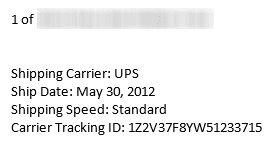
For example, to extract the UPS tracking numbers for packages sent by Amazon.com and formatted as shown in the screenshot, I need to look for the words "Carrier Tracking ID", followed by possible white space and a colon (:).
.Pattern = "(Carrier Tracking ID\s*[:]+\s*(\w*)\s*)"
This returns the next alphanumeric string, or in my example, 1Z2V37F8YW51233715. (There are two tracking numbers in the email message and both are returned.)
Use \s* to match an unknown number of white spaces (spaces, tabs, line feeds, etc)
Use \d* to match only digits
Use \w* to match alphanumeric characters, such as are used in UPS tracking codes.
To use this code sample, open the VBA Editor using Alt+F11. Right-click on Project1 and choose Insert > Module. Paste the following code into the module.
You'll need to set a reference to the Microsoft VBScript Regular Expressions 5.5 library in Tools, References.
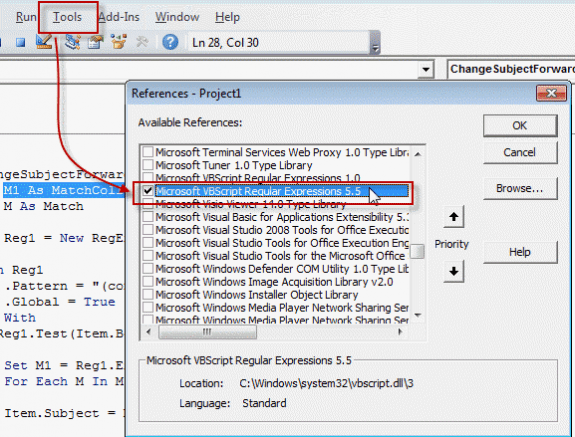
Note: if VBScript Expressions 1 is selected, deselect it. You can't use both v1 and v5.5.
Don't forget, macro security needs to be set to low during testing.
Sample macros using regex are at the following links. Use Copy to Excel code sample to copy a row of text to a row of cells in Excel and Select a name in a Word document then create a Contact to create a contact from a resume or similar file.
Sub GetValueUsingRegEx()
 ' Set reference to VB Script library
 ' Microsoft VBScript Regular Expressions 5.5

    Dim olMail As Outlook.MailItem
    Dim Reg1 As RegExp
    Dim M1 As MatchCollection
    Dim M As Match

    Set olMail = Application.ActiveExplorer().Selection(1)
   ' Debug.Print olMail.Body

    Set Reg1 = New RegExp

    ' \s* = invisible spaces
    ' \d* = match digits
    ' \w* = match alphanumeric

    With Reg1
        .Pattern = "Carrier Tracking ID\s*[:]+\s*(\w*)\s*"
        .Global = True
    End With
    If Reg1.test(olMail.Body) Then

        Set M1 = Reg1.Execute(olMail.Body)
        For Each M In M1
            ' M.SubMatches(1) is the (\w*) in the pattern
            ' use M.SubMatches(2) for the second one if you have two (\w*)
            Debug.Print M.SubMatches(1)

        Next
    End If

End Sub
If we look for just the colon (.Pattern ="([:]+\s*(\w*)\s*)" ), we get just the first word in the results:
UPS
May
Standard
1Z2V37F8YW51233715
Diane
This is because (\w*) tells the code to get the next alphanumeric string, not the entire line, and strings do not include spaces.
Get two (or more) values from a message
If you need to use 2 or more patterns, you can repeat the With Reg1 through End if for each pattern or you can use Case statements.
This sample code looks for 3 patterns, creates a string and adds it to the subject field of a message.
Each case represents a different pattern. In this sample, we want just the first occurrence of each pattern; .Global = False instructs the code to stop when it finds the first match.
The data we are looking for is formatted like this:
Order ID : VBNSA-123456
Order Date: 09 AUG 2013
Total $54.65
\n at the end of the pattern matches a line break, and strSubject = Replace(strSubject, Chr(13), "") cleans any line breaks from the string.
Sub GetValueUsingRegEx()
    Dim olMail As Outlook.MailItem
    Dim Reg1 As RegExp
    Dim M1 As MatchCollection
    Dim M As Match
    Dim strSubject As String
    Dim testSubject As String

    Set olMail = Application.ActiveExplorer().Selection(1)

    Set Reg1 = New RegExp

For i = 1 To 3

With Reg1
    Select Case i
    Case 1
        .Pattern = "(Order ID\s[:]([\w-\s]*)\s*)\n"
        .Global = False

    Case 2
       .Pattern = "(Date[:]([\w-\s]*)\s*)\n"
       .Global = False

    Case 3
        .Pattern = "(([\d]*\.[\d]*))\s*\n"
        .Global = False
    End Select

End With


    If Reg1.test(olMail.Body) Then

        Set M1 = Reg1.Execute(olMail.Body)
        For Each M In M1
            Debug.Print M.SubMatches(1)
            strSubject = M.SubMatches(1)

         strSubject = Replace(strSubject, Chr(13), "")
         testSubject = testSubject & "; " & Trim(strSubject)
         Debug.Print i & testSubject

         Next
    End If

Next i

Debug.Print olMail.Subject & testSubject
olMail.Subject = olMail.Subject & testSubject
olMail.Save

Set Reg1 = Nothing

End Sub
Use a RegEx Function
This function allows you to use the regex in more than one macro.
If you need to use more than one pattern with the function, set the pattern in the macro regPattern = "([0-9]{4})" and use this in the function: regEx.Pattern = regPattern. Don't forget to add Dim regPattern As String at the top of the module.
Function ExtractText(Str As String) ' As String
 Dim regEx As New RegExp
 Dim NumMatches As MatchCollection
 Dim M As Match

'this pattern looks for 4 digits in the subject
 regEx.Pattern = "([0-9]{4})"

' use this if you need to use different patterns.
' regEx.Pattern = regPattern

 Set NumMatches = regEx.Execute(Str)
 If NumMatches.Count = 0 Then
      ExtractText = ""
 Else
 Set M = NumMatches(0)
     ExtractText = M.SubMatches(0)
 End If
 code = ExtractText
 End Function
This simple macro shows how to use the Regex Function. If the subject matches the regex pattern (in function example, a 4-digit number), a reply is created; if it does not contain a 4 digit number, a message box comes up. To use the function with different macros, uncomment the lines containing regPattern.
Dim code As String
'Dim regPattern As String

Sub RegexTest()

Dim Item As MailItem
Set Item = Application.ActiveExplorer.Selection.Item(1)

' use this to pass a pattern to the function
'regPattern = "([0-9]{4})"

ExtractText (Item.Subject)

If Not code = "" Then
Set myReply = Item.Reply
myReply.Display

Else
MsgBox "The subject does not contain a 4 digit number"
End If

End Sub
More Information
Introduction to Regular Expressions (Scripting)
Regular Expressions Quick Start

Damian says
Hi Diane, I have some code that formats .Subject lines, and I have been asked to add a check that if there's a date in the subject line, remove it and prefix the .Subject line with .ReceivedTime. before passing it on to the next If statement.
GetValueUsingRegEx() using your Date Pattern is working however due to my lack of knowledge I'm not sure how to remove the date.
Any assistance is greatly appreciated.
Damian
Melvin says
Hi Diane,
Hope you are doing well and keeping safe.
I need your help with below situation.
I am looking for a macro that can find Matching Keywords from an excel cell within a Saved Outlook email in a windows folder and Copy such matching emails to different folder.
For example, I have 3 texts in excel in Column A.
Tom
Dick
Harry
And I got 300 outlook emails saved in a windows folder. I would like a VBA macro that would search for these 3 texts within these 300 emails and if found a match, copy such matching emails to a different windows folder for my further review.
Not sure if you can assist.
Frank says
I use an application called email templates (emailtemplates.com) that installs on Outlook 2000. It uses RegEx to parse a highlighted email, rewrite parts of it to a new email, that is ready to send. When I upgraded to Outlook 2003, my templates broke since 2003 changed the CSS engine from IE to Word.
The problem I am having is that the company website is dormant and they seem to have gone out of business, but I will be forced to upgrade to a later Outlook as 2000 will not run on later windows. I upgraded to windows 10 and Outlook 2010. The templates install without error, but they do not appear on the Ribbon.
Do you know if there is a way to install an Outlook 2000 application on Outlook 2010? any suggestions?
I purchased a couple of your books and hope that they may help solve my issue. Expect them at month end.
Showrya Krovvidi says
Hi Diane, Thanks for all your commendable work with respect to VBscript.
I have been searching for a solution since the past two weeks for one of my critical projects. We have configured emails to be triggered for multiple instances and we receive approximately 1000 emails alerts a day stating the configured URLs are down. Most of them are false positives and it has become a tedious job for me to check all the urls manually. I am a novice in writing macros, but I have tried multiple ways for my problem and no luck.
I need a macro that will open the first url from all the selected emails in an excel and then checks for the http status of the same and return the status in the excel. I was able to find few solutions to check the http status automatically, but getting all the first urls from a set of emails is the toughest part where I have been stuck since the past 2 weeks. Could you please let me know if this can be ever achieved through a macro. If yes, how?
Thanks in advance.
Prakhar Goyal says
Hi Diane,
My data in body is like -
Survey ID
123456
Ticket No
1234
Entered
08-Feb-19 03:45 PM
How to extract this data in excel so that under survey Id, ticket no, entered column I get respective data.
Diane Poremsky says
Are the values under the labels or to the right of the label? If they are on the line above, this format should work:
.Pattern = "Survey ID\s*\r(\d*)\s*"
if \r doesn't work, try \n.
Deepak says
Hi ,
I would like to extract the E-mail Content ( Subject and Message) as input & pass this to some other variable through VB script , Do you have any sample code for this ?
Deeps
Diane Poremsky says
sorry I missed this earlier. There are several macros here that do basically this - you need to use something like
strSubject = objectname.subject
strBody = objectname.body
then pass those two strings along.
Vicky Kr says
Just to add : My aim is to create a rule which will run the script on arrival of a new email
and extract a text (ticket number) from the email body and pass it to a batch script/js script for further action.
I simple question.
how can i pass the variable to a batch script or command line.
MsgBox var - prints its value
but when i try to send it to batch script the value is not transferred but the variable name
eg
shell.Run "C:UsersjsDesktopcreateIndexcreateindex.bat var"
Diane Poremsky says
is the shell run line in the same macro where msgbox var is? if not, you need to dim var outside of the macro so its global.
Try this - you may be able to drop the strArgument lines and use var in the shell command.
Dim strBat As String
Dim strArgument As String
strBat = "C:\Users\jsDesktop\createIndex\createindex.bat"
strArgument = "/" & var
Call Shell("""" & strBat & """ """ & strArgument & """", vbNormalFocus)
Vicky Kr says
Hi Diane,
I am using this for extracting a ticket number from the email body. For this I have created a rule which runs the script on arrival of a new email. But
Set olMail = Application.ActiveExplorer().Selection(1)
this line often shows the body of old email and not the current one. (I have added MsgBox to display the email body) Am i missing out something. I am new to this and any guidance would be very helpful to me.
Apart from setting the reference to Microsoft VBScript Regular Expressions 5.5, do we need to do anything else as set up?
As my requirement is exactly same but somehow this is not working for me.
Please help.
Diane Poremsky says
if you are using run a script rules, you won't use Set olMail = Application.ActiveExplorer().Selection(1) to identify the message - the rule chooses the message that matches the condition and "item as outlook.mailitem" (item can be changed to olmail) passes it to the script.
change the top part of the first macro to this to use it in a rule -
Sub GetValueUsingRegEx(olMail as outlook.mailitem)
' Set reference to VB Script library
' Microsoft VBScript Regular Expressions 5.5
Dim Reg1 As RegExp
Dim M1 As MatchCollection
Dim M As Match
' Debug.Print olMail.Body
Michael Krueger says
Dear Diane,
I have tried the code you have posted to Get two (or more) values from a message and it fails on, Set olMail = Application.ActiveExplorer().Selection(1).
I get a run-time error 438:
Object doesn't support this property or method..
I am completely stuck Can you help?
Michael
Diane Poremsky says
Do you have an email message selected when you run the macro?
Shar says
same 438 error for me as well
Larry MC says
We created a rule that all incoming email from external sources prepends the message in the body with ****EXTERNAL EMAIL***** so that if someone spoofs our CEO's email, they can tell immediately it is not truly from him. We are running a hybrid set up with EXCH 2010 on prem. What users are wanting to do is if they forward or reply to anyone, the text we added by rule is automatically removed. Can a button in the toolbar be created using this so it removes the unwanted text only?
Diane Poremsky says
Dang, i must be losing it - I swear I replied to this last week. :( This:
https://www.slipstick.com/developer/vba-when-reply-is-clicked/
and using oresponse.body = oresponse.body = replace(responses.body, "****EXTERNAL EMAIL*****", "") (You may need to use htmlbody instead of body)
Hattori Hanzo says
I have been trying to match all IP addresses in the body of the message but unfortunately have had no success using example regex expressions that I have found online.
I would like the macro to match all IP address in the body of the message. Any ideas of how to achieve this?
Thank you so much.
Diane Poremsky says
What code were you using? This should work - ([0-9]{1,3}\.[0-9]{1,3}\.[0-9]{1,3}\.[0-9]{1,3})
Hattori Hanzo says
I've ended up using this which seems to work but only matches the first IP address in the message.
`((25[0-5]|2[0-4][0-9]|[01]?[0-9][0-9]?).(25[0-5]|2[0-4][0-9]|[01]?[0-9][0-9]?).(25[0-5]|2[0-4][0-9]|[01]?[0-9][0-9]?).(25[0-5]|2[0-4][0-9]|[01]?[0-9][0-9]?))
There may be more than 1 IP address in the message, and I need to match all of them and write to excel.
Thank you in advance.
Diane Poremsky says
Are you using .Global = True ? That keeps looking for more matches. you'll need to 'save' each match, either to one string (strIP = strIP & "; " & M.SubMatches(1)) or to new variables (best if there will always be a specific # of matches).
Jjayson says
Hi! Loving the seeming possibilities here!
I'm a DJ who would LOVE to be able to send an auto-reply to prospective clients from whom I receive lead information, which comes to me via a "do not reply to this email address" account, in the following form in the body:
Lead Information
Event Date: Saturday mm/dd/yyyy
Type of Event: Not Provided
Prospect's Name: Firstname Lastname
Email Address: email@domain.com
Phone Number: xxx-xxx-xxxx
Location: Not Provided
I would want to auto-send a reply to email@domain.com which contains a basic invitation to discuss needs and wants and an inquiry into what days/times might be good to do so.
I hope this isn't terribly complicated. I've taken a number of your tips and have loved the results! Hoping to see this come to life!
Thanks so very much!
Diane Poremsky says
If you need more than the address, use the sample at https://www.slipstick.com/developer/regex-parse-message-text/#2
if you just need the address, there is a sample here - https://www.slipstick.com/developer/run-a-script-rule-autoreply-using-a-template/ under 'Reply to a web form generated message'
Cristian Villegas says
Hi Diane, I'm kinda new to VBA and I just want to know if I can use the RegEx function to extract two rows from a generic email and then "paste" them into a oft template I made. Thanks for your help.
Diane Poremsky says
As long as there is a pattern you can use to identify the parts you want, yes, you can.
This will bring up the template as a new message - Set objMsg = Application.CreateItemFromTemplate("C:\path\to\test-rule.oft") - if there is content in the body, you'll need to do something like .body = .body & strText to insert the text.
Cristian Villegas says
Thanks for replying Diane, I'll try it out.
Darren McGettigan says
I think this is exactly what I am looking for, but I don't have Microsoft VBScript Regular Expressions 5.5 as an option under "References", using Outlook 2016. Am I doing something wrong?
Diane Poremsky says
Type N in the list so it jumps down the N's then scroll up a little. if its really not there, see if c:\windows\syswoe64\vbscript.dll exists.

JOSE ANGULO says
I mean, a table that is into the body of an incoming mail
JOSE ANGULO says
How to select and copy each row in a table?
Diane Poremsky says
remove the ' from in front of debug.print omail.body so you can see how it looks to the regex engine. You'll need to make a pattern that can find that.
JOSE ANGULO says
Ok. Thank you Diane.
Kaijer H says
Thank you Diane, you are an angel to mankind. This post and the codes are awesome and you don't even charge for this awesomeness. And answering each comments for so long time, I mean who does that ! You truly deserve a salute. God bless you.
Phil Reinemann says
That is some good information, Diane.
Can it work for multi-paragraphs (blank lines between), multi-line text per paragraph containing URLs, ampersands, tabs, spaces, hyphens, commas, periods and open/close parentheses?
My intent is within the body of an email message to replace all occurrences of the above with null (or a new-line or a space if easier) for each occurrence.
There is known text at the start and end of the paragraph "set". (One use is to remove standard corporate signatures from the internal part of multiply forwarded or replied emails so that there is a single signature at the end - the one at the end is later added by Exchange.)
Diane Poremsky says
It can, if the pattern is correct.
Xavier says
Hi Diane,
This has been really useful for me!
Can I ask you for another case?
I would like to read an email and detect if there are more lines with EQUIPMENT word in each line, and then separate every line.
For example:
EQUIPMENT 1: Television
EQUIPMENT 2: USB Keyboard
Every mail can have different number of equipment in it.
I would like to keep Televison and USB Keyboard in this case.
Thanks!
Xavier
Diane Poremsky says
This should work -
"(EQUIPMENT (\d)*: (\w*))"
you'd use this to get the # and words separately
Debug.Print M.SubMatches(1)
Debug.Print M.SubMatches(2)
or M.SubMatches(0) if you wanted the entire phrase. You could also get the # and words together by wrapping both in ().
(0 = what is inside the first set of (), 1 = second set etc.)
Patrick says
I've been working a a macro which for a selected email will extract certain data from the selected email and uses that for the body text (plus subject). I have found a solution for most (3 out of 4) of the texts I need to extract and reuse. However, not for one of them. I'm wondering if I can use this RegEx for issue I'm having, but I wouldn't know how start. I've tried to attach my img, to show you where I'm having difficulty with, but I can only enter an URL, where the image is on my PC. Could I load the img to my slipstick 'profile' and use it then?
Diane Poremsky says
It would probably be easier to post the question in our forum at forums.slipstick.com
Riaz says
Hi Diane, Firstly.. Thanks a bunch for posting the above codes. Its been very helpful. I have been trying to use the code provided to check for a date, but cant seem to get it right. can you please assist.
I am using .Pattern = "(Certificate Date[:]([\d]*/[\d]*/[\d]*)\s*)\n" to check for Certificate Date: 30/06/2016. But it aint working.
Furthermore I am using
.Pattern = "(Amount of Tax withheld (Ksh)[:]([\d]*,[\d]*\.[\d]*))\s*\n"
to also check and retrieve the amount from the line
Amount of Tax withheld (Ksh): 4,319
Please assist on the above two lines.
Diane Poremsky says
the date looks valid. Try using .Pattern = "(Certificate Date[:]\s*(\d\d?/\d\d?/20\d\d))"
try his for the cost: .Pattern = "(Amount of Tax withheld (Ksh)[:]([\d]*,?[\d]*\.?[\d]*))" - this should match 4,319 or 4,319.00 or 4319
Riaz says
Hi Diane, Thanks alot for your prompt response. The Pattern for the date worked very well, but the one for the amount did not.
Diane Poremsky says
This should work as long as you don't reuse the phrase in the message -
"(Amount of Tax withheld (Ksh)[:](.*) )"
Timothy says
Using your code above, how would I check for
Date: 6/17/16
Thanks in advance.
Diane Poremsky says
This pattern should work -
.Pattern = "([\d]*/[\d]*/[\d]*)\s"
With one set of (), you'd use
Debug.Print M.SubMatches(0) - if you need to use M.SubMatches(1), wrap it in another set of ().
Mark says
I am very new to VB and am trying to auto-assign a "Forward To" email based on contents of an undeliverable message. Does anyone have a full macro that I could use?
Diane Poremsky says
I have this - https://www.slipstick.com/outlook/rules/run-script-rule-change-subject-message/ - change the pattern to look for email addresses then use M.SubMatches(1) as the email address instead of writing it out.
Glenn Sampson says
Great post it's helped me on a couple of task now however this time round I'm stumped why this pattern fails.
This is in the text in my olMail.body
Settlement Date: 09-Aug-2013
This is my .Pattern
.Pattern = "^(Settlement Date)\:([\w-\s]*)(([0-9])|([0-2][0-9])|([3][0-1]))\-(Jan|Feb|Mar|Apr|May|Jun|Jul|Aug|Sep|Oct|Nov|Dec)\-\d{4}$"
using Regex Testers the .pattern passed....
Any ideas welcome
Thanks
Glenn
Larry Marks says
Trying to use the code to extract a line from email (draft) body and replace the subject. Using a .pattern of SUBJECT (which is in the body), I only get the first word of a multiword line--how do I extract the full line? Thanks.
Diane Poremsky says
This works to get 2 lines - .Pattern = "Subject[:](((.*)\n(.*)))"
i used replace function to merge the two lines into one line:
Debug.Print Replace(M.SubMatches(1), vbCrLf, " ")
Larry Marks says
When I use that code, I get "run time error: 5020". Debugs to the "If Reg.1test (olMail.Body) Then" line.
Diane Poremsky says
replace can trigger that error code but then it should die on the debug print line. I'd try removing it anyway... but it's more likely the pattern. See if it errors if you remove the \n.
Larry Marks says
Still getting error after removing /n. Dialog says Method 'Test" of object 'IRegExp2' failed
Diane Poremsky says
do you get the error if you use .Pattern = "Subject[:]((.*))"
Larry Marks says
For the moment-- it worked-- getting the correct M.Submatches(1) to replace the subject line--thanks for bearing with me--
Glenn Gutmacher says
Diane, my situation is somewhat reminiscent of Larry's, but adapting your solution doesn't seem to work, so hope you have an idea. I have a big Outlook folder of HTML-formatted messages in a consistent pattern (relevant snippet of one such message appended below). I have no problem grabbing the person's name out of a preceding section of the email that looks like "Great news! Glenn Gutmacher has just applied..." using: .Pattern = "(news[\s]has)" but we would like to grab the metro location and degree/major in the section following Applicant which is immediately followed by 2 line returns before the name, then there's 1 space after the name, a line return, then 2 tab chars, then the
tag, city name, a comma, line return, another tab, then the 2-letter state abbreviation, a space, line return, 2 tabs,
, line return, 2 tabs, the degree data we want, a space, 2 line returns, and (if needed) a consistent Message From Applicant end marker. I was hoping "(Applicant([.]*)\n\n([\w-\s]*))\n" would be the pattern, but it grabs absolutely nothing whether I do .Global = True or False. Help!
Applicant
Glenn Gutmacher
Minneapolis,
MN
MBA and MS Data Science Candidate
Message From Applicant
Diane Poremsky says
Hmmm. That is a tough one, because picking up multiple lines doesn't always work. Rather than global (which looks for additional matches after finding the first), you need to make sure multiline is enabled.
.MultiLine = True
This worked in my test:
.Pattern = "(Applicant\s*\n*\t*([\w ]*)\n*\s*\t*([\w ,]*)\s*\n*\t*([\w]*)\s*\n*\t*([\w ]*)\s*\n*\t*(.*))"
Ralph Moran says
Hello Diane, I need your help with Outlook 2010.
I need to export all addresses from the emails to make a data analysis. I have a TON, literally, folders inside my Inbox. When I go to Export/Import section to export CVS file, I select Inbox folder and just the emails that are into this folder are exported. How can I export the emails that are inside the Inbox folder?
Diane Poremsky says
CSV files are one per folder. You just need the sender name & address? The macro at https://www.slipstick.com/developer/code-samples/macro-export-outlook-fields-excel/ can do that but it needs tweaked to walk the folders.
Ralph Moran says
Thanks Diane for quick reply. What I need is take names, emails and addresses from mails in all subfolders.
I'm going to check this out.
I'll appreciate if you can share the way to walk into all subfolders.
Thanks again
Diane Poremsky says
I see you figured the multifolder issue out before I got a chance to post -
https://www.slipstick.com/developer/code-samples/macro-export-outlook-fields-excel/#comment-197327
Isa says
Hello Diane,
Thank you so much for all those tools, codes, and explanations. I learned so much!
I am trying to extract last names that include an apostrophe (i.e. O'Connor or Leclec'h). I searched the web and came up with this pattern :
.Pattern = "(Name[:]\s([\w*-éïãüçè ]*)\s*)|([\w*\'\w?]\s*)$\n"
It includes the characters "éïãüçè" and spaces which I need to be found. Then there is the alternation sign | as in "OR find alphanumeric strings that have an apostrophe in between".
BUT in case of apostrophe, this gives me only the "O" in "O'Connor" or "Leclec" in "Leclec'h" and not the apostrophe or the rest of the name.
Would you be so kind as to help me with this? Thank you!
Diane Poremsky says
Did you try .Pattern = "(Name[:]\s([\w*-éïãüçè\' ]*)\s*)$\n" ?
satya gujjari says
I want to extract website names from body of the email. How do i do it and where will that date be copied....like clipboard or to an excel sheet.
Diane Poremsky says
You would use a regex pattern and extract it to a string. Then you can put the string on the clipboard, in notepad, or in Excel. Sorry, I don't have a pattern handy for websites, but "http?://(.*)" might work if there is nothing else on the line after the web address.
Hani Eshack says
This is very helpful Diane, Thank you. I get daily emails from a real estate site and I am trying to parse specific information from the emails as they come in and insert them into an excel sheet. I am able to do most of the steps except of the RegExp patterns. But when I try to get the Contact ID using .pattern = "(Contact ID ([w-s]*)s*)n", I am getting a lot more text that I want. Also, when I use the following to get the email, I only get the first part and nothing after the @. .pattern = "(Agent Email s*.*(w*)(w*)$*)". The same with the Agent Name, I only get the first name using .pattern = "(Agent Names*.*(w*)(w*)$*)". I am sure I am missing something with the pattern here. Any help will be greatly appreciated. Thank you.
Diane Poremsky says
Try this for the address - .Pattern = "(([\w-\.]*\@[\w-\.]*)\s*)"- M.SubMatches(1) will get the stuff inside the second set of () - it basically reads like "any letters, numbers, dash, or dot then @ then more letters and numbers then a space".
Is the contact ID the only thing on the line? If not, you can't use \s* or space - it will count every space. If it is the only thing on the line, you need to look for the EOL character - try \n and if that doesn't work, use \r.
(Contact ID ([\w]* [\w])*\n) - will get 2 word names.
Hani Eshack says
This worked perfectly. Thank you, Diane!!!
Hani Eshack says
Diane, everything worked here except one item that keeps returning more text that I need. When I looked at the HTML source, I get this: Samer Kuraishi Group Agent Email
All I need is the Agent Name "Samer Kuraishi", but I get his name, a line break, then I get the following text "Agent Email".
Here is the pattern that I am using: .pattern = "(Agent Name ([w-s]*))n". I have also tried to use r but nothing worked.
Any ideas? I appreciate your help.
Thanks,
Hani
Diane Poremsky says
You need to use \
.pattern = "(Agent Name ([\w-\s]*))\n"
if that still get the next line, you'll need to try something like this:
.pattern = "(Agent Name ([\w-\s]*)Agent Email)"
simon says
hello,
i need to extract from 1200 email "postmaster this 3 phrase in this format in one folder called "error mail" :
xxxxxxxxxxx@domain.fr
[212.3.242.103]
Remote Server returned ''
or
xxxxxxxxxxx@domain.fr
Remote Server returned '..................ERROR MESSAGE.............'
and copy to Excel what is code for make this
Diane Poremsky says
i think you might need two (or more) different patterns, but try a pattern like this - if \n doesn't work, try \r
"\n(([A-Z0-9._%+-]+@[A-Z0-9.-]+\.[A-Z]{2,})(.*)Remote Server(.*) \n)
and use M.SubMatches(0)
if you need to use multiple patterns, try these patterns -
email:
([A-Z0-9._%+-]+@[A-Z0-9.-]+\.[A-Z]{2,})
IP:
(\[[0-9.]*\])
Text:
(Remote Server(.*)\n)
simon says
hello,
sorry but i don't have any knowledge in VB
i try every script in the page and doesn't work, any of script have a problem i work with outlook 2010
Diane Poremsky says
The scripts work, but you need to get the pattern right and i can't do that for you as i don't have email in that format. It will be easier if you learn a little about VBA so you can understand how it works.
Try this on the selected message - you'll need to show the Immediate window (View menu of VBA editor) and can see if it finds a match.
Sub GetValueUsingRegEx()
Dim olMail As Outlook.MailItem
Dim Reg1 As RegExp
Dim M1 As MatchCollection
Dim M As Match
Dim strSubject As String
Dim testSubject As String
Set olMail = Application.ActiveExplorer().Selection(1)
Set Reg1 = New RegExp
For i = 1 To 4
With Reg1
Select Case i
Case 1
.Pattern = "\n(([A-Z0-9._%+-]+@[A-Z0-9.-]+\.[A-Z]{2,})(.*)Remote Server(.*) \n)"
.Global = False
.IgnoreCase = True
Case 2
.Pattern = "([A-Z0-9._%+-]+@[A-Z0-9.-]+\.[A-Z]{2,})"
.Global = False
.IgnoreCase = True
Case 3
.Pattern = "([\d]*\.[\d]*)\s*\n"
.Global = False
.IgnoreCase = True
Case 4
.Pattern = "(Remote Server(.*)\n)"
.Global = False
.IgnoreCase = True
End Select
End With
If Reg1.Test(olMail.Body) Then
Set M1 = Reg1.Execute(olMail.Body)
For Each M In M1
strSubject = M.SubMatches(0)
Debug.Print i & " " & strSubject
Next
End If
Next i
Set Reg1 = Nothing
End Sub
simon says
sorry but that don't work
error 13 "type incompatible"
this code is mark in yellow :
Set olMail = Application.ActiveExplorer().Selection(1)
Diane Poremsky says
the selected message was an email message? You'll get that message if it's not an email message.
simon says
this is a mail from exchange server for error address or unknown address
Diane Poremsky says
An NDR. Change the dim olmail line to this: Dim olMail As Object
simon says
no result the script don't do anything
Diane Poremsky says
No errors? If it's running but not finding the patterns then the patterns aren't quite right. Show the Immediate window (View menu) - if it's finding patterns the results will be in the immediate window. If not, try changing the second pattern to .Pattern = "([A-Z0-9._%+-]*@[A-Z0-9.-]*\.[A-Z]{2,})"
oh, and this macro only finds the stuff - you'll need to change it (after the debug.print line) to do something with it.
simon says
i try this script but is don't work this line "If Err 0 Then" don't work
i don't know if the rest work
Option Explicit
Sub CopyToExcel()
[snip]
enviro = CStr(Environ("USERPROFILE"))
'the path of the workbook
strPath = enviro & "\Documents\test.xlsx"
On Error Resume Next
Set xlApp = GetObject(, "Excel.Application")
If Err 0 Then
Application.StatusBar = "Please wait while Excel source is opened ... "
Set xlApp = CreateObject("Excel.Application")
bXStarted = True
End If
On Error GoTo 0
'Open the workbook to input the data
Set xlWB = xlApp.Workbooks.Open(strPath)
Set xlSheet = xlWB.Sheets("Test")
[snip]
Diane Poremsky says
In what way doesn't it work? As long as the workbook path is correct and it can open Excel object, Err should = 0.
simon says
sorry but that don't work
error 13 "type incompatible
on the line :
rCount = xlSheet.Range("B" & xlSheet.Rows.Count).End(xlUp).Row
Diane Poremsky says
what version of office are you using?
simon says
i try the script "CopyToExcel" but after change
"olItem As Outlook.MailItem" to "olItem As Object" this line don't work :
rCount = xlSheet.Range("B" & xlSheet.Rows.Count).End(xlUp).Row
the script don't understand "xlUp" i try to declare like this "Dim xlUp As Object" but don't work too
Diane Poremsky says
That problem came up in the comments in the copy to excel macro - Setting a reference to Excel in Tools, References fixed one error and then i got another error - i said "if i don't use option explicit, i get the 1004 error. Add this line to the (top of the) code -
Private Const xlUp As Long = -4162
Josh says
How would I run this on a shared mailbox and subfolder
shared mailbox is called "\\Test, Mail\Inbox"
subfolder is called "Team 54"
Option Explicit
Sub CopyToExcel()
Dim olItem As Outlook.MailItem
Dim xlApp As Object
Dim xlWB As Object
Dim xlSheet As Object
Dim vText, vText2, vText3, vText4, vText5 As Variant
Dim sText As String
Dim rCount As Long
Dim bXStarted As Boolean
Dim enviro As String
Dim strPath As String
Dim Reg1 As Object
Dim M1 As Object
Dim M As Object
Dim i As Long
enviro = CStr(Environ("USERPROFILE"))
'the path of the workbook
strPath = enviro & "\Documents\test.xlsx"
On Error Resume Next
Set xlApp = GetObject(, "Excel.Application")
If Err 0 Then
Application.StatusBar = "Please wait while Excel source is opened ... "
Set xlApp = CreateObject("Excel.Application")
bXStarted = True
End If
On Error GoTo 0
'Open the workbook to input the data
Set xlWB = xlApp.Workbooks.Open(strPath)
Set xlSheet = xlWB.Sheets("Test")
Set olItem = Application.ActiveExplorer().Selection(1)
'Find the next empty line of the worksheet
rCount = xlSheet.Range("B" & xlSheet.Rows.Count).End(xlUp).Row
rCount = rCount + 1
sText = olItem.Body
Set Reg1 = CreateObject("VBScript.RegExp")
' \s* = invisible spaces
' \d* = match digits
' \w* = match alphanumeric
For i = 1 To 3
With Reg1
Select Case i
Case 1
.Pattern = "Team\s*[:]+(.*)"
Case 2
.Pattern = "Date\s*[:]+(.*)"
Case 3
.Pattern = "Issue\s*[:]+(.*)"
End Select
End With
If Reg1.Test(sText) Then
Set M1 = Reg1.Execute(sText)
For Each M In M1
Select Case i
Case 1
vText = Trim(M.SubMatches(0))
Case 2
vText2 = Trim(M.SubMatches(0))
Case 3
vText3 = Trim(M.SubMatches(0))
End Select
Next
End If
Next i
xlSheet.Range("b" & rCount) = vText
xlSheet.Range("c" & rCount) = vText2
xlSheet.Range("d" & rCount) = vText3
xlWB.Close 1
If bXStarted Then
xlApp.Quit
End If
Set M = Nothing
Set M1 = Nothing
Set Reg1 = Nothing
Set xlApp = Nothing
Set xlWB = Nothing
Set xlSheet = Nothing
End Sub
Josh says
Oh and I want to run this manually and not automatically so that it pulls all the emails in the box that match. It seems that it is failing to pull all the emails and just pulls the most recent one!
Diane Poremsky says
The copy to Excel macro runs manually; only macros with sub macroname(item as outlook.mailitem) style names are automatic.
This line: Set olItem = Application.ActiveExplorer().Selection(1) tells outlook to use the selected message. The macro at https://www.slipstick.com/developer/code-samples/working-items-folder-selected-items/ shows how to work with selected items or all items in a folder.
Diane Poremsky says
The macro, as written, works on the selected message in any folder. This tells it to use the selected message:
Set olItem = Application.ActiveExplorer().Selection(1)
Steve O. says
Thanks Diane.
I had tried what you suggested before posting (substituting references to olMail and Item) but it didn't work, which I couldn't understand.
However, I have just revisited this and now it is working with references to olMail replaced with Item.
I have also removed the Alert in the Rule and replaced with a MsgBox in the script.
Lastly, I have added code to the script to move the email to a subfolder.
So all the Rule does (during Testing) is check the Subject, search for a string the body text, and run the script. When I am happy I will add a check for the real Sender.
I need to do a little more tweaking, but I have a question on deploying the script to recipients of the emails (outside our email system).
Since I have had to enable VBScript in Developer in order to include Regular Expressions, does this mean that the end user will need to do the same in order to run the script containing RegExp, as well as look at Macro security settings?
Time allowing, I may try to code this as an add-in, or somehow execute a script on Send rather than Receive but we are a way off at the moment.
Thanks for all the help.
Regards
Steve O.
Diane Poremsky says
>> Since I have had to enable VBScript in Developer in order to include Regular Expressions, does this mean that the end user will need to do the same in order to run the script containing RegExp, as well as look at Macro security settings?
Yes, they will. If you use late binding the users won't need to set a reference that way.
Dim the regex stuff as objects instead of as regex (Dim Reg1 As RegExp, Dim M1 As MatchCollection, Dim M As Match)
Dim Reg1 As Object
Dim M1 As Object
Dim M As Object
Then create the objects
Set Reg1 = CreateObject("VBScript.RegExp")
Steve O says
Hello Diane.
I eventually added these two lines at the bottom
Item.Subject = testSubject
Item.Save
after the lines copied from the sample and it now fires and changes the subject of yje email on arrival.
My code is a mixture for various samples plus changes to make it work as a script rather than a Macro - so I now seem to have some redundancy in the code - Item vs olMail = but if I try to remove or change anything (between olMail and Item) I get errors.
Here is the full script as it stands:
Public Sub GetValueUsingRegEx(Item As Outlook.MailItem)
Dim olMail As Outlook.MailItem
Dim Reg1 As RegExp
Dim M1 As MatchCollection
Dim M As Match
Dim StrSubject As String
Dim testSubject As String
Set olMail = Application.ActiveExplorer().Selection(1)
Set Reg1 = New RegExp
For i = 1 To 3
With Reg1
Select Case i
Case 1
.Pattern = "(Workorder Number[:]([\w-\s]*)\s*)\n"
.Global = False
Case 2
.Pattern = "(Workorder Account[:]\s*(\S+)\s*(\S+)\s*(\S+)\s*-\s*(\S+)\s*(\S+)\s*)\n"
' .Pattern = "(Workorder Account[:]([\w-\s]*)\s*)\n"
.Global = False
Case 3
.Pattern = "(Receipt Data[:]([\w-\s]*)\s*)\n"
.Global = False
End Select
End With
If Reg1.Test(olMail.Body) Then
Set M1 = Reg1.Execute(olMail.Body)
For Each M In M1
If i = 1 Then StrSubject = M.SubMatches(1)
If i = 2 Then StrSubject = M.SubMatches(4)
If i = 3 Then StrSubject = M.SubMatches(1)
Debug.Print M.SubMatches(1)
' StrSubject = M.SubMatches(1)
StrSubject = Replace(StrSubject, Chr(13), "")
testSubject = testSubject & " " & Trim(StrSubject)
Debug.Print i & testSubject
Next
End If
Next i
Debug.Print testSubject
olMail.Subject = testSubject
olMail.Save
Item.Subject = testSubject
Item.Save
Set Reg1 = Nothing
End Sub
Diane Poremsky says
This>> Public Sub GetValueUsingRegEx(Item As Outlook.MailItem) sets the variable as Item and applies to messages as they arrive. "Item" can be changed to oMail if you want to avoid editing the rest of the macro.
This>> Dim olMail As Outlook.MailItem sets the variable as olMail and would be used if running a macro manually. You don't need this and Item As Outlook.MailItem in the macro.
This>> Set olMail = Application.ActiveExplorer().Selection(1) sets the object assigned to the variable as the selected item. You'd only use this if you run a macro manually.
This works>> Item.Subject = testSubject because you set testsubject earlier.
Steve O. says
Hello Diane.
I have modified the rule that uses Regex after scanning web pages and removed a couple of lines.
Originally the Rule moved the email to a Folder - I have removed this.
Originally the Rule automatically inserted On this Computer Only - I have removed this.
Now the rule does this :
Looks for a Specific Subject Line
Looks for a Specific string in the email body text
Displays a New Item Alert Window (I added this to facilitate monitoring it makes no difference).
Runs the Script.
Same result with email subjects not changing until after the email is forwarded -Except.....
Another Oddity today - the Subject Line did not change when the email arrived - but it did 10 minutes later when another email arrived with the same Subject Line (but the string in the body text didn't match - so the script wouldn't have run?).
It is almost as if something is forcing some kind of asynchronous processing - not had this before.
Anyhow, now I know from my basic script that Email Subject lines can be changed without forwarding, I have binned that code (which I don't require but was using for testing) and will revert to building up the basic script a piece at a time until it fails.
Incidentally, if I get to the bottom of this, I may still put the emails into a folder via the Rule - subject to reviewing something I found about Subject line changes not 'sticking' when moving email to folders (if I can find it again).
Regards
Steve O.
Diane Poremsky says
You shouldn't use this >> Displays a New Item Alert Window. Run a scripts should only have one action - the script - and anything you want to do should be in the script.
>> Another Oddity today - the Subject Line did not change when the email arrived - but it did 10 minutes later when another email arrived with the same Subject Line
Are you using conversation view? The group headers will show the original subject, the changed subject will be in the preview pane or open message. This can't be changed.
>> I may still put the emails into a folder via the Rule
Don't use the rule, move the messages in the script after you change the subject.
omail.move folder-to-move-to
Steve O says
Hello Diane.
This code works - I actually see the email hit the Inbox and the Subject changes as I am watching.
Sub Test1(Item As Outlook.MailItem)
Set oItem = ActiveExplorer.Selection.Item(1)
Item.Subject = "[ChangedNow]"
Item.Save
End Sub
However, the Regex code only changes the Subject when the email is forwarded as before.
I am going to try adding the code back in a little at a time to see when it stops working
Diane Poremsky says
How does the rule read? Are all the conditions in the rule and the only action is run the script?
Steve O says
Hello Diane.
I didn't want updates to cross over, so didn't update yesterday in case you were working on a reply.
After reading about issues with code needing to be self-signed, macro settings, and exiting and re-starting Outlook, the script is working again - as it was before - after forwarding an email.
I will try adding the forward (but delete don't send) to the script to see what that does.
I will also try removing the bits from the rule that make the rule run client-side (likely the move to folder) - to see if that makes a difference.
Regards
Steve O.
Diane Poremsky says
It sounds like the macro security was changed (or never changed to begin with - macros will often work the first time without changing security settings. I don't recommend signing the macro until you are finished because you'll need to remove the signature and add it back every time you edit the macro.
Steve O says
Hello Diane. Thanks for the reply.
I sort of understand the spaces bit - this is my first foray into VBA and Outlook.
Here is the format of my string of text:
Text1 Text2 Text3 - Text4 (Text5\Text6)
i.e. 3 words, a hyphen and then 2 words in brackets separated by a backslash
Ideally I would pull out the bit in brackets but using the following and your code I do get the contents of Text1, or if I remove .SubMatches(1) from your code I can get the whole line of Text :
.Pattern = "(Workorder Account[:]\s*(\S+)\s*(\S+) (\S+) - (\S+) (\S+)\s*)\n"
I think given time I can code around to what I want - if not I can get away without this text.
However, for some reason the code has stopped working even when I forward the message on - now the Subject line doesn't ever change.
I disabled conversation view some while ago as it caused other issues.
Whatever way I looked at the email, even if I opened it, the subject did not change until I forwarded it on.
I found some other code of yours that I was going to try - it seems to forward the email but delete it without sending it and wondered if I need to do this bit for the Subject to change.
I don't understand that code otherwise?
Majorly puzzled now as to why this doesn't work even as it did last night.
Regards
Steve O.
Diane Poremsky says
On this:
>>
remove .SubMatches(1) from your code I can get the whole line of Text :
.Pattern = "(Workorder Account[:]\s*(\S+)\s*(\S+) (\S+) - (\S+) (\S+)\s*)\n""
>>
Each set of () = a number, starting with 0. The 0 is around the whole string. When you have 6 groups of numbers you need to use a submatches(n) for number. You can either do it using a loop (n = 1 to 6) or as separate lines with .submatches(1), .submatches(2) etc. In your case, since it's all one string, I would probably use separate submatches here.
Steve O. says
Hello Diane.
I need to read 3 variables from an incoming email, overwrite the email Subject with a concatenation of the 3 variables, and then file it to a folder based on text in the email.
There is an example on this page that seems to do exactly that, but I am having issues with it.
First and foremost, the Subject line is not updated - until I forward the email on - and then everything is correct once I have forwarded it (manually).
Secondly, I would like to pick up one string (in brackets) from a 3rd line but there are spaces in the line (it is a line of text) and I cannot get it to pick up this line even in it's entirety using the regular expressions.
Hope you can help.
Regards
Steve O.
Diane Poremsky says
For the spaces one, try "[(.*)]" as the pattern. You could also use (a-zA-Z )*
Are you saving the original message after changing the subject? Also, it won't change the conversation subject, so you'll see the original conversation if you use conversation groups.
Darren says
Hi Dianne,
This is really helpful, thank you. I receive two type of email containing data from potential customers.
I have used other VBA codes from here to automatically reply to the reply to address, which have been amazing. I need to get this data from an email into salesforce. I plan to firstly extract the information from the email into excel then use a salesforce data loader. Would you have a better suggestion?
Anyway the two emails are as follows, which need to have data extracted into excel.
Email 1
You have received a new lead from realestate.com.au for
Property id: 123467
Property address: STREET, SUBURB, STATE POSTCODE
Property URL: http://www.realestate.com.au/12346
User Details:
Name: FIRSTNAME LASTNAME
Email: EMAIL
Phone: PHONE
About me: STRING
I would like to: STRING
Comments: PARAGRAPH OF TEXT
Email 2 (I think this may be a HTML email)
The enquiry has been sent from a user on http://www.domain.com.au
Property: STREET SUBURB STATE POSTCODE - FIRSTNAME LASTNAME SUBURB
From: FIRSTNAME LASTNAME
Email: EMAIL
Phone: PHONE
Message: STRING
This data would be organised into excel with the following columns
FIRSTNAME
LASTNAME
EMAIL
PHONE
PROPERTY
for email 1, it would need to remove the , and just capture STREET SUBURB
for email 2, it would need to only capture STREET SUBURB
Diane Poremsky says
It's certainly doable using the regex Except that keeping only the street and suburb might be difficult if people use commas in the first (so we can't break at the second comma) and in thee second one, you need something to identify the break point - street names and suburbs might have spaces so we can't just count spaces. if state is abbreviated and always the same # of letters (or you are in one state) we could use that to break in both emails, as long as street and suburb is one record in Excel. Putting it into Excel won't be hard - I have samples here that do it.
viraj21viraj says
hi
i need help in using vba
so vba can read my email subject and body and reply to the email and add an atachment from my desktop by doing a key word search
inform me anout what actions have been taken
which emails have been left out
regards
if any body does feel like helping me with the code please email me at reolite2012@gmail.com
thanks in advance
Diane Poremsky says
I have a bunch of samples that could be put together to do that - but nothing that does exactly that, as it's pretty complicated.
These are two of several pages here that might be helpful to you.
https://www.slipstick.com/outlook/rules/run-script-rule-reply-message/
https://www.slipstick.com/developer/fun-arrays-one-macro-many-replies/
Uday says
Hi,
I am using the following code in debug mode and see how it works so that later I can modify it as per my requirement but it throws "Object doesn't support this property...." at Set olMail = Application.ActiveExplorer().Selection(1) line, I guess I am doing something wrong, please help me. Will it not run if I use in debug mode?
Sub GetValueUsingRegEx()
' Set reference to VB Script library
' Microsoft VBScript Regular Expressions 5.5
Dim olMail As Outlook.mailItem
Dim Reg1 As RegExp
Dim M1 As MatchCollection
Dim M As Match
Set olMail = Application.ActiveExplorer().Selection(1)
' Debug.Print olMail.Body
Set Reg1 = New RegExp
' \s* = invisible spaces
' \d* = match digits
' \w* = match alphanumeric
With Reg1
.Pattern = "Carrier Tracking ID\s*[:]+\s*(\w*)\s*"
.Global = True
End With
If Reg1.Test(olMail.Body) Then
Set M1 = Reg1.Execute(olMail.Body)
For Each M In M1
' M.SubMatches(1) is the (\w*) in the pattern
' use M.SubMatches(2) for the second one if you have two (\w*)
Debug.Print M.SubMatches(1)
Next
End If
End Sub
Diane Poremsky says
Are you running it on messages? This references the selected item: Set olMail = Application.ActiveExplorer().Selection(1) and this Dim olMail As Outlook.mailItem says its a mailitem.
Uday says
I keep the message selected and run the macro in debug mode to see whats happening.
Can you please provide me steps to go about it if im not doing it right?
Eli Lancry says
Hi Diane,
Thanks for great article!
Is it possible to capture the hyperlink of a string in a message?
Usually I save attachments in incoming messages to my computer with a vba code that I found elsewhere that removes the attachment from the message and saves it to a prefered folder leaving the following text:
"The attachment file(s) were saved to:
image002.png
image001.png
ATT00001.txt"
Each file name has a hyperlink. I am interested with capturing the hyperlink of each file name.
Is it possible?
Thanks in advance
Eli
Diane Poremsky says
Should be able to - i added Debug.Print olMail.Body right after the set olmail line and the results in the immediate window (turn it on in the View menu) included the underlying links. Using If Reg1.test(olMail.HTMLBody) would get you the raw HTML but as long as .Body works, I'd use it instead.
jonathandire says
Thanks Diane, I'll give it a shot!
jonathandire says
Howdy Diane,
As always, love your work. Your Slipstick knowledge has taught me so much, making me excel beyond that of most Outlook Experts in the company I work for.
People are now coming to be in droves to use my macros I adopted and modified off you.
I have one last request regarding Regular Expressions.
For the last 6 months I've been trying to figure it out by myself, how to extract expressions from the body of an email and change the subject line. Unfortunately, I get stuck with the result always just adding "; 2015." at the end of the subject line (rather than replace the subject.
The email I've been working with:
Shock Case Recipient: Awesometeam
Correspondence Date (DD/MM/YYYY): 15/06/2015
Customer concern(s): Pain
Correspondence type: Phone
Customer confirm Date (DD/MM/YYYY): 15/06/2015
Due Date: 06/07/2015
Customer's details:
Name: PETER PETRELLI
Address:
123 Road Rd
SUBURB, QLD, 6000
Please review.
Resources:
Case Id 123456789
What I am looking for is regex to extract the following fields and replace the subject line in capitals:
Due date - Case recipient - Customer Concern - Name - Suburb (Case Id)
So if the code were to work, the subject line would look like:
06/07/2015 - SHOCK - PAIN - PETER PETRELLI - SUBURB (Case 123456789)
As you can see, the 'Shock' Case recipient is before the actual field.
I can paste the code I've made, however it is currently full of errors.
Can you pretty please assist?
Diane Poremsky says
Replacing the subject would use .Subject = testSubjectformat. The sample under the Get two (or more) values from a message heading shows how put the string together - you just need the right patterns to get the values you need. The cases will be in the order you want the values to appear in the subject. (Reverse order would work too.) If you want everything in caps, use UCase(testSubject). If you don't want Case capitalized, it's a little more difficult as you need to assign each pattern to a string then put them together.
Diane Poremsky says
Use something like this to add the results to different strings then you can merge the strings .subject = UCase(strOne) & " - " & strTwo...
If Reg1.test(olMail.Body) Then
Set M1 = Reg1.Execute(olMail.Body)
For Each M In M1
Debug.Print M.SubMatches(1)
strSubject = M.SubMatches(1)
If i = 1 Then strOne = strSubject
If i = 2 Then strTwo = strSubject
If i = 3 Then strThree = strSubject
Debug.Print i & " " & strSubject
Next
End If
you could make the subject less confusing by setting the case & adding the dashes when you assign the result to the variable
If i = 1 Then strOne = ucase(strSubject) & " - "
then the subject would be
.subject = strOne & strTwo
Sandy says
Hi Ms Diane,
Can you suggest a patter with with the info below:
Shipping Line’s Cut-off Date/Time :
20/05 (17:00H)
For ESI submission?
N
For SI submission to SS/Line Website?
Y
For AMS? If yes, Last Port of call:
N
That is what my outlookitem.body have when I display it using the messagebox.
I need to get the "Shipping Line’s Cut-off Date/Time" which is "20/05 (17:00H)"
can you help me sort it out? here is the pattern I tried so far:
.pattern = "Shipping Line’s Cut-off Date/Time\s*[:]+\s*(\w*)"
Sandy says
I tried this but no luck
Case 1
.Pattern = "(Shipping Line's Cut-off Date/Time\s[:]\s(\w*))\n"
.Global = False
Case 2
.Pattern = "(SHIPPING LINE'S CUT-OFF DATE/TIME\s[:]\s(\w*))\n"
.Global = False
Case 3
.Pattern = "(DRAFT SHIPPING LINE CUT-OFF\s[-]\s(\w*))\n"
.Global = False
Case 4
.Pattern = "(Shipping Line's Cut-off Date/Time[:]\s(\w*))\n"
.Global = False
End Select
Diane Poremsky says
Is the text you want on a second line or the same line? Something like this should work. \s matches white space - including line breaks. If not, try \r or \n.
.pattern = "Shipping Line’s Cut-off Date/Time"\s[:]\s(.*)"
Bill Castoro says
Diane, I am wondering if you can help. I receive order confirmations and the email address of my customer is in the body of the e-mail, I wanted to setup a rule that outlook will than email them back with a link to a specific website to go to. I am sure it can be done, I am just not that good with this stuff. The email address is always in the same place in the email. Instead of changing my whole ordering system to have autoresponders, I rather just have outlook send the messages.
Diane Poremsky says
As long as its either the only email address or always either the first or last, you can use regex to find it. .Global = True tells the code to keep looking after the first instance is found; false tells it to stop.
This page in my forum has a similar example. This edit of that code should do what you need it to do.
Sub SendLink(Item As Outlook.MailItem)
Dim Reg1 As RegExp
Dim M1 As MatchCollection
Dim M As Match
Set Reg1 = New RegExp
With Reg1
.Pattern = "([a-z0-9.]*)@([a-z0-9.]*)"
.Global = False
End With
If Reg1.test(Item.Body) Then
Set M1 = Reg1.Execute(Item.Body)
For Each M In M1
strAlias = M
Next
End If
Dim objMsg As MailItem
Set objMsg = Application.CreateItem(olMailItem)
With objMsg
.Recipients.Add strAlias
.Subject = "New Subject Title"
.Display '.Send
End With
Set objMsg = Nothing
End Sub
Suhail Shaikh says
Many thanks for your prompt response.
But when we search for the words in the searchbox, it also checks the attachment. Is there a way to do the same via a macros?
Diane Poremsky says
No, not to my knowledge. Instant search using the Windows search index - the methods used in the macro search the folder or items directly.
Suhail Shaikh says
Hi,
I am trying to search for specific words in the attachement in an email & then move the email with those specific words in a folder. I tried Rules however it does not search the attachment but only the body of the email.
Is RegEx an option to do this?
Regards,
Diane Poremsky says
No, not really - you need to open and search the attachment - once it's open, you could use other methods to search for the words.
Dan says
Dear Diana,
I am trying to locate a function to extract only 1st paragraph of email body. It seems I cannot locate the proper function. Here is the macro I was able to locate at Internet, however I need to modify the code sot that "strColG = olItem.Body" is something like that "strColG = olItem.Body.1st paragraph" text only
Option Explicit
Sub ExportToExcel()
Dim xlApp As Object
Dim xlWB As Object
Dim xlSheet As Object
Dim rCount As Long
Dim bXStarted As Boolean
Dim enviro As String
Dim strPath As String
Dim currentExplorer As Explorer
Dim Selection As Selection
Dim olItem As Outlook.MailItem
Dim obj As Object
Dim strColB, strColC, strColD, strColE, strColF, strColG As String
' Get Excel set up
enviro = CStr(Environ("USERPROFILE"))
'the path of the workbook
strPath = enviro & "\Documents\test.xlsx"
On Error Resume Next
Set xlApp = GetObject(, "Excel.Application")
If Err 0 Then
Application.StatusBar = "Please wait while Excel source is opened ... "
Set xlApp = CreateObject("Excel.Application")
bXStarted = True
End If
On Error GoTo 0
'Open the workbook to input the data
Set xlWB = xlApp.Workbooks.Open(strPath)
Set xlSheet = xlWB.Sheets("Test1")
' Process the message record
On Error Resume Next
'Find the next empty line of the worksheet
rCount = xlSheet.Range("B" & xlSheet.Rows.Count).End(-4162).Row
' get the values from outlook
Set currentExplorer = Application.ActiveExplorer
Set Selection = currentExplorer.Selection
For Each obj In Selection
Set olItem = obj
'collect the fields
strColB = olItem.senderName
strColC = olItem.Application.ActiveExplorer.Caption
strColD = olItem.Subject
strColE = olItem.To
strColF = olItem.ReceivedTime
strColG = olItem.Body
'write them in the excel sheet
xlSheet.Range("B" & rCount) = strColB
xlSheet.Range("C" & rCount) = strColC
xlSheet.Range("D" & rCount) = strColD
xlSheet.Range("E" & rCount) = strColE
xlSheet.Range("F" & rCount) = strColF
xlSheet.Range("G" & rCount) = strColG
'Next row
rCount = rCount + 1
Next
xlWB.Close 1
If bXStarted Then
xlApp.Quit
End If
Set olItem = Nothing
Set obj = Nothing
Set currentExplorer = Nothing
Set xlApp = Nothing
Set xlWB = Nothing
Set xlSheet = Nothing
End Sub
Diane Poremsky says
It's hard to get the first paragraph, especially if you want the first real paragraph and not the first line.. well, not that hard, but you need to use word vba code to get it, which means you need to open the message. It'll flash on the screen for a split second as the macro opens it, reads the paragraph and closes it. The macro here: https://www.slipstick.com/developer/word-macro-apply-formatting-outlook-email/ has the basics for using word objects.
if you just wanted the first nn number of characters, you could do that using the Left function. It's definitely easier. Find function might work too - then you could find the first line break.
Diane Poremsky says
Ok.. the Find function is not supported in Outlook. I'm not sure it would help much anyway - instr and len would be better to find the position of the first line break and get the text preceding it. This would avoid the need to open the message and eliminate the screen flash.
Nick Syrax says
I have a case where I need to search for particular text, then copy the entire line of text where the search found a result. Can this accomplish that?
Diane Poremsky says
As long as the search term is either always the same or fits a pattern, it will work.
Neal says
Hi Diane, very helpful article! My question is how can I turn this into a script to run as a part of a rule for forwarding messages and use the multiple cases of text as information to populate a form email?
Diane Poremsky says
to use the first macro in a rule, change this:
Sub GetValueUsingRegEx()
' Set reference to VB Script library
' Microsoft VBScript Regular Expressions 5.5
Dim olMail As Outlook.MailItem
to
Sub GetValueUsingRegEx(olMail As Outlook.MailItem)
' Set reference to VB Script library
' Microsoft VBScript Regular Expressions 5.5
and delete Set olMail = Application.ActiveExplorer().Selection(1)
Or you could use something like this with the original macro
Public Sub ForwardSomething(Item As Outlook.MailItem)
GetValueUsingRegEx olmail
End Sub
the regex macro would need a little tweaking, beginning with removing the line that sets olmail. The advantage of this method is you use several short macros with rules rules and can pass different patterns to it. I thought I had an example somewhere either in comments or at outlookforums - i'll see if i can find it.
Neal says
Very helpful for using in a rule. When using the two or more values macro above, how can I insert the results in a formatted email? For example, "The Order ID XXXXX was placed on XXXXX for a total of XXXXX" where the values are pulled from an email using the macro?
Kiara says
Hi Diane,
Thank you so much for this wonderful tutorial. I'm trying to modify your code to match URLs, but am having a hard time with the Regex for this. Are you aware of any good regex url matchers? Or do you think another method would be better?
Thank you!
Diane Poremsky says
RegEx should work fine. Assuming you are matching any https:// url and there is no other text on the line, the pattern should be something like "(https?(.*))" (s? in the pattern matches http or https.. If the url is within text, this pattern should work - .pattern = "(https?\://[a-zA-Z0-9\-\.]+\.[a-zA-Z]{2,3}(/\S*))?>"
Oh, and use 0 in the m.submatches: Debug.Print M.SubMatches(0)
Mitch says
To provide more information of what I am looking for. I believe an IRM might prevent a forward. I actually want to track my emails forwarded to another employee of who the email is not intended.
Diane Poremsky says
IRM will prevent forwarding.
Mitch says
What about a native_foward?
Diane Poremsky says
Not sure what you mean by native_forward - outlook won't block forwarding on its own.
Mitch says
Hi Diane,
Is there a code I can use to track if someone forwards my email to another person?
Tracking_beacon????
Thanks
Diane Poremsky says
Well unless you use IRM, the only option would be to use a tracking beacon. But, its not going to tell you a lot - it wont show who it was forwarded to, or guarantee it was forwarded. It will only show the IP addresses that opened it, and even then, only if they aren't blocking downloads.
Ainsley says
Hi Diane,
How would I be able to use this RegEx to read a few different patterns and if the subject satisfy one of the pattern, then a code will be execute (e,g, auto reply code). For example, if the email subject is "ABCD" OR "1234" OR "AB12" then the code to autoreply will run.
Would looping with IF....ELSE...ELSE...ELSE...END IF helps?
Diane Poremsky says
You can use | (pipe character) as an OR. ([A-D]{4}|[0-9]{4}|[A-Z]{2}[0-9]{2})
Pranab says
I want a code for the following information which i receive in my outlook mail box to be extracted to a excel file in
Zebra/Orion Printer: 10
Account no.: 517626023
Company: Jeanne d'Arc Living ApS
First Name: Rasmus
Last Name: Olsen
Address 1: Houmarksvej 92
City: Randers NV
Postal Code: 8920
Country: Denmark
Phone no.: 36 93 20 14
E-Mail: rasmus@jeannedarcliving.dk
Diane Poremsky says
Use a case statement to get the values and use the method here - https://www.slipstick.com/developer/vba-copy-outlook-email-excel-workbook/ - to write it to excel.
Nathan says
Hi,
I have successfully written a script that can insert a new line to an existing email, change the subject and then forward to a new recipient.
My current script is as such
Set FwdMsg = item.Forward
With FwdMsg
NewLine = "Dear users,Please note that data is also affected by the incident below and will be corrected after systems recovers. Please email the team for more information. Thank you."
FwdMsg.HTMLBody = NewLine & FwdMsg.HTMLBody
FwdMsg.Recipients.Add "john@gmail.com"
FwdMsg.Subject = "Incident affecting you" & Format$(Now, " dd-mm-yyyy hh.mmam/pm")
FwdMsg.sEnd
However I now need to remove certain sentences in the email and replace them with " plase call me with this number.
This is my email body
Impact:
ABCD EFG
RSTUV
Corrective Action
I need to remove the ABCD EFG and RSTUV and replace with a sentence "contact me" such that the new email body is
Impact:
please call me with this number
Corrective Action
How do I do that with regex?
I tried this but it doesnt seem to work
Dim pattern As String = "(\p{Sc}\s?)?(\d+\.?((?<=\.)\d+)?)(?(1)|\s?\p{Sc})?"
Dim input As String = FwdMSg.HTMLBody
Dim replacement As String = " please call me with this number
Dim rgx As New Regex(pattern)
Dim result As String = rgx.Replace(input, replacement)
Diane Poremsky says
To replace using regex, the replace line goes in the block with the pattern. It's not very good with HTML messages though.
With Reg1
.Pattern = "([a-z]{6})"
.Global = True
text1 = .Replace(oReply.Body, "hello")
End With
If Reg1.Test(oReply.Body) Then
Set M1 = Reg1.Execute(oReply.Body)
For Each M In M1
Debug.Print M.SubMatches(0)
Debug.Print text1
oReply.Body = text1
Next
End If
You can also use Word VBA to select and replace the lines. The code sample at https://www.slipstick.com/developer/word-macro-apply-formatting-outlook-email/ shows how to do something with the selection.
Ryan says
Diane,
Your post is amazing and if I can get this to work for a project I'm involved with, it can save me many hours of manual entry.
I have never used VBA before, but I'm not afraid to try. I receive +200 emails that are formatted exactly the same as below example. I want to parse the info that follows Vehicle, Event, Time and Coordinates. I would assume the same logic would be used as in your code using the colon, but what would this do for the date/time field which contains a colon.
I really don't know where to begin, but I would appreciate any help! Thank you.
Actual Email:
GEOSERVICES EVENT NOTIFICATION
EQUIPMENT
Vehicle: 11848
EVENT
Event: Departure
Time: 10/22/2014 16:00 EDT
Landmark Type: Port
Landmark: Georgia Ports Authority
Address: 2 Main St
Garden City, GA 31408
EQUIPMENT POSITION @ EVENT
Coordinates: 32.126296,-81.158426
Nearest City: 5.70 miles NW of Savannah, GA Nearest Town: 1.32 miles N of Garden City, GA
Diane Poremsky says
Use the second macro and change the case statements:
At the top:
Dim strResult(4) As String ' use # of cases
Dim strVehicle, strEvent, strTime, strCoord As String
Replace the case statements:
For i = 1 To 4 ' # of cases
With Reg1
Select Case i
Case 1
.Pattern = "(Vehicle[:]\s*([\d]+))\n"
.Global = False
Case 2
.Pattern = "(Event[:]\s*([\w-\s]*))\n"
.Global = False
Case 3
.Pattern = "(Time[:](.*))\n"
.Global = False
Case 4
.Pattern = "(Coordinates[:](.*))\n"
.Global = False
End Select
End With
In the Matches chunk:
strResult(i) = M.SubMatches(1)
' put the values in strings, which can be pushed into excel or whatever
strVehicle = strResult(1) 'match # to case
strEvent = strResult(2)
strTime = strResult(3)
strCoord = strResult(4)
A code sample that sends the data to Excel is here - https://www.slipstick.com/developer/vba-copy-outlook-email-excel-workbook/
Andrew says
Hello Diane,
I'm trying to use this code to pull from a selection of Excel cells, and move the acquired data into cells on a new sheet.
For example, all of the data I want to parse is located in column C on Sheet 1. I want to search for two things, "Name:" and "Position:" and put the values that come after the colon into Cells D2 and D3 respectively on Sheet2.
How would you advise I do this?
Thanks!
Diane Poremsky says
Excel is not my area of expertise (and I don't work with Excel VBA too much these days so I'm a bit rusty), but you'll get the values then pass them to a cell, something like this:
You'll need to set the range to be on sheet2.
xlSheet.Range("d" & rCount) = StrName
xlSheet.Range("d" & rCount+1) = StrPos
I think you could use Sheets("Sheet2").Cells("d", rCount) too.
This macro shows how to pass values in Outlook to Excel: https://www.slipstick.com/developer/vba-copy-outlook-email-excel-workbook/
Andrew says
Thanks Diane!
I was just using Excel because I'm slightly more familiar with it. There's probably an easier way to do what I'd like using just Outlook. I'm trying to schedule a meeting invite in reference to information that appears in the body of a separate email. Like so:
Receive request to schedule a meeting.
Open outlook meeting with subject "Name - Position"
Body of meeting message says:
Name: First Last
Position: President
I want to pull the Name and Position out of the initial request, and then have it show up in the subject line and body of the new meeting invite.
I'm using the following code to create the Outlook meeting, and this part has no problem. It's just getting the actual values of Name and Position to populate automatically and remove the need for manual copy/paste.
Sub SendMeetingRequest()
Dim objOL 'As Outlook.Application
Dim objAppt 'As Outlook.AppointmentItem
Const olAppointmentItem = 1
Const olMeeting = 1
Set objOL = CreateObject("Outlook.Application")
Set objAppt = objOL.CreateItem(olAppointmentItem)
With objAppt
.Subject = "NAME - " + "POSITION"
.Location = "Location"
.Body = "Hello," & Chr(13) & Chr(13) & "This is an invite for a meeting with the person listed below." & Chr(13) & Chr(13) & "Person: " + "NAME" & Chr(13) & "Title: " + "POSITION" & Chr(13) & "Location: Your Office"
.Start = Now + 1
.End = DateAdd("h", 1, .Start)
' make it a meeting request
.MeetingStatus = olMeeting
.RequiredAttendees = ""
.Display
End With
Set objAppt = Nothing
Set objOL = Nothing
End Sub
Do you know how I can combine the RegEx code with this meeting invite code so that I can pull the person's NAME and POSITION out of the body of an email?
Diane Poremsky says
The regex code on this page (or one of the other regex code pages I have) should do it. (THis is outlook vba)
Dim strName As String
Dim strPos As String
Sub GetValueUsingRegEx()
Dim olMail As Outlook.MailItem
Dim Reg1 As RegExp
Dim M1 As MatchCollection
Dim M As Match
Dim strResult(2) As String
Set olMail = Application.ActiveExplorer().Selection(1)
Set Reg1 = New RegExp
For i = 1 To 2
With Reg1
Select Case i
Case 1
.Pattern = "(Name[:]([\w-\s]+))\s*\r"
.Global = False
Case 2
.Pattern = "(Position[:]([\w-\s]+))\s*\r"
.Global = False
End Select
End With
If Reg1.test(olMail.Body) Then
Set M1 = Reg1.Execute(olMail.Body)
For Each M In M1
strResult(i) = Trim(M.SubMatches(1))
Debug.Print strResult(i)
strName = Replace(strResult(1), vbCrLf, "")
strPos = Replace(strResult(2), vbCrLf, "")
Next
End If
Next i
Set Reg1 = Nothing
SendMeetingRequest
End Sub
in the meeting macro, use strName and strPos for the name and position fields -
.Body = "Hello," & Chr(13) & Chr(13) & "This is an invite for a meeting with the person listed below." & Chr(13) & Chr(13) & "Person: " + strName & Chr(13) & "Title: " + strPos & Chr(13) & "Location: Your Office"
Andrew says
Hi Diane,
That worked great, thanks! Now, since the object is an appointment, is there any way to set the body to accept HTML?
If not, is there any other way to set the formatting of specific text in the body, and could I add a table as well?
Thanks!
Diane Poremsky says
No, you can't use HTML in appointments. You can use Word VBA to format - record a macro in Word to get the code that is used ot create the elements you want then put it into outlook. The macro at https://www.slipstick.com/developer/word-macro-apply-formatting-outlook-email/ shows how to use Word code in Outlook.
Dave Upston says
Hi Diane, this article has helped me learn a lot, thanks for putting it together.
I'm trying to play around with the "Get two (or more) values from a message".
I've got emails coming in with content like:
Fax received from TSID: 0297346529
Line CallerID: 297346529
Date and Time Received: Mon, 29 Sep 2014 12:42:09 EST
Number of Pages: 3
Send to: T1100555
Connect Time: 1:12
Date and Time Processed:
Telstra Job Number: 1718432594
My perfect end result, would be changing the subject on arrival to:
Fax from CustomerName - 3 Pages
Where CustomerName is determined by the number in Line CallerID
I have a full list of CallerID = CustomerName that can be referenced (somewhere)
how possible is this?
Diane Poremsky says
you'll need to do a lookup in the file to get the name. how many names/numbers are in the list? does it change much? you can use an array within the macro - if it is large or changes you can use a macro to load the array each time it runs.
Dave Upston says
I have about 100 customers to list at the moment, and the list will increase as more come on board.
I've had an issue with the code i was playing with and nothing seems to work at all now. Are you able to help out? Happy to pay/donate somewhere for your time.
Diane Poremsky says
Finally getting through oodles and oodles of comments after a few trips this falls. I am available for small projects if you are still stuck on this.
Ramaswamy Ramalingam says
Hi Diane,
Thanks for the wonderful article.
Is it possible that we extract the details from the message and automatically create and save a contact in outlook.
Thanks,
Ramaswamy
Diane Poremsky says
It is possible, as long as the fields are the same - if the formats are different in each message, a commercial product that grabs details is cost effective. Basically, grab the values and put them in variables then create a contact using those variables in the fields.
Set oContact = Application.CreateItem(olContactItem)
With oContact
.Email1Address = strEmail
.Email1DisplayName = strName
.FullName = strName
.Body = strNotes
.Save
End With
sun says
HI Diane,
I have a requirement like identifying a particular tag in xml and replace it with default text
ex- 123
i need to replace 123 with xxx.
Can we achieve it using regex? Can you please advice?
Thanks
Sun
Diane Poremsky says
Yes, i believe you can. I don't have any samples that do it though. Will you always be replacing 123 with xxx or some other value.
David says
I was wondering if there is a way to save emails as names from data you parse from inside the email. We have a very generic email that is sent from the same address for user management. I would like to be able to parse each email for the users nt id and in turn save each email as a text file as the nt id. Is this possible? I have scripts that are currently working that save each one with a generic name from a shared folder.
Diane Poremsky says
if the NT id is in the message and easily identifiable (so regex can find it), yes, you can grab it and use it in a file name.
Saurabh says
Hi Diane,
I am not able to get the pattern for below:
File_name Count
ABCDEFGH_1_1_20140615014004.dat.gz:302548
ABCDEFGH_2_1_20140513084790.dat.gz:168749
ABCDEFGH_3_4_20140613098489.dat.gz:500023
I am receiving these kind of records in mail body.
I want to get these in excel, but I am able to get only File_name.
Please help me on this.
I am using this :
.Pattern = "((ABCDEFGH(.*))([:]+\s*))"
and what I received in excel is this:
FILE_NAME Record Count
ABCDEFGH_1_1_20140615014004.dat.gz _20140615014004.dat.gz
Also, each time i run this rule, it fetches only 1 record in excel.
I have more then 500 records in each mail body to be loaded in excel.
Thanks and Regards
Saurabh
Diane Poremsky says
to get the count as a separate value, try something like
.Pattern = "(ABCDEFGH(.*)[:](.*)+\s*)"
If the values will always be numerical, you can use ([0-9]+) instead of (.*)
Diane Poremsky says
Oh, and for retrieving each value, you need to use global=true and write the value within the loop (which the example does). Global=False quits as soon as it finds a match.
Alex says
Thanks a lot, Diane. It did not work for some reason but at least pointed me in the right direction. This is what worked for me
.Pattern = "(Last\s*[:]\s*(\d+\.\d+)\s*)"
.Pattern = "(At\s*[:]\s*(\d*[-/.]\d*)\s*)"
Alex says
Hi Diane,
Run into a problem with capturing a date and a decimal:
At: 4/04 12:20:17
Last: 105.9805
Cannot figure out how to do the slash. Dicimal does not work either.
I tried
.Pattern = "(At\s*[:]\s*(\w*)\s*)"
but it captures only the 4, not the rest. Played with several ways but nothing works.
With the decimal tried
.Pattern = "(Last\s*[:]\s*(\d*)\s*)"
but again it only captures 105, not the rest.
Could you probably give me some tips how to make it work?
Many thanks in advance,
Alex
Diane Poremsky says
decimals (periods) need to use \. because . is used in regex to signify any character.
Last: 105.9805 - try .Pattern = "(Last\s*[:]\s*(\d-\.*)\s*)" that should get you 105...555 too, so if you want to look for just digits decimal digits, try something like ([\d*]\.[\d*])
At: 4/04 12:20:17 - try .Pattern = "(At\s*[:]\s*(\d*-/:)\s*)"
They might not be correct - I can't test them right now and I'm not a regex expert by any means - but hopefully that will point you in the right direction.
Frans says
Hi Diane,
I have a situation where i receive an email from an internal system with pdf document attached. I then need to forward it to the email mentioned after Email Address: I do this by using your suggested code and it works fine:
With Reg1
.Pattern = "(Email Address:\s*(\d*)\s*)"
.Global = True
End With
If Reg1.test(Item.Body) Then
Set M1 = Reg1.Execute(Item.Body)
For Each M In M1
strCode = M.SubMatches(1)
'MsgBox "reg1: " & strCode
Next
End If
With Reg2
.Pattern = "([a-z0-9.]*)@([a-z0-9.]*)"
.Global = True
End With
See below what the body of the email looks like.
Please Find attached report for patient: MRS L HOWSON.
Email Address: fttest@emaildomain.com
Reference number: D0630422
I then need to extract the patient name and the reference number and use that in the new Subject but i dont get it to work. Can you maybe lend a helping hand please.
Many thanks
Diane Poremsky says
if the message is plain text, this will work (the email address needs cleaned if html) - rather than looping twice, it uses case statements and an array to pick up the second match in each line.
Sub PatientInfo()
Dim olMail As Outlook.MailItem
Dim Reg1 As RegExp
Dim M1 As MatchCollection
Dim M As Match
Dim strResult(3) As String
Dim strTest(3) As String
Dim strName, strRef, strTo As String
Set Reg1 = New RegExp
Set olMail = Application.ActiveExplorer().Selection(1)
For i = 1 To 3
strResult(i) = ""
With Reg1
Select Case i
Case 1
.Pattern = "(Please(.*)[:](.*)).\s*\n"
.Global = False
Case 2
.Pattern = "(Email(.*)[:]\s*(.*)).\s*\n"
.Global = False
Case 3
.Pattern = "(Reference(.*)[:](.*)).\s*\n"
.Global = False
End Select
End With
If Reg1.Test(olMail.Body) Then
Set M1 = Reg1.Execute(olMail.Body)
For Each M In M1
strTest(1) = M.SubMatches(1)
'second match
strResult(i) = M.SubMatches(2)
Debug.Print i & strTest(i)
Debug.Print i & strResult(i)
strName = strResult(1)
strTo = strResult(2)
strRef = strResult(3)
Next
End If
Next i
Debug.Print "Subject: " & strName & " " & strRef & "email: " & strTo
Set Reg1 = Nothing
Set olMail = Nothing
Set M1 = Nothing
Set M = Nothing
End Sub
Kevin says
Hi Diane,
I have a similar situation where I need to create a task from an newmail. Here is the code used for that use:
Sub ConvertMailToTask(Item As Outlook.MailItem)
Sub ConvertMailToTask(Item As Outlook.MailItem)
Dim objTask As Outlook.TaskItem
Set objTask = Application.CreateItem(olTaskItem)
With objTask
.Subject = Item.Subject
.StartDate = Item.ReceivedTime
.Body = Item.Body
.DueDate = (This is the information I am looking for)
.Save
End With
Set objTask = Nothing
End Sub
This is activated through a rule running the script. How can I extract the duedate from the body of that mail and apply the value to the previous script?
Here is the format of the text in the body: Due Date : 2013-12-06
Thank you!
Diane Poremsky says
Try this pattern:
.Pattern = "Due Date\s*[:]+\s*([\w-]*)"
zack says
Can you please help. I have very limited knowledge of VB and I have 2007 Outlook running on windows 7 PC. I want to acheive the following:
1 - I get the generic email from a marketing source. and i need to extract the following information in the message body.
- Item number:
- Item title
- Name
- email
- phone number
2 - I need to use outlook to auto reply to to the email from the message with BCC to another person(fixed) the message and use a template for that item number. I normally use the signature to reply to message. I have created several signatures with a predefined message to each item number.
3 - i would like to use the -item title as the subject.
that will make my life very easy and instead of sitting and replying email with a predefined signatures, everything will automated. Your help will be greatly appreciated.
anired says
Thanks Diane for the reply,actually what am trying to implement is to write a pattern which takes in single mails/chain of mails as input and return the latest mail body txt as output.Yeah even i have tried similar patterns like you have mentioned From separator or signatures like
thanks,regards but i found these patterns are not fully solving my purpose ,i was wondering is thr any way like outlook separates the mails with a line when we look at mails in outlook client ,so that i can just return the part before the first line separator.any pointers will be a great help .Thanks much.
PS:the mails are retrieved from exchange server using EWS services with "bodytype.text" as thr format .
Diane Poremsky says
It's going to be tough. If the message is HTML, you can read the source code - the css is different for previous replies. That won't help if RTF or plain text though.
anired says
Hi,
How to extract the latest mail body from a chain of mails,(i.e the topmost mail body txt from a mail chain) .thanks much
Diane Poremsky says
I would try look for the first unique separator - probably From:
With Reg1
.Pattern = "(.*)From[:]+\s*(\w*)\s*"
.Global = False ' stops at the first match
End With
If it works (I haven't tested it), the (.*) should get the message down to the first message header.
Diane Poremsky says
Hmm. its not picking up the content before the From.
terence says
Input text at email :
BAML (BANK OF XXX)
Total Amount: 1000 Total Price: 22
CSFB (CREDIT XXX HK)
Total Amount: 11000 Total Price: 2.2
How can i achieve
BAML - 1000
CSFB - 11000
Diane Poremsky says
Will the XXX vary with each message? If it's always BAML (BANK OF XXX) and CSFB (CREDIT XXX HK), you can get the total amount line and hard code the BAML and CSFB. If you need to pick both up too, you'd look for a pattern of (\w*) (\((\w-\s*) and (Total Amount[:]+\s(\d*) - use two case statements and global = true to pick up all entries.
Nathan King says
Hi
I receive regular emails from a specific sender with an attachment with a generic name. I would like to parse the string in the message and use the string to save my attachment. For example, the attachment is named generic.bmp, and the string I would like to extract from the message is
Dear user-abc@domain:
I would like to extract user-abc@domain (without the colon at the end) to save the attachment as user-abc@domain.bmp
How do I incorporate this script with the save attachment script?
BTW, this is for Outlook 2010
Thanks
Diane Poremsky says
Is this a message you are cc'd on? If so, and if the address is the only one in the To field, you can pull it out with .to. If, for example, you are using code that refers to the message objMsg, you'd use objMsg.To.
Something like this:
Set objAttachments = objMsg.Attachments
strFile = objMsg.To & objAttachments.Item(i).FileName
strFile = strFolderpath & strFile
objAttachments.Item(i).SaveAsFile strFile
Or, you can use this pattern in the macro on this page:
.Pattern = "(([\w-\.]*\@[\w-\.]*)\s*)"
and use something like
strFile = M.SubMatches(1)
where Debug.Print M.SubMatches(1) is. Use the Dim statements and the code from Set Reg1 line on, replacing olMail.Body with the same name you are using to identify the message (objMsg in my first example).
Richard Sutter says
I have a similar situation, where I have large number of form responses from which I need to extract the same types of info and rearrange them into a set pattern. Typically I receive a message like this:
---
SLA:
Date Entered: 03-OCT-2013 13:43 (GMT -7) Mountain Time.
External response time (SLA): 03-OCT-2013 22:43.(GMT -7) Mountain Time.
SR Description: I would like to start troubleshooting to find out why the analyzer reports etc. etc. etc.
Company: CUSTOMER COMPANY NAME.
Top Account: Non GAP.
Customer Sub Region: West Coast.
Site:
Site Name: CUSTOMERSITEALPHA#280501.
Address: 1234 ACADEMY BLVD,POD A, 1ST FLR, LOC# 1007,.
City: COLORADO SPRINGS.
State: Colorado.
Country: United States.
Division Name: S&R.
Opened Via: WEB.
Contact: John Smith.
Contact's EMAIL: john.smith@customername.com.
Contract Number: 12345.
Service Level: Gold Lite
Serial #: ABC-12345.
Service Provider: .
Priority: .
Severity: Low.
SR Status: Open.
Group Assigned: T1 Americas.
SR Owner: .
Owner Mail: .
Owner Phone: .
SR Type: Malfunction.
SR Categorization:
Solution division: S&R.
Solution name: ABCD Product.
Solution version: ABCD Product 4.1.
Solution UP: 25.
---
And I need to extract info and rearrange it into this:
External response time (SLA): 03-OCT-2013 22:43.(GMT -7) Mountain Time.
Serial #: ABC-12345.
Solution name: ABCD Product.
Solution version: ABCD Product 4.1.
Solution UP: 25.
SR Description: I would like to start troubleshooting to find out why the analyzer reports etc. etc. etc.
Contact: John Smith.
john.smith@customername.com.
I've tried several ways to get this info in this order into a text file or a msg box and just keep failing at the find step.... Any suggestions ?
Diane Poremsky says
Try something like this - you'll need 1 case statement for each line you need to capture, in the order you want them. When you get everything, Try putting it into a message body - olMail.body= testSubject - once you know that part is working then you can change the output.
For i = 1 To 7
With Reg1
Select Case i
Case 1
.Pattern = "(External response time (SLA)[:]([\w-\s]*)\s*)\n"
.Global = False
Case 2
.Pattern = "(Serial #[:]([\w-\s]*)\s*)\n"
.Global = False
Case 3
.Pattern = "(Solution name:[:]([\w-\s]*)\s*)\n"
.Global = False
End Select
' repeat for the additional case's
End With
verdantly says
Hi Diane -
Thanks again for the good info. I wonder how you would use something similar to the above to find a number in an email when it's label is on the line before or even two lines before. For example, something like this would appear in the body of the email along with items and a total:
PO#
--------
123
Diane Poremsky says
If you can figure out the pattern to use, it will work. - I'll see if i can figure it out.
Corby Hicks says
Thanks, Diane! Really helpful! I played around with it this morning a bit but haven't had much success. I'm getting the following result "Order VBNSA-025230; .; ." I just realized the Date string is longer than I wrote previously. It actually appears as "09 AUG 2013 14:00:05"... I don't need / want the time. I'm assuming that would be the reason for the date not appearing in the results?
THANKS AGAIN!
Diane Poremsky says
That would be the reason. Try this as case 2 - .Pattern = "(Date[:]([\w-\s]*))\s\d*[:]"
Corby Hicks says
Hi. Thanks for your articles! They have been very helpful. I am wondering if there is a way to capture multiple pieces of information and copy them to the subject. For example, on receipts I receive regularly, I need to extract three pieces of info:
Order ID : VBNSA-XXXXXX
Order Date: 09 AUG 2013
Total $XX.XX
Is it possible to find these and copy into the subject field?
Diane Poremsky says
It is possible. This gets the order and date: .Pattern = "([:]([\w-\s]*)\n)" The money patterns I tried aren't working. I'll see if i can get one that works for it.
Diane Poremsky says
I added a code sample to the page that get multiple patterns from a message. If you need to process the messages as they arrive, you can convert it to a run a script rule by changing the sub name to Public Sub GetValueUsingRegEx(Item As Outlook.MailItem) and creating a rule.
carrolltd47 says
Wanted to output to a text file.
Diane Poremsky says
Crude version of the necessary code, taken from the second macro here. This code woulds go after End If, before End Sub.
Set objFile = objFS.CreateTextFile(strFile, False)
For Each oMail In ActiveExplorer.Selection
With objFile
.Write M.SubMatches(1)
End With
Next
objFile.Close
I have a macro that uses regex to write to Excel at Use a macro to copy data in Outlook email to Excel workbook.
carrolltd47 says
Diane, this is a great tip, however, can you tell me how to point to a specific folder in Outlook and where the output file is created?
Thanks,
Tim
Diane Poremsky says
The code works on the selected message, so its not limited to any folder. It's a concept macro, so it only outputs to the immediate window (Ctrl+G to open the immediate window in the VB Editor)
Debug.Print M.SubMatches(1)
what type of file did you want to create?