Jedrei over at outlookforums.com wanted to send all of the files in a folder as email attachments, one attachment per message.
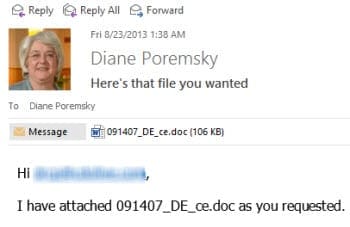
The following macro attaches one file to an email message and sends it, then sends the next file in the folder, repeating until all files are sent.
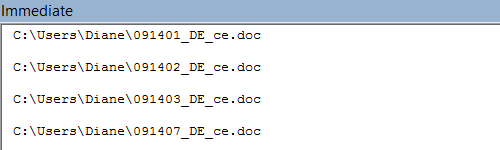
When it's finished, a dialog box tells you how many files were sent. It also lists the file names in the Immediate window, if you want to review and confirm each file was processed and sent.
To use this macro, open the VBA editor, add a new module and paste the code into it. Change fldName to use the correct path then run the macro.
If you need a record of the files sent, press Ctrl+G to open the Immediate window in the VBA Editor to view the list created by Debug.Print fName.
Dim fldName As String
Sub SendFilesbyEmail()
' Fromhttp://slipstick.me/njpnx
    Dim sFName As String

    i = 0
    fldName = "C:\Users\Diane\"
    sFName = Dir(fldName)
    Do While Len(sFName) > 0
      Call SendasAttachment(sFName)
      sFName = Dir
      i = i + 1
      Debug.Print fName
    Loop
    MsgBox i & " files were sent"

End Sub

Function SendasAttachment(fName As String)

Dim olApp As Outlook.Application
Dim olMsg As Outlook.MailItem
Dim olAtt As Outlook.Attachments

Set olApp = Outlook.Application
Set olMsg = olApp.CreateItem(0) ' email
Set olAtt = olMsg.Attachments

' attach file
olAtt.Add (fldName & fName)

' send message
With olMsg
  .Subject = "Here's that file you wanted"
  .To = "alias@domain.com"
  .HTMLBody = "Hi " & olMsg.To & ",

 I have attached " & fName & " as you requested."
  .Send
End With

End Function
Send all attachments in one message
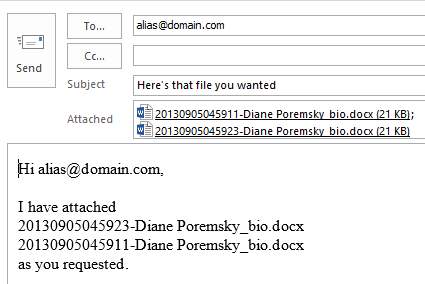
When you want to send all attachments that are in a folder, you'll need to loop through the attachments in the function to add them to one message. The following example offers two options: add all items in the folder or add only certain file types to the message.
Sub SendFilesbyEmail()

   Call SendFiles("C:\Users\diane\Test\")

' use one line per file type
   'Call SendFiles("C:\Users\diane\Test\", "*.docx")
   'Call SendFiles("C:\Users\diane\Test\", "*.txt")
End Sub

Function SendFiles(fldName As String, Optional FileType As String = "*.*")

Dim fName As String
Dim sAttName As String

Dim olApp As Outlook.Application
Dim olMsg As Outlook.MailItem
Dim olAtt As Outlook.Attachments

Set olApp = Outlook.Application
Set olMsg = olApp.CreateItem(0) ' email
Set olAtt = olMsg.Attachments

' to send all
fName = Dir(fldName)

'to send only certain extensions
'fName = Dir(fldName & FileType)

 Do While Len(fName) > 0
    olAtt.Add fldName & fName
    sAttName = fName & "
 " & sAttName
  Debug.Print fName
   fName = Dir
Loop

' send message
With olMsg
  .Subject = "Here's that file you wanted"
  .To = "alias@domain.com"
  .HTMLBody = "Hi " & olMsg.To & ",

 I have attached
 " & sAttName & "as you requested."
  .Display
End With

End Function
Attach files beginning with specific characters
When you want to include only attachments with filenames that begin with certain characters, you'll need to filter the filenames using an If statement.
' place at the top with other Dims
Dim strName As String


strName = InputBox("Enter first 4 characters of filename")

 Do While Len(fName) > 0

  If Left(fName, 4) = strName Then
    olAtt.Add fldName & fName
    sAttName = fName & "
" & sAttName
   End If

   fName = Dir
Loop
Attach Only New Files
This macro is a variation of the macro at Create a New Message using an HTML File or Stationery and attaches the newer files in the folder to individual messages.
This uses late binding to call the FileScripting object so we can avoid setting a reference to the scripting object model.
Sub SendNewestFiles()
 Dim objMail As Outlook.MailItem
 Dim fso As Object 'Scripting.FileSystemObject
 Dim strFile As String
 Dim fsoFile 'As Scripting.File
 Dim fsoFldr 'As Scripting.Folder
 Dim dtNew As Date, sNew As String

Set fso = CreateObject("Scripting.FileSystemObject")

  ' path to folder
 strFile = "C:\Users\Diane Poremsky\Pictures\"

 Set fsoFldr = fso.GetFolder(strFile)
 dtNew = Now - 0.25 ' 6 hours ago

For Each fsoFile In fsoFldr.Files

' if date created is less than 6 hours ago
' can use .DateLastModified
If fsoFile.DateCreated > dtNew Then

sNew = fsoFile.Path

Set objMail = Application.CreateItem(olMailItem)

 With objMail
 .To = "email@address.com"
 .BodyFormat = olFormatPlain
 .Attachments.Add sNew
 .Display ' .send
 End With

End If
Next fsoFile

End Sub
Send all files in a folder
Just another macro to send all files in a folder in individual messages.
Sub SendNewestFiles()
Dim objMail As Outlook.MailItem
Dim fldName As String
Dim sName As String

fldName = "C:\Users\Diane\Pictures\"
i = 0
sName = Dir(fldName)
Do While Len(sName) > 0

Set objMail = Application.CreateItem(olMailItem)

 With objMail
 .To = "email@address.com"
 .BodyFormat = olFormatPlain
 .Attachments.Add (fldName & sName)
 .Display ' .send
 End With

 sName = Dir
i = i + 1
Loop

End Sub
With a little rearranging, you can use this to send all files in one messages:
Set objMail = Application.CreateItem(olMailItem)
i = 0
sName = Dir(fldName)
Do While Len(sName) > 0

 objMail.Attachments.Add (fldName & sName)
 sName = Dir
i = i + 1
Loop
With objMail
 .To = "email@address.com"
 .BodyFormat = olFormatPlain
 .Display ' .send
End With
How to use macros
First: You will need macro security set to low during testing.
To check your macro security in Outlook 2010 or 2013, go to File, Options, Trust Center and open Trust Center Settings, and change the Macro Settings. In Outlook 2007 and older, it’s at Tools, Macro Security.
After you test the macro and see that it works, you can either leave macro security set to low or sign the macro.
Open the VBA Editor by pressing Alt+F11 on your keyboard.
To put the code in a module:
- Right click on Project1 and choose Insert > Module
- Copy and paste the macro into the new module.
More information as well as screenshots are at How to use the VBA Editor

Stacie says
Diane,
I read later last night where someone else had success by making a copy and renaming it slightly. So I tired that and it worked.
I appreciate your quick response, thank you!
stacie says
Diane,
I have used the send all files in a folder in individual messages for years until recently we were upgraded to office 365.
Now I get a complie error: Object library feature not supported
Do you know how would I change object library within the macro to work with office 365?
I have attached a screenshot of the error, thanks!
Diane Poremsky says
You're running the macro from Outlook? It should work - its failing on the object module, which is referenced in Outlook. If you are running it from another app, you need to set a reference for the Outlook object library.
Diane Poremsky says
I guess if I'd look closer, I'd see you are running it in Outlook. :) I just tested it in my Office 365 and it worked.
Sid says
Regarding "Attach Only New Files"
How to attach all new files which are in two or three different folder in single email?
Vincent Tang says
Hello,
This is great! Thank you! and I would know how to delete all files from the folder after I sent out?
Thanks
Vincent
Prateek says
Hello Diane,
I have around 300 emails as .msg attachments in a folder and just need to send (forward) them repeatedly to a mailbox for some testing, so looking for a code which will open the .msg attachment and forward that to a specified mail address. Kindly assist.
deepak gour says
hey, thanks for the coding and it works very well for me.
wanted to know if i can add the file name as the subject but without file extension?
right now have use ".Subject = fName" but i get file extension also like "Testing.pdf"
Suman Panigrahi says
Hi Diane,
can i get a read receipt once the recipient opens the attachment in outlook.
Diane Poremsky says
Just on opening the attachment, no. The receipts are sent when the email message is marked read or deleted.
Suman Panigrahi says
Thanks for your response.
I do have the code to ask the recipient once the email read. but it shows the pop-up option to click 'yes' or 'no' button to the user.
can there be any codes which send me a receipt by default, once email read?
No question asked to user to chose either yes or no.
Victor says
This macros appears to work because I am getting the message box, but it's actually not sending them out and saying 0 files sent. I updated the folder and email address. what else could I be doing incorrect? Also, this should be pasted to Outlook's VBA correct and not excel?
Diane Poremsky says
Yes, these are outlook macros. you can step though the macro and check each variable to see if its picking up the values.
Which macro are you using?
Rose says
How can I have it create an email only for those with attachments? I have this created but it creates an email even if there is no file.
Diane Poremsky says
this - Do While Len(fName) > 0- should stop if there are no more files. But you can do something like if objmail.attachments.count = 0 then objmail.close
Can A. says
Hello , thanks for sharing.
How can I change method ; I want to give Attahcment name or title as Subject. How can I add subject for per e-mails? I tried "Subject = = Attachment.DisplayName" but it could not work, I think syntax error I have.
Diane Poremsky says
This should work, since we already have the attachment name in a variable.
.Subject = fName
to get the display name from the attachment you need go through the attachment collection.
For Each olAtt In olMsg.Attachments
strSubject = olAtt.DisplayName
next
or this to get the name of the first attachment
strSubject = olMsg.Attachments(1).DisplayName
HIBA says
Please I need your support , I send many emails and when email have issue the sending was stopped can I get any way to continues send emails without stopped and after send all emails get report or list (sheet 2 in the same excel od sending bills ) of the emails that have issue to send it again.
Diane Poremsky says
Do you receive any error messages?
HIBA says
yes,when some emails have issue.
Diane Poremsky says
What is the error message? If the problem is related to the send speed, you'll likely need more complicated vba, which I don't have. there are a couple of 3rd party programs that can control the send speed.
HIBA says
the problem not about speed but about issue in emails and i received the message (Run-time error '-2147467259 (80004005)':
outlook does not recognize one or more names)
Diane Poremsky says
add a debug.print .To after you've set the To field then check the immediate window to configure its in the correct format - single quotes or other goofiness In the name format can prevent it from recognizing the name.
HIBA says
Is there a possibility to have a VBA code that will send notification for both fails and successes emails in a report or list without stopped the sequence of emails where any email have issue.
Diane Poremsky says
It may be possible, but I don't have any ideas offhand on how to do it. Are the failure NDRS that bounced back?
HIBA says
I have a list of email addresses in excel that i need to send emails to ,The subject and body are in cells besides the email address and i have the script below but i need to send 100 emails per 1 hour how i can WHAT the code can i use it ,please your support
Sub SendEm()

Dim i As Integer, Mail_Object, Email_Subject, o As Variant, lr As Long

lr = Cells(Rows.Count, "A").End(xlUp).Row
Set Mail_Object = CreateObject("Outlook.Application")
For i = 2 To lr
With Mail_Object.CreateItem(o)
.Subject = Range("B" & i).Value
.To = Range("A" & i).Value
.Body = Range("C" & i).Value
.attachments.Add (Sheets("Sheet1").Range("H" & i).Text)
.attachments.Add (Sheets("Sheet1").Range("I" & i).Text)
.attachments.Add (Sheets("Sheet1").Range("J" & i).Text)
.attachments.Add (Sheets("Sheet1").Range("K" & i).Text)
.Send
'.display 'disable display and enable send to send automatically
End With
Next i
MsgBox "E-mail successfully sent", 64
Application.DisplayAlerts = False
Set Mail_Object = Nothing
End Sub
Diane Poremsky says
so you need to slow it down so you send 100 per hour? You can set a delay delivery time - its difficult to get it to 100 per hour, but 60 per hour is easy.
At the beginning use
CurrentTime = DateAdd("n", 90, Now)
then use delay = 1 at the top, delay = delay +1 before the next i
The before the .send, use
.DeferredDeliveryTime = DateAdd("n", delay, currenttime)
HIBA says
Thanks dear ,but for this code (CurrentTime = DateAdd("n", 90, Now) ) what do you mean by "n" and 90, and does i need to define the "n" in the script and where ? and i get error when i put the code ( DeferredDeliveryTime = DateAdd("n", delay, currenttime).
Thanks
Diane Poremsky says
Oh, sorry, 90 is a typo - it should be 1 - I copied it and forgot to edit it. That sets the time to be a minute from now.
CurrentTime = DateAdd("n", 1, Now).
Actually, that's not right either. We just want current time to be 'now' then will add 1 min to it with each message.
This should work (but I didn't test it)
Sub SendEm()Dim i As Integer, Mail_Object, Email_Subject, o As Variant, lr As Long
lr = Cells(Rows.Count, "A").End(xlUp).Row
CurrentTime = Now
delay = 1
Set Mail_Object = CreateObject("Outlook.Application")
For i = 2 To lr
With Mail_Object.CreateItem(o)
.Subject = Range("B" & i).Value
.To = Range("A" & i).Value
.Body = Range("C" & i).Value
.attachments.Add (Sheets("Sheet1").Range("H" & i).Text)
.attachments.Add (Sheets("Sheet1").Range("I" & i).Text)
.attachments.Add (Sheets("Sheet1").Range("J" & i).Text)
.attachments.Add (Sheets("Sheet1").Range("K" & i).Text)
.DeferredDeliveryTime = DateAdd("n", delay, currenttime)
.Send
'.display 'disable display and enable send to send automatically
End With
delay = delay + 1
Next i
MsgBox "E-mail successfully sent", 64
Application.DisplayAlerts = False
Set Mail_Object = Nothing
End Sub
HIBA says
Dear
ok for this code (CurrentTime = DateAdd("n", 90, Now) ) but when i send all emails that i have, it was send all of the emails without divided it for 100 emails per one hour .
many thanks
Diane Poremsky says
That is not right. It delays all mail for 90 minutes. :( The macro version I just posted will send 1 per minute - sending 100 per hour all at once will require counting the messages and changing the delay delivery time every 60 min.
You'd use something like
.DeferredDeliveryTime = DateAdd("n", delay, currenttime)
but also need to wrap it in a count - when it gets to 100, add 60 to the delay.
delay = delay + 60
HIBA says
Thanks dear for your support i use the code (.DeferredDeliveryTime = DateAdd("s", Delay, currenttime)) and Delay = Delay + 30 ,that send 1 email per 30 second that mean its send 120 email per1 hour .
Angela Ellis says
This one isn't attaching any files
[code]
Sub SendFilesbyEmail()
Call SendFiles("\\TIMBERMAS\SageSQL\MAS90\Reports\Custom\ReportResults\Email")
End Sub
Function SendFiles(fldName As String, Optional FileType As String = "*.*")
Dim fName As String
Dim sAttName As String
Dim olApp As Outlook.Application
Dim olMsg As Outlook.MailItem
Dim olAtt As Outlook.Attachments
Set olApp = Outlook.Application
Set olMsg = olApp.CreateItem(0) ' email
Set olAtt = olMsg.Attachments
' to send all
fName = Dir(fldName)
'to send only certain extensions
'fName = Dir(fldName & FileType)
Do While Len(fName) > 0
olAtt.Add fldName & fName
sAttName = fName & "
" & sAttName
Debug.Print fName
fName = Dir
Loop
' send message
With olMsg
.Subject = "Here are the Daily Orders Reports"
.To = "aellis@timberlinecolorado.com"
.HTMLBody = "Good morning " & ",
Attached are the Daily Orders Reports for your review."
.Display
'.Send
End With
End Function[/code]
the Attache New Files works, but can't figure out how to modify it to send
All the new files in the folder attached as one email.
Thank you
Diane Poremsky says
I'm guessing it might be the network path - outlook can be fussy about working with network folders. Test it with a local path and see if it works.
Call SendFiles("\\TIMBERMAS\SageSQL\MAS90\Reports\Custom\ReportResults\Email")
Angela Ellis says
I changed it to this
Sub SendFilesbyEmail()
Call SendFiles("C:\Reports")
End Sub
And still only opens the email with the message but no attachments.
I also can't figure out how to modify it to only send the most recent / the latest modified dated files on the same date.
Thank you
Angel says
I thought it posted
I tried with C:\Reports and still only has the email content but no attachments.
And cant' figure out how to incorporate the ALL files but that are ALL most recent on LastModifiedDate
Diane Poremsky says
>> incorporate the ALL files but that are ALL most recent on LastModifiedDate
Do you want to add all files in the folder or just ones newer than a certain date? Using the last mod date, the macro will only send the newest file. If you want to send several with recent dates, you'll need to tell the macro - if its always everything less than a day old (or some set value), it can be hard coded in the macro otjherwise you'll need to either enter a date, date & time or a number (for days ago) in a input box so outlook can use that date.
Angel says
Oh geez! it's the "\" at the end of the path after Email.
Looking good! Thank you so much!
Now how to send the reports with the .DateLastModified as the most recent ones or all reports with .DateLastModified date for today only?
And how to launch the macro from Windows Task Scheduler to auto run it on a schedule?
Diane Poremsky says
launching it directly from the task scheduler is impossible - you'd need to convert it to a vbscript. Or, if outlook is closed, task scheduler could start it and and a startup macro can trigger... but if outlook is open, you can trigger it from a task or appointment reminder.
(Will look at the macro in the morning, re the last mod question.)
Angela Ellis says
Hello,
This is great! I got the Attache New Files to work. Thank you!
I want to attach ALL NEW files and although I tried to move things around from the codes provided, I am unsuccessful at getting it correct.
How do I combine attach new files with attach all files as one email?
Would like to send ALL the NEW files as one email instead of one file per email.
Thank you!
Diane Poremsky says
Attach Only New Files macro will send all files younger than a date-
Get the date:
dtNew = Now - 0.25 ' 6 hours ago
This uses the created date but you could use the .DateLastModified
If fsoFile.DateCreated > dtNew Then
Daniel Mathew says
how to add the signature in this VBA?
Diane Poremsky says
TRy using
.HTMLBody = "Hi " & olMsg.To & ",
I have attached " & fName & " as you requested." & .HTMLBody
That should work... if not, you'll need to insert it. (I have code that can insert it, but just using the HTMLBody on the end should work too.)
Billy says
Hi Dianne, Thanks for the code, but I'm having a little difficulty with it. I am using the first code you wrote to email multiple files in one location using multiple emails. When I run the code I get a message that says "0 files sent" even thought I have multiple files in the location specified. I saw your message below to Dustin about this same issue. I tried to make the changes you suggested, but still get the same message and no files sent. Any ideas?
Thanks,
Billy
Diane Poremsky says
change the debug.print line to debug.print fldName & fName then press Ctr+G to show the Immediate window at the bottom of te VBA editor. Run the macro. Is the path listed in the immediate window correct?
Instead of using debug.print, you could use msgbox, but test it with a few files only - it gets real annoying, real fast.
Rob says
Hi Diane, thanks for all the codes, but I get the following message "Object doesn't support this properly or method"
Rob says
Hi Diane, looks like the "Object issue" was fixed, I went to Tools/References and activate a couple of options, but now I get a this message: "Cannot find this file: Verify the path and file name are correct." and the following is highlighted "olAtt.Add (fldName & fName)". Thanks!
Diane Poremsky says
What are you using for fldname? it needs to be a valid folder path and end with a slash:
fldName = "C:\Users\Diane\"
These lines send all of the files in that folder:
sFName = Dir(fldName)
Do While Len(sFName) > 0
right before the line that errors, you can add
debug.print fldName & fName
then look in the immedaite window (look on view menu for the option) and see what path its trying to use.
John says
Diane. Thanks for your code. When I run the code I get the error "Cannot find this file. Verify the path and filename are correct."
It doesn't send the variable fldName information. It indicates that fldName is empty. When I hover on the first part of the code it has the correct folder name. How do I correct this?
Thanks,
John
Diane Poremsky says
are you uaing the correct path to replace C:\Users\diane\Test\, with the ending slash?
Sanket says
Dear Mam, The Code works perfectly. Thanks so much.
I basically use to mail invoices using this code. One changes i need is, it picks the attachment randomly and sends. Can this code be modified to pick old files first and so on.... so that older files are emailed first and then new files are sent last.
My attachments file name starts with number and end with alphabet.
Eg: 17000126 ABCD
Diane Poremsky says
i think so... but i have not tried it.
it uses this now: Do While Len(fName) > 0
Should b able to do something like what we do at https://www.slipstick.com/outlook/email/create-new-message-using-html-file-stationery/ to send the newest file and check the date - after sending it, set dtnew to the last file's date.
For Each fsoFile In fsoFldr.Files
If fsoFile.DateCreated < dtNew Then you need to move the files after they are send so they aren't resent.This has more on file scripting object - https://msdn.microsoft.com/en-us/library/hww8txat(v=vs.84).aspx
carlo says
Hello,
Thank you for the insight.
Doesn't seem to work for me though when I copy the macro Send all attachments in one message.
I get an error in the Function SendasAttachment ()
Any ideas?
Thank you!
Diane Poremsky says
What does the error message say? That would be the best clue as to what is not working.
Pratibha says
can you provide me macros for downloading/save outlook email attachment with a email subject name? kindly help i searched whole internet but not getting exactly what i want :(
Diane Poremsky says
This is one way to do it: https://www.slipstick.com/developer/code-samples/save-rename-outlook-email-attachments/
Change the name:
newName = itm.subject
Zbyszek says
Hello.
Firstly, I want to say thank you for all this stuff. It helps a lot in working with large amount of files.
I have one question - is it possible to send only specified amount of files? I mean, I want to send only 10 files in one mail.
Thank you in advance!
Diane Poremsky says
10 per message with multiple messages sent if there are more than 10 files? You can use a loop - for 1 = 1 to 10 and stop when you get to 10 - if you need to send all in multiple messages, you need to count the files then do multiple loops - maybe something like this (this is just whiteboard thinking - it needs proper code to work)
attCount = 'count files
msgC = round up(attCount/10) 'how many messages
for messages = 1 to msgC
' get each group of 10 based on total # of files.
' there should be a better way to calculate.
if messages = 1 then
fC = 1 'first attach
lC = 10 ' last att
elseif messages > 1 then
fC = (msgC *10) + 1
' need to figure out if we have a full 10 more or use error handling
lC = (msgC *20)
end if
for i = fC to lC
' create message
next i
Next messages
paul says
Hello Diane, Im trying to send an email with the most recent attachment at a specific time everyday/weekly depending on the availablity. Is there a way that i can do that in outlook?
Diane Poremsky says
Specific time and most recent is possible using a task or appt reminder to run the macro. Code to run macros when a reminder fires: https://www.slipstick.com/outlook/tasks/open-webpage-task-reminder-fires/
What do you mean by 'depending on the availablity'?
Fulton says
Hello Diane, Some very informative replies on your behalf. I didn't come across one specific to my situation. I tested the code above and it works flawlessly. My issue is I have 300 individually saved files in a folder going 300 different email addresses. I need to attach correct file with email address. I am thinking a two column list with email address and file name. If it matches, it attaches file. Do you have code in your inventory to accomplish this task?
Thanks,
Hutty
Diane Poremsky says
if the filenames contain the addresses, you could use that, otherwise will need to use a list - i have a sample macro here - https://www.slipstick.com/outlook/send-email-addresses-excel-workbook/
Fulton says
Exactly what I was looking for.
Thanks Diane
sona says
Hi Diane,
it is working fine now.i have added ".send " in my code .
Can you please tell me how to send an email to multiple person at a time.
Thanks & Regards
Sona
Diane Poremsky says
You can try
.To = "alias1@domain.com;alias2@domain.com"
but if it fails, you need to use recipients.add, repeating the lines as needed.
objMail.Recipients.Add ("alias@domain.com")
objMail.Recipients.Type = olTo ' olCC, or olBCC
sona says
Hi Diane ,
Thanks for the solution.If we put .To 2 times in my code .That also works
fine.I want to schedule my piece of code how can i schedule .I have tried using
End Function
'Application.OnTime Schedule_Time,"Sub Procedure Name"
Application.OnTime VBA.Now + TimeValue("12:41:00"), "VBA_Timer_Event"
End Function
,but it is not working properly.I have tried doing using putting the code as .vbs and then
scheduling on task scheduler .But still not got through.
Can you please suggest something on the same.
Thanks
Sona
Diane Poremsky says
>> Thanks for the solution.If we put .To 2 times in my code .That also works
That inserts both names? The second should overwrite the first if you don't use recipients.add.
Outlook VBA doesn't support ontime. You can use task reminders to trigger vba or use this timer code that uses windows timer api
sona says
Hi Diane,
Thanks for the solution.Can you please suggest some solution on
scheduling vba using task scheduler .
Thanks & Regards
Sona
Diane Poremsky says
You need to use batch files or vbscript with task scheduler. The method at https://stackoverflow.com/questions/24129613/using-excel-vba-macro-to-be-run-through-windows-schedule-task works with Excel (and word) - i have not tried it with outlook to see if it calls the macro.
sona says
I have a requirement,if a non csv file is there in the folder then i need to trigger
an email saying ,we trigger a non csv fileor if we can attach the files even.
I was trying out the code which is mentioned above .
.
---Sub SendFilesbyEmail()
Call SendFiles("C:UsersdianeTest")
' use one line per file type
'Call SendFiles("C:UsersdianeTest", "*.docx")
'Call SendFiles("C:UsersdianeTest", "*.txt")
End Sub
Function SendFiles(fldName As String, Optional FileType As String = "*.*")
Dim fName As String
Dim sAttName As String
Dim olApp As Outlook.Application
Dim olMsg As Outlook.MailItem
Dim olAtt As Outlook.Attachments
Set olApp = Outlook.Application
Set olMsg = olApp.CreateItem(0) ' email
Set olAtt = olMsg.Attachments
' to send all
fName = Dir(fldName)
'to send only certain extensions
'fName = Dir(fldName & FileType)
Do While Len(fName) > 0
olAtt.Add fldName & fName
sAttName = fName & " " & sAttName
Debug.Print fName
fName = Dir
Loop
' send message
With olMsg
.Subject = "Here's that file you wanted"
.To = "alias@domain.com"
.HTMLBody = "Hi " & olMsg.To & ", I have attached " & sAttName & "as you requested."
.Display
End With
End Function
---
But I am getting this error:
compiler error :Syntax error
Can you please help on the solution
Diane Poremsky says
Does it say what line is erroring? Syntax error could be due to a copy/paste problem. No curly quotes... the macro you put in your comment works here (had to fix the file paths, but the wrong path won't trigger the error.)
if you want to send all files EXCEPT CSV files, use this in the loop in the Send all attachments in one message macro.
Do While Len(fName) > 0
If Right(LCase(fName), 4) <> ".csv" Then
olAtt.Add fldName & fName
sAttName = fName & "<br /> " & sAttName
End If
Debug.Print fName
fName = Dir
Loop
sona says
HI Diane ,
A very Good Morning !
I have question regarding triggering an email when a non-csv file is encountered
in a folder .But in my folder there is a zip folder too.so i don't want .zip be triggered.
What should i include in my code .I tried few changes in my code but it does n't work.
Can you please help me on the same..
Thanks & Regards
Sona
Diane Poremsky says
something like this should work...
Do While Len(fName) > 0
if not right(fName, 4) = ".csv" AND if not right(fName, 4) = ".zip" then
olAtt.Add fldName & fName
sAttName = fName & "
" & sAttName
Debug.Print fName
fName = Dir
end if
Loop
Michal says
Dear Diane,
Thank you very much for the work you put into this page.
I have one question, could you please advise if it is possible to instead of creating new msg in macro to ´´Send all attachments in one message´´ use previously saved template?
Diane Poremsky says
Yes, you can do that. Change
Set olMsg = olApp.CreateItem(0) ' email
to
Set olMsg = olApp.CreateItemFromTemplate("C:\path\to\template.oft")
Michal says
Dear Diane
Thank you very much for your help. It works perfectly,
Best regards.
Virendra H says
Hello Diana.
I used ur VB codes "Send all files in a folder", It was working fine in old Outlook. we had an upgrade to Microsoft Outlook professional 2016. these codes are not working in new version. Please help me to understand the change I need to do to make it workable.
Thx,
Virendra H.
Diane Poremsky says
Do you get any error messages? Is macro security (File, options, trust center) set to low?
Dustin says
Hi Diane,
The pop up box after I run the code says 0 files sent, and nothing sends. There is a file in the referenced folder. Any ideas?
Thanks
Diane Poremsky says
Open the immediate window (View menu) - is the fname showing the expected name? change the debug.print line to debug.print fldName & fName - is it the correct path?
vinodh says
Hi Diane
Can you help me on this,
I'm having master data sheet where I have to filter the dealer name column and send the attachment to the customers of that dealer using macros
Diane Poremsky says
that is basically a filtered mail merge - but since outlook can't send attachments in a merge, you need to use a macro. I'm assuming by 'master data sheet' that you mean in Excel. In that case, you'd use something along the lines of https://www.slipstick.com/developer/create-appointments-spreadsheet-data/ (obviously, change it from appointments to messages :)) I'd check the dealer name column for the value and use that to decide who to send to. if you need to send to all but send a different attachment depending on the dealer, you could either use an array to associate the dealer to the attachment or add the attachment name in a column.
Addis says
Hi Diane,
Please guide me macro which will enable me to send emails with word documents attachment to a specific email id. I want to send 25 attachments per email from a folder where there are over 50000 word documents. Please device out a way where every time only the new sets of attachments are sent through the email until all the attachments are sent. Word Documents have various names like resumes1 etc. Please help.
Diane Poremsky says
As an FYI for others, a possible solution is at https://forums.slipstick.com/threads/95672-outlook-send-new-20-attachments-through-email/
brian says
Hi Dianne, Please help.
I am trying to send files two at a time using arrays.
the issue I'm running into is that outlook generates the necessary email without
attaching the files to the email.
Please see the script i used below and advise.
Thank you very much.
Diane Poremsky says
Add some debug.print's to the code to see if you are actually picking up the attachments, like this:
strName = arrName(i)
debug.print strname
olAtt.Add (fldName & fName)
debug.print fldName, fName
Rahul says
Hello Daine,
Greeting of the day , i recently read your post and used ur Macros , all are amazing.
I am preparing a report which include more than 50 Vendors and save workbook as name of every vendor and now i need to send all workbook as attachment to number of vendors so how i can send once.
as i saw your macro where i have to write particular Email id , is it possible that we can loop and send particular attachment to concern person in once.
Please help me out. one more thing i m preparing one PPT project where i got stuck so can you also help me out on PPT macro as well.
Regrards'
Diane Poremsky says
I know nothing about ppt macros - other than for the most part, vba has a lot of similarities between the different office programs.
you can loop - if the workbook has the file name and the recipient, you just need to read the name. If the workbook name is the same as the recipient's name or email, you can grab it from there.
I have a sample macro here - https://www.slipstick.com/outlook/send-email-addresses-excel-workbook/ (It might faster to use an Excel macro that sends mail to addresses in the workbook though.)
Navket says
I am in need of Macro to forward email from one particular domain to an email ID. so when ever I receives an email from AAA@domain.com it should be forward to XYZ@xmail.com. I tried using the same with rules but it is not happening. can you please help me on this.I am using Outlook 2010.
Diane Poremsky says
rules should work, but if not, you can use an run a script rule - use a condition for words in the header - or use an item add macro that watches for messages. A run a script example is at https://www.slipstick.com/outlook/rules/run-script-rule-change-subject-message/
Itemadd macro instructions are here : https://www.slipstick.com/developer/processing-incoming-e-mails-with-macros/
Sam Mendes da Costa says
As an untrained used of Excel VBA I tried to use Send all attachments in one message. when the programme got to the function i got an error on the line
DIM olMSG as Outlook.mailitem. the error was "Compile error - User defined type not defined." What am i doing wrong. if i rem out this line it stops at the next line Dim olAtt..... What I am trying to do is to attach up to 3 pdfs all in the same folder to a single email, everything else works but I do not know how to attach more than 1 pdf.
Diane Poremsky says
Are you working in Excel? You need to set a reference to Outlook Object Library in Excel's VBA Editor - Tools, References.
Virendra says
Hi Diane,
I have tried the macro for sending all files from a folder but its showing a compiler error.
What should I do to make it running.
Regards
Viren
Diane Poremsky says
is the file path correct?
Suet Yun says
Hi Diane,
Your first macro (Sending one attachment to one recipient) helped me a lot. I am just wondering whether it is possible to set a macro to send specific attachment to specific recipient. Example: I have a list of 26 pdf files for 26 different dealers. I want to send only the file that has the the specific dealer name to the dealer email address. How can I set this up?
My current way of doing it is very manual. I attach the file and type the dealer email address. Doing this manually everyday and it is getting tedious.
Diane Poremsky says
As long as the attachment names contain all or part of the email address, yes. It should be possible to use the display names, but would be much easier to use the email address. You'd use code similar to the code in Attach files beginning with specific characters section, but use a variable to pick up the filename.
Ahmed says
Dear Diane,
checking your macro of (Send all attachments in one message) it is neer to what i'm looking for, may it be searching for multiple files names from a list or a (.txt) file
Diane Poremsky says
something like this will pull from a text file - i don't have time to test it, so it might need a little tweaking. Basically, you read the text file into an array then use the array to add the files.
Dim fn As String, ff As Integer, txt As String
fn = "C:\Users\drcp\Documents\keywords.txt" '< --- .txt file path txt = Space(FileLen(fn)) ff = FreeFile Open fn For Binary As #ff Get #ff, , txt Close #ffDim myArray() As String 'Use Split function to return a zero based one dimensional array. myArray = Split(txt, vbCrLf)fldName = "C:\Users\Diane\Pictures\"Set objMail = Application.CreateItem(olMailItem) Dim i As Long For i = LBound(myArray) To UBound(myArray) objMail.Attachments.Add (fldName & myArray(i)) Next i With objMail .To = "email@address.com" .Display ' .send End With
Ahmed says
Dear, plz check te err below:
fn = "D:filesFileList.txt" '< --- .txt file path
txt = Space(FileLen(fn))
ff = FreeFile
Open fn For Binary As #ff
Get #ff, , txt
Close #ff
The above part don't allow the macro to run, i believe the (ff = FreeFile) is the cause, may you explain it, noting i'm not very god on scripting languages, i'm a simple user :)
Diane Poremsky says
it works - something else is wrong. Is the text file path correct? do you get any error messages?
Sudharshan says
Hi Diane,
Thanks for the code, but unfortunately the code does not pick any attachments from the path I had specified in the code. Also noticed that there is no cell reference mentioned in the code to identify the file name. Can you please helpout with some other code.
Thanks
Sudharshan
Sudharshan says
Hi Diane. Am looking for a code which would attach files to mail wherein the file name is mentioned in spreadsheet itself.
For instance: I have a file name say "Invoice" in cells B9 Sheet 1. Now I have a file with similar name in a specified Path say "C:UserssudharshanTest". The file will be either in .pdf or in .tif format.
I need a code which will search for the file name mentioned in B9 in C:UserssudharshanTest and attach the same.
Best regards
Sudharshan.S
Diane Poremsky says
You'd tweak the snippet that uses a specific file name. The macro at https://www.slipstick.com/developer/vba-copy-outlook-email-excel-workbook/ shows how to read Excel from Outlook.
' place at the top with other Dims
Dim strName As String
'need more code to link to excel
strName = xlSheet.Range("B9")
Do While Len(fName) > 0
olAtt.Add "C:\user\path\" & fName
sAttName = fName & "
" & sAttName
fName = Dir
Loop
Informatique. says
Hi :
I used the " Sub SendNewestFiles() Dim objMail As Outlook.MailItem
Dim fso As Object 'Scripting.FileSystemObject Dim strFile As String Dim fsoFile 'As Scripting.File" to send newest files by email; I after wanted to send all of them in Only one email, i used " Set obj Mail =Application.CreateItem(olMailItem) i = 0 sName = Dir(fldName) Do While Len(sName) > 0" ; It blocks at the expression "Dir(fldName) ": it does not recognize the expression " fldName" ; I use Outlook 64 bit. Can you please advise and help.I repeated the process many times and it always block at "fldName"
Real Thanks.
Diane Poremsky says
did you set a path for fldName ?
fldName = "C:\Users\Diane\"
Informatique. says
Hi . Thank you for your quick response ; I added fldName = "C:\Users\Diane\" after your response , but it still sends One mail in One Message : the code still does not loop all files for one Mail ; I looked in the Site and i found one of your Response which was helpful : https://forums.slipstick.com/threads/90478-attach-file-and-send-email/; May be because the two declarations :1-strFile = "C:\Users\Diane Poremsky\Pictures\"and 2-fldName = "C:\Users\Diane\".Thank You again.
Diane Poremsky says
this should be the filename, not the path:
1-strFile = "C:\Users\Diane Poremsky\Pictures\"
this is the folder path: 2-fldName = "C:\Users\Diane\".
Informatique. says
Hi :
First of All , Diane Poremsky thank you very much for your Very Very Valuable advises : You made my days :)).
My problems is the following :
I have many Files in my desktop that i've to send emails with outlook.
I Used the following elements :
* Sub SendFilesbyEmail()
*Function SendFilesArray(fldName As String)
*Sub Mail()
*Function SendFiles(fldName As String)
*Sub SendNewestFiles()
Each time i use a different Feature of the file : NAME/DATE OF CREATION ...
But this does not arrange my case;
My problems are greater than that :
Let's say i have 10 Types of Files beggining with different names :
*AAA to be sent to aaaaa@aaaa.com
*BBB to be sent to bbbb@bbbb.com
*CCC to be sent to cccc@cccc.com ...
*DDD to be sent to dddd@dddd.com
*EEE to be sent to eeee@eeee.com
*FFFto be sent to ffff@ffff.com
*GGG to be sent to gggg@gggg.com
*HHHH to be sent to hhhh@hhhh.com
*IIII to be sent to iii@iiii.com ......................................................................;
I'm looking for A VBA OUTLOOK MACRO that send me each File/Name to a different Adress.
Can i RE USE the same SUB in a different module.
Tanks again for your Time .
Respects.
Diane Poremsky says
you can use stub macros to pass values to a macro that does all of the work... but if the characters and addresses are all static - AAA* always goes to aaa@aaa.com, then you might be able to do it with one macro.
this gets repeated for each address or filename:
Sub aaa()
strFile = aaa
strTo = "aaa@aaa.com"
sendFiles
end sub
the values get passed to this macro
private sendfiles()
' do whatever
end sub
Informatique. says
Hi Diane :
I followed your recommandations but it does not work;
The email adresses and files names are Static ;
*The system did not accept the repetition of the Function SendFiles into 2 different Sub's.
*I tried only with One Sub but the files names and the adresses were mixed and wrongly sent to the wrong adresses !!.
I did not find any Solution to my problem.
Best Regards.
Diane Poremsky says
Can you add your macro here (as an attachment in a text file) so i can test it.
Informatique. says
Hi Diane :
Here joined The Macro.
I made the changes you advised me and it works very well.
I’ll make the test for 6 Files Names and I’ll confirm you in the Web Site.
Real Thanks.
Informatique. says
Hi Diane :
May God preserve you;You are the Best of the Best.
I tried with 5 different File names associated with 5 different email adresses and it works very well.
I just wanted to add an other level : i want to add the file name into the email subject Field .
Best Regards.
Diane Poremsky says
to add the file name to the subject, use
.Subject = "Here's that file you wanted " & fName
Informatique. says
Hi :
I am looking for a Dynamic Subject not Static;
e.g. : Subject = AAAA.pdf; WWWW.pdf; RRRR.pdf;
All file names are written into the Subject Field.
So the receipient knows which email for which file .
Thanks.
Diane Poremsky says
You'll do it the same way - .Subject = fName
if you add multiple files, use something like strSubject = strSubject & fName as you add the attachments then .subject = strSubject
Informatique. says
Hi Diane :
Yep , i followed your Instructions and it works perfectly ;
All Subjects pull up accordingly to the files' names.
Great Thanks to You ;
I joined the code used;
Best Regards.
Informatique. says
Hi :
Again , thanks to You Diane Poremsky.
Best Regards.
Lesley says
Hi Diane, I just used this code to send one attachment per one message, and I got it to work. YAY! I do have one question which pertains to how I need to use this. We send bi-weekly timesheets to your employees via email, each employee has their own timesheet created. Is it possible to modify the code to when it grabs the employee's timesheet (each timesheet file is excel and the filename is the employee's name) that outlook also searches the address book for that employee and sends it specifically to them? It's a bit more complicated coding I presume, but would be very useful to save time. Thanks!
Diane Poremsky says
If the sheet has their name as it appears in the GAL (or even better, their alias)
you could replace
.To = "alias@domain.com"
with
' you'll need to use left & len to get just the filename
.To = left(fName, len(fName) - 5)
if there are issues resolving it use this method
Set objRecip = Item.Recipients.Add(filename)
objRecip.Type = olTo
objRecip.Resolve
if you need to look it up in the gal, the macro at https://www.slipstick.com/developer/code-samples/use-vba-to-create-a-list-of-exchange-gal-members/ shows how to access the GAL using VBA.
remco says
Dear Diane,
I am trying to make a macro for add an attachment to e-mails who are in my outbox. In each E-mail is mentioned as subject a number. I want to add a PDF file with the same number as mentioned in subject. These pdf files are stored in the directory \\appsrv01\dsms\facturen\ . Do you have an idea how to do this?
Regards,
Remco
Diane Poremsky says
i swear i replied to this already... :( you'll need to use an itemsend macro and add it as you send.
you need to get the filename from the subject using instr or similar functions (left, right, len)
strSubject = right(item.subject, 10)
then
.Attachments.Add "\\appsrv01\dsms\facturen\" & strSubject & ".pdf"
https://www.slipstick.com/developer/code-samples/mark-mail-merge-messages-as-urgent/ has an example that just needs extra fields removed.
jeff says
Hi Diane,
I've used many of your macros, or parts of them, for a variety of business functions. I also use macros not only from outlook, but from excel as well to launch outlook and send a message with attachment but alos include a signature. This works well, but I am having trouble using this first macro to send all files in a folder with individual emails and also include signature. As part of my signature macro in the excel program, I had to change the location in the htm file from a shortened version to the full path of whewre the image for the logo is stored. Below is part of the vba code I have used i excel as well as in Outlook to include my signature in emails. Below is the code I have used regarding siugnature. Please let me know how to include my signatyure and logo in the email as well. Thank you.
Code:
Signature = Environ("appdata") & "\Microsoft\Signatures\"
If Dir(Signature, vbDirectory) vbNullString Then
Signature = Signature & Dir$(Signature & "*.htm")
Else:
Signature = ""
End If
Signature = CreateObject("Scripting.FileSystemObject").GetFile(Signature).OpenAsTextStream(1, -2).ReadAll
Diane Poremsky says
This is how i add a signature - strSigFilePath is set using environ.
Set objFSO = CreateObject("Scripting.FileSystemObject")
Set objSignatureFile = objFSO.OpenTextFile(strSigFilePath & "the signature.htm")
strBuffer = objSignatureFile.ReadAll
objSignatureFile.Close
then when i build the htmlbody i insert it -
.HTMLBody = .HTMLBody & strBuffer
Viktor says
Hi Diana,
First off all thank you for your macro. I would like to ask that if it is possbile to put in the subject the same name as the file is named ? That would really help me a lot. Thank you for your answer.
BR
Viktor
Diane Poremsky says
Sure. use this format -
olmsg.subject = olmsg.subject & " " & fName
Viktor says
Hi Diana,
Thank you so much for your answer. Would it possible to add a prefix "9" in front of the attached file ( I mean the file is named 456..... and in outlook it would goes 9456....)?
Thank you so much for your answer.
BR
Viktor
Diane Poremsky says
you'd need to rename the attachment on the hard drive first, then attach it. (you can do this with code) the macro at https://www.slipstick.com/developer/code-samples/save-rename-outlook-email-attachments/ shows how to rename, basically, get the filename, rename then attach the new file name
newName = "9" & fName
fName.Name = newName
or copy it - (it might be better to copy to a new folder)
fso.CopyFile (fldName & fName, fldName & "9" & fname)
Daniel Sanchez says
I have a problem dir sFName = Dir(fldName).
Shall I have to activate anything at VBA references such as Microsoft Shell Controls and Automatons?
Diane Poremsky says
it should just work as is. Are you using 32 or 64bit outlook? Do you get an error message?
Alain says
Hi Diane, I found your code to be very useful and would like to know if you can provide some help on how to run the code every let's say 5 minutes. I would like to constantly be checking for new files on a specific folder and send those out. I adapted your Attach Only New Files code to my needs but missing that last part where it can constantly run.
Thank you in advance for your help.
Diane Poremsky says
Because macros in Outlook tend to take control (you can control it a little, but outlook could still go into a not responding state more frequently) and outlook doesn't include a timer, i usually recommend using a macro that fires on reminders.
This macro - https://www.slipstick.com/developer/code-samples/running-outlook-macros-schedule/ - runs 5 minutes after outlook starts and then every 5 minutes.
Susan says
Hi! I'm hoping someone can help me with this. I built a send range macro, whereby it extracts specific cells from a page and sends them as the body of the email using Outlook. It worked beautifully! And still does for many still using it. However; since I upgraded to Office 2013, this aspect of my macro doesn't work anymore for me and a few others. The whole macro copies cells from one page, pastes them into another page with a delay so that the user can see it move, then it moves them again to a hidden page so that future users cannot see the previous users work. Then it emails the data to the users manager and the administrator, finally it deletes any visible trace of the users work and returns them to the start page. For me, it is doing everything, but the email is not going through! I have searched several forums for a possible reason...I am thinking it has to be a setting in Excel 2013, but can't figure it out. I must confess I am no expert, the majority of what I know has been learned through trial and error...but right now I am faced with a time crunch and need to get this fixed. Any help would be greatly appreciated!
Diane Poremsky says
Sorry I missed this before. As long as you have the macro security set low (or signed), it should work - with one possible exception - 64bit office. You might need to tweak to code, it depends on your macro and not all macros need tweaked for 64bit.
Are you getting any error messages? Comment out error handlers so the code shows you where it is erroring.
Tony Marrazzo says
Hi Diane, and thank you for what you do here! I am trying to adapt your script to email both a PDF and an Excel file in a folder to multiple people. I have gotten some of it to work, what I am needing to do is where the file types are called out on the top of the script I need to have the data in a certain cell to be part of the directory address something like this:
Call SendFiles("P:\Purchasing Layup Summaries\987654\", "*.xlsm")
but instead of the 987654 I need to pull up the data from cell C3 in the spreadsheet. I have tried multiple scenerios such as Range ("C3").Value and it doesn't work. Also, I am getting 2 duplicate emails everytime I send. Any ideas? Thanks again!
Diane Poremsky says
Not in that format. You would need to read the cell into a variable. (It's generally recommended to do it that way)
strCell = Cells(3, 3) ' Range("c3") should work too.
Call SendFiles("P:\Purchasing Layup Summaries\" & strCell & "*.xlsm")
if you don't know how to set references to Excel, this page has a macro that does that -
https://www.slipstick.com/developer/vba-copy-outlook-email-excel-workbook/
Tony Marrazzo says
I tried it but couldn't get it to work. I have tried several things but it doesn't want to play well with others.
Diane Poremsky says
Can you post the macro you're using? I'll take a look at it.
Tony Marrazzo says
Sub SendFilesbyEmail()
strCell = Cells(3, 3)
Call SendFiles("J:\Laminate Layup Sheets\" & strCell & "*.*")
End Sub
Function SendFiles(fldName As String, Optional FileType As String = "*.*")
Dim fName As String
Dim sAttName As String
Dim olApp As Outlook.Application
Dim olMsg As Outlook.MailItem
Dim olAtt As Outlook.Attachments
Set olApp = Outlook.Application
Set olMsg = olApp.CreateItem(0) ' email
Set olAtt = olMsg.Attachments
' to send all
fName = Dir(fldName)
Do While Len(fName) > 0
olAtt.Add fldName & fName
sAttName = fName & " " & sAttName
Debug.Print fName
fName = Dir
Loop
' send message
With olMsg
.Subject = Range("C3").Value & " Laminate Layup Instructions"
.To = "tmarrazzo@huntwood.com"
.HTMLBody = "To " & olMsg.To & ", I have attached files: " & sAttName & " see files for layup instructions."
.Display
End With
End Function
Diane Poremsky says
Do you want to run this from Excel or Outlook? (It works in Excel as is but if you want to run it from outlook, you need to reference excel.)
Add a debug.print to it and verify the path is correct and it seems to work better if the path is created in a variable first:
Sub SendFilesbyEmail()
Dim strCell As String
strCell = Cells(3, 3)
strCell = "C:\Users\Diane\Documents\" & strCell & "\"
Debug.Print strCell
Call SendFiles(strCell, "*.jpg") ' the extensions needs passed in path, ext format here
End Sub
The original path was missing the final slash - it's looking for a file called Subfolder*, not all files in a folder called subfolder.
J:\Laminate Layup Sheets\Subfolder*.*
tony marrazzo says
Works perfectly, thank you!!!!!!
tony marrazzo says
Your replies disappeared, did I do something wrong?
Diane Poremsky says
I don't think you did anything wrong. I was fixing a bug in the commenting system earlier but it didn't remove any comment (the bug prevented people from seeing any more than the approx 10 newest comments)
This was my newest: https://www.slipstick.com/developer/macro-send-files-email/#comment-200813
(it looks like they are way out of whack. But i don't know if that is the result of the bug or how you posted your initial question)
Maria says
Hi Diane,
Is there a vba code that would add my job title and company name along with the name that is being picked up from outlook. Currently its picking up my name from outlook using last name, then first name. Also is there a way that it can pick up the first name followed by last name. Thank you.
Diane Poremsky says
Generally speaking, no. But it really depends what you are doing as you can use VBA to get those fields. The display name in the From field is configured on the server.
Saleem Ahmed says
Hi Diane,
I used the code for "Send all attachments in one message" in outlook 2013. But it is only creating the mail which is ready to be sent.I need the mail to be sent directly without waiting for clicking the send button. Could you kindly advise?
Diane Poremsky says
change .Display to .Send to send the message automatically.
Saleem Ahmed says
Thanks Diane ! It was a great help
Gene says
Hi Diane,
Your macro for creating an email and attaching the two files in outlook 2010 is great and it works perfectly. .
However, i am trying to modify the body text to my own. My own contains three short paragraphs of text and a signature. How do i do that?
And also, how do i change the font from plain text to Calibri 12?
Thank you
Diane Poremsky says
This part controls formatting and the body contents:
With objMail
.To = "email@address.com"
.BodyFormat = olFormatPlain
.Attachments.Add sNew
.Display ' .send
End With
Change bodyformat to olformathtml and add the text using .body = "your text" & vbcrlf & .body
Edward Thibedeau says
Diane,
I am using a script you made some time ago to automate Send To by making a .vbs script.
Option Explicit
Dim objArgs, OutApp, oNameSpace, oInbox, oEmailItem, olMailItem
Dim a, oAttachments, subjectStr, olFormatHTML
olMailItem = 0
olFormatHTML = 2
Set objArgs = WScript.Arguments 'gets paths of selected files
Set OutApp = CreateObject("Outlook.Application") 'opens Outlook
Set oEmailItem = OutApp.CreateItem(olMailItem) 'opens new email
For a = 0 to objArgs.Count - 1
Set oAttachments = oEmailItem.Attachments.Add(objArgs(a))
subjectStr = subjectStr & Right(objArgs(a),Len(objArgs(a))-(InStrRev(objArgs(a),""))) & ", " 'recreates the default Subject e.g. Emailing: file1.doc, file2.xls
Next
If subjectStr = "" then subjectStr = "APM Engineering Report for "
oEmailItem.Subject = "APM Engineering Report for "
oEmailItem.To = ""
oEmailItem.BodyFormat = olFormatHTML
oEmailItem.Body = "Please ensure that appropriate aircraft drawing files and index are updated with this latest version of the APM Engineering Report. A copy of this report must be provided to the aircraft owner."
====================================================
This script works perfectly for making an email and attaching file to it. However, I would like to include my signature. Either from my Outlook HTML signature or by adding separate paragraphs with my name, etc. typed into the .vbs script. I tried using what you posted in this topic about adding & vbcrlf & .body
But all I get is Run Time Error Line 17 Char 214 Code 800A0409
I added this to make a 2nd paragraph: oEmailItem.Body =+ " " but it skips the first paragraph.
Diane Poremsky says
typically, you would add it to the body string -
oEmailItem.Body = "Please ensure that appropriate aircraft drawing files and index are updated with this latest version of the APM Engineering Report. A copy of this report must be provided to the aircraft owner." & vbcrlf & "more stuff".
or use this for the second line -
oEmailItem.Body = emailitem.body & vbcrlf & "whatever"
you may need to use two vbcrlf: & vbcrlf & vbcrlf &
Satish Sharma says
Hi Diane, I want to send multiple PDF files to multiple recipients from my folder and having list of recipients with file name in excel. is it possible to send .pfd files to respective recipients through macro. it would be so worthy for me. Thanks in advance for your support.
leo says
i do code above all, with copy paste, and rename my path file, but attach file not follow in ms outlook, so any sollution, with example
Sub SendFilesbyEmail2()
Call SendFiles("C:\Logistik\test")
End Sub
Function SendFiles(fldName As String, Optional FileType As String = "*.*")
Dim fName As String
Dim sAttName As String
Dim olApp As Outlook.Application
Dim olMsg As Outlook.MailItem
Dim olAtt As Outlook.Attachments
Set olApp = Outlook.Application
Set olMsg = olApp.CreateItem(0) ' email
Set olAtt = olMsg.Attachments
' to send all
fName = Dir(fldName)
'to send only certain extensions
'fName = Dir(fldName & FileType)
Do While Len(fName) > 0
olAtt.Add fldName & fName
sAttName = fName & " " & sAttName
Debug.Print fName
fName = Dir
Loop
' send message
With olMsg
.Subject = "Here's that file you wanted"
.To = "a leo"
.HTMLBody = "Hi " & olMsg.To & ", I have attached " & sAttName & "as you requested."
.Display
End With
End Function
Diane Poremsky says
It works here - a message was created with the attachments and this in the body:
Hi a leo, I have attached test.xlsx Meeting1 322 8A.ics Meeting 323 8A.ics meeting 322 10a.ics keywords.txt as you requested.
You need to use a the last slash in the path or add it - otherwise, it's looking for files named test*, not a folder named test.
Call SendFiles("C:\Logistik\test\")
Larry Marks says
How do I code the option to open a folder, and choose the file to attach? Don't need to send every file.
Thanks
Diane Poremsky says
You need to use the Excel file open dialog - i should have a code sample around here that uses it. i'll look for it and post it on this page if i find it.
Dim xlApp as New Excel.Application
xlApp.Visible = False
With xlApp.FileDialog(msoFileOpen)
' your dialog init code goes here
End With
xlApp.Quit
Set xlApp = Nothing
Larry Marks says
Excel? Lost me-- I just want to code "Insert|Attach File" and stop, so I can choose the atch. Sorry if this sounds too simple, but it would save a great amount of time for me. Thanks again.
Diane Poremsky says
Outlook doesn't expose the Insert file dialog in the object model - you need to use Excel's (or Word's) or write your own.
If you just need easier access to the Insert attachment dialog, customize the ribbon and add the Insert file command to the ribbon or QAT. It's an option on the QAT - just expand and select it.
Jorge Marques says
Hi Diane, great code, I am trying to do something similar, but for example I have excel with email recipients and to each one a different report (In same folder) should be sent with a specific tex. e.g. Email 1 should be sent the Report 1, for Email 2 send Report 2, so Email n should be sent Report n. Thank you very much in advance.
Diane Poremsky says
For this you need to count the messages and increment the number by one.
'up near the top of the macro
i = 1
' start the loop here
i= i + 1
'return to loop
The Sendasattachment function does this already - you just need to get the address from the spreadsheet.
Lambs says
Hi Diane, I created something that looks like this
Sub CreateEmail(Subject As String, Body As String, ToSend As String, CCs As String, FilePathtoAdd As String)
'write the default Outlook contact name list to the active worksheet
Dim OlApp As Object
Dim OlMail As MailItem
Dim ToRecipient As Variant
Dim CcRecipient As Variant
'Set OlApp = CreateObject("Outlook.Application")
'Set OlMail = OlApp.CreateItem(olMailItem)
Set OlApp = Application
Set OlMail = OlApp.CreateItem(olMailItem)
'For Each ToRecipient In Array("")
'OlMail.Recipients.Add ToRecipient
OlMail.Recipients.Add ToSend
'Next ToRecipient
'For Each CcRecipient In Array("")
'With OlMail.Recipients.Add(CcRecipient)
'.Type = 2
'End With
'Next CcRecipient
Dim Temp As Recipient
Set Temp = OlMail.Recipients.Add(CCs)
Temp.Type = olCC
'fill in Subject field
OlMail.Subject = Subject
OlMail.Body = Body
'Add the active workbook as an attachment
' OlMail.Attachments.Add ""
If FilePathtoAdd "" Then
OlMail.Attachments.Add FilePathtoAdd
End If
'Display the message
OlMail.Display 'change this to OlMail.Send if you just want to send it without previewing it
End Sub
Sub EmailIt()
CreateEmail "Subject", "Body", "email1@email.com", "CC Email address", "C:\FOLDER\C34657-file.zip"
CreateEmail "Subject", "Body", "email2@email.com", "CC Email address", "C:\FOLDER\C34640-file.zip"
End Sub
This allows me to send a particular file from a folder to a particular email address. Each attachment will always have their own recipient, eg C34657-file.zip will always be sent to email1@email.com. The way I have created it seems to work, but I have only created this for about 100 files, I have a spreadsheet of potentially 1000 different recipients just wondering can this be done with the way you showed us above, so Outlook picks up maybe the first 7 letters/numbers from a file in a folder and attaches the email address?
Thanks for you help and your guides, I find them really useful!
Diane Poremsky says
Are you running this macro from Excel or from outlook? It will probably be easier to run it from excel, although you could read the sheet and do it from outlook. I don't think i have any code samples handy but will look.
Lambs says
Thanks for the response, it was in outlook, but was very buggy, because if the file was not present then there would be an error, so i completely rewrote the code now to this: I think this is much better, would prefer it to search for the first 6-7 digits of each filename as the C1656 file will always go to email1@email.com and C25678 will always go to email2@email.com but this way still works! Thanks
Sub SendFilesinFolder()
Dim sFName As String
sFName = Dir("C:\folder\")
Do While Len(sFName) > 0
Call SendasAttachment(sFName)
sFName = Dir
Loop
End Sub
Function SendasAttachment(fName As String)
Dim olApp As Outlook.Application
Dim olMsg As Outlook.MailItem
Dim olAtt As Outlook.Attachments
Set olApp = Outlook.Application
Set olMsg = olApp.CreateItem(0) ' email
Set olAtt = olMsg.Attachments
' attach file
olAtt.Add ("C:\Folder\" & fName)
' send message
With olMsg
.Subject = "This is a subject: " & fName & ""
If fName = "C1656_setfilename.zip" Then EmailAdd = "email1@email.com"
If fName = "C25678_setfilename.zip" Then EmailAdd = "email2@email.com"
.To = EmailAdd
.HTMLBody = "Here is your attachement"
.Display
End With
End Function
Diane Poremsky says
if left(fname, 6) = C1656_ then...
Lambs says
Amazing! Thank you so much Diane. You are brilliant
Jdkes says
Is there a way to add a signature to this code? Tried everything i found on google cant get it to work :)
Diane Poremsky says
Try changing this line:
.HTMLBody = "Hi " & olMsg.To & ", *linebreaks* I have attached " & fName & " as you requested." & vbcrlf & .htmlbody
As long as the signature is added automatically, you can add it back by tacking .htmlbody on at the end. Otherwise, it replaces the body with the text in the code.
Maple says
Dear Diane,
I followed your first Macro to send 1 pdf to 1 email.
I got 0 file sent message when I run the Macro.
Please kindly have a look below script and advise I must did it wrong somewhere. Thank you very much for the script :-) It will surely save my life.
Sub SendFilesbuEmail()
' From http://slipstick.me/njpnx
Dim sFName As String
i = 0
fldName = "C:\Users\pppt\Desktop\MYTEST"
sFName = Dir(fldName)
Do While Len(sFName) > 0
If Right(sFName, 4) = ".pdf" Then
Call SendasAttachment(sFName)
i = i + 1
End If
sFName = Dir
Loop
MsgBox i & " files were sent"
End Sub
Function SendasAttachment(fName As String)
Dim olApp As Outlook.Application
Dim olMsg As Outlook.MailItem
Dim olAtt As Outlook.Attachments
Set olApp = Outlook.Application
Set olMsg = olApp.CreateItem(0) ' email
Set olAtt = olMsg.Attachments
' attach file
olAtt.Add (fldName & fName)
' send message
With olMsg
.Subject = "Here's that file you wanted"
.To = "myemailaddress"
.HTMLBody = "Hi " & olMsg.To & ", I have attached " & fName & " as you requested."
.Send
End With
End Function
Diane Poremsky says
You need to have the closing slash on the folder location:
fldName = "C:\Users\Diane\"
otherwise, the macro will look for a filename beginning with that word. In my example, it would look in the users folder for pdf's named diane*.pdf. in your example, it would look for pdf's named mytest*.pdf on the desktop. You want it to look in the mytest folder, you need to use fldName = "C:\Users\pppt\Desktop\MYTEST\"
Marcos Marrero says
Great content!! How can I modify the code so that instead of a file as an attachment it can attach an outlook item instead? I want to create a macro that when a user clicks on the button assigned to it the email that was open will attach to a new email to be sent to a central mailbox.
Diane Poremsky says
you need to identify the item as objselectedmessage then use .attachments.add objselectedmessage
Sub AttachmentMessage()
Dim objMsg As Outlook.MailItem
Dim objSelectedMessage As Object
Set objSelectedMessage = Application.ActiveInspector.CurrentItem
Set objMsg = Application.CreateItem(olMailItem)
objMsg.Attachments.Add objSelectedMessage
objMsg.Display
Set objMsg = Nothing
Set objSelectedMessage = Nothing
End Sub
praveen says
hi,
need your help how to send each single email with attachement continuously
Diane Poremsky says
Can you be more specific about what you mean by continuously? The macro at https://www.slipstick.com/developer/code-samples/mark-mail-merge-messages-as-urgent/ can do something to all messages you send. The sample uses an If statement to limit the messages it applies to, but you can remove the if/end if lines to have it apply to all messages.
gvg says
Great examples! Is there away to send picture as email body instead of text much like one does it manualy with Insert-Pictures in Outlook?
Diane Poremsky says
That command is not available in VBA - you need to embed it in HTML.
See if this works ok for you -
.HTMLBody = "Hi " & olMsg.To & ", <br /><br /> I have attached " & fName & " as you requested." & _
vbCrLf & "<img src='cid:" & fName & "'>"
you'll add the image as an attachment but also embed it in the message.
Hmmm. it's not working on the recipient side in Outlook 2016. I'll work on that in the morning.
I have some working code that I'll add to a new page.
Diane Poremsky says
Here are macros that will embed all images in a folder to either one message or one message per image.
https://www.slipstick.com/developer/code-samples/embed-images-messages-macro/
Jeff says
Hi Diane, I might be able to figure out my answer from some of these macros above. I currently use one of them to forward all emails in a particular folder as singles emails to a specified email address and with a specific message. However, a variation on this, is that I will now need to forward the same emails in a specified folder in which there are multiple attachments for some of the emails. I need only send attachments that are a pdf and not include any excel or doc attachments in the forward. Do you have a code for that?
Diane Poremsky says
The second macro (to attach all files to one message) works - use Call SendFiles("C:\Users\drcp\path\", "*.pdf") and uncomment fName = Dir(fldName & FileType) - that code checks the file type.
If you want to send one attachment per message, use the first macro and put the If code around the line that calls the macro (move the message count into the if to get an accurate count of messages sent):
If Right(sFName, 4) = ".pdf" Then
Call SendasAttachment(sFName)
i = i + 1
End If
sFName = Dir
Loop
Jeff says
Hi Diane,
I apologize for my previous posts. Thos will work as I put many files in the same folder. However, in my previous explanation, I should've better explained it. I receive emails from various people with multiple atachments. There is generally one excel file and also a mtching pdf file. For this operation, I merely forward the email to our accoungint depart,ment, but I only need to forward the pdf. The excel file needs to be removed. The code I use to foward an of my selected emails is as follwos. I would like to see how I can remove the excel, or only forward the pdf by adding some additonal code to the below to do this.
Code:
Sub ForwardSelectedItemstoAP()
On Error Resume Next
Dim objItem As Outlook.MailItem
Dim objMsg As Outlook.MailItem
If Application.ActiveExplorer.Selection.Count = 0 Then
MsgBox ("No item selected")
Exit Sub
End If
For Each objItem In Application.ActiveExplorer.Selection
Set objMsg = objItem.Forward
With objMsg
.Attachments.Add objItem
.Subject = "Submitted for Payment"
.To = "name@address.com"
.HTMLBody = "Submitted for Payment. Approvals below." & "" & "" & "Attached please find the TWC supervisor and coordinator approved PDF invoice for payment." & "" & _
"Thank you" & .HTMLBody
.Send
End With
Next
Set objMsg = Nothing
End Sub
Diane Poremsky says
Ah... Are you using forward (which keeps all attachments) or creating a new message to attach? If you are using Forward, you need to remove the attachment using a method similar to the one here - https://www.slipstick.com/developer/remove-attachments-from-sent-messages/. If you are creating a new message, you need to save the attachments to a temp folder and only add the pdf.
Diane Poremsky says
Try this with the selected message -
Sub ForwardPDF()
Dim myolApp As Outlook.Application
Dim Item As Outlook.MailItem
Dim myAttachment As Attachment
Dim myAttachments As Attachments
Dim selItems As Selection
Set myolApp = CreateObject("Outlook.Application")
Set selItems = ActiveExplorer.Selection
For Each Item In selItems
Set myforward = Item.Forward
myforward.Recipients.Add "alias@domain.com"
Set myAttachments = myforward.Attachments
For Each myAttachment In myAttachments
If Right(myAttachment, 4) <>: ".pdf" Then
myAttachment.Delete
End If
Next
myforward.Display
Next
End Sub
The other option is to use your macro with the CopyAttachments function here - https://www.slipstick.com/outlook/email/reply-replyall-attachments/ - when you copy them, you'll check for the file name and only copy the pdf.
Jeff says
Thank you Diane. I'll try this out. I am simply forwarding the message with only the pdf atachment.
Diane Poremsky says
I see the less than and greater than symbols were moved from my If line - I've fixed it.
Jeff says
Hi Diane. Thanks for your help. This worked great. I will combine this macro with some data from another macro to add an additional piece of info on the end of the subject line and also add some standard message body data along with signature block logo. My other question is, wpould I insert the itemAdd macro into the overall macro so that this original email with both attachments gets move to another folder? I currently have a quick button that I use which does most of this, but I needed your forward macro to do it all for hundreds of emails.
Jeff says
Hi Diane, Im trying to work out the error I'm getting. It's a compile error involving the If Right(myAttachment, 4) ".pdf" Then line. It states "Expected Then or Go To"
Diane Poremsky says
The less than and greater than characters (<>) were removed by wordpress - i fixed it a few minutes later.
Andrés says
Thank you very much Diana.
Everything seems working by now.
I don't know whether it is because I am using "Hotmail", but, unfortunately, when I press the macro to send the folder's files, I start receiving them back as an error when the approximately 60th message is sent. Namely, I cannot send more that 60 files per day. Does this make sense?
The message that I receive for each of the files that have not been sent is (translated from Spanish):
From: System Administrator
To: me
Subject: Not delivered: (Original subject)
Body:
Some of the receivers did not receive their message.
(Original body)
552 5.3.4 Requested action aborted; Our daily message limit was meant to stop spammers -- we're sorry that it's getting in your way. You can wait a day to send your message.
I assume it is due to Hotmail and was thinking of paying a domain (which would be better too in terms of professionalism) and associate it with google accounts.
If I am not wrong. This is how these two providers work:
Google accounts (with a professional domain): max. 2000 messages per day.
Hotmail: max. 300 messages per day.
However, getting that error in Microsoft Outlook from using the macro and reaching 50/60 messages sent makes no sense to me. There must be a sort of "anti-spam filter" or something like that. Will I have the same problem with Google accounts?
Hope you can help me on this.
Thank you very much Diana!
Kind regards,
Andrés
Diane Poremsky says
>> Namely, I cannot send more that 60 files per day. Does this make sense?
Yes, it makes sense. The Hotmail limit for new accounts is 100 though. It's possible you are sending too many, too fast - slowing it down can help, by using a formula to set a deferred time - this example will delay each message by about 7 seconds. 100 messages would send in 10 minutes (if using send immediately). You could add a delay to the macro, but that would basically put outlook out of commission until the messages are created and sent. This holds them in the outbox.
Before .send, add
hold = hold + 0.75
.DeferredDeliveryTime = Now + (hold * 0.00011)
This macro will show you sample send times in the immediate window- 1.35 gives you about 5 messages per minute. More time between messages is good but it needs balanced against how long it takes to send. Some severs limit users to sending as few as 5 messages per minute.
Sub Holdmail()
Dim i, hold
For i = 1 To 100
hold = hold + 1.35
Debug.Print i & " " & Now + (hold * 0.00011)
Next i
End Sub
Andrés says
Hi Diane,
Thank you very much for providing with these helpful tips. We implemented it back in 2015 and have used them ever since.
However, we recently upgraded to Windows 10 and Outlook 365 and our macros don't seem to work anymore?
This is one of the scrips that we are using:
Dim fldName As String
Sub Client1()
' From http://slipstick.me/njpnx
Dim sFName As String
i = 0
fldName = "C:\Users\pgcb\OneDrive\Escritorio\Macro\Client1\"
sFName = Dir(fldName)
Do While Len(sFName) > 0
Call SendasAttachment(sFName)
sFName = Dir
i = i + 1
Debug.Print fName
Loop
MsgBox i & " archivos fueron enviados"
End Sub
Function SendasAttachment(fName As String)
Dim olApp As Outlook.Application
Dim olMsg As Outlook.MailItem
Dim olAtt As Outlook.Attachments
Set olApp = Outlook.Application
Set olMsg = olApp.CreateItem(0) ' email
Set olAtt = olMsg.Attachments
' attach file
olAtt.Add (fldName & fName)
' send message
With olMsg
.Subject = Left(fName, Len(fName) - 4)
.To = "Client1@gmail.com"
.HTMLBody = ""
.Send
End With
End Function
Is there anything wrong with it?
Has the logic changed with Windows 10 or Outlook 365?
Thank you very much!
Andres
Sorry for the format but spaces are not being respected when posting!
Diane Poremsky says
The macros should work in all versions of outlook as long as you have the macro security set correctly. do you recieve any error messages?
Manny says
Nice post. I'm interested in sending an open or preview message as an attachment Similar to using the 'Home' > 'More' > 'Forward as Attachment' or 'Message' > 'More' > 'Forward as Attachment' capability in Outlook? Is that possible?
Diane Poremsky says
this should work, as long as the draft was saved before sending, Actually, the code can save.
Public Sub ForwordAsAttachment()
Dim strRecip As String
Dim objMsg, oMail As MailItem
Set oMail = Application.ActiveInspector.CurrentItem
oMail.Save
Set objMsg = Application.CreateItem(olMailItem)
With objMsg
.Attachments.Add oMail, olEmbeddeditem
.To = "alias#domain.com"
.Display
End With
End Sub
Sue B says
I'm using the first code (send all files in a directory in individual msgs) and having the same problem as Lanka W... I always get '0 files were sent'
When I step through the code the problem seems to be with "sName = Dir(fldName)"
fldName is defined and valid and there are files there but sName always gets set to "" so processing skips to End Sub because "Do While Len(sName) > 0" is never valid.
So the problem seems to be with that Dir() part.
Thank you
Sue
Sue B says
I figured it out! The path has to have a \ at the end of it. I just copied it from Windows Explorer and it didn't have it.
Andrés Pedreño says
By the way Diana,
Would there be any option for deleting the files after sending them?
Namely, we would copy the pdfs from the original folders (many, depending on client and date) and paste them into a client's folder just aimed at sending those files through this macro on a daily basis. It would be nice to automatically delete them after sending the emails so we can have an empty folder each day and would prevent us from resending the files if we forget to manually empty the folder.
Does that make sense?
Thanks a lot!!
Diane Poremsky says
Delete the entire email or the files from the hard drive? Either would be possible but i don't have the code handy - you will need to use the file scripting object to delete the files.
Andrés says
Thank you so much Diana! It worked!!
Andrés says
Good morning Diana,
First of all, thank you very much since I am very close to fix a big problem that I have been coping with during the last years.
One of my business' tasks consist of sending daily emails to our clients in which we include one pdf each time.
The email is something like this:
To: Client1
CC:
Subject: "PDF file name"
Body:
I have implemented the first macro allowing us to send automatically all of the pdfs required by our client. The problem is that this particular client requires email subject to be just the file's name (without the extension). Namely, when using your macro, the client would receive something like:
To: Client1
Subject: xyz.pdf
So here is my question:
Is there any way to deleting the extension from the subject? It would be great to find a way to avoid this problem since we have been sending an average of 300 emails per day one by one...
Thank you very much for your work Diana.
Diane Poremsky says
Try using this for the subject - the -4 will work for any 3 character file extension.
.subject = left(fname, len(fname)-4)
Jeff says
Hi, the first macro to send files by email works great. However, I would like to know how I add to the macro my signature block to be incorporated into the email. Thanks.
Diane Poremsky says
update the line that creates the body to include .htmlbody
.HTMLBody = "Hi " & olMsg.To & ", <br /><br /> I have attached " & fName & " as you requested." & .HTMLBody
Siraj Mohammad says
Hi Team,
I receive almost 50 (Sub line and attachments differs from email to email) email on a daily basis and once it lands to my inbox I will have to forward each email which is time consuming. Here is what I need to automate
Macro to auto mate and pick below details from attachments:
1.Once email is received to my inbox pick email address (email address is available in attached excel sheet and it comes in a specific cell )
2. Pick message from the attached excel sheet and past into the body of the email
3. save the email to draft
Can some one help me with the macro so that I can automate to send all the 50 emails at one go.
Regards
Diane Poremsky says
You need to save the attachment, open it and process it with a macro to get the address, message then use it to create a message and save and close. I have macros that can do each - they just need put together.
Save and open: https://www.slipstick.com/outlook/email/save-open-attachment/
Read cells, create outlook item: https://www.slipstick.com/developer/create-appointments-spreadsheet-data/ (its for appointments, but a few edits and it works for email)
Create email: https://www.slipstick.com/developer/create-a-new-message-using-vba/
TT says
Hi Diane,
I update several files every morning and send them on to different people. Is it possible to create one macro to send multiple emails with newest attachments to different recipients?
I can't figure out what codes to add to the Attach Only New files codes so that it repeats the process but with a different folder and different recipients.
Many thanks!
Nravota says
Hi Diane, everything works fone now, thanks for your great help!
Nravota says
Hi Diane,
.Category = "Test" is not working on my MS Outlook 2010, although it is created in my second mailbox. It gives error 438: "Object doesn't support this property or method." Maybe the problem is because I have two email accounts and I am not using the default one?
Yes, the formula works in the excel file and I enabled the MS Excel object library but I do not know how to correctly reference the excel file and the formula in the macro.
Diane Poremsky says
It's not because of the two accounts - this 'Object doesn't support this property or method.' says the object doesn't support categories.
The macro at https://www.slipstick.com/developer/vba-copy-outlook-email-excel-workbook/ shows how to reference Excel from Outlook.
Nravota says
This is what I came up with but the obj variable is not well-defined.
'Creates a reference with the excel file and selects the correct e-mail address
Dim treshold_v2App As Excel.Application
Dim sheet1 As Excel.Worksheet
Set sheet1 = treshold_v2.Object.Sheets(1)
Dim sheet3 As Excel.Worksheet
Set sheet3 = treshold_v2.Object.Sheets(3)
Dim obj As New DataObject
Dim txt As String
txt = Evaluate("=VLOOKUP(Sheet1!D50,Sheet3!A1:E100,5,0)")
obj.SetText txt
.To = txt
Nravota says
Hi DIane, yes the formula works in the excel file and I enabled the MS Excel object library but I do not know how to correctly reference the excel file and the formula in the macro..
Nravota says
Hi Diane,
.Category = "Test" throw error 438: "Object doesn't support this property or method."
Nravota says
Here is what I have for the mail address:
Dim obj As New DataObject
Dim txt As String
txt = Evaluate("=VLOOKUP(D50,Sheet3!A1:E100,5,0)")
obj.SetText txt
.to= txt
Diane Poremsky says
Does that formula work in Excel to put the value in another cell in the workbook?
Are you properly referencing Excel in the Outlook macro?
Nravota says
Hi Diane,
This works great, thanks! I also added template text to the body of the mail. There are a few more things I am still struggling with, though.
1. I want to assign the dark blue color category "Test" which I created in outlook but when using
With oItem
.Category = "Test"
It gives runtime error 438: object doesn't support this property or method and the "+" is automatically corrected to "=".
2. I added a signature to the body of the mail but the text from the previous message (original message text) appears after the signature. Is there a way to remove it, so only my text remains?
3. Last but not least, I have a table in sheet three of the excel file with about 80 email addresses. I want the macro to put the correct one automatically in .to.
In sheet one of the same excel file I have the name of the person to whom I am replying and in sheet three I have a table with mail addresses. When the name of the person from sheet one is not found in sheet three I would like the "to" slot in outlook to remain empty instead of throwing error.
I was planning to use the vlookup function in the excel file but I do not know if a reference can be done from sheet one to sheet three and finally to outlook. I hope there is a way to do this in outlook as well?
Here is what I am using so far:
Dim signature As String
signature = oReply.HTMLBody
oReply.HTMLBody = signature
With oReply
.BodyFormat = olFormatHTML
.HTMLBody = "First line hereSecond line hereThird line here." & "" & signature
.Attachments.Add sNew
.Display
End With
With oItem
.Category = "Test"
.FlagStatus = olFlagComplete
oItem.Save
End With
End Sub
Diane Poremsky says
This is correct: .Category = "Test" - I typo's it (now corrected)
2. You can either add signature text in the .htmlbody (instead of copying the body and putting it back in) or create a new message instead of a reply. Use & vbcrlf to add line breaks.
3. Are you adding these as extra addresses or sending it to only these addresses? I'm not sure about vlookup, i never tried it, but if it works in excel, it should work here.
Nravota says
I am sorry, I see that I did not explain it well. I am attaching only one file (the newest excel which always starts with BP20).
Diane Poremsky says
That makes it a million times easier. :) You'll use the first macro at https://www.slipstick.com/developer/use-a-macro-to-attach-files-to-new-messages/ and change this line - I'm not sure if it makes a difference which condition goes first - and it might be better to split it into 2 IF lines, maybe weed out xlsx or filenames first then check the remaining two conditions in a second if statement.
If fsoFile.DateLastModified > dtNew And Right(fsoFile.Name, 5) = ".xlsx" and left(fsoFile.name,4) = "BP20" Then
Nravota says
Hi Diane and thanks for the info. I need to reply to one mail (the one which is selected) with one attachment only.
I tried to run the code from the link but I did not find the Scripting Runtime reference, I found only Microsoft_JScript and I have the MS Office 14.0 Object library. What should I change in this case to be able to run it?
Diane Poremsky says
In Tools, References it is Microsoft Scripting Runtime
you can use late binding by replacing the dim and set lines with these
Dim fso As Object
Set fso = CreateObject("Scripting.FileSystemObject")
Nravota says
Hi Diane,
Basically, I am replying to a mail with a notepad attachment. I am processing it in a excel file and then sending the mail only with the excel file as attachment. I want to automate this.
I am trying to send the last saved file starting with BP20. The other two start with KP20 and SL20. They can be saved at any time, so it is not clear which will be first, second and so on. I also need to categorize each mail I send (my name, text category, mark it complete and template in the body of the mail: all this in a quick step). However, I also want to attach the excel file automatically as soon as I save it
Have a nice weekend!
Diane Poremsky says
You want to send all 3 files? Are there other KP20 and SL20 files in the folder?
The macros at https://www.slipstick.com/developer/use-a-macro-to-attach-files-to-new-messages/ send a specific file based on name or modified date.
Changing it for replies and doing the things you do in the quick step are fairly simple.
Dim oReply As Outlook.MailItem
Dim oItem As Object
Set objApp = Application
Set oItem = objApp.ActiveExplorer.Selection.Item(1)
If Not oItem Is Nothing Then
Set oReply = oItem.Reply
With oReply
.Attachments.Add strDoc
.Display
End With
with oitem
.category = "category name"
.FlagStatus = olFlagComplete
oitem.save
end with
Nravota says
Hi DIane,
This is very helpful.
Maybe you can help me with my task. I want to be able to attach a single file when I reply to email based on two conditions: the last saved excel file in a folder and the one who starts with 4 identical letters each time but the next one differ. I also want to start the macro when I click on a quick step (the quick step currently replies to a mail with a standadized template, categorizes and marks the mail complete).
Can this be done? I tried using your SendNewestFiles() code but could not make it work only for a single message.
Thanks a lot for any info shared!
Diane Poremsky says
You can't run a macro from a quick step - you could probably replace the quick step with a macro. The last macro at https://www.slipstick.com/outlook/email/create-new-message-using-html-file-stationery/ gets the newest file in a folder. With a little editing, it will add the attachment instead of inserting it as stationery. On the second file, what does the first 4 letters match, ie, how will the macro know which file to get?
Lanka W says
I can't seem to get this working , I always get '0 files send message' . There isnt a crash but nothing is sent. I'm assuming there is a error in how im writing the Directory.
Diane Poremsky says
Use the debugging toolbar and step through the macro - you can see if it skips lines or exits unexpectedly. Also, if there is an On Error Remove Next line or other error handling, comment it out. This will cause the macro to stop on any lines that fail.
Nurain Akram says
I have only one file , which is updated every day or every 3 hours or lets say twice a day. I want a script which will send the same file through attachment every day twice or thrice at particular time or interval.
Diane Poremsky says
If the filename never changes, you just need to use a simple macro - an example is here - https://www.slipstick.com/developer/create-a-new-message-using-vba/
put the path in the the attachments.add line:
.Attachments.Add ("path-to-file.docx")
Wim Vandervennet says
Hi,
Could you please give the total code of a macro that selects the files based on the first part name. because I tried to make something out of it with your post now and nothing is working.
Thank you
Diane Poremsky says
will all attachments have the same first part? are you sending them in one message or separate messages?
Wim Vandevennet says
HI, actually what I have are several files beginning with several names. but for each name I have one PDF file and one Excel file. Those two files should be sent to a person indicated in an excel list depending on the name of the file.
Diane Poremsky says
You'll need to use something like the macro at https://www.slipstick.com/developer/create-appointments-spreadsheet-data/ - only change the objects to use email objects and fields. (I don't have any samples that do it handy.)
Joerg says
Hi Diane,
I have a question. How does the VBA code look like to send files from a folder to specific addresses. The email address can be found in the file name. E.g. Test_Mike_Hosp.pdf should be send to mike.hosp@gmail.com. I only need to identify the name. The domain is always the same.
Hope you can help me. I am an VBA beginner.
Thanks, Joerg
Diane Poremsky says
you'd need to grab to name and use instr to find the addresses. It would be easier if the alias was complete (mike.hosp), the file name was always the same or only one word (word_alias), or every alias as two words. Trying to find addresses in both 'emp_mike_hosp', 'recruit_letter_maryann' is impossible.
for your example, you'd use find the position of the first underscore, subtract it from the ken and use right(filename, len). If the file extension is left on, you'd need to remove that first (using left(filename, len-4)).
you'd do all of this before you begin to create the message. (I'm on my tablet right now so i can't test code.)
David Dunt says
Is it possible to send each file in the folder to different e-mail contacts?
I have a 100 files each corresponding to a contact that I want to send it to. I also have a generic e-mail of which I only want to add the contacts name to, for instance,
Hi (contact name)
etc
etc
etc
regards
Diane Poremsky says
Yes, as long as you can easily identify who gets what. While you could read a file or database to link files and addresses (and i don't have code that does this), if the file names match the contact name or email, you could get the contact name from the file name.
Leah Jovanovska says
This is wonderful thank you.
Just wondering with this "Use a macro to send files by email" if there is a way to put a cell referece in the attached excel file as the subject line. I tried using range ("A2") but this isn't working.
Diane Poremsky says
As in, pick up the subject from the workbook you are sending as an attachment? It can be done, but you need to open the file in Excel to read the cell. It should work as long as you reference the excel sheet - xlsObject.Range("A2") or you can use xlObject.Cells(1, 2).
This macro shows how to read a workbook from outlook: https://www.slipstick.com/developer/create-appointments-spreadsheet-data/