We're starting to see a lot of questions that go something like this:
I have Windows 7 on a new PC. I installed MS Office on the new PC but when trying to send emails in Outlook I get a message. "The operation failed. An object could not be found" error message. Receiving email seems to work just fine, only sending is a problem. I tried reinstalling, setting up new profiles, deleting and setting up new accounts etc but nothing seems to work
This is caused by the Compatibility mode setting.
Other error messages and issues
Cannot open your default email folders. Information store could not be opened
Cannot start Microsoft Outlook. Cannot open the Outlook window. The server is not available. Contact your administrator if this condition persists.
When attempting to view any folder you may get this error:
Cannot display the folder. File access is denied. You do not have the permission required to access the file C:\Users\username\local settings\application data\microsoft\outlook\outlook.ost.
Office 2013 applications may return this error when the application is configured to use compatibility mode:
Microsoft Office cannot verify the license for this product. You should repair the Office program by using Control Panel.
When you right click on a file and choose Send to mail recipient, nothing happens.
You may be unable to configure additional Outlook email accounts.
Outlook Signatures are blank.
Users cannot create new pst files.
The Insert file dialog uses the old Explorer window (with a places bar), not the new Windows 7 Explorer with the Favorites and Libraries sections.
Cause: Enabling Compatibility Mode
This is caused by using compatibility mode in Windows. Users are apparently enabling this when they run the Troubleshoot Compatibility wizard. I'm not sure why users are choosing to run this, it’s not needed for any version of Outlook on Vista or Windows 7 or any other Windows OS. Compatibility mode is also not needed for any recently released application or any application that is supported on Windows 7.
There is no reason to use compatibility mode with Outlook or any other fairly new version of any application. Compatibility mode should only be used for really old programs.
If you enabled compatibility mode, disable it. If you haven’t, don’t even consider enabling it for Outlook.
If you receive error messages relating to a another program that is accessing Outlook's data file (such as Lync), check that program's compatibility mode settings.
Outlook is fully compatible on Windows 7, however only Outlook 2003 and newer are supported on it. If you use Outlook 2002 or 2000, enabling compatibility mode will not fix the problems and may make things worse. See Outlook on Vista and Win7? for issues and workarounds for older versions of Outlook on Windows 7 (and Vista).
Change Compatibility Settings
- To disable Compatibility mode or confirm its not enabled, find Outlook.exe file and right click, then select Properties.
- Click the Compatibility tab in the Properties dialog and uncheck the Compatibility mode box that says "Run this program in Compatibility Mode".

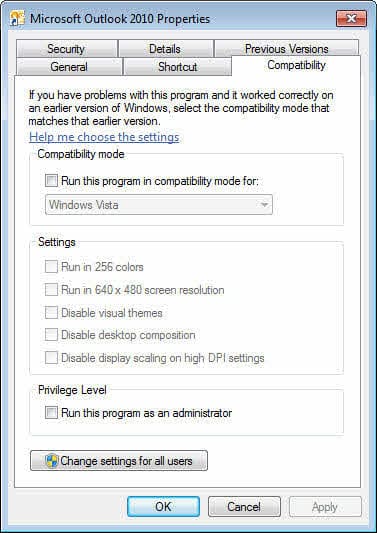
The dialog should like exactly like the screenshot shown here, with all options unchecked.
There are situations where you might want to run Outlook as an administrator but as a rule, this is not necessary except in very limited situations.
Video Tutorial
[wpvideo 5DGfDdAp w=600]
More Information
Outlook on Vista and Win7? (Outlook-tips)

Ash says
Hi - Please could you update this for Outlook 2013 and Windows 10 issues; I am unable to find an administrator tab to switch off Compatibility (with Win 7).
Tony Zee says
Thanks so much for your help. I just upgraded to Windows 10 and my iCloud address book stopped so I had to check Run Compatibility Mode Windows 7.
Diane Poremsky says
While we don't recommend using compatibility mode, it's probably easier than the fix - sign out of iCloud, uninstall, reinstall, sign back in.
arkansawyer says
Nice information and thanks for sharing. I realize it's been a dead topic for awhile, but thought I'd leave some feedback anyway.
I've been troubleshooting some problems with a non-Office program and Windows Compatibility tells me the program should be run in Windows XP SP2 mode, even though the vendor says it is Win 7 certified. And in changing it, I think I caused more problems than I resolved.
One comment to your post. I had initially run the compatibility mode troubleshooter for the individual program in question but found a more global version in Control Panel that gave surprising results: Control Panel.. Troubleshooting... Programs... Program Compatibility. Here, if I click 'Advanced' the default checkbox is set to apply changes automatically. Many novice users wouldn't even question this, but the end result is a list of several dozen applications installed on my PC, including all Office 2010 applications on one PC and Office 2013 applications on another PC.
My initial reaction was to question why MS Word 2010 or 2013 is not Windows 7 compliant? But as you point out in this article, we're probably better off not running it that way, despite the troubleshooter's default behavior which would set it to XP Service Pack 2 mode. From a novice's perspective, I might have "fixed" (or is it "broken") a couple dozen applications simply by following recommendations of a Microsoft provided compatibility assistant.
Valentina Simo says
Thank you again
Valentina Stef says
Hi
I use win XP and MS Office 2003. Now I need to use Office 356 for mail. My questions are: 1. Are compatibles Outlook 2003 and Office 356? If yes, how to configure? If Not can I install only Outlook 2007 or 2010 and keep Word, Excel, and Power Point from Office 2003? Thank you
Diane Poremsky says
Yes, you can install Outlook 2007 or 2010 and keep your old office suite to use with Office 365 hosted Exchange.
derar says
i try to cut my outlook form C to D its stuck, after that i try to open my outlook, but its not working. it gives me message:
Cannot start Microsoft Outlook. Cannot open the Outlook window. the set of folders can't be opened. you don't have the permission required to access the file.
also the files cut deleted bu mistake.
please help me, all my work on this email, and i need it
derar says
i try to cut my outlook form C to D its stuck, after that i try to open my outlook, but its not working. it gives me message:
Cannot start Microsoft Outlook. Cannot open the Outlook window. the set of folders can't be opened. you don't have the permission required to access the file.
please help me, all my work on this email, and i need it.
Diane Poremsky says
Did you try resetting the nav pane?
Close Outlook. At the Start search field on Vista or Windows7 Start menu or in the Start menu, Run command (Windows key + R), type or paste
outlook.exe /resetnavpane
Then press Enter (or OK button) to restart Outlook.
Note: Make sure there is a space between the words.
Jon Jonas says
Still no help... still "outlook.pst cannot be opened. I've run scanpst.exe multiple times, both creating and not creating a backup. I've unstalled/reinstalled Office 2007. Out of airspeed, altitude, ideas... and ll web - soucrce advice brings me back to these steps. Anythign else I can try short of reinstalling Windows Vista?
Diane Poremsky says
It's possible the pst is corrupt. Rename the pst and let Outlook make a new one. If its not too large, I can see if a commercial product will recover the data in it.
deca300Deca30o says
This helped me! thanks a lot :)
Eric Shields says
I wanted to say that my problem was easily resolved by running 'msagent' in windows ME mode. If i said that i needed help, i need it no more! I still enjoy your blog, Diane. You helped me find a solution that you didn't even say. That's genius! Thanks for all your help.
Diane Poremsky says
do you have the agent hotfix installed? https://support.microsoft.com/kb/969168
Eric Shields says
I was using MS word 2003 with compatibility mode and it included certain advantages i liked, such as no pink on my office assistant, and no constant compatibility warnings such as the ones listed above. i took your advice(for outlook), and now have minimal issue (although Merlin still has a pink halo around him). Thanks again, and please get to me soon about a fix for Merlin's pink halo that doesn't require compatibility mode as does word, excel, and powerpoint.
Sunil says
Thank you so much for the write-up... it was of great help in resolving an end-user issue.
Visitor says
Thanks .. This was really helpful..
Heidi says
Thank you for your assistance. It was great advice and guidance. I am very apprecitative to be able to complete my tasks.