Outlook.com accounts: there is a "known issue" where Outlook.com accounts are sending winmail.dat files even though everything is set to use HTML or plain text. Microsoft is investigating. "Outlook.com Winmail.dat Bug" (Feb 2017)
There is a long standing "problem" between Outlook and Internet email - Outlook uses a proprietary email format that only Outlook and Exchange (and a few other clients, including Gmail) can decipher. When the recipient doesn't use Outlook, they get a plain text message and an attachment named winmail.dat. Additionally, the attachment icon may be hidden by some clients, including OE and Windows Mail, making it look like the attachment was removed.
The problem? Any attachments included in the message are encased in the winmail.dat attachment.
RTF settings | Email properties of a Contact | Email properties in To field
Turn off RTF Capability | Tools | More Information
Note that if you are using Exchange Server, the Exchange administrators can disable RTF on messages sent to the Internet. SharePoint Contacts linked to Outlook are also a problem. See Other causes of unexpected formatting for more information.
If you arrived on this page because you received a winmail.dat attachment and don't use Outlook, see the Tools below for utilities you can use to retrieve attachments from the winmail.dat file. Don't bother looking in winmail.dat files if you were not expecting an attachment (or if the message size indicates there probably is not an attachment).
Or ask the Outlook user to resend the file, using plain text format. If there is an attachment in the winmail.dat, asking for a resend is my preference, in most cases. This way the sender fixes the problem for future attachments. If you aren't expecting an attachment and the file size is too small for an attachment, you don't need to ask for a resend, you are only missing the pretty formatting.
What is RTF, TNEF and winmail.dat?
Outlook can use a special method, technically referred to as Transport Neutral Encapsulation Format (TNEF), to package information for sending messages. The use of TNEF is affected by settings in Outlook that are referred to as Rich Text Format (RTF). TNEF and RTF are not identical, but they are very similar.
A TNEF-encoded message contains a plain text version of the message and a binary attachment that "packages" various other parts of the original message. In most cases, the binary attachment is named Winmail.dat, and it includes the following information (if included in the message):
- The formatted text version of the message (ie, font and colors).
- OLE objects (such as embedded pictures and embedded Office documents).
- Special Outlook features (i.e., custom forms, voting buttons, and meeting requests).
- Regular file attachments that were attached to the original message.
Where to check for RTF settings in Outlook
When RTF is not working as expected (either all messages are RTF, or Meeting Requests and Voting are not working) there are several settings your need to check in Outlook.
Note: Exchange server administrators can also control RTF to Internet addresses. If the administrator disables RTF to Internet addresses, the settings in Outlook will not override them.
Don't forget to clear the auto-complete cache after changing Outlook's settings. The auto-complete cache (nickname cache) remembers the setting and Outlook will continue to send messages using RTF. Delete the address from the cache to clear it or clear the entire auto-complete cache. See How to clear name from the cache at Understanding Outlook’s Auto-Complete Cache if you need help clearing the autocomplete cache.
Global properties
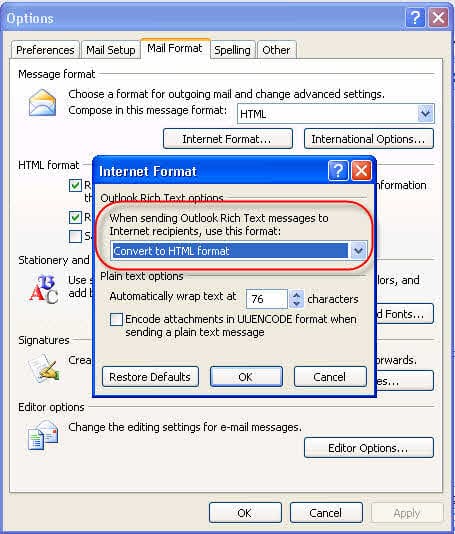
Use this setting to control how messages created using RTF formatting or that require TNEF encoding are handled. If this is set to plain text or HTML formatting, Voting and Meeting Requests may not work unless you override the setting using Email properties.
Outlook 2010, 2013, or Outlook 2016/2019: File, Options, Mail and scroll to the bottom of the dialog.
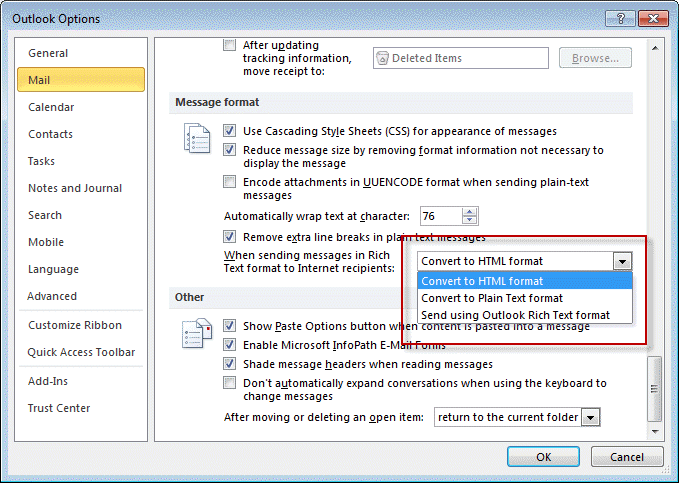
Recommended setting: Convert to HTML. Outlook will send all messages to the Internet using HTML unless you change the email properties (below).
Outlook 2007 and older: Go to Tools, Options, Email Format, Internet Options button.
Email properties of a Contact
Note: this setting is not easily accessible in Outlook 2013 and newer.
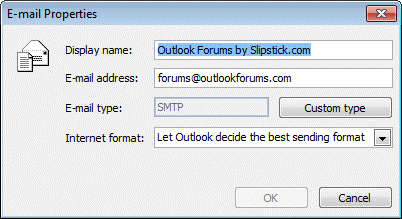
Open the Contact and double click on the email address. Changes made here apply to all messages sent to this person. Use this to override the setting in Internet options (above).
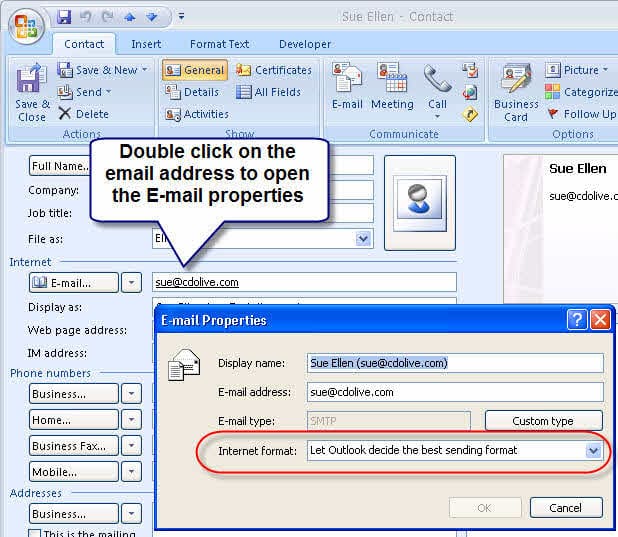
Recommended setting for most contacts: Let Outlook decide. This will send all messages using the global properties. If you need to send Meeting Requests or other messages that require TNEF encoding and know the contact uses Outlook, you can set the contact to always use RTF.
Email properties of an address in the To field of a new message:
Double click on the address in the To field. If the address is in your Contacts folder, their contact opens; if the address is not in your Contacts, the email properties dialog opens. Use this setting to "one-off" the formatting when sending meeting requests or RTF formatted messages to Internet addresses. This will override the setting in Options dialog's Internet options.
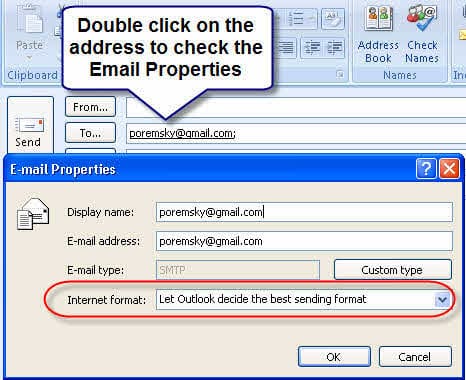
Recommended setting: Let Outlook decide - this will send all messages using the global properties. If you need to send Meeting Requests or other TNEF encoded messages and know the contact uses Outlook, you can set the address to always use RTF.
To access the Email properties in Outlook 2010 and newer
Look for Open Outlook Properties on the context menu when you right click on the email address in an open contact. Note that you need to be really fast and right click before the hovercard comes up. Once the hovercard comes up, the Properties link is missing from the context menu, often until you restart Outlook.
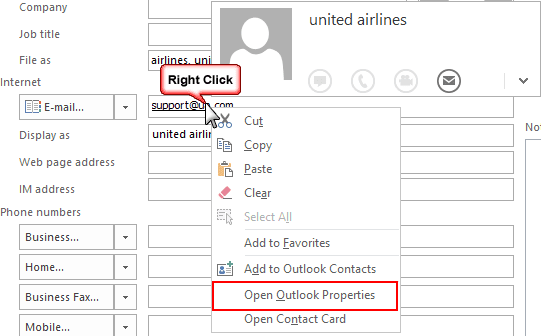
If you set the LegacyGal registry value, you'll be able to double click on the address and open the properties dialog. You can also turn off the hovercard so the card comes up only when you click on the address. These ready-to-use registry files will enable the 'legacygal' feature and turn off the hover feature: Outlook 2016/2019/365 Outlook 2013
(You'll need to restart Outlook after setting the key.)
For more information about these settings, see Use Outlook's Contacts, not Contact Cards.
In Outlook 2010 and newer you'll access the email properties from the contact card that comes up when you hover over or click on an address in a Contact or an email message. Select the menu icon on the right and then Outlook properties to open the Email Properties dialog. As with the older versions, the recommended setting is Let Outlook decide unless you need to force RTF.
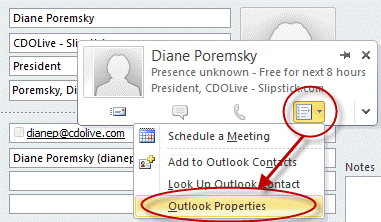
Reminder: The autocomplete cache (nickname cache) may remember the RTF setting and Outlook will continue to send messages using RTF, overriding the Contact settings. Delete the address from the cache to clear it. (Select the address using the arrow keys and press Del)
Other causes of unexpected RTF formatting
SharePoint Contact libraries synced with Outlook are marked to always use RTF. This is fixed in Outlook 2010 SP1 or the Exchange administrator can configure Remote Domain transports for the domains that don't use Outlook and set them to never use RTF to get around the problem.
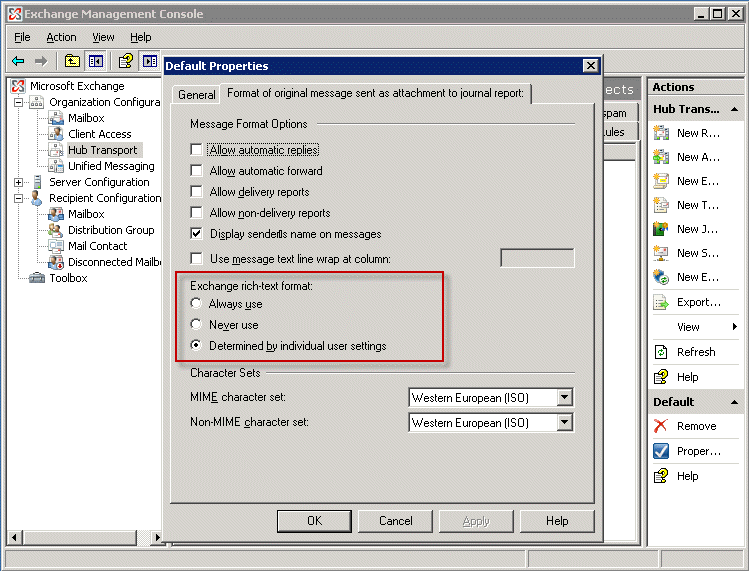
To change the settings on Exchange server, open the Exchange Management Console, expand Organizational Configuration, Hub Transport, Remote Domains, open default transport (or the transport you want to change, if you have more than one) and change the Rich Text setting.
See Configuring TNEF settings on Exchange Server for the PowerShell cmdlets to use and instructions for configuring it in Office 365 Exchange.
Antivirus scanning corrupts the TNEF attachment and the recipients Outlook can't decode it. This is more common with client side scanners, such as AVG. To fix, disable email scanning on the client side; there is no need to scan email with a virus scanner on the desktop computer.
As mentioned previously, the nickname cache can contain the 'always use RTF' flag - if the sender ever forces RTF for one message to the contact, the cache remembers the setting for that contact and always uses RTF (forcing it on the address overrides the conversion setting in Mail format>Internet), even though the contact is no longer set to always use RTF. Delete the address from the cache to fix.
If all else fails...
If nothing seems to be working and you use Outlook 2007 SP2 or newer, you can use a registry value to end TNEF encoding once and for all. This will affect your ability to use features that require TNEF encoding, including Voting and Meeting Requests in native Outlook format. (Ready-to-use .reg files are available below.)
- Close Outlook
- Start Registry Editor (type regedit in the Start Search box or Start menu, Run command and press Enter)
- Locate the following registry key:
In Outlook 2016/2019/365:HKEY_CURRENT_USER\Software\Microsoft\Office\16.0\Outlook\Preferences
In Outlook 2013:
HKEY_CURRENT_USER\Software\Microsoft\Office\15.0\Outlook\Preferences
In Outlook 2010:
HKEY_CURRENT_USER\Software\Microsoft\Office\14.0\Outlook\Preferences
In Outlook 2007:
HKEY_CURRENT_USER\Software\Microsoft\Office\12.0\Outlook\Preferences
- Add a new DWORD named DisableTNEF.
- Double click on DisableTNEF and in the Value data box, type 1
- Close the Registry editor and Restart Outlook
Do It For Me
If you don't want to make the changes to the registry yourself, you can download a .reg file with the changes. Double click to install.
Outlook 2016/2019/365 Outlook 2013 Outlook 2010
Outlook 2007
Remember to restart Outlook or reboot if the registry key does not appear to work!
To reverse the changes, delete the key from the registry or edit the .reg file in Notepad and change the following line, then save and run it.
"DisableTNEF"=dword:00000001 to "DisableTNEF"=-
In addition to setting the registry key (which didn't appear to have an effect), tristof cleared the cache file:
(I went) one step further by clearing the whole auto-complete cache of Outlook. Outlook > File -> Options -> Mail -> Send Messages section. Click the "Empty Auto-Complete Lists" which will clear the entire cache and it finally worked.
Tools to Recover Attachments from Winmail.dat
Tools
Tool for Macintosh computers to decode the Winmail.dat attachment sent in Rich Text Format messages. | |
Winmail Opener is a small and simple utility that allows users to view and extract contents of TNEF-encoded messages (winmail.dat). Version 1.4 - Free. | |
Open, convert and save the files on winmail.dat email attachments sent by Microsoft Outlook and Exchange. Easy-to-use graphic interface (no command-line tool). Displays the original message subject and body. Free. Android version available. | |
Online utility to decode attachments sent by Outlook that arrive as Winmail.dat files because the message was sent in Rich Text Format format. |
More Information
Additional technical information on the MSDN Web site
How e-mail message formats affect Internet e-mail messages in Outlook

Dan says
We just got hit with this, random computers with Outlook 365 desktop client.
Initial investigation shows all settings good but empty autocomplete for specific recipient with problem solves the issue.
Now to the fix, what would the appropriate thing to do?
Should they just empty the autocomplete rows for the failed recipients or is there a better way? (to avoid getting it back)
Were not shure that we should turn off TNEF/RTF globaly for the organisation since its a limited users and recipients that have the problem
Would there be any considerable impact to disable TNEF globaly?
Kindly Dan / Stockholm Sweden
Diane Poremsky says
Disabling TNEF will affect the ability to assign tasks - meeting invites should work ok since they can go as ical. Offhand, I'm not sure about other message classes. If only a few are having problems, I would delete the autocomplete lists first.
Emptying the autocomplete list completely would be the easiest since its one-and-done and they won't need to resend the message. But, they lose the addresses in autocomplete.
Ron Takala says
Just in the last couple of weeks, this has hit our office hard. Clients complaining that they can't open the attachments that we send. Outlook 2013 - 2021, all settings set to HTML / Let Outlook decide. The registry entry worked for me. Any thoughts on why all of a sudden this changed? Thanks, Diane! Always a Great resource!
Diane Poremsky says
Could be an update - the Aug. updates were buggy, but they likely only would have been installed for a few days.
happeedraogn says
thx buddy, it works for me !
Bill Case says
I tried all of the suggestions listed here including deleting from the nickname cache, setting to use HTML for external email, etc, but nothing worked.
Yesterday I found another setting, which, at least for one client, worked. There is another setting in Outlook 2016 > Options > Mail > Message format:
"Encode attachments in UUENCODE format when sending plain-text messages"
When I checked this box, it resolved the problem; the recipient, using Mail on a Mac, previously received winmail.dat, regardless of what attachments I sent. With this setting enabled, he received the attachments as intended. Interestingly, I did NOT tell Outlook to send the message in Plain Text (it was HTML, because it's nearly impossible to reveal the "Outlook Properties" page for an email address anymore...), but it worked. Not sure if this could have other consequences, but it might be worth trying.
Tetonsteve says
I too tried everything suggested up to this point, I checked the UUENCODE box and emptied auto complete list which solved the problem.
THANK YOU
Pak Mega Place (www.pakmegaplace.com) says
Do I configure both POP or IMAP accounts in same outlook..?
Diane Poremsky says
yes, you can put both account types in the same Outlook profile.
Lezlie Lovett says
I added the registry word as instructed, cleared the auto-complete cache as suggested several days ago but files I send to a non-outlook recipient are still showing up as winmail.dat. I cannot continue my business correspondence this way. Many of my customer have Mac.
Microsoft please fix this or I will have to switch from Outlook. I started having the issue several months ago after a recent automatic update of outlook 365.I don't have time to mess with this and my customers are annoyed. Can anyone from Microsoft tell me why this has not been fixed after several years?
Diane Poremsky says
Which version of Outlook do you use?
Did you download and run a reg file or edit the registry? If you edited it, try the reg file.
mow says
Two things:
1) I don't have "Outlook Properties" in the contacts. Even the Microsoft support page says there is no per-user option in Outlook 2013.
2) When sending messages to myself (that is, an account that is configured in Outlook), all settings are ignored and Outlook happily sends TNEF anyway. (It works if I use an alias that Outlook does not know about.) This just surprised me quite a bit when I wanted to see what my signature looks like in Thunderbird and sent a test message to myself ...
mow
Diane Poremsky says
Yeah, Microsoft basically broke the Outlook properties - but if you set the LegacyGal key, you'll see the properties dialog.
On #2, was your address in autocomplete? If so, try deleting the autocomplete entry and resending.
gusmuh says
For me to resolve this, I had to go to File, Options, Mail, under 'Message Format' category, I changed 'When sending Rich Text Format messages to internet recipients' to 'Send using Outlook Rich Text Format' from the dropdown menu.
I am using Office 365 Outlook on desktop early August 2018.
ps- Under 'Compose Messages' category I have the format set to HTML.
Diane Poremsky says
So changing the setting to keep RTF formatting fixed it? That is normally the cause of the problem.
Slav says
God bless you :D
Vasil says
You saved my life, thank you very much. The method with Registry Editor is perfect.
Judy says
I just had a user with the same issue although all settings were fine (we tried to send in different formats though)
It must have been a different problem because the issue only appeared between 1 mac user and 1 windows user and everyone
else on both sides of the company were able to send emails and attachments without any issues.
So I deleted the cached auto-complete email address entry of the recipient and re-entered it manually
et voila, the email was received normally.
Charles M Yeomans says
This seems to have just started again in the last month, perhaps with the new update that came out.
I cleared all cache, added the registry item, and still my brother on BTopenworld is getting winmail.dat.
plus people on Iphones.
Really is frustrating that MS don't just drop the TNEF and be compatible with everyone.
Diane Poremsky says
this is a known issue - https://www.slipstick.com/outlookcom/outlook-com-winmail-dat-bug/ - and will be fixed in an upcoming update (expected in the next month or so).
(TNEF, the cause of winmail.dat files, is needed for some features, such as task requests and voting.)
C.J. says
That would indeed be wonderful if it were fixed. Like others, I follow the suggestions, clear the cache, get to a clean state, then .... WHAM it starts all over again.
Very frustrating. I cannot depend on anything getting through to a recipient.
robert bellus says
Pls check your details.
This is a problem with the Outlook module of Microsoft Office Suite, any version,
not Outlook.com. You have stated this incorrectly in several of your pages.
I have many clients that HAD this problem with The Suite, but not with Outlook.com.
Am I wrong?
bob@pcgc.tech
Diane Poremsky says
they are two different issues - yes, you can send winmail.dat with any version and there are things you can do to avoid the problem - from using html or plain text format to settings a registry key to block rtf format (which is the cause of winmail.dat). There is a bug found only in outlook.com and none of the usual fixes prevent the winmail.dat - plain text doesn't help, setting the registry key doesn't help.
This page references the general problem that has existed for years- the page linked in the red box applies to the outlook.com issue.
c f says
Hi Diane, I'm running Outlook using Office 365, I have changed the preferences to HTML yet still my email recipients are getting the winmail.dat files. ie, it doesn't appear to be connected to RTF. Normally when receiving on a Mac, I'm on a PC. Any thoughts?
Diane Poremsky says
Are you using an outlook.com account? If so, its a known issue - https://www.slipstick.com/outlookcom/outlook-com-winmail-dat-bug/
Pierre says
You indicate above that Microsoft is investigating. Any idea when this software giant will come out with a sustainable solution to the winmail.dat problem?
Also, how reliable is the Winmail Opener freeware to view content of winmail.dat files?
Will it run in Windows 10?
Diane Poremsky says
The freeware is reliable at 'breaking' out attachments - it's not needed if the only thing in the file is formatting. The Windows utilities should work with any version of Windows - they are just small stub programs - but i haven't tested them with Windows 10. (One app on the page is a mac app.)
I don'tr know the status of the fix, but for now, don't use the address book to select names.
https://www.slipstick.com/outlook/outlookcom/outlook-com-winmail-dat-bug/
MJW says
One workaround for this is to set up a send-only account - I used an IMAP account with 30 day retention, although there are other ways to do this that use a dummy receive setup - that uses the outlook.com SMTP servers (smtp-mail.outlook.com) to send the emails with attachments. You can then manually select the outlook.com SMTP account or use VBA or add-ins (such as MAPILab's Message AutoFill) to do so automatically. For the IMAP settings, see https://www.slipstick.com/outlook/olc-hotmail/setting-outlookcom-imap-account/ .
Robert Solly says
Dear Diane
Thank you so much for your article - I had a windows 10 failure and had to reload Office 365. My attachments were all in winmail format. I tried Microsoft chat for 30 minutes and he said it was not my Outlook. I found your note and the cache clearance does the trick. I did not know the autocorrect feature also stored the format even though the overall format had changed. There seems to be nothing about this on Microsoft support either.
C.J. says
A recent EMO email Volume 22 Issue 5 said:
As has always been the case, the winmail.dat file is more of a confusing nuisance than anything. The recipients receive an attachment and don't know what to do with it. (Correct answer: ignore it.) I'm told attachments are not wrapped up in this rogue winmail.dat file, so there is no data loss, but my accounts are not affected so I can't confirm.
No, it is much more than a nuisance. From what I am told by my recipients, the winmail.dat file is the *only* attachment they see. All 'real' files that might have been attached (.jpg, .pdf, .doc, .xls, ...) are wrapped up and hidden inside the winmail.dat file, which of course they cannot open. In most cases if there was text in the email, it can be seen.
Diane Poremsky says
Yeah, Microsoft (and one user) was wrong - attachments are in the winmail.dat, which is how it has always worked. (HTML formatting are also in it, so the recipient gets a plain text message but at least they can read it). There are utilities the recipient can use to 'crack' it and get attachments out, but outlook shouldn't be sending it to start with.
C.J. says
Just another piece of information, in case it might be significant.
I was just reading here ( https://www.slipstick.com/outlook/email/understanding-outlooks-autocomplete-cache-nk2/ ) about clearing the auto complete file. Under Outlook 2010 and Newer I found: the cache is stored in a file named Stream_Autocomplete_0_[long GUID].dat
So I searched for "Stream_Autocomplete" and found that there were 26 of them! 6 of them since Jan 1, 2017. The GUIDs are different. But why so many. They date back to 2012.
Anyway, I blew them all away. We will see what happens now.
Note - there are also multiple 'copies' (versions?) of other "Stream ..." files there as well. Calendar, Category Lists, Contact Prefs, etc.
What use they? and why so many?
A function of my having more than one Hotmail account?
-cj
Diane Poremsky says
Each account has a stream file (well, a set of stream files), so yes, it is due to having more than one hotmail or exchange account. If you added and removed accounts and/or profiles, it's possible the streams hung around - you can delete any that don't have a recent date. Outlook will rebuild any it needs, so there is no harm in deleting all if you want to.
Microsoft published this - https://support.office.com/en-us/article/Recipient-receives-a-winmail-dat-attachment-when-sending-email-from-Outlook-with-Outlook-com-account-a999e673-5c7a-4fbd-82e7-234f6756e89b - but at this time are still investigating.
C.J. says
Diane, on a completely different topic that I discovered when looking at the stream files discussed above. I clicked on the Name heading in File Explorer and noticed that the stream files were NOT in the proper order. Everything up until the GUID was the same, but the GUIDs themselves were not sorted correctly. There were groups of from 3 to 7 or so that were in order, then several out of order, then another group of 3-7 or so that were in order, but might actually overlap the early sorted group. It was strange. I actually copied each file name (F2, ctl-C) and pasted into an excel column and sorted the names there. The order was strikingly different (and in the order expected). Any idea why this might have been?
As I said, completely unrelated if you want to ignore.
Diane Poremsky says
So explorer wasn't sorting alphabetically? Were there any leading spaces in the file names?
C.J. says
sorry for the late reply.
No, there were no initial blanks.
They just sorted incorrectly.
And as I said, in my 2/4/17 post, our of order 'in bunches'.
The strange order could not be accounted for even if there had been blanks at the beginning (IIRC).
C.J. says
Not to rain on anyone's parade, but the problem can be "fixed" and frustratingly come back. I, too, had this problem mysteriously start happening during the transition to Exchange server for my Hotmail accounts. Outlook 2010 on my Win 7 computer starting adding winmail.dat files (*without my having done anything explicit*). Whether it was correlated with some Win 7 update or not I cannot now recall.
However, having tried clearing the cache and having it work (for a while), then changing the registry setting and having it work (for a while), I find myself frustrated again.
NOTE - I have more than one Hotmail account that I access through my Outlook 2010 program. As such, I have all the corresponding Calendar and Contacts and Tasks (etc) folders on each account. I am going to purge all contacts from all but my primary Hotmail account, then blow away cache and start all over.
But this is certainly an extremely frustrating and agonizing situation. I can never be confident that a person gets what I send. To try and track it, I have added this as my sig: If this email has a “winmail.dat” attachment, please reply and let me know. Thanks!
Diane Poremsky says
are you syncing with a smartphone? If so, which one?
C.J. says
I have GSYNCIT installed to send Contacts and Calendar to my Google account. But it is ONE WAY from Outlook to Google.
Diane Poremsky says
It should be two-way - from their web site: ONE and TWO WAY syncing of Outlook calendars, contacts, notes and tasks.
Terry says
I've tried all the suggestions in the article, including the "if all else fails", and yet Outlook 2013 continues to send winmail.dat attachments to some email recipients.
I noticed a strange inconsistency:
If I create an email with "new email" and then use "to" and chose a recipient from my contacts list then the attachment is sent.
But if I right click on the same person in my contact list and chose "create email" then the attachment is not sent.
Any idea what could cause this?
Appreciate any further help in getting rid of these annoying attachments!
Diane Poremsky says
Thanks for the additional information.
If you send an attachment, is it visible to the recipients (outside of the winmail.dat)? (using the To button method) Typically, a winmail.dat holds formatting and any attachments. Microsoft seems to think users are only getting an empty winmail.dat file - making it an annoyance more than anything, with no data loss. Typically, a winmail.dat holds formatting and any attachments - the recipient would get a plain text message & the winmail.dat. Technically, no data loss unless they also added an attachment. Then the attachment was wrapped in the winmail.dat.
Terry says
No, the attachment is not visible to the recipients but is wrapped into the winmail.dat file.
Which causes two problems:
1. Email I sent without any attachments arrive with winmail.dat, which often confuses the recipient.
2. If I send an attachment to a non-Outlook recipient they can't open it since it's wrapped in the winmail.dat file.
Diane Poremsky says
Exactly. My support contact said the attachments weren't wrapped. I was suspicious and can't repro, so I couldn't verify. my guess is his tests went to gmail or were downloaded by outlook. :(
John Dolson says
I had been using Outlook 2013 for quite a while with no problems. Messages were composed as HTML...not RTF. The problem only started once I installed the Google Drive Plug-in for Outhouse (intentional...). Have done the registry edit and auto complete cache clear as recommended below. The first email sent seems to be OK. I've also nuked the Google Drive Pulgin
Diane Poremsky says
I'm not familiar with that addin, but it sounds like it is the cause - and uninstalling it didn't clear all of the stuff it added. What antivirus software do you use? Any other addins installed?
SeptimusFry says
I note that, in changing properties for an email user, I only have the opportunity to let MS decide what is best or RTF or plain text, is this because the Exchange server is set to only allow RTF or plain text, so that MS can decide between only these two?
Diane Poremsky says
That's correct (for all account types, not just exchange) - the contact options are let outlook decide, always use plain text or always use RTF. If you use let outlook decide, and send an RTF message to an internet address, outlook will usually convert it to HTML.
SeptimusFry says
Outlook 2013 on W10 User - I am struggling with this problem which has started recently, not sure that I can correlate it with a specific other activity. I have cleared the cache, I have said to not use the cache, I have made registry changes so as to access properties and to use the 'if-all-else-fails', but I just cannot get attachments to go through without changing to winmail.dat, I am trying to send .doc, .docx, .xml or .odt files. I am really at my wits end and I am supposed to be something of an expert (in the same way as a one-eyed man)....
Diane Poremsky says
Does the problem occur in Safe mode? What antivirus do you use?
To open Outlook in Safe mode: Close Outlook then hold Ctrl as you click on the Outlook icon. You'll get a message asking if you want to start in Safe mode. Click Ok.
Terry says
Same problem!
Could it be a setting on the Exchange Server of updated Outlook.com site that we have no access to?
Diane Poremsky says
No, I don't think so - unless it was applied only to Outlook clients. Microsoft is investigating.
Mel says
This sounds quite complicated to me, and I am not sure it will fix my problem. I checked the settings you recommended for outlook2010 and all were set as you said.
I have re-installed Outlook 2010 from my Win 7 Pro computer to my Win 10 Pro computer, fresh install. I also migrated the Outlook 2010 settings.
An email I sent from the Win7 computer successfully, which includes a photo and text box, arrives with the photo and text box as attachments and unformatted when sent from the Win10 computer.
Does the OS change something?
Diane Poremsky says
Sorry I missed this earlier. No, the OS by itself wouldn't cause it. An antivirus scanner that is configured to scan email could. Outside of that, Outlook and addins would be at fault.
Dave says
You rock my world! Microsoft is currently moving all hotmail, live, outlook.com, etc. accounts to Exchange Server, and telling desktop Outlook users to create a new profile or remove / add the account so it connects to the new server. After creating a new profile, I started seeing winmail.dat getting sent to recipients, even though Outlook settings and contact settings SHOULD be causing me to send in HTML format. Clearing the auto-complete cache did the trick. Thank for such a well written & illustrated, and easy to follow article.
Terry says
After my Outlook.com account was moved to Exchange Server I started having winmail.dat attachments added to emails and/or replacing attached files. None of the solutions here have helped so far:
- changed email format to HTML in Outlook 2013
- setting "convert to HTML" set
- registry key "Disable TNEF"
- cleared autocomplete cache
- double-checked settings on each contact
And still winmail.dat is attached to all emails.
Could this be a "send as RTF" settiing on the Exchange Server side? As a "normal" Outlook.com user I have no access to Exchange . . . what to do?
Also: if I send emails from the Outlook.com webapp there is no problem, only when sent from Outlook 2013.
Appreciate any help, as this is making my Outlook.com email address almost useless.
Diane Poremsky says
The server might be set to allow RTF, but it's not forcing all mail to RTF, otherwise mail sent from Outlook on the web would be affected. If you send a message to an address you never used before, does it have a winmail.dat attached?
Jim says
This information has been most helpful. In Outlook 2010 client I have changed the internet format to plain text for selected contacts that don't use outlook or gmail and deleted their names from the autocomplete catch in both Outlook 2010 client and Outlook.live.com. How do I change the internet format for those contacts in Outlook.live.com or will the change be automatically updated from the change I made in the client?
Thanks for the excellent information.
Diane Poremsky says
Assuming the account is on the new server, the changes sync up to the server.
Peter says
Thank you for the information on this topic. I tried a number of fixes for this problem with no success but emptying the autocomplete list did the trick. Thanks again.
Jane Wilson says
I have had a problem for a number of weeks with a colleague sending me emails with attachments from a brand new PC to my MAC that is running latest software. She has Outlook 10 and I have Mac Mail, we tried all Slipstick advice..... and all settings suggested were already in place.
The problem has just been fixed by my colleague (the sender) deleting all my contact card details and default contact details that she had and setting me up as a new contact....and tada no more winmail.dat attachments!!
Diane Poremsky says
The ' use tnef' setting is stored in autocomplete - most of the time just deleting the recipients autocomplete record will solve it, but yeah, recreating the contact will work too.
Nicky says
I have outlook for mac 2011, and regularly get attachments that are meant to be pdf turn into winmail.dat files - do you have any solutions for Mac users please....this is driving me mad!
Diane Poremsky says
The sender needs to fix it - or you can use a utility to get the attachment. The sender should delete the auto complete entry for your address - this usually fixes it. They can also delete your contact and recreate it.
Paul Yost says
I absolutely LOVE you. THIS much - no, THIS much. I can't even begin to tell you how much of a PAININTHEBACKSIDE this issue has been for me. And to finally realize that you just double-click on the email address in the To: field and GAH!MYHEADISGOINGTOEXPLODE.
Where have you been all my life? I love you. Take care.
Lance Miller says
Paul - I'm not seeing a post re: just double-click on the email address in the To: field. All that double-clicking on the email address in the To: field does is bring up the contact. Then what?
Thank you, Lance
Diane Poremsky says
it depends on your version of outlook. After the contact opens, double click on the address in the contact. If you don't get the properties dialog, you;ll need to set a registry key. More information is here - https://www.slipstick.com/outlook/use-outlooks-contacts-contact-cards/ reg file: https://www.slipstick.com/doit/TurnOffHover-legacyGAL2016.reg or https://www.slipstick.com/doit/TurnOffHover-legacyGAL2013.reg
Lance Miller says
Thank you, Diane! We use the outlook365 cloud-based Outlook. Would you have a specific recommendation for that version of Outlook?
Lance
Diane Poremsky says
As in Outlook in a web browser? Definitely shouldn't be sending RTF with web based email - but the admin can configure Exchange online to never send RTF.
If it's Outlook 2016 installed on your computer, then use this reg key - https://www.slipstick.com/doit/TurnOffHover-legacyGAL2016.reg and restart outlook.
Lance Miller says
HI Diane, yes it's Outlook 2016 installed on my PC. But sadly I don't know how to utilize the code you sent:
[HKEY_CURRENT_USER\Software\Policies\Microsoft\Office\16.0\common\contactcard]
"TurnOffHoverFunctionality"=dword:00000001
"TurnOnLegacyGALDialog"=dword:00000001
Do you maybe have a link that shows how and where one applies this code? Sorry for being so clueless!
thank you, Lance
Diane Poremsky says
It's a registry edit. Download this file - https://www.slipstick.com/doit/TurnOffHover-legacyGAL2016.reg - if it is saved with txt extension (some browsers will add the txt extension), change it to reg extension then double click to run it.
Stormin\' Norm says
Click "Empty Auto-Complete Lists" worked for me. I did not try the regedit dword.
Bill says
Thanks for all your help Diane. I want to apologize for the multiple comments I posted. I was not sure the comments were actually posting when I clicked the "Post Comment" button.
I have decided to cut my ties with Outlook and Outlook.com. Too much aggregation and whatnot.
Diane Poremsky says
>> I want to apologize for the multiple comments I posted. I was not sure the comments were actually posting when I clicked the "Post Comment" button.
Not a problem. it happens to a lot of people. :)
GPJ says
[[Diane - I tried FF and now Chrome, but do not get any indication of the post 'going through' after I click the POST COMMENT button. In prior times I got some indication. I hope you have not received a bunch of duplicate posts from me - if so I apologize.]]
I have a SUSPICION that I have not yet had an opportunity to verify yet, but I mention it so that others can consider whether it might affect them.
I sync my calendar and contacts with my gmail account (using gsyncit) so that I can access them from my smart phone and tablet. Originally it was one-way only (outlook ==> gmail/tablet). Recently I changed the options to sync both ways. That event coincided closely with the start of my winmail.dat problems. I used the methods below to fix the half-dozen contacts who were broken and verified it with them. When I closed Outlook it automatically synced. The next day the problem had returned. THIS MAY NOT BE CAUSE AND EFFECT, but it might apply to others. When I get the chance to test I will post my results (may be a while).
Diane Poremsky says
[[Diane - I tried FF and now Chrome, but do not get any indication of the post 'going through' after I click the POST COMMENT button. In prior times I got some indication. I hope you have not received a bunch of duplicate posts from me - if so I apologize.]]
---
They are coming in. The comment system is acting goofy and I'm trying to fix it.
GPJ says
I have a SUSPICION that I have not yet had an opportunity to verify yet, but I mention it so that others can consider whether it might affect them.
I sync my calendar and contacts with my gmail account (using gsyncit) so that I can access them from my smart phone and tablet. Originally it was one-way only (outlook ==> gmail/tablet). Recently I changed the options to sync both ways. That event coincided closely with the start of my winmail.dat problems. I used the methods below to fix the half-dozen contacts who were broken and verified it with them. When I closed Outlook it automatically synced. The next day the problem had returned. THIS MAY NOT BE CAUSE AND EFFECT, but it might apply to others. When I get the chance to test I will post my results (may be a while).
Diane Poremsky says
That could very well be the cause - except you said they were set as let outlook decide? I used to store contacts in a SharePoint site and they *always* synced over as 'always use TNEF'. (I moved them to a shared mailbox - problem solved.)
Setting the DisableTNEF key should fix it and allow you to keep the two way sync.
Bill says
I am having the dreaded winmail.dat problem. I have an Outlook.com (365) email account set up as an Exchange account on Outlook 2010. It has been working great up to a couple of weeks ago. Nothing has been changed on my PC as far as Outlook is concerned. I am at a loss. I have tried everything listed here...clearing the autocomplete cache...the registry thing...the settings for sending messages...checking the contacts...I have tried EVERYTHING to fix it.
After much trail and error I was able to determine what was causing (and workaround) winmail.dat problem, but I am not sure why my fix works? Here is what I did:
I copied the contacts in my Outlook.com's address book and pasted them into the My Outlook Data File's address book. Next I deleted all the contacts in the Outlook.com's address book. I then proceeded to clear the autocomplete cache and restarted Outlook. Next I sent a test html email message with a PDF attached using a contact from My Data File's address book (this email was sent to another email address of mine which I use on my iPad...Yahoo address..default iPad mail client). Guess what? No winmail.dat...just the PDF.
So I copied and pasted the contacts out of My Data File's address book back into the Outlook.com's address book. Then I cleared the autocomplete cache and restarted Outlook. Next I sent another email to my iPad's Yahoo email address. This time I used the contact from the Outlook.com address book. The dreaded winmail.dat reared its ugly head again. Just to be sure, I cleared the autocomplete cache again and restarted Outlook. Sent another email with PDF attached using My Data File's address book...no winmail.dat.
What could be going on here? Did Microsoft change something on their end or what? Like I stated earlier, this all started about 2 weeks ago.
Diane Poremsky says
Was your account moved to the new server right before the problem started? I'm thinking something got corrupted in the contacts during the move - but if the account was moved a while back, then we can't blame the server move. :)
There is a setting on the new server (you can't control it) that determines if RTF is sent to internet addresses. It's possible that was changed. I'll try to repro.
use the steps under 'To access the Email properties in Outlook 2010, 2013, or 2016:' to check the email properties of a few of the contacts. Are they set to always use RTF?
Bill says
Dianne, My account was migrated many months ago. I just spot checked a few email contacts in the Outlook.com address book. All are set to "Let Outlook decide best sending format". I forgot to mention, I am getting the Winmail.dat even I send in plain text...using a contact from the Outlook.com address book.
In my post above you can see where I copied all the contacts and then deleted them. Very strange.
Diane Poremsky says
Did you try the reg key to turn off TNEF capabilities? (I'm updating it for 2016)
https://www.slipstick.com/problems/outlook-is-sending-winmail-dat-attachments/#fails
TNEF is really only needed in corporate settings as it will cause winmail.dat in internet email.
Bill says
Yes, TNEF is turned off. I actually mentioned this in my first post, but not by name. I confirmed (again) TNEF is off. And yes I rebooted afterwards. It has to be on Microsoft's end. I would just use the web version, but it is very slow and not that great to work with. I also wish I could turn off recovery of deleted items and have an option to turn off save a copy in the sent folder. I am running out of patience with Microsoft.
Diane Poremsky says
Sent items: File, options, Mail - under the save messages group, Untick Save copies of messages in sent folder. Does that not work with outlook.com accounts?
Recover deleted items can't be controlled by end users - it's worth voting on the current suggestions at uservoice. Suggestions with the most votes may be implemented.
https://outlook.uservoice.com/forums/284136-outlook-com?query=recover%20deleted
BillK120 says
Diane, My account was moved many months ago. The properties of my contacts are all set to "Let Outlook decide". Also, anytime I use a contact from the Outlook.com address book I end up with the winmail.dat file attachment. Even if I use plain text or do not attach a file. Just today I opened up a new Yahoo mail account and set it up on my iPad. I went into Outlook and setup a new contact in my Outlook.com address book. I then proceeded to send myself an email. I received a winmail.dat file attachment. I copied the new contact over to the My Data File's address book and cleared the autocomplete cache. Sent the email using the My Data File's address book...no winmail.dat. HELP!
Diane Poremsky says
I'll try to repro this. In the meantime, try the DisableTNEF key and see if it helps.
Akhil says
I have been looking for a way to resolve this for the last few days. No article helped, but this fixed the problem IMMEDIATELY. Thank you!!!
GPJ says
An update on my recent post.
Well, after I had reviewed the settings indicated in this article only to discover they were already set as recommended, I did take one further action. I did as someone had said:
I went one step further by clearing the whole auto-complete cache of Outlook. Outlook > File -> Options -> Mail -> Send Messages section. Click the "Empty Auto-Complete Lists" which will clear the entire cache.
I then sent test emails to my wife/daughter by typing their full email address into the TO field. Now the attachment came through correctly!
I still have to try using their Contact entry to see if that works as well.
The puzzle is how/why did this get messed up in the first place when it had been working? But those questions never get an answer.
Diane Poremsky says
it's impossible to know for sure what caused it to be a problem now - but once it gets into the autocomplete entry, it's always a problem until you clear it.
GPJ says
Diane, et al,
Short Background (not all of which may be relevant)
Using Outlook 2010. Never had a problem prior to conversion of my 4 hotmail accounts to exchange. 2 converted; no problems. Final 2 converted 4 months later, and 'issues' started. More can be said if needed.
Current situation: newly re-installed from scratch Outlook 2010 Sp1
One POP3 account (att.net); 4 hotmail (now exchange 365) accounts.
Extent of known problem: Persons (wife/daughter) who get email on iPhone 'all of a sudden' begin receiving winmail.dat files when attachments are sent. Persons using Android phones (me, son, good friends) or various email clients on windows machines are not having issues. Some have gmail accounts, some ieee accounts, some university accounts.
My wife/daughter have gmail accounts, which forward or connect in some way to their iPhones.
1. if I send email w/attachment (.jpg, .doc, ...) from one of my hotmail/exchange accounts, they get winmail.dat in their iPhone
2. if they use a web browser to log into their gmail account, they see the attachment there and can access it.
3. if I use my POP3 account to send the exact same email with attachments, they get it OK on their iPhone.
When I follow the instructions in this posting, all my settings (global and individual contacts) are as indicated they should be. My default send email format is html.
Any ideas? I have not tried registry setting yet; I am suspicious of its value given #2 and #3 above.
Finally, when the article refers sending email to 'internet addresses', what exactly does that mean? Does it refer to any address/domain outside of the exchange server? Because obviously (to me), anything sent from Outlook 2010 on my desktop computer at home will be sent 'on the internet'.
Thanks!
Diane Poremsky says
internet addresses are addresses outside of your corporate mail server.
On #2 - gmail can decode winmail.dat but most other applications and mail servers can't.
This problem usually occurs because you sent something that needed RTF formatting (task requests, voting and more uses TNEF/Winmail.dat and autocomplete saved it in the address entry. On the old server, RTF was always converted to HTML at the server level, so it's possible the 'bad' entry has been around awhile but never a problem because the server fixed it. It's also possible that it was related to the migration and the autocomplete cache was corrupted.
lance miller says
Hi Diane, thank you for posting about this issue, it has been driving me crazy! My friends keep complaining that they get winmail.dat files form me instead of the intended attachments or embedded graphics. I tried each of your ideas to have Outlook stop sending in the offending RTF format, but it doesn't look like I can follow your advice verbatim because we use Outlook 365. (desktop ap version) I can set the default to use HTML format alright, but the issue of outlook using the RTF format for cached addresses seems to be tripping me up. And your instructions for editing the contact properties don't apply for Outlook 365. Would you have any advice for Outlook 365 users experiencing the winmail.dat problem?
Much obliged, Lance Miller
Diane Poremsky says
It should work the same in Outlook 2013/2016 - but you'll have an easier time of it if you disable the contact cards - https://www.slipstick.com/outlook/use-outlooks-contacts-contact-cards/
Rain says
My only issue is that i cant figure out how to disable reciveing html messages. Im not very tech savy and iv allready gotten two viruses my free anti virus software cant stop :x had to get my computer cleaned :(
Diane Poremsky says
See https://www.slipstick.com/outlook/email/read-outlook-messages-plain-text/ for instructions to use read as plain. If it's the new winmail.dat exploit, you could use a rule to move messages that have winmail.dat in the header to the junk mail folder. it shouldn't try to render the winmail.dat or you can use a macro to convert RTF messages - https://www.slipstick.com/developer/macro-convert-rtf-messages-plain-text-html-format/ - i would use plain text, not HTML.
Brijesh Chaubey says
Hi,
I am facing the the problem with outlook 2011 in macbook. i am not receiving any .PDF file in mail . Person send mail me, i am unable the receive .PDF file i am receive winmail.dat file.
Please resolve the problem.
Thanks.
Brijesh
EdH says
There is still a glitch sometimes with OUtlook. At the point where you say to open the properties of the Outlook contact email and you get the dialog box where you can select HTML, Text, let outlook decide, etc - I sometimes just get another Outlook contact window. It is an endless loop. I've seen this since Outlook 2002. The only fix I know of is to delete the contact and start over. Then you can change the setting.
If MS would fix this once and for all it sure would be nice. Countless manhours world-wide have been dealing with this for no good reason since the Outlook 97 was released. Very frustrating.
Diane Poremsky says
Yeah, it's bad with Outlook 2013 and 2016. (I don't recall having problems with older versions though). The stupid little contact card is at least partly to blame - when it pops up, the context menu changes. You can set a registry key to turn off hover, which helps a lot. Ready to use reg files are at the end of this article: https://www.slipstick.com/outlook/use-outlooks-contacts-contact-cards/ (i'll add them to this page too)
Diane Poremsky says
BTW, the legacygal reg value will allow you to double click to open properties.
EdH says
Thanks Diane. I'll bookmark it. We are getting ready to move to Office 365, so will have OL2013 soon and OL2016 by the end of this year most likely.
Dexter DP says
very very helpful! thanks Diane!
johnnyzone says
I've had this problem with one single contact for months now. I tried every solution on here, but none of them fixed the problem for me. Finally, I figured it out. First, I started typing the person's email into the To box, then highlighted it and hit Delete. Then I removed the contact from my Contacts completely and re-added him. After doing this, I can once again send attachments and even pasted images to him! I got this idea from your post, Diane, so thank you!
Diane Poremsky says
Thanks for the update - I have a client who is having problems and the reg key to disable TNEF is not working. I'll suggest this to her.
tristof says
In addition to the registry trick (which did not solve the problem at first), I followed johnnyzone's advice and went even one step further by clearing the whole auto-complete cache of Outlook
Outlook > File -> Options -> Mail -> Send Messages section
Click the "Empty Auto-Complete Lists" which will clear the entire cache
and it finally worked. I've had this problem for 8 months, so I'm glad it's finally solved ;-) Thanks Diane and johnnyzone!
johnnyzone says
@tristof, awesome, glad to help! It was quite the relief to finally get Outlook working again, so I'm glad it worked for someone else.
Len Raphael says
Until last week, the only recipients with the win dat receiving problem of pdf attachments were AOL recipients. I changed the global settings of Exchange 365 to send plain text to AOL recipients.
But last Thursday I started getting the problem with gmail recipients.
Diane Poremsky says
The default Exchange online setting is to never send winmail.dat or TNEF to internet addresses. if you are allowing TNEF to the internet, you'll need to change the setting for gmail addresses too.
Normally, gmail deciphers winmail.dat files - I wonder if they stopped doing that. (I'll check.)
Mary says
Magic!
Thanks. Super helpful. Fix registry and delete email address worked for me.
JS says
Hello! I have tried to use RTF and the registry, but it just couldnt work. not using any fancy signature as well. using outlook 2013 to send to yahoo mail. please help!
Diane Poremsky says
Did you use the registry file or edit the registry yourself? Did you restart Outlook?
Are you using Exchange server?
paolo says
Thanks for this thorough article. really useful to help work towards a solution for me. For ME - I rdeleted my fancy signature, and wrote a simple one. This solved the problem.
Obviously im my case the (broken) html signature was breaking the email + word documents formatting causing a .dat to be sent instead.. Hope someone finds this useful!
Allister Bradley says
Thank you SO MUCH for posting this. I have read through too many posts which suggest my WINMAIL.DAT problem would disappear if I simply changed my mail format to HTML, but that did nothing for me. Your registry edit finally saved me!
Ravi says
Diane, I would like to make the registry edit change for a user who is using Outlook 2003.
Is the following key correct?
\HKEY_CURREN_USER\Software\Microsoft\Office\11.0\Outlook\Preferences
Do I create the same DWORD named DisableTNEF? =1?
I did try this but it is still sending winmail.dat files.
The issue is slightly different for this scenario. We have Microsoft Dynamics NAV 2009 with the EasyPDF add-on. The user is a warehouse employee and he generates Purchase Order Confirmations that he emails out to our Vendors in PDF format. His Outlook is setup for Plain Text only. Somehow the process of creating an email with a PDF attachment from Dynamics NAV must be changing the email to Rich Text in the background.
We have checked the email before sending it, to confirm it is Plain Text and not HTML or Rich Text, but it is still received with a Winmail.dat file. There are no email addresses in his outlook or cache as all of the email addresses are in NAV and are pushed to the email .
The only solution I can see, would be to disable the TNEF function but I am unsure of the path or if the DWORD is the same, or if this is still an option for Outlook 2003.
Diane Poremsky says
That key is only available in Outlook 2007 and up. If upgrading is not possible, can you run a macro? It might work to convert the message to plain text on send (it depends on when Outlook sets it to RTF.)
Lindsay says
I changed the Registry, deleted the cache of contacts, and changed the "Send to internet users" to convert to HTML only and still no luck when it comes to MAC and iPhone users.
Using Outlook 2013.
What happens is that i'm preparing several emails with statements in QuickBooks and then Outlook sends them.
It seems to only happen when a batch of emails are being sent and it would be ridiculous to have to send each statement individually.
Is there anyway to completely prevent Outlook from converting the files to Winmail.dat?
Diane Poremsky says
If the registry entry in 'if all else fails', no I don't know how to stop it. What type of email account are you using?
Ger van de Kolk says
Hello Diane,
Exchange 2010. Where to clear the RTF in the Exchange administrator tool?
Thanks in advance
Ger
Diane Poremsky says
In the Exchange management console, it's under Organizational Configuration, Hub Transport. double click on the Remote domain then click Message Format. (It's the last screenshot in the article.)
nzeltzer says
I'm surprised that Apple hasn't incorporate winmail.dat support into something like Preview; sure, it's not "their problem", but then again neither is our need to view PDF files, Excel documents, etc.
That said, there are literally dozens of apps available to open winmail.dat files. I'm partial to LawBox's Winmail DAT Viewer on the Mac on iOS, but, as I said, there are literally dozens of options.
Go with the one you trust.
Diane Poremsky says
Gmail can decode winmail.dat, so yeah, its surprising apple doesn't.
ronaldone says
Thank you, Diane, the video helped!
ronaldone says
Still can't find that dialogue in OL 2013 – even after having set the TurnOnLegacyGALDialog key. I am using Office 365 University (which shows as Office 365 Home Premium) at home and Enterprise (which shows as Office Professional Plus 2013) at work.
I find it kind of unintuitive and laborious to get to that "Internet format" dialogue in OL 2010 but at least I am still always finding it there. I am getting really curious if it actually exists and where it hides in OL 2013!
Diane Poremsky says
They broke it in Outlook 2013 but I'm not sure when - the last time I checked it in 2013, you could get it using the legacygal key. I have a note into support about it.
ETA: the TurnOffHoverFunctionality key makes it easier to access as the Hovercard doesn't come up until you click and it's what removes the command from the menu.
Diane Poremsky says
BTW, if you are really, really quick in right clicking after you open the contact, Outlook Properties might be on the context menu, especially right after reopening outlook. Once the properties command is gone, you need to restart outlook to get it back.
This video shows how to do it. https://www.youtube.com/watch?v=UZ_Ono7dQaU
markgrogers says
Hello Diane,
Thanks for all the information. It seems that if helps a lot of people- unfortunately, I am not one of them so far.
The Disable TNEF regedit did not work for me.
I wanted to try changing the Internet format for a contact- I am using Outlook 2013. Like "ronaldone" above, I cannot get the control you show in the Outlook 2010 screen shot above to appear.
So I tried to do a regedit for the LegacyGAL key, but I didn't have an "Office" entry under "Policies". Fortunately, your downloadable reg key worked and added it to the Registry for me.
I re-started Outlook 2013, but still no love... I watched the video you kindly provided, but I do not get any dialog that shows an Internet Options selection for a contact- no amount of hovering, double-clicking or selecting things brings that dialog up.
Is there something else I can try to get the legacy dialog to appear?
Thanks again,
Mark
Diane Poremsky says
It should work. Which office suite do you have installed?
ronaldone says
I can't figure out how to set the Internet format for a contact in OL 2013. It looks different from 2010 and I just can't find it.
Diane Poremsky says
You aren't alone - I'll make a video for you - or you can save the hassle and set the LegacyGal key - https://www.slipstick.com/outlook/outlook-2010/turn-contact-cards/#legacygal - it will bring back the dialog so you just need to double click on the address.
Jess says
Removing the contact from the autocomplete list might cause a problem for anyone covering my desk.
I was able to put the intended message into a word document and provide it as an attachment and the recipient stated it worked for them.
I sure wish outlook and apple could just get along =/
Thank you for your help and quick reply.
Diane Poremsky says
Removing it won't cause problems - as soon as you send an message to that address, it will be added back. A very common causes is the autocomplete entry stores the 'use RTF' tag and always uses it and they only way to clear it is to delete this address from the autocomplete list. When it comes up, select it with the mouse and press Del.
Jess says
Thank you for the clarification, I will most definitely do that. Please advise where the autocomplete list is found for Outlook 2003.
Diane Poremsky says
Use the arrow key to select the incorrect address and press the Delete key.
https://www.slipstick.com/outlook/email/understanding-outlooks-autocomplete-cache-nk2/
Jess says
I am using outlook 2003 and send HTML emails, that do not have attachments, to an apple user who only just recently started to receive them mis-formatted and also with the Winmail.dat attachment. I tried sending plain text, but then the message body loses its formatting.
Diane Poremsky says
Remove the persons email address from the autocomplete list. Does that fix it? If not, verify their contact is not set to always use RTF.
Steve says
I did the Global properties & Email properties of a Contact. That corrected the Winmail.dat problem. Everything works perfect again. I can see all attachments on my cell phone again.
John Purser says
Clearing Outlook's 'auto complete' cache fixed the problem for me :)
DT says
Hi Diane,
the recipient receives winmail.dat even if the message is untracked, sent via plain text and with no attachment at all.
Regards,
D.
DT says
Yes, I did.
Diane Poremsky says
does the recipient receive winmail.dat files if you use other messages with attachments, or are only the CRM messages affected?
DT says
Hi, I am having the same issue, outlook 2013. Added the registry value, but still the same. The Mac Outlook recipient is receiving winmail.dat. The only thing I can add, is that the sender client is using MS Dynamic CRM...
Any idea?
Regards,
D.
Diane Poremsky says
If Outlook is sending the message, the registry key to disable all RTF should work. Did you restart Outlook?
Leena Kanerva says
Brilliant! I have suffered of this for years: some receivers complain that they receive winmail.dat from me. Some iPad users. But not all. I have not been able to identify the pattern, even I have tried.
The solutions I have tried: don’t use rtf when sending. I don’t, I use always html, but that doesn´t help. Use plain text of course helps, but it is so ugly.
The funniest thing is that I have a colleague that has got his current Outlook from same source as I - it is Outlook 2013 from MSonline. He does not send winmail.dat to the same receivers I do. The possible explanation is, that my Outlook 2013 setup has carried the TNEF settings from my earlier Outlook versions (where at some point they have got crooked).
The regedit addition HKEY_CURRENT_USER\Software\Microsoft\Office\15.0\Outlook\Preferences DisableTNEF=1 fixed this finally for me!
Million thanks!
Diane Poremsky says
TNEF settings are stored in the autocomplete cache so it is highly likely that Outlook 2013 carried TNEF information over from your previous install. Glad to hear you got it fixed!
Lee Peacock says
PS- sorry outlook 2010, windows 7
Lee Peacock says
Diane - wow - thanks! this fixed my invite problems! is there a way to make sure each contact is set to the "let outlook choose the best format" option besides going into each email address and checking the properties?
Diane Poremsky says
There is a macro at https://www.vboffice.net/en/developers/edit-internet-format-for-contact that can change it - you need to use Redemption with it.
Lee Peacock says
forgive my ignorance - what exact steps do I need to take? download redemption and then what exactly do I do?
Diane Poremsky says
I think you just need to install it (and possibly enable it as an addin) - the macro code should do the rest. If you have problems, I'll try it and write up the exact instructions - but it won't be before next week as I'm on vacation this week (at least I'm supposed to be on vacation :))
glorymorning says
It is great to learn anh open a winmail.dat file from my friend.
Bart says
We are using Outlook 2010 with Outlook 365 and all solutions are still producing the WINMAIL.DAT file. Any results on your testing???
Diane Poremsky says
This is Office 365 hosted Exchange? In my case, it seems to work only if autocomplete is disabled. Which makes no sense if the problem is office 365.
Have you (or the exchange admin) tried disabling it at the server? remotedomain cmdlet does the magic.
Diane Poremsky says
I finally got rid of the %$&# thing by creating a remote domain - the only problem i can see is that it did not work to change it for the default, it only worked when i set up a remote domain for a specific domain, which is not practical for hundreds of domains.
Tim WIza says
I did, I am using this with Outlook 2010
Diane Poremsky says
I'll check it - i need to check it in 2013 too. It's possible an update broke it.
Tim WIza says
i checked the registry and the reg key was already there and I am still getting the winmail.dat issue. any other areas I should be checking? Any Help will be appreciated
Diane Poremsky says
Did you restart outlook after the key was added? You're using it with Outlook 2013? I'll retest it, I last tested it during the beta.
Tim WIza says
How can I fix this when using HOSTED Exchange?
Diane Poremsky says
The reg key will work - Edit registry to block winmail.dat. I need to check on a cmdlet for hosted Exchange. I know there is a problem with office 2013 and 365/hosted exchange as I'm always sending winmail.dat to a yahoo mailing list and I tried all the usual suspects and it keeps coming back.
ron says
I think Microsoft have become psychotic. Microsoft software is so confusing to use it is just a pain in the ass to get anything done. Simple trivial things that I could do with live mail now elude me. For instance, I cannot attach a word document to an email and send it: I do not know how to forward an email anymore. I get error messages that are incomprehensible such as adding a profile to mail. I am just exhausted. It was even confusing to find out how to print an email, I tried the print feature under File but it does not work, finally I found another print command under three dots on the tool bar that actually prints the email. Under three dots ***. Wow: what is going on?
Diane Poremsky says
Forward is under reply. :) See Outlook.com FAQ for some answers, new question and answers will be at Outlook Tips.
Can you not find the Insert button or does it fail to insert files? There is a bug with adding attachments and some people can't.
Lacy says
Hello,
Many of the recipents of my e-mails are recieving winmail.dat attachements. Daily I send out mass mailings to customers using Microsoft Dynamics CRM and Outlook and changing the settings for each contact will be difficult. How do I figure out the issue and correct it for all contacts at once?
Thank you
Diane Poremsky says
What version of Outlook do you use?
It's possible that the problem is with dynamics integration - SharePoint had that problem too and changing the setting to not use RTF lasted until the next sync. We regularly sent mail to the same domains so the Exchange admin configured the server to never use RTF to mail sent to the domains that had problems with RTF formatting.
If that is not possible, I'd use the reg key under the If all else fails section. If you need RTF for some messages and can do all the dynamics work in a block, you can set the key then remove it so RTF works again. Use one registry key to set it, one to remove it. (Restart outlook after changing the key).
Jon Wilbur Ong Tan says
I most probably will have to deal with the registry. However I'm not pleased with the loss in functionality it will entail.
Andy says
Thank you so much for your article, Diane! The registry fix worked great for me!
Much obliged.
Andy
Tardif says
Yes i did restart outlook. it only create the winmail.dat with vcard (so far)...
Thank for the Excels problem, It did work :)
Tardif says
Thank Diane for the quick answer. Before sending my question, i did ''disable TNEF completely'' and even then it doesn't work ?!
Another problem i have with my outlook is that it won't let me open the .doc and .xls files directly from outlook. I need to same them on my desktop and than it's possible ?!
thank.
Diane Poremsky says
Did you restart Outlook? That is a requirement when setting this key.
For the doc problems, they might be blocked in Word and Excel's Trust Center. File block settings
Tardif says
I got Office 2013 on Window 8 and when i send a vCard to an apple user (or an iPhone) it just keep sending winmail.dat
Extremely annoying, please help !
Diane Poremsky says
Start typing the apple user's name in the To field and delete it from the autocomplete list when it comes up. Type it in again. Does it work correctly now?
If not, and if the person's contact is set to never use TNEF/Rich text, you can disable TNEF completely.
Janne Spetsare says
Thank you for the tips. Resolved my issues
Jeannie says
Thank you SO MUCH for this article with the fantastic instructions for both Office 2010 and 2007. The key to fixing this for us was having the additional instructions to clear the Auto-Complete cache. Worked like a charm after we did that. Yay!!!!
Sam says
Hi Diane, I am creating a software that parses winmail.dat files. I found a lot of software on the Internet that are able to do this, but they only do it if it's TNEF encoded. Unfortunately not ALL winmail.dat files are created using TNEF, so in this case I get the error "This is not a TNEF file".
My question is - Do you know of any software (Free or Proprietary) which can open ALL winmail.dat files irrespective of the TNEF encoding? Please let me know.
Regards
Sam
Diane Poremsky says
No, if the 4 listed here can't do it, I don't have any other suggestions. If you happen to find something else, please let me know so i can add it to the list.
alex970 says
Thank you Diane, it worked for me. Appreciated.
Regards,
Alex
Gwenn says
Hello Diane,
I am running Outlook 2010 with Window 7 and I am trying to follow your above instructions by changing the setting on an individual contact - However - I don't get the same screens you do! When I double-click on the email address, I do not get the email properties dialog box that you show above with the "internet format" Instead, it simply opens another contact card. What am I doing wrong here? I tried deleting the contact and just re-entering the email address but I still don' see the Properties dialog box
Please help!
Diane Poremsky says
If you double click on the address in the second contact, do you get the email properties dialog?
Håkon Finne says
Thanks for excellent assistance in preventing Outlook from *sending* messages in rtf/tnef format with atatchments embedded in winmail.dat files. Is it possible that some *receiving* e-mail servers (Exchange or otherwise) can change an incoming html or plain text message with an attached file (from an Exchange server) into a message with a winmail.dat attachment that contains the original attached file, before it is delivered in the recipient's inbox?
Diane Poremsky says
While anything is possible (although highly unlikely) with Exchange servers, it is impossible with other servers.
I'd say 99% of the time, Outlook is properly blamed for it, with the Autocomplete Cache a frequent cause. Send things like meeting requests and Voting messages, where RTF is needed , and autocomplete decides the address should use RTF all the time.
Ciaran says
Hi Diane,
I understand the relation to RTF, my question is, and confusion;
If both contacts, who use MacMail to receive emails, are sent the same email from Outlook in RTF, then how is it possible that one receives it and can open the attachment and the other gets winmail.dat?
And to add to the confusion, I have been sending these contacts emails in RTF (which was default) for over 6 months without a problem, and only in last day or so one person starts experiencing the winmail.dat issue!
I cannot seem to make sense of that.
Hope you can shed more light
Ciaran
Diane Poremsky says
I'm surprised it worked fine before, but Outlook can be so weird at times, that it's hard to say what happened. (If you use Exchange the admin can set it to convert RTF to HTML.)
Did you delete the address from the Autocomplete cache? It could be corrupt for that one person.
Ciaran says
Both users (contacts) are set to use rtf
Diane Poremsky says
They should not be set to use RTF. You should only use RTF to other people on your Exchange server.
Ciaran says
Diane,
Maybe you could help with this issue?
I send a .pdf attachment to 2 Mac users.
1 mac user receives a winmail.dat attachment
The other does not
This would tell me it is a problem with the receiver, not the sender.
Would you not agree?
Thanks
Ciaran
Diane Poremsky says
No,it tells me the one users address is set to use rtf or the autocomplete cache has the address marked for rtf. Check the contact properties and delete the address when it comes up as you type it in.
KY says
does this method work on Outlook 2003? I've already chosen HTML as mail format and added "DisableTNEF" into my registry HKEY_CURRENT_USER\Software\Microsoft\Office\11.0\Outlook\Preferences
but somebody still received my emails in winmail.dat.
what else can i do?
Diane Poremsky says
No, sorry. The DisableTNEF key is available in post-Outlook 2007 SP2 and later.
If only one person is getting a winmail.dat, make sure their contact is not set to always receive RTF and delete their entry from the autocomplete list. (Begin typing their name in the To field, when it comes up select it using the arrow key then press Del key.)
David S says
I am have a similar issue... I had my client send a meeting request to two external clients. One is my home email and one is another client who is not getting the meeting notices but just emails with the subject of the meeting notice. I get the meeting request just fine on my home address and accept it. The second clietn still does not. The only difference I see in my external SMTP (Ironport) logs is my home address does NOT have the winmail.dat but the second clients does.
Any ideas?
Diane Poremsky says
what version of Outlook do you use? When sending to internet addresses, the Option to send icals to the internet is usually better. In Options, Calendar options is an option to use icalendar for internet addresses.
Antonio says
Mine is a very strange behavior...User send meeting requests from Outlook 2010. If she sends it directly to someone outside the organization using the exhange server (2010), whom uses the IPhone, this person gets the winmail.dat error and cannot open the attachment. This external individual is also setup on the exchange server as a contact. If the user send it to the contact and exchange forwards the meeting request to the external e-mail, the IPhone user gets it with no problem. If the user sends it using a POP3 account, not the exchange, the external users gets it just fine on the IPhone.
I checked all the settings on Outlook as well as on the Exchange server and they are all as suggested. The only change I've made is on the Exchange to never use RTF.
Diane Poremsky says
The iphone user is getting winmail.dat even with Exchange configured not to use it to the internet? It may be picking up on the external address on the contact.
Have the user type the iphone user's address in the To field and delete it when it comes up. If there is a contact for the iphone user, check the properties to make sure its not set for always use rtf.
XAVIER IBANYEZ says
i have MS OUTLOOK SP3 and when send a pdf to Blackberry from PC, it arrive convert in winmail.dat
please, help
xavier
Diane Poremsky says
You are sending it on a message that is using RTF format. If the message is HTML, when you type the address in the To field and it comes up, select it using the arrow keys and press delete then re-type it or select it from the contacts.
kevin p says
dont work... still same crap
Diane Poremsky says
What version of Outlook and what type of email account do you have configured it in? Did you restart Outlook or reboot the computer after setting the registry value?
דפי צביעה says
I did it all, and yet- when sending emails from our outlook users - allways send as winmail.dat.
I use exchange 2010 / outlook 2007+2010
Please help?
Alan K Simpson says
This is an excellent article. However I still have a few queries.
It is still a mystery why only some of the email addresses in my contacts file came to be set to "always use RTF". There seems to be no pattern. Any suggestions?
Is there a quick way of checking the email format setting for 1000 plus contacts and changing it to "Let Outlook decide" where necessary? i.e. is there a default setting for the email address format which will apply to all contacts.?
How do I make sure that no new addresses creep into the file with the "always use RTF" setting attached?
I have inserted the registry value to end TNEF encoding, which will presumably do this, as I am unlikely to need the voting and meeting requests facilities in native Outlook. Is this the only solution.
Diane Poremsky says
See https://www.slipstick.com/outlook/contacts/let-out... - there is a link to a VBA sample that changes the setting on many contacts at once.
AS for how that came to be set - it's impossible to know. It's possible an older version did it, an import, sync... almost anything. Sharepoint contacts always use RTF - that is fixed in Outlook 2007 /2010 if you have all updates installed.
No default oprion - it should default to let outlook decide. The only way they'd creep in is if you imported or synced - but normally, sync doesn't cause it.
Javier says
just delete the contact that your sending the attachment to