Office has a privacy option that lets you disable “connected services”. Unfortunately, when you do, you lose access to some features, such as Help, online templates, Smart lookup and other features that use online content.
When I click on the help function (? or F1), I get a message that says "This command isn't available: Your organization's administrator turned off the service required to use this feature". Since I am the administrator and only user of this system and have never intentionally disabled this function/"service", how do I turn it back on? What service is this message referring to?
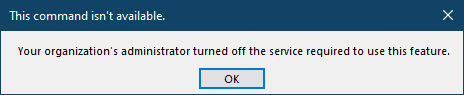
That error indicates the online services are disabled.
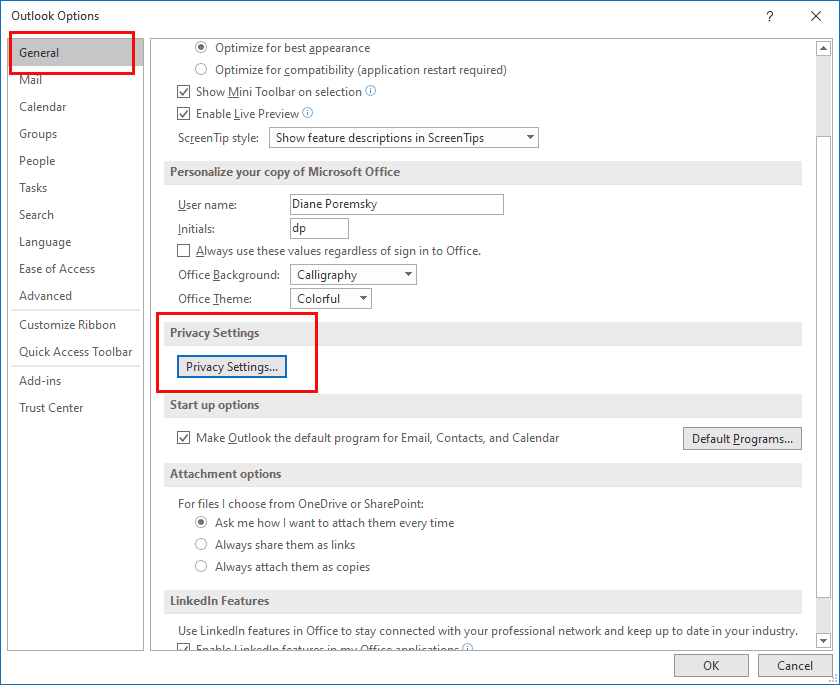
To enable them, open File > Options > General and click the Privacy Settings button.
You need All connected experiences and Experiences that download online content options enabled for Help to work. These are the last two options on the Privacy Setting page.
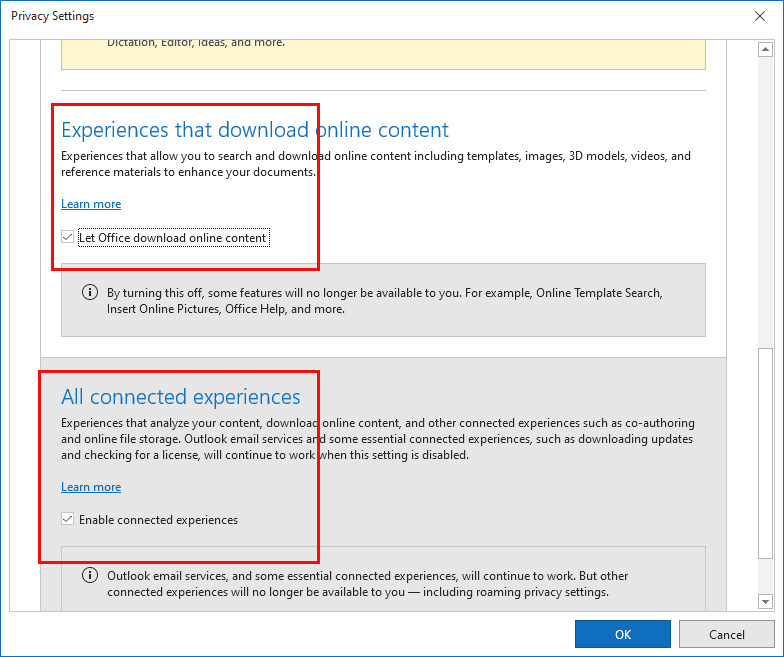
Experiences that analyze your content supplies Dictation support, Smart Lookup, and more. This is just above Experiences that download online content on the dialog above.
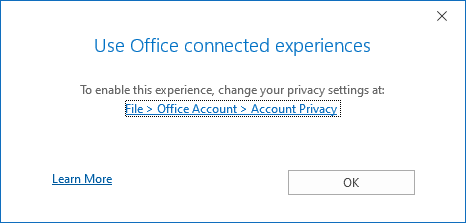
When this option is disabled, you'll receive this message when you try to use the commands that require Connected experiences.

jamkomo says
My privacy settings were all enabled (additionally I had send diagnostic data enabled), yet I still have the problem.
Diane Poremsky says
What version of office are you using?
Alan Frame says
Am I the only one who's angered that Help is now considered an "Experience" and you can't have it without accepting all those other "connected experiences" along with their mysterious connections. What an unnecessary security risk, and pigheaded attempt to push unwanted content and web traffic.
Regardless, than you for answering this, Diane.
Diane Poremsky says
No, you are not. It is no longer shipped with office and is web-based, which makes it a connected service. You can find the same articles using google (may need site:support.microsoft.com if you only want to use Microsoft support articles). The main pages are linked with the buttons at the top of https://support.microsoft.com/outlook
I never use Help - I always have a browser open and it's just as easy to enter the search there. I look for the support articles and other trusted sites, ignoring sites I'm not familiar with as most just copy data from the articles and don't use the software, they just want the ad revenue.
Barb says
I just installed Office 365 on a new Windows 11 desktop. Following these steps won't let me check the box. Is there something else I need to do?
Mary says
Your advice was a great help. Thanks.
Steve says
Diane, I'm running Office 365 and have followed your instructions, but I'm still getting the error message. Do you have any other suggestions? Thanks in advance.
Stephanie says
Thanks so much Diane; your solution worked perfectly!
LHH H says
How do we do the opposite? How to make outlook help never come up, even if the button is clicked or F1 pressed by mistake?
Diane Poremsky says
disabling the button using command id's will work - not sure if that will kill the F1 key though. I don't have the id for the help button- will see if I can find it.
Use Group Policy to disable commands (slipstick.com)
Diane Poremsky says
it looks like command id 984 will disable the Help function and F1.
There is another id - 20802 - for TabHelp but that doesn't seem to do anything.
LHH H says
Of course that totally worked, problem solved. Took less time to implement than to type this comment... perfect, thanks, Diane!
(TBC, the button is still there, but pressing it doesn't open up Help anymore. Works for me :)
I don't think I've posted on your website before, but have been referring to it from time to time for many years now, and it's been a top-notch resource. Did not expect such a quick, reply from the actual author of the site. Neat!
dan says
I get this error message when I request HELP (F1) in Excel 2016 on my PC. How does this have anything to do with "online services" as your answer indicates?
Thanks,
Dan
Diane Poremsky says
Yes, it affects the Help in all of the office apps.
Mark Rapp says
I have Office Pro Plus 2019. Under File/Options/General/Privacy Settings, I can only Enable optional connected experiences (this is checked). I do not have any other settings listed (i.e. "Let Office download online content" or "Enable connected experiences") for me to check.
If I click on F1 (or try Smart Lookup, etc.), I get "Sorry, something went wrong. Please check your network connection and try again."
I do have the current ADMX files installed and, I think, settings relating to connect to the Internet engage.
Am at a loss.
Diane Poremsky says
I've seen two different dialogs there - one with just one checkbox and the screenshot in this forum.
Enabling 'Optional connected experiences' should enable the online features. That it gives a network error instead of telling you it is not enabled leads me to believe it is a network error.
Do you use a VPN? That seems to be problematic.
Mark Rapp says
I use PIA for my VPN. Under Network Preferences I added Outlook to Split Tunnel; Without doing so, I could not access my SMTP server. So, I am bypassing my VPN when using Outlook. See attached.
Charles says
Hi, MS Office is nothing better, more complicated software.
David Jackson says
Thank you. A simple solution to a completely opaque message!
Malbec says
Hi everybody,
I have about the same problem – it’s not office 365, it’s Office 2019 – but the issue is the same: any attempt to get help or translation gets the dreadful “Your organization’s administrator turned off the service required to use this feature”. (I have Win10 1909)
Of course, I tried to use the solution given here, but it seems a bit more complicated here…
In fact, I do get help when I am logged as admin, but a mere user can’t get it. I looked at both Office privacy settings screens and things became still more obscure!
Here is the one for the user : UserPriv
and this is the admin’s one AdminPriv
(sorry, they’re in French, but the layout is the same)
So, I wonder what are these “privacy options managed by the administrator” as I’m the only admin in there!
Your help would be greatly appreciated!
Thank you.
dexter says
Thx a lot for tips, it helped. MS policy, well .... allowed by governments. Why this is a mutual business. Pure, classical US democracy system that makes happy all mankind.
Don says
So MS is ransoming Help for Office 365, software I purchased and which does NOT come with a users manual, and demanding I give them unlimited access to all of my content. I can buy a car without having to give the manufacturer a key to my house. I hate to let the government regulate and control industry but when those industries prove predatory and avaricious (Railroads in the 1900's) then they must be controlled or broken up. .
Dave Costain says
all I need is to access help, not to disclose all my computer files to Microsoft
Diane Poremsky says
Is this a work computer? If so, IT may have it blocked using a group policy.
Fred Ballard says
Microsoft has chosen to make this as complex and non-intuitive as possible: neither the problem nor the solution actually has anything to do with the error message: "Your organization's administrator has turned off the service required to use this feature."
To 'activate'/turn-ON the feature, go to File>Options>General> click the "Privacy Settings..." button, and scroll to the bottom check box. Check the box and click on "OK" until you are back on the main Outlook page (or your Word document if that is where you started from), and Close Outlook. Restart Outlook, and go through the same exact process except (DO NOT UNCHECK THE BOTTOM BOX) this time check the 2nd from the bottom, and 3rd from the bottom check boxes. As before, click on "OK" until you are back on the main Outlook page (or your Word document if that is where you started from), and Close Outlook. Restart Outlook, and go to File>Options>Quick Access Toolbar> click the "Choose Commands from:" and select "All Commands" from the drop-down dialog; select the Help feature which has a ? inside the circle to the left of Help, and click on "Add"; click on "OK" until you are back on the main Outlook page (or your Word document if that is where you started from) - and you're done. Now, when you click on the Help symbol in the Quick Access Toolbar, a Help sidebar will open.
dan says
Diane,
I resolved my issue by going to the 'bottom' CONNECTED EXPERIENCES checkbox which was not grayed out, so thanks for pointing me in the right direction.
Dan
Dr Acharya C. R. says
Thank you. This one is the best solution.