When Outlook is installed and configured on the old computer, export from OE to Outlook then move the *.pst file to the new computer. See Moving Outlook to a New Computer for the steps required to create a profile and use the *.pst file on the new computer.
If Outlook is not installed on the old computer, you need to either install it (32-bit version) on the old computer and export from OE to Outlook then move the pst or install Windows Live Mail on the new computer (with 32-bit Outlook) and move the OE dbx files to the new computer, then export to Outlook.
See Tools below for utilities that can convert Outlook Express files to Outlook.
Export Outlook Express to Outlook
When you are moving between OE and Outlook we recommend using OE's export commands, not Outlook's Import commands. When you import using Outlook's commands, the received date won't display in the message list.
Export Address Book
The Windows Address Book has an option to export to an existing "Microsoft Exchange Personal Address Book". While you could create a PAB in older versions of Outlook, they are not supported in Outlook 2010. We don't recommend using this method.
Either export your OE address book (wab) to a CSV file (text file) or open the address book and drag the contacts to a folder on your hard drive to create a vcard file for each contact. If you have Contact folders in your address book, you'll need to drag those addresses to a folder on your hard drive as you can't export them.
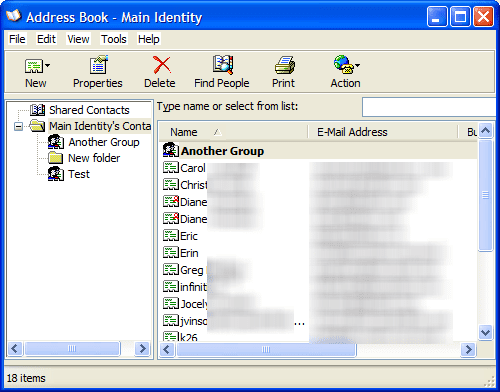
Contacts within groups will export to a text file with the other contacts, however the group membership will not included. You'll need to recreate the Contact groups in Outlook or categorize the contacts.
To export your OE address book, open it and go to the File, Export menu. Choose Other address book then Text File (Comma Separated Values).
Dragging the contacts to a folder will create a vcard for each address, which we can get into Outlook. Outlook can't bulk import the contacts, but you drag them into the Contacts folder then save and close the contacts to add them to Outlook.
It can be monotonous if you have a lot of contacts but we have a macro you can use to make quick work of the process. If you prefer to use a utility, we have a list of tools as well.
If you have just a .wab file to import (no mail) into Outlook, see Import a WAB file into Outlook on Windows 7/8
Export OE Email to Outlook
Unlike the address book, exporting of your Outlook Express email is fully automated.
Open Outlook Express, empty deleted items then go to File, Export menu and choose Messages. Select All folders or specific folders to export, holding Ctrl as you click to select multiple folders. Click OK and you're done. The export process will use the same folder structure in Outlook, creating folders if they don't exist in the data file.
If you want to keep copies of newsgroup messages you can create a folder in OE's Local Folders, drag the newsgroup messages to the folder(s) and export the folders to Outlook.
Move the PST file to the new computer
To find your Outlook PST file, open Outlook and go to File, Data File Management (Outlook 2007 and older). Select the Data File and click Open folder. This opens Windows Explorer to the location of your pst file. Close Outlook and wait a few minutes, then copy the pst file to the new computer.
Note: When you export from Windows Live Mail to Outlook, the message headers are missing and you need to enter an address when you reply to an imported message. If you need to reply from Outlook, it might be easier to install Outlook on the old computer and export, then move the pst. Or use one of the tools listed at the bottom of the page to convert from OE or Windows Live Mail to Outlook.
Export from Windows Live Mail
If you have a copy of Windows Live Mail, you can migrate Outlook Express database to Windows Live Mail then Export to Outlook.
Get Outlook Express files
Find and copy the entire Outlook Express data folder on Windows XP. To find the location of the message store, go to OE's Tools, Options Maintenance tab and click on Store Folder button.
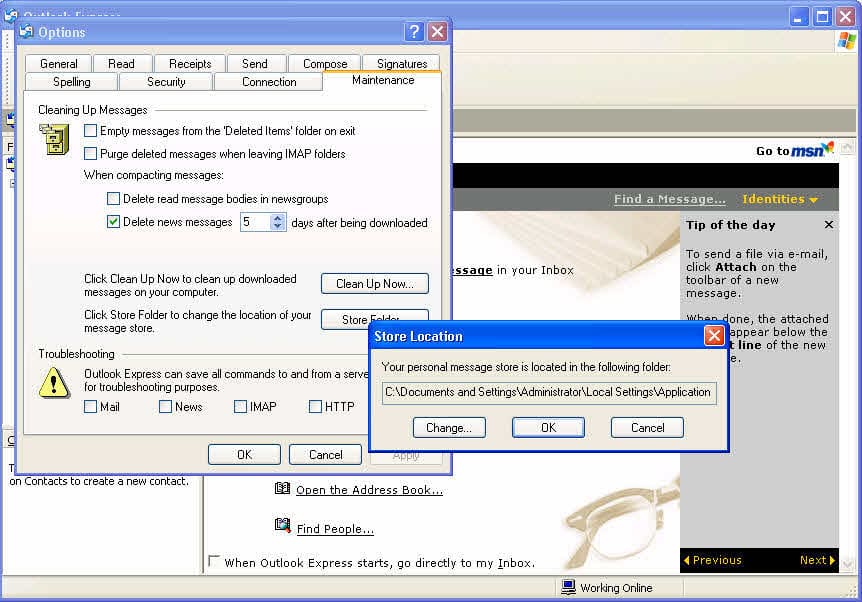
Select and Copy the folder path in the Store dialog. It should look something like the following, if you were using the default folder path:
C:\Documents and Settings\username\Local Settings\Application Data\Identities\{FA572F59-2087-498C-A7A9-F546571D6ECF}\Microsoft\Outlook Express
Close the dialogs and OE and paste the folder path in Windows Explorer's address bar. Press Enter. This will open Explorer to the location of OE's dbx files. Copy the contents of the entire Outlook Express folder, including the folders.dbx file to the Windows 7 computer, placing it in your My Documents folder. If you are moving it on a USB drive, you don't need to copy it to the Windows 7 hard drive, Live Mail can read the files from the USB drive.
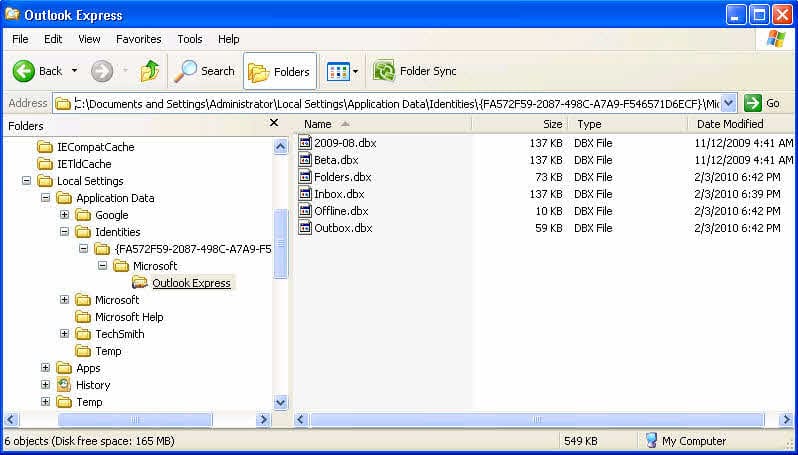
The Address book uses the wab extension and is at C:\Documents and Settings\username\Application Data\Microsoft\Address Book - it may be named username.wab. Copy it to the Windows 7 computer too.
Import Outlook Express Email into Live Mail
- Download and install the Microsoft Live Mail client
- Open it and go to File, Import Messages.
- Select to import from Outlook Express 6
- Browse to the Outlook Express folder you copied from the old computer.
- Select the folders you want to import and finish the wizard.
Import Address book (wab) in Live Mail:
- Open the Live mail address book module
- Go to File, Import. Windows Address book
- Browse to the *.wab you copied and complete the wizard
If you want to use Windows Live Mail, you're done and ready to go.
If you have just a .wab file to import, see Import a WAB file into Outlook on Windows 7/8
Export Mail and Address book into Outlook
You'll need to export the messages and address book from Live Mail to Outlook.
- Go to File, Export, Messages
- Choose Microsoft Exchange.
- Pick the folders and finish the export.
Open the Live Mails' Contact module and export the addresses in CSV or vCard format then import in into Outlook. If you export as vCard format, you can drag and drop them from the file system into Outlook's Contacts.
Tools
Convert your Personal Address Book to or from Windows Address Book, Eudora, Netscape, Outlook Contacts, LDIF and other address book formats. | |
Address Magic supports dozens of applications and formats to convert email, calendar, and address books, to or from Outlook. Converts over 30 address book formats, 20 email formats, and 4 calendar formats. Automatically customizes itself for your computer by finding your email applications and data files. Supports over 150 different address book fields, including names, postal addresses, email addresses, phone numbers, comments, and many more. Automatic field mapping between different address books, full distribution list support, and maintains email folder structure. Converts HTML email, text email, attachments, and all headers. | |
Aid4Mail is an email migration and conversion tool, which supports over 30 mail formats including Outlook (PST, MSG files), Windows Live Mail, Thunderbird, Eudora, and mbox. It can search mail by date, header content, and in the Forensic and Enterprise versions, by message body content. Mail folders and files can be processed even when disconnected (unmounted) from their email client including those stored on CD, DVD, and USB drives. | |
Convert Outlook Express to Outlook using DBX Converter tool to convert dbx to pst and to convert dbx to eml so as to read Outlook Express emails in MS Outlook, Thunderbird. | |
Transend Migrator converts data between virtually all email systems. |

ADOLFO says
Is there a guide to migrate from Gmail to IMAP? Yesterday I used a migration program I purchased to migrate two years of Gmail emails to IMAP. When I accessed the migrated file using various email clients, all email clients show the migrated email dates on each migrated email with yesterday's date as opposed to the original email date. So the migrated file's emails appear to have been sent yesterday. Outlook 365 on my desktop shows the dates correctly, but other email clients on my desktop show yesterday's date on migrated emails. I would love to use Outlook on both Android and my desktop, but the Android version of Outlook has too many bugs.
Diane Poremsky says
Are you migrating away from gmail? Typically, all you need to do is make sure all folders/labels are synced to outlook then export to a pst - and import into the new account. I recommend creating some folders in the account online and and manually moving mail into the folders and verifying itsynced to the server.
If you are migrating the mail to and exchange account, you can import the exported pst.
glnz says
Diane - this is an extremely good article, and I will spend this weekend following it.
Do you have any more advice for my plan?
My old computer has XP SP3 and OE6 with a gazillion emails in many (30?) folders. I have kept the XP updated using the POS hack, but the last ever POS updates will be this coming Tuesday, so the time has come to move everything to my dual-booting Win 7 Pro 64-bit/Win 10 Pro 64-bit machine. The Win 7 side has Office 365 which I have never used for emails - never used its Outlook.
Going back to my XP source machine - it also has Office 2003, and I've never used its Outlook.
So, first, I am going to Export everything from OE6 to the Outlook 2003 that is already on the XP machine.
Questions: 1) Will this Export also magically set the Account properties on the Outlook 2003 so that it automatically gets hooked up to my two email accounts?
2) After I check that the Outlook 2003 has all my old emails and email folders, when I let it connect to my two email accounts (myname@verizon.net which is now hosted on aol and myname@wifecompany.com hosted on Network Solutions), will it RE-download all the emails at those two accounts? Is there any way to stop that from happening?
3) So far, on OE6, I have connected to my two email accounts using POP3. And I set OE6 to "Leave a copy of messages on server". After the successful Export to Outlook 2003, what happens if I change the Outlook 2003 settings to IMAP? Do I create problems or lose anything?
4) Once it's clear that the Outlook 2003 has everything and is connecting to my two accounts, I will then Export or Import everything to Outlook in Office 365 on my Win 7 machine. I think the way to do this is (a) to make the source folders on the Outlook 2003 on XP shareable across my home network and (b) to have the Outlook in O365 on my Win 7 machine IMPORT from those folders on the XP machine. DO you agree?
5) Again, will Outlook O365 on the Win 7 machine magically import the account settings?
6) Again, will Outlook O365 on the Win 7 machine re-download everything on the external accounts, and is there a way to stop that from happening?
7) Again, if I first change to IMAP in the Outlook O365 on the Win 7 machine cause me problems?
8) If everything looks good on my Win 7 machine, I will (after a few weeks) install Office 365 on the Win 10 side and re-import everything there. Eventually I will stop using Win 7 and use only Win 10.
THANKS SO MUCH!!!
Diane Poremsky says
Sorry I missed this earlier. :( Hopefully this will help others.
1. No. You need to add the pst file to outlook and set any POP accounts to use it. Note that Outlook will default to using IMAP if your account supports it.
2. Yes, in this situation, it will. Verizon will default to IMAP though, unsure of the other account. If you use manual setup, you can use POP. If you start outlook offline, you can set up a rule to move older mail to another folder - also set outlook to never delete POP mail when its deleted from outlook. After the mail is downloaded, delete the folder with the older mail. Then change the settings to delete mail from the server when deleted from outlook (if that is your normal setting.) If you don't use a rule, you can sort by last modified time and delete the older messages with a new last mod time.
3. You won't lose anything if you choose to use imap. all mail is left on the server automatically but will be deleted from the server if you delete it from outlook (or other device).
4. In your specific situation, where you never used Outlook 2003, importing isn't an issue but I'd still just copy the pst over to the new computer and open it. For anyone who used outlook 2003 or newer and has a unicode pst (can grow above 2GB, if the default type for 2003 and newer), opening the old pst is better than importing. You won't lose views, categories, and other hidden information.
5. No. You need to File > Add. Outlook WILL find the settings for your account and just needs the email address and password.
6. Yes it will redownload/resync. See #2 for options. Or see https://www.slipstick.com/general/outlook-downloads-duplicate-emails-from-pop3-account/
7. No. Outlook will probably default to it.
8. Don't import, open. If you stick with POP accounts, Office 2013 and newer are smart enough to reused the message manager file that keeps count of downloaded pop mail and will not redownload it. It (and other hidden files) are not exported/imported.
rob says
HI:
I am moving all OE 6 emails /contacts from old XP computer to newer Win 7 Outlook 2003. How can I accomplish this or do I have to first convert all OE stuff to Outlook 2003 on 'old' computer , then how to transfer to newer computer. Please your help is most appreciated! Rob
Diane Poremsky says
Either will work - the steps are the same for any version of Outlook. You can convert it on the new computer but you need to move the entire OE data folder.
glnz says
Diane - My situation is very close to Rob. Above you wrote "but you need to move the entire OE data folder".
Does your section in the article above "Export OE Email to Outlook" do that?
Thanks,
Diane Poremsky says
The article above assumes Outlook is on the OE computer and you are just exporting from one to another. If you have a back up of the OE data but not the old computer, you need the entire folder the dbx files were in, not just some dbx files. There is an index file in the folder that Outlook needs to see.
Graham says
Hello Diane
Ignore my comment from yesterday. I've had another go this morning and I've found them in Outlook, well hidden in Stores folders/Imported folder/Local folders.
Thank you for your very helpful article.
Graham
Diane Poremsky says
Thanks for the update!
Graham says
Hello
I have been trying to follow your instructions for moving Outlook Express files to Outlook. 90% of the way there, now I can't find the final output.
I found the source .dbx files on my old PC and copied them successfully to my laptop.
I successfully installed MS Live Mail and successfully imported the .dbx files into Live Mail.
I then exported the live mail files into Outlook. But when I opened Outlook they are not there, and I cannot find out where they have gone.
I want them to finish in Outlook then delete MS Live Mail because I don't want too many programmes on my laptop.
Thanks for any advice.
Graham
Tom says
Dear Diane: I am upgrading several work stations from XP to Windows 10. Some of the users have stuck with their old OE6 email programs. I installed Microsoft Essentials and was able to import the DBX files and export them as .PST files. I had previously tested the send/receive functions and all was good. After I imported the .PST files from Live Email, I'm now unable to send mail, and I get error message '(0x800401F) Outlook data file cannot be accessed'. Can you tell me what I did wrong? Incidentally, in my home view (left pane), I have Favorites, Outlook Data Files, and another account denoted by the email address of that user. Outlook Data Files and her email account both have all typical email folders (inbox, sent, trash, drafts, etc.) Perhaps that is normal for Outlook 2010, but I'm hoping maybe that might help you diagnose my error. I think I somehow corrupted the data file when I imported the .pst's?
Diane Poremsky says
Is the account set up as pop3 or imap? That usually means a corrupt profile. Unfortunately, the fix is to make a new profile, but if the accounts are pop3, go to File, Account Settings, select the pop3 account then click Change Folder at the bottom. Select a folder then repeat and select the inbox.
If there are updates waiting to be installed, reboot and see if it works.
Marshall says
Hi Diane,
I'm in the process of upgrading our home PC to iMac as we are still using Windows XP, yep, you read correctly, Windows XP! Now for my emails I've been using Outlook Express 6 and want to move its contents, including folders I have created, over to Outlook 2016 Nicholas I have installed on the iMac, how do I do this?
Diane Poremsky says
Sorry, I just found this. You can't export from OE to Outlook mac - you need to use a 3rd party convert utility. (and possibly a few other steps) or upload them to a imap server and open the imap account in outlook. (Gmail works great for this.)
mac says
thanks for information
reg says
Hi Diane,
On a related note, I am planning to convert from OE to Outlook 2003 on my XP box. How do I disable OE so that mail only comes to the Outlook mailbox?
Diane Poremsky says
Well, you can stop opening oe - or remove the account from OE. Go to Tools > Accounts > Mail then highlight the account and remove it.
Gill Stagg says
I've exported from Outlook Express and have loads of dbx files. When I try to import into Outlook 2010 with Export/Import from another program or file/Outlook Express.4.x.../ it gives a warning 'No internet accounts were found to import' and then asks 'Would you like to import email messages and addresses from Microsoft Outlook Express or Windows Mail?' But when I click 'Yes' it just ignores me. Very frustrating as I don't know what I'm doing wrong. Any suggestions welcomed. Thanks.
Jen says
Hi Diane,
Hope you can help me. I had both OE and Outlook2007on the old XP machine. I successfully exported from OE to 2007.
Then, with my new Windows 8.1, I have Outlook 2013. Using a flash drive I imported updated directory file last week to Outlook 2013. All emails/folders are in Outlook 2013.
However, new mail from last week through to today is still going straight to OE.
According to default programs Outlook 2013 is my default email.
If I'm at new computer, in Outlook 2013, I send a test message and OE on old machine receives the message immediately, and then again 6 minutes later.
I'm concerned that if I "throw the old computer out" I'm also throwing out my email program and I will never again receive an email.
FMSBT says
My problem seems to be that I can't export from OE XP to Outlook on Windows 8.1 because OE creates DBX files. I can't find any way around this.
Diane Poremsky says
You either need to export on the XP machine or install windows live mail client (now part of windows essentials) and import the dbx files into it then export to Outlook.
FMSBT says
I'm trying to import into 2013. I can't make a pst file in Outlook Express to export from.
FMSBT says
I don't know what you mean by your question. I'm a baby when it comes to technology. What I did try (not sure if this is what you meant by your question) is to create an Outlook.com account. When I exported to there, only a fraction of my emails went over. Are we talking about the same thing?
Diane Poremsky says
I'm pretty sure the problem is due to importing into Outlook.com. You should import into a pst file. What version of Outlook are you trying to import into? If 2010/2013, go to File, Account Settings, Data Files tab and add a new data file then set it as default then try importing. The mail should import into the pst file ok.
FMSBT says
When I use export in OE XP, and click OK, as you instructed, I get an msg saying "The connection to the Microsoft exchange server is unavailable. Outlook must be online or connected to complete this action." ???
Diane Poremsky says
Did you create a profile in outlook? it sounds like the profile has an exchange account - you only need a pst file in outlook, or a pop3 account.
Mughal says
Hello Daine Poremsky,
How are you
I was using outlook express 6.0 with OS XP service pack 2 and now i update my OS window 7 and would like to know how i can import .dbx file in outlook 2007.
i try my best but i can't.
please reply me via email id possible.
Thanks
Diane Poremsky says
What happens when you try the steps?
You need to set up Windows Live Mail on Windows 7 and import the dbx files (you need the entire folder of dbx files, not just some). If the old computer is available, you could install outlook on it and export to outlook then move the pst.
Vicky says
Hi Diane, thank you for your clear instructions. However I am having a problem moving my messages from IE/XP. I have installed WLM on my new Win7 computer and imported the messages as per the above instructions but my IE folders and subfolders are not there, the messages are all together in one inbox. What am I missing? I noticed that whilst importing, there was no option to select 'import from store directory' only the option to browse for the storage location. Hope you can help. Best wishes, Vicky
Diane Poremsky says
Did you move the folders.dbx file too? That holds the subfolder information.
Vicky says
Hi Diane,
I finally found them thanks, there were so many different folders labelled 'Inbox' that I had to do a fair amount of shifting around of old messages but got there eventually.
My next problem is that having set up two email accounts on Outlook, I am now finding that if I type a recipient's address into a new message, the email sends but never arrives, whereas if I reply to a message from the same recipient, it is received with no problem. Any ideas?
I need to set up three more accounts in Outlook so will have five in total - is it something to do with that? I have unchecked the box for Autocomplete and it didn't fix it.
Any help would be gratefully received.
Regards, Vicky
Diane Poremsky says
Do you get any NDRs back? Without an NDR it's really hard to say where the problem is.
Did you empty the autocomplete list? (file, options, mail - about halfway down) If the address is coming from it, the list could be corrupt. If you are addressing the message from contacts, see if typing the address makes a difference - if so, the contacts are the problem.
Chet Hedden says
You recommend ConvertMyEmail under the heading "Tools." Just a warning -- I fell for the recommendation and sales pitch and spent $20 to purchase it. However, it is vaporware. It does nothing. Once you enter your conversion parameters it just sits there as there is no arrow or button to convert anything. Naturally I requested a refund as the site claims a "money back guarantee." But after half a dozen requests for my money back, and a threat to dispute the charge with the bank, I have yet to receive any reply whatsoever.
Diane Poremsky says
thanks for the warning!
Robert Wolfe says
Where is the Windows Explorer address bar? I have never heard of this.
Diane Poremsky says
It's the bar above the folders and files and below the toolbar or ribbon that lists the folder name. It can be turned off or hidden in one version of Windows.
https://screencast.com/t/dYn3xUXF3nM4 - if you click in it, you can copy the path or type/paste a new path.
A.R. says
Really usefull. thanks.
Glenn says
Worked great for me, many thanks
Josh says
It was very helpful. I wouldn't have been able to do it without you. Thank you so much!
Rinald Almer says
Hi Diana, I have the exact same issue as Atlantis (mail addresses replaced by plain text)and even in different scenarios. I have scanned the web for days, but this is the first time I've seen anybody else reporting this.
The scenarios I've tried are:
On my WinXP machine Export from OE6 to Outlook-2003 and also let Live Mail 2009 import the OE DBX files and export them to Outlook PST.
On my Win8 machine use Live Mail to import DBX files and export to Outlook 2013 PST.
The result is the same every time: you cannot reply to an imported message because the From: and Cc: fields are just plain text.
The one difference between the old and the new PC is that Outlook 2013 shows a line in sharp brackets saying something like "This item contains an embedded script". (I'm not sure about the exact English text, because I'm using the Dutch version.) So it may be that mail links are translated to plain text for some security reason.
Please advise how on to circumvent this.
Regards, Ronald.
Diane Poremsky says
I believe that is related to this issue:
Exporting from OE directly to Outlook (both installed on the same computer) is the usual fix, but if it doesn't work, you'll need to use a utility to handle the export.
Atlantis says
Hello Diane, got a strange issue here.
You said "Note: When you export from Windows Live Mail to Outlook, the message headers are missing and you need to enter an address when you reply to an imported message. If you need to reply from Outlook, it might be easier to install Outlook on the old computer and export, then move the pst."
Well, I followed your instructions: I installed Outlook 2002 on the old PC (Win XP), exported the messages from Outlook Express to Outlook 2002, then exported the messages from Outlook 2002 into a .pst file that Outlook 2007 in the new PC (Win 7) imported apparently correctly. The problem lies in the fact that when I open an imported message and select "Reply", Outlook shows me only the NAME of the sender (e.g. "Jack"), and NOT the actual Email address. Double click on that "Name" has no effect.
What's wrong? Cheers, Andy.
Željko says
Dear Diane, I see you are wery helpfull and right adress to help me. I have Outlook Express 6 with many massages and attached files from past years and I must keep them all. Now I must move all massages and adress book to new computer with Win 7 and Outlook 2010. How can I do this without mistakes or lost of data ? Thank you in advance. Best regards, Željko.
Diane Poremsky says
I highly recommend using either Aid4Mail or Address Magic Plus to convert everything quickly and easily to Outlook.
Halvor says
I haveinstalled Live Mail Version 2012 (Build 16.4.3505.0912)
and imported my OE messages and address book. I then made an export to Outlook Exchange and everything looked to work, but it never asked me for a liocation of where to put the pst-file. Now i have scanned the hole C-dirve, but no pst-files have been created today. Any suggestion?
Anyway: Is this export worth importing into Outlook2013 (you commnet on "the message headers are missing and you need to enter an address when you reply to an imported message")? Still valid?
Diane Poremsky says
Yes, the caveats apply to Outlook 2013 too. Did you have a profile set up in Outlook? If you have a profile set up and are exporting all folders it should use the current profile's data file.
Wendy Jones says
Thank you for this very helpful post. I have spent hours looking at converters but did not want to pay for a once off use of the programme. This has been such a helpful solution
Spencer says
Excellent material posted here! Thank you Diane.
George Papadopol says
Thank you - I will try the method on page 2. I will report how I fare with it.
George Papadopol says
Like others here I found help in the process of moving from XP+OE to W7+Outlook. I think i have the messages transfer done - bought a new Office 2010 Home & Business and installed it on the XP, imported the messages to Outlook.
One thing I discovered - the pst file created was appreciably bigger than the OE store.If you do not have enough space, Outlook stops telling you how many messages. it has imported from the total in OE. then you have to do it again - remember tick copy over duplicates
I have a question - my OE wab file has many folders under Main identity - is there any way or a 3rd party utility that can import this to Outlook and preserve the structure ? Outlook only imports the entries under Main identity same as OE exports to a CSV file.
Diane Poremsky says
Good point about data file size - yes, the pst will be larger, I'd guess by about 30%. This is because the PST stores more information. I would want an allowance of at last 2x the size of the OE folders of free space.
I'm not sure if Aid4Mail or Address Magic can import them them.
Have you seen the instructions on page 2? Drag the WAB contacts to a folder on your computer, then drag them to outlook. We have a macro that will do the dirty (boring) work to "import" into Outlook, a process which is mostly just opening the contact then hit save & close.
If you want to make contact groups (distribution lists) see Create a DL
La says
"OE message stores are in dbx files, which Outlook can't open. You will need to either use a 3rd party tool (listed under Tools)" - Could you please elaborate on where to find the 3rd party tool - which Tool list are you referring to? In OE6 or somewhere on this site?
Diane Poremsky says
At the bottom of the article is a tools list which contains links to tools that can be used to convert OE to Outlook. The two in the Spotlight will convert OE to Outlook directly, the other two will export the messages from the DBX to individual eml messages which can be opened by Outlook.
Steve says
Diane, thanks for the advice. I did eventually go the OE -> Live Mail -> Outlook route. After all, Live Mail was already on my PC. It took a while - sort of a set-it-running-and-go-get-lunch situation. It all worked out great and my zillions of emails in all those folders are back within reach. Thanks again!
Steve says
Here's my scenario: I was using outlook express on an old WinXP PC. Windows suffered some sort of failure that makes booting that machine near impoosible. I have however, taken the hard drive out, put in in a USB case. So then, I have access to my OE inbox and the multitude of sub-inboxes.
I now use a new machine with Win 7 with Outlook 2010. MY QUESTION IS: How can I import all my old OE folders into Outlook? I can copy the inboxes and put them in a particular folder if that's needed.
Thanks!
Steve
Diane Poremsky says
OE message stores are in dbx files, which Outlook can't open. You will need to either use a 3rd party tool (listed under Tools) or will need to import the Mail into Windows Live Mail then export to Outlook. If you have a lot of mail and folders, a utility can be cost effective and eliminate the need to install Windows Live Mail.
harvey says
After black Tuesday updates from MS last month, we had several computers not reboot after installing the patches. As a result, I chose to create a Win7 system with Outlook, a big step after using OE since it was introduced... over 300k of messages (21 GB).
However to do this I had to first created a XP SP3 system, install the backup DBX files and install Outlook 2010. What a pain!
But after folling the directions here and on the MS web site, I've come to the colusion, it can't be done using MS Import tooks. Really to bad they don't understand their customer needs!
I tried twice and both times my Inbox (default account) lost all of the 2012 messages. I have about ten email accounts with rules that sort the in coming message into seperate folders. All of those imported into 2010 but now the Inbox - go figure.
Now I wonder if I created a subfolder and moved all my 2012 messages into it, could I use the MS import routine? This takes about 40 hours and does not including another two days to index the PST file once in Win7... but what the hell, it is just electricy - right!
OE worked great, simple text based tool, that was fast and has a small foot print. Why fix somethong that is not broken - MS... sell more software!
--Harvey
Ben Scott (@Ben_s214) says
Harvey,
Agree with you 100% as I have gone through the same steps as you did to transfer OE messages to Outlook but the sub-folders are all messed up.
OE is a much better mail client and it's a pity that Microsoft doesn't know what their customers treasure most.
Ben
Jefferson says
A closely rtelaed problem (running MS Office Small Business, Outlook 2007 with Windows 7):I deleted the Business function that came standard with Outlook software. When I logged off and back on, my Favourite Folders list was gone, and so was the reading pane in my Inbox (I happen to like the reading pane on the right-hand side). The Favourite Folders list seems to look after itself: a few days later, afer I had used Outlook a fair bit, the Favourite Folders list was back, good as new! And, it is easy to get the reading pane back, temporarily, (View > Reading Pane > Right) but when I log out and log back in, it is always gone again! (Note: the reading pane for Sent Items remains the way I set it up on the right, no matter what!). How do I get the reading pane to stay put in my Inbox?
Diane Poremsky says
Try restarting Outlook with the cleanviews switch. It probably would not hurt to use the /resetnavpane switch too.
Press Windows key+R to open the Run command, type
outlook.exe /cleanviews
and press enter. Note, there is a space between outlook.exe and the /.
richard mills says
I should add that I'm having no problem sending or receiving new mail - it's just the old stuff that I can't see.
richard mills says
I have read these posts, and have followed the directions. They have been very straightforward and clear - except to the point of finding my imported messages. I copied my .dbx messages from my old hard drive onto my new hard drive (in its own library). I then imported my .dbx files into Live Mail using the OE6 option. That seemed to work fine, so I then exported from Live Mail to Outlook 2010. My messages were copied, but when I went to look for them in the Storage, I could see the file folder and I could check the file size (which looked appropriate), but I still can't see the messages.
I'm sure this is user error, but I'm not sure what to do or where to go now.
Diane Poremsky says
Can you find them using instant search? Are you looking in the Inbox folder? Using a view that is hiding read messages?
R R McClean says
I changed from Outlook Express to Outlook 2010. Am only getting 1/3 of my e-mails in Outlook 2010 as I am getting in Outlook Express. I now have both so I can compare. What happened with the e-mails that are not coming to Outlook 2010? Tahnks RRM
Diane Poremsky says
It's hard to say what happened. What type of account do you have configured? Do you have any idea what messages are missing? Did you look for them in the Junk mail folder or the Unread mail folder?
Nick Haylor says
Thank you for your reply.
I have now found them hidden away in storage folders, then imported folders. For me it was not the obvious place to look.
Thanks, Nick
Nick Haylor says
I have exported myOulook express folders from Windows live messenger into outlook as above but where does do they go in outlook as I can not find them?
Diane Poremsky says
They go into the default pst file, creating the same folder structure you had in Outlook Express. If you don't see them in Outlook, go to Control panel, search for mail - how many Outlook profiles are listed?
Nic says
Thanks, this really helped. One question, is it safe to clear the live mail inbox to save disk space once you have exported the files from Live Mail to Outlook?
Diane Poremsky says
Yes, once you are satisfied that nothing is missing, you can delete the live mail files to save space.
Saied Altabaa says
That sounds good.
will try it and get back to you guys.