To do something automatically when you click the Reply button, you would use code similar to the following example, which adds a keyword to the subject.

To "do something" when you click Reply All, change the procedure name and one line in the code from Reply to ReplyAll. (Or copy the Reply code if you want to use both Reply and Reply All).
Private Sub oItem_ReplyAll(ByVal Response As Object, Cancel As Boolean)
Set oResponse = oItem.ReplyAll
To use the code when you click Forward, you'll change the lines to:
Private Sub oItem_Forward(ByVal Response As Object, Cancel As Boolean)
Set oResponse = oItem.Forward
This code won't work with the Outlook 2013 and newer "reading pane reply" feature.
Add keyword to subject
Use this code to change Outlook fields, such as adding a keyword to the subject, adding a recipient, a flag, or a color category.
Option Explicit
Private WithEvents oExpl As Explorer
Private WithEvents oItem As MailItem
Private bDiscardEvents As Boolean
'//slipstick.me/44b0w

Private Sub Application_Startup()
   Set oExpl = Application.ActiveExplorer
   bDiscardEvents = False
End Sub

Private Sub oExpl_SelectionChange()
   On Error Resume Next
   Set oItem = oExpl.Selection.Item(1)
End Sub

' Reply
Private Sub oItem_Reply(ByVal Response As Object, Cancel As Boolean)

   Cancel = True
   bDiscardEvents = True

   Dim oResponse As MailItem
   Set oResponse = oItem.Reply

' add the fields here
   oResponse.Subject = "keyword " & oResponse.Subject

   oResponse.Display

   bDiscardEvents = False
Set oItem = Nothing
End Sub
Add boilerplate text to reply
To insert boilerplate text into the reply, replace the Reply code in the macro above with this code.
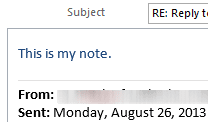
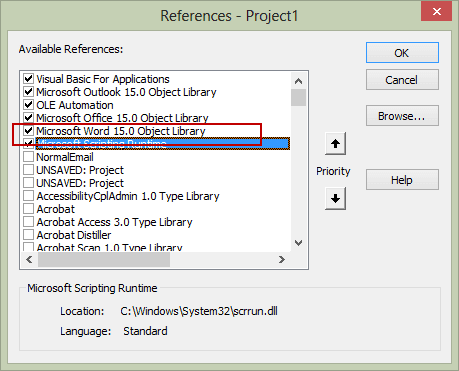
Note: to use Word VBA in Outlook (when Word is the email editor), you need to set a reference to the Word Object library in Tools, References.
' Reply
'https://slipstick.me/44b0w
Private Sub oItem_Reply(ByVal Response As Object, Cancel As Boolean)
Dim strText As String
    Dim olInspector As Outlook.Inspector
    Dim olDocument As Word.Document
    Dim olSelection As Word.Selection

   Cancel = True
   bDiscardEvents = True

strText = "This is my note."

   Dim oResponse As MailItem
   Set oResponse = oItem.Reply
   oResponse.Display

    Set olInspector = Application.ActiveInspector()
    Set olDocument = olInspector.WordEditor
    Set olSelection = olDocument.Application.Selection

  olSelection.InsertBefore strText

   bDiscardEvents = False
Set oItem = Nothing
End Sub
Simple Reply, Reply All, Forward
When your are using the same code over and over in separate macros, such as in this case where the code is identical except for the single line that determines whether it is a reply, reply all, or forward, you can use a simple macro to pass values to the main macro. This keeps the module smaller, makes it easier to read and edit as you only need to make a change once.
In this example, Dim oResponse was moved outside of the macros so it applies globally. The Reply, ReplyAll, and Forward macros are used to set the type of response, then calls the main macro to complete the action.
Option Explicit
Private WithEvents oExpl As Explorer
Private WithEvents oItem As MailItem
Private bDiscardEvents As Boolean
Dim oResponse As MailItem

Private Sub Application_Startup()
   Set oExpl = Application.ActiveExplorer
   bDiscardEvents = False
End Sub

Private Sub oExpl_SelectionChange()
   On Error Resume Next
   Set oItem = oExpl.Selection.Item(1)
End Sub

' Reply
Private Sub oItem_Reply(ByVal Response As Object, Cancel As Boolean)
   Cancel = True
   bDiscardEvents = True

Set oResponse = oItem.Reply
 afterReply
End Sub

Private Sub oItem_Forward(ByVal Response As Object, Cancel As Boolean)
   Cancel = True
   bDiscardEvents = True

Set oResponse = oItem.Forward

 afterReply
End Sub

Private Sub oItem_ReplyAll(ByVal Response As Object, Cancel As Boolean)
   Cancel = True
   bDiscardEvents = True

Set oResponse = oItem.ReplyAll

 afterReply
End Sub

Private Sub afterReply()
    oResponse.Display

 ' do whatever here

End Sub
For example to mark or clear flagged messages complete when replying, use this code for the afterReply sub, either marking the flag complete or clearing the flag completely.
Private Sub afterReply()
    oResponse.Display

If oItem.IsMarkedAsTask Then
 oItem.MarkAsTask olMarkComplete
'oItem.ClearTaskFlag
 oItem.Save
End If
End Sub
To change the From address to an alias or shared mailbox, use this afterReply macro.
Note that when you set the From address, you need to change it before you display the message.
Private Sub afterReply()

 ' do whatever here
oResponse.SentOnBehalfOfName = "olsales@domain.com"
oResponse.Display

End Sub
Add display names to the message
This version of the afterReply macro (which works with the Simple Reply macro, above) adds the recipient's names to the top of the reply. If only a recipient's email address in the To or CC field, the address is entered.
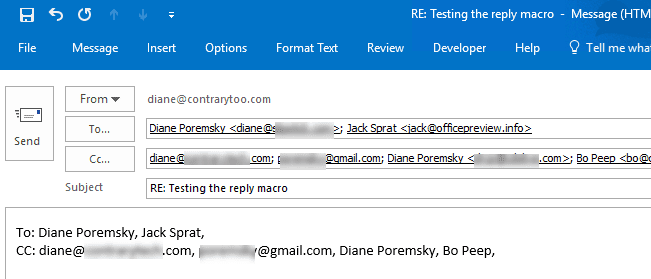
You could use Instr function to grab the alias from the address (the part before the @) and could use Instr to get the name before the first space, provided all names are in 'first last' format. When recipient's use a mix of 'first last' and 'last, first' format, you would need to also check for a comma and grab the next word.
Private Sub afterReply()
    oResponse.Display

 ' get the recipient names
Dim Recipients As Outlook.Recipients
Dim R As Outlook.Recipient
Dim i
Dim strTo As String, strCC As String

Set Recipients = oResponse.Recipients
' step backwards so the order of the names is
' the same as in the address fields
For i = Recipients.Count To 1 Step -1

Set R = Recipients.Item(i)
If R.Type = olCC Then
strCC = R.Name & ", " & strCC
Else
strTo = R.Name & ", " & strTo
End If
Next

'insert the names
    Dim olInspector As Outlook.Inspector
    Dim olDocument As Word.Document
    Dim olSelection As Word.Selection

    Set olInspector = Application.ActiveInspector()
    Set olDocument = olInspector.WordEditor
    Set olSelection = olDocument.Application.Selection

  olSelection.InsertBefore "CC: " & strCC
  olSelection.InsertParagraphBefore
  olSelection.InsertBefore "To: " & strTo

End Sub
How to use this macro
This macro "watches" for you to click the Reply or Reply All button and "does something".
First: You will need macro security set to low .
To check your macro security in Outlook 2010 and above, go to File, Options, Trust Center and open Trust Center Settings, and change the Macro Settings. In Outlook 2007 and older, it’s at Tools, Macro Security.
After you test the macro and see that it works, you can either leave macro security set to low or sign the macro.
Open the VBA Editor by pressing Alt+F11 on your keyboard.
To use the macro code in ThisOutlookSession:
- Expand Project1 and double click on ThisOutlookSession.
- Copy then paste the macro into ThisOutlookSession. (Click within the code, Select All using Ctrl+A, Ctrl+C to copy, Ctrl+V to paste.)
- If the macro uses Word objects, you'll need to set Word as a Reference in the VBA Editors Tools > References dialog.
 /a>
/a>
 /a>
/a>More information as well as screenshots are at How to use the VBA Editor
To test this macro, click in Application_Startup and press Run. Open a message that has one or more attachments and click Reply.

SJ MO2 says
Hi Diane.
I have an Outlook macro that I want to only run for new e-mails, not replies or forwards. I think the general principles here would apply to new e-mails, but not sure how to 'watch' or check if the e-mail is a new one. Thank you.
azman says
Hi Diane,
I Need your help to code " reply with attachment and body emails"
Yvan says
Hello Diane. I am exploring the feasibility to allow a recipient ok an email to respond using dropdown menus. I found many ideas related to incorporating VBA in sender mails but none in recipient. The case is: I am sending an email to you and you reply to me via this email with specific filled boxes I will use later to automate reception of mail. Also, would like to allow the recipient to enclose a file and prevent sending if the file is not enclosed. Thank you 1000X Yvan
Diane Poremsky says
That is not possible in Outlook, for security reasons.
Ron says
This is such helpful code and examples. Unfortunately, I am completely baffled as to how to get the oItem_Reply event to trigger (in my code below, the name is different, but I've tried it with exactly the same names as your code as well with no luck).
I have other events that trigger correctly (e.g., Application_ItemSend), but nothing I try will get oItem_Reply to trigger.
Things I've tried:
I cannot fathom what else I can try.
Here are relevant code snippets:
But, the debug window never shows the message, the code window never shows up when the Stop command is encountered, and the BodyFormat is never changed.
Thank you for any ideas that I could try!
RC...
Diane Poremsky says
You have the format property wrong. olFormatHTML not olHTMLformat
This snippet is from Always Reply Using HTML Format in Outlook (slipstick.com)
Set Response = objmail.Reply
Response.BodyFormat = olFormatHTML
Response.Display
Ron says
Yes, true enough--I have fixed the olFormatHTML issue. Thank you.
But fixing that doesn't solve the real problem I'm having which is that the code never runs, so even after correcting that, the event is never triggered.
Actually, that's not quite true: The really odd thing is that randomly, the code will run! It might run 2 or 3 times and then stop. Or, it might not run at all for days, but then when I restart Outlook a couple days later, it will run again a few times (I think 6 times is the most it has run in a row) and then stop running for subsequent Replies. I am completely baffled.
Any additional thoughts? Thanks for taking the time to ponder this.
Diane Poremsky says
ifi t only runs when you restart outlook, there is something causing the autostart macro to fail.
Add this macro to ThisOutlookSession then add a button for it on the ribbon or quick access toolbar - then run it when the macro isn't working. Does the macro work again?
Sub RunStart()
Call Application_Startup
MsgBox "App Start Started"
End Sub
Ron says
That's the thing: I am confident that he autostart macro is running because Outlook pops up the warning asking me if I want to enable macros when I start Outlook. Again, oddly, sometimes Outlook asks me if I want to enable macros when Outlook is loading up, but other times I am not asked until I run the first macro of the session using a Quick Access button.
At any rate, I did add the RunStart macro to ThisOutlookSession and added a button on the Quick Access toolbar. I verified that the objMail_Reply macro was not getting triggered by clicking the reply button on the Ribbon and the code did not stop in objMail_Reply so that confirmed it was not triggered. I then clicked the button to run the RunStart macro and confirmed that it had run because I got the popup message stating "App Start Started." Unfortunately, when I then clicked the reply button on the Ribbon, the objMail_Reply code did not run.
It is so bizarre that sometimes it works and sometimes it does not. I really wish I could figure out the pattern for what causes the difference in behavior.
I'm open to any other things to try! Thanks for the help.
Mervyn says
Hi Ron,
Did you ever get this working?
Ron says
No, I did not.
Mark says
Diane can you please help me? I have been trying to change the “From” field after a user hits “Reply”. But the “From” field only needs to be updated for emails with a subject line that has the text “MQ ID:” in it.
I noticed that it says the “From” field needs to be changed before the item is displayed but I don’t get how to do that in This Outlook Session.
Could you please show me how to do this?
Thanks,
Mark
Diane Poremsky says
It needs changed before .display.
Private Sub afterReply()
' change sender here
Dim olNS As Outlook.NameSpace
'use first account in list
oResponse.SendUsingAccount = olNS.Accounts.Item(1)
oResponse.Display
' get the recipient names
Dim Recipients As Outlook.Recipients
Dim R As Outlook.Recipient
Dim i
Dim strTo As String, strCC As String
Macros to send messages using a specific account (slipstick.com)
Nicholas says
Hi,
This is all very interesting and quite new to me. My little experience in Macros is with the macro records which makes life very easy.
I have my desktop outlook account, liked to a gmail account which is itself link to a work account I have. I know this linking my seem bizarre but it works really well for me actually with one single exception:
When I answer an email of that work account from my outlook, it automatically sent my gmail email as the sender. At the moment, every time I write an email I have to remember to manualy change the sender address to my work address which is rather anoying.
I've been going through your Macro post trying to find a way so that every time I create a new email or answer or forward one, the macro automatically changes the sender address to my work email address instead of the gmail.
I'm pretty sure this is possible right? Following some of the examples on this page I managed to build a macro that created a new blank email with the correct sender email address filled out but I can't manage to set this up so it works with every reply, forward, or created email automatically.
I would trully appreciate any advise you provide. I definately want to keep the configuration of my email and not link my work account directly to outlook desktop.
All the best,
Nicholas
Diane Poremsky says
This should help -
https://www.slipstick.com/outlook/using-gmail-master-account-reply-using-correct-account/
Is the work account configured in Outlook? If you always want to use it, you can change it in the account settings.
https://www.slipstick.com/outlook/using-gmail-master-account-reply-using-correct-account/
Nicholas says
Thanks Diane! I think the first link might have what I need. :)
I'll go through it now.
best
Dan says
The script has a side effect when browsing Outbox. Any email selected (including the one active when selecting the Outbox folder) will loose it's sent info, and will hang in the Outbox. All my emails are sent after a 60 s delay, and browsing or even modifying and re-sending in the Outbox folder does not work, and messages will get stuck in Outbox.
As a workaround, I disabled the selection of items when in the Outbox (Explorer.CurrentFolder = "Outbox").
Diane Poremsky says
I never look in the outbox, so never noticed it, but knowing how the outbox works, it makes sense.
Several addins will 'mark as read' the selected messages if you view the outbox.- to send, you need to open the message, change folders then hit Send then stay out of the outbox until the message is sent.
https://www.slipstick.com/problems/after-viewing-outlooks-outbox-the-messages-in-it-wont-send/
Dan says
What is the funtion of the the bDiscardEvents and, if there is a purpose for it, should it be set to false in the afterReply?
Diane Poremsky says
In this version of the macro, it looks like its not doing anything... in the original maco, it was used much like cancel. When the macro was edited for this example, it wasn't removed. :(
Willstaa says
im trying to use the reply to change the sentOnBehalfOfName , the reply loads showing the msg the name in from field and all looks great but when the email is sent it still comes from the original sender, any tips
Newyears1978 says
I tried this but when I click Reply, no macro is run. I simply put the Private Sub and Set oResponse lines in ThisOutlookSession and just put an existing macro I use in there..but nothing happens?
Diane Poremsky says
The entire macro needs to be in thisoutlooksession. Did you either restart outlook or click on application_startup and click Run button?
Newyears1978 says
I think it might be because I am in 2013 using the view pane and it says it will not work for that.
Diane Poremsky says
Yes, as written, it won't work with the reading pane replies. i have a macro that will (more or less) work with the reading pane reply - basically, it will detect you are using the reading pane and run, popping the message out of the pane. (It might stay in the pane, depending on what you are doing - my client wanted to change the sender, which requires a pop out.)
Economy says
How can I use the above "Simple Reply, Reply All, Forward" code and add "Macro using a specific account"?
Public Sub New_Mail()
Dim oAccount As Outlook.Account
Dim oMail As Outlook.MailItem
For Each oAccount In Application.Session.Accounts
If oAccount = "Name_of_Default_Account" Then
Set oMail = Application.CreateItem(olMailItem)
oMail.SendUsingAccount = oAccount
oMail.Display
End If
Next
End Sub
Diane Poremsky says
Sorry I missed this earlier -
You'd mix that code with the afterreply - the account needs to be set before displaying the form.
Private Sub afterReply()
Dim oAccount As Outlook.Account
For Each oAccount In Application.Session.Accounts
If oAccount = "Name_of_Default_Account" Then
oResponse.SendUsingAccount = oAccount
End If
Next
oResponse.Display
' do whatever here
End Sub
DrDoLittleLess says
I tried the "Add keyword to subject" macro and it works as intended as long as I send the message.
But if I cancel a message window the oItem_Reply() function is not triggered anymore until I restart Outlook.
I have changed absolutely nothing in the code.
What is wrong with the code? I have tried to debug it with no success...
I use Outlook 2013 32 bit version on Windows 7
Diane Poremsky says
that means the code was disabled - it should only happen if there is an error... and as long as the code has these lines in it, it should close cleanly. Hmmm. I wonder if bdiscardevents isn't getting reset will check it.
Cancel = True
bDiscardEvents = True
Diane Poremsky says
ok... checked it out. with the macro as written, it should work for a different message but not for the current message as you need to select another message to 'reset' it.
wpartist says
Your article makes me understand the topic very well, thanks for the effort of sharing this. It is a good one. Thumbs up for you!
braymok says
How do I embed my reply withing the received message?
Diane Poremsky says
What do you mean by "within" ? The boilerplate example will add your text to the reply.