I need to send message from the certain E-mail address (E-mail Distribution Group) with VBA code. I have permission "Send as" and I can do it by hands, changing field "From".
Use SentOnBehalfOfName, and as long as your Exchange account has SendAs permission for the shared mailbox or distribution group, it will be sent from the shared account or group, not sent on behalf of.
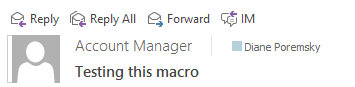
If you want to send from another account in your Account list, you'll use SendUsingAccount and select the account by index or by name. See Macros to send message using the default account or a specific account for code samples.
SendAs an address code Sample
Note: this macro is used with Exchange account to send from addresses you have SendAs permissions.
Sub CustomMailMessage()

Dim OutApp As Outlook.Application
Dim objOutlookMsg As Outlook.MailItem
Dim objOutlookRecip As Recipient
Dim Recipients As Recipients

Set OutApp = CreateObject("Outlook.Application")
Set objOutlookMsg = OutApp.CreateItem(olMailItem)

Set Recipients = objOutlookMsg.Recipients
Set objOutlookRecip = Recipients.Add("alias@domain.com")
objOutlookRecip.Type = 1

objOutlookMsg.SentOnBehalfOfName = "sales@domain.com"
objOutlookMsg.Subject = "Testing this macro"
objOutlookMsg.HTMLBody = "Testing this macro" & vbCrLf & vbCrLf

'Resolve each Recipient's name.
For Each objOutlookRecip In objOutlookMsg.Recipients
objOutlookRecip.Resolve
Next

'objOutlookMsg.Send
objOutlookMsg.Display

Set OutApp = Nothing

End Sub
More Information
Send E-mail with VBA code from [E-mail Distribution Group] if I have "Send as"
_MailItem.Sender property

Michael MacMurray says
Any idea how I can get emails sent using SentOnBehalfOfName to appear in the 'on behalf of' account's sent folder instead of my personal sent folder?
In other words, when I manually send an email and change the From field, the sent email appears in the Sent folder of the From account. However, when I send an email using VBA, the email appears in my Sent folder. Is there a way to change this?
Tomek says
Hi,
I have two accounts in Outlook. My own account is called TWojcicki@MyDomain.com and the other which is my team account which is called MyTeam@MyDomain.com. I have a list of my team members in an XLSX file that I would like to send a message to.
I need to send different information to everyone on my list. I have prepared the file accordingly, each line contains a set of information needed to create an email.
The problem is that I would like to send these messages from the team account MyTeam@MyDomain.com and not from my personal TWojcicki@MyDomain.com. Meanwhile, following the instructions described by you, emails are still sent from my personal account TWojcicki@MyDomain.com.
I mean the line:
OutlookMailitem.SendUsingAccount = OutlookApp.session.accounts.Item(2) ' Item(2) refers to my team account MyTeam@MyDomain.com
What could my mistake be?
Antoine says
Is it possible to change the address of the person sending the email? Change antoine@mydomain.com to anonymous@mydomain.com?
Thanks for your answer.
Diane Poremsky says
You can type a from address in the new message field and you can change the address on the account in the Control panel -
Go to File > Account Settings > Manage Profile or open Control Panel - find Mail (Microsoft Outlook).
Click Email accounts then double click on the account - change the address at the top of the dialog - the address you use to log in is at the bottom.
Beyers says
Hi,
How do I change Send As permissions so that I can send mail through VBA with an email address I do not currently have Send As permission?
Diane Poremsky says
The email admin needs to change the permissions on the mailbox to give you send as permission in the Exchange admin portal.
Phillip says
and to add to my last comment because it wont let me, select a different email signature?
Phillip says
Hi Diane,
Is there a way to launch an oft template with the from address prefilled?
Diane Poremsky says
Yes... if you are using a macro to open the template, you can set the From address before displaying the template. There are macro solutions under this section:
https://www.slipstick.com/outlook/hyperlink-templates/#toolbar - they don't include the code to change the from account, but it needs to go before opening the template.
newItem.SentOnBehalfOfName = "sales@domain.com"
newItem.Display
Phillip says
so it would look something like this?
Sub MakeItem()
Set newItem = Application.CreateItemFromTemplate("c:\path\template.oft")
newItem.SentOnBehalfOfName = "sales@domain.com"
newItem.Display
Set newItem = Nothing
End Sub
Diane Poremsky says
Yes, try that. If it doesn't work, Try this line instead, where the number is the order the accounts are in the Account Settings list.
newItem.SendUsingAccount = olNS.Accounts.Item(1)
Mark Pollock says
Hi ive currently made a login register which works well. when someone adds in their details to the userform and submits a new login request or change it sends an email notification to the person currently in control.
this currently sends from my default outlook work email. (MarkP@Example.com.au)
i need this to be changed to send from a different email thats in my outlook as my main one is getting spammed with requests and theres now 3 registers.
how can i add in a FROM field? so it sends from LoginRegisters@Example.com.au instead of my main email
my code below
Private Sub cmdEdit_Click()
Dim xOutApp As Object
Dim xOutMail As Object
Dim msgvalue As VbMsgBoxResult
On Error GoTo myerror
msgvalue = MsgBox("Do you want To save the data?", vbYesNo + vbInformation, "confirmation")
If msgvalue = vbNo Then Exit Sub
If ValidateEmptyEntries() = True Then
Call Edit
Call reset
Else
Err.Raise 600, , "duplicate validation failed or empty field must be filled"
End If
cmdEdit.Enabled = False
cmdSubmit.Enabled = True
txtUser.Enabled = True
'email notification
Set xOutApp = CreateObject("Outlook.Application")
Set xOutMail = xOutApp.CreateItem(0)
With xOutMail
.To = "MarkP@example.com.au"
.CC = ""
.BCC = ""
.Subject = "WMS LOGIN REGISTER"
.Body = "Account Update Requested By " & (Application.UserName)
.Send
End With
myerror:
Set xOutMail = Nothing
Set xOutApp = Nothing
End Sub
Diane Poremsky says
This should work -
With xOutMail
.SentOnBehalfOfName = "sales@domain.com"
.To = "MarkP@example.com.au"
.CC = ""
Mervyn says
Can this be tweaked to change the address when responding or forwarding if the address is in the To or CC fields? e.g. if the email was addressed to user@email.com then the From address when responding would automatically change to user@email.com (with SendAs permission).
Diane Poremsky says
Yes, it can be tweaked.
https://forums.slipstick.com/threads/99391-change-from-address-based-on-to-or-cc-address/
Nadia Payne says
This works perfectly. Thanks!
Sartaj says
i have 2 mails one is by default email but i want to send emails from another email address how can i do that..
Aman Devrath says
I have two columns in my excel file. One for "from" email address , and other for "to" email address. I want to send email by picking one email id from the "from" column and send it to one of the "to" email address. I am able to pick up the "from" email address in a variable but not able to send email from it. Outlook sends email from "my" email address. Please Help.
Diane Poremsky says
what type of email account do you use? If exchange, is the From address hosted in exchange and do you have send as rights to it?
Aman Devrath says
I use gmail account. all the email ids are gmail accounts.
Peter says
Hi Diane, I am using the 'SentOnBehalfOfName' function in VBA for Access - most current version and using Office 365 - outlook.
the issue is that for every email to send i have a screen pop up saying
Microsoft Access
send to ....'the email address'
OK
is there code i can add so i don't have to click 'OK' for each email to send ?
Diane Poremsky says
That is the outlook security dialog? If you have a valid antivirus, you shouldn't get that dialog, but there are reg keys you can set to avoid it. See https://www.slipstick.com/developer/change-programmatic-access-options/
Diana says
Hello Diane,
Could you please help me? I am not a macro master, but I found few different codes and mixed them. Everything works great, but I would like to send calendar invitation from some specific email, that is not my default email address. I tried to use 'SentOnBehalfOfName' function, or Set olSubCal = olSubCalA.Folders(Calendar).Folders("specific name") and other options using 'shared calendar' that I found, but non of this works.
This is code I have, how could I add the address from which I could send invitations? Lets say, mail would be: test@specific.com
(...)
Dim olApp As Outlook.Application
Dim olAppt As Outlook.AppointmentItem
Dim blnCreated As Boolean
Dim olNs As Outlook.Namespace
Dim CalFolder As Outlook.MAPIFolder
Dim i As Long
On Error Resume Next
Set olApp = Outlook.Application
If olApp Is Nothing Then
Set olApp = Outlook.Application
blnCreated = True
Err.Clear
Else
blnCreated = False
End If
On Error GoTo 0
Set olNs = olApp.GetNamespace("MAPI")
Set CalFolder = olNs.GetDefaultFolder(olFolderCalendar)
Set olAppt = CalFolder.Items.Add(olAppointmentItem)
With olAppt
.MeetingStatus = olMeeting
.Subject = Cells(1, 3)
(...)
Please advise.
Thank you,
Diana
Sean-Aus says
Hi Diane,
Your VBA resources has overall been extremely helpful. I have also studied your VBA for sending out Meeting Request via Excel. I am currently stuck as I am trying to send the meeting request through a generic departmental account that I have permission to send as using the following code but I continuously run into an ERROR. I have not had much luck with any other resources available online. Is it because we are not able to set the origin of the interview request to anyone else but ourself? Your assistance would be greatly appreciated!
I tried utilising the following in my Interview Scheduling VBA without much luck:
.SendUsingAccount = "me@msn.com".SendUsingAccount = "me@msn.com"Any advice is greatly appreciated.
Diane Poremsky says
if the account is not in your profile, you need to use SentOnBehalfOfName. It needs to be set before the message is displayed.
Diana says
Diane,
thank you for quick response! This is additional mailbox I have assigned to my outlook so i have 2 mailboxes and 2 calendars so in list of my calendars I have both - mine and this additional one. It is not visible as 'shared calendar', but as normal calendar.
Do you know how to add it so it could work?
Sharif says
What references are needed in VBA to send email in Access 2016. my code worked in 2013, but now error loading DLL. runtime error '48', Error in loading DLL. Help anyone?? (my last post same issue, I miss typed my email)
Diane Poremsky says
Are you using 32 or 64bit Office? Did you use the same bitness in Outlook 2013? Where is the dll located on the hard drive? If you are referencing outlook or access, are you referencing the correct version in the VBA editor's tools, references?
Christophe says
Hi Diane,
Is it not possible to use the property "From" instead of "SentOnBehalfOfName" ?
Thanks a lot,
Christophe
Diane Poremsky says
No, that field is used for recipients, not sending accounts.
Mark says
When sending emails from VBA, is there any way to check programmatically if email failed to get through (say, could not connect to Exchange server, or any other reason...)?
Diane Poremsky says
AFAIK, no.
Darren S says
SentOnBehalfOfName attribute works brill !
Karen says
Thanks Diane, sorry, I registered under the forum as MrsAdmin and didn't update here that we've been working on it. I have to update that thread too tomorrow (my 12yr old has been sick & I haven't had a chance to catch up on my topics). Thank you for getting back to me :)
mrsklb says
Hi Diane,
This looks perfect.
We have a helpdesk and the 'user' is the person that sends in the email, I want to be able to forward email I receive directly to the helpdesk but define the 'sender' as the customer so the ticket is created in their email account, not mine.
Is this possible using this code teamed with a 'forward email' code?
I've seen one elsewhere but it will always send as me, not as the originiator which is not what I need.
When the email hits the helpdesk the helpdesk auto responds with ticketID etc, which the customer needs for follow up.
Diane Poremsky says
Are you using Exchange Server? if so, then no, you can resend/redirect as the original sender because you need to have send as permission for that address.
Your options are limited to forward as an attachment (and help desk takes the attachment off the message and works with it) or the help desk uses code to scrape the original sender from the forward. Do you use specialized help desk software or Outlook?
Hakan says
HOW CAN I SELECT LAST RECEIVED EMAIL AND SAVE IT TO LOCAL FOLDER? :)
YOU MAY FIND MY CODE BELOW. THANKS..
Sub SaveSelectedMailAsTxtFile(item As Outlook.MailItem)
Const OLTXT = 0
Dim currentExplorer As Explorer
Dim Selection As Selection
Dim oMail As Outlook.MailItem
Dim obj As Object
Dim sPath As String
Dim dtDate As Date
Dim sName As String
Set currentExplorer = Application.ActiveExplorer
Set Selection = currentExplorer.Selection
For Each obj In Selection
Set oMail = obj
' sName = oMail.Subject
'ReplaceCharsForFileName sName, "_"
'dtDate = oMail.ReceivedTime
'sName = Format(dtDate, "yyyymmdd", vbUseSystemDayOfWeek, _
vbUseSystem) & Format(dtDate, "-hhnnss", _
vbUseSystemDayOfWeek, vbUseSystem) & "-" & sName & ".txt"
sName = "Fuel" & Date & ".txt"
oMail.SaveAs "C:\Users\hgokceoglu\Desktop\test\" & sName, OLTXT
Next
MsgBox "rule çalıştı"
End Sub
Diane Poremsky says
if you want to use it "manually" by selecting the message then running the macro, you need to change this:
Sub SaveSelectedMailAsTxtFile(item As Outlook.MailItem)
to
Sub SaveSelectedMailAsTxtFile()
dim item As Outlook.MailItem
ali00000a says
This doesnt work on outlook 2010, you need to use the SentOnBehalfOfName attribute instead of Send.
Andry says
I'd be glad to assist. Please copy and paste the text you want o send and I'll embed, or just use the example below:
================================================================
Sub SendEmail()
Dim objEmail As Outlook.MailItem
Set objMailApp = CreateObject("Outlook.Application")
Set objEmail = objMailApp.CreateItem(0)
With objEmail
.Subject = "Repetitive Email SUBJECT"
.To = "me@mydomain.com"
.CC = "you1@mydomain.com; you2@mydomain.com"
.BCC = "you3@mydomain.com"
.HTMLBody = "Hey guys,This email is now automatedThx,Ebony Rivera"
.BodyFormat = olFormatHTML
.Attachments.Add ("C:\My Documents\Picture.jpg") 'if you want to attach a file
.DeleteAfterSubmit = True 'if you want to delete the copy the system leaves in your SENT TO folder use =True, or if not, use =False
.ExpiryTime = Now() + 1 'expires in 1 day - delete line if you don't want the email to expire; change "1" to "X" if you want "X" days expiration
.Importance = olImportanceHigh ' if you want to send as HIGH IMPORTANCE
.Send
End With
Set objMailApp = Nothing
Set objEmail = Nothing
End Sub
================================================================
Ebony Rivera says
Could you please help me. I send a repetitive email at least 20 times per day. I need a VBA code that will simply generate the message with it's contents. Does that make any since? I've been at this with no luck for 2 days. Please help me.......
Diane Poremsky says
You could use a template... or Forward a Draft.
The basics for creating the message via VBA:
Sub CreateMail()
Dim OMail As Outlook.mailItem
Set OMail = Application.CreateItem(olMailItem)
With OMail
.To = "me@here.com"
.Subject = "The Subject"
.Body = "The body"
.Display ' use .send to send it automatically
End With
End Sub
Chris says
Yes. You simply have a type mismatch here.
What can work is:
objOutlookmsg.SentOnBehalfOfName = "foo@bar.com"
But this only works on exchange I believe. the .Sender is user when you have multiple accounts setup in Outlook. I have seen code the enumerates the accounts and gets the AddressEntry, but maybe you simply want to program a specific AddressEntry - I'm not sure how to set this.
Diane Poremsky says
Did you try the commented out line? (with SenderEmailAddress ). i'll check the code again,
Chris says
looks like the
objOutlookmsg.MailItem.Sender = "sendas_address@domain.com"
is all a bit wrong, and since this is the crux of this post, I think its a biggie.
Since the objOutlookmsg is already set as a MailItem object, there is no MailItem property or method - so objOutlookmsg.MailItem wont work.
If you ignore the MailItem as a typo, then
objOutlookmsg.Sender = "sendas_address@domain.com"
still wont work.
The line results in a type mismatch. The Sender property is of type AddressEntry, but you are simply setting this as a string.
I actually want to achive this, and although I can see whats wrong, I don't know how to get an AddressEntry object or set the Sender property.
Help please required