How do I run a macro 5 minutes after Outlook starts?
Outlook doesn't have a timer function but you can use Appointment or Task Reminders to trigger macros. Set up an Application_Reminder macro that will do something when a reminder fires. To limit it to running when specific reminders fire, use an If statement to look for words in the subject or a specific category.
If you want the macro to fire a specified time after you restart Outlook, use an Application_Startup macro to create the appointment.
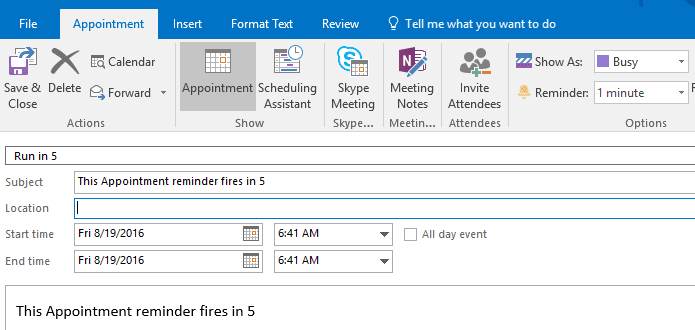
If you need to rerun the process kicked off by the reminder, run CreateAppointment macro from the VBA editor at any time.
Other "reminder macros" are at "Open a Webpage when a Task Reminder Fires" and "Send an Email When a Reminder Fires"
' The Private subs go in ThisOutlookSession
Private WithEvents olRemind As Outlook.Reminders

Private Sub Application_Startup()
  CreateAppointment
End Sub

Private Sub Application_Reminder(ByVal Item As Object)
Set olRemind = Outlook.Reminders

If Item.MessageClass <> "IPM.Appointment" Then
  Exit Sub
End If

If Item.Categories <> "Run in 5" Then
  Exit Sub
End If

' Call your macro here
MsgBox "It works!"

'Delete Appt from calendar when finished
Item.Delete

' Create another appt to repeat the process
CreateAppointment

End Sub

' dismiss reminder
Private Sub olRemind_BeforeReminderShow(Cancel As Boolean)

    For Each objRem In olRemind
            If objRem.Caption = "This Appointment reminder fires in 5" Then
                If objRem.IsVisible Then
                    objRem.Dismiss
                    Cancel = True
                End If
                Exit For
            End If
        Next objRem
End Sub

' Put this macro in a Module
Public Sub CreateAppointment()
Dim objAppointment As Outlook.AppointmentItem
Dim tDate As Date
' Using a 1 min reminder so 6  = reminder fires at 5 min.
tDate = Now() + 6 / 1440

Set objAppointment = Application.CreateItem(olAppointmentItem)
      With objAppointment
        .Categories = "Run in 5"
        .Body = "This Appointment reminder fires in 5"
        .Start = tDate
        .End = tDate
        .Subject = "This Appointment reminder fires in 5"
        .ReminderSet = True
        .ReminderMinutesBeforeStart = 1
        .Save
      End With
End Sub
How to use the macro
First: You will need macro security set to low during testing.
To check your macro security in Outlook 2010 or 2013, go to File, Options, Trust Center and open Trust Center Settings, and change the Macro Settings. In Outlook 2007 and older, it’s at Tools, Macro Security. If Outlook tells you it needs to be restarted, close and reopen Outlook. Note: after you test the macro and see that it works, you can either leave macro security set to low or sign the macro.
Now open the VBA Editor by pressing Alt+F11 on your keyboard.
To use the macro code in ThisOutlookSession:
- Expand Project1 and double click on ThisOutlookSession.
- Copy then paste the macro into ThisOutlookSession. (Click within the code, Select All using Ctrl+A, Ctrl+C to copy, Ctrl+V to paste.)
Application_Startup macros run when Outlook starts. If you are using an Application_Startup macro you can test the macro without restarting Outlook by clicking in the first line of the Application_Startup macro then clicking the Run button on the toolbar or pressing F8.
To put the code in a module:
- Right click on Project1 and choose Insert > Module
- Copy and paste the macro into the new module.
More information as well as screenshots are at How to use the VBA Editor

Adauto Araujo says
Wonderfull! Thanks. The only addition I'll do, is to change from this: tDate = Now() + 6 / 1440 to this: tDate = Now() + TimeValue("00:05:00"). I think it's more readable and easier to edit.
J.A. Clark says
After copy/paste all code as instructed in tutorial and then closing both VBA Editor and Outlook to restart, an error is displayed, 'Compile error: Invalid attribute in Sub or Function'. The first line of cod is highlighted in 'This OutlookSession'.
Running Outlook Office 365 v2202.
Any assistance would be appreciated.
Diane Poremsky says
This line is highlighted?
Private WithEvents olRemind As Outlook.Reminders
If it's ' The Private subs go in ThisOutlookSession - go ahead and delete it.
Krishna says
Hi Diane,
Just adding a little comparison info -
I'm looking to run the code like how automatic replies are working. We will receive automatic replies, though the outlook-off. Like this, can VB Macros can work, if Outlook-Off/Close ?
Thanks,
Krishna
Krishna says
Hi Diane,
Hope all good and HNY ..
We have done some coding in VBA on outlook, our requirement is to run the code over night - But we are not sure, outlook will opened or system is on .. Is there any possibility to make the macros execute at Outlook -Off time.
Any suggestions will be great help.
Many Thanks,
Krishna
Prabhat Dewali says
Hello Mam,
Thanks for sharing this blog with us I am a beginner in VBA coding. Can you help me with how can I replicate the same appoint or "Create another appt to repeat the process" for the next day or till a certain day in the above code?
"' Create another "Run in 5" appt to repeat the process
"CreateAppointment "
Prabhat Dewali says
Thanks, I found the solution and now my question is solved it can be done from front end by using the recurrence option.
Diane Poremsky says
Yeah, using a recurrence is generally better than recreating a new one every day using a macro.
Harrison Griffiths says
Hello,
I'm looking to create either a reminder or send an email to the creator of an appointment when the appointment is done or even maybe 5 min after its done. The purpose is for employees who might be working out in the field alone we want them to have a reminder governed by their Outlook calendars to email a colleague or coordinator that they have left work and are safe. Like a Check-In reminder to let the team know they're good and heading home.
Thanks!
Diane Poremsky says
I don't think you'd want that automated - based on the appointment as it would generate the message, whether they were safe or not, just based on the meeting end time. They could use a macro to quickly generate a message and set it - no typing required.
https://www.slipstick.com/developer/create-a-new-message-using-vba/
Ranjan says
Hi,
I am looking for a code to create new outlook meeting invite.
I have data in my excel like this.
A-Name
B-ID
C-Recipient 1
D-Recipient 2
E-Subject
F-Body
I am aiming to achieve below. Could you please assist me here.
1. Create a new meeting invite
2. Add the above in right place
3.check for the availability in calendar and set the meeting start and end date(duration is 1hour)
4.Attach required files
5. display/send
Diane Poremsky says
I have a macro that should meet your needs at
https://www.slipstick.com/developer/create-appointments-spreadsheet-data/#meeting
Edwin says
Hello Diane,
thanks so much for sharing this excellent information with the world. It has been extremely helpful to me and I am grateful.
Derek says
Hi Diane,
This is a helpful article, thanks for sharing. I am wondering if I can create a VBA macro in Outlook that will:
1. Each night at 9:00 pm, email me a snapshot of my calendar for the next day
2. Each Sunday at 9:00 pm, also email me a snapshot of my calendar for the upcoming week (Mon-Sun).
From this article it sounds like there is no way to set a schedule per se, but I could set a daily recurring background appointment to run, which could fire the macro.
Is this possible, and what is the degree of difficulty? I have extensive Excel VBA knowledge including drafting/sending emails in Excel VBA, but not with VBA for Outlook.
Thanks!
Derek
Diane Poremsky says
I don't think i have any code samples that come close to getting the snapshot (as a text list or emailed calendar) but it is doable - you'll need to keep outlook open to run the script - it can be triggered by a task or appt reminder (i have samples for this) and depending on the code, you might be able to do it as a vbscript, which could run in Windows task manager.
Diane Poremsky says
As an FYI, the macro at
https://www.slipstick.com/developer/print-list-recurring-dates-vba/
can do it, with a little tweaking. The result isn't pretty - just a simple list.
I'll post a tweaked version to a new page either tonight or tomorrow.
Diane Poremsky says
Ok... there are two macros (pretty formatting or simple list) to choose from at
https://www.slipstick.com/outlook/calendar/email-tomorrows-agenda/
ninad says
Hi Diana,
I need to send attachment to multiple recipient automatically at particular time in day say 8 AM the excel file which i need to send will have multiple column and macro will segregate file against recipient name and send to concerned recipient.
Is it possible to use your file to send such attachment.
It will gr8 if u can help me.....Thanks in advance
Diane Poremsky says
You'll need a lot more code than just this macro but it would be possible. Code for the messages is here - https://www.slipstick.com/outlook/send-email-addresses-excel-workbook/
Ed B. says
Thanks! Works great. Very slick solution. One question, is there a way to hide the appointment?
Diane Poremsky says
Well, you could create a view to hide the category assigned to the appointment and you could delete it via macro as soon as it fires.
Dan says
Dear Diana,
This code worked very well. One piece of advice though I need: how can I execute the created appointments deleted upon Outlook exit? I tried the code as follows:
Private Sub Application_Quit()
If Item.Categories = "Run in 5" Then
Item.Delete
End Sub
But it did not work. Can you please advise what might be the proper code for it?
Diane Poremsky says
You need to find the appointments first, then delete them, or remove the category.
short version is:
sFilter = "[Categories] = " & Chr(34) & "Run in 5" & Chr(34)
' Apply the filter to the collection
Set ResItems = CalItems.Restrict(sFilter)
full example of the filter in use is at https://www.slipstick.com/developer/copy-recurring-appointments-meetings-series/