There are four causes of pictures not displaying in Microsoft Outlook email messages:
- Internet Options setting for saving encrypted pages to disk (below)
- Blocking external content
- Red X's in Email / SecureTemp folder is "full"
- Word's Picture placeholder setting enabled (below)
Internet Options Encrypted Page Setting
Note: Outlook uses Internet Options settings, not Edge settings.
Open Internet Options, either by typing Internet Options on the start menu or opening it from the Control panel.
Look under the Security section for Do not save encrypted files to disk. Untick this setting and Apply. Restart Outlook and you should be fixed. (If you don't use Internet Explorer, you can go to Control panel, Internet Options or just type Internet Options in the Start menu Search.)
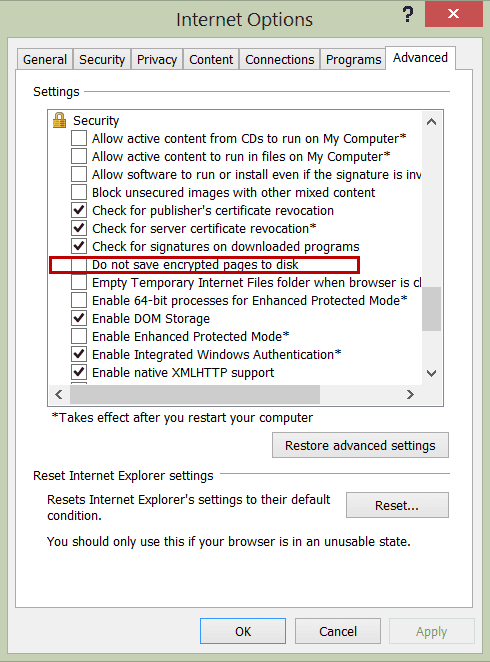
Thanks to William for sharing this with us.
Check the Picture Placeholder setting
If you do not see a red x but have a blank box shaped/sized like the graphic or photo, you have Show picture placeholders enabled. (A great feature if your Internet connection is slow.)
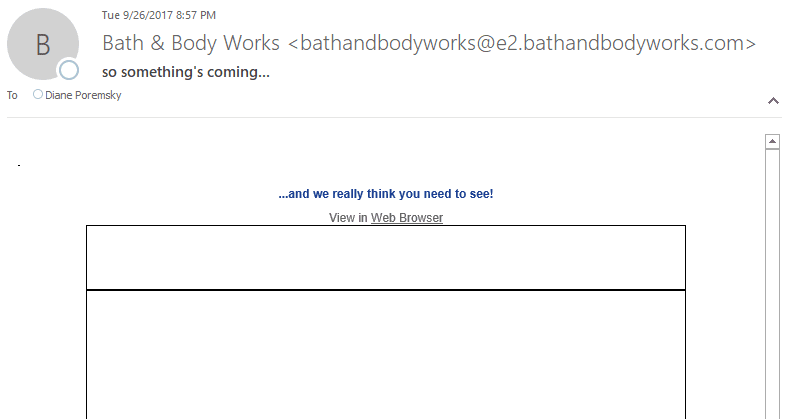
Note that this dialog is accessible from a COMPOSE MESSAGE window, not the main Outlook window!
Outlook 2010, 2013, 2016
These steps work for Outlook 2010, Outlook 2013, and Outlook 2016 (including Outlook which is included in Office 365 subscriptions).
- Click the New Email button or press Ctrl+N while viewing the Inbox.
- Go to the new message's File, Options dialog.
- Click Mail, then Editor Options
- Select Advanced and look near the bottom of the dialog for the option to Show Picture Placeholders.

- Uncheck the box to Show picture placeholders
- Close the dialog then close the message.
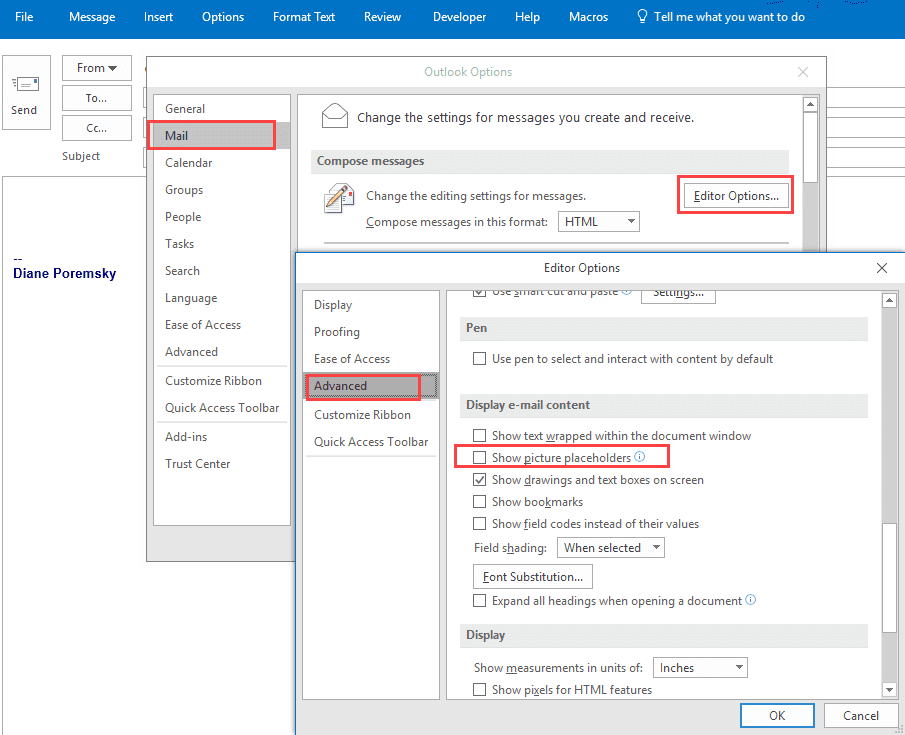
After changing the settings, close the message. Do not sent it! This, like many other message settings (zoom, etc), will apply only to the current message if you send it. You need to close the message to change the global setting.
In Outlook 2007
- While in a New message window
- Click the Office icon
- Click the Editor options button on the lower right of the dialog
- Select Advanced from the left menu of the Editor options dialog
- Scroll down to Display email contents section (near the bottom)
- Uncheck the box to Show picture placeholders
- Then click OK to apply and close the dialog.
- Close the message.
In older versions, this is an Internet Options setting, accessible from either IE's Tools menu or Control Panel. In the Internet Options dialog, go to the Advanced tab. The Show pictures option is in the Multimedia group, about halfway down.

Paul says
Hi,
I have two computers where the 2007 MS Office Outlook set the same way. In one computer the outlook receive the emails with the Co. logos and pictures of the emails properly. The other mostly do not, showing only the placeholders.
All setting correct - everywhere (and it is the same as on the other computer).
Both computer runs on Windows 8.1 64 bit and both computers' Outlook connected to the same server.
I do play with this for years (!) and cannot solve the problem. Uninstalled several times the Office. Both have the same updates as well. Generally, I am not a novice in these field and it bothers me for not seeing the reason of this fault.
You probably cannot help either, but one never knows.
Best,
Paul
Diane Poremsky says
You checked the settings for Show picture placeholders? If it is not checked show picture placeholders, change the setting, save then go back in and change it back to not show picture placeholders.
Dave says
This has been reported to Microsoft Portal here by SOKI :
https://feedbackportal.microsoft.com/feedback/idea/df90b670-259b-ee11-a81c-0022484f9f6d
If you think this affects you please go and upvote the Question , it MAY......get further up the list and by doing so get noticed by someone that can apply a fix .
Dave says
Looks like there is an issue rendering pictures in emails BUT ONLY it seems in Outlook Desktop , all other versions and types of Outlook are fixable via Options etc in Outlook , like "safe senders " and Trust settings and "Display pictures in email "settings.
Outlook mobile/Outlook.com/Outlook 365 work fine with your suggested settings.
I have experienced this in Outlook 2013/2016/2019/2021 LTSC Desktop versions ( Win 7 or 10 ) , its most annoying as mentioned elsewhere , replying or sending the received email to drafts instantly fixes the issue , and all pictures appear !!
Same issue here :
https://learn.microsoft.com/en-us/answers/questions/302661/outlook-2019-issue-with-pictures-in-emails-(some-n)
Dave says
PLEASE REMOVE LAST COMMENT AS IT SHOWS MY EMAILS !!
Dave (@guest_220694)
Hi Diane,
I wonder if you can help , I have Outlook 2021 Pro Plus C2R fresh install
Version 2310 Build 16924.20106 ( Fully updated )
I am having issues displaying email pictures only from 1 sender , all other senders pics are displaying fine.
The Hyperlink on pictures work fine and open a webpage.
If I reply to the email and save it in drafts , the pictures like magic appear !!
Why does Outlook refuse to display the pictures in the INBOX but happy to display them in Drafts ?
Is there a tick box I've missed or is it an Outlook issue ?
I see the same issue on outlook 2016 on another PC ?
If I open the specific email via any other way than Outlook , pictures display fine .
leah says
After hours of searching this article finally fixed this issue. Thanks so much!
Tara says
Been trying to resolve this issue for months and so far nothing has worked - tried again using all suggestions above (and several in the comments) and nothing works. Using Win7 w/ Outlook 2013. Default browser is Firefox. All worked fine for "years" and then it didn't. Images in some incoming emails (eg Container Store) display fine. Images in other incoming emails (eg from Costco) won't display.Suggestions??
Diane Poremsky says
Do any Costco images display? I've had issues with some Costco images - maybe 10% don't display. I didn't look into it though.
Tara says
Been having this problem for some time now and keep trying things. So far nothing mentioned here (or elsewhere) has worked. Win7, Outlook 2013, Firefox = default browser. Some images in emails received display (e.g Container Store) others don't (e.g., Costco). Total mystery would love to solve it! Wish I could recall "date" when this first started...
Joe says
I've been struggling with this issue for quite some time and none of the standard solutions (including making changes to the registry) worked. What I found was that there was a file called WebCacheV01.dat that was corrupted. I deleted it and everything worked again. The way I discovered this was by looking at my Event Viewer under applications, I found an error saying:
DllHost (13700,R,98) WebCacheLocal: An attempt to open the compressed file "C:\Users\xxxxuserxxxx\AppData\Local\Microsoft\Windows\WebCache\WebCacheV01.dat" for read / write access failed because it could not be converted to a normal file. The open file operation will fail with error -4005 (0xfffff05b). To prevent this error in the future you can manually decompress the file and change the compression state of the containing folder to uncompressed. Writing to this file when it is compressed is not supported.
Lori says
Hi Diane - this is happening on my personal computer, not my work computer. I don't have that same ribbon on the top where the word "file" is so I can't follow these instructions. Where do I go? Thanks.
Nasir Uddin says
Good solution Thank you so much for valuable guideline
Eric McCallum says
Hi Diane,
I just wanted to say thank you. I had searched the internet for hours trying to find a solution to my Outlook 2016 no image display in email problem and your steps were easy to follow with great explanations and very intuitive. Problem fixed after following your steps above.
Thank you
Eric McCallum
Robert says
Hi,
I have a user who receives QR codes and the QR codes will appear in some emails and some are just images with "X" in there. All QR codes appear fine in OWA.
I am using M365 Apps for Enterprise v. 2010 build 13328.20356 and am not seeing this option in the Mail > Advanced location. All I see is "Display" and the option to check this is not there. Any help would be greatly appreciated.
Mike says
"Check the Picture Placeholder setting" worked fine - after weeks of trying to reset IE and other dead ends posted in other blogs. THANKS!!!
RaDas says
worx, thanks !
Edgar Mujica says
Excellent, very well and detailed explanation. Thanks
Pau Lipio says
Thank youuuuuu!!!!
John Batchelder says
Hi Diane, I hope this reaches you. I tried to respond directly through the email link with your suggestion, but couldn't get anywhere.
I followed the steps you suggested and unclicked Picture Placeholder and that has corrected the issue for me. I am most grateful.
I hope you are well and safe.
Martin says
What about outlook.com ?
Diane Poremsky says
Outlook on the web has different issues - when the images don't display and they are supposed to be downloaded, its often because the image is missing from the website or the url has an error.
Donnie says
The encrypted picture setting helped me after a frustrating search online asking me to check the trusted locations folders. Thanks heaps.
Thomas says
not relevant. nothing on computer vaguely resembles anything in this page.
Diane Poremsky says
What version of Office and Windows are you using? (It does not apply to Mac.)
David says
You're a legend in my opinion. That was so helpful, thank you very much. My IT department were about to reset my windows to try and fix this and I stopped them just in time.
Sunil says
Thank you so much for the info, this has finally worked!!!
Tammy Meinecke says
OMG thanks so much for the info, this has finally worked!!! Have a good one, Tammy
Ortuno says
You are the best!! Thank you so much! This solved my issue! I have been asking our IT for a year to solve this issue and they couldn't. Thank you!
Ilse Gräter says
Finally a solution to my problem. I was getting so sick of reading about going to theTrust Centre Settings and unchecking the "Don't download pictures automatically ..." box. I did that an it made no difference. Your "Internet Options Encrypted Page Setting" finally gave a solution that actually works! Thank you!!!!
Eusebio says
Thank you! Problem solved
Grant Kingsley says
This article was helpful and problem was solved
Jim Love says
Thank you!
TheSolution says
No. No. No.
This article appears to be about when you are creating an email and trying to drop pictures in. But, I'm guessing everyone is searching for when you open received emails and the pictures don't display.
That solution is simple. Don't waste your time with support.microsoft.com or other sillyness. Do the following:
A. Open Internet Options. There are two ways to get there: (1) open Internet Explorer and goto Tools, then Internet Options; or (2) open Internet Options from Control Panel.
B. From Internet Options, go to the Advanced Tab. Click the Reset Button (at the bottom). Check the “Delete Personal Settings.” FYI, you shouldn’t be using Internet Explorer anymore, because it’s not being updated or supported by Microsoft anymore. Use Chrome or Firefox or whatever updated secure WebBrowser you like. Click the Reset button. Restart your computer. Problem solved.
Diane Poremsky says
it's about received messages- I also have a another page with additional information.
https://www.slipstick.com/problems/red-xs-in-email/
>>
you shouldn’t be using Internet Explorer anymore, because it’s not being updated or supported by Microsoft anymore.
>>
Outlook needs IE installed and will use it for 'open in browser'
Vladi says
For Outlook 2015
Outlook-pictures.reg
-----------------------------------------------------------------------------------------------------------
Windows Registry Editor Version 5.00
[HKEY_CURRENT_USER\Software\Microsoft\Office\15.0\Word\Options\WordMail]
"ShowPicturePlaceholders"=dword:00000000
-----------------------------------------------------------------------------------------------------------
Outlook-No-pictures.reg
--------------------------------------------------------------------------------------------------------
Windows Registry Editor Version 5.00
[HKEY_CURRENT_USER\Software\Microsoft\Office\15.0\Word\Options\WordMail]
"ShowPicturePlaceholders"=dword:00000001
Michael says
Great, thank you! The Internet Options Encrypted Page Setting was the culprit in my case!
Brandon Schwarz says
perfect answer. thank you
Douglas Cote says
I've got a good one perhaps someone has seen before. Outlook displays a banner prompting the user to download images, but there are no actual images in the message, and the sender's domain is in the safe sender list. I've never seen that...very odd.
Diane Poremsky says
Best guess is there is a tracking link hidden in it - this is most common with bulk/commercial mail but there are applications that can do it for regular folks so they don't need to request read receipts.
if this is the cause, when you look at the message source, you'll see the tracking code.
James says
I'm using Outlook 7 with Windows 10. I use Google and Edge as browsers.
I've been that way for a couple of years. All of the sudden I couldn't get pictures to download. I read this discussion and I determined 3 of four potential problems were OK. I was afraid to delete my TIF's (there's more than one and I didn't know the correct name (several in the INetcache folder). What I did was repair MS Office 2007. Now I can download. Let's see how long that lasts.
Steven says
Thank you for the help! It was in the Internet Options thingie I had to change it. Finally it works again!!! 100000... tnx :)
6stoke says
Tried the above but still no pictures just view in web browser, and the linked image cannot be displayed etc, etc.
Diane Poremsky says
You also check this page? https://www.slipstick.com/problems/red-xs-in-email/
6stoke says
Tried the first two options but no change, can understand what the third option means and I do not want to cause more problems trying to follow it as it says delete some parts?
G Rudolph says
Thank you a thousand times. I can now get my pictures
Gabriel says
Thanks a lot!
For me, the first method worked just fine. I have Outlook 2007 and Windows 10.
Holly Louise says
This solution doesn't work. Brand new ThinkPad with Windows 10, Outlook 2016. For one thing, the checkbox was never checked to begin with.
Steve says
I tried everything you suggested and nothing worked. I have brand new HP computer and Office 365 with outlook 2016.
What next?
Diane Poremsky says
Do you see the red X or a blank where the pictures should be?
I will check to see if there are other possible solutions, but AFAIK, it's just the ones on this page.
Peter Forman says
Thank you.
Couldnt figure out why Outlook 2016 wouldnt show imbedded pics.
This was for over a year!
Thanks so much for sharing!
Peter
Nethaji says
this worked for me, thanks a lot
Mark says
this worked for me. I'm glad you highlighted the fact that you must not send the message but set the options and then CLOSE WITHOUT sending.
Many thanks.
Holly Louise says
I did not send my dummy email. Still did not work.
Veijo says
Thanks for the info - Slipstick is familiar from awhile back .. the fix works but then after awhile the box is still unchecked but no images displayed ...
Diane Poremsky says
Are there a lot of files in the secure temp folder?
https://www.slipstick.com/problems/red-xs-in-email/#tif
Holly Louise says
Would help to know where this folder you mention is.
Diane Poremsky says
It can vary with the OS and Outlook version, but in all the current versions, you can get to it by typing shell:cache in the address bar of File Explorer and press enter.
It's under a folder called Content.Outlook - BUT Outlook 2013 and up do a much better job of keeping the secure temp folder empty, so its less likely to contain many files.
Harpreet says
Uncheck the box to Show picture placeholders...works!!
Valentin says
Just in case any of the other fixes did not work for you - I am running Outlook Office 365 and had the same issue. I left the office Thursday all was working fine, and Monday after updating over the weekend Outlook stopped downloading emails automatically and the linked images in my emails were now a bunch of little red X 's instead...
I tried all the above and nothing worked. Then I did notice in the lower right corner it said "Working Offline"
So in the upper middle of the toolbar where is says "Tell me what you want to do" - I typed in Work Offline, and clicked the 1st suggestion it gave me... which turned OFF the "Working Offline" (putting me BACK ONLINE).
Quite an embarrassingly simple fix - but not sure if it was from an update or if somebody had fiddled with my PC on Friday/Saturday/Sunday... but all is joy and peace with the world now.
Hope this helps somebody else???
Holly Louise says
Doesn't work for those of us who weren't working offline to begin with.
Jane says
Finally! Thank you!!
Scott says
After years of frustration and searching the internet for solutions, I am finally able to get picture in my emails.
Thanks you so much, wish more people could find this site.
Blessings,
Javaman
Pablo says
Outlook option worked just fine, many thanks!!
brdavis9 says
I've had this issue a few times over the years. Recently, it's become worse. Dunno why.
I've implemented all suggested fixes at one point or another (I have 30 years now in IT, too: sys admin for small businesses). There's nothing wrong with the OST file. I don't keep any PST [archive] files open. Safe mode doesn't work. Office 2016 subscription. Office 365 Business Exchange server.
Now though, the images simply go away after a variable period of time after a fresh restart. Restarting Outlook doesn't bring them back. Exiting Outlook after a brief time to check mail, and only using it again for another brief period doesn't work to bring images back.
The only thing that works is a system restart.
Then - and only then - does my Outlook 2016 display images ...for a while.
After a few hours (even a few hours with Outlook closed), to a day or two at most (i.e., without restarting my PC), poof, they're gone again.
Very, very HW capable PC (no other problems) w/ boot SSD, storage HDD, 16GB, AMD 8320 (4.0GHz). Images show just fine in W10 Mail (which I've devolved too for daily use, as Outlook is simply no longer reliably convenient). W10 (just upgraded to 1709: didn't help ...don't think it made it any worse).
...its kind of depressing how Microsoft can't provide a stable release of one of their primary products.
Diane Poremsky says
it sounds like its something with the temp internet folder where outlook caches pictures. Are you using the regular admin login to windows or a user acct with less privileges?
Andy says
I'm in the same boat as brdavis9 above. Have tried all the suggestions with no luck. The only one that works - and only for a while before it fails - is deleting the TIF folder. Pictures appear for a while, then it reverts to no pictures. Doesn't matter if Outlook is open the entire time or not. Then if I go back and delete the TIF folder again and the whole thing repeats. For me this has been only the last few weeks - maybe since MS released the latest Windows 10 update. Any suggestions? I'd sure appreciate them! Thanks.
Diane Poremsky says
You've tried the methods at https://www.slipstick.com/problems/red-xs-in-email/ also? The solutions here and there are the only fixes I'm aware of at this time. It does sound like some is corrupt with the TIF following an update.
Andy says
Thanks. That took care of the problem.
Adam says
I have the same problem (non administrator user). The suggested fixes above doesn't work, unfortunately. Please tell me if you find any solution.
Diane Poremsky says
if you run outlook as administrator, does it work correctly? If so, then its a permissions problem on the temp internet folder.
Diverkev says
After weeks of frustration running as administrator seems to have solved the problem after all the other suggested fixes had failed or were already active.
Thanks
Diane Poremsky says
You really shouldn't run as admin all the time - but it points to an issue with permissions somewhere.
chippvks says
Hi brdavis9 - did you get this figured out? I have a client with the exact issue you are having. Her images in Outlook 2016 will display for part or all of a day and then they just stop. The only way they will appear again is by rebooting. I've tried all the other suggestions - no luck. She has Windows 10 Pro 64 bit, Samsung Evo 850 SSD, Bitlocker enabled, Webroot Secure Anywhere, Dell Optiplex 3050. Maybe there is something in common between your system and hers?
David Ziffer says
I am having the same problem. None of the things this article says to un-check was checked to start with, so none of the suggestions applies. And I was not working offline, as one poster above was, so that didn't apply. The reality is that some update of Microsoft's about six weeks ago broke my Outlook, and Microsoft's tech support people are such that I almost could not explain to them what an embedded image is (they think it must be an attachment), and a week after finally getting through to one of them and having our chat session forwarded to their tech folk (supposedly) I have heard nothing back. The reality is that Outlook is BROKEN and apparently Microsoft can't seem to fix it. Not very surprising, considering that other products of theirs (particularly Edge) are actually accruing more and more catastrophic bugs weekly. I truly think Microsoft is having some sort of serious breakdown in product development, or has simply given up on the consumer Windows market entirely, as they have done with so many of their consumer products.
Diane Poremsky says
I'm guessing it was the Jan update. Which version/build do you use? On fix would be to roll back to a previous version or uninstall the update - or wait a few days and see if the march update fixes it.
Glenn says
Awesome, many thanks
Miles says
Brilliant - I've been trying to resolve this for months. Never seen the IE settings answer before and solved my pictures not showing in Outlook (for whatever reason!). Thanks very much...
Ezra says
I am running Outlook 2007 and Windows 7. It just started not downloading and displaying images with a URL. Furthermore, if I go back in time and pull up an email from a year ago that had a URL image it, too, displays the dreaded 'Red X'.
I've followed all the suggestions. Emptied Temp Internet Folder. Did the Tools -> Trust Center -> Don't download pictures is unchecked.
Reset Internet Explorer.
Posted questions on the Microsoft Forum and never got a reply.
Ran the Office 2007 Enterprise Repair program.
Ran Outlook Temp Cleaner. By the way, The Temp Internet Folder has a size of 0KB.
Any help would be greatly appreciated!
Thanks,
- Ezra
Diane Poremsky says
>> Furthermore, if I go back in time and pull up an email from a year ago that had a URL image it, too, displays the dreaded 'Red X'.
this is normal - outlook doesn't save downloaded content with the message - its in the internet temp folder and cleared out fairly often.
Did you try to fix the corrupt temp folder? https://www.slipstick.com/problems/red-xs-in-email/
Duane says
These instructions arent for inexperienced computer users. Cant understand anything about what to do. Must be an explanation for ignorants to help me step by step. The solution is likely here, but cant understand anything. such a helpless feeling. Ive had a computer 7 years and am still lost, totally a loser.
Diane Poremsky says
Which version of Outlook are you using? Which steps are you having problems with?
Tim says
I think you really need to start at the beginning with some of us, ie it's not obvious sometimes which version one is using, and I sure can't find it anywhere on the page. I use outlook.com vs the app or whatever. I think I have the latest version but couldn't tell you what it's called. Let's assume it's 2016? Beginning with step 2 of your instructions, I simply can't follow it because I do not have a f File option etc. Can you help?
Diane Poremsky says
This article was written for Outlook installed on Windows desktop. If you had Outlook 2016, you would have the File tab and Options in Step 2.
Are you reading your mail in a web browser?
Using a smart phone app?
Tim says
Yes, I am reading it at outlook.live.com in the latest version of Firefox on a Mac (High Sierra o/s)
Diane Poremsky says
Ah... that makes a difference. i'll see if i can repro and figure it out.
Micah says
I embed pictures in my emails, but recipients do not receive them . They do not see a red 'X' displayed, only <> where the picture was embedded.
Is there a solution? Pictures are received when I send them as attachments.
Best,
Micah
Diane Poremsky says
that would be antivirus or security software removing the embedded images - either on the computer or on the mail server. My guess is it's their end, but if it happens to a lot of recipients on different servers, it is more likely to be on your end.
Michael says
The security software would affect all the servers equally if it is centrally managed. Therefore, multiple users across multiple servers would validate that security software may be the culprit. A single user affected would imply it is a client setting.
Diane Poremsky says
Only if they all use the double same software... It really depends on the specifics.
Connor Gardner says
Hello,
when in outlook 2013 web pages that have been emailed to me do not show they are just a little red X, it's not a big deal just makes it easier for me at my job. would love to know a fix.
thanks,
Diane Poremsky says
did you check all of the suggested settings in control panel, internet options?
Rohan says
Hi Diane, I'm running Windows 7 with Outlook 13 and have been trying to enable images in emails I receive. I have unchecked "show picture holders" and "don't save encrypted pages to disk" but the images are still not showing,. You help is appreciated
Thanks
Rohan
Diane Poremsky says
What do you see in place of the image?
Rohan says
A little x in a box, I have attached a snip of it. I have also have clicked to download the pictures from a safe sender....but no luck
thanks
Rohan
Diane Poremsky says
what happens when you download the pics? as long as the images are available on a web server (and its not blocked by security software), the image should download. Images may not be available for old messages though. Home users shouldn't have problems with security software blocking access to sites, but corporate networks might.
Rohan says
Sorry for the delay, I've been OS.....I'm unable to download images and don't have the option....any ideas pls?
Diane Poremsky says
that message indicates that outlook cant properly rend the message, often because the html code uses scripts, which outlook wont run.
Chrysler says
I tried and tested the steps that you given above but still can't shown any pictures or images in my email. do you have any process on that.
Diane Poremsky says
What version of Outlook are you using? Do you have any text in the spots where the pictures should be?
Chrysler says
I'm using outlook version 2010 .. example you've mail to me and at your signature you have logo on it I only see a box or square on that. even if picture or images you've attached I only see box or square.
Diane Poremsky says
No words or anything in the box? Can you check the message source to see what code it is using for the image?
Shelia says
If I unblock external content to allow pictures to show in email, does that also allow those irritating pop-ups? Can I have one without the other?
Diane Poremsky says
No, that Outlook setting won't affect popups.
Devon says
I am using Microsoft Edge. Where are those settings in Edge?
Diane Poremsky says
Open Internet Options in control panel and check/change the settings.
Anders says
I noticed I had checked the "Do not save..." for some reason, but "Restore..." unchecked it, meaning almost all other users should have it unchecked too.
After that, e-mails från WordPress Newsletter (that I use for my corporate newsletters) displayed images correctly.
Thanks,
Anders
Greg says
Thank you. Each version of windows seems to hide things differently, but I finally located the internet options dialogue and unchecked a box. This brought two hours of frustration to an end. You rock.
Elaine says
Hi Diane, I am running outlook 16 via a Office 365 subscription. I have followed your instructions but I am still seeing placeholders . with the red x. Any other suggestions?
Diane Poremsky says
Did you check the encrypted file setting (instructions on this page) and the temp internet folder size using the step from Lewis? https://www.slipstick.com/problems/red-xs-in-email/#lewis
duzers says
My Outlook2016 don't save pictures in mail. Outllok always download pictures when I click mail, but I can't see this pictures when I disconnect internet. How can I do with this problem?
Diane Poremsky says
downloaded content is stored in the temp internet path but5 outlook does a pretty good job of cleaning up after itself and may not store the content very long, so you may not have the content when you are offline.
Success says
Thank you so much for posting these solutions. i had this problem for over a year and i finally sorted it out through your help.Much appreciated.
Michael Abrahams says
Hi Diane
I have 2013 and here are my screen prints.
Now this seems to only happen when I create an email from Optimum Webmail
and send to my inbox and try to open in Outlook 2013 at home
Im running windows 10
Michael
Maurice says
I have used outlook 2007 since it was introduced. All of a sudden I couldn't
display pictures. This was the answer. Well done and thank you.
Myrna Hoffman says
Having the same issue as Larryd. Definitely emails through Google have the little rectangle and within it a colored circle, triangle and square.e.
Diane Poremsky says
it sounds like the picture is 'broken' - this could be due to a corrupt cache or the picture is missing from either the web server (if inserted using html code) or if embedded, missing from the message. If the image is referenced using //www.domain.com url, with out the http or https, this could cause it to appear broken.
Larryd says
this does not work as that box in my Outlook 2013 was already unchecked as was the same type of fix in Explorer security settings.
Diane Poremsky says
Did you restart the computer? What version of Windows and Outlook do you use?
cnquinn says
THANK YOU!!! I could'nt figure it out and it was driving me bonkers!
VIPIn says
Thanks for HELP... BEST SOLUTION..
Andre says
Thanks! Finally some useful info that actually works.
Much appreciated
Mark says
Awesome! I've been looking for the fix for this on and off for months. The setting in Internet Explorer was the answer! Thanks a million!
Chuck says
Ditto the awesome. the Inet Options setting was all it took! Thanks so much!!
Clive says
Hi there,
Slightly confused, on my android phone when I install Outlook I continually have to click on display images every time I open an email, and can find nothing in the settings to fix this, but on my iPad, firstly Outlook worked straight away without touching the settings, although having checked the settings there is a switch for "Load Remote Images" I really do want Outlook on my phone. Any help much appreciated.
Thank you,
Clive
Diane Poremsky says
I don't see any option for it in the current android app.
Karen says
thank you, thank you, thank you. I was going crazy when all of the sudden I could no longer view images in my emails via Outlook. I have used Outlook since Outlook Express and have a lot invested in it. Was not ready to give it up. Searched and searched for answers and even considered uninstalling recent Windows updates. And the issue was a setting in IE! Incredible.
thank you!
RonaldDad says
Why is Microsoft using antiquated Internet Explorer to support Outlook?
Diane Poremsky says
its not used to support it, but they shared the same security settings, via Control panel, internet options/
lijl says
Thanks to William's suggestion I've solved a problem that has irritated me for ages. Why would I have thought to go to IE settings when I rarely use it?
Chilling nicely at last!
Abhijit says
Dear Author
Many thanks for posting this topic, I was not able to view the pictures since I am using 0utlook 2016, but now it is done, thanks again.
Regards
Abhi
MHE says
on Office 2016 is in Outlook>Outlook Options>Trust Center> un-check
"Don't download pictures automatically in HTML e-mail messages or RSS items"
Holly Louise says
THANK YOU! First response to this problem that actually made sense. It also helps explain why you don't necessarily want to automatically download pictures. Well done.
Tanya says
Thank you so much! This has solved my issue.
Robert says
Thanks be to William for resolving this. I would never have worked that out. Star man.
James says
The IE "Do not save encrypted files to disk" did the trick. I haven't been able to see some pics in Outlook for about 8 months without opening a browser. Thanks!
Nigel Buckley says
Thanks for the help! I'd uninstalled Kaspersky Internet Security 2017 as I found it too intrusive, but Outlook still wouldn't display pictures. I tried several tools, even edited the registry to no avail. Unchecking the 'Do not save encrypted...' worked first time! Excellent, thank you!
Mitch G says
I fixed my problem the same way. What I don't understand is why an IE option has that effect on a completely independent (I think) program. I use Chrome as my default browser and rarely use IE. Huh?
Diane Poremsky says
Outlook uses some IE settings (like the trusted zones) but i have no idea why it is using this setting.
Alan says
Thanks to William I have been able to resovle this issue which I have had for some time.
Thank you
Liz says
I'm still having trouble as well.... Does using Google Chrome instead of Explorer have anything to go with it? SO TIRED of it!
Diane Poremsky says
No, it shouldn't have an effect on pictures. You can try setting IE or Edge as the default and see it if fixes it.
Wally says
Thank you for this help post. I had the blank square issue in my outlook 2007. No Red X. And erasing the cache fixed it.
Randy says
I have unticked the placeholder setting and the setting in IE for not saving saving encrypted pages to disk. I reset IE as well and I am still having trouble. Now instead of getting blank squares I get a small square with some shapes and if I right click on it to see if I can download the image, it turns to a red X. I have beat my head against the wall trying to fix this. I even uninstalled Office and reinstalled it to see if that would fix it but it still doesn't work. Any help would be greatly appreciated.
Diane Poremsky says
uninstalling/reinstalling rarely fixes problems. :( It sounds like the 'download content' setting is to block it - this is set in options, trust center (or right click > changing download settings), then once enabled, something else is blocking it. What security software down you use? (Norton, McAfee, AVG etc or what Microsoft Defender)
Bob Frankston says
just updated one of my programs to send inline images "src='data .." in HTML. But I can't find the show place holder -- file/options is the same both in the main view and the ^n mail in my Outlook 2016 (updated just now). Am I missing something?
It's also unclear whether that controls just inline images or also the data fetchers that are used for spying.
Diane Poremsky says
it would apply to all images. The setting is in a new message's Options > Editor Options > Advanced - its in the next to last section.
chris says
It fixed my issue when I did a Reset on Internet Explorer Settings. All IE and Outlook settings were correct, and it still didn't work until I did the reset. Posting this to help anyone else.
Jay Miles says
Thanks Chris. I have been looking for months for a solution to this problem, Your solution worked. Tools/Internet Options/Advanced/ Reset (at the bottom). Then restart computer. This brought back all my pictures in Outlook 2010.
Mary says
Thank you! The one thing that finally worked for me!
Dimassi says
Hi, Thank for the information. What i don't understand is why we have to make these changes in order to see the images. Could this not be done by Microsoft and have universally corrected that way no one struggles to find a solution?
Diane Poremsky says
The default setting is that pictures show. They aren't showing because of something on a specific computer, usually because the computer user or software he installed changed a setting. Microsoft has no way of knowing who intentionally changed the setting and who did it by mistake, so they can't correct it.
Steve Swaffar says
I am having problems viewing photos and graphics from MailChimp generated messages. I use Outlook for Mac. I have looked for both the picture placeholder setting and security setting in MS Office online. This is recent problem within the last week.
Diane Poremsky says
Those settings are windows settings - i'm not sure if Mac even has them (and I'm too lazy right now to boot my mac check. :))
Are only mailchimp messages affected? It could be something on the sender's end - if so, i would expect it to be fixed fairly fast.
David says
Thank you! I always find the good stuff here!
Jordi says
Hi,
I'm having the "red x" problem. It's just for the images that are in an https:// origin embeded in a mail. Others work fine.
I've tried all, i think:
- Check/uncheck image placeholders
- Check/uncheck the IE option for not saving secure pages on disk.
- Delete temp files, set the outlook and IE temp folder to 0 size
- Delete several registry keys related to temps.
- That other solutions you mentioned above in the post: "blocking external content, your SecureTemp folder is "full", or you have Word's Picture placeholder setting enabled."
- A lot of web search and other tests i can't even remember now.
I'm just desperate. I can see the HTTPS pictures fine in OWA or Mail Apps, but not in outlook client.
It's Outlook 2010, and everything else works fine, just the https pictures are not showing. It happens in several PCs also, different owner but still Outlook 2010.
Any ideas? Thanks.
Diane Poremsky says
Do the images ever load? I know there is an issue with missing http where outlook can take forever to find and load the pics (older versions eventually time out but 2013/2016 should handle them correctly).
If the urls have https:// (instead of just //), it sounds like firewall or security software is blocking them in outlook. Do they load if you restart Outlook in safe mode?
Hanoch McCarty says
I could not find Show Picture Placeholders anywhere in this program. I have the 2016 downloaded Office 365 version. No idea how to get to see the pictures included in student reports.
Diane Poremsky says
For outlook: Make sure you open a message then go to file, options, editor options.
For word documents: its in file, options, advanced - maybe 1/4 of the way down.
Clayton says
Go to file > options > trust center. And click "Trust Center Settings". Click on Automatic Download. And uncheck the box that says "Don't download pictures automatically in HTML email messages or RSS items".
Diane Poremsky says
That is a different (and fairly obvious) reason why pictures don't show - the picture placeholders and the Infobar are a big clue. There are other, less obvious reasons why pictures don't display.
Marie says
What about the internet version, outlook.com?
Diane Poremsky says
which browser do you use? Do pictures show on other web sites? ie has an option to not show pictures but it would definitely affect all web sites. i don't think outlook.com has a setting to not show pictures - but IE does in internet options, advanced tab.
Vitaly says
Thank you! "Show picture placeholders" works for me!
ravi says
Thankx Diane very helpful solved my problem .
Mr-DJ says
No-Go for your instructions for Outlook 2016 above for: "Checking the Picture Placeholder Setting". Not saying it didn't work, but that your instructions & image do not match Outlook 2016 / Office 365, so I cannot even TRY it. The very section you have circled in the image does not exist on my screen. What I see in your image, above and below the circled items are there, so I am exactly where you directed me to. Any idea where else it could be? (BTW, I do have Windows 10)
Diane Poremsky says
Did you open a message then look on it's file, options diaalog? some seeings are missing in the options dialog of the main screen.
Michelle Massarelli says
This did not correct the problem on a new or existing email with pictures in it.
jon says
I use outlook.com. Following MS' recent switch to MAPI based messaging I can no longer display in-line pictures in my emails. A blank rectangle appears.
Under the previous Hotmail version of Outlook.com I was able to insert pictures and choose large/medium/small sizing.
How do I get in-line pictures back in the new Outlook.com ?
Diane Poremsky says
Are you using outlook desktop or the web based interface to access your mailbox? If outlook on the web, click on the image then on the V icon to select size. Screenshot: https://screencast.com/t/eKoai4QLDnMI
Diane says
Thank you. I have been frustrated for many weeks not being able to see pictures in my email unless I looked in browser (which then showed a URL with my personal user path, so I would not use that). Thanks to William's solution "In IE go to Internet Options-Advanced; look under Security for Do not save encrypted files to disk. Untick this setting and Apply. Restart Outlook and you should be fixed." the emails pictures are all back!!
Anne says
Wow! Thanks. William's solution in IE above worked when nothing else did. Weird, because IE is not my default browser and I never use it at all. But, obviously, MS thinks we do. YMMV, but for my old Outlook 2007, this was to the key to showing all the pics in my email. Nice!
selim says
thank you very much
Hw Scott says
Finally, a solution that worked! Thanks.
carol says
There is no "File, Options" link anywhere. I read that this is under the gear but no where can I find anything to click on that says "File"
Diane Poremsky says
do you know what version of Outlook you are using? Are you using email in a browser?
MSH says
Thank you for your tip. It worked!
Joe McLeer says
Thank you for the tip for unchecking "Do not save encrypted pages to disk" under Internet Options > Advanced > Security. I had been trying for weeks looking for the Holy Grail on why I was having this happen on many emails. Great info.
Jim Craib says
I found that I had to delete the Temporary file to fix this. If you change the attributes of the existing file to NOT be Read Only, you can delete it once you exit Outlook.
Andy says
Like many others, I had this problem pop up recently. Another link on this site (https://www.slipstick.com/problems/red-xs-in-email/) finally gave the answer. I followed the directions for the registry editing, deleted the OutlookSecureTempFolder key, and all works now! Instead of worrying about the paths laid out in the post, just do a find (F3) from within RegEdit, then delete the key. Once you do that and restart Outlook, you may notice a quick flash of a dialog window. I suspect that's Outlook fixing it's missing key and path. After I did this, all was fixed...finally!
I shouldn't have to edit my registry to fix a MS glitch, but it seems the only way, as MS is deaf to complaints...or has no idea how to fix it.
C Powers says
Worked, while all the other suggestions did not. Searched for OutlookSecureTempFolder, via regedit, deleted the entry. All images showed up, even in old emails. For those that upgraded to the new Outlook, this fixed my issue.
Michelle says
My web versions look fine, my gmail-aol-yahoo and even mac emails display properly. It seems to only be related to Outlook. I am using Outlook 2016, and it would show some pictures but not all. I remedied it by slicing the missing image smaller (so that the slice was a smaller file size). That seemed to work. Anyone know if my solution is a fluke or if outlook has a limit on image file sizes when being sent in an Html newsletter?
thanks
Diane Poremsky says
I'm guessing a fluke but i have seen similar issue - the image in question was around 1024 wide x 5000 ish high tho. As long as the file is not too large, it shouldn't affect the message.
Paul Maher says
doesn't solve the issue - upgrade from office 2007 to 365 wish i hadn't bothered - why would this happen on new install of Outlook 2016 ??
Diane Poremsky says
Which OS? If it's a new install, I'd look at the IE settings - reset the browser and check the securetemp path.
Jeff G says
Life saver. Thank you!
Mela says
Should have mentioned that I use Firefox
Mela says
Hi, my problem is that others can see my photo when I send an email, however I can no longer see it when I opened an email that I've sent. So I'm never sure what picture is being sent along with my email. I do not have the show picture holder checked.
Diane Poremsky says
Outlook (or Outlook.com) doesn't send your picture with the email - the people who "receive" it have your picture assigned to the contact they created for you. If you are using Exchange server, they can get your picture from the active directory.
Outlook.com picks pictures up from a variety of sources, including skype, facebook, and linkedin.
Russell says
I did not find the solution to this problem in O365 version of Outlook. I found it in message Review > Spelling & Grammar > Options > Advanced > Display e-mail content and I deselected Show picture placeholders. Now my pictures appear not just a black box.
Diane Poremsky says
That's when you are using Spell Check (and have a misspelled word)? You can get to it from a new message's File, Options dialog. Click Mail, then Editor Options. Select Advanced and look near the bottom of the dialog for the option to Show Picture Placeholders.
John says
I forgot to mention in my previous post that my default browser is Firefox. I don't use IE. That's why I could delete the IE update.
John says
I've tried everything in this and other forums without success. I saw a number of comments claiming the problem is related to Internet Explorer. I tried resetting that to default settings as well as all the suggestions about Temporary internet Files and registry edits.
On a whim, I uninstalled Internet Explorer 11. (Google how to do that.) When my system restarted it reverted back to IE 8. (Win 7 Home Prem.) After hours and hours of trying things, images now display.
Jojy says
Thank you very much. "Uncheck the box to Show picture placeholders" finally worked. I can now for the first time in years see the images embedded in my email. Every time I had to copy the image into word to be able to view. This is awesome. As other have already mentioned, none of the other fixes worked.
Chris says
Thank you for the "Do not save encrypted files to disk" solution. I have been going mad (as have countless others I believe) for years with this one!
Tony says
I upgraded to Windows 10. My Outlook 2007 won't download pictures and freezes up, sometimes resolving on its own in a few minutes, sometimes needing to force close Outlook and start it up again. I unchecked in the Trust Center to allow pictures to download, but they still won't automatically. What's the fix?
Diane Poremsky says
Are all pictures affected or just some? Does outlook work better in safe mode?
To open Outlook in Safe mode: Close Outlook then hold Ctrl as you click on the Outlook icon. You'll get a message asking if you want to start in Safe mode. Click Ok.
Belinda says
I've been going CRAZY for days. I knew it was a setting I changed, I did not realize it was in a new mail draft. What a stupid way to set global options!
Thanks for the answer!!
donald says
Diane,
I set my outlook email display according to MS suggested but not my email does not display image automatically. Help!
Andy says
None of these work, Outlook 2016 on Chrome, AND on mobile app, get a little box saying "image cant be displayed" or when trying to down load i get promoted to sign in to office 365, something i do not have and do not want, on mobile app it just crashes.
Diane Poremsky says
Does it happen to all images or just some? It sounds like the sender might be storing the image on an office 365 server and not on a server open to anonymous access.
Erik Fox says
Some of the photos emailed to me show up and others do not even though they're from the same contact. They just say"photos" but nothing I can click on.
Diane Poremsky says
It's possible the problem is on the senders side... can you save the photos and open them?
Stacey says
Thanks you got me going
for outlook 2016:
outlook images dont load with email
go to file> options > outlook options > trust center > trust center settings > automatic download > uncheck DONT automatic download
Curt says
Thanks Stacey! Completed the process list by Diane (I use Google and not IE although have Edge installed) and I still had issues but performed this and it now works. I use Mediacom email online that is downloaded to Outlook 2016/Office 365 subscription and all downloaded emails had this issue with red X for images from websites.
Mr-DJ says
This didn't work for me as that block is already unchecked. Would you have any other ideas?
Diane Poremsky says
Both encrypted pages and the show placeholders option is unchecked? Do you have a red x or just a picture placeholder?
Lee Ann says
Thank you. I've been looking for this solution for several months now. Works!
Raja Nagarajan says
Great it is working fine now. Thanks..
Hemant says
not solved
Diane Poremsky says
What versions of Windows and Outlook?
Kevin B. says
Office 2013
thank you for sharing this.
It works.
Just simply unchecking the box in Office/Outlook trust center does not work anymore
Hunter says
Hey Guys,
I'm using outlook 2010 and for whatever reason I cannot open encrypted image files from certain users, but it works just fine when I'm receiving from others.
any ideas?
Diane Poremsky says
Any error messages? Can you open them if outlook is running in safe mode?
Is your virus scanner also scanning email? (This can corrupt messages.)
Dude says
Turning off "Do not save encrypted files" did the trick! How stupid.
Frieda says
I am using Outlook 2016. How do I correct this problem of red x's in e-mail messages instead of images for this version? Thanks for any help ~
Diane Poremsky says
The steps as the same as in 2013.
carla says
both solutions did nothing to help me. both settings were already as suggested....
Diane Poremsky says
What version of Outlook are you using?
Philip says
My solution to Outlook 2010 running under windows 7 not displaying images was found here:
https://blogs.technet.com/b/heyscriptingguy/archive/2005/06/13/how-can-i-change-the-size-of-the-temporary-internet-files-folder.aspx
My folder "C:\Users\#USERNAME#\Appdata\Local\Microsoft\Windows\Temporary Internet Files" was missing!! - you need to change the folder viewing options to see your system files to check if it's there. With no folder hence the windows error message about not being able to find the files......
Instructions:-
Open Internet Explorer and select 'Internet Options' from the 'Tools' menu. In the 'Internet Options' dialog box, on the 'General' tab, click 'Settings' to view your own set up. Then use 'MOVE folder' to create the above folder - then set the space.
So I used the dialog box to create the above folder and gave it 50MB of space - on a reboot the images once again displayed.
Pc will reboot and all should be well.
Steve says
Wow! This is GREAT! I have found and used every possible known fix for the blocked embedded images issue (box with the red x), and nothing ever worked -- until now! The problem was apparently never MS Word or Outlook. It was the Security setting in Internet Explorer! (Which is weird, because while I have it installed, it is not my default program, and I almost never use it!) But, even though is was the added fourth fix (see above), it was the thing that did the trick. I am so relieved! Why did not anyone else ever know about this?! Now I know about it! This is the thing that finally worked for me:
"In IE go to Internet Options-Advanced; look under Security for Do not save encrypted files to disk. Untick this setting and Apply. Restart Outlook and you should be fixed."
Done and done! Thank you!
Strez says
Fantastic Philip. Been doing my head in!!!!!
itzmohanty says
That was a great help, Philip!! Thanks a million for publishing this! :)
Jacquie says
Philip,
I have been trying every fix for this problem for the past three days, nothing worked, then I came up to your repl, about the missing file, I followed your directions and , I Now Have Images in my Mail...Thank You .
Albertenix says
Well, this worked, but the only thing i tried was:
{under internet explorer options}
{advanced}
{security}
{check: empty temporary internet files folder when browser is closed}
i guess something was messing with outlook 2013, and now my images are back and my bosses can read my reports again ufffff!
i will leave this option checked just in case it happens again. thank you PHILIP for pointing in the right direction and i hope this simple step helps others like it did to me.
Charles says
Genius! Thank you so much for publishing this fix. Worked like a charm when nothing else would.
Angela Marie says
Hello, all i'm trying to figure out is why pictures don't show up in my email when i send them from my phone. Please help, thanks.
Diane Poremsky says
What type of email account? Are the pictures attached to the message but not embedded?
Larry Augustover says
Thank You! Thank You! Thank You! Picture Place Holders was my problem in Outlook 2013. Searched for hours until I finally found your solution.
Dipswitch says
"In IE go to Internet Options-Advanced; look under Security for Do not save encrypted files to disk. Untick this setting and Apply. Restart Outlook and you should be fixed."
Fixed my problem - many thanks.
Steve Seyler says
I am an IT professional, and this one drove me crazy and found the solution by accident.
I basically gave up on Outlook and started looking for alternatives. I ended up choosing Microsoft Live Mail, except when I ran it, I was getting an error saying the calendar file was corrupt. In looking for a fix for that, I found a download on HP site "sp47845.exe" that is an update to Rapid Storage. It toally fixed Live Mail and when I went to outlook to export my contacts, guess what? All my images were once again being displayed.
Hope it works for everyone else.st
Harmeet Singh says
Thanks, this is very helpful.
Mumbai says
Thank you
GaryB says
FIXED FOR ME!!!
I had the same problem with IE11 and Outlook 2010. Turned out to be corrupted Temporary internet files, which I could not delete.
Solved it by using the suggestion made above by Geek Girl.
From IE - Tools -> Internet options -> Under Browsing history, click the "Settings" button. Then choose "Move Folder" and move it to wherever you choose, such as C:\Temp. This will log you off and fix the problem.
BTW, once moved, you can then delete the original Temporary internet files if you wish and move it back there.
Sam says
Huh. Great!!!! I was roaming around circles. Wasted hours. Finally it got fixed by above instruction.
Paul Brundage says
Fantastic - this worked for me, been trying forever to get the downloaded images to display in OUtlook 2010 email. This did the trick. Thank you Gary B
Colin says
Placeholders not ticked etc etc and still driving me mad - until I moved the Temp Internet files folder - crazy but it worked! Thank you!!
Dan Richards says
I had this issue and removing the align tag fixed my problem. The align html attribute, not css property.
Sandra says
None of these have helped me. Some of the suggestions will change the icon shown from the broken picture to the red x or just an empty outlined box. I even have some icons changing when Outlook is re-opened. The first icon is the usually the broken picture and if I scroll down the preview pane and back up, it changes to the red x.
I've tried all the solutions listed above and some I found on other websites including disabling all add ins, changing settings in IE, changing the settings in a new email, changing settings in Outlook, but I continue to get icons for pictures. Currently I'm back to getting the broken picture icon that changes to the red x when scrolled past or clicked on.
If anyone comes up with another solution to try, please let me know.
Abrar Shaikh says
Thank you so much.
adrian says
Thank you !!!
Rav says
Thank You!! managed to resolve this issues which has been bugging our users for months!
ComTech says
Thank you!!! that solved a problem that I have had for at least two months!!!! much appreciated!!!!
UPEU says
Thank you so much. I read a lot about messing with the registry, setting up a complete new profile and other rather invasive suggestions, but YOUR first piece of advice just worked the magic. Although I do not use IE I changed that setting according to your hint and Outlook now displayed all of the images in my e-mails. I was well worth having looked a bit further and not try those more serious "fixes". Keep the good work up, pleaaaaase!
APBA says
Hi, I have outlook 2007 and W7. Just about a week ago, the pictures did not display in outlook in spite of downloading them, just the dreadful red X could be seen. After checking out everything out in the forum, my problem was that the size of my temporary internet file (IE 11) was somehow set to 0. Tried to increase to 8, as the system indicated, but I could not save the change. Like somebody suggested up above, I moved the file location and voila, it accepted immediately the increase in size, and I could, once again, see pictures embedded in the e-mail text. Thanks, it was really annoying.
Hari says
Thanks a lots, it worked for me, i have tried a lots finally i did as mentioned above. Thx a lots.
smscott317SS says
Your instructions are helpful. Thanks. However, you leave out a really important point. You say:
1.Click the New Email button or press Ctrl+N while viewing the Inbox.
2.Go to the new message's File, Options dialog.
3.Click Mail, then Editor Options
4.Select Advanced and look near the bottom of the dialog for the option to Show Picture Placeholders.
5.Close the dialog then close the message.
You don't say what to do after you 'look near the bottom of the dialog for the option to Show Picture Placeholders'. Thankfully the comments make it clear that the option should be unchecked. It would be great if you could say that in your main text.
Thanks,
Diane Poremsky says
Thanks for pointing that out. Somehow that line was removed when I copied and edited the instructions from earlier versions.
SwIFT says
I use outlook.com browser-based as well as the e-mail client and cannot recall contact's display pictures ever showing? I don't think they will show in my e-mail client because they're not showing at outlook.com?, I've checked multiple accounts on multiple devices and followed these set of instructions.. I really love outlook but this is bugging me any suggestions?
Diane Poremsky says
The instructions on this page is for images embedded in messages, not contact photos. If the contacts at outlook.com don't have photos, they won't display in outlook (unless you are signed in to Facebook, then you'll get the profile pictures.)
Outlook has an option to not show contact photos - go to file, options, people (or contacts in 2010) and see if contact photos is enabled at the bottom of the dialog. Screenshot here: https://www.slipstick.com/outlook/email/stop-showing-contact-pictures-in-messages/
As far as i know, you can't turn images off in outlook.com, other than to turn them off in all browser pages.
Drew says
I have an issue in Outlook 2007 where in some instances I get a link to an image rather the image itself eg: cid:image002.jpg@01D05B16.CE038650
Can anyone advise on how to have the image displayed?
PS. I am not suffering from the Red X problem.
Diane Poremsky says
is the image attached to the message? Was the message forwarded? The CID images are embedded images and the code after the @ is what outlook uses to place it. This usually changes in a forward.
Steve Ford says
Yeah, after three hours on phone with Microsoft and still no resolution, but several other things screwed up. they referred me to 2nd level support for next day. They called back and said they could not troubleshoot it at that time could they reschedule.. I told them know. This fixed my problem. thanks for your help!
Peter Williams says
in the process of complete re-install (Windows 7 & Outlook) on desktop. Here on laptop and all seems ok
BobbyC says
Tried everything suggested for Outlook 2010. Finally did the repair. Worked like a (Lucky) Charm !! Thanks to all.
peter563 says
I have read some of the replies but not all so may have missed an obvious solution.
My images were downloading until recently then stopped - but no idea what I have done (not aware of anything)
When I close an email after having said download images - Outlook thinks that is what it has done because it states that the email has changed and asks me do I want to save the changes
I use Firefox or opera and occasionally Chrome NOT IE?!
Tried navigating through to 'uncheck the box' show picture placeholders and like many others it wasn't checked
No idea what to do an obviously not a critical element
I have the OUTLOOK installation cd/dvd is a reinstall worth considering?
Diane Poremsky says
Repairs sometimes help and are faster than a reinstall, but I don't think it will help here. If you have a red x where the picture belongs, see https://www.slipstick.com/problems/red-xs-in-email/ - a recent common problem is Encrypted page setting.
Tamimii says
at last it worked for me
thanks a lot
new email check place holders then close email then close out look
then start outlook then new email then uncheck placeholder close email close outlook
start outlook then it worked
Nick (@Kew_Nick) says
Oh gee... I've been exasperated by this for months. I tried the "Picture placeholders" solution, making sure to open a new email, and then to make the changes, then close it. Then I closed Outlook 2013 and I CAN NOW SEE THE PICTURES!
Thank you for your help and for posting this solution :)
David says
Had the same problem. Searched for, found and tried all of the suggestions out there. None worked. Saw a comment that Outlook uses Internet Explorer to display images. Said if IE is broken that will cause lack of image problem in Outlook. Running W7 Enterprise and IE11. Uninstalled IE11. The uninstall automatically reverted to IE9. While I did not want that to happen, could not control it. The uninstall automatically reverts. In any event, opened Outlook and it works perfectly. As an aside, I also found that problems I was having in other IE related matters also were solved. As in trying to view IP Camera images on IE. This is what you need to do solve the problem. Wanted to share as so many of you have been kind enough to offer your suggestions.
Dave says
OMG it worked! After trying 4-5 other suggested fixes which did not work, I followed your Checking the Picture Placeholder setting instructions. "Note that this dialog is accessible from a COMPOSE MESSAGE window, not the main Outlook window!" Diabolical! I would never have found this. Thank you.
Ruby says
Thank you! I can finally see images in my email :)
Jenna White says
I have the same issue, however I have a problem! I do not have a Show placeholders option in Outlook 2010 under the Mail - Editor Options - Advanced. Is it anywhere else? I thought perhaps a group policy might remove it, but seems odd that we would have one that does.
Diane Poremsky says
Are you looking at the File, options menu of an open message? You'll have different options between the main outlook window and message.
Andrew says
Are you married? If not, let me take your hand -- you solved this for me (it was the IE setting) after weeks of going nuts.
Diane Poremsky says
LOL. Sorry, I'm taken but William is the one who reported that solution. :)
Kajowas says
I faced a very subtle problem that caused the same behaviour: images are all displayed with red X.
The problem was related to the change of the hard disk with a cloned image of the Win7 partition.
I solved reinstalling the Intel Rapid Storage Drivers and magically (yes, exactly) all issued are dissappeared.
In particular I had update service not working, indexing service not working, outlook with that problem, and different other minor bugs...
It took me 4 hours to solve it (I was very near the idea of formatting everything...) so I think it should be helpful to know:
This link helped me to go on the right way: https://www.beezmo.com/geezblog/?p=74
Mike L says
Thank you so much for posting this. I tried all the other fixes in this thread and thought I was doomed. I have been trying to solve this problem all week. Uninstalling/Reinstalling intel rapid storage solved the Outlook red X image problem. After reading your post, I realized that my problem started after I cloned my 1TB drive to a new 2 TB, then I checked and found out Windows update also wasn't working, Who knew they were related ?
David Gauld says
Hi. We seem to be seeing the same issue. I have one user out of 300 who cannot see the pictures of out people inside the company. I've tired all the suggestions noted in this blog and nothing has worked for him. We are using Outlook 2013 Professional Plus connected to Exchange 2007. Everyone else in the company is working with no issues. His workstation was just replace two or three months ago and his Microsoft Social connector was working just fine up until today that is.
There have been no Microsoft Security updates installed or other software. This is proving to be very frustrating to figure out and resolve. All he sees now is the box with a white image where the persons picture should be. I've checked like I was saying all the options listed here and nothing has helped. So I'm hopeing that someone else might have a suggestion.
Thanks for any advice!!
David G.
Ashley Tsuki Neko Fain says
Found solution that works!
>>>
>>>
"Hi,
In Outlook 2010 you need to follow these steps to enable images to be seen in emails.
From the ribbon select Files > Options.
When the Options window opens, select Trust Center from the left side of the window.
From the right side of the page, click the Trust Center Setting... button.
From the left side of the page, select Automatic Download.
Finally, on the right side uncheck the box next to Don’t download pictures automatically in HTML e-mail messages or RSS items.
Click OK as needed to save your changes.
Once your change is saved, Outlook 2010 will automatically download images for all of your mail and RSS feeds."
Stan says
Ashley's solution worked for me. Others did not
Michelle R says
Thank you! For months IT has been trying to get my pictures to show with no luck. Today I found this site and your solution #2 worked!
Again, thank you!
Donald says
hi sir
my problem is the outlook 2007
the attached images is not seen in the email inbox
please help me XD
thank you
Diane Poremsky says
These are external images that aren't downloading? If the solutions on this page don't work, see https://www.slipstick.com/problems/red-xs-in-email/
Jamie says
Thank you, thank you, thank you!!!! I have been trying to fix the lack of visibility of html's in my email for months! Your directions for Outlook 2010 worked! That was the first time I had seen the directions involving an opening of a new email and adjusting those options. Awesome! Thanks so much (again)! Jamie
Don Christopher says
I was able to resolve this in Outlook 2010 and Windows 7 by repairing Office.
Control Panel
Programs and Features
Microsoft Office Home and Business 2010
Change
Repair
Geek Girl says
Yay. Still working after a reboot.
Geek Girl says
Well, that worked on only some of the messages.
Diane Poremsky says
Did you check the setting for Encrypted pages on the same tab in IE options?
https://www.slipstick.com/problems/red-xs-in-email/#enc
Geek Girl says
Yes, I tried all of the suggestions in this and other threads. I even disabled IE from the control panel, increased the cache size, and changed the registry keys. I thought it might be the cache because I'd be able to see the images in one or two emails, but then no others unless I ran cleanup again.
I was not able to delete the Temporary Internet Files folder, but I was able to move it and that seems to have fixed the images in all of my emails. Hooray! I haven't tried rebooting yet to see if it sticks.
I created a folder called New Temporary Internet Files in the same folder as the Temporary Internet Files folder (C:\Users\username\AppData\Local\Microsoft\Windows).
Then go to Control Panel > Internet Options > General Tab > Settings Button > Move Folder Button > Navigate to the new folder > click OK.
After pointing to the new folder, the system logged me off. When logged back in I can see the images again.
I'll reboot now and see if it sticks.
Thanks everyone for posting suggestions.
Geek Girl says
Here's what worked for me:
1. Open Internet Explorer.
2. Click Tools -> Internet Options -> Advanced tab.
3. Scroll down to Browsing.
4. Select the check box for Empty Temporary Internet Files folder when browser is closed.
5. Click OK.
6. Close IE.
7. Close Outlook 2013.
8. Open Outlook 2013.
Mick B says
“
In IE go to Internet Options-Advanced; look under Security for Do not save encrypted files to disk. Untick this setting and Apply. Restart Outlook and you should be fixed.
Ace, this worked for me. Been trying to figure that out for ages. THANKS !
Ed Erris says
I noticed the missing pictures following a major Windows update (patch Tuesday Feb 11). In addition IE wouldn't connect to the internet. I found that my Norton Internet Security program did not start after a reboot with the update. Starting it allowed internet traffic to resume and Outlook again started downloading images.
Nabeel Jafar O says
Thanks . Its working fine.... Good Guidance
Hilary Pedder says
Excellent!! Many, many thanks, William, you are a star. This has worked a treat for me.
I have spent hours over the last few months trying every suggested solution posted in various forums and in microsoft's own help pages and had no success. I knew there had to be a solution because the images used to appear.
Thank you!!
Hilary
Windows 7 SP1 32bit, Office 2007, IE 9
Kate says
My issue is related but not directly on point with previous questions and comments. I receive graphics and images in my incoming email messages, but when I "select all" > "copy" and "paste" into a 2010 Word doc, the text transfers but there is the four cornered place holder box in place of the image.
Diane Poremsky says
Did you check the picture placeholder setting in Word's File, Options, Advanced dialog? It sounds like Show Picture Placeholders is checked.
Clarence says
Unchecking the "Picture Placeholder" helped but now the picture boxes all have the red "x" in the squares and the only option is "Copy" not "Show Pictures." HELP!
Diane Poremsky says
Did you try any thing else ? The red x means the temp cache folder is corrupt, either outlook's folder or the windows folder.
Paula says
I tried everything you mentioned, and I still have a few emails where I cant see the pictures... the weird thing is that it is only for few of them (sometimes I don't get the X but a square with a couple of shapes in it)... what should I do? Thanks in advance for your advice!! (I have outlook 13 and Windows 7), my outlook is connected to a Verizon.net acct...
Diane Poremsky says
do you get this icon: ?
Christine says
Yes, it did work for years. Which is why I even bother to be fussy about it. I guess it's a trade-off for me, though. No pics, but the layout of Outlook I still like. Go figure.
Yes, I did all the deleting of Temp files, compacted, deleted extra folders with mail from 2002, all kinds of things to make everything less cumbersome. C'est la vie. Hoped there might be something I hadn't thought of.
Appreciate the response.
Christine says
Hi there!
I'm taking you way back, I hope.
I stayed with Outlook 2003 (sp3) because I disliked the new layouts, etc., I have a new computer, but after my installation of O03 then Word/Excel 10, Outlook is not displaying images at all, just as attachments. I've got all the proper settings unchecked, but no go.
Any advice?
Diane Poremsky says
Did it ever work? A recent update has caused problems for a lot of people. The fix is to delete the Temp Internet Files folder at C:\Users\username\AppData\Local\Microsoft\Windows.
Sally Lee says
it's work.. thank you so much
Bruce says
All pictures in any Outlook email are like that. Although when I click on the 'broken picture' icon it will normally display the picture. When this originally began it was after an MS update that included something like a dozen updates. Using a restore point to return to a state before the update seemed to correct the issue. But not surprisingly the following update which included additional updates as well as the ones backed out by using restore, caused a return of the problem.
Bruce says
This had no effect. However, the article found by using the link mentions several times that it is addressing the red x issue, and does not mention the issue I've said I have, which is not the square with a red x but rather a square with a little triangle, circle and square inside. So perhaps the issues are not similar enough to be resolved the same?
Diane Poremsky says
I missed that important piece of information, sorry. That icon is the "broken picture" one. It often means the picture is not available on the web server. Are all pictures like this or just some?
William Powell says
I too tried everything here and elsewhere. I figured it out. This seems to have started with either a MS Patch/Update or an upgrade to IE 10. MS is notorious for resetting configurations during patches anbd updates/ In IE goto Internet Options-Advanced; look under Security for "Do not save encrypted files to disk". Untick this setting and Apply. Restart Outlook and you should be fixed.
William Powell says
I have had this issue pop-up also. I'm running Windows 7 SP1 64bit, Office 2010, IE 9. After tryiong all the fixes here and elsewhere including Microsoft Fixit. Then I started after seeing a discussion on anoither site about Group Policy., it got me thining about people updating to IE 10 or getting MS Updates abd havinf this issue start. MS is famous for rseting preferences to to default with many of their updates. So I started looking and behold in IE-Internet Options- Advanced; under Security "Do not save encryptedpPages to disk" was check, which I do not set. I unchecked this Apply and Ok'ed in IE; restarted Outlook and problem fixed. Ok everyone collectively let's all say "Thank you Microsoft" Hope this helps
malcmort says
Brilliant, William Powell. This immediately solved my 'Red x' problem. Many thanks!
Kevin Mieszala says
YOU THE MAN HOMER! I've been struggling to fix this forever.
Chuck Miller says
Eureka!!! I have been looking for a resolution to the missing picture for the longest time. I'd see it on the web (Chrome) in gmail, but not in Outlook. Your suggestion of the change in my IE settings did the trick. Thanks very much.
Jim Kout says
I read all of the interconnected articles and replies concerning this situation about not being able to see pictures within emails -- a problem that just started for me a week or so ago. Very frustrating.............. Anyway, none of the discussed options helped -- and I did try them. Have no idea why -- I'm not a computer genius but above average in my ability to find and fix problems. Anyway, I decided to do a 'repair' with the original MS Office 2007 disk set. I was apprehensive and hoped it wouldn't screw up my Outlook -- but, I didn't really see any other option. Surprise, it worked like a champ. I didn't have to do anything except start it and it completed the 'repair' with total automation. My Outlook 2007 works very well again and all photos are where they should be. The 'repair' function did it's job. Surprised that no one else has discussed this option. I have used it before for other problems over the years with MS Office 2007. It seems to be a good capability provided by MS. Anyway, hope it may work for someone else. Take care. jim
tiblu says
You are awesome, this resolved my issue. Thank You.
Bruce says
Neither of the last two series of automatic updates loaded a new version of IE, only security updates to it. Deleting the SecureTempKey entry in the Registry had no effect and I had already made sure the folder was empty earlier. Still no pictures just the little boxes showing the tiny square, circle and triangle. I notice though that after removing the registry key that it has not been recreated by Outlook. So at this point I'm not sure I even have a secure temp folder. Is there something I need to do to have Outlook recreate it so I haven't taken a step backward while trying to resolve the MS issue?
Bruce
Diane Poremsky says
I've started recommended users delete the Temp Internet Files folder. You need to log in as a user with Admin permissions to do it though.
Bob says
Thank you!! I've been fighting this for months! It worked! I can't believe it!
Bruce says
After both the past two automatic windows updates, my Outlook 2010 mail no longer displays pictures. It doesn't display the little box with the red x, it doesn't display a blank area the size of the picture that should be there, it displays the little box with the square, circle and triangle in it. The trust center option to show place holders remains UNchecked, the Secure Temp folder was emptied of the few small files it contained, and it is empty as we speak. I am not blocking external content that I am aware of, or I would expect to be offered the 'download pictures' option which I am not. I do get an option at the top that says if the page doesn't display correctly click here to display in a web browser, if that offers any clues. The first time this occurred I restored to an earlier point which resolved the issue but I don't view that as a long term solution - having to restore to an earlier point after every MS Windows Update. Any ideas? I would appreciate any help offered as I get more frustrated each day.
Bruce
Diane Poremsky says
Was the new ie installed in the update? We've seen issues with pictures in outlook after it was installed. Deleting the secure temp key from the registry and letting outlook recreate it works for most people.
John says
What is an "office Icon" in your explanation for 2007?
Diane Poremsky says
The Office icon inside the round button in the upper left where File menus are in other versions.
Zedan says
Thank you , this helped me in that annoying problem.
nesim says
tank you. Outlook 2013 ok
Paul says
Hi,
I have unchecked placeholders, but still no pictures. This is very frustrating - I've had this computer for two years and never had this problem before. Please advise.
Thanks!
Diane Poremsky says
Did the problem just start after an update was installed? Like maybe, IE10? I'm seeing issues after it's installed - deleting the SecureTemp key from the registry seems to fix it. See Red X for the key to delete.
David Oliver says
Show picture placeholders is not an option in 2013 in the Outlook Options|Advanced dialog boxes.
Diane Poremsky says
It is when you open a compose message form (Ctrl+N) and look in Options > Editor Options > Advanced
Ray Han says
I also hit the same problem and try to find the solution for weeks.I solved the issue from your help and guidance.
Really appreciate it.
Ray Han
Janet says
When I'm in the new e-mail, how do I find the new message's File, Options dialog? Thanks.
Diane Poremsky says
Outlook 2010 or 2013? Click the expander in the Tags chunk to open the Options dialog. The File tab, Properties button will open the same dialog.

Aliuska Snijders says
Hi Diane,
I just wanted to thank you for this post as I've been looking for the solution to this problem for months without finding the right answer until you. Thanks a lot!
Aliuska
Pam says
It worked! Found 'Editor' and yes, had the place holder checked! Uncheced it and my pictures returned! Yea! Thank You!
Is there a 'Clifnotes for Dummies'for Outlook 2007? Never quite understand what some of these options and the question mark usually brings up info that doesn't
get it or covers other things :(
Diane Poremsky says
Sorry, no cliffnotes. :(
Martin says
I have the exact same issue. It reverts back to 'show picture placeholders' for a certain user on our network. Did you have any luck solving it?
Diane Poremsky says
Make sure Outlook closes cleanly when you close it - some changes aren't saved until outlook closes. Close Outlook before rebooting, don't let windows close it for you.
David says
This setting keeps reverting back to 'show picture placeholders' for a certain user on our network. Can you think of anything that would keep changing this back?
Diane Poremsky says
If it only happens after a reboot, outlook or the computer didn't close correctly and the registry was replaced with the last known good. It happens a lot when Windows does the automatic reboots. Registry cleaner utilities will also cause problems but I assume you aren't using those in a corporate environment.
Diane Poremsky says
Did you check https://www.slipstick.com/problems/red-xs-in-email/ ?
Christopher Fee says
Didn't work for me either.
dan says
i had the same problem with outlook. it is an outlook problem. Go to microsoft website and there is a fix for it there. it will do it for you automatically. i have outlook 2007. it was driving me crazy until the fix. hope this works for you.
Bert GF Shankman says
Following the instructions I drilled down. However 'Show picture placeholders' was not selected. In my downloaded emails I get the boxes with red Xs. I want to see the images. I just purchased Office 2010 and installed it as an upgrade to Office XP. Are there any other suggestions?
hbic says
THANK you.
This helped fix a customers problem. Much appreciated
Sean says
Thanks! I've been trying to figure this out for a while, and you made it easy.
Yehonatan says
In my office 2010 it was not in the advanced but in mail and in editor settings window.
but it helped anyway, especially the note about having it in the sending mail window and not in the gen outlook settings.
Diane Poremsky says
It's Mail > Editor > Advanced. I'll try to make that more clear. Thanks.
plautz8 says
I tried it too and it utterly failed and left me in a worse condition. I went to mail, edit under compose, advanced and found my placeholder box was already unchecked. so I decided to check it to see what effect it had on my e-mail and it produced a small rectangular open box with nothing in it just like it said it would. it was better than the box with a red "X" or a bunch of colors in a small box. But when I went back into my e-mail to uncheck the show placeholders box, It Was No Where to Be Found! The section with that information in it was now gone and not in my computer at all. What now do you suggest I do? I now have permanent black open boxes in my e-mail pictures with no way to fix it or even try something else to get my pictures back in my e-mails.
Diane Poremsky says
Begin by restarting Outlook (or the computer) - changing that setting (or any others) won't remove the option.
The black boxes indicate there is a resource or video card driver problem and the screen isn't redrawing. If you use Office 2010 or 2013, it could indicate you should check the option to disable hardware acceleration.