Users are reporting send and receive errors with Gmail and Yahoo accounts in classic Outlook. Typically, they first receive error code 0x800CCCOE, which indicates an authentication error.
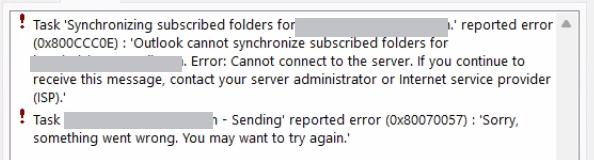
Task 'Synchronizing subscribed folders for 'email address’ reported error (0x800CCCOE) : ‘Outlook cannot synchronize subscribed folders for'email address'. Error: Cannot connect to the server. If you continue to receive this message, contact your server administrator or Internet service provider (ISP).
Task 'email address' - Sending’ reported error (0x80070057) : ‘Sorry, something went wrong. You may want to try again.’
The fix is simple: remove the account's credentials from Windows Credential Manager. If that doesn't fix it, remove the account from Outlook and add it back.
- Close Outlook.
- Start typing Credential Manager on the start menu. Open it when it comes up (usually after typing 'cred').
- Switch to the Windows Credentials tab.
- Scroll down, looking for "MicrosoftOffice16_Data:OAUTH2" in the list.

- Expand each entry. Gmail accounts are shown as "MicrosoftOffice16_Data:OAUTH2:[code]_tp_g", while Yahoo is "MicrosoftOffice16_Data:OAUTH2:[code]". If you hover over the code, you'll see google or yahoo in the full data name.
- Click Remove to delete the entry.
- Repeat for each additional entry.
- Restart Outlook.
- You'll need to enter your password and authenticate the account.
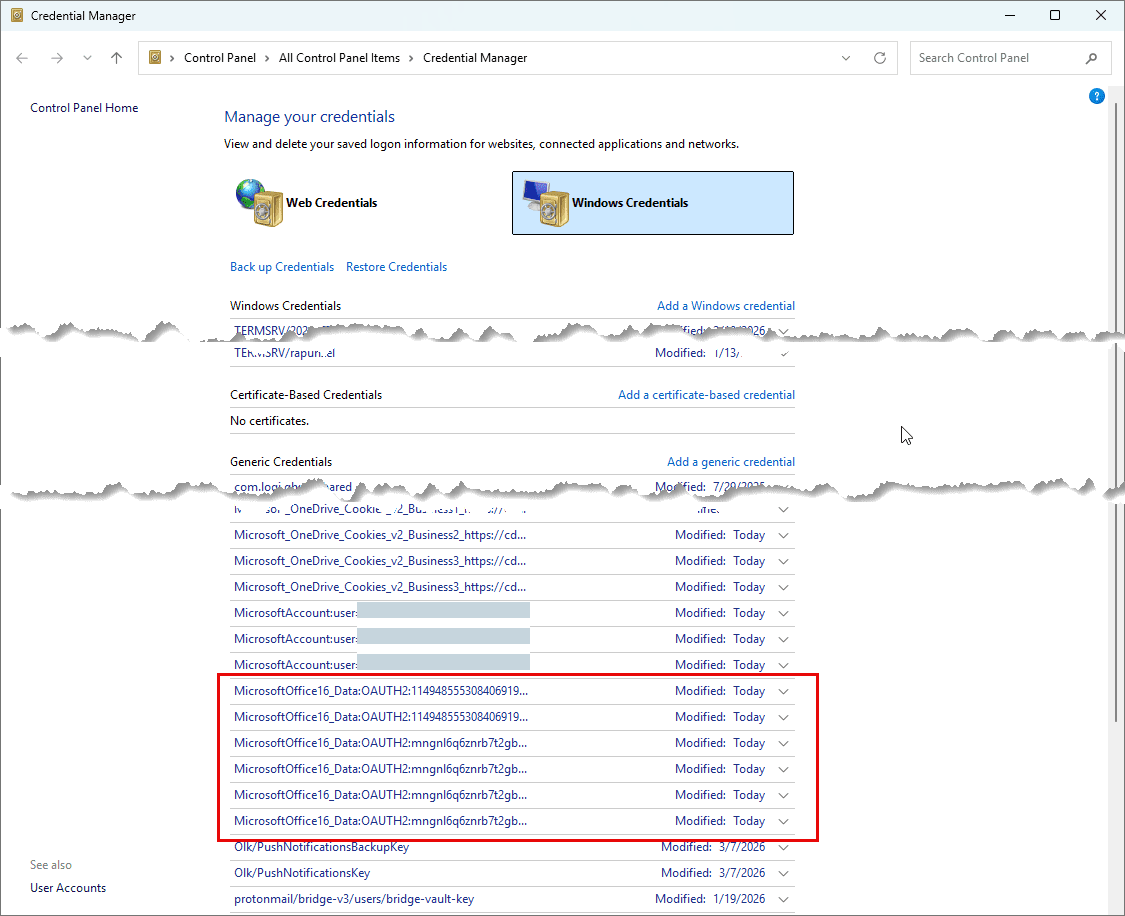

If simply removing the credentials does not fix the sync issues, you will need to remove the account from Outlook, then remove the credentials.
If you are using "Calendar (This computer only)" and "Contacts (This computer only)" folders in the account's data file, export those two folders to CSV or an Outlook data file before removing the account, otherwise your events and contacts will be deleted forever when you remove the account.
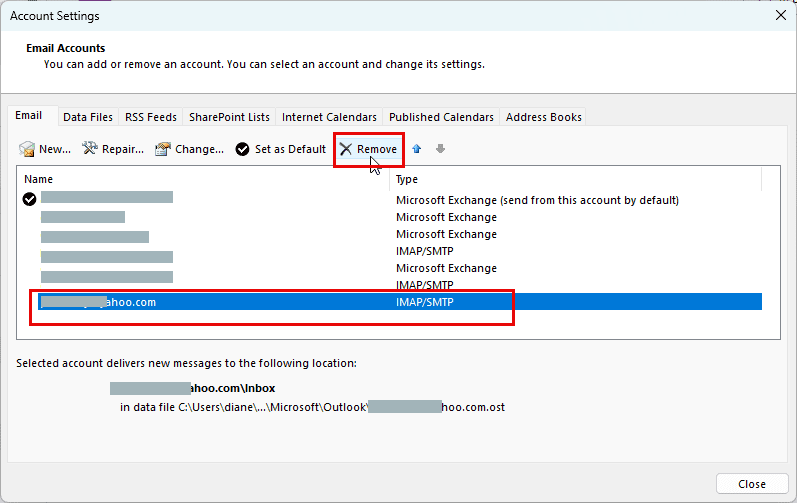
After exporting the calendar and contacts, Remove the account from Outlook. Go to File > Account Settings > Account Settings. Select the account and click Remove. Repeat the steps above.

Leave a Reply