This question from Outlook user wanted to know how to remove several attachments from a message in one step.
I want to keep sent messages but not the attachments. Is there an easier method than clicking on the attachment to delete it? Better yet, can I select several sent messages and remove the attachments from all of the messages?
Outlook doesn't have this functionality built in so you'll need to use an add-in or VBA, but yes, it can be done.
See Attachment Management Tools for Outlook for add-ins or More Information for additional macros, including code samples that can save the attachments to the hard drive before deleting them from the message.
This code will work with sent or received messages, in any folder. To use, add the code to the VBA editor, select the messages that you want to delete the attachment from and run it.
Sub DeleteAllAttachmentsFromSelectedMessages()
    Dim oAttachments       As Attachments
    Dim selItems            As Selection
    Dim oMsg              As Object
    Dim lngAttachmentCount  As Long

    ' Set reference to the Selection.
    Set selItems = ActiveExplorer.Selection

    '  Loop though each item in the selection.
    For Each oMsg In selItems
        Set oAttachments = oMsg.Attachments

        lngAttachmentCount = oAttachments.Count

    ' Loop through attachments until attachment count = 0.
        While lngAttachmentCount > 0
            oAttachments(1).Delete
            lngAttachmentCount = oAttachments.Count
        Wend

        oMsg.Save
    Next

    MsgBox "All Done. Attachments were removed.", vbOKOnly, "Message"

    Set oAttachments = Nothing
    Set selItems = Nothing
    Set oMsg = Nothing
End Sub
Remove Attachments From Forwards
A user needed to forward a message, but without the attachment and with the attachment name in the message body.
As written, this works with a selected message, not an open message.
You will need to set a Reference to the Microsoft Word Object Model in Tools, References.
Public Sub RemoveForward()
Dim oItem As MailItem
Dim oAtt As Attachment
Dim strAtt As String
Dim olInspector As Outlook.Inspector
Dim olDocument As Word.Document
Dim olSelection As Word.Selection

Set oItem = Application.ActiveExplorer.Selection.item(1)
strAtt = ""

For Each oAtt In oItem.Attachments
    strAtt = strAtt & "<<" & oAtt.FileName & ">> "
Next oAtt

   Dim oMsg As MailItem
   Set oMsg = oItem.Forward
   oMsg.To = "alias@address"
   oMsg.Display

    Set olInspector = Application.ActiveInspector()
    Set olDocument = olInspector.WordEditor
    Set olSelection = olDocument.Application.Selection

  olSelection.InsertBefore strAtt

For Each oAtt In oMsg.Attachments
    oAtt.Delete
Next oAtt

Set oItem = Nothing
End Sub
How to Use Macros
First: You will need macro security set to low during testing.
To check your macro security in Outlook 2010 and above, go to File, Options, Trust Center and open Trust Center Settings, and change the Macro Settings. In Outlook 2007 and older, it’s at Tools, Macro Security.
After you test the macro and see that it works, you can either leave macro security set to low or sign the macro.
Open the VBA Editor by pressing Alt+F11 on your keyboard.
To put the code in a module:
- Right click on Project1 and choose Insert > Module
- Copy and paste the macro into the new module.
- Set a reference to the Word Object Model in the VBA editor's Tools, References dialog.

- Customize the ribbon or Quick Access Toolbar to add a button to the macro for easy access.
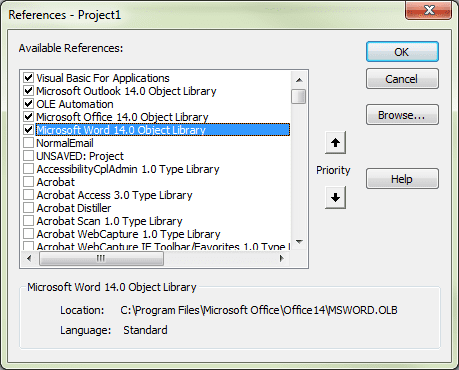
More information as well as screenshots are at How to use the VBA Editor
More Information
Housekeeping and Message Management Tools for Outlook
Housekeeping and Message Management Tools for Exchange Server
How to Save Email Messages to the Windows File System
VBA: Save Attachments to hard drive Can easily be tweaked to delete the attachment without saving it.
VBA: Attachments: Save the selection to the harddisk (VBOffice.net)
VBA: Attachments: Delete the selection (VBOffice.net)
How to use VBA code samples

Patrick says
Hi, I try to delete the first image inside email template. I try with message.attachements(1).remove or message.attachements.remove 1 or things like that but all I get is empty frame, it seems to only remove source but not the object itself... Is there something to do? Thanks!
Darcy Douglas says
I've come across this macro, but like another post I'd like to only delete certain files, in my case .pdf attachments. What do I need to add? I'm a complete newbie, so kindly spell it out for me. :)
Keith says
I used the code "DeleteAllAttachmentsFromSelectedMessages" in Outlook 2016 and although it deleted the attachments, Outlook's list still shows the paperclip symbol.
I also tried some VBA code from another website and it did the same in Outlook 2016, that one I used in Outlook 2007 and then the paperclip symbol disappeared.
Any ideas to rectify this problem ?
Diane Poremsky says
I don't have a solution right now, will need to look into it.
Diane Poremsky says
In a quick test, the paper clip was removed. What type of email account? What is your outlook build number? Does it happen with all attachments or just some?
Keith says
My email account is IMAP, with a Yahoo email address.
Tried a few different tests and all were the same, the paperclip symbol remains.
Version Outlook 2016 MSO (16.0.8326.2096) 32 bit
Chris says
I made use of this script to great effect in my workflow. However, when a mailbox has multiple (nested) subfolders, navigating to each one, selecting all messages, and running the script becomes cumbersome.
I took this script and modified it so that I could select the top level folder, and have it recurse into all subfolders and delete all messages' attachments.
here is the modified code:
====================================================
Sub DeleteAllAttachmentsFromSelectedMessages()Dim oFolder As Outlook.Folder
' Set reference to the Selection. Can select a folder
Set oFolder = ActiveExplorer.CurrentFolder
' this Sub must run in order to be recursive
processFolder oFolder
MsgBox "All Done. Attachments were removed.", vbOKOnly, "Message"
Set oFolder = Nothing
End Sub
Private Sub processFolder(ByVal oParent As Outlook.Folder)
Dim oMail As Outlook.MailItem
Dim oAttachments As Attachments
Dim lngAttachmentCount As Long
' Original selected folder as well as any recursed folders can contain mail.
' Iterate over all messages
For Each oMail In oParent.Items
' Get list of Attachments for this message
Set oAttachments = oMail.Attachments
' Get count of attachments for this message
lngAttachmentCount = oAttachments.Count
'While there are attachments still remaining
While lngAttachmentCount > 0
oAttachments(1).Delete
lngAttachmentCount = oAttachments.Count
Wend
'save the message
oMail.Save
Next
'If there are folders within this folder
If (oParent.Folders.Count > 0) Then
'then run the above process on each of them
For Each oFolder In oParent.Folders
processFolder oFolder
Next
End If
Set oMail = Nothing
Set oAttachments = Nothing
lngAttachmentCount = 0
End Sub
Jeff says
Hi, I receive numerous emails with attachments, some come with spreadsheets as well as the copy of the spreadsheet as a pdf, and others just come with the pdf. Normally, I send the pdf only on to other parties, but for those emails that include the spreadsheet, I have to remove the spreadsheet before I send the email on. Is there a macro I can use to eliminate the spreadsheet attachment only, if it exists. I currently use another macro I found on your site to send all the emails to a specific party, but now want to add this feature to remove any spreadsheets attached with the email and keep the pdf only to forward. thanks.
kjv1611 says
You'll need to add a couple of pieces to this code, shouldn't be too bad. You'll want to filter to those emails that have > 1 attachment probably or else look for a particular subject. Then you'll need to add another IF clause to check if the file type is Excel (I usually just look for excel like extensions).
So the general concept would be something like adding this around the delete section:
Outside/above this line:
While lngAttachmentCount > 0
Add something like:
If lngAttachmentCount > 1 Then 'Or you could say = 2, if you know it's only looking for exactly 2 attachments.
Then when you are looping through the attachments, it should be as simple as this or similar:
If oAttachments(1).Name Like "*.xl*" Then
' Do the delete
End If
This is just psuedo code more or less, as I've not tested a thing.
Thanks to Diane for sharing.
Viv says
Thank you! Just tried this today and it worked!
Kika Melo says
Hi Diane. So sorry to bother you again, but any luck on getting to sort out my latest question of the 6th of May?
Diane Poremsky says
The way the macro on this page is written, it works on selected messages -
' Set reference to the Selection.
Set selItems = ActiveExplorer.Selection
' Loop though each item in the selection.
For Each myItem In selItems
Set myAttachments = myItem.Attachments
It's not going to go through all folders or all messages - you can select one or more messages and it will only apply to those. You can (and should) test it first by copying messages to a folder.
Kika Melo says
Oh! In this case, I will patiently await your reply to my more complicated enquiry. Thanks, Diane!
Kika Melo says
My question of the 6th of May remains unanswered. Maybe Diane got sick of me, so can someone else help, please??? Basically, what I need to know is, if I upload the proposed code to be run as a Macro, can I select the folder it applies to, rather than it running on my entire Mailbox?
Diane Poremsky says
No, sick of you, just busy... I answer the easy comments first then work on the hard ones. I have 60+ comments waiting. :(
Kika Melo says
Hi Diane;
Me again. Only today I found the time to come back to this issue.
I was going to add the code to the VBA editor in Outlook, but want to make sure I don't mess up my MailBox with deletions of attachments in all the folders, etc. Therefore, I wanted to first make a test subfolder, copy into it selected messages with different types of attachments (attached files, embedded photos, electronic signatures with little 'icons', etc.) and then apply (run?) the code only on that subfolder, to see how it works. Can you please tell me how I can safely do that? Although I am quite competent (mostly self-taught) on several IT tasks, I have never used VBA and codes before, so want to be cautious about this.
Cheers.
Diane Poremsky says
This specific code works on the selected messages in any folder:
Set selItems = ActiveExplorer.Selection
All you need to do is Copy the messages to a new folder, select them and run the macro.
Kika Melo says
Thanks for the prompt reply, Diane. Two additional questions on it:
1) Would it work only for INCOMING messages? My main need is for Sent Mail messages which I manually archive when I want to, and delete their attachments just before archiving.
2) If I do not want the script to save the attachment (because I prefer to do it individually, often renaming the file, to specific subfolders), will the use of just the lines below still insert a comment on the message body to the effects of ''attachment [original file name] was deleted'', or something like it?
If lngCount > 0 Then
For i = lngCountb To 1 Step -1
' Delete the attachment.
objAttachments.Item(i).Delete
Next i
objMsg.Save
End If
Diane Poremsky says
it will work on sent items - run it before you archive. (For some reason, i thought this was a macro that ran when messages arrived. sorry for the confusion.)
Yes, if you remove the delete line (and the one to save the attachment) it will still add the note the message body.
Junia Melo says
Hi Diane,
This is very interesting and potentially useful for what I want to do. However, what I really wanted was a way of deleting an attachment from an incoming or a sent out message, and leave behind a mark underneath the message text stating something like ''Attachment such and such [file name] deleted''. Because I would have previously saved [file name] to dedicated folders on my PC, I would then later know what I had received or sent out on the specific message. Can this be done as a code or an entry to the Registry?
Diane Poremsky says
The code samples at https://www.outlook-tips.net/code-samples/save-and-delete-attachments/ do this on incoming messages.
Tony Rockdaschel says
Hi Diane,
You were right, it was certificate related. It's such a bummer that a certificate must be made while at each different PC where we need to use the macros and that there isn't an Exchange Server side way to do it for the entire organization and configure it to be in place for each user no matter where they log on, macro buttons with correct pics and everything. There's really only so much we can assume users will be able to do on their own. I guess I have to visit every PC on the network then.....
Diane Poremsky says
Apparently you can use gp.
Diane Poremsky says
You should be able to push something out using group policy or logon scripting, although if its only a few desktops, visiting each one might be faster.
Tony Rockdaschel says
Hi Diane, I've been making use of some of the Outlook macros on this site and ran across this one, which is exactly what I was one of my network users was asking me for recently. However, after implementing it, and adding to the custom menu ribbon, not only did it not work initially but all of the others I had added suddenly stopped working to. I had to go into the trust center and allow all macros to run, close and reopen Outlook and they all worked again. Is there something specifically in this code that would cause that and can the suspect code be changed so I don't have to allow all macros?
Diane Poremsky says
No, there is nothing that would disable all macros, or that would change the macro security. Did you sign the other macros? Adding a new macro after signing a macro with self cert will break the signature - you need to resign when you add new macros or edit a macro.
Kristine S. Jensen says
Hello Diane,
Thank you *so much* for providing this information on macros. I've never dared to use them before, but this worked so smoothly.
Very good for one's carpal tunnel syndrome not to open 500 sent mails and delete attachments from each one :-)