An administrator had a question about disabling ribbon and toolbar buttons:
How can I disable the function "Edit Message" under Message, Actions, Other Actions?
You can disable commands using group policy or by editing the registry.
Group Policy is not limited to use by network administrators. Anyone can use it.
The policy key that is used to lock out ribbon and toolbar buttons is stored in the registry at HKEY_CURRENT_USER\Software\Policies\Microsoft\office\xx.0\outlook\disabledcmdbaritemslist
(Replace xx with the version of Outlook: Outlook 2016 is 16; Outlook 2013 is 15; Outlook 2010 is 14; 2007 is 12.)
The Control ID value is stored in TCIDn String values, where n is the order in which the command was entered.
"TCID1"="2577"
"TCID2"="1886"
"TCID3"="5613"
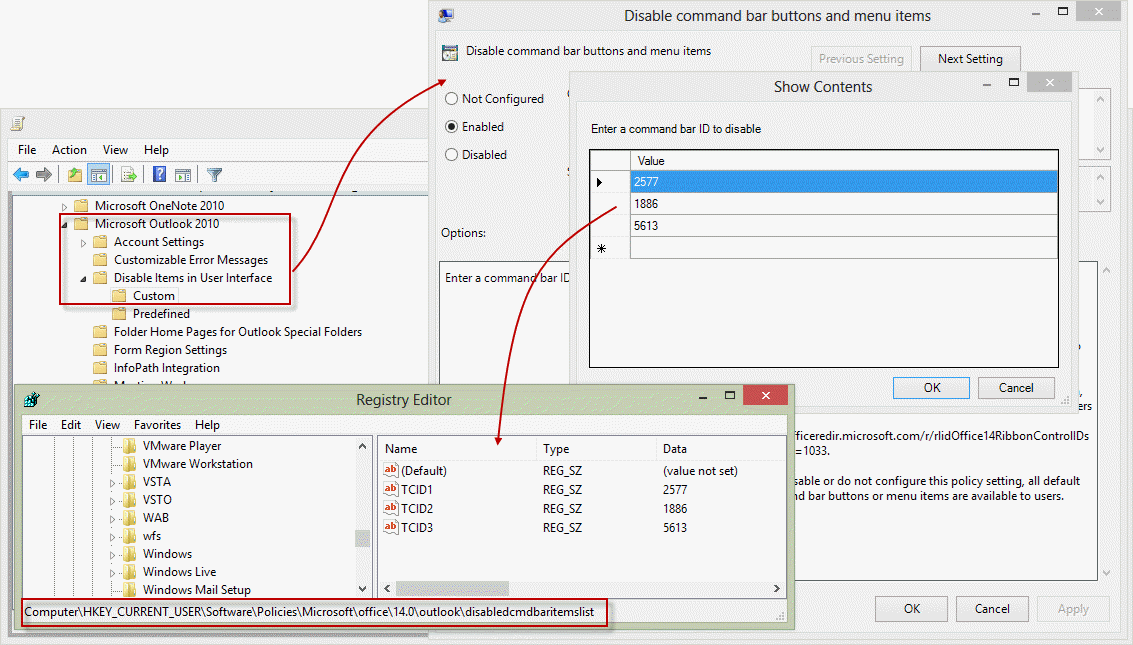
Disable the Edit Message command
The specific key to disable Outlook 2016's Edit Message is (when it's the first command disabled):
HKEY_CURRENT_USER\Software\Policies\Microsoft\Office\16.0\Outlook\DisabledCmdBarItemsList
"TCID1"="5604"
Do It For Me
If you don't want to edit the registry, I have a ready-to-use registry file you can download and run. Right click on the link and choose Save target as (IE) or Save Link As (Firefox). Double click to run it and add the values to the registry.
Outlook 2016: 5604 Outlook 2013: 5604
Outlook 2010: 5604 Outlook 2007: 5604
Command IDs
An Excel workbook containing all of the Control ID's for Outlook 2016 (most will work in Outlook 2013 & 2010) is available here. If the exact command exists for other versions of Outlook, the ID will be the same in those versions as well. (Microsoft has a series of Excel workbooks containing all of the Command IDs for all Office applications. Links are here.)
Below is a list of commonly disabled features or Control IDs I've previously looked up for one reason or another.
Most of the Control IDs are the same in all versions of Outlook (that use that command). If you know the Control ID for a command in Outlook 2003, there is a very good chance it is also used for that same command in Outlook 2016.
In many cases the Control ID applies to all methods of accessing the command. For example, disabling Import/Export on Outlook's File, Open menu also disables it in File, Options, Advanced. Keyboard shortcuts will usually still work; e.g. disabling the Delete button on the ribbon and right click menu does not block the Delete key.
Unless otherwise stated, the following commands work on Outlook 2013/2016 and up. They may work with older versions when the same command exists.
If you don't know the command's Control Name, filter for the Group name in the Group/Context Menu Name column of the Control spreadsheets.
| Command | Control ID |
|---|---|
| Archive (Clean up old items in Outlook 2016) | 1886 |
| AutoArchive | 19701 |
| Archive (new in Outlook 2016) Disables, does not remove from ribbon | 26308 |
| Clean Up button (ThreadCompressSplitButton) | 21471 |
| Clean Up Conversation (ThreadCompressThread) | 19507 |
| Clean Up Folder (ThreadCompressFolder) | 19509 |
| Clean up Folder & Subfolders (ThreadCompressFolderRecursive) | 19510 |
| Choose Form | 1910 |
| Design a Form | 5617 |
| Edit Message | 5604 |
| Empty Deleted Items Folder | 1671 |
| Import/Export command | 2577 |
| 4 | |
| Purge Deleted Items (IMAP accounts) | 12771 |
| Recover Deleted Items | 5654 |
| Rules & Alerts | 10012 |
| Rules Wizard (older versions) | 721 |
| Work Offline | 5613 |
| Delete Folder | 2500 |
| Delete | 478 |
| Quick Print | 2521 |
| Help | 984 |
Meeting Request Commands
The following Command IDs remove the accept as tentative options and Do not send a response from meeting requests.
| Command | Control ID |
|---|---|
| Request Responses | 1881 |
| Menu Tentative Invitation | 19992 |
| Tentative Invitation Edit Response | 19993 |
| Tentative Invitation Send Response | 19994 |
| Tentative Invitation No Response | 19995 |
| Tentative Accept Invitation | 1089 |
| Do Not Send a Response | 19987 |
More Information
More up-to-date lists of command IDs at github
Zip of all the newer Command IDs workbooks: Office365 Fluent Controls 2018.zip
Office 2016 ADM download
Group Policy Administrative Template files (ADMX, ADML) and Office Customization Tool (OCT) files
Office 2016 Help Files: Office Fluent User Interface Control Identifier
Outlook 2013 ADM download:
Group Policy Administrative Template files (ADMX, ADML) and Office Customization Tool (OCT) files
Office 2013 Administrative Template files (ADMX/ADML) and Office Customization Tool
Office 2013 Help Files: Office Fluent User Interface Control Identifiers

Marcus says
Hi,
i want to disable the following 2 options:
Options->Encrypt-> "Encrypt-only" and "do not forward"
But i cannot find the id's in the xlsx workbooks.
Thanks
Marcus
Venkat says
Tried with below key but unable to disable "Screen recording option" in Semi-Annual Enterprise Channel 2202 (Build 14931.20888).
Hive HKEY_CURRENT_USER
Key path SOFTWARE\Policies\Microsoft\office\16.0\powerpoint\DisabledCmdBarItemsList
Value name TCID
Value type REG_SZ
Value data 16301
Diane Poremsky says
Hmmm. The first PPT file I opened was read only - the record button was disabled on the insert tab but not on Recording tab - I found that odd.
That ID# disables the button on the Insert menu but not on the Record tab. So it looks like those commands have a new ID.
There is an updated list in github - github.com: Office 365 -Semi-Annual-Targeted - powerpointcontrols.xlsx and ID 27286 kills the entire recording tab.
New entries with 'record' in the name -
RecordAudio toggleButton None (Context Menu) ContextMenuRPVSettings 27247
TabRecording tab 27286
GroupRecord group TabRecording 27287
ExportToVideoRecording button TabRecording GroupSaveRecording 27292
MovieFromFileRecordingAutoPlay button TabRecording GroupAutoPlayMediaRecording 27358
ObjectScreenRecordingAutoPlay button TabRecording GroupAutoPlayMediaRecording 27359
SoundRecordAutoPlay button TabRecording GroupAutoPlayMediaRecording SoundInsertMenuAutoPlay 27362
ContextMenuClearRecordings contextMenu None (Context Menu) 27593
ClearCurrentSlideRecording button None (Context Menu) ContextMenuClearRecordings 27595
ClearAllSlidesRecordings button None (Context Menu) ContextMenuClearRecordings 27596
GroupContentRecording group TabRecording 27874
GroupAutoPlayMediaRecording group TabRecording 27875
GroupSaveRecording group TabRecording 27876
UploadToMSStreamRecording button TabRecording GroupSaveRecording 32625
BTW - the correct value is TCID1 (or another # if you are blocking more than one command.)
Windows Registry Editor Version 5.00
[HKEY_CURRENT_USERSoftwarePoliciesMicrosoftoffice16.0powerpointdisabledcmdbaritemslist]
"TCID1"="16301"
Follow says
How to disable option or trust center function? Thanks.
Diane Poremsky says
I thought it should be this -
OLKShowTrustCenter ==> 14324
But it is not blocking the button here.
I don't see anything else in the command id list for it.
Roger says
Hello! I played around with this, and while it did work to remove the button, it didn't eliminate the functionality of it. Meaning, my meeting invites still prompted users to send ME a response. How do I get the "Request Responses" option to be unchecked by default, so nobody has to send me a response, ever? TIA!
Test says
I am having trouble disabling some Office 365 features using reg keys the main one I am having issues with is
newmaildesktopalert = 0 - I am trying to stop desktop alerts displaying for my organisation. windows 10 users don't receive alerts with the reg key but windows 11 users do any ideas?
Diane Poremsky says
Desktop alerts are controlled by windows now but you can use GPO to disable the option in Outlook's file > Options > Mail so users can't turn it on.
[HKEY_CURRENT_USER\Software\Policies\Microsoft\office\16.0\outlook\preferences]
"NewmailDesktopAlerts"=dword:00000001
Test says
What is the control id for "Have reply sent to" under the email>options>more options in Outlook 2016
Diane Poremsky says
Try 15491 - that is for Direct Replies to button, but I don't know yet if it applies to the field in options too. (I'll test it next).
Diane Poremsky says
Well, that is a fail - it only applies to the button. Back to the list to look for more options.
Test says
Thanks for the assistance regardless.
Diane Poremsky says
it looks like the option is to disable the button - which leaves it available in the options dialog, or lock down options, blocking the other options available there.
verb says
Sorry for kicking an old thread, but can you disable some feature in Teams like the transcription button or the consult and transfer? And is this applied only to the local application via GPO or is there a way to do it for mobile clients and web clients?
Diane Poremsky says
The admin can turn off some options in the administration settings. As far as I know, they are not controlled by GPO. There are only 2 teams items in GPO - one for autostart, the other for signing into tenents.
Hank Farlow says
Does anyone know what the nregistry setting and Control ID is for hiding the "Manage Add-ins" buttom in Outlook on the backstage screen? In Outlook go to File, and the button is at the bottom of the screen. I need to disable or hide the button, not restrict the add-ins. Thanks. See attached.
Diane Poremsky says
I don't see it in the spreadsheets when searching for manage or add.
You can remove the store icon, but the only way (I know of, at the moment) is to disable the entire info page.
I'm pretty sure none of these work on that button -
16173
12308
13950
13951
14337
Hank Farlow says
HI Diane. Is there a control for disabling the Manage Add-ins button in Outlook? See attached.
Joffry says
Hi Diane,
if by using GPO to disable mailbox import/export and disabled pst creation, should this be applied on a user object or computer object?
Dan says
Hi there, I'm trying to remove the Sensitivity button but not having much luck in the excel sheet. Any ideas? Thanks for your work.
Diane Poremsky says
Try 7714 - PrivacyOptionsDialog.
It won't remove it, but will disable the button on the ribbon... but not the one on the Options dialog. :(
Dan says
Thanks for the quick response - unfortunately it didn't work (it's still showing while composing an email on the Message tab). I successfully l disabled a different button just as a method control, but Sensitivity is still there.
Diane Poremsky says
it disabled the sensitivity button on the ribbon here - but not the one in message options (properties).
Dan says
How odd, that's exactly what I need. But it doesn't seem to work on my end. Well, thank you again for your help I appreciate it.
Diane Poremsky says
Did you enter the key manually, use group policy editor or use the reg file I have in the article and change the ID#? If manually, try the reg file - either change the # before running it or after. (Edit it in notepad.)
Dan says
I tried deploying via GPO and also manually in the registry, but no luck - I think the problem is due to the new O365 Unified Labels which we've deployed, there seems to be a 'legacy' functionality for the Sensitivity button compared to the newly embedded AIP/Classification label functionality that was recently added. I even opened a support ticket with Microsoft and they were adamant that it's simply not possible. Still I am encouraged by your screenshot so I'll keep persevering I guess...!
Roy says
Hello!
I am looking for the ID to disable the "Office Theme" General Option in Outlook 2016.
Diane Poremsky says
The ID is 25368 for the theme, the background is 24850
The background control can be removed using group policy too - it sets this key:
[HKEY_CURRENT_USER\SOFTWARE\Policies\Microsoft\office\16.0\common\general]
"disablebackgrounds"=dword:00000001
Diane Poremsky says
On second thought... I forgot to check the options settings. :( Those values remove it from the backstage (file > account) but not from the options dialog. The policy removes the background control from options but not the theme.
I don't see a policy to remove the theme control.
Roy says
Thank you for the review and followup. The request for locking down the theme has been shifted to locking down Stationery and Fonts under Outlook options - Mail. But, from what i gathered scouring the web, there is currently no way to disable this option. The current workaround is to force predetermined settings for the Stationery and Fonts section and when the user changes anything the changes revert back to what is being pushed via GPO.
ERick clark says
do this for teams
Diane Poremsky says
What commands do you want to disable in Teams?
Keith says
Hi Diane, I've been searching for a way to disable the Import/Export button or disable the ability to create PSTs. I've tried to create the registry key you described in your article but I can't get the Import button to be disabled. I'm using Outlook 365. Any ideas why this wouldn't work?
Diane Poremsky says
This key disables Import/Export
[HKEY_CURRENT_USER\Software\Policies\Microsoft\Office\16.0\Outlook\DisabledCmdBarItemsList]
"TCID1"="2577"
This disable pst creation
[HKEY_CURRENT_USER\Software\Policies\Microsoft\Office\16.0\Outlook]
"disablepst"=dword:00000001
Restart Outlook after setting the keys.
MBK5US says
What’s MS recommended option (best practice) to disable commands in Outlook: via GPO or Registry?
Diane Poremsky says
Both are registry settings :), but GPO is centrally managed, which makes it easier to apply changes to all users. Or use a logon script to load the reg file.
MBK5US says
I guess what I meant is out of the 2 options presented above in your article where both can be deployed via GPO, which approach would be the best practice?
Thank you.
Diane Poremsky says
GPO is always best practice, if you are using GPOs within your company. Not all companies do, especially smaller organizations.
Alex says
Do you have a command ID or suggestion to disable additional mailboxes? Want to disable this to stop bad habits within our environment, but doesn't appear to be in your spreadsheet.
"More Settings < Advanced "- want to disabled functionality on open these additional mailboxes. Only option I want users to have functional is "Add Account" via the File menu. This is Office365 desktop client.
Diane Poremsky says
I don't see an option in the command id list or in gpo. You can prevent users from adding additional non-default exchange accounts, but that does not apply to shared mailboxes and i don't see anything in gpo to prevent adding shared mailboxes.
Alex says
Damn, thanks for looking! Can't say I've found a way either.
Vysakhan Ks says
Hi Diane ,
I need to disable Manage Mobile Notifications from outlook backstage info menu , i tried using tcid value but this is not working.
Do we have any option to remove these button from OL account setings
( file > account settings > manage mobile notifications)
Which settings enables this button , can you help me ?
Diane Poremsky says
i don't see a way to disable just that option. The value the spreadsheet is not working for me either.
znjam says
Hy I want to to disable quick print from menu in the outlook 2013 but registry key or policy is complete ignored. If I search internet is not possible to remove quick print from outlook menu.
I have chose ID 2521. If somebody done this please share how?
Thanks in advance
Diane Poremsky says
Did you put it in HKEY_CURRENT_USER\Software\Policies\Microsoft\Office\15.0\Outlook\DisabledCmdBarItemsList ?
Restart Outlook?
Which suite do you use? Some policy keys won't work with the versions intended for Home use.
Priya says
Hi...is there any option to enable recover deleted items in outlook 2018..I have checked folder menu but it isn't there..Kindly help if it is possible
Rajan MB says
Kindly help us to disable the Stationary and Fonts button completely in the outlook 2016 through Group policy. where we tried but it only disabling partially inside the Stationary and Fonts button few options are disabled. .
Diane Poremsky says
This should be the code and should disable the options dialog - 3766. But some of the suites (ones targeted to consumers) don't support the policy key. I guess if it partially worked, then you don't have one of those versions.
What features did it not disable that you want disabled?
ravi shankar says
please help on adding and activating all the commands on Home tab under the group "tags" for outlook 2016
Diane Poremsky says
The commands, if supported, are activated by default. You only use group policy to disable the commands.
Are you using an IMAP account? Categories are not supported in imap accounts and flags are limited to flag on, flag off.
Willem says
Thank you for explaining how to disable the Archive button. It caused a lot of "disappeared email" problems in our company. Unfortunately, the Backspace key also moves an email to Archive. Is there a way to disable this as well?
Diane Poremsky says
No, not at this time. If they give us an option to actually disable the feature, then it will apply to the backspace key too.
Matt says
Could you tell me the Command IDs for read and delivery receipt. I can't seem to find them...
Diane Poremsky says
They are in the mailitem controls spreadsheet as RequestDeliveryReceipt (14364) and RequestReadReceipt (14365).
https://www.microsoft.com/en-us/download/details.aspx?id=50745
andrew says
Hello, I am trying to find the commandID to remove the Open Calendar -> From Address Book. I only want Open Calendar -> From Room list to be visible. Is this possible?
Also in the calendar Section when Right Clicking on any calendar heading and Add calendar -> From Room List. I just want a set of users to have the ability view Rooms and nothing else.
This is on Outlook 2010
Diane Poremsky says
AFAIK, you can get this specific.
the controls for this are in the outlookexplorercontrols.xlxs sheet at https://www.microsoft.com/en-us/download/details.aspx?displaylang=en&id=6627
Ilya says
Please tell me the «command bar ID» for.. whole «Menu Bar» of Office 2003.
Diane Poremsky says
Sorry, I don't know the id for it - if you are trying to remove it, it can't be removed.
Ossie Akaunu says
I have been involved in an exhaustive search to find the Outlook 2013 control id for ...
"Mailtips Options" location being File -> Options -> Mail -> Mailtips Options.
I want to use the Group Policy ... User Configuration\Administrative Templates\Microsoft Outlook 2013\Disable Items in user interface to achieve this. I have trolled through the "Office 2013 Help Files: Office Fluent User Interface Control Identifiers" excel spreadsheets but to no avail. I would be extremely grateful if anyone can help me.
Diane Poremsky says
Disable mail tips is in GPO. Outlook > Outlook Options > Preferences > Email Options > Disable mail tips. That sets the disablemailtips value in HKEY_CURRENT_USER\Software\Policies\Microsoft\Office\15.0\outlook\options\mail
Dianne Millen says
Oh my gosh! This is a great compilation of information that is otherwise unavailable. I have searched for something for specific items and not been able to locate anything. Thank you so much for providing such a great service for us!