One of my favorite (and free!) little utilities is DocMessageClass as it makes it easy to change the message class on existing items to use a new published form. Unfortunately, it doesn't work with 64-bit versions of Outlook (which is the default install for new computers.) If you have 32-bit Office installed, you can use DocMessageClass.
Although not quite as easy to use as DocMessageClass, you can use a macro or PowerShell script to change the message class in all versions, including Outlook 2013 and newer.
Note: these methods work for any Outlook item, not just contacts.
Using PowerShell to change the message class
You can use PowerShell to change the message class. The first example changes the message class of all Contact items, while the second one changes a specific message class.
# Change the message class of all contacts
$olApp = new-object -comobject outlook.application
$namespace = $olApp.GetNamespace("MAPI")

# Default Contacts folder
$Contacts = $namespace.GetDefaultFolder(10)

foreach ($Contact in $Contacts.Items)
{

# Don't change distribution lists
    if ($Contact.messageclass -notlike "*distlist*")
    {

   $Contact.messageclass  = "IPM.Contact.form-name"
   $Contact.Save()

    }
}

$olApp.Quit | Out-Null
[GC]::Collect()
Change specific message classes
Use this macro to change specific message classes to another message class.
# Change the message class of all contacts
$olApp = new-object -comobject outlook.application
$namespace = $olApp.GetNamespace("MAPI")

# Default Contacts folder
$Contacts = $namespace.GetDefaultFolder(10)

foreach ($Contact in $Contacts.Items)
{

# Don't change distribution lists, change specific class
    if ($Contact.messageclass -notlike "*distlist*" -or $Contact.messageclass -like "*new*")
    {

   $Contact.messageclass  = "IPM.Contact.form-name"
   $Contact.Save()

    }
}

$olApp.Quit | Out-Null
[GC]::Collect()
Run on a non-default folder
This code sample is from Kenny in our forum.
can't get custom form to update multiple contacts using VBA
To use, enter the name of the folder in the code. The folder does not need to be selected before running the PowerShell.
# Change the message class of all contacts
$olApp = new-object -comobject outlook.application
$namespace = $olApp.GetNamespace("MAPI")
$Contacts = $namespace.GetDefaultFolder(10)
# Specify target folder
$myNewFolder = $Contacts.Folders("subfolder name")

foreach ($Contact in $myNewFolder.Items)
{
# Don't change distribution lists
if ($Contact.messageclass -notlike "*distlist*")
{
# specify new message subclass
$Contact.messageclass = "IPM.Contact.custom-form-name"
$Contact.Save()
}
}
$olApp.Quit | Out-Null
[GC]::Collect()
Change the message class of the selected folder
This version of the PowerShell works with the selected folder. Select a folder then run the macro.
# Change the message class of all contacts
$olApp = new-object -comobject outlook.application
$Contacts = ($olApp.ActiveExplorer()).CurrentFolder

Write-Host "Current folder is $Contacts"
foreach ($Contact in $Contacts.Items) {
# Don't change distribution lists
if ($Contact.messageclass -notlike "*distlist*")
{
# Specify new message subclass
$Contact.messageclass = "IPM.Contact.custom-form-name"
$Contact.Save()
}
}
$olApp.Quit | Out-Null
[GC]::Collect()
Change message class on selected items
This PowerShell will change the message class on the select items.
# Change the message class of all contacts
$olApp = new-object -comobject outlook.application
$namespace = $olApp.GetNamespace("MAPI")

$currentExplorer = ($olApp.ActiveExplorer())
$Selection = $currentExplorer.Selection

write-host $selection.count

foreach ($Contact in $Selection)
{
# Don't change distribution lists
if ($Contact.messageclass -notlike "*distlist*")
{
# specify new message subclass
$Contact.messageclass = "IPM.Contact"
$Contact.Save()
}
}
$olApp.Quit | Out-Null
[GC]::Collect()
Using PowerShell Scripts
To use, right-click on the Start menu in Windows 10 and click on the Windows PowerShell entry. Paste the entire script in the PowerShell window and press Enter.
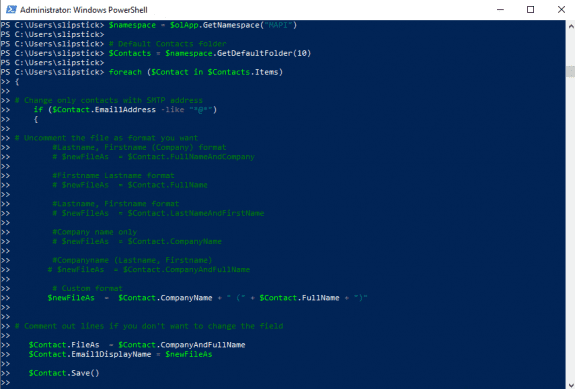
If you want to save the script as a .ps1 file, paste it into Notepad and save it with the extension .ps1. To open it in the PowerShell IDE, type powershell on the start menu and click on Windows PowerShell IDE when the PowerShell app is found. Paste the script in the editing window.
To use it, you need to allow local scripts by running this command:
Set-ExecutionPolicy RemoteSigned
To run your saved .ps1 file, right-click on the script and choose Run with PowerShell.
Using VBA to change the message class
This first macro is based off of a macro provided by Microsoft, intended to be used in a template (see the KB article for details if you want to run it from a template.
Sub ChangeContactMessageClass()

  ' Change the following line to your new Message Class
   NewMC = "IPM.Contact.Test"

   Set CurFolder = Application.ActiveExplorer.CurrentFolder
   Set AllItems = CurFolder.Items
   NumItems = CurFolder.Items.count

   ' Loop through all of the items in the folder
   For i = 1 To NumItems

      Set CurItem = AllItems.Item(i)

' Test for a distlist
 If CurItem.Class = olContact Then

      ' Test to see if the Message Class needs to be changed
      If CurItem.MessageClass <> NewMC Then

         ' Change the Message Class
         CurItem.MessageClass = NewMC

         ' Save the changed item
         CurItem.Save

      End If
 End If
   Next

   MsgBox "Done."

End Sub
To use the code above with non-contact folders, remove the If CurItem.Class = olContact Then line and the second End If.
Macro alternative to DocMessageClass
This alternative to DocMessageClass was posted by chaplaindoug in Outlook Forums: How to Set Existing Contacts to Custom Form
This macro shows how to use change the message class of Public Folder contacts.
Sub ChangeMessageClass()
UName = Environ("UserName")
Set olNS = Application.GetNamespace("MAPI")
Set ContactsFolder = olNS.Folders("Public Folders - " + UName + "@goodnewsjail.org")
Set ContactsFolder = ContactsFolder.Folders("All Public Folders")
Set ContactsFolder = ContactsFolder.Folders("Good News Contacts")

'to use on the default contacts folder instead, uncomment this line
'Set ContactsFolder = olNS.GetDefaultFolder(olFolderContacts)

Set ContactItems = ContactsFolder.Items

For Each itm In ContactItems

If itm.MessageClass = "IPM.Contact" Then
itm.MessageClass = "IPM.Contact.Good News Contact"
itm.Save
End If

Next
End Sub
Change message class as item is saved
If you need to change the message class on some items, you can use an ItemAdd macro to change the message class when the new item is saved.
This could be used with an If statement to change the message class according to a value in a field (for example, If item.country = "Canada"), or when a new item is created in such a way that the custom form is not used.
Option Explicit
Private WithEvents newContacts As Outlook.Items

Private Sub Application_Startup()
 Set newContacts = Session.GetDefaultFolder(olFolderContacts).Items
End Sub


Private Sub newContacts_ItemAdd(ByVal Item As Object)
If Item.Class = "IPM.Distlist" Then Exit Sub

 Dim NewMC As String
NewMC = "IPM.Contact.MapIt"

 If Item.Class = olContact Then
      If Item.MessageClass <> NewMC Then
         Item.MessageClass = NewMC
         Item.Save
      End If
 End If

End Sub
Change the message class when a contact is edited
This macro changes the message class when you edit and save a contact.
Public WithEvents cItems As Outlook.Items

Public Sub Initialize_handler()
    Set cItems = Application.ActiveExplorer.CurrentFolder.Items
End Sub

Sub cItems_ItemChange(ByVal Item As Object)

  ' Change the following line to your new Message Class
   NewMC = "IPM.Contact.robert-form"

 If Item.Class = olContact Then
      If Item.MessageClass <> NewMC Then
         Item.MessageClass = NewMC
         Item.Save
      End If
 End If

End Sub
How to use the Macro
First: You will need macro security set to low during testing.
To check your macro security in Outlook 2010 and newer, go to File, Options, Trust Center and open Trust Center Settings, and change the Macro Settings. In Outlook 2007 and older, it’s at Tools, Macro Security. If Outlook tells you it needs to be restarted, close and reopen Outlook. Note: after you test the macro and see that it works, you can either leave macro security set to low or sign the macro.
Now open the VBA Editor by pressing Alt+F11 on your keyboard.
To put the code in a module:
- Right click on Project1 and choose Insert > Module
- Copy and paste the macro into the new module.
More information as well as screenshots are at How to use the VBA Editor.
More Information
How to update existing items in an Outlook folder to use a new custom form This code works in all versions of Outlook and can be run using Run This Form from the forms designer. However, if you use it on Contacts, it does not detect Distribution lists and turns them into contacts. The first code on the page above uses the same code and adds a check for distribution lists.

Andrew Juby says
Hello,
I am changing my IPM.contacts for a custom form, so that all my old items open on the custom form. I have not used VBA before, have done some programming 30 years ago.
I've had a few problems.
I've just found out that my Outlook is 32bit, so have run the Doc Message program. This has reset my icons again and now I can open all items again with my custom form.
I have lost my Distribution lists because of some incorrect programming. Is there a way I can change a particular Item back to a distribution list... IPM.Contact.DistList. Do it one by one? I've appreciated the help received going through your forum. Wish I had some time to do some VBA learning...
Thanks for all your help. Andrew
Biagio Lucci says
Hello there
Help me out please.
Outlook 2016 32 bit and need to apply a form when an item is saved. The item is a task and I don't know how to switch the wording in the macro for that.
please help
thanks
Diane Poremsky says
yoiu'd use IPM.Tasks.form-name
To find the form name, if you have an item saved using the form, add the message class field to the view. if the form is published, you can get the form name in File > options > advanced > custom forms.
Carlos says
Outlook 2016
HELP PLEASE
I used the first macro... by mistake... I was trying to open the code to edit it but instead it ran with the default IPM.Contact.Test as the NewMC. I was able to abort it, but it changed about half of my calendar items to contacts. Next, I changed the NewMC to IPM.Schedule_Production_3, which is the custom form which I wanted to convert everything to in the first place, but the macro will not run. I enabled macros and tried again with no luck. If it is a custom form do I need to specify a path? Any advice would be greatly appreciated.
Diane Poremsky says
Did it not run or just not make any changes?
Is that the right form name? If it's based on an appointment form, it should be IPM.Appointment.Schedule_Production_3
Kevin says
I've successfully set up a new form for a Calendar (Outlook 2013, non-profit E1 Office 365 Exchange) and made it the default. Works well however if recurrence is used the original form is opened. Any suggestions about changing this to open the form I created instead of the default?
Diane Poremsky says
This happens only when you are opening the recurring event to view it, not when composing?
Oliver says
thanks. I understand I have just to use your last script.
where should I add my form name, which is fxtest
Oliver says
in case it does no work and that creates a mess, can you help me out to go back...? I'm afraid I can mess something that is very valuable to me.
I also understand that I keep all the blue stuff. I delete those three lines, and the ' before the other line, then I create a module and Paste the script and then I run the script. And then if it works when I open an old contact I'll see my form
are my presumptions ok?
Diane Poremsky says
Correct, you'll use this code on the default contacts folder (using the name of your form) and when it's finished, when you open a contact it will use your custom form.
Sub ChangeMessageClass()
Set olNS = Application.GetNamespace("MAPI")
Set ContactsFolder = olNS.GetDefaultFolder(olFolderContacts)
Set ContactItems = ContactsFolder.Items
For Each itm In ContactItems
If itm.MessageClass = "IPM.Contact" Then
itm.MessageClass = "IPM.Contact.Good News Contact"
itm.Save
End If
Next
End Sub
Oliver says
If I want to use the chaplingdoug's macro after following your suggested deletions, should I also change whatever is in blue font, user name. Also somewhere should I add the name of my custom form.
Sorry but I want to be completely sure that I'm doing the right stuff. I tried at another contact folder and now I don't know how to fix it, I mean I cannot open correctly the contacts.
Diane Poremsky says
if you are using your default contacts folder this is all you need to identify the folder to use:
Set ContactsFolder = olNS.GetDefaultFolder(olFolderContacts)
the blue text part is used to identify an Exchange public folder contacts list.
Oliver says
I have Outlook 2016 x64 not exchange
I'm not an expertise.
which would be the macro to assign my form to all existing contacts.
I saw here posted a macro created by chaplaindoug however I don't know in which way should I tweak it in order to have it work. I tried a couple of tweaks and I couldn't. thanks
Diane Poremsky says
If you aren't using Exchange, use the first macro on the page or to use chaplindoug's macro, delete the first 3 "Set ContactsFolder" lines and remove the apostrophe from in front of Set ContactsFolder = olNS.GetDefaultFolder(olFolderContacts) - the macro will work on the default contacts folder.
Jack W says
Hi Diane,
I've cobbled together some code to populate some Outlook Appointment (calendar form) from a web-form produced standard email. The form uses the default add appointment form. I've tried lots and lost of ways to try and force the code to use a customized add appointment form (stored in the Personal Forms Library) but I can't get the code to use the custom form.
If I can get that to work I want to populate some custom fields on the customized form from data extracted from the web-form produced standard email.
In theory this should be easy!
Any help to solve this would be much appreciated as I've been banging my head against a brick wall trying! :-/
Dominik says
Hello,
Our infrastructure:
•Exchange Server 2010
•Outlook 2010
•Outlook 2013
•Windows 7 Pro, Windows 8 Pro and Windows 8.1 Pro
The situation:
1.We've used an old custom form for contacts, worked perfectly fine
2.I've updated the form (adding some new custom fields and checkboxes) using Outlook 2013 and publishing the form (with a new name) to the Exchange folder
3.I've set the form as default form in our contacts folder
4.I've used this Script to set the new form for the existing contacts and the name of the new form is saved correctly
5.BUT if I open a contact in our Exchange contacts folder, Outlook 2013 (Outlook 2010) still shows the old form
Steps I've taken so far:
•Cleared Outlook forms cache
•Repeated the above steps 1-4 in Outlook 2010
•Switched Cached Exchange Mode off and back on
•Allowed Scripts in Trust Center Settings
•Used a new clean Windows installation with a new Outlook 2013 installation
•Used different Exchange users on different systems, but some behavior when opening contacts
I'm out of options I can think of, so maybe somebody else has some new view on this problem.
Thank you very much in advance!
Greetings,
Karl
Diane Poremsky says
The mailbox is an account, not a shared mailbox? There are issues with custom forms and shared mailboxes - data in custom fields isn't lose, but the contact may display on the standard form.
Dominik says
hey diane, I wrote a piece of vba code to change the message class of all my contact items in a specific folder to display them in a custom form I've created. The code works fine and correctly but if I open a contact it is still displayed in a form I used before.
Diane Poremsky says
Then it didn't work correctly. :) Do you get any error messages when you open it? Like one stating the form is not available. Have you tried deleting the Forms cache?
abishek sharma says
Hey Diane is it possible to modify just the global address list window which appears when we click the 'To' button on message window. We have a new requirement where the business wants to add some custom search and sorting functionality in the global address list.
Diane Poremsky says
No, that is not possible. Administrators can control the fields displayed but you'd need to make a new form and intercept the call to add new features.
abishek sharma says
Thanks Diane for your prompt reply. So you mean to say it is possible to design a new form and intercept the call from different events. Is it possible to completely replace the from with new form and hence not intercept the call from different events. In the process also replace the address list button on the ribbon of outlook home tab.
Diane Poremsky says
I'm not sure if it is possible with the address book dialog, but that is how you would need to do it, if it is possible. I believe it will require extensive programming skills and will need to be in an addin - a macro won't do it.
christopher koch says
I have tried DocMessageClass with Outlook 2013 and found it worked for me.
Diane Poremsky says
Which suite are you using? 32- or 64-bit? It could be the type of installation (click to run or MSI), bitness, or a recent Outlook update fixed it.
Robert Ogden says
Greetings Diane and other. I have an odd issue involvin VBA code that changes the MessageClass of 'Sent Item' messages in Outlook 2010.
The code wirks fine, updates when it is run and the icon for the targeted 'Sent Item's updates. However, when I open the message that had its Message Class changed, it still will show the previous MessageClass. I have to select another mail folder (switching to Calendar, Contacts and Tasks folders don't always work the forst time), then come back to Sent Items and then open the item to see the change.
The odd thing is, the trigger doesn't seem consistent. I'll change the Message Class, click on the 'Contacts' folder, then come back and open the Sent Message, it hasn't changed. However, sometimes when I do this, I'll come back and open the Sent Item, and it has changed. I've also let it sit for several minutes, but this never seem to update.
Are there any suggestions on what may be going on here and how i can fire the 'Refresh' activity manually?
Thanks for any help. ~R
Rob says
I've seen about a dozen of similar posts but *NOT ONE* actually addresses this issue for Outlook 2010. And almost every post refers to MS articles that ALSO do not refer to Outlook 2010. I have to do this for my existing Calendar items for Outlook 2010 (change the message class) and I cannot find a properly described procedure.
Diane Poremsky says
The method is the same for any Outlook items type. Most methods that work in other versions of Outlook also work with 2010. My preferred method is DocMessageClass, but it won't work with 2013. For that I use the macro.