An Outlook Calendar owner wanted to know how to notify a delegate that a new appointment was scheduled when adding an appointment to the calendar. Solution: VBA that watches for a new appointment item and sends an email to a predetermined email address.
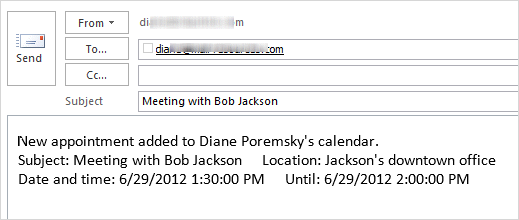
To avoid sending email for personal appointments, the VBA looks for a category named "private" and only sends an email if that category is NOT assigned to the appointment. You could use a subject filter to check for the word Private as the first word in the subject instead:
If Item.Class = olAppointment And _
    Left(Item.Subject, 8) <> "Private:" Then
With a little tweaking, the delegate could generate the email to the boss when she adds a new appointment to the boss's calendar.
Send an Email when a New Appointment is added to Calendar
Private WithEvents Items As Outlook.Items

Private Sub Application_Startup()
  Dim Ns As Outlook.NameSpace
  Set Ns = Application.GetNamespace("MAPI")
  Set Items = Ns.GetDefaultFolder(olFolderCalendar).Items
End Sub

Private Sub Items_ItemAdd(ByVal Item As Object)
  On Error Resume Next

If Item.Class = olAppointment And _
   Item.Categories <> "private" Then

  Dim objMsg As MailItem
   Set objMsg = Application.CreateItem(olMailItem)

   objMsg.To = "alias@domain.com"
   objMsg.Subject = Item.Subject
   objMsg.Body = "New appointment added to " & Item.Organizer & "'s calendar." & _
     vbCrLf & "Subject: " & Item.Subject & "     Location: " & Item.Location & _
     vbCrLf & "Date and time: " & Item.Start & "     Until: " & Item.End

'use Display instead of Send if you want to add a note before sending
   objMsg.Send

   Set objMsg = Nothing

   End If

End Sub
Watching for new items in a non-default calendars
If the calendar is not your default calendar, you need to use the Function for non-default folders at Working with VBA and non-default Outlook Folders.
After adding the GetFolderPath function to the module, change
Set Items = Ns.GetDefaultFolder(olFolderCalendar).Items
to
Set Items = GetFolderPath("other-datafile-display-name\Calendar").Items
Don't forget to change the display name to the name that is used in the folder list.
Watch for new appointments in a Shared Calendar
To watch for updates in a shared calendar (Exchange Server), you need to resolve the recipient and use GetSharedDefaultFolder. Replace the Application_Startup macro with this, using the shared mailbox's display name as it appears in the GAL.
Private Sub Application_Startup()
  Dim Ns As Outlook.NameSpace
  Dim CalendarFolder As Outlook.Folder
  Dim objOwner As Outlook.Recipient

  Set Ns = Application.GetNamespace("MAPI")
  Set objOwner = Ns.CreateRecipient("Mary Contrary")
    objOwner.Resolve

 'MsgBox objOwner.Name

 If objOwner.Resolved Then

  Set CalendarFolder = Ns.GetSharedDefaultFolder(objOwner, olFolderCalendar)
  Set Items = CalendarFolder.Items
 End If

End Sub
Watch for Updates
To watch for updates, you'll use the same code in a procedure named Private Sub Items_ItemChange(ByVal Item As Object). If you are watch for new or updated items, add this code to the module after the ItemAdd code above. If you are only watching for the ItemChange event, you need to use the Application_Startup and declaration code from above. (Or use the code above and change ItemAdd to ItemChange.)
Private Sub Items_ItemChange(ByVal Item As Object)
  On Error Resume Next

If Item.Class = olAppointment Then

  Dim objMsg As MailItem
   Set objMsg = Application.CreateItem(olMailItem)

   objMsg.To = "alias"
   objMsg.Subject = Item.Subject
   objMsg.Body = "Appointment changed " & Item.Organizer & "'s calendar." & _
     vbCrLf & "Subject: " & Item.Subject & "     Location: " & Item.Location & _
     vbCrLf & "Date and time: " & Item.Start & "     Until: " & Item.End

'use Display instead of Send if you want to add a note before sending
   objMsg.Display

   Set objMsg = Nothing

   End If

End Sub
Send message from Creator
If you have multiple users sharing the same calendar and set the macro up for each user, when the new calendar event syncs to each computer, multiple messages will be generated. To prevent this, use a properyaccessor to get the account name that created the appointment and compare it to the default email account name. If they match, generate the message.
This code watches the user's default calendar. See Working with VBA and non-default Outlook Folders if you need to watch a different calendar.
Private WithEvents Items As Outlook.Items

Private Sub Application_Startup()
  Dim Ns As Outlook.NameSpace
  Set Ns = Application.GetNamespace("MAPI")
  Set Items = Ns.GetDefaultFolder(olFolderCalendar).Items
End Sub

Private Sub Items_ItemAdd(ByVal Item As Object)
  'On Error Resume Next

Dim CreatedByName 'As String
Dim pa As Outlook.propertyAccessor
Set olns = Application.GetNamespace("MAPI")
Set pa = Item.propertyAccessor
CreatedByName = pa.GetProperty("http://schemas.microsoft.com/mapi/proptag/0x3FFA001E")

If CreatedByName = olns.Accounts.Item(1) Then


'If Item.Class = olAppointment And _
   Item.Categories <> "private" Then

  Dim objMsg As MailItem
   Set objMsg = Application.CreateItem(olMailItem)

   objMsg.To = "alias@domain.com"
   objMsg.Subject = Item.Subject
   objMsg.Body = "New appointment added to " & Item.Organizer & "'s calendar." & "By " & CreatedByName & _
     vbCrLf & "Subject: " & Item.Subject & "     Location: " & Item.Location & _
     vbCrLf & "Date and time: " & Item.Start & "     Until: " & Item.End
'use Display instead of Send if you want to add a note before sending
   objMsg.Display 'Send

   Set objMsg = Nothing

   End If
' End If
 Set olns = Nothing
End Sub

Liz says
Hi Diane,
I'm struggling with this macro. Here is my scenario: I have two mailboxes - me@domain.com and InteractionsCalendar@domain.com, which shows up in my company's address book as Interactions Calendar. I am the "owner" of the Interactions Calendar mailbox, but it is not my default mailbox. I have granted Author permissions to other users (user3, user4, etc.) so that they can send meeting invitations on this calendar, "I" have shared the calendar with them (they received a sharing invitation from Interactions Calendar but I'm the actual person).
I want to generate an e-mail to user2@domain.com every time I or one of the Authors adds, updates, or deletes a meeting from the Interactions Calendar. It's not my default calendar, but it's not a second calendar on my default mailbox. It's the default calendar on an entirely separate mailbox, but it's not quite like another user shared the calendar with me, because I'm the owner and have full access to this second mailbox. So I'm struggling with which code pieces to use from this page and the page on "Working with VBA and non-default Outlook Folders". Can you provide me some guidance?
Jaime L. says
I've been playing with your code and I can get (2) operations to work separately in the code, but not together - I can add events to calendar then it sends an email, or I can delete events and it sends an email. But I can't do both in one combined code. Can you help?
Private WithEvents Items As Outlook.Items
Private Sub Application_Startup()
Dim Ns As Outlook.NameSpace
Set Ns = Application.GetNamespace("MAPI")
Set Items = Ns.GetDefaultFolder(olFolderCalendar).Items
End Sub
Private Sub Items_ItemAdd(ByVal Item As Object)
On Error Resume Next
If Item.Class = olAppointment And _
Item.Categories "private" Then
Dim objMsg As MailItem
Set objMsg = Application.CreateItem(olMailItem)
objMsg.To = "jaime@whatever.com"
objMsg.Subject = "New entry on Whatever's calendar"
objMsg.Body = Item.Subject & _
vbCrLf & "" & _
vbCrLf & "Location: " & Item.Location & _
vbCrLf & "" & _
vbCrLf & Item.Start & _
vbCrLf & "until" & _
vbCrLf & Item.End
'use Display instead of Send if you want to add a note before sending
objMsg.Send
Set objMsg = Nothing
End If
End Sub
Nik says
Diane,
WHat are the steps to get this to work? I have Outlook 2016. I added developer toolbar, new Macro, named it EmailCal, copy paste your code. It has a syntax error, and Private WithEvents Items As Outlook.Items is all in red.
New to Outlook VBA, just curious if you have a step by step guide on how to create and run a module.
Thanks
Diane Poremsky says
did you paste the macros in thisoutlooksession?
dean gross says
I have an outlook.com that i have shared with my wife, when i make a change, she is getting an email notification that the calendar event was updated, which is not desirable. I can't find any settings to control this behavior. This is something that just recently started occurring. Do you have any idea what would be causing this or how to control it?
Diane Poremsky says
try options, calendar - under shared calendars.
Ray says
Diane,
Running Outlook 2013 and I'm trying to e-mail the day's calendar whenever a new mtg is scheduled. It sounds very similar to your "Send an Email when a New Appointment is added to Calendar", which I've successfully implemented, but just do not know how to access Outlook's e-mail calendar feature. I've looked at other threads, but it looks rather involved. Wish I had the record macro feature here which is common to other MS Office apps...
Edwin says
Hi,
I was wondering if it would be possible to check multiple shared calendar's (Exchange Server) at the same time? How would I set this up?
Thx
Diane Poremsky says
You can. You need to set a unique reference for each one in the app start macro then repeat the itemadd macros - what I usually do is create 'stub' macros that pass the item to the macro that does the work, especially when everything in the macros would be identical.
Private WithEvents Items As Outlook.Items
Private WithEvents shared1 As Outlook.Items
Private Sub Application_Startup()
Dim Ns As Outlook.NameSpace
Set Ns = Application.GetNamespace("MAPI")
Set Items = Ns.GetDefaultFolder(olFolderCalendar).Items
' shared folder code goes here
Set shared1 = ' the code
End Sub
Private Sub Items_ItemAdd(ByVal Item As Object)
Dowhatever item
End sub
Private Sub shared1_ItemAdd(ByVal Item As Object)
Dowhatever item
End sub
Sub dowhatever(ByVal Item As Object)
On Error Resume Next
If Item.Class = olAppointment And _
Item.Categories <> "private" Then
Dim objMsg As MailItem
Set objMsg = Application.CreateItem(olMailItem)
objMsg.To = "alias@domain.com"
objMsg.Subject = Item.Subject
objMsg.Body = "New appointment added to " & Item.Organizer & "'s calendar." & _
vbCrLf & "Subject: " & Item.Subject & " Location: " & Item.Location & _
vbCrLf & "Date and time: " & Item.Start & " Until: " & Item.End
'use Display instead of Send if you want to add a note before sending
objMsg.Send
Set objMsg = Nothing
End If
End Sub
edwin says
Hi,
Thanks for you answer but I am not quite sure what I am supposed to do. ( I am new to VBA) I am currently using the following code:
Private WithEvents Items As Outlook.Items
Private Sub Application_Startup()
Dim Ns As Outlook.NameSpace
Dim CalendarFolder As Outlook.folder
Dim objOwner As Outlook.Recipient
Set Ns = Application.GetNamespace("MAPI")
Set objOwner = Ns.CreateRecipient("mailadressharedfolder@company.com")
objOwner.Resolve
'MsgBox objOwner.Name
If objOwner.Resolved Then
Set CalendarFolder = Ns.GetSharedDefaultFolder(objOwner, olFolderCalendar)
Set Items = CalendarFolder.Items
End If
End Sub
Private Sub Items_ItemAdd(ByVal Item As Object)
'On Error Resume Next
Dim CreatedByName 'As String
Dim pa As Outlook.PropertyAccessor
Set olns = Application.GetNamespace("MAPI")
Set pa = Item.PropertyAccessor
CreatedByName = "user@company.com"
If CreatedByName = olns.Accounts.Item(1) Then
'If Item.Class = olAppointment And _
Item.Categories "private" Then
Dim objMsg As MailItem
Set objMsg = Application.CreateItem(olMailItem)
objMsg.To = "receiver@company.com"
objMsg.Subject = Item.Subject & " " & Item.Start
objMsg.Body = "subject" & Item.Organizer & "'s calendar." & "By " & CreatedByName & _
vbCrLf & "Subject: " & Item.Subject & _
vbCrLf & "Date and time: " & Item.Start & " Until: " & Item.End & _
vbCrLf & vbCrLf & Item.Body
'use Display instead of Send if you want to add a note before sending
objMsg.Send
Set objMsg = Nothing
End If
' End If
Set olns = Nothing
End Sub
I am not sure how to insert a second shared mailbox in here. What kind of code do I need to insert at "set shared1= ??" Thanks.
Diane Poremsky says
Add this at the top:
Private WithEvents sItems As Outlook.Items
Add this to app start:
Dim CalendarShareFolder As Outlook.folder
Dim objOwnerS As Outlook.Recipient
Set objOwnerS = Ns.CreateRecipient("second account")
objOwnerS.Resolve
If objOwnerS.Resolved Then
Set CalendarShareFolder = Ns.GetSharedDefaultFolder(objOwner, olFolderCalendar)
Set sItems = CalendarFolder.Items
then duplicate the items add sub, renaming it.
Private Sub sItems_ItemAdd(ByVal Item As Object)
if everything is identical in both itemadd macros, you could use stubs to call a 3rd macro that is shared but i have a meeting starting in 5 minutes and don't have time to do it. I have stub examples on the site though.
Adam Lacey says
Hello,
VBA isn't an area I know about and I'm trying to get a custom email sent to an address once a NEW appointment is added to a shared "Training" calendar.
I have merged the code below but it's not working I believe, can someone help me please? (Using Outlook 2013 and may go to 2016 soon):
Private Sub Application_Startup(ByVal Item As Object)
Dim Ns As Outlook.NameSpace
Dim CalendarFolder As Outlook.Folder
Dim objOwner As Outlook.Recipient
Set Ns = Application.GetNamespace("MAPI")
Set objOwner = Ns.CreateRecipient("Training")
objOwner.Resolve
'MsgBox objOwner.Name
If objOwner.Resolved Then
Set CalendarFolder = Ns.GetSharedDefaultFolder(objOwner, olFolderCalendar)
Set Items = CalendarFolder.Items
End If
Dim objMsg As MailItem
Set objMsg = Application.CreateItem(olMailItem)
objMsg.To = "MYSELF@DOMAIN.co.uk"
objMsg.Subject = "Training appointment"
objMsg.Body = Item.Subject & "with" & Item.Organizer & _
vbCrLf & "Subject: " & Item.Subject & _
vbCrLf & "#priority medium" & _
vbCrLf & "#due" & Item.Start & _
vbCrLf & "#set customer= CODE - NAME" & Item.End
'use Display instead of Send if you want to add a note before sending
objMsg.Send
Set objMsg = Nothing
End Sub
Diane Poremsky says
you need two macros - the app startup to tell it which folder to watch and the itemadd that actually watches the folder.
*snip*
Set CalendarFolder = Ns.GetSharedDefaultFolder(objOwner, olFolderCalendar)
Set Items = CalendarFolder.Items
End If
End Sub
Private Sub Items_ItemAdd(ByVal Item As Object)
Dim objMsg As MailItem
Set objMsg = Application.CreateItem(olMailItem)
*snip*
Also, you need to reference items, not item:
objMsg.Body = Items.subject...
You also need this at the very top of the macros:
Private WithEvents Items As Outlook.Items
Jonathan says
Hi Diane,
Great article thank you! - I was able to set up email notifications for a Public Shared Calendar when anything is added or changed in the Calendar. However, I was wondering if there is a way to get notified when something is deleted from a Calendar, and have a notification email sent which includes info about what was deleted. I was able to setup notifications using ItemRemove() - but this lacks info about what was removed. I've been trying to setup BeforeDeleteItem - but no matter what I do I can't get it to work, even with a local calendar. The script just doesn't fire when I delete something. I am using Office 365.
Diane Poremsky says
I'll take a look and see if i can come up with something that works better then this - which only works if you use the macro, not the X button.
Public WithEvents myItem As Outlook.AppointmentItem
Public olApp As New Outlook.Application
Public Sub DeleteMail()
Const strCancelEvent = "Application-defined or object-defined error"
On Error GoTo ErrHandler
Set olApp = CreateObject("Outlook.Application")
Set myItem = olApp.ActiveExplorer.Selection.Item(1)
myItem.Delete
Exit Sub
ErrHandler:
MsgBox Err.Description
If Err.Description = strCancelEvent Then
MsgBox "The event was cancelled."
End If
'If you want to execute the next instruction
Resume Next
'Otherwise it will finish here
End Sub
Private Sub myItem_BeforeDelete(ByVal Item As Object, Cancel As Boolean)
Set objMsg = Application.CreateItem(olMailItem)
With objMsg
.To = "Alias@domain.com"
.Subject = Item.Subject & " was deleted on " & Now
.Body = Item.Start & vbCrLf & Item.Body
.Display
End With
Set objMsg = Nothing
End Sub
Diane Poremsky says
Here's a better one - watch the deleted items folder and when an appointment items hits, create the email. it doesn't work when you delete a recurring series and I'm not sure why.
Private WithEvents trashCalendar As Outlook.Items
Private Sub Application_Startup()
Dim NS As Outlook.NameSpace
Set NS = Application.GetNamespace("MAPI")
' watch for new items
Set trashCalendar = NS.GetDefaultFolder(olFolderDeletedItems).Items
Set NS = Nothing
End Sub
Private Sub trashCalendar_ItemAdd(ByVal Item As Object)
If Not TypeOf Item Is AppointmentItem Then Exit Sub
On Error Resume Next
Set objMsg = Application.CreateItem(olMailItem)
With objMsg
.To = "Alias@domain.com"
.Subject = Item.Subject & " was deleted on " & Now
.Body = Item.Start & vbCrLf & Item.Body
.Display
End With
Set objMsg = Nothing
End Sub
Jonathan says
This works perfectly...but only with local calendars not Public :( - Thanks for the effort! I'm going to investigate if the exchange server settings can be tweaked.
Diane Poremsky says
Oh, it only works on appointments you delete - it should work for any calendar item that hits your deleted items folder.
Jonathan says
Thanks Diane,
I was able to get BeforeDeleteItem to work with local calendars, or sub-calendars - but for some reason it doesn't work with a Public shared calendar. This same code works well with the Update and New routines (on Public Shared Calendars). The only thing I notice is when I delete from a Public Calendar it says it will be permanently deleted...not sure if that's a clue.
Here's the code I'm using so far:
Dim WithEvents JobFolder As Outlook.Folder
Dim objDelFolder As Outlook.Folder
Private Sub Application_Quit()
Set olkCalendar = Nothing
Set JobFolder = Nothing
Set objDelFolder = Nothing
End Sub
'Sets up the Calendar - drill down the folder hierarchy
Private Sub Application_Startup()
'Change the folder name on the next line as needed'
Set JobFolder = Session.GetDefaultFolder(olPublicFoldersAllPublicFolders).Folders("TRSI - Canada")
Set JobFolder = JobFolder.Folders("Marine Jobs")
'Set JobFolder = Session.GetDefaultFolder(olFolderCalendar).Folders("Test")
Set objDelFolder = Application.Session.GetDefaultFolder(olFolderDeletedItems)
End Sub
Private Sub JobFolder_BeforeItemMove(ByVal Item As Object, ByVal MoveTo As MAPIFolder, Cancel As Boolean)
MsgBox "Fired"
If MoveTo Is Nothing Then
Debug.Print Item.Subject & " was hard deleted"
MsgBox Item.Subject & "hard delete"
ElseIf MoveTo = objDelFolder Then
Debug.Print Item.Subject & " was moved to Deleted Items"
MsgBox Item.Subject & "soft delete"
End If
End Sub
Diane Poremsky says
>> it will be permanently deleted...not sure if that's a clue.
I'm sure it is a clue. I know the code i used that watches the deleted items folder won't work, because the apt isn't moved to the deleted items folder. I'll play with it this afternoon.
Marjorie says
Hi Diane,
I'd like to receive an email when a certain category is given to an appointment. Could you please help me with the code?
Diane Poremsky says
That would be this line in the code - to watch for one category, change the brackets to an equal sign and change the category name to the one you want to watch for.
If Item.Class = olAppointment And _
Item.Categories = "private" Then
Marjorie says
Thank you, Diana!
Jesse says
I am getting multiple emails when I add an appointment as well as when I adjust one. Any idea why this may be?
Diane Poremsky says
The code is seeing it as a new appointment. What type of email account are you using? Are you only using the macro that watches for new items, not also the one that looks for changes?
Jesse says
I am using an Outlook Exchange server. I am trying to use the macro for both the new and adjusted appointments.
Diane Poremsky says
I've seen this happen with the deleted events version (it's related to cached mode) but not with new and changed appt. I'll look into it.
Jesse says
Hi Diane, have you had any luck with a solution to the multiple emails?
Adrian Hernandez says
Thanks. The above code works great. One question, I am getting the e-mails, but, they don't have the option of Accept/Decline, w/o this option the Calendar event will no be added to my Hotmail Calendar. How can I accomplish this?
Diane Poremsky says
To get the accept/decline box, it needs to be sent as a meeting request. This code snippet is from the accept and forward copy to another address article.
Set oAppt = Application.CreateItem(olAppointmentItem)
With oAppt
.MeetingStatus = olMeeting
.Subject = "Accepted: " & cAppt.Subject
.Start = cAppt.Start
.Duration = cAppt.Duration
.Location = cAppt.Location
Set meAttendee = .Recipients.Add("me@mydomain.com")
meAttendee.Type = olRequired
.Send
End With
Andy Knapper says
Hi
Would this be able to be run at a specific time for a specific period?
My boss likes to know what days i'm out of the office for the upcoming week, so could this be set to run on a Friday with all appointments that are tagged "out of office" for the next seven days?
Diane Poremsky says
You can trigger macros using a reminder or other actions (reminders are the easiest). The reminder method is here: https://www.slipstick.com/developer/send-email-outlook-reminders-fires/
David Eisinger says
Will this work for group calendar? Can specific people be notified by email when updating a shared or group calendar?
Diane Poremsky says
yes, provided its open in someone's profile. id its in a shared mailbox, replace the application startup macro with the one under Watch for new appointments in a Shared Calendar.
Paul C. says
How do I get this macro to run all the time? Right now I have created the macro using your code (thanks!) but when I create a calendar appointment no email goes out. Am I missing something?
Michael Fitzpatrick says
Hi Diane,
I have to code working to send an email when a New Appointment is added to a 'Shared Mailbox' Calendar as described. I have multiple people who will need to add appointments to this calendar. I have the macro code setup on each of their Outlook clients. the problem is that when anyone add a new appointment, an email is sent from all the users.
How can this be configured so that the only email is sent is from the user who added the appointment?
Thanks.
Diane Poremsky says
I think the best method is to check for the organizer and if the organizer is your account, send it.
Diane Poremsky says
Try adding this code above the if line -
Dim CreatedByName 'As String
Dim pa As Outlook.propertyAccessor
Set olns = Application.GetNamespace("MAPI")
Set pa = Item.propertyAccessor
CreatedByName = pa.GetProperty("https://schemas.microsoft.com/mapi/proptag/0x3FFA001E")
If CreatedByName = olns.Accounts.Item(1) Then
(and another end if at the end)
Michael Fitzpatrick says
Hi Diane, I tried to post this a few days ago, but it has disappeared...
I cannot seem to get this additional code to only 'Send message from Creator' to work. Now nothing happens when I add a calendar entry. Can you confirm the code works? There seems to be a few differences between what is here in your March 11 post, versus what's further up in the 'Send Message from Creator' page section with the full code. Some code is commented out.
Any assistance will be appreciated, thanks.
Diane Poremsky says
I assume you mean this commented out line - that just removes watching for the appointment class. Since you are watching the calendar, you don't really need to check the type.
If CreatedByName = olns.Accounts.Item(1) Then
'If Item.Class = olAppointment And _
Item.Categories <> "private" Then
Are you using this from the first macro? You need these lines from the first one - the later macros on the page just replace the itemadd macro.
Private WithEvents Items As Outlook.Items
Private Sub Application_Startup()
Dim Ns As Outlook.NameSpace
Set Ns = Application.GetNamespace("MAPI")
Set Items = Ns.GetDefaultFolder(olFolderCalendar).Items
End Sub
Michael Fitzpatrick says
Hi again Diane,
I'm still trying to get this to work. I am almost there. I am selecting the shared calendar Event Scheduler in the Application Startup and this works fine. I believe the problem for me is in my Items_Add code definitions. If I comment out the "If CreatedByName = olns.Accounts.Item(1) Then", the email does get sent in my tests and does have my name as the CreatedByName. What am I missing here? Is it in the Set olns= somewhere? (I changed my email address in this post).
I really need to get this to work!.
Thanks so much, Michael.
Private WithEvents Items As Outlook.Items
Private Sub Application_Startup()
Dim Ns As Outlook.NameSpace
Dim CalendarFolder As Outlook.Folder
Dim objOwner As Outlook.Recipient
Set Ns = Application.GetNamespace("MAPI")
Set objOwner = Ns.CreateRecipient("Event Scheduler")
objOwner.Resolve
MsgBox objOwner.Name
If objOwner.Resolved Then
Set CalendarFolder = Ns.GetSharedDefaultFolder(objOwner, olFolderCalendar)
Set Items = CalendarFolder.Items
End If
End Sub
Private Sub Items_ItemAdd(ByVal Item As Object)
'On Error Resume Next
Dim CreatedByName 'As String
Dim pa As Outlook.PropertyAccessor
Set olns = Application.GetNamespace("MAPI")
Set pa = Item.PropertyAccessor
CreatedByName = pa.GetProperty("https://schemas.microsoft.com/mapi/proptag/0x3FFA001E")
If CreatedByName = olns.Accounts.Item(1) Then
'If Item.Class = olAppointment And _
Item.Categories "private" Then
Dim objMsg As MailItem
Set objMsg = Application.CreateItem(olMailItem)
objMsg.To = "EventAdmins@company.com"
objMsg.Subject = Item.Subject
objMsg.Body = "New appointment added to " & Item.Organizer & "'s calendar " & "by " & CreatedByName & _
vbCrLf & "Subject: " & Item.Subject & " Location: " & Item.Location & _
vbCrLf & "Date and time: " & Item.Start & " Until: " & Item.End
'use Display instead of Send if you want to add a note before sending
objMsg.Send 'Display
Set objMsg = Nothing
' End If
End If
Set olns = Nothing
End Sub
Diane Poremsky says
I think the problem is that olns.Accounts.Item(1) is getting your email address (the account display name) but createdby is using your display name from the AD.
There is a way to update the account name to a display name, but it would probably be better to lookup the account's display name.
danielg27 says
Hi Diane,
How can I use this to constantly monitor a shared calendar? As I understand, this will only work if the Outlook client is open. Is there a way to constantly monitor a shared calendar if new items are added to it?
Thanks in advance!
Diane Poremsky says
Yes, you would need Outlook open to use a macro to monitor the shared folder (or any folder) using VBA. You can't monitor the folder when Outlook is closed - doing so would require scripts running on the server and the administrator would need to set it up.
Carl says
So I am pretty sure I know what is going on. In this code I am attempting to use the EntryID from a incoming AppointmentItem Object and set it to my newly created MailItem Object which is why I am getting a type mismatch. I can create a new AppointmentItem and set the EntryID of the Incoming "Item" Object to that variable but I am unsure how I set up the test as I am really not sure what this is accomplishing. I assume that I am testing to see if the EntryID is the same as it was when created indicating nothing has changed so there is no need to send an email. Only if the EntryID is different (Which I assume would indicate a change to the appointment) would I need to send an email.
Does this make sense? Or am I totally off on the logic of the code?
Thanks again Diane
Diane Poremsky says
Change mailitem to object
Dim objMsg As object
and see if it works.
Carl says
Hi Diane!
Is there any way I can get you to walk my through what you mean by using the entryid to avoid the 3 email issue with exchange? I would really appreciate it. Here is my code for the ItemChange
Private Sub ItemsLrg_ItemChange(ByVal Item As Object)
On Error Resume Next
If Item.Class = olAppointment Then
Dim iD As String
iD = Item.EntryID
Dim objMsg As MailItem
Set objMsg = Application.Session.GetItemFromID(iD)
objMsg.To = "someone@work.com"
objMsg.Subject = "Large Conference Room Appointment Modified"
objMsg.Body = "Appointment changed " & Item.Organizer & "'s calendar." & _
vbCrLf & "Subject: " & Item.Subject & _
vbCrLf & "Date and time: " & Item.Start & " Until: " & Item.End
objMsg.Display
Set objMsg = Nothing
End If
End Sub
Set this way I no longer get 3 emails when the appoint is first made but I also do not get any messages when the appointment is changed.
If I have my code setup like your initial code shows above I get the 3 emails when creating or modifying an appointment.
I am not too familiar with VBA as I am mainly java and c#
Also can you direct me to a good API resource for VBA? I am trying to get an email setup when someone deletes an appointment as well.
Thank you so much for these procedures they helped me in finding a solution I have been working on :).
Diane Poremsky says
Reply the two lines that Dim and Set objmsg with the following:
Dim strID As String
Dim objMsg As MailItem
strID = Item.EntryID
Set objMsg = Application.Session.GetItemFromID(strID)
The best resource is usually MSDN - https://msdn.microsoft.com/en-us/library/office/fp161224(v=office.15).aspx
Carl says
Hi DIane!,
Thank you for the speedy reply I very much appreciate it. So I ran the changes you suggested as shown:
Dim strID As String
Dim objMsg As MailItem
strID = Item.EntryID
Set objMsg = Application.Session.GetItemFromID(strID)
However I am getting a runtime error '13' Type mismatch at the line:
Set objMsg = Application.Session.GetItemFromID(strID)
This occurs during the next sync cycle from the exchange server after I add an event to the calendar and receive the initial email for appt made.
I tried a few datatype changes to fix the issue but would get other errors.
If it matters I am running Outlook 2010 and Exchange server 2010. I apologize if this is a trivial error but don't seem to have a lot of luck finding specific solutions on other sites.
Thanks again!
Chris says
Brilliant.
A "me too" on the sending three times on update.
I tweaked the original to send as vcs file, so can be accepted by my gmail calendar
Private Sub Items_ItemAdd(ByVal Item As Object)
Dim oForward As MailItem
If TypeName(Item) = "AppointmentItem" Then
'Forward the appointment
Set oForward = Item.ForwardAsVcal
oForward.Recipients.Add ("bob@gmail.com")
'Send it
oForward.Send
Set oForward = Nothing
End If
Diane Poremsky says
An exchange account will create up to 3 items under certain circumstances (like macros that create a new item when one is updated) - it's due to syncing updates. Using the entryid for the item that triggers it works as does adding a category and using an if statement that looks for any category but that one. I'll see if i can get this one to repro and see if the entryid solution fixes it.
Chris says
Many thanks, alas, not "official" work, so I can't dig too deep. Just trying to get my work appointments on personal phone as we are about to switch off "unmanaged" access
hello123 says
I am not able to run the code "Send an Email when a New Appointment is added to Calendar". It says error in the first line at "private WithEvents.......". Could anyone solve this issue since its quite urgent.
Diane Poremsky says
Family is sleeping so i can't talk, but here is a silent video showing how it works -
https://www.screencast.com/t/Bb2yFp02oDg2
(it doesn't show checking the macro security settings.)
Jami Backer says
I'm currently using this code and it's working beautifully. I do however wonder if there is more code to add that would make the notification email appear in red. Thanks!
Diane Poremsky says
If you want it to show up in your message list in red, make it past due. However, outlook can make this difficult and remove past due reminders - if so add a flag for follow up text and make a conditional rule to display messages with this flag in color
objMsg.FlagRequest = "Appointment added to calendar"
past due code is objMsg.TaskDueDate = Now - 1
yodelayheewho says
Hi Diane,
I changed the objmsg.send line to objmsg.display.
Then, when I add Private WithEvents Items As Outlook.Items to the very first line. It turns red and I get the following error message: "Compile error: Only valid in object module".
I click ok to get rid of the error message.
When I try to click Run, then the macro dialog box pops up asking me to name the macro. So, I named it: HomeCalendarEMailedToWorkCalendar and it places the following underneath all of the code:
Sub HomeCalendarEMailedToWorkCalendar()
End Sub
Diane Poremsky says
Did you put the macro in ThisOutlookSession?
yodelayheewho says
Hi Diane,
I finally was able to hit 'run' and get no error messages for the following code (I substituted my work email address and my name with the word "alias").
I ran a test, creating an appointment in Outlook 2013 on my home PC laptop with my work PC laptop next to me, with Outlook 2010 open. I never received an email notifying me that I scheduled an appointment on my home PC:(
I feel like I'm so close to solving this. What am I missing?
Private Sub Application_Startup()
Dim Ns As Outlook.NameSpace
Set Ns = Application.GetNamespace("MAPI")
Set Items = Ns.GetDefaultFolder(olFolderCalendar).Items
End Sub
Private Sub Items_ItemAdd(ByVal Item As Object)
On Error Resume Next
If Item.Class = olAppointment Then
Dim objMsg As MailItem
Set objMsg = Application.CreateItem(olMailItem)
objMsg.To = "alias"
objMsg.Subject = Item.Subject
objMsg.Body = "New appointment added to alias's personal calendar" & Item.Organizer & "alias's work calendar." & _
vbCrLf & "Subject: " & Item.Subject & " Location: " & Item.Location & _
vbCrLf & "Date and time: " & Item.Start & " Until: " & Item.End
'use Display instead of Send if you want to add a note before sending
objMsg.Send
Set objMsg = Nothing
End If
End Sub
Private Sub Items_ItemChange(ByVal Item As Object)
On Error Resume Next
If Item.Class = olAppointment Then
Dim objMsg As MailItem
Set objMsg = Application.CreateItem(olMailItem)
objMsg.To = "alias"
objMsg.Subject = Item.Subject
objMsg.Body = "Appointment changed on alias's personal calendar" & Item.Organizer & "alias's work calendar." & _
vbCrLf & "Subject: " & Item.Subject & " Location: " & Item.Location & _
vbCrLf & "Date and time: " & Item.Start & " Until: " & Item.End
'use Display instead of Send if you want to add a note before sending
objMsg.Send
Set objMsg = Nothing
End If
End Sub
Sub HomeCalendarEMailedToWorkCalendar()
End Sub
Diane Poremsky says
change the objmsg.send line to objmsg.display - see if the message opens on screen.
Not sure what this is supposed to do:
Sub HomeCalendarEMailedToWorkCalendar()
End Sub
but the reset of the code looks good. Well, except for the missing first line: Private WithEvents Items As Outlook.Items. With that added, the code works here.
saju says
Hi Diane
Is there a way to get notified by email whenever a change is made in a shared calendar by some one else? I understand that the above codes are for sending emails to others when one tries to create a new appointment or updates an already existing appointment in a shared calendar.
Diane Poremsky says
You can use the code with a shared calendar, provided the calendar was in your Outlook profile. It should run when it detects a new item in the calendar (if you set it to watch the correct calendar), although I'm not sure it will detect changes to events.
Darryl says
Diane,
I have copied and pasted the script into ThisOutlookSession and when I click the save button and then try to run it, it pulls up the Macros box and there is nothing to select to run. What am I missing here? This is my first time working with scripts. Thank you.
Diane Poremsky says
Its an application start macro. Click in the application start macro and click run or restart outlook to start it. Macros with 'sub name (something here)' format are called by other macros.
Lauren says
Diane,
I can't get it to work at all for whatever reason. I don't have the option to "run" after I input the code in a module. Suggestions?
Thanks!
Diane Poremsky says
There should be a Run icon in the tool bar, or press F5 to start it.
yodelayheewho says
Diane,
Now, when I close and reopen Outlook 2013, I get the following message:
"This file contains macros with an expired or revoked signature. Since you are running under High Security Level, these macros will be disabled."
Diane Poremsky says
For testing you need to use low security, then when the macro is finished, sign it and set security to signed only. The reason for this is because every time you change the macro, you need to re-sign it.
yodelayheewho says
Diane,
I tried to run the macro (below) and I got this message: "The macros in this project are disabled. Please refer to online help or documentation of the host application to determine how to enable macros."
I found a tip on the Internet suggesting I digitally sign the macro. So, I did. I closed Outlook 2013 and opened it again. And got the message above.
My Macro Settings in the Trust Center are: "Notifications for digitally signed macros, all other macros disabled."
Another tip was to change the Macro Settings in the Trust Center to: "Enable all macros..." I am not comfortable with this as it may be 'potentially dangerous'.
Here's the code I have:
Private Sub Application_Startup()
Dim Ns As Outlook.NameSpace
Set Ns = Application.GetNamespace("MAPI")
Set Items = Ns.GetDefaultFolder(olFolderCalendar).Items
End Sub
Private Sub Items_ItemAdd(ByVal Item As Object)
On Error Resume Next
If Item.Class = olAppointment Then
Dim objMsg As MailItem
Set objMsg = Application.CreateItem(olMailItem)
objMsg.To = "work email address here"
objMsg.Subject = Item.Subject
objMsg.Body = "New appointment added to My personal calendar" & Item.Organizer & "My work calendar." & _
vbCrLf & "Subject: " & Item.Subject & " Location: " & Item.Location & _
vbCrLf & "Date and time: " & Item.Start & " Until: " & Item.End
'use Display instead of Send if you want to add a note before sending
objMsg.Send
Set objMsg = Nothing
End If
End Sub
Private Sub Items_ItemChange(ByVal Item As Object)
On Error Resume Next
If Item.Class = olAppointment Then
Dim objMsg As MailItem
Set objMsg = Application.CreateItem(olMailItem)
objMsg.To = "work email address here"
objMsg.Subject = Item.Subject
objMsg.Body = "Appointment changed on My personal calendar" & Item.Organizer & "My work calendar." & _
vbCrLf & "Subject: " & Item.Subject & " Location: " & Item.Location & _
vbCrLf & "Date and time: " & Item.Start & " Until: " & Item.End
'use Display instead of Send if you want to add a note before sending
objMsg.Send
Set objMsg = Nothing
End If
End Sub
Any suggestions?
Diane Poremsky says
The macro code is not causing the error. Does it work when macro security is set to low? If so, the code is fine. Using low during testing is safe - you can see all the code. :)
Once you are satisfied with the code, sign it and trust the signature then set the security to high. I have a video tutorial here - https://www.slipstick.com/developer/how-to-use-outlooks-vba-editor/
Diane Poremsky says
Hmmm. I decided i need to redo the video and guess what... I'm getting the same message on a signed macro. :(
Diane Poremsky says
Ok... not sure what fixed it, installing waiting updates or publishing the certificate in Trusted root, then Trusting it when the dialog comes up when restarting outlook. It also works to restart Outlook using Run as Admin once, so you can accept the certificate.
Lori says
Hello Diane, I am not a developer and concerned with inputting code that I'm not familiar with. I am wondering if you can help a novice set this up so any time I add a "personal" calendar item to my "personal" Outlook calendar, either via iphone/ipad/laptop, it automatically sends an email to my work email address. More and more I want to keep work and personal separate. This way I can create a separate personal calendar at work, from the emails I would send myself, which no one has access to, and overlay it with my work calendar to identify any conflicts, etc. Perhaps if you can tell me which elements in the code above need to be customized, I can do this myself.
Diane Poremsky says
The macro under Send an Email when a New Appointment is added to Calendar is all you need - if you are going to send the email for all appointments, change
If Item.Class = olAppointment And _
Item.Categories <> "private" Then
to
If Item.Class = olAppointment Then
and of course, enter the address you want the appt sent to. When you create an appt on a smartphone, the email won't be generated until the device syncs with Outlook. And outlook needs to be open for the macro to work.
Austin says
I guess I should of stated my goal. I have a Public Calendar in the Public Folders that I want to get email notifications when anything is added or changed.
thanks.
Austin Knobloch says
I am having trouble getting this implemented. I added this code as a "Class Module," but when I add an event nothing happens...Any help would be appreciated!
Diane Poremsky says
Do you have macro security set to low? Is the application startup macro in thisoutlooksession? That is a requirement. (You'll need to change the folder you're watching in application_startup too.)
Mike says
Thank you for the swift reply. Using Item.Categories the code works. I've run into a slightly different problem. If the appointment has more than one category assigned to it e.g. Book and Internal then it seems that the script ignores it. Is this right and is there a way to send an email for any appointment that has the "Book" category set?
The If ... then statement I'm using looks like this:-
If Item.Class = olAppointment And Item.Categories = "Book" Then
Thanks in advance.
Mike
Diane Poremsky says
Categories is a string, and the entire string is checked - if you use multi categories, you need to check for parts of the string, using Instr:
InStr(Item.Categories, "Book")
Mike says
Hello Diane. Thanks for the code. However, I am struggling to get the If... Then statement to filter correctly. I would like an email sent only when the new appointment has a certain category set. I'm using this code:-
If Item.Class = olAppointment And Items.Categories = "Book" Then
Unfortunately, the script sends an email regardless of the category set.
Any ideas?
Thanks!
Diane Poremsky says
Typo? Items.Categories should be Item.Categories
Diane Poremsky says
Also, the category name is case sensitive - I assume the category name is Book with a capital B, so you can consider this just an FYI and a warning for others who might use lower case in the code.
Josh says
Thanks Diane. I was able to make the ItemChange function work, but it is sending three emails for every change. Thoughts? Note: This is not my default calendar. It is a secondary calendar that I have shared.
Diane Poremsky says
What code are you using for itemchange?
Elizabeth says
I am having the same issues as Josh with three e-mails for ItemChange. Here's the code I'm using:
Private WithEvents Items As Outlook.Items
Private Sub Application_Startup()
Dim Ns As Outlook.NameSpace
Set Ns = Application.GetNamespace("MAPI")
Set Items = Ns.GetDefaultFolder(olFolderCalendar).Items
End Sub
Private Sub Items_ItemAdd(ByVal Item As Object)
On Error Resume Next
If Item.Class = olAppointment And _
Item.Categories "Private" Then
Dim objMsg As MailItem
Set objMsg = Application.CreateItem(olMailItem)
objMsg.To = "boss1@job.com"
objMsg.CC = "boss2@job.com"
objMsg.Subject = "Appointment Added to " & Item.Organizer & "'s Calendar."
objMsg.Body = "A new appointment has been added to " & Item.Organizer & "'s calendar." & _
vbCrLf & "Subject: " & Item.Subject & " " & _
vbCrLf & "Location: " & Item.Location & " " & _
vbCrLf & "Date and time: " & Item.Start & " until " & Item.End
objMsg.Display
Set objMsg = Nothing
End If
End Sub
Private Sub Items_ItemChange(ByVal Item As Object)
On Error Resume Next
If Item.Class = olAppointment And _
Item.Categories "Private" Then
Dim objMsg As MailItem
Set objMsg = Application.CreateItem(olMailItem)
objMsg.To = "boss1@job.com"
objMsg.CC = "boss2@job.com"
objMsg.Subject = "Appointment Changed on " & Item.Organizer & "'s Calendar."
objMsg.Body = "An existing appointment has been changed on " & Item.Organizer & "'s calendar." & _
vbCrLf & "Subject: " & Item.Subject & " " & _
vbCrLf & "Location: " & Item.Location & " " & _
vbCrLf & "Date and time: " & Item.Start & " until " & Item.End
objMsg.Display
Set objMsg = Nothing
End If
End Sub
-----
Any ideas what is causing this? I really don't want to bombard my bosses with three e-mails every time I move my own appointments around, though obviously I'd like to notify them when my schedule changes. I've got it set to Display for now, so I am avoiding that, but I'd like to change it to Send eventually so it just happens without me thinking about it.
Additional Questions:
How can I set additional categories not to fire an e-mail? For example, my category for Bills. I just don't know the coding. Do I use commas or a separate line?
I also have appointments scheduled on the weekends, which my bosses don't need to be notified of. Is there a way to limit e-mails to those appointments scheduled during my set working hours?
Thank you for your assistance!
Diane Poremsky says
I figured this out the other day, at least for marking tasks complete. It should apply to appointments too, although I'm not sure if the fix will work the same. When cached mode syncs changes every 20~ seconds, it sees the item on the server was changed and runs the macro on the item as it syncs, even though it was already run. I'll see if the task solution might work here.
Josh says
How can I make this work to also notify of appointment removal or changes?
Diane Poremsky says
You can. You need to watch for delete and update events. Copy the ItemAdd macro and change the name of the copy to
Private Sub Items_ItemChange(ByVal Item As Object)
Using ItemRemove is a bit trickier (and isn't working for me tonight.) Same code, macro goes in a class module and is named Public Sub Items_ItemRemove() and you need a handler -
Public Sub Initialize_handler()
Set Items = Application.GetDefaultFolder(olFolderCalendar).Items
End Sub
Joseph says
How can I get this to work with a script in the rules? I want an email automatically sent to the sender with a message in the body of my email only when I have a calendar event set to "Out of Office" during the time the email was sent to me.
Thanks!
Neil Sams says
Sorry,
I cannot get this to work?
Diane Poremsky says
Do you get any error messages?
Do you have macro security set to low?
Did you restart Outlook or click in the Application Startup macro and click the Run button?