What I'm looking for is to grab the table data and dump it in the same work book and sheet as new emails come in.
Using the macros on this page, when table data is received in an email, the table can be copied to an Excel worksheet.
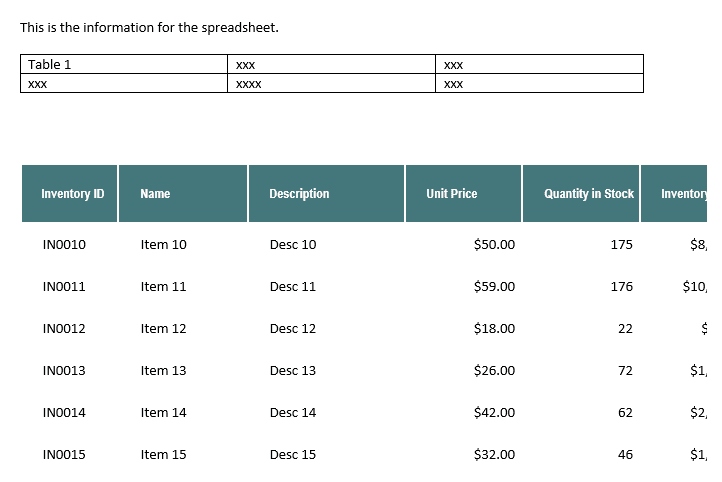
This sample email has two tables (and a short message), we're copying the contents of the last table into Excel.
These are the results. The table values from additional emails would be added to after the last used row.
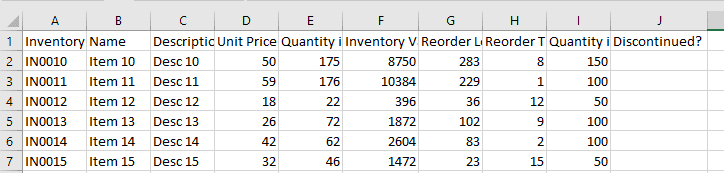
Note: if there are blank cells in the table, the contents of the row may paste into the wrong cell.
While the examples on this page copy the data in the second table only, you can get the data from all tables by using For x = 1 To doc.Tables.Count (and the matching Next) in place of x = doc.Tables.Count.
This version of the macro runs on the selected message(s). It saves the contents of the last table to a workbook stored in the user's Documents folder.
Sub SaveEmailTablestoExcel()
Dim Item As MailItem, x%
Dim r As Object  'As Word.Range
Dim doc As Object 'As Word.Document
Dim iRow As Long 'row index
Dim xlApp As Object, xlWB As Object
Dim xlSheet As Object
Dim strPath As String
Dim bXStarted As Boolean

Dim enviro As String
enviro = CStr(Environ("USERPROFILE"))
'the path of the workbook
 strPath = enviro & "\Documents\Book1.xlsx"
     On Error Resume Next
     Set xlApp = GetObject(, "Excel.Application")
     If Err <> 0 Then
         Application.StatusBar = "Please wait while Excel source is opened ... "
         Set xlApp = CreateObject("Excel.Application")
         bXStarted = True
     End If
     On Error GoTo 0
     'Open the workbook to input the data
     Set xlWB = xlApp.Workbooks.Open(strPath)
' Get sheet by name
     Set xlSheet = xlWB.Sheets("Sheet1")
' Get sheet by index #
     ' Set xlSheet = xlWB.Sheets(1)

xlApp.Visible = True

For Each Item In Application.ActiveExplorer.Selection
Set doc = Item.GetInspector.WordEditor
' to get all tables
 '   For x = 1 To doc.Tables.Count
' Get last table
     x = doc.Tables.Count
     Set r = doc.Tables(x)
'rows 2 - end
     For iRow = 2 To r.Rows.Count
         r.Rows(iRow).Range.Copy
'to get entire table
     ' r.Range.Copy

       xlSheet.Paste
       xlSheet.Cells(xlSheet.Rows.Count, 1).End(3).Offset(1).Select
    Next
Next
xlWB.Save

' close workbook
xlWB.Close 1
If bXStarted Then
    xlApp.Quit
End If

End Sub
Run a Script Rule
This is a run a script rule. It copies last table in the message to a new Excel workbook.
Outlook 2013 and 2016's Run a script rule is missing from all builds released after June 2017. To restore the run a script option, you need to set a registry key. See "Run-a-Script Rules Missing in Outlook" for more information.
Sub CopyTabletoExcel(Item As Outlook.MailItem)
Dim r As Object  'As Word.Range
Dim doc As Object 'As Word.Document
Dim iRow As Long 'row index
Dim xlApp As Object, xlWB As Object
Dim xlSheet As Object
Dim strPath As String
Dim bXStarted As Boolean

Dim enviro As String
enviro = CStr(Environ("USERPROFILE"))

'the path of the workbook
 strPath = enviro & "\Documents\Book1.xlsx"
     On Error Resume Next
     Set xlApp = GetObject(, "Excel.Application")
     If Err <> 0 Then
         Application.StatusBar = "Please wait while Excel source is opened ... "
         Set xlApp = CreateObject("Excel.Application")
         bXStarted = True
     End If
     On Error GoTo 0
     'Open the workbook to input the data
     Set xlWB = xlApp.Workbooks.Open(strPath)
'get sheet by name
Set xlSheet = xlWB.Sheets("Sheet1")

xlApp.Visible = True

Set doc = Item.GetInspector.WordEditor
' to get all tables
 '   For x = 1 To doc.Tables.Count
' Get last table
     x = doc.Tables.Count
     Set r = doc.Tables(x)
'rows 2 - end
     For iRow = 2 To r.Rows.Count
         r.Rows(iRow).Range.Copy
'to get entire table
     ' r.Range.Copy

       xlSheet.Paste
       xlSheet.Cells(xlSheet.Rows.Count, 1).End(3).Offset(1).Select
    Next

xlWB.Save

' close workbook
xlWB.Close 1
If bXStarted Then
    xlApp.Quit
End If

End Sub
How to use the macros on this page
First: You need to have macro security set to low during testing. The macros will not work otherwise.
To check your macro security in Outlook 2010 and newer, go to File, Options, Trust Center and open Trust Center Settings, and change the Macro Settings. In Outlook 2007 and older, look at Tools, Macro Security.
After you test the macro and see that it works, you can either leave macro security set to low or sign the macro.
Some macros need to be in ThisOutlookSession, others go into a module or can be placed in either ThisOutlookSession or a module. The instructions are below.
Open the VBA Editor by pressing Alt+F11 on your keyboard.
To put the code in a module:
- Right click on Project1 and choose Insert > Module
- Copy and paste the macro into the new module.
More information as well as screenshots are at How to use the VBA Editor

Phillip says
This solution doesn't even come close to what is requested for help. Why does this type of time wasting stuff get propagated around. This code does not change the format of the table into column heading then data.
Carlos says
Having trouble getting this to copy and paste anything besides the code in outlook itself. Can't get it to work on multiple emails either. Current output is:
Sub SaveEmailTablestoExcel()
Dim Item As MailItem, x%
Dim r As Object 'As Word.Range
Dim doc As Object 'As Word.Document
Dim iRow As Long 'row index
Dim xlApp As Object, xlWB As Object
Dim xlSheet As Object
Dim strPath As String
Dim bXStarted As Boolean
Dim enviro As String
enviro = CStr(Environ("USERPROFILE"))
'the path of the workbook
strPath = enviro & "\Documents\Book1.xlsx"
On Error Resume Next
Set xlApp = GetObject(, "Excel.Application")
If Err 0 Then
Application.StatusBar = "Please wait while Excel source is opened ... "
Set xlApp = CreateObject("Excel.Application")
bXStarted = True
End If
On Error GoTo 0
'Open the workbook to input the data
Set xlWB = xlApp.Workbooks.Open(strPath)
' Get sheet by name
Set xlSheet = xlWB.Sheets("Sheet1")
' Get sheet by index #
' Set xlSheet = xlWB.Sheets(1)
xlApp.Visible = True
For Each Item In Application.ActiveExplorer.Selection
Set doc = Item.GetInspector.WordEditor
' to get all tables
For x = 1 To doc.Tables.Count
'' Get last table
' x = doc.Tables.Count
Set r = doc.Tables(x)
''rows 2 - end
' For iRow = 2 To r.Rows.Count
' r.Rows(iRow).Range.Copy
''to get entire table
r.Range.Copy
xlSheet.Paste
xlSheet.Cells(xlSheet.Rows.Count, 1).End(3).Offset(1).Select
Next
Next
xlWB.Save
' close workbook
xlWB.Close 1
If bXStarted Then
xlApp.Quit
End If
End Sub
Mark says
Do you have any advice on how to handle the inspector when it does not fully populate? This is an all to common occurance unfortunately, when the paste only contains a partial copy of the complete set of rows, stopping at different points in the table depending on when it was ran.
Diane Poremsky says
Do you have multiple tables? I was troubleshooting it a couple of weeks ago and discovered it is not properly identifying the tables (at least not what i see as tables) - i added debug.print for the table and row counts, which were not correct compared to what i saw onscreen. Copying the entire range of each table got parts of the body not in the table - best guess is the message was formated with nested tables, which messed the macro up. I haven't had a lot of time to investigate it more. Sorry.