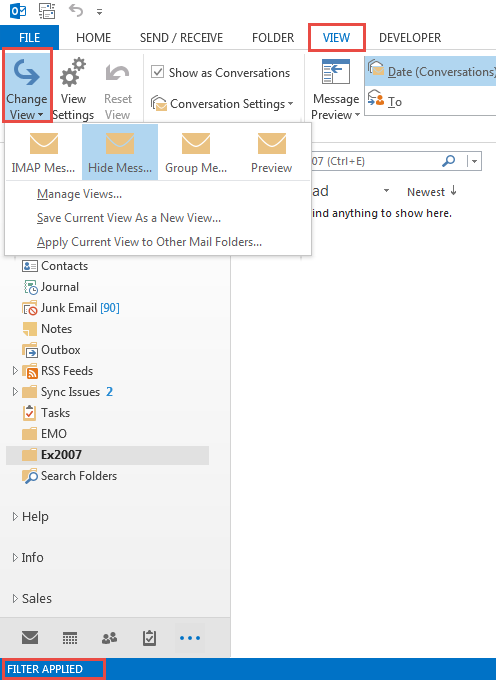
After exporting or archiving an IMAP account, or importing IMAP folders into Exchange mailboxes, users often discover their mail is not visible. This is because the exported folders retained the properties and views associated with the IMAP account. The default IMAP view is Hide messages marked for deletion and Exchange doesn't support marking messages, so the view hides all messages. By changing the view to IMAP messages in View, Change View, the messages are visible. They are also visible if you view the folder in OWA.
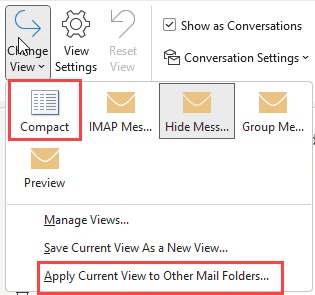
If you have Compact as view option, apply it to a folder then apply that view to the rest of the folders.
Imported folders will use IMAP views and say "Filter Applied" in the status bar, as seen in this screenshot, and of course, no messages are visible in the folder.
To fix this, you can edit the folder property using MFCMAPI or change the property using a macro, PowerShell, or a VBScript.
PowerShell and VBScript won't require you to change macro security, you just need to run the script. The VBScript only changes the selected folder, while the PowerShell script will change all subfolders under the selected folder.
I also have two macros below, the first macro changes only the selected folder's PR_CONTAINER_CLASS property to IPF.Note if the folder type is IPF.Imap. The second macro checks the folder and subfolders.
Once the folder's class is changed and you refresh the folder, the Views available are the normal folder views. (Select a different folder than the one you changed to refresh the folder.)
VBScript
To use this VBScript, copy and paste into Notepad then save with the .vbs extension. Select the folder you need to change then double click to run it the VBS.
PropName = "http://schemas.microsoft.com/mapi/proptag/0x3613001E"
Value = "IPF.NOTE"

Set oOutlook = CreateObject("Outlook.Application")
Set oFolder = oOutlook.ActiveExplorer.CurrentFolder
Set oPA = oFolder.PropertyAccessor

FolderType = oPA.GetProperty(PropName)

'MsgBox (FolderType)

If FolderType = "IPF.Imap" Then
   oPA.SetProperty PropName, Value
End If
PowerShell to change folder type
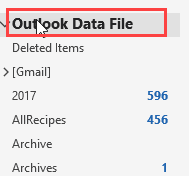
To use this PowerShell, select the root folder in the PST file, usually named Outlook Data File and run the code. Because this script lists the folders and the folder type, you can run the script a second time on the folders to verify they changed to IPF.Note.
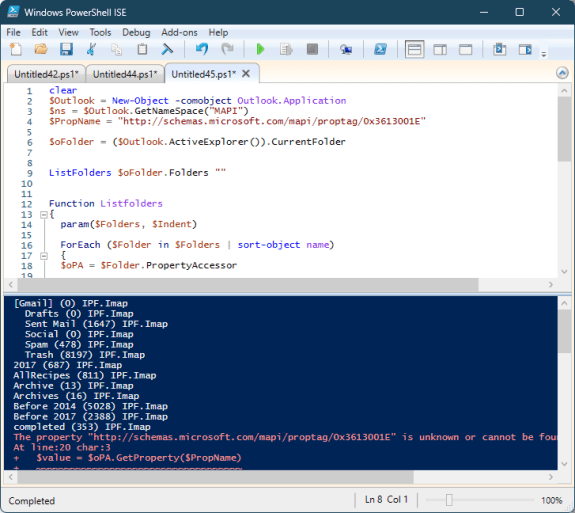
If you only have one or two errors (red text as seen in my screenshot below), they can be ignored, in my tests, its generated on the Outbox and Deleted Items folders
Note: In my tests, the view on a few folders didn't change until after I restarted Outlook, even though the folder type changed.
clear
$Outlook = New-Object -comobject Outlook.Application
$ns = $Outlook.GetNameSpace("MAPI")
$PropName = "http://schemas.microsoft.com/mapi/proptag/0x3613001E"

$oFolder = ($Outlook.ActiveExplorer()).CurrentFolder

ListFolders $oFolder.Folders ""


Function Listfolders
{
  param($Folders, $Indent)

  ForEach ($Folder in $Folders | sort-object name)
  {
  $oPA = $Folder.PropertyAccessor

  $value = $oPA.GetProperty($PropName)
    write-host $Indent$($Folder.Name)" ("$($Folder.Items.Count)")" $value

   If ($value -eq 'IPF.Imap')
   {
    $oPA.SetProperty($PropName, 'IPF.Note')
    }

    Listfolders $Folder.Folders $Indent"  "
  }
}
Using PowerShell Scripts
To use PowerShell scripts with Outlook, start typing powershell on the start menu and open Windows PowerShell when it comes up. Windows PowerShell ISE has a script pane at the top, which is useful if you want to edit the script.
Paste the entire script in the PowerShell window and press Enter or the Run button if using PowerShell ISE.
Note: PowerShell scripts will not work with the Windows Store version of Office. You'll need to use a VBA macro version if you have the Windows store version of Office installed.
Saving PowerShell Scripts
If you want to save the script as a .ps1 file, paste it into Notepad and save it with the extension .ps1. To open it in the PowerShell IDE, type powershell on the start menu and click on Windows PowerShell IDE when the PowerShell app is found. Paste the script in the editing window.
To use it, you need to allow local scripts by running this command:
Set-ExecutionPolicy RemoteSigned
To run your saved .ps1 file, right-click on the script and choose Run with PowerShell.
VBA macros to change folder type
Option Explicit

Public Sub ChangeFolderContainer()
Dim oFolder As Outlook.folder
Dim oPA As Outlook.PropertyAccessor
Dim PropName, Value, FolderType As String

PropName = "http://schemas.microsoft.com/mapi/proptag/0x3613001E"
Value = "IPF.Note"

Set oFolder = Application.ActiveExplorer.CurrentFolder
Set oPA = oFolder.PropertyAccessor

FolderType = oPA.GetProperty(PropName)

'MsgBox (FolderType)

If FolderType = "IPF.Imap" Then
   oPA.SetProperty PropName, Value
End If

Set oFolder = Nothing
Set oPA = Nothing
End Sub
Change Subfolders
This version of the macro above will walk the folder list and change all folders from IPF.Imap to IPF.Note. This uses the folder picker and you can choose the root folder (top of mailbox) to run it on all folders in your mailbox or a parent folder to run it only on that folder and it's subfolders.
Option Explicit
Dim SubFolder As MAPIFolder

Sub ChangeFolderClassAllSubFolders()
    Dim i               As Long
    Dim iNameSpace      As NameSpace
    Dim myOlApp         As Outlook.Application
    Dim ChosenFolder    As Object
    Dim Folders         As New Collection
    Dim EntryID         As New Collection
    Dim StoreID         As New Collection

    Set myOlApp = Outlook.Application
    Set iNameSpace = myOlApp.GetNamespace("MAPI")
    Set ChosenFolder = iNameSpace.PickFolder
    If ChosenFolder Is Nothing Then
GoTo ExitSub:
    End If

    Call GetFolder(Folders, EntryID, StoreID, ChosenFolder)
        ChangeFolderContainer

    For i = 1 To Folders.Count
        Set SubFolder = myOlApp.Session.GetFolderFromID(EntryID(i), StoreID(i))
        On Error Resume Next
        ChangeFolderContainer

        On Error GoTo 0
    Next i
ExitSub:
End Sub


Private Sub ChangeFolderContainer()
Dim oFolder As Outlook.folder
Dim oPA As Outlook.PropertyAccessor
Dim PropName, Value, folderType As String

PropName = "http://schemas.microsoft.com/mapi/proptag/0x3613001E"
Value = "IPF.Note"

On Error Resume Next
Set oFolder = SubFolder 'Application.ActiveExplorer.CurrentFolder
Set oPA = oFolder.PropertyAccessor

folderType = oPA.GetProperty(PropName)
Debug.Print SubFolder.Name & " " & (folderType)

If folderType = "IPF.Imap" Then

oPA.SetProperty PropName, Value
Debug.Print "     Changed: " & SubFolder.Name & " " & Value

End If

Set oFolder = Nothing
Set oPA = Nothing
End Sub


Sub GetFolder(Folders As Collection, EntryID As Collection, StoreID As Collection, Fld As MAPIFolder)
    Dim SubFolder       As MAPIFolder

    Folders.Add Fld.FolderPath
    EntryID.Add Fld.EntryID
    StoreID.Add Fld.StoreID
    For Each SubFolder In Fld.Folders
        GetFolder Folders, EntryID, StoreID, SubFolder
    Next SubFolder

ExitSub:
    Set SubFolder = Nothing

End Sub
How to use macros
First: You will need macro security set to low during testing.
To check your macro security in Outlook 2010 or 2013, go to File, Options, Trust Center and open Trust Center Settings, and change the Macro Settings. In Outlook 2007 and older, it’s at Tools, Macro Security.
After you test the macro and see that it works, you can either leave macro security set to low or sign the macro.
Open the VBA Editor by pressing Alt+F11 on your keyboard.
To put the code in a module:
- Right click on Project1 and choose Insert > Module
- Copy and paste the macro into the new module.
More information as well as screenshots are at How to use the VBA Editor

Gaby says
Thank you a million times over! I recently had to move my email from an existing RSP who have decided to not provide email services any longer, over to Outlook 365 (bascially down to familiar functionality and email address availability).
Your Powershell Script has allowed me to avoid rebuilding 20 years of email history! All of course visible in OWA, but that's less than ideal to use.
The PS Script was easy, and now I have full access again to all of my folders in the Outook client.
Thankyou Thankyou Thankyou!
Carsten says
Thank you this was a a life saver!! I was getting ready to rebuild 50 Folders from Scratch.
Ivan says
Can you help with this please:
Compile error, Variable not defined (amp;)
Juergen says
Hi Ivan,
I have the same error message. Did you find a solution for it?
Malik Awan says
Thank you. It helped to sort the issue.
omer says
Thank you - a life saver!!
Jason says
Hi - When I try to run this macro I get a runtime error stating
The property "http://schemas.microsoft.com/mapi/proptag/0x39FE001E" is unknown or cannot be found.
Could someone help with this problem?
D J says
Diane, thank you for this. MS Support sent me round in circles, this script has saved me a huge amount of time. Cheers.
Pete Lindley says
Amazing! That automated macro on what must be 90 folders, was a god send! Thank you!! I think this needs to be more publicly available!
talex06 says
Thank you very much
I must to change more than 150 folders and your macro was perfect
a french boy
c1n2s says
Hello Diane,
I had to change from Imap to Exchange due to provider issues and couldn't see subfolders (which are many), some contacts and some dates on my mobile devices.
After I used 2nd VBA Makro all mobile devices (Android, iOs) show the subfolder. all with property "IPM.Post".
Dates are no longer visible on either mobile device.
Is there a comparable solution for this issue.
Thanks a lot for your valuable work.
CNS
Steve W says
Awesome - only word for it!
Eugene says
Legend you. Microsoft support said sorry just deal with it but the client was up my back to get is sorted.
Thanks you.
Dexter Ghelfi says
Thank you Diane, this was just what I needed. I have users with Outlook connecting to a WHM/cPanel mail server moving to office 365. Frustratingly the exported .pst files when imported into Office 365 Exchange had this problem. The macro saved so much time. It just took me ages to find your useful code here in the fist place as I had been searching for "Outlook imported email hidden in folder" not realising it was because the folder type was part of the import. It is a shame there are not more useful links to here on Microsoft's site for people migrating to Office 365
Mark says
How many times in the past few years this website helped me? I can´t counter it! For my needs, your explanation about what was happening was enough and so on Outlook 2016, on the folder with no mail, I went into the "filter applied" sign, clicked, advanced and removed the status imap filter.
Thank you again for your beautiful work!
Hémistiche says
THANK YOU !
It took me long time to find the solution. Worked perfectly with subfolders one Outlook 2016.
Roeb says
Hi, when I run the macro it says the schemas link doesnt work. Just out of interest, what is the macro getting from this website?
Diane Poremsky says
From this website: "http://schemas.microsoft.com/mapi/proptag/0x3613001E" ? It doesn't go out to that site - its used to identify the property.
Did you get any error messages?
Brian Gatt says
Hi all. I know this is an older thread but hoping someone here has solved a related issue I'm having.
I imported a PST backup file that was from an IMAP account, had the issue described above and solved it with the second macro (Massive thanks Diane!)
The follow-on issue I have is that any NEW folder I create is still automatically created as a "Folder containing IMAP Items" instead of a "Folder containing Mail and Post Items". I was expecting the new folder to inherit the settings of the parent folder but it seems there is a default setting held somewhere else?
Has anyone else experienced / solved this?
Many thanks in advance!
Brian
Diane Poremsky says
Use the first macro - uncomment
MsgBox (FolderType)
and comment out the rest -
'If FolderType = "IPF.Imap" Then
' oPA.SetProperty PropName, Value
'End If
run it on the top level folder - what is the folder type?
run it on the parent folder is you are creating a subfolder - what is the folder type?
Colin Archard says
Hi Diane,
If you are still following this info...
As I see Brian never replied, I have this same problem after a migration. Fixed all the folders but new ones still show a filter. Can this be carried out with MFCMAPI at all?
Thanks
Colin
Diane Poremsky says
You can edit the folder types using MFCMAPI. I'm just not sure what is causing the problems - I'll see if I can repro and test it.
Derek says
Worked on Outlook 2016 but now folders are not visible in 365?
Thanks
Diane Poremsky says
So the folders are visible in outlook but not in owa?
Matt says
This is fantastic, just saved me a whole lot of time. I successfully used both
macro's on office 2016 after an IMAP import.
thanks again.
Mitchell says
Schema links seem to be broken again.
Diane Poremsky says
The schema links aren't actually clickable - the object model references them.
Kevin H says
I have used this script a number of times but it looks like the schema link no longer functions.
Diane Poremsky says
Thanks, I discovered other ones were broken earlier today and need to fix them too. I'll fix this too.
Kevin H says
Thanks Diane, you're awesome. I'll be watching this space for an update!
Diane Poremsky says
The schema links should all be fixed now - if you notice any I missed, let me know. Thanks again.
Kevin H says
Thanks again Diane, works great now!
Kev says
I just would like to thank you as your solution worked perfectly with macros on folders/subfolders... You make me win a lot of time certainly !
I wish I found your article 2 or 3 weeks ago, since I also met the "hidden messages in folders" issue, and I didn't understand why Outlook-shit didn't want to display it....
Thank you again for your article!
Juan says
Hi. Unfortunately it didn't work for me. Pasted the first string into module but when clicked run it came back with several errors. Also my "IMAP Messages" tab option under Change View is missing?
Diane Poremsky says
If the imap views are missing, it ran or the folders weren't imap folders.
Do you remember what the errors were? Were any of the lines red?
Scott Craver says
Folder were visible in Outlook and online Office 365 but not in iPhone Mail App or Outlook App. Ran Macro following description and it changed folder properties perfectly. Outlook took a little while to sync but it worked. Had to delete email account on Iphone Mail, restart phone and reloaded mail with Mail Days to Sync set to No Limit. After a few minutes all folders and emails were visible and syncing worked when moving email. Thanks for the help!
coney says
Hi Your solution worked like a dream on my laptop all folders now visable but the are still not showing on my iphone 4
Any ideas
Diane Poremsky says
What type of email account do you use? If you used this fix, then you are probably have the mail in a pst file on the computer and the phone syncs with the mail server. They'd need to be in the imap account to sync them to the phone.
Jon says
Worked flawlessly and in a matter of seconds for at least 50 subfolders... obviously end user needs some experience in pasting macros and running them.
Thanks for providing this to us.
Sergio says
You are wonderful... your script is fantastic !!!
I have another probem, now all folders are correct and IMAP is gone....
But on Exchange on Line I ca't syncronyze those folderes with my Android device!
I tryed to create an account on a Ipod Touch ... and there I see those folderes
Thank you from Italy
Ciao
Sergio
Diane Poremsky says
Do the folders show up on the android but are empty or don't they show up at all?
Marc says
Kudo's!!!
Dave says
BRILLIANT! Converted from IMAP to exchange cloud and solved the sync issues I was having!!!
Mads Jensen says
Worked like a charm!
Known as 332 says
Very useful. Just did a gmail --> outlook conversion via 1) set up gmail as IMAP, 2) imported IMAP into separate folder, 3) set up gmail as a POP3, 4) copied folders from imported IMAP into POP3 folder...this fixed the last barrier. Now I have in outlook the original labels from gmail, the use of categories that IMAP doesn't allow.
One thing I did first was to go through in gmail, and rid most emails of multiple labels (decided go-forward rules first, and then batch removed labels to fit rules). Pareto process so some duplicates, but took off thousands of lables.
Your help on a number of elements has been great!!!