The method depends on the version of Outlook. Unless you set a registry key, Outlook displays only the headers, not the full message source. If viewing headers is something you need to do often, use a utility or VBA code to view and copy the headers.
Beginning with Outlook 2003, you can view the header and full message source together by adding the SaveAllMIMENotJustHeaders value to the registry. For more information and ready-to-use reg files, see View the Message Source in Outlook
For a more readable copy of the Internet headers in Outlook 2007 and newer, use a VBA macro or PowerShell to create a readable copy of the headers in a new message form. Get the code sample from Get Outlook's Internet Headers using VBA or PowerShell.
Outlook 2010 and up
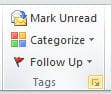 In Outlook 2010 and up, when you use the default settings, you need to OPEN the message and either go to the Tags section of the ribbon or go to File, Properties. Skip past the video to learn how to avoid opening the message to view the header.
Click on the Expand button (highlighted in yellow) in the lower right corner to show the Message options dialog.
View Internet header Video Tutorial
Add Message options to Quick Access Toolbar (QAT)
You can also add the Message options command to the Quick Access Toolbar (QAT) so you don't need to open the message (and can use a Ctrl+n shortcut).
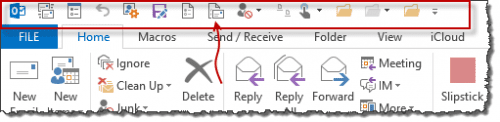
- Go to File > Options > Quick Access Toolbar.
- In Choose Commands From, select Commands Not in the Ribbon
- Click in the list of commands and press M on the keyboard
- Scroll to find Message Options...
- Click Add >> to add it to the QAT.
Add Message options to QAT Video Tutorial
[wpvideo ePOAvhEf w=500]
Outlook 2003 and Outlook 2007
Method #1: Right-click the message in the folder view, then choose Options.
Method #2: In an open message, choose View | Options.
With either method, you'll see the Internet headers portion of the Message Options dialog.
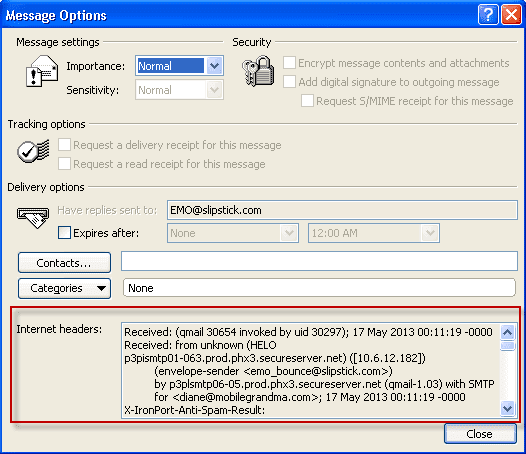
In Outlook 2007, you can also click the Expand icon (see screenshot in Outlook 2010 and 2013 instructions.)
Tools
More Information
Internet Mail Issues with Microsoft Outlook
View the Message Source in Outlook
Use VBA and CDO to view or copy the headers (and source). Outlook's security warning is triggered unless you use Redemption.
Retreiving Internet Headers Using VBA in Outlook 2007/2010

Alexander Breeding says
Can this be added to the online version of Outlook or only to the installed application? Thanks.
Diane Poremsky says
only to classic Outlook. Sorry. At this time, neither new Outlook nor Outlook on the web has the option to add to the ribbon.
JRStern says
Does not seem to work in Outlook 2013 - no "message properties" in list.
Diane Poremsky says
It's Message Options, not message properties.
Reinier Post says
Thank you very much - i wanted an easy way to view message headers in Outlook 2010 and this is exactly the information I needed!
Clint Johnson says
In Outlook 2007 you could check the internet headers without actually opening the message. This was a good way to check suspicious emails and delete them without having to open the contents of the message. Having to open the message to check the internet headers is a serious security flaw in Outlook 2010 and 2013
Diane Poremsky says
You can customize the QAT to avoid opening the message in 2010 and 2013. I probably should switch the instructions around so its more clear. :)
However, if you can use VBA, I have a nifty macro that puts the header into a new mail message so its easy to read.
KevinA says
This helped mask the bad decision someone made but it took me awhile to find the QAT! It is the ROW of objects at the top most left, for those that use then scream when they can't find stuff and then read the manual.
Thomas Morris says
I wish I had looked for this sooner. And I am sorry I didn't get in on this. I checked who EMails were from using the Option in earlier than 2010 at home and at work (work for a government agency). Because of the many contacts I make in the business world, I don't always recognize what shows in the unopened messages from. Now I just have to dump a message if I don't readily identify it as I have no choice. If an application is already in the older software what does it take to be in the newer packages?
Anthony Cameron says
The instructions you give for Outlook 2010 are not valid. Out of the box, no changed ribbon etc., 2010 does not have an expend button in the Tags menu, nor does it have a "Properties" selection in the File menu. Possibly 2013 does have these things, I can't check as although we tried 2013 we have removed it; it was too problematic.
I was trying to expend the header to check on the origin of some spam, but unlike previous versions and other mail clients, I cannot find a way to do this in 2010. More Microsoft failure. I had to load the email into another mail client to look at headers.
Cheers
Tony
Diane Poremsky says
The screenshot was taken in Outlook 2010 - the instructions are correct. Did you open the message first?
Ken Shackel says
I have outlook 2010 and neither the expamd button nor the file/properties worked - nothing there about showing headers.
Diane Poremsky says
Did you open the message first? Only adding the Message options button to the QAT will work with selected messages.
J. Andrew Smith says
In previous versions of Outlook you didn't have to open a message first -- that's dangerous! If you want a message's headers, it's usually because the message is suspect, so you DON'T want to open it. Now you have to! Who at Microsoft was PAID to make THAT idiotic decision??
Diane Poremsky says
According to their CEIP information, a very, very small % of users ever look at the headers. Additionally, messages (either in preview or opened) are quite safe - you won't get infected by opening a suspect message unless you do something stupid, like click a link. That said, you can add the Message Options button to the QAT so you don't need to open the message first. It's the first thing I do when I set up a system, not because I'm worried about viruses, but because I'm lazy. :)
charlie arehart says
Hi Diane, related to this, do you (or does anyone there) know how to search emails for text in the headers, using the Advanced Find feature in Outlook?
Some may know that we can create rules based on values in headers, but there's no option for "message headers" in the Advanced Find feature, which many folks on the web have asked about, yet no one's ever answered.
Does anyone at Slipstick (or anyone at all) know if there's a way to get it to work? It would be really valuable.
(Let me add that some on the web have misunderstood this question, thinking that this is asking for a way to search individual headers. That's not necessary at all. We would be happy simply to search among all the headers in each message (which not much text at all, as Diane's entry above will help anyone see if they've not noticed before).
Thanks for any thoughts.
Diane Poremsky says
Unfortunately, you can't search the internet headers using advanced find. The work around is to use a rule based on words in the header to add a category to the message.
Jeffrey says
I do find it interesting that MS changed how to view full headers in 2010. Yes, lets open emails that you are concerned about and used to be able to see the header information prior to open. This does not seem very smart in the real world. I would rate this change as a -200 on a 1-10 scale.
Diane Poremsky says
Yes, its annoying, but if you add the button to the QAT, its just as fast to access as before, without opening the message. And you'll get the QAT shortcuts (Alt+number).