An Outlook user had a problem: delegates drafted messages for their managers and needed to save them in the manager's Drafts folder.
If the delegate creates a Draft email (not sent yet) and wants to save it in the manager's Draft folder, there is no easy way to do that. It automatically saves in the Delegate's Drafts folder by default. We tried moving it from the delegate's folder to the manager's folder, but then the manager does not have access to edit it. So we had to copy it, and then delete the copy from the Delegate's folder. This is crazy as it involved many more steps and is not efficient.
They discovered they could use the Move to Folder command to save the Drafts in the manager's Drafts folder and save a few steps. While the Move to Folder command is easy to use, especially when the folder you want to move to is on the MRU list, you can save a step or two by using a macro to move the draft.
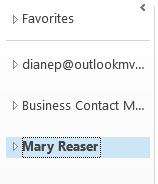 To use this macro, paste it into a module in the VB Editor then change the Destination folder name. Use the mailbox or data file name as it appears in your folder list; Exchange server mailboxes will use the display name as seen in the GAL.
 Open a new message form and customize the ribbon or QAT by creating a button for the macro.
Create a draft message then click the button to move it to another folder.
Move to a folder macro
Sub MoveDraftMail()

    Dim objOutlook As Outlook.Application
    Dim objNamespace As Outlook.NameSpace
    Dim objSourceFolder As Outlook.MAPIFolder
    Dim objDestFolder As Outlook.MAPIFolder
    Dim objItem As MailItem

    Set objOutlook = Application
    Set objNamespace = objOutlook.GetNamespace("MAPI")
    Set objSourceFolder = objNamespace.GetDefaultFolder(olFolderDrafts)
    Set objItem = objOutlook.ActiveInspector.currentItem
    Set objDestFolder = objNamespace.Folders("Mary Reaser").Folders("Drafts")

    objItem.Move objDestFolder

    Set objDestFolder = Nothing
End Sub
Customize the macro
You can use this macro with other Outlook item types by changing the objItem and folder names. For example, I want to save contacts in my Sharepoint list, so I changed three lines to the following:
Dim objItem As ContactItem
Set objSourceFolder = objNamespace.GetDefaultFolder(olFolderContacts)
Set objDestFolder = objNamespace.Folders("SharePoint Lists").Folders("SPS - Contacts")
To use the currently selected folder as the source folder, use
Set objSourceFolder = objNamespace.ActiveExplorer.CurrentFolder
| Dim objItem As Item Type |
|---|
| AppointmentItem |
| ContactItem |
| MailItem |
| NoteItem |
| TaskItem |
| GetDefaultFolder types |
|---|
| olFolderCalendar |
| olFolderContacts |
| olFolderDeletedItems |
| olFolderDrafts |
| olFolderInbox |
| olFolderJunk |
| olFolderManagedEmail (Exchange only) |
| olFolderNotes |
| olFolderOutbox |
| olFolderSentMail |
| olFolderTasks |
| olPublicFoldersAllPublicFolders (Exchange only) |
Permissions
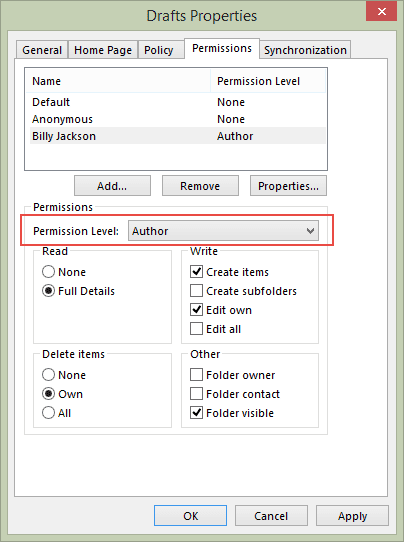
Please note, the user needs to have at least Create permission on the folder they are moving the item to. If the folder is in another person's mailbox, the folder (or the mailbox) needs to be open in Outlook as a shared folder or mailbox.
How to use macros
First: You will need macro security set to low during testing.
To check your macro security in Outlook 2010 or 2013, go to File, Options, Trust Center and open Trust Center Settings, and change the Macro Settings. In Outlook 2007 and older, it’s at Tools, Macro Security.
After you test the macro and see that it works, you can either leave macro security set to low or sign the macro.
Open the VBA Editor by pressing Alt+F11 on your keyboard.
To put the code in a module:
- Right click on Project1 and choose Insert > Module
- Copy and paste the macro into the new module.
More information as well as screenshots are at How to use the VBA Editor

Guy Stewart says
I am trying to create a macro to move contacts to a sub folder of contacts call piesync, I changed the following lines in the base Macro from Dim objItem As MailItem to Dim objItem As ContactItem the second line from Set objSourceFolder = objNamespace.GetDefaultFolder(olFolderDrafts) to Set objSourceFolder = objNamespace.GetDefaultFolder(olFolderContacts) and the third and final line from Set objDestFolder = objNamespace.Folders("Mary Reaser").Folders("Drafts") to Set objDestFolder = objNamespace.Folders("Test Contact for Piesync").Folders("Contacts"). When I go to test it i receive "Invalid outside procedure".
^Corentint says
Sorry, I should have said:
Hello,
Is there a way this can be adapted to non mapi folders?
Thank you in advance
Corentint
Diane Poremsky says
If you mean will it work with any outlook folder, yes.
If you mean file system folders, its possible to do but not with this macro. You need to use the FileSystemObject
Shubham says
I Want my reply all messages i.e same subject , to move to a other folder keeping just the latest one in my inbox. And i want all mail no deletions. Can u suggest ways for this
Diane Poremsky says
The macro at https://www.slipstick.com/developer/delete-older-messages-new-message-arrives/ could be tweaked to move messages ot a new folder rather than delete them.
Rob Cole says
I'm trying to modify this macro so that I can take the currently selected folder (which may not have any items in it) and move the entire folder into another. I keep getting "Object doesn't support this property or method" at this line
Set objSourceFolder = objNamespace.ActiveExplorer.CurrentFolder
I was able to get a similar macro to work using this:
Set objSourceFolder = ns.PickFolder
But would like to avoid having to go through a dialog box to pick the folder when I already have the folder selected in Outlook.
Would appreciate any help!
Diane Poremsky says
So you want to move the folder itself, not a message? I’ll take a look.
Jason j says
hI, i love this macro and the tutorials you put out.
is there a way to modify this so that it moves folders in a different invox that is not the default inbox (i have more than one inbox in my outlook to manage)?
thanks
Diane Poremsky says
Sorry I missed this earlier. Moving to another mailbox requires identifying the folder... this page has some information - https://www.slipstick.com/developer/working-vba-nondefault-outlook-folders/ - you'll need to use getfolderpath function or the method to use a shared folder in Set objDestFolder =.
For example, i have two accounts in my profile (listed in file, account settings) and would use this to move it into a folder in the second mailbox: Set objDestFolder = GetFolderPath("alias@outlook.com\Test")
cara says
This is not working for me. I am trying to archive emails from multiple email accounts in the same profile to a Gmail "All Mail" folder in one specific account. The emails get moved to All Mail, but in their current account.
I am using the GetFolderPath function that you provided, and
Set destFolder = GetFolderPath("myemailaddr@gmail.com\[Gmail]\All Mail")
Is this the correct way to reference a Google All Mail folder?
Diane Poremsky says
If this is the account you are moving into - myemailaddr@gmail.com - and the All Mail folder is visible, it should work.
Check the Sync issues folder in the myemailaddr account - Ctrl+6 to show the folder list - its near the bottom of the folder list in that account. Any messages pertaining to the messages you are trying to move?
also, if they are all Gmail accounts, you might have messages in the all mail folder sin both accounts, depending on your gmail.com settings.
Tom Benardo says
hi! this is very handy. I want to be able to move (not copy) a message to a task. I tried to use this macro, replacing destination with "Tasks" folder but I got the message it is not supported. Any ideas?
Victor Ivanidze says
There exists a third-party tool that solves this problem:
https://ivasoft.com/cooldraft.shtml
Regards,
Victor
Bartoch says
I have make a script for copy a contact list to a contact list in the public folder but if i'm not on the contact source , the macro don't work, i don't know why, thx.
I things the error come from:
Set objItem = Application.ActiveExplorer.Selection.Item(1)
Sub Movecopycontacts()
Dim objOutlook As Outlook.Application
Dim objNamespace As Outlook.NameSpace
Dim objSourceFolder As Outlook.MAPIFolder
Dim objDestFolder As Outlook.MAPIFolder
Dim objItem As ContactItem
Set objOutlook = Application
Set objNamespace = objOutlook.GetNamespace("MAPI")
Set objSourceFolder = objNamespace.GetDefaultFolder(olFolderContacts)
Set objItem = Application.ActiveExplorer.Selection.Item(1)
Set objDestFolder = objNamespace.Folders("Public folder - oky@test.com").Folders("all public folder").Folders("test")
objItem.Move objDestFolder
Set objDestFolder = Nothing
End Sub
chrisbr40 says
I'm an Outlook 2013 user but spend a fare amount of time with Outlook for Mac for one and only one feature; Message\Move\Choose Folder and its shortcut key. My work requires me to use hundreds of Outlook folder. The time saved by being able to select a message in the Inbox, hit Shift-Command-M, and start typing the folder name is immense.
Is there way to replicate this function in Outlook 2013?
Diane Poremsky says
Outlook 2013's shortcut is Ctrl+Shift+V - you can only type the first letter of a folder to jump to it, not the folder name. Plus, you could use Quick Steps to move messages.
shiv says
Hi, can you plz help.
the for atmt is running only 3 time and exits,
Diane Poremsky says
What macro are you using?
Douglas says
This Worked! Thank you for your help!!!
Private Sub Application_Startup()
Dim objOutlook As Outlook.Application
Dim objNamespace As Outlook.NameSpace
Dim objSourceFolder As Outlook.MAPIFolder
Dim objDestFolder As Outlook.MAPIFolder
Dim objVariant As Variant
Dim lngMovedItems As Long
Dim intCount As Integer
Dim intDateDiff As Integer
Dim strDestFolder As String
Set objOutlook = Application
Set objNamespace = objOutlook.GetNamespace("MAPI")
Set objSourceFolder = objNamespace.GetDefaultFolder(olFolderInbox)
' use a subfolder under Inbox
Set objParent = Session.GetDefaultFolder(olFolderInbox)
Set objManaged = objParent.Parent.Folders("Managed Folders")
Set objDestFolder = objManaged.Folders("7 Year Retention")
For intCount = objSourceFolder.Items.Count To 1 Step -1
Set objVariant = objSourceFolder.Items.Item(intCount)
DoEvents
If objVariant.Class = olMail Then
intDateDiff = DateDiff("d", objVariant.SentOn, Now)
' I'm using 7 days, adjust as needed.
If intDateDiff > 7 Then
objVariant.Move objDestFolder
'count the # of items moved
lngMovedItems = lngMovedItems + 1
End If
End If
Next
' Display the number of items that were moved.
MsgBox "Moved " & lngMovedItems & " messages(s)."
Set objDestFolder = Nothing
End Sub
Douglas says
Set objDestFolder = Session.GetDefaultFolder(olFolderInbox).Parent._
Folders("Managed Folders").Folders("7 Year Retention")
would take the mail from inbox and place it in the managed folder > 7 year retention folder correct ?
And I would replace
Set objDestFolder = objSourceFolder.Folders("@test")
With the above code to make it work?
Diane Poremsky says
I know you've already figured it, but for the benefit of others...
Correct, you need to replace the original objDestFolder object with one representing the new path. While it will work to put the entire path into one object, it's better to assign each folder to an object and split the path - VBA doesn't like a lot of dots in the object.
Douglas says
I'm hoping someone can help me. I'm trying to make a script that will take mail thats in the inbox and if it is after 60 days move it to my 7 Year Retention folder under Managed Folders in outlook. I have been able to get it to work if i want to move it to another folder under my inbox but not outside of the inbox... Please help.
Private Sub Application_Startup()
Dim objOutlook As Outlook.Application
Dim objNamespace As Outlook.NameSpace
Dim objSourceFolder As Outlook.MAPIFolder
Dim objDestFolder As Outlook.MAPIFolder
Dim objVariant As Variant
Dim lngMovedItems As Long
Dim intCount As Integer
Dim intDateDiff As Integer
Dim strDestFolder As String
Set objOutlook = Application
Set objNamespace = objOutlook.GetNamespace("MAPI")
Set objSourceFolder = objNamespace.GetDefaultFolder(olFolderInbox)
' use a subfolder under Inbox
Set objDestFolder = objSourceFolder.Folders("@test")
For intCount = objSourceFolder.Items.Count To 1 Step -1
Set objVariant = objSourceFolder.Items.Item(intCount)
DoEvents
If objVariant.Class = olMail Then
intDateDiff = DateDiff("d", objVariant.SentOn, Now)
' I'm using 7 days, adjust as needed.
If intDateDiff > 60 Then
objVariant.Move objDestFolder
'count the # of items moved
lngMovedItems = lngMovedItems + 1
End If
End If
Next
' Display the number of items that were moved.
MsgBox "Moved " & lngMovedItems & " messages(s)."
Set objDestFolder = Nothing
End Sub
Diane Poremsky says
Is it in the same mailbox as your inbox or in a different data file? If Managed Folders is at the same level as your inbox, use this:
Set objDestFolder = Session.GetDefaultFolder(olFolderInbox).Parent._
Folders("Managed Folders")
For a folder under managed folders, you'd add .Folders("Subfolder") under it. If you need to go too far down you should walk down the folders to avoid long strings with a lot of dots.
Set objParent = Session.GetDefaultFolder(olFolderInbox)
Set objManaged = objParent.Parent.Folders("Managed Folders")
Set objDestFolder = objManaged.Folders("SubFolder")
Ernesto says
I changed the code to copy emails to task folder and I am getting a 91 error on line
Set objItem = objOutlook.ActiveInspector.CurrentItem
Thte new code is
Sub CopyToTask()
Dim objOutlook As Outlook.Application
Dim objNamespace As Outlook.NameSpace
Dim objSourceFolder As Outlook.MAPIFolder
Dim objDestFolder As Outlook.MAPIFolder
Dim objItem As MailItem
Set objOutlook = Application
Set objNamespace = objOutlook.GetNamespace("MAPI")
Set objSourceFolder = objNamespace.GetDefaultFolder(olFolderInbox)
Set objItem = objOutlook.ActiveInspector.CurrentItem
Set objDestFolder = objNamespace.GetDefaultFolder(olFolderTasks)
objItem.Copy objDestFolder
Set objDestFolder = Nothing
End Sub
Diane Poremsky says
.ActiveInspector.CurrentItem works with open items, not selected items. See https://www.slipstick.com/developer/outlook-vba-work-with-open-item-or-select-item/ - you can use .ActiveExplorer.Selection.Item(1) for open items or the GetCurrentItem function for either.
However, this is erroring on the copy - you are trying to copy a mail item to tasks. You need to use Move instead. Yeah, doesn't make much sense, but it works. :)