Users report this problem: A box titled "Microsoft Office Outlook" comes up with an error message that there is a problem that the IMAP server. The error message says
Your IMAP server wants to alert you to the following: 124 (1032) That mail is not currently available.
The number 124 refers to message # 124; the (1032) is an error code.
The error message received from other IMAP servers may say
Can't read Message 9876" from IMAP Server
Where 9876 is the message number.
The error message is telling you that message number (or its attachment) is corrupted on the IMAP server.
The fix is simple: delete the message.
The problem: figuring out which message is the correct one. Numbering is based on arrival date - #124 is the 124th message you received. But, the messages are not renumbered when you delete messages so you can't count messages so its not as easy to identify the messages as it could be.
In many cases, you can find the last message downloaded and the problem message is the next one. Log into the account online and delete the problem message. (The corrupt messages need to be deleted from the account online.)
You can try viewing each message in Outlook - the bad message should error when you try to view it. Or move all of the messages to a local folder in outlook and delete all from the server, then move them back to the IMAP inbox in outlook and resync with the server.
Note: You won't get this error when you browse mail online using the AOL client or webmail as these only download the message when you click on it, while Outlook attempts to download all messages in the mailbox when it syncs with the server.
Method 1: Move all messages that are downloaded
In Outlook:
- Create a new folder. This can be in inside the IMAP root folder or in your local data file. (Right click on the root level folder and choose New folder.. it needs to be a Mail folder type.)
- Move all messages from your IMAP Inbox (or the folder that is generating the error) to this new folder. If you have a lot of messages, it may be faster to move 100 messages or so at a time. Select a message, hold Shift and select another message down the list to select the messages in groups. Drag to the new folder or use the Move to folder command to move them.
IN the IMAP account online:
- Log into your account using webmail.
- Go to your Inbox (or the folder that generated the error). There should only be a few messages in the folder. These are the "bad" messages you need to delete.
- Go to the trash folder or recently deleted folder in webmail and make sure you permanently delete the corrupted messages. This is very important - do not skip this step.
Back in Outlook;
- Move the messages back into the original folder (if desired).
- Once the messages are moved, you can delete the temp folder you created in Outlook.
Method 2: Search for 0 size messages
This method was suggested by Oscar.
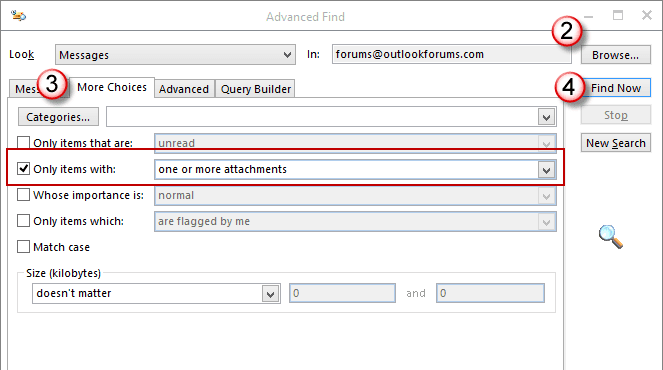
- Open Advanced Find dialog. The keyboard shortcut is Ctrl+Shift+F or you can click in the search box and a new menu “Search” will open – you will see the button for Search Tools and then Advanced Find.
- In Advanced Find, click browse, and check all the folders (and subfolders) in the email account (You might be able to click the Search Subfolders dialog box, but it didn’t seem to work for me so I checked all the boxes). Hit OK
- On the More Choices tab, click the box that says Only items with one or more attachments. Do NOT click or add anything else.
- Click Find Now (on the right).
- When all the emails have been displayed, sort by SIZE. You are only interested in the emails that show up with a size of 0 (zero). These emails will likely have attachments that add up to over 20MB. Delete them, and then delete them again from the trash bin.
- Close outlook and reopen it. Run Send/Receive All Folders and it should run without the error message.

Vincent says
I had the following:
Pop up Error "Your IMAP server wants to alert you to the following: Email is too large, limit size to less than 30 MB."
I followed the steps but instead of looking for the Zero byte files, I looked for any large files and deleted those twice and the error has disappeared! Truly fantastic!
judy says
not the problem cant even retrieve any mail keeps saying change password or delete account
Rhonda says
I tried looking for size 0 mail, I have nothing. I tried deleting my 1's and they pop back up.
Diane Poremsky says
1KB messages probably aren't corrupt, just small plain text messages. If you purge the folder contents (Folder menu, Purge button), do they stay deleted?
Susan Heider says
I have the same IMAP server message except instead of a file and/or number is says COPY failed. What do I delete in this case?
Diane Poremsky says
See if there are any clues in the Sync issues folder. If all else fails, you can delete the imap data file and outlook will rebuild it without the errors - if you use outlook 2013 or 2016 you need to export the contents of 'this computer only' folders that exist (calendar, contacts etc, not sync issues)
Walt Culver says
A slight variation of Method 2 seems to have worked -- for Windows 8 and Outlook 2013. No e-mails of zero size showed up, but some surprising e-mails did show up with many MB of attachments that I was not really aware of, and from a long time ago. I double-checked to assure that I no longer had any use of them -- some back to 2013. Then I deleted them to Trash and re-deleted them from Trash. and the dumb messages look to have stopped.
Luis says
Ms. Diane, I changed my password on my Google mail and now my Outlook does not synch with my Google email. I keep getting Your IMAP server wants to alert you to the following:
"Please log in via your web browser"
Diane Poremsky says
Are you using two factor authentication? If so, you need to use an app password in outlook.
Did you log in using a web browser to see if there were any messages in the banner the list of mail?
Michael Part says
I kept getting this message and figured it might be total size of folder since I did not have any large attachment messages. I split the folder in half and the messages went away.
Diane Poremsky says
Folder size shouldn't make a different - I'm not aware of any imap server that limits the folder size and modern versions of Outlook support an unlimited number of messages. (Old versions limited the folders to no more than approx. 16,000 items)
More likely is that there was a corrupt message and moving them fixed the corruption or deleted the message.
Jen says
I renamed a system folder now I keep getting the pop up saying: IMAP server wants to alert you the following: cannot rename system folders. How do I clear this so it stops?
Diane Poremsky says
You'll need ot create a new data file to get rid of the error. Right click on the root level folder in the folder list (probably is your email address) and choose Open File Location. This opens Windows Explorer with the IMAP data file selected. Close Outlook and delete the file. Restart Outlook and it'll create a new data file.
Sharon says
Thank you so much for having this fix available for me to read. It was a very annoying "alert"....and my mind is trained to read every "alert" sound, as it is the same as inbound email.
Carol says
I keep getting the message "IMAP server wants to alert you to the following: cannot rename system folders" How do I get rid of this constant, recurring popup? I've created a few new folders and moved mail into them but haven't tried to rename a system folder.
Thanks for any help! Carol
Diane Poremsky says
Did the new folders and the mail you moved into them upload to the server? If so, delete the imap data file and let outlook rebuild it - that should get rid of the error. (If using Outlook 2013 and 'this computer only' folder for calendar and contacts, export them first.)
If you'd rather not resync the mailbox into a new pst, look in the sync errors folders - see if an error tells you which folder it's referring to.
Roland carpenter says
Im having that same problem. Did you ever find a solution?
Madhu says
Hi Diane, How can I delete the desktop alert that I keep getting constantly when using Microsoft Outlook 2013 with the message: "Your IMAP server wants to alert you to the following: cannot remove system folder". I don't know which system folder it is referring to.
I want to import outlook 2007 pst file to outlook 2013. Do please help me ......Thanks
Diane Poremsky says
Do you have calendar, contacts, and tasks in the this computer only folder in? If so, they need exported to a pst file before you do the next step. Close Outlook, find the IMAP data file and delete it then restart Outlook.
Gene Ferraro says
I followed the instructions on this page: https://www.slipstick.com/outlook/email/your-imap-server-wants-to-alert-you/. Try each of them. Follow them carefully. If unable to resolve seek a local technician with Outlook experience. A qualified expert will likely be able to assist remotely, greatly reducing your cost.
Debbie says
My name is Debbie and I keep getting the IMAP message "Your IMAP server wants to alert you to the following: 124 (1032) That mail is not currently available" I tried the search for 0 size messages and still receive the error. I have no idea how to correct this. I just recently purchased a Samsung Note 3 and I can't get the Outlook Calendar to match up either. Please advise how I can correct these issues, if possible. Thanks
Josh says
There isn't a bulk mail folder and I don't know which folder it is talking about to delete. How can I figure out what folder it is and put something in it. And the data file associated with the account is an ost. file. Does this affect when you delete the file and outlook redo it?
Josh says
The above message is in regards to the imap alert cannot remove system folder.
Josh says
I am getting the same server message. I am using go-daddy and outlook 2013 but I have no idea what folder its talking about. Also, I am not sure which pst file they are talking about to delete. Any help would be appreciated cause my wife is about to kill me cause the message keeps popping up
Diane Poremsky says
Did you try to delete the bulk mail folder or other system folder? Try putting a message in the folder - it stops the 'can't remove system folder' error for some people.
As for deleting the pst file, it would be the pst file that matches your godaddy email address - it's located at &localappdata%\microsoft\outlook. Type or paste that in the address bar of windows explorer to jump to the folder.
Mark says
The solution to this is very simple.
1. Create a PST file and copy everything from this imap account into the PSC (don't forget calendar and contacts, as well as other items.
2, When the imap account is empty close Outlook
3. Navigate to [user profile]\AppData\Local\Microsoft\Outlook and delete the .OST file associated with the imap account.
4. Restart Outlook and copy all your items back from the PST you created.
Diane Poremsky says
Because its an imap account, you don't need to import as the email is on the server and will redownload. If you have 2013, you do need to export the special folders that aren't online.
iowaNE says
I was getting it as soon as I pasted the selfcert.exe link in the search bar. However, I since found another way to work around this. After this not working for me, I went back in and switched all of my emails to POP3 instead of IMAP and was able to direct them one INBOX ALL folder. So, I don't know if it matters if emails are a POP3 or an IMAP, but switching them to a POP3 worked for me. BUT I had to go back and delete the IMAP email addresses from Outlook. Just glad I got them to go where I want them--all in one folder! THANKS for your help! I think I will be referring often to this site! :-)
Diane Poremsky says
Yes, POP3 will fix it. If you don't need the features you get with IMAP, you can use POP3 without issue - it is easier for what you want to do.
The difference between POP3 and IMAP is that POP3 mail is deleted from the server while IMAP syncs with the server and you can access the mailbox from multiple devices and have identical mail on every device. Sent mail can sync up to the IMAP server but POP3 is one way: down.
iowaNE says
I do not understand how to create the macros.... I am following a post by tinkertry.com to help with the step by step process and helpful pictures. (he noted your site on here as well, but I think he has more step by step details--which is what I need.) :-) I was trying to create my own “Inbox All” button in Outlook 2013 1) In Windows 8, use selfcert.exe to create a certificate. I keep getting an error prompt that says windows can't find the C:program. This is the way he said to make a certificate to make a Inbox folder before doing the macro command you had suggested. Are you familiar with this and have any help for me??
Thanks!
Diane Poremsky says
At what point do you get that message?
iowaNE says
lawyerman 1000---your solution worked!! THANK YOU!!! I have been searching all over and haven't been able to figure out how to fix the pop up message of IMAP message too large problem. That's exactly what I needed to do. Thanks for saving my sanity.
Now, do you know how to merge all my email accounts into one inbox in Outlook 2013?? :-) I have several different email accounts and don't like having to go through each account separately to check my inbox. I'm using Windows 8 and Trying to get everything switched over to my new computer--taking me way longer than I had hoped. Thanks in advance for any help you have--especially if it's as easy as this was! :-)
Diane Poremsky says
IMAP accounts can't be merged because they are synced with the server -they're a copy of what is on the server. You can using instant search to create a unified inbox and use a macro to apply it.
Gene Ferraro says
Well Oscar C your lawyerman 1000 solution worked like a charm. Took only a few minutes and bang! problem solved. Lawyerman's instructions were clear and easy to use. Without the solution, I thought I was going to go out of my mind. Never knew Outlook even had a search tab. Pretty cool tools inside BTW. In any event, many thanks. Much appreciated.
Oscar C. says
I want to paste this solution that for me was excellent:
You can see this solution in:
https://support.godaddy.com/groups/email/forum/topic/imap-email-is-too-large-notification/?login=failed&topic_page=3&num=15
lawyerman1000 said 2 days, 13 hours ago:
Hi Everyone: I found a solution that worked for me – maybe it will work for you too. It is an Outlook issue (I am using Outlook 2013 and Windows 8) more so than a GoDaddy issue – and it occurs not just from sending emails – but also moving emails from folder to folder! That was my issue as I had nothing in my outbox or drafts or anything of that size.
Here is the solution:
1. Go to Outlook and run an Advanced Find. (Click in the search box and a new menu “Search” will open – you will see the button for Search Tools and then Advanced Find).
2. In the new window “Advanced Find” – on the first line, click browse, and check all the folders (and subfolders) in the email account (You might be able to click the Search Subfolders dialog box, but it didn’t seem to work for me so I checked all the boxes). Hit OK
3. Go to the second tab “More Choices” and only click the radio box that says “Only items with one or more attachments”. Do NOT click or add anything else.
4. Click Find Now (on the right).
5. When all the emails have been displayed, sort by SIZE. You are only interested in the emails that show up with a size of 0 (ZERO!!!!!). Open the emails and you will probably see that these emails have attachments that add up to over 20MB. Delete them – and then delete them again from the trash bin.
6. Close outlook and reopen it. Run Send/Receive All Folders and it should run without the error message.
7. Send me money later! :)
Good luck.
+++++++
In my case I deleted all the mesages with size of 0 (Zero), and now I dont have any problem.
Chinmaya says
I have installed Office 2013 with Windows 8 Pro. The Outlook 2013 keep popping up notifications information “Your IMAP server wants to alert you to the following: Email is too large, limit size to less than 20MB“. The problem is, no new emails are being seen in the inbox and Send/receive process hang.
Please reply ASAP
Thanks in Advances
Diane Poremsky says
Do you have large messages on the server? Syncing down to outlook is (usually) what triggers the message. You can try the reg setting here, but if the error is generated by the server, it won't help. If the error is generated by outlook, it should. I would set it maybe 10 MB over the max your server allows - don't set it to unlimited.
Diane Poremsky says
Not sure this will work, but someone said it did - and it won't do harm, so its worth trying. Right click on the Inbox, Outbox, and Sent folders and choose Process Marked Headers.
Alexis M says
I am using Outlook 2013. I followed the instructions in the link from your above reply, and it worked! Thank you very much :)
Alexis M says
I'm using Outlook 2013. I'm not trying to send a large attachment/email. It happens when I am syncing mail down from godaddy.
Alexis M says
I'm getting the error message "Your IMAP server wants to alert you to the following: Email is too large, limit size to less than 20MB" When I checked, I did not see anything in my webmail that was close to being 20MB or over that amount. I use GoDaddy.com as my webmail.
Diane Poremsky says
Are you trying to send a large message through Outlook? That is the usual cause of this error, but I had anther person say it affected their ability to sync mail down. I have a godaddy account i can test with.
Are you using Outlook 2010 or 2013? You may be able to end the error using the reg setting here: Outlook's default attachment size.
scott says
"Your IMAP server wants to alert you to the following: Cannot create - no write permission or out of disk space"
What is the fix? This message will constantly come up as long Outlook is open. I am on my second profile my wife's computer is on it's fourth profile. A little tiring to reload all your email addresses that many times. We are both running 6 IMAP accounts and one Pop account from Outlook. We are hosted by Godaddy.
Diane Poremsky says
it sounds like the disk is full or the data file is too large. What version of outlook? how much free space on the hard drive? How large are the data files?
It's also possible that the imap mailbox on the server is full- i know godaddy doesn't give a lot of space to the accounts - but when that happens, the error message is usually about being over quota.
Don says
I do this, and the only thing even close is: don@abeldetailing.com.ost
It's identified as "Outlook Data File"
There are no "Pst" files.
I'm using win 7
Diane Poremsky says
You are using Outlook 2013? If that is your email address, that is the one - BUT make sure you don't have appointments, contacts or other stuff in folders identified as (this computer only) before you rename it.
George says
Geez Diane!!! you are smart. I did Exactly what you said and it worked. thank you!!!! hats off to you!!!
Don says
I've got an IMAP problem also. How can I delete the desktop alert that I keep getting constantly when using Microsoft Outlook 2013 with the message: "Your IMAP server wants to alert you to the following: Folders cannot be created in a system folder". I'm also using GoDaddy.
Diane Poremsky says
Try this - close outlook, paste %localappdata%\microsoft\outlook in the address bar of windows explorer and press enter. Rename the IMAP pst file (it should be named for your imap address). Restart Outlook.
Eleanor Davis says
I have the same problem -How can I delete the desktop alert that I keep getting constantly when using Microsoft Outlook 2013 with the message: "Your IMAP server wants to alert you to the following: cannot remove system folder".
I made this problem by dragging the bulk folder to my favorites and then deleting it to remove my mistake. Now the messages wount stop comming. What can I do to correct this?
Diane Poremsky says
Log into the account using web access - does the folder exist?
Others with this error fixed it by deleting the IMAP data file and letting Outlook recreate it. If you do this and are storing appointments, contacts, notes, or tasks in the imap folders (in folders labeled (This computer only)), make sure you export the contents of the 'this computer only' folders first.
Josh says
Yes its an IMAP account. I did that but still I couldn't see the templates made in the web-mail account show up in the outlook folder though they have the same name too. But the inbox, sent, trash folders all act normal.
Diane Poremsky says
do you see the folder but its empty? It's possible that the template isn't supported by the imap protocol.
Josh says
Hi Diane, I need to know how to sync a folder (Templates) in my GoDaddy mail with my Outlook (Template - created) folder. The templates that I create in my Go Daddy mail and save in Templates folder are not showing in the Outlook (template-created) folder.
Diane Poremsky says
It is an IMAP account? Right click on one of the folders and choose IMAP Folders... then Query. Make sure its subscribed.
Josh says
Hi Diane, Thanks for reply. I did take care of it. I'm using Go Daddy mail. I deleted the pst folder and when I added it back then the message is gone now.
Diane Poremsky says
So it sounds like it was a transient problem. Thanks for the update.
Josh says
Hi Diane, How can I delete the desktop alert that I keep getting constantly when using Microsoft Outlook 2013 with the message: "Your IMAP server wants to alert you to the following: cannot remove system folder"
Diane Poremsky says
I've seen a lot of imap alerts, but that is a new one. Who is the imap account with? Do you know which system folder it is referring to?