Outlook 2003 introduced a new file format for the message store. It supports Unicode formatting and has no limitation in the number of items per folder or in the size of the PST. This is commonly called a Unicode PST.
The old format, now officially called "Outlook 97-2002 Personal Folders File" and commonly known as ANSI PST, has a limitation of up to 65,000 items per folder and an overall PST size of 2 GB. (If the PST was created in the oldest versions of Outlook, the number of items per folder was as low as 16,000.)
How to Determine if a PST is using ANSI or Unicode Format
Because of the large file size support, it's highly recommended that you upgrade to the Unicode PST format, however, Microsoft does not offer a tool that upgrades the PST, other than what is built into Outlook: Import/Export.
Normally we feel Import/Export is a poor choice when moving PSTs, except under specific and limited situations. Converting your PST to a Unicode PST is one of those times when using Import may be the best way.
There are three methods to do it yourself and one third party tool available to make the conversion. In all cases, it's not a true conversion - a new PST is created and your items are moved or copied to the new PST.
Methods 1 and 2 are best used with new profiles or existing profiles if they were created in Outlook 2003 or 2007. Method 1 (Import) copies every thing over to the new PST, Method 2 (manual move) is better if you want to control what is moved, keeping old items in the ANSI PST and only moving items you need going forward.
If you upgraded your version and are using a profile created in Outlook 2002 or earlier, Method 3 (archiving) is generally better.
If you are using a language such as Hebrew, Arabic, or Asian, and the font in your messages is a question mark or other symbol, try Importing (Method 1). Do not add the pst to your profile using File, Open, Outlook Data File. If Importing does not result in readable messages, you may need to contact Microsoft Support for resolution.
Make a copy of your ANSI PSTs before using any of the methods. Most of the options move the items to the new PST and if something doesn't work and you want to re-try it, you'll need another copy.
Methods: Import | Manual | Archive | Tools
Method 1: Import
This option imports copies of the items; it does not move them. The modified date on each item will be changed to the date of the import. This method works well for a large number of users and is best with a new computer with Outlook 2003 or 2007 either pre-installed or installed after purchase (not upgraded from an earlier version).
This method allows you to filter messages (importing only newer ones for example) or import items in specific folders (such as only contacts and calendar). Note that if you are only moving items in specific folders, Method 2 may be better.
- If upgrading from an older version of Outlook, create a new profile. This will create a new Unicode PST and set it as your default delivery location. If this is a new installation of Outlook 2003 and up, continue to step 2.
- Make a copy of your ANSI PST.
- Go to File, Import and Export. (File, Open, Import in Outlook 2010/2013)
- Select Import from another program or file.
- Select Personal Folder File (pst) - press P twice to locate it.
- Browse to the PST you want to import and complete the wizard. If the PST is large it may take several minutes to complete.
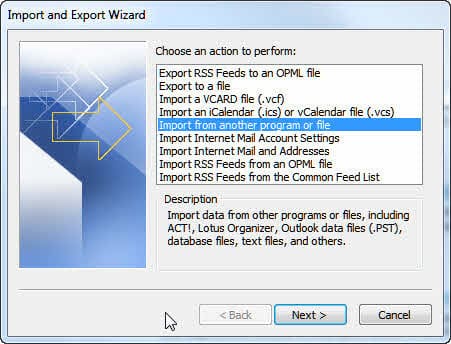
Keep in mind that when you import, you change the last modified date (so autoarchive won't work as expected) and published forms and custom views will not be imported to the new pst.
Method 2: Manual
This method is slower and best suited for PSTs with fewer folders, although it works pretty good if you have a large number of subfolders, since you can move them in one group. This is a good method to use if you are moving to a new computer as it works best with a new profile.
- Make a new profile in Outlook. This will create a new Unicode PST and set it as your default delivery location.
I recommend that you do not check for new mail until you have the items moved into the new PST. If you have mail in the Inbox, move it to a new folder called "New Mail" until you are done moving the ANSI items over. - Make a copy of your ANSI PST.
- Connect the ANSI PST to your profile.
- Move or copy the items in the ANSI PST to the new PST. I prefer Move because you can see what's been moved but you should definitely make a copy of the PST before doing this.
If you have a lot of folders and plan to retain the same folder structure you can drag the top folder and all contents, including subfolders, will be moved. - When your are done moving the items, right click on the ANSI PST and choose Close 'this personal folder' from the menu.
Using Move will preserve the last modified dates. If you move entire folders, published forms and custom views for those folders will moved to the new pst.
Video Tutorial
This video tutorial shows you how to create a new data file in Outlook 2010 (or 2007/2013). The steps are similar in older versions.
[wpvideo etYCokIj w=600]
Method 3: Archive
This method is best if you upgraded from a previous version and kept your old profile. It is highly recommended that you have a backup of the ANSI PST as messages are moved when you use Archive. Also note that flagged itemscan't be archived - you'll need to move them to the new PST or remove the flags before archiving.
- Create a new Unicode PST file in Tools, Options, Mail Setup, Data Files dialog or Files, Data File Management (Outlook 2003/2007). In Outlook 2010/2013, create a new pst in File, Account Settings, Data Files.
- Choose Add. A Unicode PST is the top option "Outlook Personal Files Folder (pst)" Complete the dialogs and return to Outlook.
- Choose File, Archive.
- Select the root of your current ANSI PST folder (this is the Outlook Today folder) in the Archive dialog.
- Set the date to tomorrow.
- Check the Include items with "do not Autoarchive checked" option at the bottom of the dialog box
- Select your new Unicode PST as the folder to archive to.
- Click Ok and Outlook archives all items from the ANSI PST to the Unicode PST (this moves all messages from your ANSI PST to the new one).
- Make the new PST your default PST. File, Data File management, select the new PST and click the Make Default button.
- Delete the ANSI PST from your profile.
After making the new PST your default delivery store, you need to verify the contacts folder is set as an address book. Right click on the Contacts folder and choose Properties. The Address book tab should have a check box to enable the folder as an address book.
Tools in the Spotlight
DataNumen Outlook Repair is a powerful tool to repair and recover corrupted Outlook PST files. Main features: recover mail messages, folders, posts, appointments, meeting requests, contacts, distribution lists, tasks, task requests, journals and notes in PST files; support to recover attachments; support to recover deleted Outlook items; support to recover oversized 2GB PST files; support to split the output PST file into several small ones; support to recover password protected PST files; support to convert PST file from Outlook 97-2002 format into the new Outlook Unicode format. |

Tools
Kernel for OST to PST software is the one-stop solution for all OST file corruption issues. It effectively repairs corrupt OST file and converts it into Outlook accessible PST file format. Individual email items can be saved in different formats including PST, MBOX, TXT, RTF, HTML, EML, MHTML, MSG and PDF. It also provides option to export OST files to Office 365 and different email servers and web mails. It supports all versions of MS Outlook (2016), MS Exchange Server (2016) and Windows OS (Windows 10). Free trial version of the tool is also available. | |
Upstart is a utility for converting and merging PSTs. It converts ANSI PSTs to Unicode, Unicode PSTs to ANSI, unencrypted PSTs to encrypted and so on. In addition it combines arbitrary PSTs. |
More Information
- The .PST File Has a Different Format and Folder Size Limit in Outlook 2003
- Convert a non-Unicode data file (.pst) to a Unicode data file (.pst)

Mike Wattam says
Hmmmppph I knew there had to be a snag somewhere! The address book has disappeared and I cannot locate any 'Contacts' folder using your instructions in the last paragraph. I still have my old ANSI file but it doesn't seem to want to import anything into the PFF format. What wrong assumptions am I using?
Thanks in advance for your kind help.
Mike Wattam says
Used method 3. First time chaos, loads of files, archives really weird. Fortunately had a back-up of old ANSI file, so deleted all the rubbish ands started again. I had made the fatal mistake of expecting almost instant results, however the conversion is very slow and appears to completely stop on occasions. If you look closely it is struggling to convert some emails, but does it in the end.
Thank you Slipstick for your thoughtful instructions. You have enabled me to overcome the ANSI file size problem I've been struggling with for years. Great stuff, there's a big world out there, it would be sooooo good to see you apply this common-sense understandable approach to all software!
Bob says
I have trtied method 3 several times. It goes so far and locks up. I have tried moving all folders at once and only one forlder at a time. Same result. Any ideas
Diane Poremsky says
Does it unlock itself? If a lot is being archived, it will go into a not responding mode, but still be working in the background.
BeavertonCougar says
I have a 9.6GB pst file and I'd like to migrate to the outlook.com cloud. I can't find any guidelines how to make this step. I would also like to hear if there are any drawbacks to the outlook.com environment as compared to the .pst. Any comments would be appreciated!
Keith Gant says
I’m on Outlook 2010 under Windows 7. I am attempting Method 2 and am on step 4. When I attempt to move a folder (which is a subfolder directly under Inbox on the old ANSI pst) to be a subfolder under Inbox on the new Unicode pst, Outlook gives the message:
“Cannot move the items. The folder ‘Inbox’ cannot contain subfolders. This is most likely a limitation of your IMAP server.” So I’m stuck.
Chrisgblues says
I REALLY want to thank you for this post! I was getting that nasty error about reaching the file limit on a daily basis, the whole program was sluggish even though I recently upgraded to Office 365! I had imported an old pst file from Office 2000 and it was still in ANSI and I wasn't aware. I just tried "Method #3" yesterday and it seems to have worked like a charm for me! Everything is faster, like it should be...and no errors yet! You have no idea how much this has helped. Kudos to you for doing the research and creating this helpful post!
Alera says
I had a problem with my Outlook 2007. I cannot expand my pst file eventhough my other pst files is 7GB while this pst is only 2GB. I received an error message "The file C:\Users\agera\Favorites\2010 E-mail.pst has reached its maximum size. To reduce the amount of data in this file, select some items that you no longer need, then permanently (shift + del) delete them".
Diane Poremsky says
Sorry it has taken so long to reply. :( That message means the pst is full - it's an ANSI format pst which cannot grow above 2GB. See https://www.slipstick.com/problems/pst-repair/repair-a-2gb-personal-folders-or-offline-folders-file/ for options to recover the contents of that pst.
Andrzej Kuhl says
I used Method 3 to archive my ANSI PST to a new Unicode. However, the process left some older emails in the ANSI PST folders. Tried to re-archive them, one folder at a time, but nothing happened. Also, all Contacts remained in teh old PST, as well as some Tasks )old ones).
1. Is there a way to get them into the new Unicode PST ?
2. How do I make the new Unicode PST my default PST in Outlook 2003 SP3 ? The File->Data File Management dialog box does not have a Make Default button.
Travis says
I followed your directions for Method #3, as this fit my scenario best, and it worked fine; except I seem to have lost all of my contacts... Anyway to recover them/import them? I have not deleted the original file yet and also have a backup. I am using Office 2010 x64 FYI. Thanks.
Diane Poremsky says
Are they not in the Contacts folder or just not in the Address book? They *should* have been imported.
If they are in the contacts folder and other contacts in the folder are in the address book, open a contact that doesn't show, copy the email address and paste into notepad. Copt it from notepad and paste into the contact and save. Is it in the address book now? If so, the addresses didn't resolve. If you have a lot, you can use a macro to fix it.
If they were not imported, open the data file in outlook, go to the contacts folder then select all, copy and paste into the new contacts folder.
Travis says
Nothing was there. no contacts, no address book, nothing. I have no idea what happened. I also deleted the original file, but I had the backup and I opened it via File/Open/'Backup' and then navigated between the contact folders and they were there and I did successfully copy/paste them over, thanks for that!
Now how do I remove this folder from showing up in Contacts folder (ie: can I now somehow 'close' it)? I am uneasy about right clicking and selecting delete.
Diane Poremsky says
In the Mail module or Folder list (Ctrl+1), right click on the backup folder and choose Close [backup folder name]
Bob Dawson says
Thanks Diane, I think I need just a little clarification of your last recommendation. For Outlook 2010, did you mean:
1. Before creating new pst file, stop syncing Contacts and Calendar with iCloud (right click on folder names in folder views / “Stop syncing with iCloud”)
2. After Import, copy the iCloud Calendar in the new Unicode pst to a location outside Outlook as an .ics file (File / Save Calendar)
3. Copy the iCloud Contacts calendar in the Unicode pst to a location outside Outlook as a .txt file (select all contacts / Save As)
4. Delete the iCloud Calendar folder (right click on iCloud Calendar group / Delete Group)
5. Delete the iCloud Contacts folder (right click on iCloud Contacts folder / Delete Folder)
6. Remove the old ANSI pst file (File / Account Settings / Account Settings / Data Files / select old pst / Remove)
7. Sign out of iCloud, sign back in
8. Set up iCloud sync to the new pst Contacts and Calendar (right click on folder names in folder views / “Sync with iCloud”)
9. Reconfigure CodeTwo to perform 2-way syncing with the new Contacts and Calendar folders.
Thanks again Diane. -Bob
Diane Poremsky says
1. Yes. I was thinking to sign out of icloud so the link to the folder is broken.
2. Not as an ics, copy to an outlook calendar and contacts folder. If you sign out of icloud, it will offer to make a backup. It'll probably put the folders in your mailbox though. (They'll have a name in the format of "current-calendar-name from iCloud" so they won;t be mixed with your current folders, but the folders will clutter the folder list.
3. See 2.
4, 5. If you sign out, they'd be gone automatically.
Yes, on the rest, well - remove the ANSI pst, import the mail if needed, sign into icloud (sign out if needed) then set up the folders to sync.
Bob Dawson says
Diane, you helped me last year with a few Outlook problems associated with iCloud. As a result, your site is my default go-to for Outlook info.
Thanks so much for publishing this procedure. I have been putting off this conversion for years, but now I have to “bite the bullet”.
I performed your Import method (as a test on a duplicate of my Outlook system running on another PC) and have two problems and a few questions:
Problem:
After finishing the Import activity and restarting (and about 45 minutes of checking data) I tried to delete the old ANSI pst file. When I selected REMOVE, I received this message:
“You cannot delete this Outlook data file. Configuration data information in the file is being copied to your new default data file. You can delete the file after this information is copied.”
It has now been over 2 hours and I still get the same message. Did I miss a step somewhere? Can I not delete the old ANSI pst file?
Questions:
After the Import activity, when I checked the number of Mail, Contact and Calendar entries, the count in the new Unicode Outlook folder was the same as the old ANSI Outlook folder. However the folder sizes were always slightly larger in the Unicode version. Does that sound correct to you?
Since I use iCloud Contacts and Calendars (and keep them in synch with Outlook using CodeTwo based on your great suggestion last year) I assume that next time (when I do this for real) I should stop the iCloud synching with my ANSI Contacts and Calendars before beginning the Import?
After the Import I assume I will have to change the CodeTwo settings to indicate 2-way syncing with the new Unicode Contacts and Calendar folders. However, when I then start the iCloud syncing, I am worried that I will get duplicate entries in iCloud (and hence my iPhone and iPad) for all the Contacts and all the Calendar items. Then they would in turn be duplicated back to my Unicode Outlook Contacts and Calendars. Then I would have to run a program to remove the duplicate Unicode Contacts and Calendar items (and hence remove the duplicate iCloud entries). Sound right to you? Do you know of any way to avoid this mass duplication?
Thanks again for your help and advice. When I do this conversion to Unicode for real on my working system, I am sure I will be more confident than I am now! -Bob
Diane Poremsky says
No, you didn't miss anything. Outlook can be slow at letting go. You'll eventually be able to delete it - try again after a reboot.
Yes, Stop syncing the iCloud with the old folders. I haven't tried it, but I would expect duplicates. It's probably better to move the contacts & appointments that are in the new pst to a backup and remove it (and the ansi pst) from outlook. Sign out of iCloud, sign back in and set up sync to the new pst. Everything should sync down and you have the backup pst to compare to. Then reconfigure codetwo to use the new pst.
Sayied Anwer says
Nice Article on Outlook pst
James R. Twine says
I have had the same outlook PST file since '02(!), been just carrying it forward all these years as newer versions of Outlook came out.
Did method 3 to upgrade the file and I have a significant performance increase when doing things like navigating folders and deleting items. A deletion could sometimes take minutes(!), and now everything is nice and fast!
Thanks for posting this article!
MADHURI says
IN OUTLOOK EXPRESS WHEN SENDING/RECEIVING IT IS SHOWING AN ERROR REPEATEDLY AS 0X8004060C. WHAT IS SOLUTION FOR CLEARING THIS GETTING THE MAILS AGAIN AS USUAL. PLEASE SUGGEST.
Diane Poremsky says
Are you using Outlook Express? That error means the pst is full if you are using Outlook. Instructions ot shrink are here: repair pst.
I'm not familiar with that error in outlook express.
Sharlan Douglas says
Not trusting my skills, I chose to purchase the Systools product to convert my Outlook pst to Unicode. What a mistake. Yes, it converted it, but there was further instruction on how to USE it -- how to hook it up again with Outlook. I ultimately have had to create my main profile, re-establishing all my email accounts, rules, signatures, address books.
Their 24/7 tech support wasn't. The only communications option was through chat with, of course, someone who does not speak English as a first language. The chat responses were UNACCEPTABLY SLOW. They literally took more than a minute to respond to each of my postings. I spent 4.5 hours on chat with them only to discover the above -- that I could not use my existing profile.
Diane Poremsky says
Why couldn't you use the existing profile? You should be able to use it but need to add the new pst to your profile in Account Settings, Data file tab and Add the converted file. Then repoint the accounts that used the old pst to the new one on the Email Accounts tab. You'll also need to repoint any rules that used the old pst...